
Getting your payment gateways set up is one of the most important steps in launching your fundraising campaign with Charitable.
In this guide, we’ll walk you through the steps to enable, connect, and configure your payment gateways in Charitable, so you’re ready to start accepting donations right away.
Payment Gateways in Charitable
Charitable supports a wide range of popular gateways so you can offer donors the options they trust and prefer.
Charitable provides four payment gateways out of the box:
In addition, you can purchase gateway extensions for the following payment gateways:
If you’d like a video walkthrough, watch our tutorial below that covers step-by-step details from setting up a campaign to accepting payments.
Below, we’ll show you how to enable and disable gateways as well as set up specific gateways for your site.
How to Enable Payment Gateways
You can enable or disable your payment gateway with just a click. Go to Charitable » Settings and open the Payment Gateways tab.
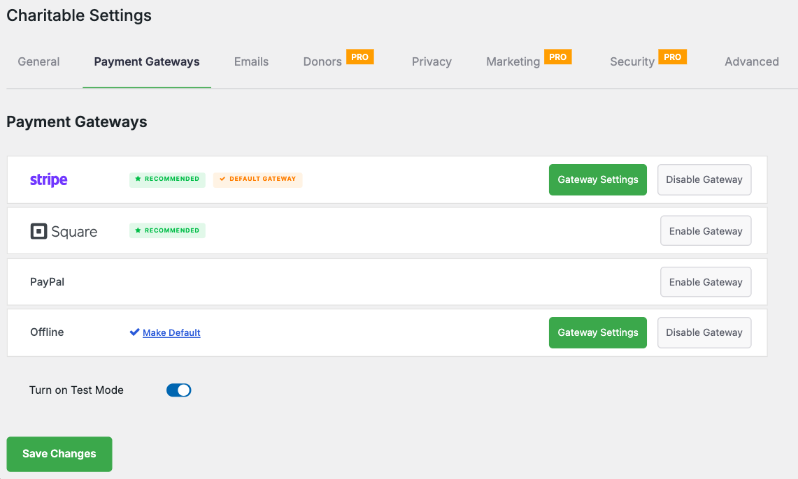
To enable a gateway, click on the Enable Gateway button in its block.
Once a gateway is activated, this button is replaced by a Disable Gateway button that can be clicked to turn off the payment gateway.
Configuring gateway settings
When you enable a gateway, a green Gateway Settings button will appear for that gateway. Click on this button to enter the settings for that specific gateway.
On the next page, you may either need to sign into your payment gateway account or add API keys to get connected.
Access gateway-specific documentation for details about setting up your chosen gateway(s). Choose your gateway from the list below:
- PayPal
- Square
- Stripe
- Authorize.Net
- Gocardless
- Braintree
- Windcave
- Payfast
- PayUMoney
- Payrexx
- Paystack
- Mollie
Using Offline Donations
With Charitable, you can easily accept and manage offline donations, like checks, cash, or bank transfers, right alongside your online gifts.
Enable Offline Donations in your payment gateway settings.
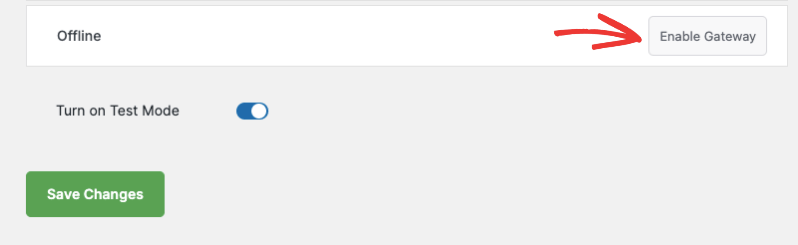
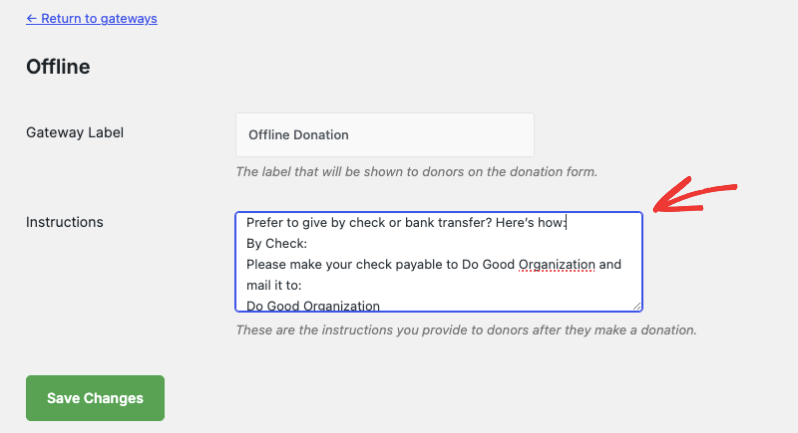
Use the Gateway Settings button to go to the next page, where you can clearly explain how donors can give by check or bank transfer directly on the donation form.
You can add custom instructions (e.g., who to make checks payable to, where to send them, or bank details for wire transfers).
Once you receive an offline donation, add it manually in your Charitable dashboard so it’s counted toward your goals and included in your reports.
When you record an offline donation, Charitable can send a personalized email receipt (just like with online donations), making every supporter feel appreciated.
All your donations—online and offline—will appear in your reports, so you always have a complete view of your fundraising progress.
Learn how to set up Offline Donations here »
Using Easy Digital Downloads gateways
With our EDD Connect extension, all donations are made through the EDD checkout. You can manage your payment gateways through the EDD Settings; Charitable’s gateways will not be used.
Find out more: EDD Connect Documentation
Get More Information
Here are some of the more popular “how to” guides and help articles for you:
- Create and Edit Donations in the WordPress Dashboard
- How to Use the Donor Management System
- Connect to Google Analytics
- Issues With Donation Emails Not Sending
- Resend Donation Emails from the Dashboard
- Widgets And Shortcodes
Want more fundraising tips and nonprofit advice?
We regularly share practical guides, proven strategies, and insider tips to help you raise more funds and build stronger donor relationships. Join thousands of nonprofits who get our best content delivered straight to them:
- Join our newsletter – Get weekly tips and exclusive guides in your inbox
- Subscribe to our YouTube channel – Watch step-by-step tutorials and success stories
- Follow us on LinkedIn – Connect with our community and get daily nonprofit insights
- Follow us on TikTok – Insightful & fun videos to help you grow your cause
- Follow us on Instagram – Fun reels and non-profit tips
No fluff, just actionable advice from people who understand the challenges you face every day.
FAQs on Payment Gateways in Charitable
Which payment gateways does Charitable support?
Charitable includes Stripe, Square, PayPal, and Offline Donations by default. For additional options, we offer premium extensions for Authorize.Net, Braintree, Mollie, GoCardless, Windcave, Payfast, Payrexx, Paystack, and PayUMoney to match your donors’ preferred payment methods.
What’s the difference between Charitable Lite and Pro?
Charitable offers a Lite version, which is free to use. You’ll only incur a 3% fee on your transactions from our end. We also offer a Charitable Pro plugin that comes with advanced features such as recurring donations, donor management, donor portal, and much more. With Pro, there are no Charitable fees on transactions. See the difference between Charitable Lite vs Pro »
How do I upgrade to Charitable Pro?
Follow our guide here: How to Upgrade to Charitable Pro.
How do I enable or disable a payment gateway?
Navigate to the Charitable » Settings » Payment Gateways tab. Click “Enable Gateway” to activate a payment method or “Disable Gateway” to turn it off. We recommend enabling multiple gateways to give donors more payment options and reduce cart abandonment.
What’s involved in configuring my payment gateway settings?
After enabling a gateway, click the green “Gateway Settings” button to connect your account. You’ll typically need to authenticate with your payment provider or enter API keys. Test your setup with a small donation before launching your campaign to ensure everything works smoothly.
How do offline donations work with Charitable?
Enable Offline Donations to accept checks, cash, or bank transfers. Add clear instructions on your donation form explaining payment methods, mailing addresses, and bank details. When you receive offline gifts, manually record them in your dashboard to maintain accurate fundraising totals and send proper receipts.
Will my fundraising reports include both online and offline donations?
Yes, all donations—regardless of payment method—appear in your reports and count toward campaign goals. This gives you a complete picture of your fundraising progress and helps with donor stewardship and tax reporting.
What if I’m already using Easy Digital Downloads for payments?
Our EDD Connect extension integrates seamlessly with your existing EDD setup. All donations process through EDD’s checkout system using your current payment gateways, while Charitable handles the fundraising campaign management and donor tracking.
Where can I get help setting up specific payment gateways?
In this guide, we’ve provided detailed setup guides for each supported gateway, including screenshots and troubleshooting tips. These step-by-step tutorials cover common issues like API key configuration, webhook setup, and testing procedures to get you accepting donations quickly.
What should I do if donors are having trouble completing their donations?
First, test your donation process yourself to identify any issues. Common problems include outdated API keys, incorrect webhook URLs, or gateway-specific settings. Check our troubleshooting guides for your specific payment gateway, and consider enabling multiple payment options to give donors alternatives.
Are there video tutorials available?
Yes! Subscribe to the Charitable YouTube channel for step-by-step tutorials and success stories.
Have more questions? If you are a Lite/free user of Charitable, you can reach out to our team on the WordPress.org support forums. If you have an active license, feel free to reach out to us directly for priority support.


