
Do you want to know what’s holding your donation website back, and fix it without guessing?
Most non-profits set up a website and then it does nothing for them. So they cancel their subscription or they don’t renew their domain and hosting plan. And that’s it.
But what if you could just have someone look at your site, tell you what’s wrong and what you need to fix. What if you could turn your basic website into an online fundraising machine that brings in donations? What if your website could manage donor records, donation receipts, fundraising reports, automatic recurring donations?
I want to help you get there. To go from a basic website that doesn’t do much to a website that takes the load off – where things are automated and you get your funds with minimal work and effort from you.
First, let’s run a free report called Site Analysis that checks your real setup and gives you a fundraising score out of 100. It takes about a minute to run, and you don’t need a developer.
Then we’ll go through what the score measures and which fixes to make first. I’ll also show you how to automate some of your processes so your website works for you.
What’s In This Guide
What Is Site Analysis?
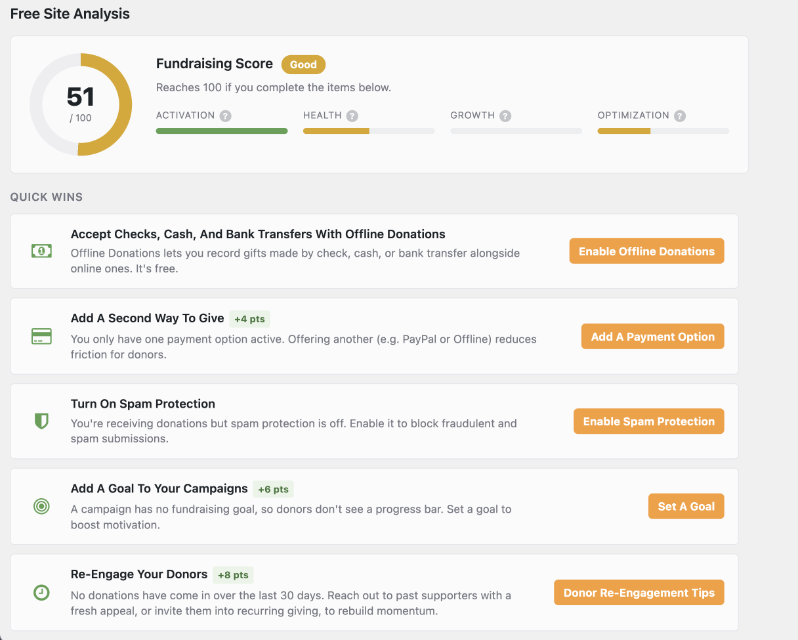
Charitable’s Site Analysis feature looks at your campaigns, payment gateways and form settings, then turns what it finds into a fundraising score. You don’t fill in anything from memory.
That’s what makes it different from most tools that score a donation page. Most of them are quizzes, where you answer questions about your own form and the tool adds up your answers.
A quiz never looks at your website, so everyone gets the same advice. If you enter incorrect information or you forget about a setting you turned on, your score is wrong too.
Site Analysis reads your live website settings instead. So every suggestion points to something it found on your site.
Here’s how that compares with a self-graded quiz.
- Your score comes from your real setup, so you don’t grade yourself.
- Each suggestion is tied to something Site Analysis found on your site.
- Each suggestion shows the points it would add, so you know which fix to make first.
- Clicking a suggestion takes you straight to the setting you need to change.
- No campaign content or donor data, including names, emails, or donation amounts, is ever sent or stored.
- It never changes your settings on its own.
- It’s already part of Charitable, so there’s nothing extra to install or sign up for.
Site Analysis is included in the free version of Charitable. You don’t need to buy anything to check your score today.
Want to see where your own setup stands? You can start with Charitable Lite for free and run your first report today.
Getting your own score takes 5 short steps.
- Install Charitable from WordPress.org
- Set up your first campaign and donation form
- Connect at least one payment gateway
- Open your dashboard and run Site Analysis
- Work through your Quick Wins, then your Opportunities
If this is your first donation form, the visual campaign builder helps you with steps 2 and 3 without any code.
I would recommend starting with these guides:
Once that’s done, you’re ready to run your report.
How to Run Your Free Site Analysis
If you’d rather watch first, this short video shows the whole process in Charitable.
Here’s what running your first report looks like, from your dashboard to your finished score.
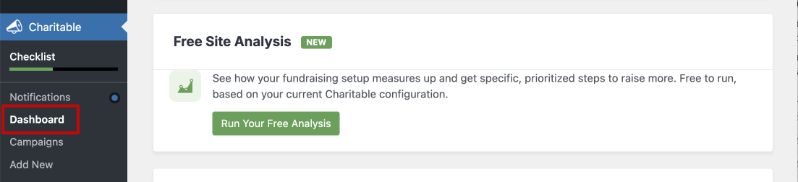
Step 1. To get started, head over to your Charitable dashboard. You’ll see a card inviting you to run your free Site Analysis.
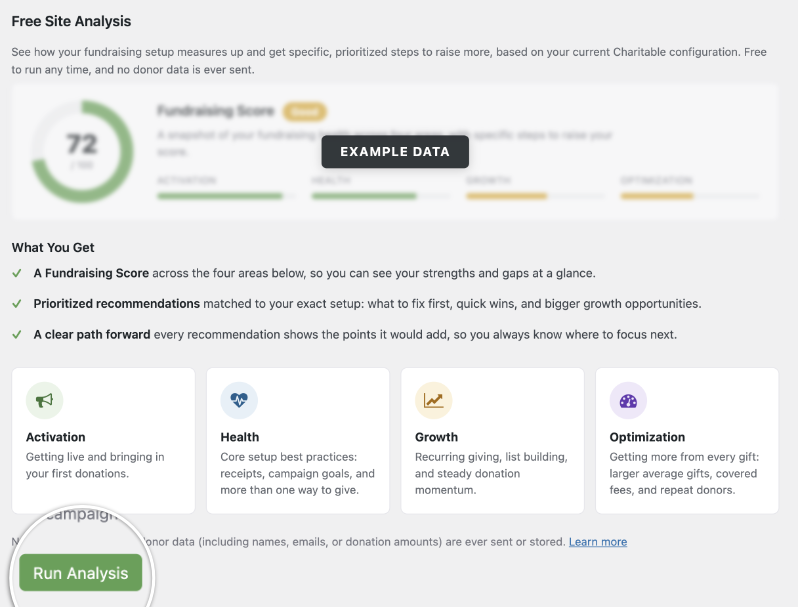
Step 2. Next, Charitable opens a short page that explains what Site Analysis checks. When you’re ready, click the green “Run Analysis” button at the bottom.
Step 3. It takes a few seconds and your fundraising score appears at the top of the report. It’s out of 100 and comes with a rating like Good.
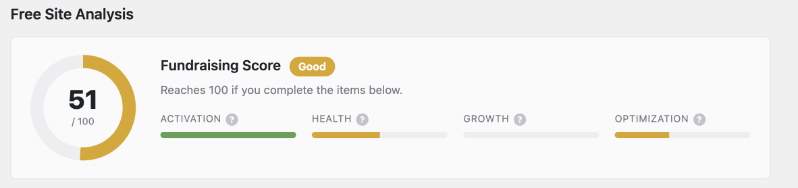
Step 4. Right below your score, you’ll find your Quick Wins, the small actions you can take right away. The most important one sits at the top, and each one shows the points it would add.
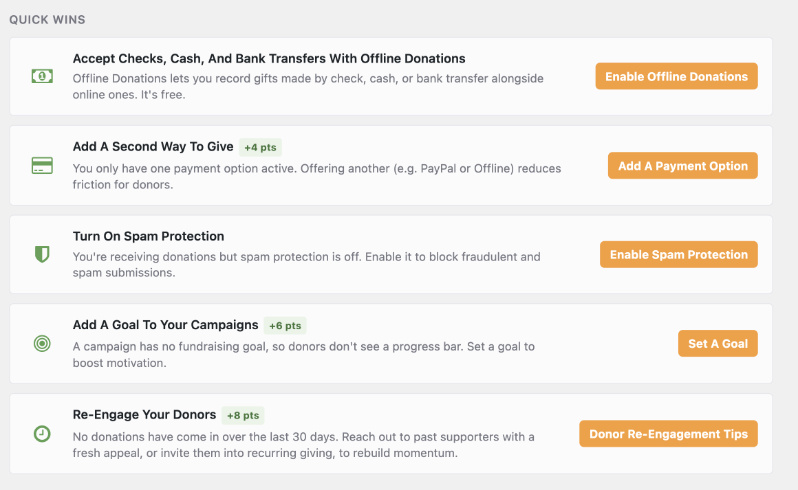
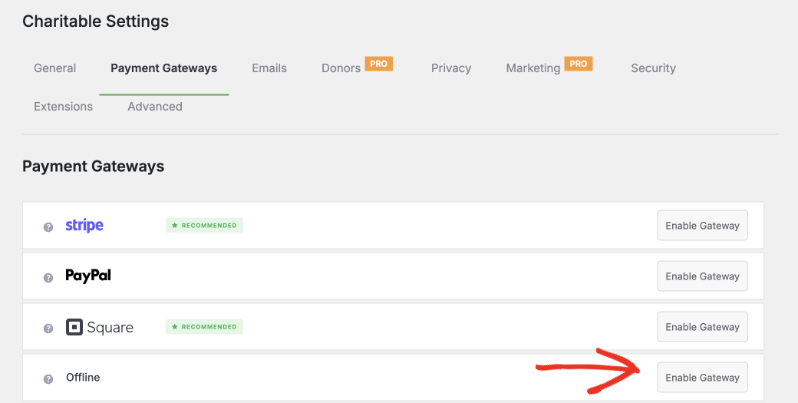
Step 5. To act on a Quick Win, click it. For example, “Enable Offline Donations” takes you straight to the Payment Settings page, where you can turn it on in a couple of clicks.
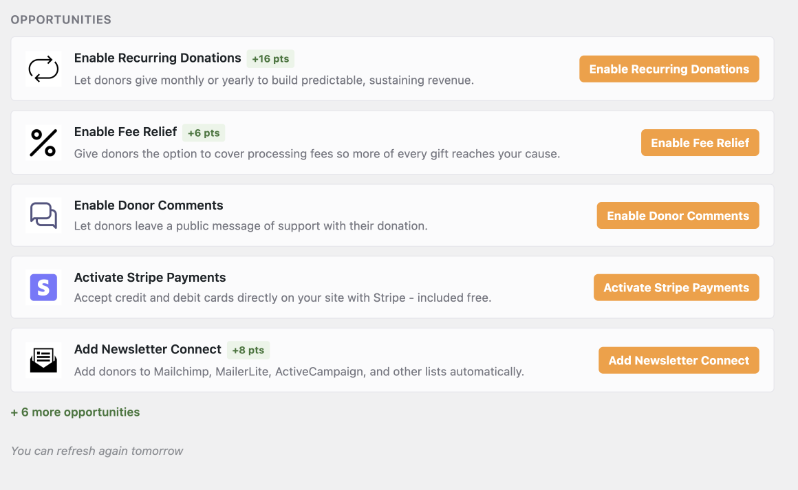
Step 6. Further down the report, you’ll reach Opportunities. These are bigger improvements to plan for once your Quick Wins are done.
Step 7 (bonus). You don’t need to run a new report just to see your score again. Your most recent report is always under Charitable » Reports » Site Analysis.
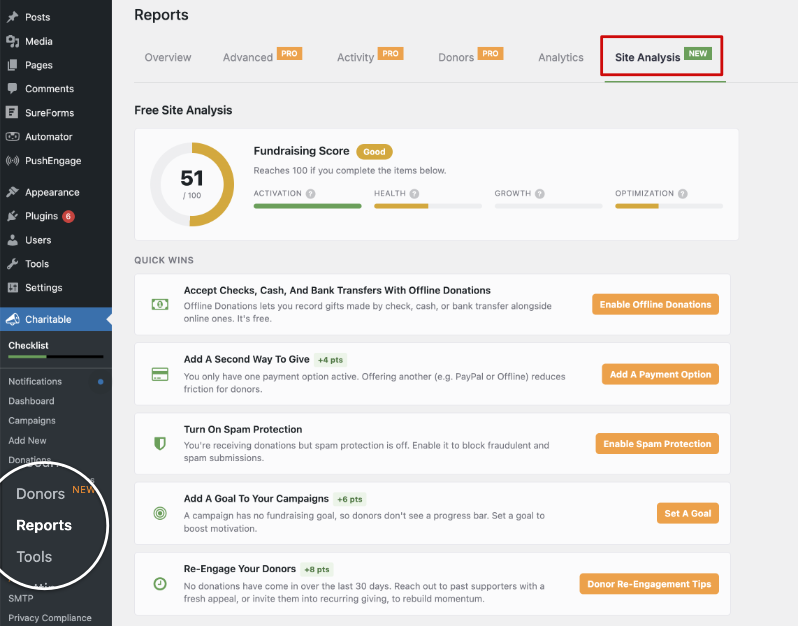
That’s it! The whole process takes less than 5 minutes. Next, let’s look at what your score actually measures.
What Your Fundraising Score Measures
Your score is built from 4 areas of your fundraising setup. Seeing them separately tells you what kind of problem you have, and one overall number can’t do that.
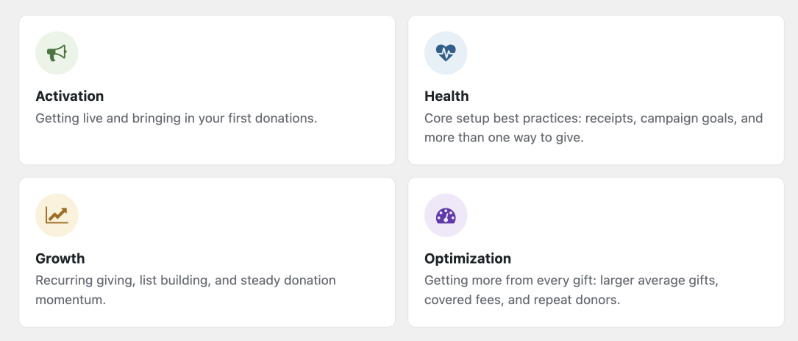
Activation is about getting live and bringing in your first donations. It checks the basics, like whether donors have a way to pay you.
Health covers core setup best practices. That includes donation receipts, campaign goals, and giving donors more than one way to give.
Growth looks at recurring giving, list building, and bringing in donations steadily over time. Recurring giving lets a donor set up an automatic gift that repeats on a schedule, usually monthly.
A low Growth score usually points to an easy improvement you haven’t made yet. It rarely means something is broken.
Optimization is about getting more from every gift. It covers larger average gifts, covered fees, and repeat donors.
Small choices on your form, like the suggested amounts you show, affect the average gift. Covered fees come from Charitable’s Fee Relief feature, which lets donors add the processing fee to their gift.
The 4 areas are scored separately. So a site can do well on Optimization and still lose gifts because of an Activation problem.
Which Fixes to Make First
Most sites don’t get a perfect score the first time. A score in the 40s or 50s is simply your starting point.
Start with the Quick Win at the top of the list and work down. If you only have 10 minutes today, fixing the top one is a good use of that time.
When you’ve finished your Quick Wins, run the report again to see how much your score went up. Fixing one thing can also bring up a new Quick Win you didn’t see before.
Look at which of the 4 areas is pulling your score down the most. That tells you what to fix first.
- Fix a low Activation score before anything else. A payment gateway or form problem affects every donor who reaches your page.
- Fix a low Health score next. Missing receipts, goals or payment options don’t show an error, so they’re easy to miss for months.
- Plan for a low Growth score once the basics work. It shows you ways to bring donors back and grow your list.
- Work on a low Optimization score last. It helps you get more from each gift once donors can already give easily.
After you make a few changes, check your donation reports and donor dashboard. That’s where you’ll see whether the fix brought in more completed gifts.
A good habit is to check your score after any change to your donation form or campaign setup. It also helps to check every couple of months, even when nothing seems wrong.
For page design ideas that go beyond your settings, read our guide on how to build a donation page that converts.
To learn more about each part of the report, see the Site Analysis documentation. The Site Analysis announcement has more on what the feature does.
How to Automate Your Donation Website With Charitable
Once your score is going up, the next step is to take work off your plate. Charitable can do the jobs you’d otherwise do by hand after every gift.
Some of this already works in the free version. The rest comes with Charitable’s paid plans, so you can add it when you’re ready.
Donation Receipts
Every donor gets an email receipt as soon as their gift is completed, and you get a notification too. This is included in the free version, so you never have to write a receipt by hand.
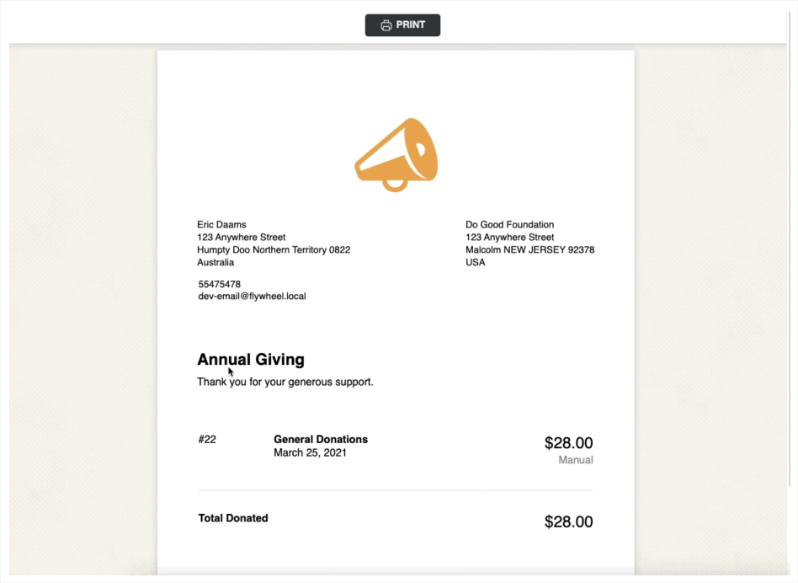
On the Basic plan and higher, Charitable’s PDF Receipts feature sends a branded PDF with each gift. On the Plus plan and higher, the Annual Receipts feature sends each donor one summary of everything they gave that year.
Our guides show you how to set up automated donation receipts in an hour and send annual donation summaries to donors.
If you run a church, learn how to set up branded church receipts »
Donor Records
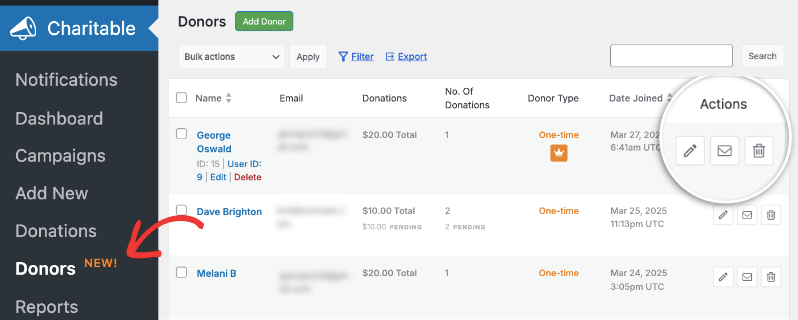
Charitable saves a donor record with every gift, so your donor list builds itself. You can view, edit and export your records to a CSV file at any time, and they belong to you.
On paid plans, the Donor Dashboard gives each donor their own page on your website. They can log in to see their giving history and download their receipts, so they don’t need to email you to ask.
Fundraising Reports
Charitable’s reports show how much you’ve raised and how each campaign is doing. You don’t need to build a spreadsheet to get those numbers.
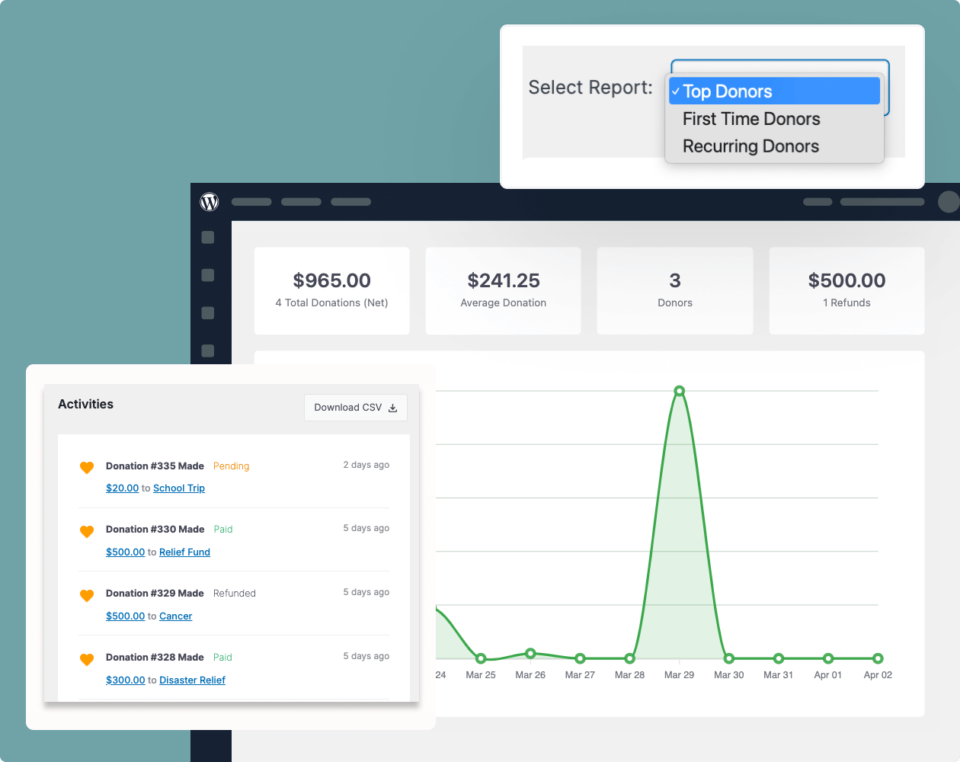
Not sure which numbers to look at? Our guide to the fundraising reports every nonprofit needs walks you through them.
Recurring Donations
Charitable’s Recurring Donations feature lets a donor set up a gift that repeats every month, or on the schedule they choose. The gift is charged automatically and the donor gets a receipt each time, so the money keeps coming in without a new ask.
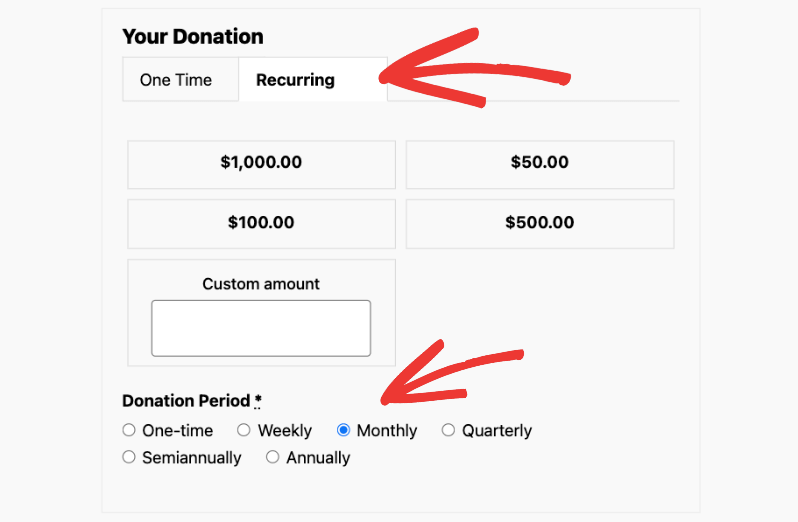
Recurring Donations is in the Charitable Pro plugin, Plus plan and higher. To set it up, follow our tutorial on how to automate donations in WordPress.
Email Lists and Everything After a Gift
On the Plus plan and higher, Charitable adds each new donor to your email list in tools like Mailchimp, Brevo, ActiveCampaign or MailerLite. Our nonprofit email marketing guide shows you what to send them next.
Charitable’s Automation Connect feature goes further. When something happens, like a new donation or a cancelled recurring gift, it runs the actions you choose.
For example, it can add the donor to your CRM or send your team a message in Slack. It also connects Charitable to apps like Zapier.
You build each automation on a canvas with the Visual Automation Builder, with no code. Automation Connect is in the Charitable Pro plugin, Pro plan and higher.
For more ideas, read our nonprofit task automation guide. Every paid plan comes with a 14-day, no-questions-asked money-back guarantee.
Not ready for a paid plan yet? You can start with Charitable Lite for free. It comes with automatic email receipts, donor records, reports and your free Site Analysis.
Let Your AI Assistant Do the Work With WPVibe
Now it’s easier than ever! If you already use ChatGPT, Claude or another AI assistant, you can connect it to your website and ask it to do your Charitable work for you.

You type what you want, the same way you’d ask a coworker. Here are a few things you can ask for.
- “Set up a fundraiser for the animal shelter with a $5,000 goal.” Your campaign is built in the campaign builder and saved as a draft for you to review.
- “Someone posted a check for $250 from Jane Smith, record it.” The donation is added to the right campaign.
- “Add a question to the donation form asking how they heard about us.” The new field appears on your form.
- “Who are our biggest supporters this year?” You get the answer in seconds.
- “Export this year’s donations as a spreadsheet.” You get a CSV download link right in the chat.
Your AI assistant can’t reach your website on its own, so something has to connect the 2. That’s WPVibe, a free WordPress plugin built by the team behind SeedProd.
To get started, head over to Charitable » Tools » AI MCP and click Install & Activate WPVibe. Then follow WPVibe’s steps to connect your assistant. It takes about 10 minutes, and you only do it once.
You’ll need WordPress 6.9 or later and the Charitable Pro plugin, version 1.8.18 or later. It works on free AI plans, and there’s nothing extra to buy.
Our guide to getting started with AI assistants walks you through each step. You’ll find prompts to try and a full video walkthrough on the Charitable + AI page.
How Charitable Keeps Your Website Safe
Is it safe to let AI into your website? This is the question we hear most, and it’s a fair one. Charitable is built so you stay in control of what your assistant can do.
- A newly connected assistant can only read your data. It can’t change anything until an administrator turns on Enable AI Write Access under Charitable » Tools » AI MCP.
- Campaigns your assistant creates are saved as drafts, so a person still decides what goes live.
- Your assistant acts as you, so it can’t see or change anything your own login couldn’t.
- Your Stripe, PayPal and Square keys are never shared with your assistant, whoever is asking.
- Donor lists never include email or postal addresses. You choose which roles can let an assistant see donor contact details.
- Your assistant can’t permanently delete a campaign. It can only move one to the trash, which you can undo.
- Every change your assistant makes is recorded under Charitable » Tools » Logs, so you can always see what happened.
If you change your mind, turn write access off again. Your assistant stops making changes straight away, and Charitable keeps working as normal.
When you ask your assistant about donors, the answer is sent to that AI company so it can reply. If you plan to ask about donor records, it’s a good idea to read your AI provider’s data policy first.
To choose who can share donor details, see how to control what your AI assistant can see and export. For the bigger picture, read our nonprofit website security guide.
FAQs on Improving Your Donation Website
Is a donation page score checker more useful than a checklist?
Yes, for most people. With a checklist, you still decide whether your own setup passes. A checker that reads your settings does that part for you and ties each point to something it found.
Why do most donation page scoring tools ask me to grade my own page?
Most of them aren’t connected to your website. Without access to your setup, a quiz is the only way they can give you a number.
Does Site Analysis cost anything?
No. It’s included in the free version of Charitable.
Does running the report change any of my settings?
No. Site Analysis only reads your current settings. A change, like turning on offline donations, happens only when you click through and make it yourself.
Is any donor data used to calculate my score?
No. No campaign content or donor data, including names, emails, or donation amounts, is ever sent or stored. The report only looks at your Charitable settings.
How often should I check my score?
Check it after any change to your donation form or campaign setup. It’s also a good idea to check every couple of months.
Is Site Analysis available on Charitable’s paid plans too?
Yes. Site Analysis is in the free version of Charitable, and it’s also in the Charitable Pro plugin from version 1.8.19.
What should I do if my score is low?
A low score means you have more room to improve. Start with the top Quick Win and work down the list.
What counts as a good donation page score?
There’s no single passing number, because every site starts from a different setup. Aim for your score to go up each time you run the report.
Can I run Site Analysis on more than one campaign?
Site Analysis scores your whole Charitable setup, not one campaign. Your gateway, form and donor settings across the site all show up in the same report.
Can Charitable send donation receipts automatically?
Yes. The free version emails every donor a receipt as soon as their gift is completed. Paid plans add branded PDF receipts and yearly giving summaries.
Do I need to know how to code to automate my donation website?
No. Receipts, recurring donations and email list sign-ups are all set up with point-and-click settings. Automation Connect uses a visual canvas, so you don’t write any code there either.
Which AI assistants work with Charitable?
ChatGPT, Claude and Cursor all work through WPVibe. Any assistant that supports MCP, the shared standard AI assistants use to connect to other software, can work with Charitable too.
Is it safe to connect an AI assistant to my donation website?
Yes. Your assistant can only read your data until you turn on write access, and anything it creates is saved as a draft. Your payment keys are never shared, and every change is recorded in your logs.
Ready to find out what your donation website needs? Run your free Site Analysis today and start with your first Quick Win!
Charitable Has 1.2+ Million Downloads!
Trusted by millions to power successful fundraising campaigns. Try Charitable risk-free today.
✅ 14-day money-back
✅ Transparent pricing
✅ Code-free setup
Stay Connected for More Nonprofit Resources
For more tutorials and videos tailored to nonprofits, subscribe to our YouTube channel. We regularly publish expert tips, step-by-step guides on online donations, fundraising strategies, and practical resources to help your organization succeed.
🗞️ Get weekly tips and exclusive guides in your inbox
Join our newsletter →
🎥 Watch step-by-step tutorials and success stories
Subscribe to our YouTube channel →
👩🏽💻 Connect with our community and get daily nonprofit insights
Follow us on LinkedIn →
🥳 Fun reels and non-profit insights
Follow us on Instagram →
👀 Insightful & fun videos to help you grow your cause
Follow us on TikTok→
🌎 Subscribe and follow for general fundraiser tips
Get Fundraiser Tips on TikTok →
Powerful Fundraising Resources
🤖 Use Charitable with Your AI Assistant
⬇️ Download proven strategies, campaign ideas, and expert tools
Get the Fundraising Kit →
💸 Get Free Fundraising Resources
Head to the Charitable Fundraising Hub →
🤔 Got questions about Charitable?
Charitable FAQs →
🏎️ Take Charitable for a spin
Create your Charitable Demo →
Understand non-profit terms and jargon
Non-Profit Glossary →
% Looking for non-profit deals and discounts?
Best Non-Profit Deals and Discounts →







Leave a Reply