
Have you realized that more people abandon their donation forms than you thought? Looking to recover this revenue?
A while back, I was reviewing analytics for a small animal rescue that had been running the same donation campaign for weeks. Their donations looked fine – average, but steady. When I pulled the full form data, we were looking at a 64% abandonment rate. Over 200 potential donors had opened the form and stopped.
Nobody had noticed, because the donations that did come through looked normal. The ones that didn’t were invisible.
That’s the thing about donation form abandonment: it doesn’t announce itself. It quietly takes half your potential revenue and leaves no trace. Research backs this up – abandonment rates run between 50 and 70 percent across the industry, meaning most of the donors motivated enough to open your form never complete it.
There are two ways to attack it: reduce what’s causing people to leave in the first place, and automatically recover the ones who slip through anyway.
In this post, I’ll show you how to do both.
Charitable now comes with a Donation Recovery feature that you can enable in under two minutes. Jump ahead to the tutorial »
Not yet on Charitable Pro? You can get up to 50% off when you sign up for or upgrade to Charitable Pro. We want to ensure that you can try the advanced fundraising features like Recurring Donations, Donation Recovery, and more at a significantly reduced cost.
Join over a million satisfied Charitable Pro users today. Every purchase comes with a 14-day money-back guarantee, ensuring you’re supported every step of the way.
If you have any questions or need assistance, our support team is ready to help you make the most of these new features.
Table of Contents
- Why Donors Abandon Donation Forms
- What Is Donation Recovery?
- How Much Are Abandoned Donations Costing You?
- How Charitable’s Donation Recovery Feature Works
- How to Set Up Donation Recovery on WordPress (Step by Step)
- How to Read Your Donation Recovery Reports
- Should You Fix the Form or Set Up Recovery First?
- Advanced Tips to Increase Your Recovery Rate
- Frequently Asked Questions
Why Donors Abandon Donation Forms
The stat that surprises most nonprofit teams: donation form abandonment has very little to do with a change of heart. In my experience working with fundraising directors and campaign managers, the overwhelming majority of abandoned sessions come from interruption – not reconsideration.
Think about a development coordinator at a small animal shelter. She got your email during a busy Thursday. She clicked through to the campaign page, started filling in the form, and then a board member called. She told herself she’d come back. She didn’t. Not because she lost interest in your cause. Because life moved faster than her good intentions, and there was nothing to bring her back.
Understanding exactly why donors leave is the first step to recovering them because the cause of abandonment determines the solution.
Here are the most common reasons donors exit donation forms without completing their gift.
Distraction and Interruption
A phone call, a Slack notification, a child asking for help – any of these pull a donor away mid-form. Unlike a shopping cart, donation forms carry no “You left something behind!” browser notification. The donor intends to return. Without a prompt, most don’t. This is the single most common cause of donation abandonment, and it’s entirely recoverable. The intent was real, the barrier was situational.
Uncertainty at the Payment Step
Many donors pause right before entering payment details. Not because they’ve changed their minds, but because they want a quick visual confirmation that the site is secure. If your form doesn’t display visible trust signals, a recognized payment processor logo, a visible security badge, or clear organizational branding – that momentary hesitation turns into a closed tab. This is one reason choosing a well-known payment processor matters for conversion, not just for fees. Donors recognize and trust names like Stripe and PayPal. That recognition removes doubt right when it matters most.
Mobile Friction
For most nonprofits today, the majority of donation page visits happen on mobile devices. A form designed for desktop – with small tap targets, fields that sit behind the on-screen keyboard, or payment inputs that don’t trigger autofill – loses donors before they ever reach the submit button. Mobile friction is particularly insidious because it looks like donor disengagement when it’s actually a UX failure. The donor wanted to give. The form made it too hard.
Form Length and Cognitive Load
Every additional field in a donation form is another opportunity for a donor to stop and leave. Required fields that seem unnecessary – phone number, date of birth, employer information – signal that the organization values data collection over the donor’s time. The more cognitive effort a form requires, the lower the completion rate. This is especially true for first-time donors who don’t yet have an established relationship with your organization.
Technical Issues
Sometimes the donor didn’t choose to leave – the form failed them. A payment gateway timeout, an SSL error, or a form that resets unexpectedly after a slow network response can stop a fully committed donor cold. These donors are particularly worth recovering because their intent was unambiguous: they got all the way to the payment step before something went wrong.
The common thread running through all of these causes: the donor wanted to give. The environment failed them. That’s why donation recovery works. You’re not trying to convince a reluctant prospect to donate. You’re removing the last barrier between genuine intent and a completed gift. That’s a fundamentally different task — and a much easier one.
What Is Donation Recovery?
Donation recovery is the automated process of detecting an incomplete donation, where a donor started filling out a form but left before submitting, and sending a personalized follow-up email with a direct link back to a pre-filled version of that form. Done well, the donor doesn’t have to remember what they were doing, hunt for the campaign page, or start over. They click one button and they’re back where they left off.
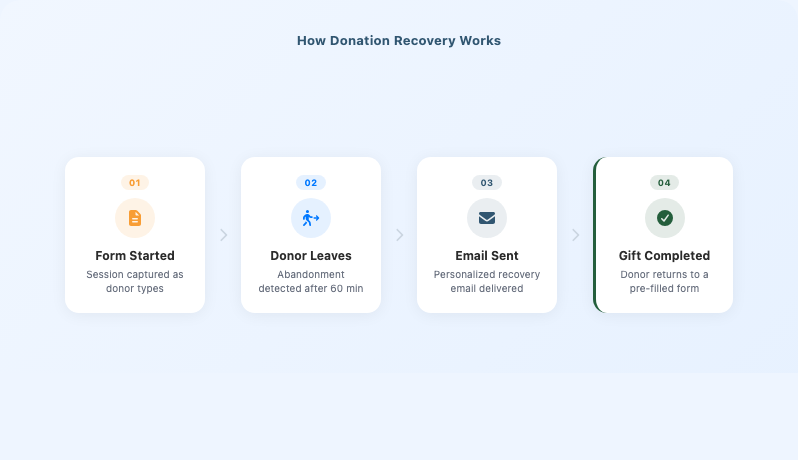
Here’s the complete sequence that makes it work.
- Capture donor data as they type. As a donor starts filling out your donation form, the system silently captures their email address, name, and intended donation amount. This happens in the background, before they hit submit so even if they leave immediately after entering just their email, you have enough to reach them.
- Detect the abandoned session. If the donor leaves the page without completing the donation, the system records an incomplete session. After a set period (typically around one hour), it confirms the session was genuinely abandoned (not just a slow internet connection) and queues a recovery email.
- Send a personalized recovery email. An automated email goes out, addressed to the donor by name, referencing the campaign they were on and the amount they’d entered. The email’s purpose is clear: here’s an easy path back to finish what you started. A prominent button links them directly back to the campaign.
- Return the donor to a pre-filled form. When the donor clicks the recovery link, they land on the exact campaign page they were on (not your homepage) with their donation form already populated. Name, email, amount, and any pre-selected giving tier are all filled in. Completing the gift takes seconds.
That last step is what separates effective donation recovery from a generic follow-up email. Most follow-up emails send donors back to the donation page and ask them to start over. That’s a meaningful ask, especially if the reason they abandoned was friction. An effective recovery link removes the starting-over problem entirely. The donor lands in the exact spot they left, ready to go.
Timing matters significantly. Research from Fundraise Up found that sending a recovery email approximately one hour after abandonment produces measurably better conversion results than waiting longer. Early enough that the donor remembers the cause and their original intent. Late enough to confirm the session was truly abandoned and not just a briefly paused browser tab.
How Much Are Abandoned Donations Costing You?
Let me give the abstract a concrete scale so you can see what’s actually at stake for your organization.
Say your campaigns receive 500 form visits per month. At a 60% abandonment rate, 300 visitors leave without completing their gift. Even a conservative 10% recovery rate brings 30 of those donors back. At an average gift of $75, that’s $2,250 in recovered revenue per month ($27,000 over a year) without spending a dollar on new advertising, outreach, or donor acquisition.
For larger organizations seeing 2,000 or 5,000 form visits per month, that math scales proportionally. But even for smaller nonprofits – a community food pantry, a local arts organization, a church – the point stands: there’s a meaningful pool of revenue sitting in almost-completed donations that most organizations have no system in place to recover.
What makes the economics of recovery especially compelling is the cost profile. You’re not warming up cold leads or running ads to build awareness. The hardest part of nonprofit fundraising – converting a stranger who’s never heard of your organization into someone motivated enough to open your donation form and start filling it out – is already done.
Retaining an existing donor costs roughly five times less than acquiring a new one. Recovered donors are even closer than retained donors: they decided to give, they got interrupted, and their goodwill is still fresh. A timely, well-written email is often all it takes.
The reason most nonprofits don’t act on this isn’t lack of motivation – it’s that setting up donation recovery has historically felt like a technical project. It used to require assembling multiple tools and maintaining integrations that break without warning. That’s no longer the situation for organizations running their fundraising on WordPress.
How Charitable’s Donation Recovery Feature Works
Until recently, running donation recovery on a WordPress fundraising site meant wiring together a form tracker, an email marketing platform, custom automation workflows, and a way to pass donor data between all of them reliably. For most nonprofit teams – typically one or two people managing everything from programs to communications to the website – that kind of technical project simply never made it off the to-do list.
Charitable Pro version 1.8.13.5 changes that by building donation recovery directly into the plugin. There’s no external integration to set up and no third-party dashboard to maintain. Everything runs inside the WordPress admin you’re already using.
Here’s exactly what the feature does, end to end.
- Automatic session tracking. When a donor starts filling out a form on a recovery-enabled campaign, Charitable captures their email address, name, and intended donation amount silently in the background. Nothing changes about the donor’s experience. The capture happens as they type, before they submit, which means even partially filled forms create a recoverable session.
- Built-in abandonment detection. A background process runs approximately every five minutes. Sessions that exceed the abandonment cutoff (default: 60 minutes) are automatically marked as abandoned and queued for recovery. No manual work required — the system identifies and acts on abandoned sessions on its own.
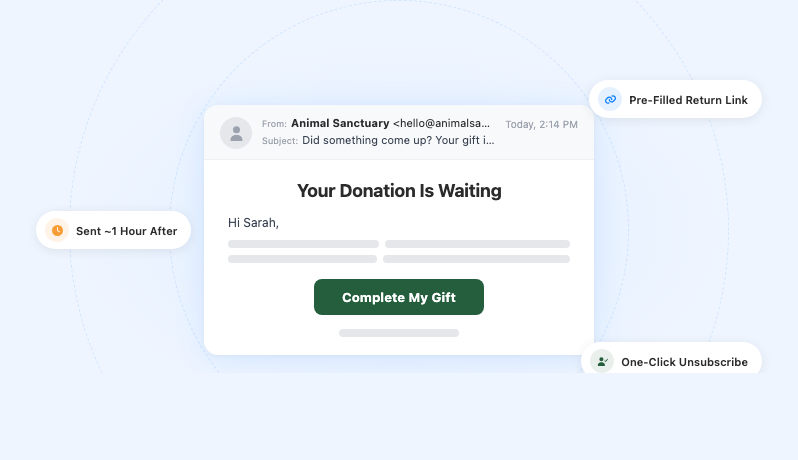
- Personalized recovery emails sent from your site. Charitable sends the recovery email directly from your WordPress installation, using your organization’s sender name and address. The email addresses the donor by name, references the campaign they were visiting and the amount they’d entered, and includes a clearly labeled “Complete My Gift” button. It reads like it came from your organization – because it did.
- One-click pre-filled return. When the donor clicks the recovery link, they land on the exact campaign page they were on. Not your homepage. Not a generic donations page. The specific campaign, with their name, email address, donation amount, and pre-selected giving tier already filled in. Completing the gift requires entering payment details and clicking submit. Nothing else.
- Per-campaign recovery scope. The Campaign Recovery Scope panel in settings lists all your published campaigns, each with its current tracked sessions, recovered donations, and recovery rate displayed. You can enroll specific campaigns or enable automatic enrollment for any newly published campaign. It’s useful if you run frequent campaigns and don’t want to revisit settings every time you launch something new.
- Compliance-ready unsubscribe handling. Every recovery email includes a one-click unsubscribe link. Donors who opt out are automatically added to a suppression list and Charitable will not contact them again. The suppression list manages itself. No manual maintenance, no compliance exposure.
- Dedicated recovery reporting. Charitable adds a Donation Recovery tab to your reports section, showing tracked sessions, abandoned sessions, recovered donations, your overall recovery rate, and total recovered revenue. Filter by date range, drill down into individual session records, and track your suppression list – all within the same reports interface you use for your standard donation data.
The integration is the differentiating factor here. Other approaches to donation recovery require you to maintain a live connection between your donation platform and an external email service – a connection that can silently break when either system updates, or when API credentials expire. Charitable’s approach keeps everything in one place: the same plugin, the same admin, the same update process you already manage.
Which Plans Include Donation Recovery
Donation Recovery is available on the Pro and Elite plans of Charitable Pro.
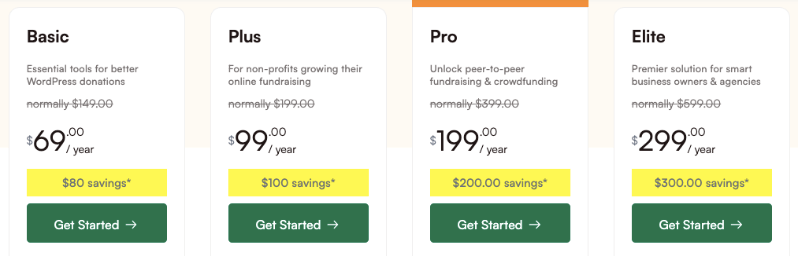
The Pro plan starts at $199/year (regularly $399/year) and covers one WordPress site. The Elite plan starts at $299/year (regularly $599/year) and covers up to five sites – the right choice if you manage campaigns across multiple WordPress installs or work with clients as an agency or consultant.
Both plans include a 14-day, no-questions-asked money-back guarantee. If Donation Recovery doesn’t work for your organization within the first two weeks, you can request a full refund – no explanation required.
Charitable Lite (free) and the Basic and Plus tiers do not include Donation Recovery. If you’re currently on one of those tiers and have been putting off the upgrade, this feature is a compelling reason to act. The full launch announcement covers everything that’s included.
Charitable Has 1+ Million Downloads!
Trusted by millions to power successful fundraising campaigns. Try Charitable risk-free today.
✅ 14-day money-back guarantee
✅ Transparent pricing
✅ Code-free setup
How to Set Up Donation Recovery on WordPress (Step by Step)
The complete setup takes under two minutes. There’s no code to write, no external account to create, and no integration to configure. Here’s the full walkthrough from a clean install.
Step 1: Update to the latest version of Charitable Pro
Donation Recovery requires Charitable Pro version 1.8.13.5 or higher.
Before you start, confirm you’re on the latest version.
In your WordPress dashboard, navigate to Dashboard » Updates and apply any available Charitable Pro update.
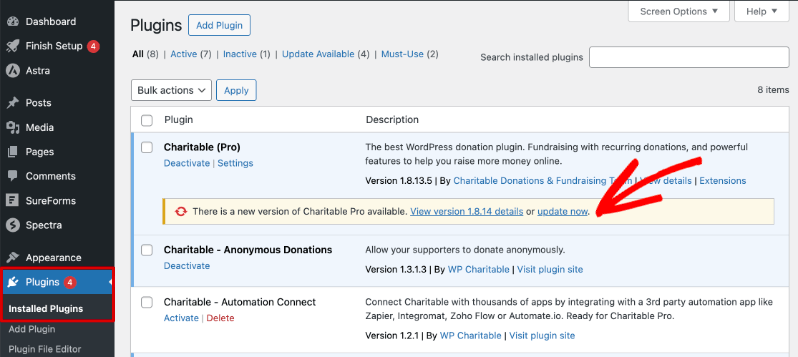
If you’re not yet on Charitable Pro, head to the official website. Sign up for a Pro or Elite plan and then you can install the Charitable Pro plugin on your site.
Step 2: Open Donation Recovery Settings
In your WordPress admin sidebar, go to Charitable » Settings » General. Open the Donation Recovery section.
Here you’ll see an option to Get Donation Recovery Addon.
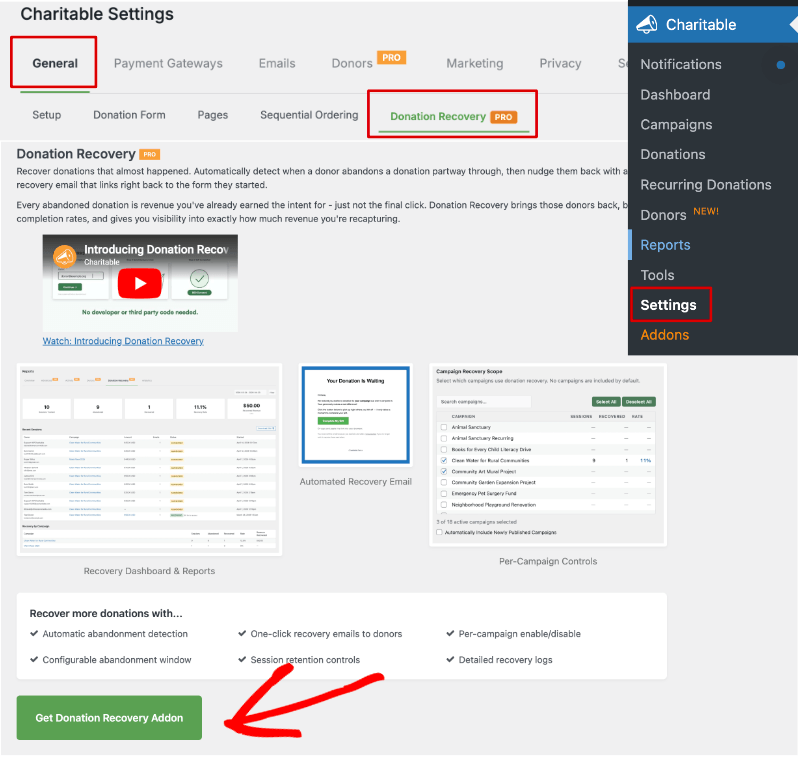
This button will take you to the addons page.
Scroll to find the Donation Recovery addon and install it.
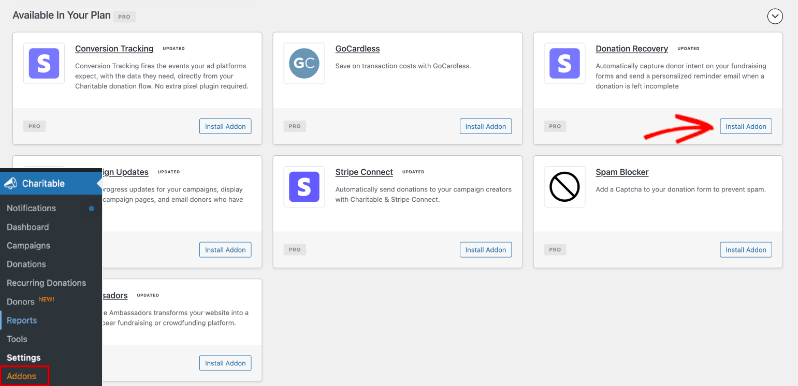
Need more help? See How To Install Charitable Addons.
Step 3: Enable Donation Recovery
Once done, back on the Settings » General » Donation Recovery page, a new checkbox appears to Enable Donation Recovery.
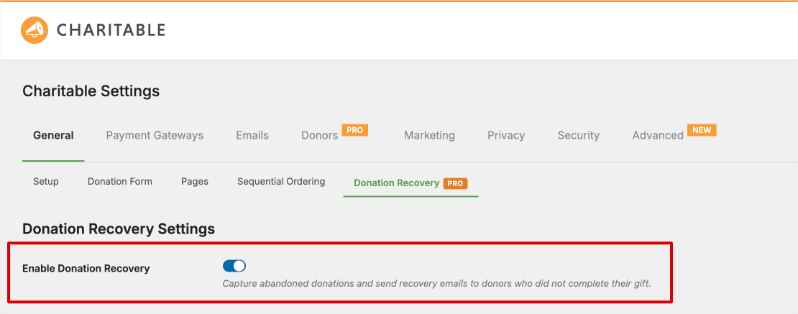
This is the master switch for the entire feature – nothing runs until you activate it. Once it’s enabled, Charitable immediately begins tracking new donor sessions on the campaigns you configure in the next step.
Step 4: Choose Campaigns in the Recovery Scope Panel
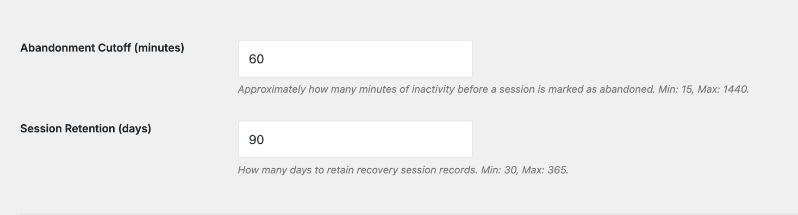
Below the master switch, you’ll see two settings:
- Abandonment Cutoff: This is approximately how many minutes of inactivity before Charitable marks the session as abandoned. The default setting is 60 minutes. You can set it to 15 to 1440 minutes.
- Session Retention: This is how many days to retain the recovery session records. The default is 90 days. You can set it between 30 to 365 days.
Below this, you’ll see the Campaign Recovery Scope panel that lists all your published campaigns. For each one, you can see its current tracked sessions, recovered donations, and recovery rate right in the panel. Check the campaigns you want to enroll in recovery.
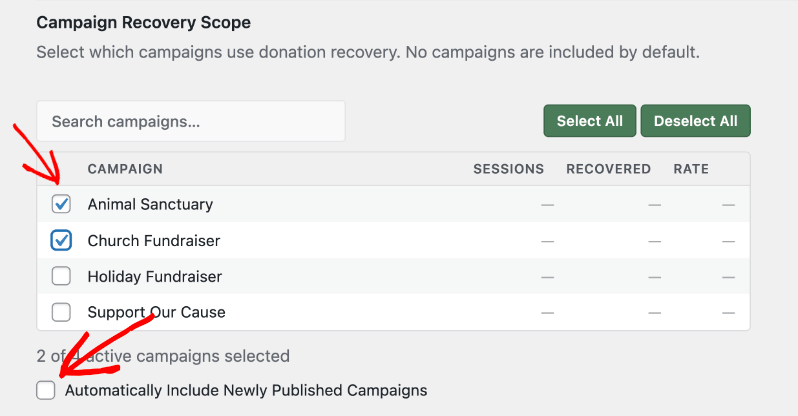
If you want recovery active on all campaigns, including any you publish in the future, look for the automatic enrollment option and enable it.
I recommend this for most organizations. It means you never have to remember to come back to this screen when you launch a new campaign. The only exception worth thinking about: campaigns where you’d prefer to handle follow-up personally, such as major gift solicitations or memorial funds.
Step 5: Review the Default Recovery Email (Optional)
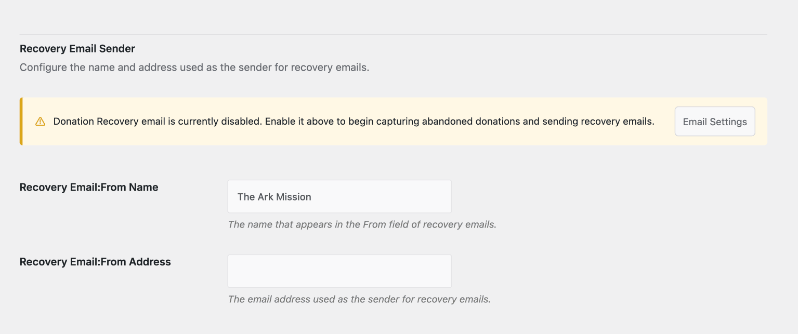
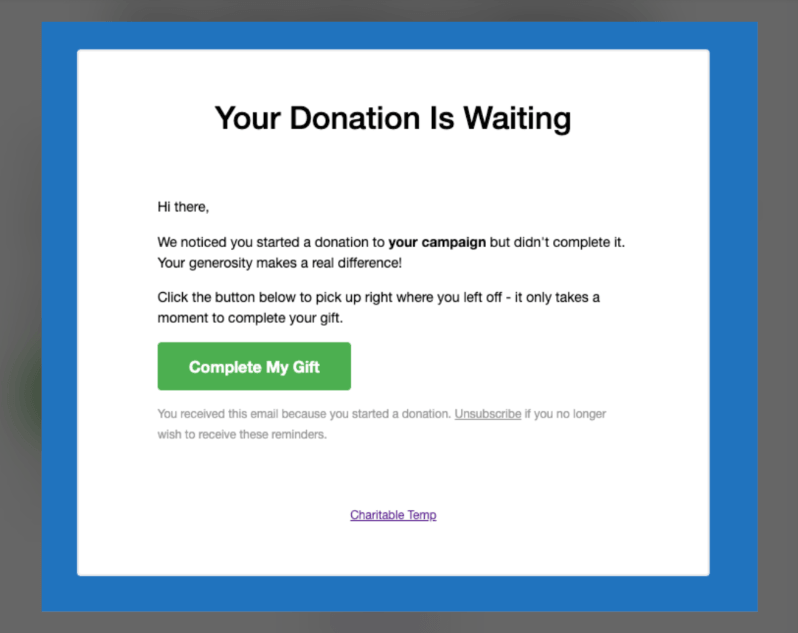
Charitable ships with a default recovery email template that’s ready to use immediately. You can use it as-is, or override it in your WordPress theme to match your organization’s exact voice, branding, and message. The default template includes the donor’s name, a reference to their incomplete donation, a “Complete My Gift” button, and an unsubscribe link.
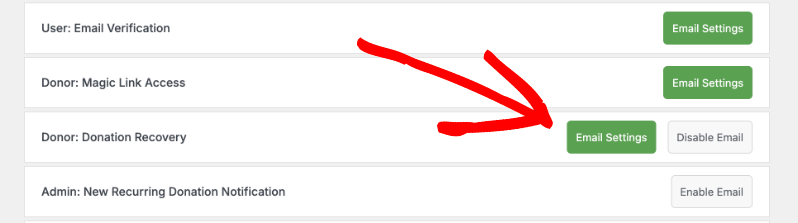
You can either click the Email Settings button on this page, or you can also access it at any time under Charitable » Settings » Emails. First, find the email that says “Donor: Donation Recovery”. Then hit the Enable Email button.
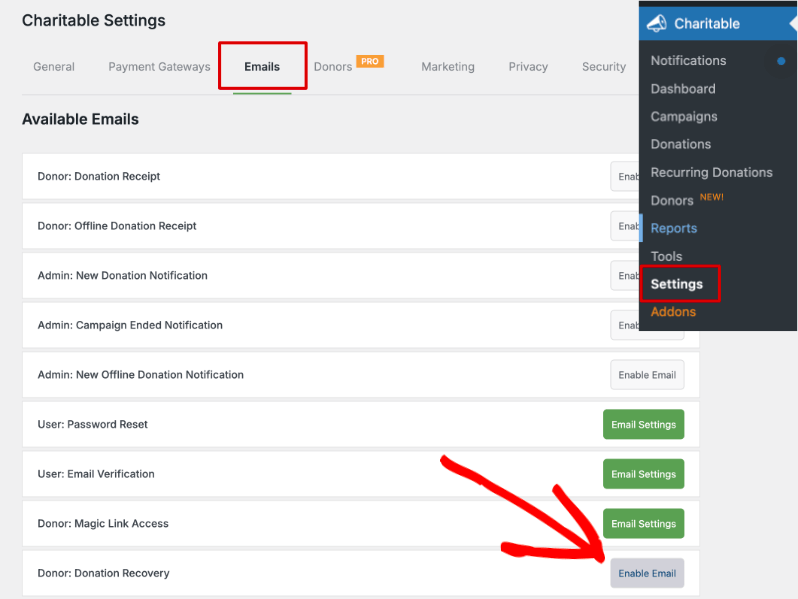
Once done, you’ll see a new green button appear that lets you access the Email Settings. This will take you to the default email where you can edit the subject, sender, and email body.
Personalizing this can meaningfully improve recovery rates. You can use shortcodes to auto-detect the campaign name, your website title and URL.
I’ll cover email copy in more depth in the Advanced Tips section below.
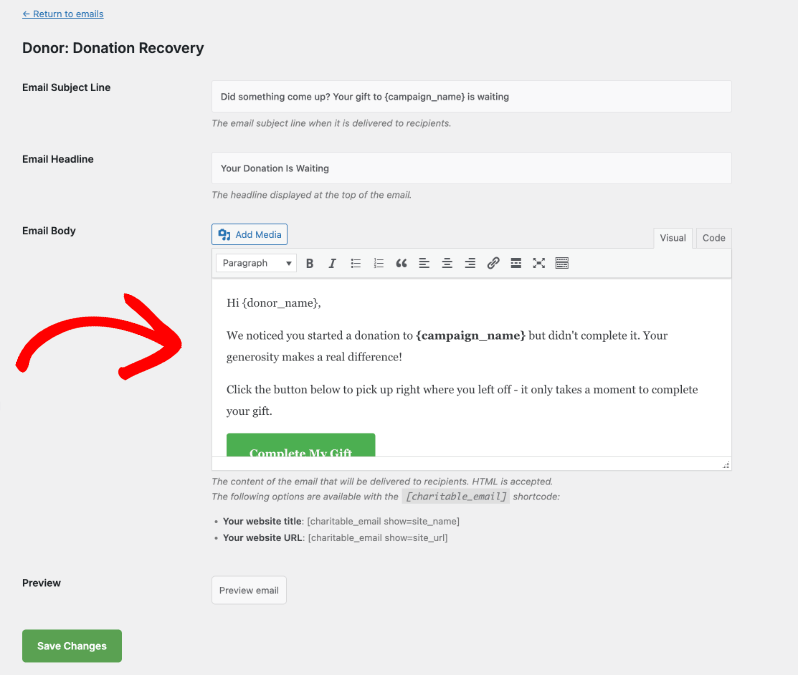
Click Save Changes at the bottom of the page.
Now back on the Donation Recovery Settings page, you should see that the Donation Recovery email is active. You can view and edit the From name and From address here.
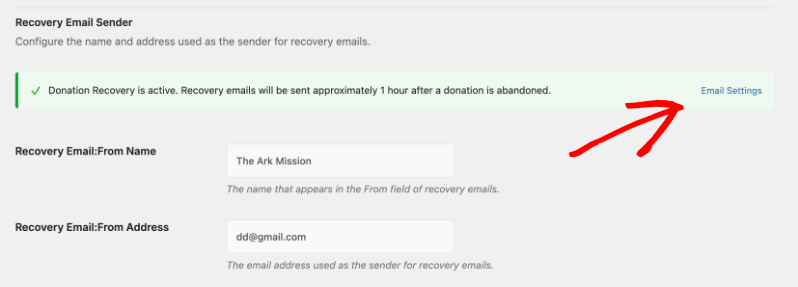
Make sure you save your changes on this page.
That’s the entire setup. Charitable begins monitoring your selected campaigns for incomplete sessions immediately. Donors who start a form and leave without completing their gift will receive a recovery email approximately one hour later, with a pre-filled link back to their exact campaign page.
Here’s a sample of the donation recovery email that will land in your donor’s inbox:
Bonus Step: Test the Recovery Flow Before Going Live
Before trusting the system to run automatically for real donors, I’d strongly recommend running a manual test. Use a secondary email address (or a test account) to visit one of your recovery-enabled campaign pages. Fill in the donation form – name, email, and an amount – but don’t complete the payment. Close the tab or navigate away.
Wait for the recovery email to arrive. It may take up to an hour, depending on when the background process runs. When it does, click the “Complete My Gift” link and confirm that the form opens pre-populated with exactly what you entered. This one test gives you full confidence that the end-to-end recovery flow is working before it handles real donors.
How to Read Your Donation Recovery Reports
Once recovery is running, Charitable surfaces your recovery data in two places: a dedicated reports tab with full detail, and a summary that appears in your main reports overview. Both are worth knowing.
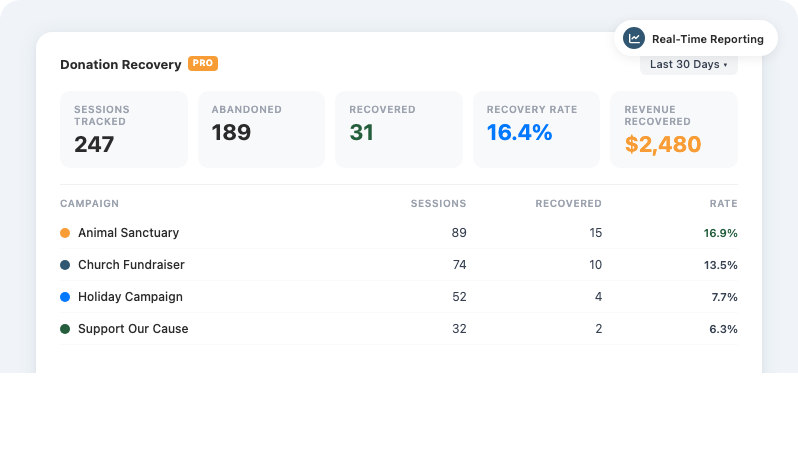
The Donation Recovery Reports Tab
Navigate to Charitable » Reports » Donation Recovery to see the full recovery dashboard. At the top, five summary tiles give you the headline numbers at a glance. Here’s what each one means.
- Sessions tracked: The total number of donors who started a form on a recovery-enabled campaign and had their contact information captured
- Abandoned sessions: Sessions where no completed donation was recorded within the abandonment window
- Recovered donations: Donors who clicked a recovery link and completed their gift
- Recovery rate: The percentage of abandoned sessions that converted to completed donations via a recovery link
- Total recovered revenue: The cumulative value of all donations completed through recovery links in the selected date range
Use the date filter to focus on specific periods – Last 7 days, Last 30 days, Last 90 days, or a custom range. Below the summary tiles, a sessions table shows individual donor records with their current status: tracked, abandoned, recovered, or unsubscribed. This is where you can drill into campaign-level detail and see exactly which campaigns are driving the most recovery activity.
Recovery Data in Your Main Reports Overview
Your recovered revenue also appears on the standard Charitable » Reports overview tab, summarized alongside your regular donation figures.
This means recovery’s contribution to your total fundraising is always visible – you don’t need to navigate to a dedicated tab to include it in your standard reporting. Useful for monthly stakeholder updates where you want a single number that reflects everything you’ve raised.
What to Watch Over Time
A healthy recovery operation typically produces a recovery rate somewhere between 5% and 20% of abandoned sessions, depending on your audience, campaign type, and email quality. Single data points matter less than trends. What you’re looking for is a stable or improving recovery rate and a consistent monthly contribution to your total donation revenue.
If your rate sits below 5%, the email template is usually the first thing to look at. Generic recovery emails underperform personalized, mission-connected ones by a significant margin — more on that below. If your rate is strong but your suppression list is growing quickly, the email tone may be coming across as more automated than human. A softer, warmer message tends to reduce opt-outs without sacrificing recovery performance.
High abandonment rates on specific campaigns are also worth paying attention to — not just as recovery opportunities, but as signals that the form itself needs work. If one campaign abandons at a significantly higher rate than your others, look at the form experience: page load speed, mobile layout, number of required fields, and payment step clarity. Recovery data is, in this way, also form optimization data.
Should You Fix the Form or Set Up Recovery First?
A question I hear frequently from nonprofit fundraising teams: should we focus on recovering abandoned donations, or on preventing abandonment in the first place? The honest answer is that they’re not competing priorities. They solve different parts of the same problem.
Form optimization reduces the abandonment rate. A cleaner form, a faster page, a better mobile experience, these changes mean fewer donors leave before completing their gift. If your form currently abandons at 70% and optimizations bring that to 55%, you’ve meaningfully reduced the pool of donors you need to recover. That’s worth doing, and the donor management tools in Charitable give you the data to see where donors are dropping off.
But form optimization will never get your abandonment rate to zero. Life interrupts. Mobile rendering isn’t perfect. Technical issues happen. Even the most optimized donation form will have donors who start and don’t finish – because donors are people and people get distracted. Recovery is how you serve those donors despite the interruption.
Think of it this way: form optimization plugs the holes in the bucket. Recovery catches what falls through anyway. Running both together means more donations are completed on the first visit, and more of the ones that don’t get a second chance. Neither strategy alone captures as much revenue as the two working in combination.
If you’re just starting out and can only focus on one, set up recovery first. It’s faster to implement (under two minutes with Charitable), and it starts recovering revenue from your existing traffic immediately. Form optimization is important, but it’s iterative work that takes time to measure and refine. Recovery delivers results from day one.
Advanced Tips to Increase Your Recovery Rate
The default setup is enough to start recovering donations right away. These additional practices can meaningfully improve your results over time.
Write Recovery Emails That Sound Like a Person
The single biggest lever you have over your recovery rate is the email copy. A generic “You left your donation unfinished – click here to complete it” will perform significantly below an email that says:
“Hi Maria, we noticed you started a gift to our emergency shelter fund.
The families we serve this winter are counting on supporters like you and we wanted to make it as easy as possible to come back.”
Specificity and warmth are what drive recoveries. When you customize the default template, include the name of the specific campaign, connect the donation amount to a concrete mission impact (“$75 provides two nights of emergency housing”), and consider signing the email from a named staff member rather than a generic organizational address. The more the email reads like it came from a real person who noticed the incomplete gift (and cares) the better it converts.
Monitor Your Suppression List Growth
Every recovery email carries some opt-out risk. A growing suppression list isn’t automatically a problem – some donors simply don’t want follow-up emails, and respecting that is the right approach.
But a spike in unsubscribes after a specific campaign, or a consistently high opt-out rate across all campaigns, is a signal worth taking seriously. It usually means the email tone feels more like a commercial reminder than a genuine human outreach. Softening the language – more mission, less transaction – tends to stabilize suppression list growth without affecting recovery rates.
Use Per-Campaign Data to Prioritize Form Improvements
The Campaign Recovery Scope panel shows you abandonment and recovery rates per campaign. Use that data deliberately. A campaign with a 75% abandonment rate and a 6% recovery rate is telling you something the form needs – not just that you need better recovery emails.
Investigate: Is the page slow to load? Is the form too long? Does the mobile experience break?
Addressing the root cause of high abandonment on specific campaigns both reduces the problem and improves recovery performance on whatever abandonment remains.
Pair Recovery With Charitable’s Email Marketing Integrations
If you’re on Charitable’s Plus plan or above, you have access to email marketing integrations with Mailchimp, ActiveCampaign, MailerLite, and others.
Donors who complete a gift via a recovery link can be added to a welcome sequence that onboards them into your regular communications. These are high-value contacts: they responded to a follow-up email, they completed a form, and they’ve now demonstrated committed intent. Treating them as warm leads for recurring giving – rather than just processing their one-time transaction – is where the long-term fundraising value of recovery compounds.
Build on Recovery With the Full Charitable Pro Feature Set
Donation Recovery is the front door for many new donor relationships – but what you do with donors after they walk through it determines their long-term value. Charitable Pro’s broader feature set includes automated PDF receipts, a donor dashboard, recurring donation options, and peer-to-peer fundraising tools that let your most engaged donors bring in new supporters. A recovered one-time donor, properly nurtured, can become a monthly sustainer.
That transformation starts with a good first experience – and a recovery email that felt like it came from an organization that actually noticed.
Consider Seasonal Timing in Your Recovery Strategy
Not all abandonment is equal across the calendar. Year-end giving season (October through December) typically produces the highest donor intent – which means the highest abandonment volume and the strongest recovery opportunity. Your recovery emails are most valuable during periods when donors are already in a giving mindset.
Ensure your email template reflects the season and campaign context during these high-volume windows.
A year-end recovery email that references the tax deadline or the specific year-end campaign will outperform a generic template that could have been sent any month.
Frequently Asked Questions
What is WordPress donation recovery?
WordPress donation recovery is the automated process of detecting when a donor has started filling out a donation form but left without completing it, then sending them a personalized follow-up email with a direct link back to a pre-filled version of that form. When it’s built directly into a WordPress donation plugin like Charitable Pro, the entire process – session tracking, abandonment detection, email delivery, pre-filled return links, and reporting – runs without any third-party tools or developer involvement.
How long after abandonment is the recovery email sent?
Charitable sends the recovery email approximately one hour after detecting an abandoned session. A background process checks for incomplete sessions approximately every five minutes, and sessions exceeding the abandonment cutoff (default: 60 minutes) are queued for recovery. This timing is intentional: research indicates one-hour recovery emails produce better conversion results than those sent after longer delays. Early enough that the donor remembers the cause; late enough to confirm the session was genuinely abandoned.
Do I need a separate email marketing service for donation recovery to work?
No. Charitable’s Donation Recovery feature sends emails directly from your WordPress site using your existing email configuration. If you have a mail delivery plugin like WP Mail SMTP installed, recovery emails use that configuration automatically. No external email marketing platform, API key, or third-party account is required. The entire system is self-contained within Charitable Pro.
Can donors opt out of recovery emails?
Yes. Every recovery email Charitable sends includes a one-click unsubscribe link. Donors who opt out are automatically added to a suppression list – Charitable will not send them further recovery emails. The suppression list is maintained automatically; no manual management is required on your end. This is built into the feature by design, both for donor experience and compliance reasons.
Is Donation Recovery available on Charitable Lite?
No. Donation Recovery is available on the Pro and Elite paid plans of Charitable Pro. Charitable Lite (the free version available on WordPress.org) is a solid foundation for basic fundraising, including unlimited campaigns, multiple payment gateways, and complete donor data ownership. It doesn’t include Donation Recovery. If you’re ready to start recovering abandoned donations, the Pro plan starts at $199/year with a 14-day money-back guarantee.
Does Donation Recovery work for recurring donation setups?
Yes. Donation Recovery works on donation forms across campaign types, including forms that offer recurring giving options. If a donor begins setting up a monthly gift and abandons the form, Charitable captures the incomplete session and queues a recovery email. This makes recovery especially valuable for organizations working to grow their monthly giving programs – a recovered recurring donor delivers ongoing value that compounds far beyond a single transaction.
How is my recovery rate calculated?
Your recovery rate is the percentage of abandoned sessions that result in a completed donation via a recovery link. If Charitable detects 100 abandoned sessions in a given month and 12 of those donors return via a recovery link and complete their gift, your recovery rate for that period is 12%. The rate is calculated automatically and displayed in the Donation Recovery reports tab, filterable by date range.
Can I see recovery data broken down by campaign?
Yes. The Campaign Recovery Scope panel in settings displays per-campaign data including tracked sessions, recovered donations, and recovery rate for each enrolled campaign. The full sessions table in the Donation Recovery reports tab also includes campaign-level detail, letting you identify which campaigns are generating the most recovery revenue and which may benefit from form improvements or more personalized email copy.
Can I customize the recovery email template?
Yes. Charitable includes a default recovery email template that works out of the box, but you can override it in your WordPress theme to match your organization’s voice, branding, and messaging. The template supports personalization variables including donor name, campaign name, and donation amount. Customizing the template is optional, the default will start recovering donations immediately, but a more personalized message consistently produces better recovery rates.
Start Recovering Donations Today
Between 50 and 70 percent of donors who start your donation form don’t finish it. Most of them didn’t change their minds. They got interrupted, hit a moment of friction, or closed the wrong browser tab. A personalized, one-hour recovery email with a pre-filled link back to their campaign page brings a meaningful share of those donors back – and completing the gift takes seconds.
With Charitable Pro’s built-in Donation Recovery, you don’t need a developer, a third-party abandonment tool, or a complicated integration to make this work. You need a Pro or Elite license, two minutes in your WordPress settings, and the default email template to start. The system handles session tracking, abandonment detection, email delivery, pre-filled returns, compliance-ready unsubscribes, and reporting – all within the WordPress admin you’re already using.
The revenue waiting in almost-completed donations doesn’t require new traffic, new campaigns, or new donors to unlock. It requires giving supporters who already decided to give a clear, frictionless path back. Set it up once and let it run.
Charitable Has 1+ Million Downloads!
Trusted by millions to power successful fundraising campaigns. Try Charitable risk-free today.
✅ 14-day money-back guarantee
✅ Transparent pricing
✅ Code-free setup
Stay Connected for More Nonprofit Resources
For more tutorials and videos tailored to nonprofits, subscribe to our YouTube channel. We regularly publish expert tips, step-by-step guides on online donations, fundraising strategies, and practical resources to help your organization succeed.
🗞️ Get weekly tips and exclusive guides in your inbox
Join our newsletter →
🎥 Watch step-by-step tutorials and success stories
Subscribe to our YouTube channel →
👩🏽💻 Connect with our community and get daily nonprofit insights
Follow us on LinkedIn →
🥳 Fun reels and non-profit insights
Follow us on Instagram →
👀 Insightful & fun videos to help you grow your cause
Follow us on TikTok→
🌎 Subscribe and follow for general fundraiser tips
Get Fundraiser Tips on TikTok →
Powerful Fundraising Resources
🤖 Use Charitable with Your AI Assistant
⬇️ Download proven strategies, campaign ideas, and expert tools
Get the Fundraising Kit →
💸 Get Free Fundraising Resources
Head to the Charitable Fundraising Hub →
🤔 Got questions about Charitable?
Charitable FAQs →
🏎️ Take Charitable for a spin
Create your Charitable Demo →
Understand non-profit terms and jargon
Non-Profit Glossary →
% Looking for non-profit deals and discounts?
Best Non-Profit Deals and Discounts →





