
Ready to send your congregation a donation receipt that actually looks like it came from your church, complete with your logo, colors, and all, instead of a plain text email?
With Charitable, that means uploading an image, writing a short thank-you message, and choosing which donor details show up. No design software, no wrestling with a PDF template, and most churches have it looking right in under 15 minutes.
Here’s exactly what to configure, what belongs on the finished receipt, and a few church-specific details you should get right before your first tithe or offering goes through.
What’s In This Guide?
What to Include on a Church Donation Receipt
In the US, the IRS requires written acknowledgment for any single gift of $250 or more, and that rule applies to churches exactly the same way it applies to any other nonprofit.
I’m using the US as the example here since that’s the system most of our readers know, but the same basic idea shows up almost everywhere: tax authorities want proof a gift actually happened before anyone claims it.
If your church is outside the US, a quick conversation with a local tax advisor will tell you what your own country expects. Either way, a receipt is how a member proves a tithe or offering at tax time, no matter where your church is located.
A proper church donation receipt needs a specific set of details on it, not just a “thanks for your gift” line, whether the gift was a one-time offering or part of a recurring tithe. Here’s what it should generally include:
- Your church’s legal name and address: the name your church is registered under, not just the name on the sign out front.
- Your EIN, if you have one: churches don’t have to apply for tax-exempt status the way other nonprofits do, but most still carry an EIN for banking and payroll.
- The donor’s name and address: as it appears in your records, so it matches what they’ll use on their own return.
- The date and amount of the gift: and if it was split across more than one fund, tithe, building fund, missions, each one broken out separately rather than lumped into a single number.
- A tax-deductibility statement: confirmation that no goods or services were provided in exchange for the gift, or a description of what was, if a member gave through something like a fundraising dinner.
Here’s one US rule, since it catches a lot of churches by surprise: if a gift came with something of real value attached, a ticket to a banquet, an item at a silent auction, and the gift was over $75, the IRS wants that value disclosed on the receipt, not just a note that something was given.
Other countries handle this a little differently, so if your church runs anything similar, a local tax advisor can tell you what applies where you are. It doesn’t come up on a typical Sunday offering, but it matters the moment your church runs a fundraiser with a meal or a raffle attached.
That’s the content. Here’s what it actually looks like once it’s branded and assembled into a real document.
What a Finished Branded Receipt Looks Like
Here’s a sample receipt built for a fictional church, Faith & Love Ministry, showing everything from the last section pulled together into one branded document.
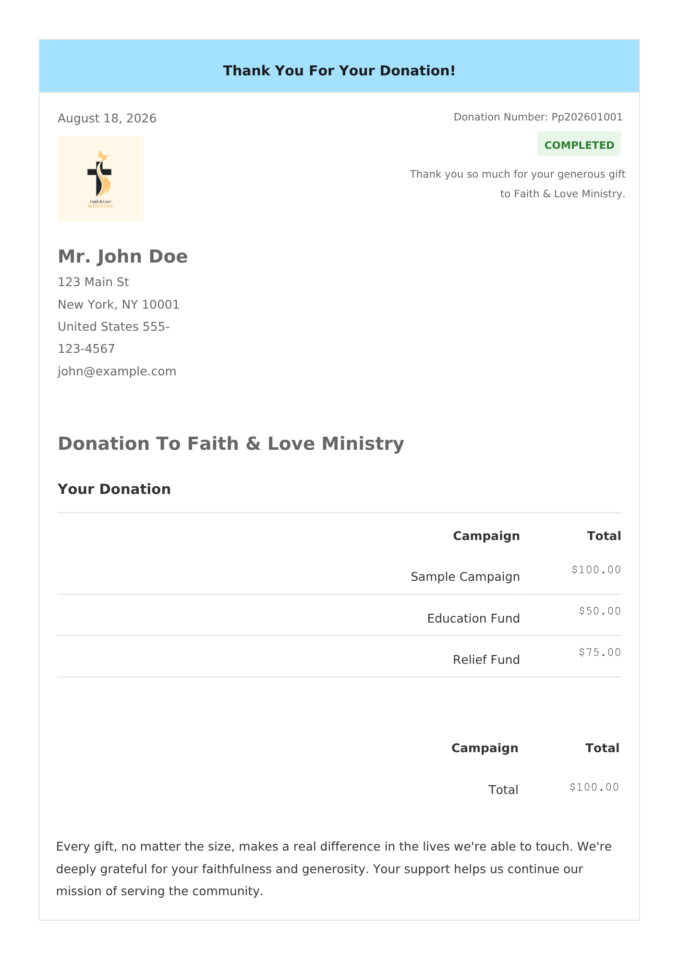
A colored bar across the top carries the thank-you message, with the church’s logo, a donation number, and a completed status badge sitting just below it. Under that is a short note in the church’s own words, followed by the donor’s name and address exactly as recorded.
The middle of the page itemizes every fund the gift touched, Sample Campaign, Education Fund, Relief Fund, each with its own line, so a member who gave to three different things in one visit still gets a clean, itemized breakdown rather than one confusing total.
A closing message sits in the footer, the same kind of line a pastor might actually say from the pulpit.
Nothing about that layout is hardcoded. Every piece of it, the logo, the bar color, the wording, which donor fields show up, comes from a settings page you fill out once. Here’s how that page works.
Auto Create and Ship Branded Receipts with Charitable
Charitable is the best solution for sending branded receipts to church donors and I’ll tell you why. It’s a simple yet powerful WordPress plugin that you can use to launch fundraiser campaigns in minutes.
This includes campaigns for tithes, one-time offerings, and mission funding – all land in the same place on your own site, instead of being split across whatever payment processor happens to be handling each fund.
That matters for a receipt specifically: the branding, the fund names, the donor fields, all of it comes from one settings page that applies to every gift, so you’re not rebuilding a receipt by hand every time someone gives.
You get readymade templates, easy customization, multiple payment gateways, fundraising reports, and full-fledged back end management of donation records and donor details. See full feature list »
Charitable has a free version (Lite) as well as a paid version (Pro).
Charitable Lite is great to get started with if you have zero budget. It already emails a receipt after every gift automatically, so no member is ever left wondering whether their offering went through. It’s plain and functional, and there’s no cost to get it running today.
The branded, logo-and-color receipt is available in Charitable Pro. You can choose from four plans starting at $69 per year and all of them include PDF receipts.
Here’s what it actually gives you once PDF receipts is turned on.
- Your logo in the header: so every receipt is instantly recognizable as coming from your church, not a generic payment notification.
- Your own contact details and wording: your church’s name, address, and a short message you write once, appearing on every receipt automatically.
- Control over which donor fields show: keep it to a name and address, or include a prefix, phone number, and more, your call.
- A brand color on the thank-you bar: match your church’s own colors, and the text color adjusts automatically so it stays readable.
- A customizable footer message: a closing line of gratitude or a mission reminder that shows up at the bottom of every receipt.
- An optional QR code: link straight to a giving page or campaign from the printed or downloaded receipt itself.
- Self-serve email copies: let a donor download a copy or type in any email address and send themselves a fresh copy, no ticket to your office required.
Every paid plan comes with a 14-day money-back guarantee, so there’s no risk in setting this up and testing it against a real gift before you commit. PDF Receipts are inlcuded in all Charitable Pro plans.
If you’re still deciding whether to move up from Lite, the Lite vs Pro comparison lays out exactly what changes at each tier. Now let’s actually click through the settings.
How to Send Branded Donation Receipts (Code-Free)
None of this touches a line of code. Every setting lives on one page, so once you know where it is, the rest is just filling in blanks.
Step 1: Open PDF Receipts and Allow Donors to Email Receipts
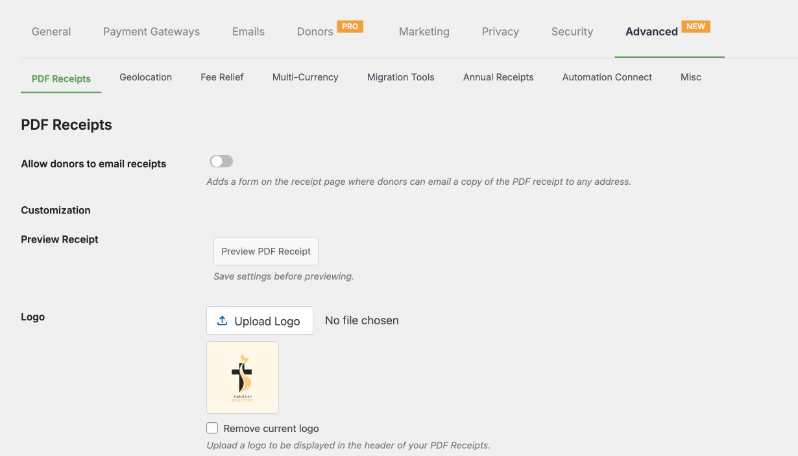
Go to Charitable » Settings » Advanced » PDF Receipts. Near the top, you’ll see Allow Donors to Email Receipts. Toggle it on.
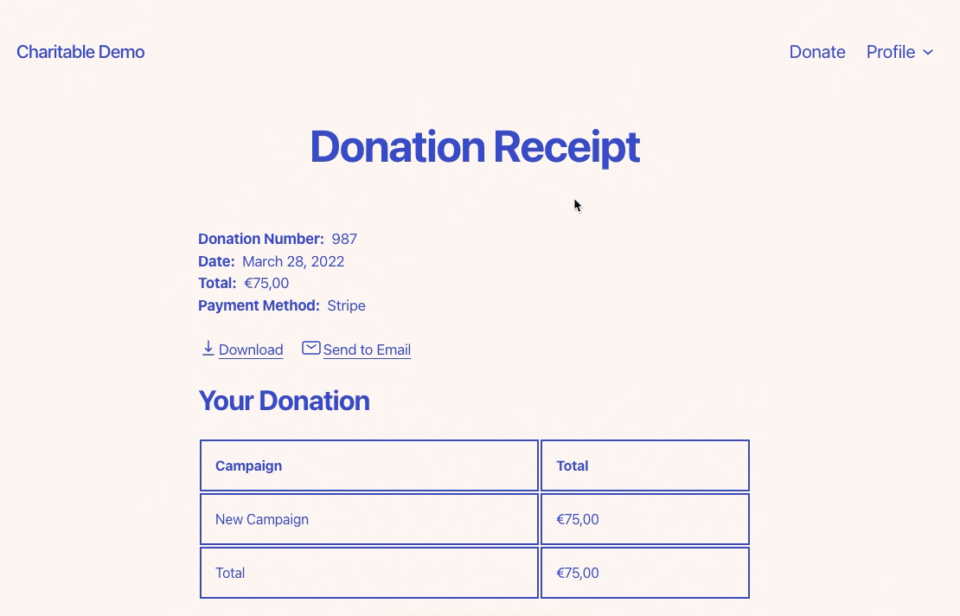
It adds a small form right on the receipt page where a donor can type in any email address and send themselves a fresh copy, handy for a member who wants to forward their giving record to a spouse or a tax preparer without emailing your office.
On the frontend, a donor would see an option like this.
They can download their receipt immediately. Or enter and email address to send the receipt.
Step 2: Upload Your Logo
Now let’s add your branding.
Scroll down to Logo and upload your church’s logo. It shows up in the header of every receipt from here on.
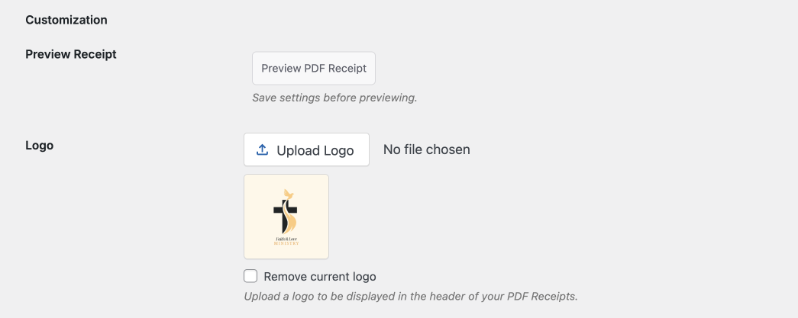
There’s also a Preview Receipt button on this page, but it won’t reflect your changes until after you’ve saved, so hold off clicking it until the end.
Step 3: Write Your Contact Details and Rename Your Labels
Just below the logo, the Contact Details box is a small rich-text editor. This is your church’s name, address, and phone number, plus a short opening line, all displayed together in the header of the receipt. Write it the way you’d actually want a member to read it, not like a legal disclaimer.
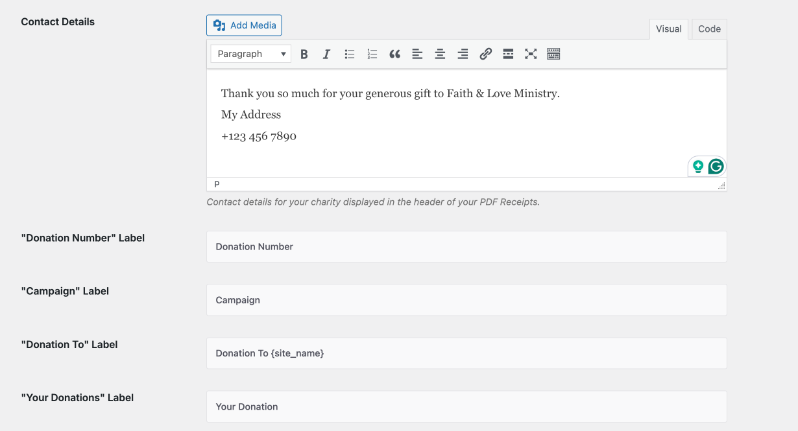
Right below that are four label fields: “Donation Number,” “Campaign,” “Donation To,” and “Your Donations.” These are just the words that appear on the receipt, and you can rename any of them.
This is a genuinely useful spot for a church specifically: if your congregation talks about “Tithes” or “Offerings” rather than “Campaigns,” change the Campaign label to match. A receipt that speaks your church’s actual language reads as far more intentional than one using generic donation-platform terms.
Step 4: Choose Which Donor Details Appear
The Donor Details section is a row of checkboxes: Prefix, First Name, Middle Name, Last Name, Suffix, Email, Title, Company, Phone, Birthday, Primary Language, and Contact Consent. Check only what you actually want printed.

Most churches do fine with Prefix, First Name, Last Name, Email, and Phone, the same set shown checked in the screenshot above. Company and Birthday rarely add anything for an individual giver and are safe to leave off.
Step 5: Set Your Brand Color and Footer Message
The Bar Background Color sets the color of that thank-you bar across the top of the receipt. You can pick whatever matches your church’s own branding, your website, your bulletin, your sign out front, and Charitable adjusts the text color automatically so it stays readable no matter how light or dark you go.
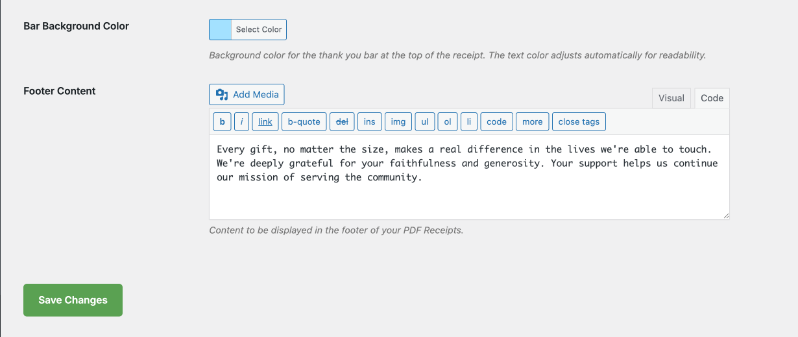
Right below the color picker is Footer Content, another rich-text box for whatever closing message you want at the bottom of every receipt. This is a good spot for a line of gratitude or a short reminder of what the church’s giving supports, something closer to what a pastor might actually say out loud than boilerplate receipt language.
Step 6: Add a Thank-You Message and Decide on the QR Code
Show QR Code adds a scannable code to the receipt that links straight to a campaign of your choosing. It’s a nice touch if you want a printed or downloaded receipt to double as a quiet nudge back toward your giving page, without being pushy about it.

Just under it, Thank You Message is the line displayed at the top of the receipt, inside that colored bar. It supports a few merge tags, {site_name}, {donor_name}, and {first_name}, so you can personalize it without typing a donor’s name in by hand. Something like “Thank You, {first_name}!” reads a lot warmer than the generic default.
Step 7: Save, Then Preview With a Real Donation
Scroll to the bottom and click Save Changes. Now go back up and click Preview PDF Receipt. Check that your logo looks sharp at that size, your bar color is legible, and your contact details and footer message read the way you intended, before a single member sees one.
Common Mistakes to Avoid
Using the name on the sign instead of the legal name. “Grace Church” might be what everyone calls it, but if your legal entity is “Grace Community Church of Springfield, Inc.,” that’s the name that belongs on a tax document. Keep both if you want, informal name in the greeting, legal name in the contact details.
Lumping multiple funds into one number. A member who gave to the general fund, the building fund, and missions in the same visit deserves to see all three broken out, not one combined total they have to take your word for. The itemized layout already does this correctly as long as your funds are actually set up as separate campaigns in Charitable.
Forgetting the quid pro quo disclosure. If a gift over $75 came with something of value attached, a banquet ticket, an auction item, that value needs to be disclosed on the receipt, not just a vague “thank you for attending.” Skipping this is one of the more common receipt mistakes for churches that run fundraising events.
Turning on every donor detail field. Checking every box in Donor Details doesn’t make a receipt more official, it just makes it more cluttered, and some fields (Birthday, Primary Language) are the kind of thing a member might not expect to see printed on a giving document. Keep it to what actually belongs there.
Never previewing before the first real gift. A logo that looks fine as a square file can crop strangely once it’s placed into a receipt header. Always use the Preview Receipt button after saving, and check it on an actual test gift if you can, before your congregation sees the real thing.
None of these take more than a couple of minutes to fix once you know to look for them, and it’s a lot easier to catch a mismatched fund or a cropped logo now than to hear about it from a member in April.
Advanced Tips for Church Donation Receipts
Getting the receipt technically correct is the baseline. A receipt is also one of the most-opened donor communications a church sends all year.
Match your bar color and logo to whatever your congregation already sees elsewhere, your website, your bulletin, your social media. A receipt that looks like it belongs to the same church as everything else feels far more intentional than one that looks like it came from a generic payment processor.
Use the footer message to say something true about your church specifically, not a generic line that could belong to any nonprofit. “Your tithe helps us feed 40 families a month through the Springfield Pantry” does more for a giver than “Thank you for your generous support.”
If your church runs several distinct funds, general, building, missions, benevolence, take the time to rename the receipt’s field labels to match how your congregation actually talks about giving. A receipt that says “Tithe” and “Building Fund” instead of generic “Campaign” language reads as though someone who understands church giving built it, because someone did.
Point the QR code at something worth scanning, not just your homepage. A link straight to your online giving page, or to a specific fund your church is actively raising for, gets more use out of a code that’s already printed on a document members are likely to keep.
If different funds need more than just a different line item, a fully custom receipt page per campaign is also possible in Charitable.
Keep in mind this is a per-gift receipt, not a once-a-year statement. If members regularly ask for one document covering their whole year of giving instead of a folder of individual receipts, that’s a separate Annual Receipts feature built for exactly that.
And don’t forget your envelope givers. A member who drops a check in the offering plate instead of giving online still needs a receipt, and it’ll only look right if that gift gets logged in Charitable manually rather than tracked on a separate spreadsheet somewhere.
FAQs on Branded Church Donation Receipts
Do churches actually have to send donation receipts?
In the US, yes. For any single gift of $250 or more, the IRS requires the same written acknowledgment from a church as it does from any other nonprofit, and being automatically tax-exempt doesn’t get you out of this one. If your church is elsewhere, a local tax advisor can walk you through what your own country expects.
Does Charitable Lite include branded PDF receipts?
Lite sends an automated plain-text receipt after every gift, which covers the basic legal requirement. The branded, logo-and-color PDF version is part of Charitable’s PDF Donor Receipts feature, included from the Basic plan up.
Can I rename the fields to match how our church talks about giving?
Yes. The Donation Number, Campaign, Donation To, and Your Donations labels are all editable, so you can rename Campaign to Tithe, Offering, or whatever term your congregation actually uses.
What if a member gives to more than one fund in a single donation?
As long as those funds exist as separate campaigns in Charitable, the receipt itemizes each one with its own line and amount, rather than combining everything into a single total.
Do we need to include a tax ID if we’re not formally registered as tax-exempt?
In the US, churches don’t have to apply for 501(c)(3) status to be tax-exempt, but if yours has an EIN for banking or payroll, include it anyway. It gives donors one more piece of documentation their tax preparer might ask for. Outside the US, use whatever tax or registration number your local authority recognizes, and a tax advisor can point you to the right one if you’re not sure.
Can members get their own copy without contacting the church office?
Yes, once you turn on Allow Donors to Email Receipts. A form appears right on the receipt page letting them send a fresh copy to any email address, no request to your team required.
What happens if a gift came with a dinner ticket or auction item attached?
In the US, if the gift was over $75 and the donor got something of real value in return, the IRS wants that value disclosed on the receipt, not just a general thank-you, and only the amount above that value actually counts as tax-deductible. Both the threshold and the rule itself vary by country.
Is this the same thing as an annual giving statement?
No. This is a receipt sent after each individual gift. A once-a-year document totaling everything a member gave across the whole year is a separate feature, Annual Receipts, meant to sit alongside this one, not replace it.
Your congregation already trusts your church with their giving. A receipt that actually looks like it came from you, not a generic payment tool, is a small thing that quietly reinforces that trust every single time someone gives.
Set it up once, and every gift from here on carries your church’s name, your colors, and your own words, automatically. Get started with Charitable today »
Charitable Has 1.2+ Million Downloads!
Trusted by millions to power successful fundraising campaigns. Try Charitable risk-free today.
✅ 14-day money-back
✅ Transparent pricing
✅ Code-free setup
Stay Connected for More Nonprofit Resources
For more tutorials and videos tailored to nonprofits, subscribe to our YouTube channel. We regularly publish expert tips, step-by-step guides on online donations, fundraising strategies, and practical resources to help your organization succeed.
🗞️ Get weekly tips and exclusive guides in your inbox
Join our newsletter →
🎥 Watch step-by-step tutorials and success stories
Subscribe to our YouTube channel →
👩🏽💻 Connect with our community and get daily nonprofit insights
Follow us on LinkedIn →
🥳 Fun reels and non-profit insights
Follow us on Instagram →
👀 Insightful & fun videos to help you grow your cause
Follow us on TikTok→
🌎 Subscribe and follow for general fundraiser tips
Get Fundraiser Tips on TikTok →
Powerful Fundraising Resources
🤖 Use Charitable with Your AI Assistant
⬇️ Download proven strategies, campaign ideas, and expert tools
Get the Fundraising Kit →
💸 Get Free Fundraising Resources
Head to the Charitable Fundraising Hub →
🤔 Got questions about Charitable?
Charitable FAQs →
🏎️ Take Charitable for a spin
Create your Charitable Demo →
Understand non-profit terms and jargon
Non-Profit Glossary →
% Looking for non-profit deals and discounts?
Best Non-Profit Deals and Discounts →







Leave a Reply