
Do you want an honest, at-a-glance read on how your fundraising setup measures up? The free Site Analysis scans your current Charitable configuration and gives you a fundraising score, plus specific, prioritized steps to raise more.
In this guide, we’ll walk through running your analysis, understanding every part of the report, and finding your score again on your dashboard and reports.
Site Analysis is now part of the Charitable Pro plugin from version 1.8.19, so your score sits right beside your other fundraising figures.
What’s In This Guide?
What You Get
Site Analysis is powered by nonprofitscore.org. Every Site Analysis gives you 3 things.
- A fundraising score across 4 key areas of your setup, so you can see your strengths and gaps at a glance. You’ll find more on these below.
- Prioritized recommendations matched to your exact setup, covering what to fix first, quick wins, and bigger growth opportunities.
- A clear path forward. Every recommendation shows the points it would add to your score, so you always know where to focus next.
Running Your Site Analysis
In your Charitable dashboard, you’ll see a card inviting you to run your free Site Analysis. You’ll also see the same invitation on the Nonprofit Site Analysis card under Charitable » Reports.
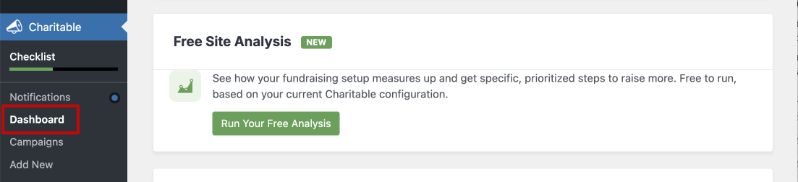
To get started, click “Run Your Free Analysis.” A new page opens that introduces you to the Site Analysis and what it does.
When you’re ready, click the green “Run Analysis” button at the bottom of the page.
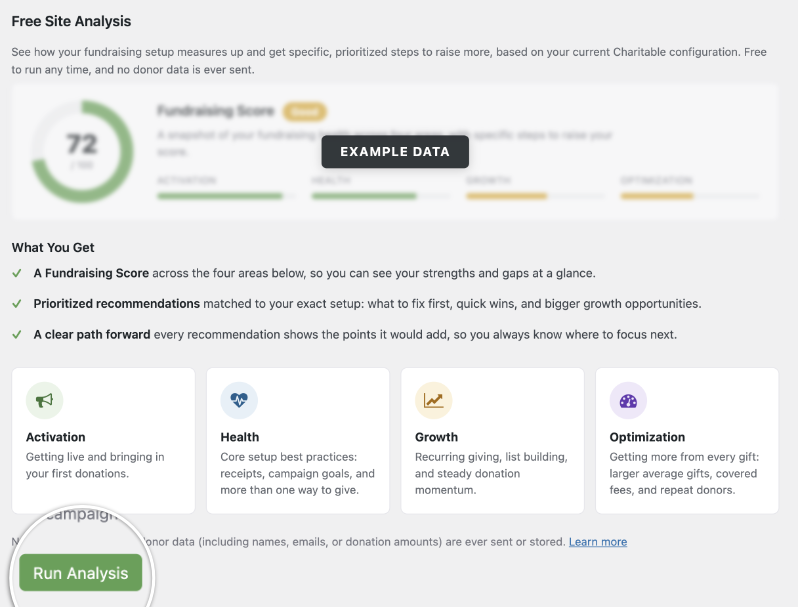
Note: The Site Analysis is free to run and based entirely on your current Charitable configuration. It doesn’t change any of your settings on its own, and no campaign content or donor data, including names, emails, or donation amounts, is ever sent or stored.
Understanding Your Fundraising Score
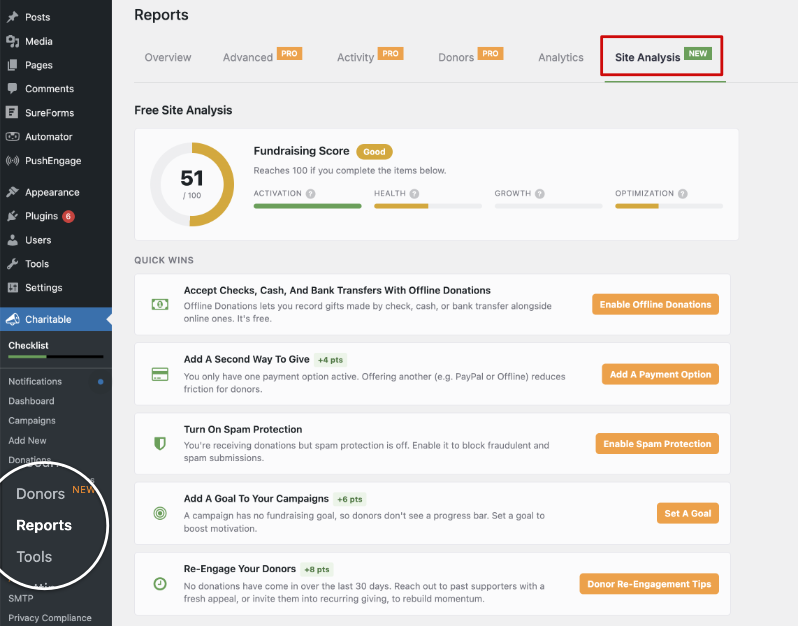
Once the analysis finishes, you’ll see your fundraising score, followed by a set of suggestions split into Quick Wins and Opportunities.
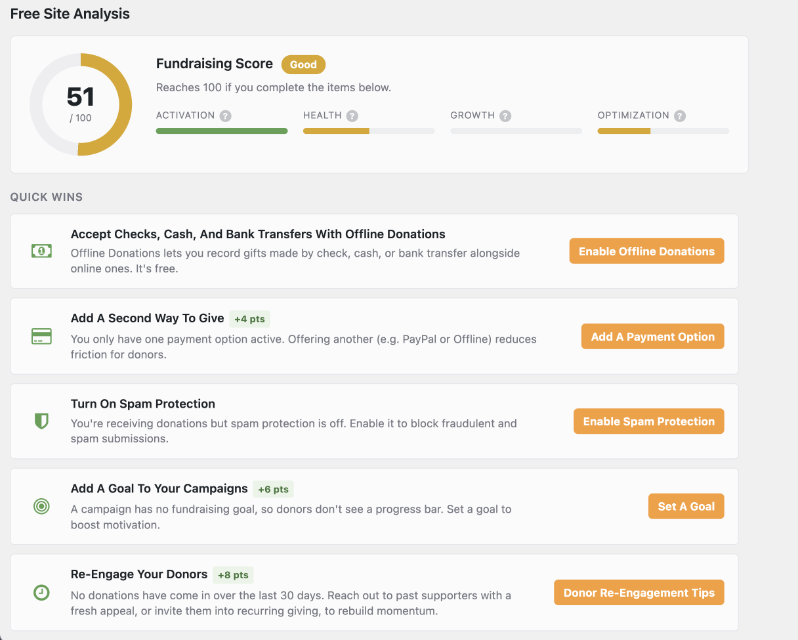
Your fundraising score sits at the top of the report, out of 100, with a rating like Good so you can see where you stand at a glance. You’ll also see the score your site could reach if you acted on every recommendation.
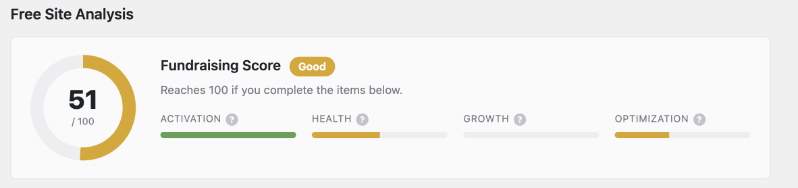
The score is built from 4 areas of your fundraising setup.
- Activation is about getting live and bringing in your first donations.
- Health covers core setup best practices, such as receipts, campaign goals, and more than one way to give.
- Growth covers recurring giving, list building, and a steady flow of donations.
- Optimization is about getting more from every gift, through larger average gifts, covered fees, and repeat donors.
Everything below your score in the report exists to help you raise that number in one of these 4 areas.
Quick Wins
Below your score, you’ll see Quick Wins. These are specific actions you can take right away to strengthen your fundraising setup.
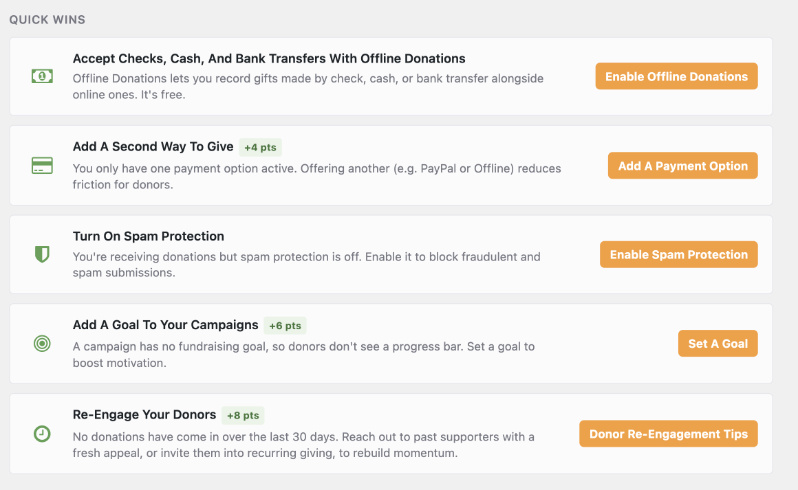
Quick Wins can include suggestions such as these.
- Enable Offline Donations
- Add a Payment Option
- Enable Spam Protection
- Set a Goal
- Donor Re-Engagement tips
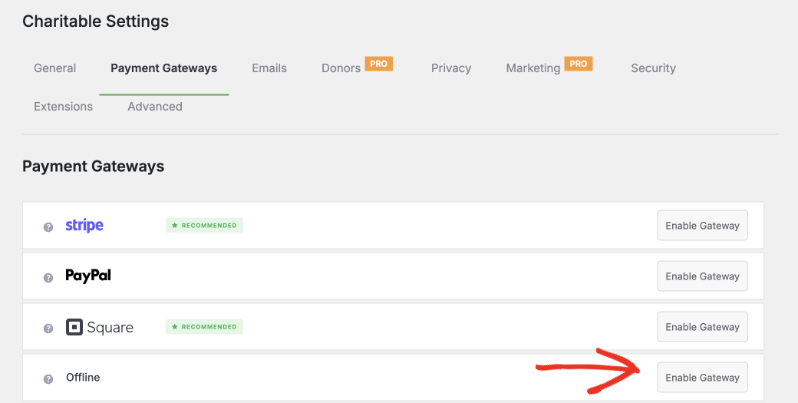
Each Quick Win shows the points it would add to your fundraising score, and links straight to the settings page where you can act on it. For example, clicking “Enable Offline Donations” takes you directly to the Payment Settings page, where you can turn it on in a couple of clicks.
Opportunities
Below Quick Wins, you’ll find Opportunities. These are additional suggestions for strengthening your fundraising setup beyond the quick, one-click fixes.
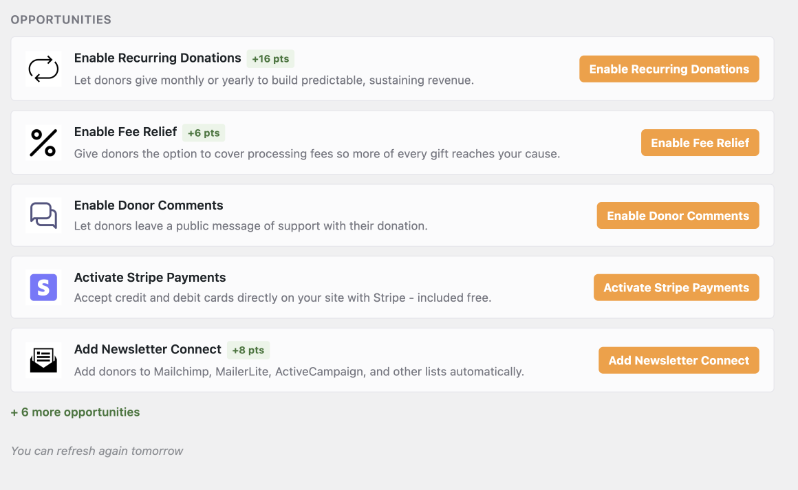
Pro tip: Work through Quick Wins first, then come back to Opportunities once those are handled. Refreshing the analysis afterward will show you how much your score has improved.
Finding Your Score Again
You don’t need to rerun the analysis just to look at your report again. Once you’ve run it, you’ll find your score in 3 places.
The Site Analysis tab on your dashboard. Under Charitable » Dashboard, the tab below the chart shows your score on the tab itself, so you can see it without clicking.
The Nonprofit Site Analysis card on the Reports Overview. Under Charitable » Reports, the card on the right shows your score, your score in each of the 4 areas, and a Do This Next suggestion. Click “View Full Analysis” to open the full report.
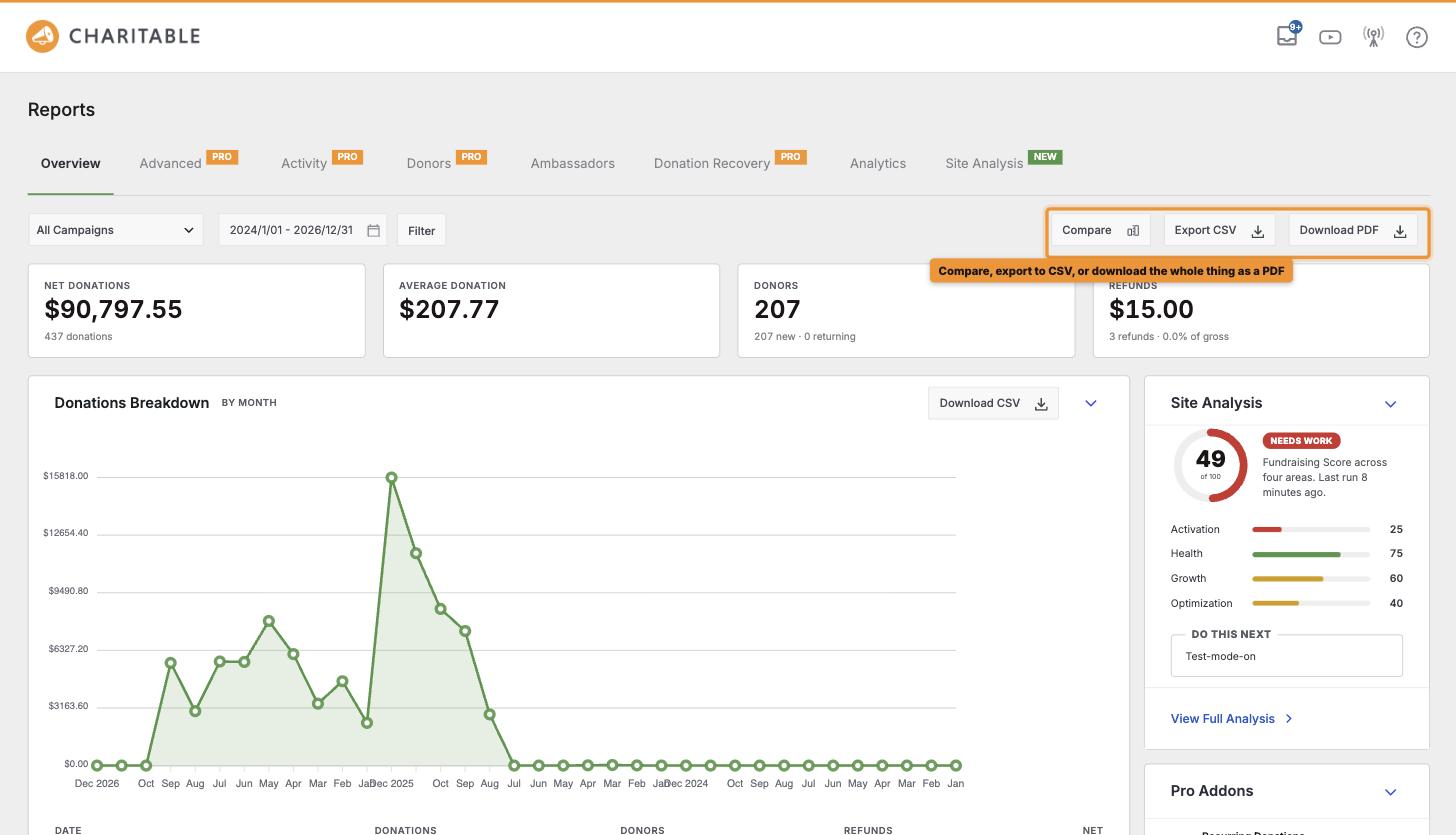
The Site Analysis tab under Reports. Go to Charitable » Reports » Site Analysis to see the full report and every recommendation.
FAQs on Site Analysis
Does running the Site Analysis cost anything?
No. The Site Analysis is completely free to run, on any Charitable plan.
Will running the analysis change any of my settings?
No. The analysis only reviews your current Charitable configuration. Any changes, like enabling offline donations or adding a payment option, happen only when you click through and make them yourself.
Can I run the analysis more than once?
Yes. You can refresh it once a day, so it’s a good idea to run it again after you’ve worked through your Quick Wins to see your updated score.
Where can I find my report if I close it?
You can go to Charitable » Reports » Site Analysis to pull up your most recent report at any time. You’ll also see your score on the Site Analysis tab of your dashboard.
Wrapping Up
You now know how to run your free Site Analysis, read your score and its 4 areas, work through Quick Wins and Opportunities, and find your score again on your dashboard and reports.
Each fix you make moves your score up, and you can see the change the next day. If you get stuck on any step, our support team is happy to help.
You May Also Want to Read
These guides cover the screens where your score appears.
- How to Read Your Charitable Dashboard. Find your way around the tiles, chart and cards on your dashboard.
- How to Use the Reports Overview. Read the full report beside your Site Analysis card.
- How to Fix Issues on Your Dashboard Status Card. Fix the setup issues that also affect your score.
Helpful Links
🤝 Get help when you need it
Connect with Customer Support →
📑 Find the guide you need
Browse the Documentation Hub →
⬇️ Download proven strategies, campaign ideas, and expert tools
🔗 Let your AI Assistant do the fundraising work for you.
Connect Charitable to your AI assistant →
💸 Get Free Fundraising Resources
Head to the Charitable Fundraising Hub →
🤔 Got questions about Charitable?
Charitable FAQs →
Need help understanding non-profit terms and jargon?
See our Non-Profit Glossary →

Charitable Now Works With the AI Assistant You Already Use
This is the most fun thing we’ve shipped all year, and you have to try it. You can now use ChatGPT, Claude, or any AI assistant you’re already using to build and launch fundraiser campaigns.
You can create donation records, manage donor profiles, fetch data, and get fundraising reports too. Simply connect your AI agent, and start asking for what you want.
No Charitable addon needed, no coding, and no elaborate setup. Anyone can do it!




