
Ready to send your donors one clean summary of everything they gave this year, instead of a folder of separate receipt emails? Let’s get you set up.
With Charitable, that means turning on one setting, confirming your organization’s details are correct, and choosing when the summaries go out. No spreadsheets, no manually adding up a year of receipts, and you’ll have it configured in about 5-10 minutes.
Here’s exactly how to set it up, what belongs on the finished document, and the handful of data issues worth checking before your first batch goes out.
If you haven’t set up donation receipts on your site at all yet, start with the donation receipts documentation first, then come back here.
What’s In This Tutorial
- What to Include in an Annual Donation Summary
- Memorial Gifts, Matching Gifts, and In-Kind Donations
- How to Send Annual Donation Summaries with Charitable
- How to Send Annual Donation Summaries (Code-Free)
- Common Mistakes to Avoid
- Timing Annual Summaries Around Other Year-End Communications
- FAQs on Annual Donation Summaries
What to Include in an Annual Donation Summary
An annual summary isn’t just a longer receipt. It’s its own document, and donors, along with their tax preparers, expect certain details to actually be on it.
Leave one of these out and you’ll usually hear about it in a follow-up email asking for a correction.
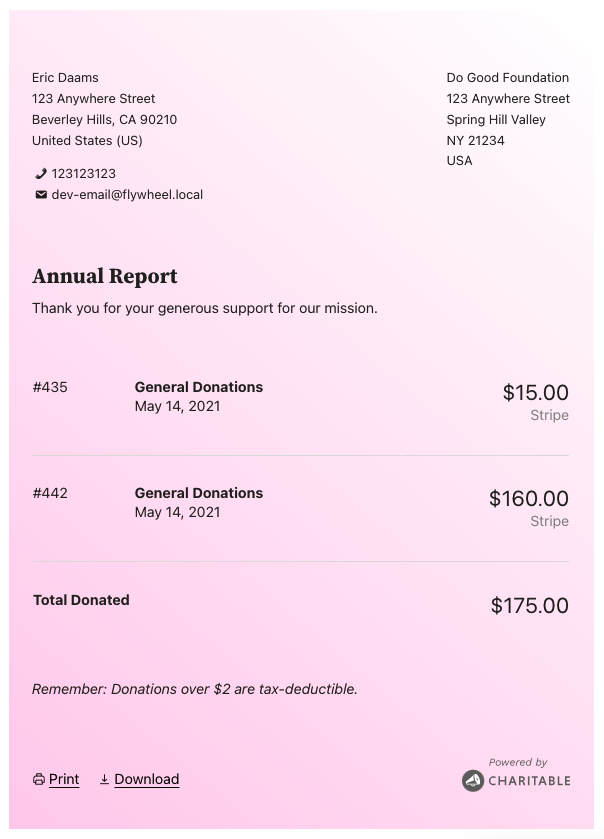
- Your organization’s legal name and address: the name registered with the IRS, not a shortened or informal version you use in casual communication.
- Your EIN (tax ID): some donors’ tax preparers ask for this directly, and having it already on the document saves everyone a second email.
- The donor’s name and mailing address: as it appears in your donor records, so it matches whatever else that donor has on file for their taxes.
- Every gift made during the calendar year: date and amount for each individual donation, not just a lump total, so the donor can cross-check it against their own bank or card statements if needed.
- The full-year total: the single number the donor actually needs for their own records, clearly separated from the itemized list above it.
- A tax-deductibility statement: confirmation that no goods or services were provided in exchange for the donation, or a description of any that were, such as a gala ticket or auction item.
Note: These details can vary by country/state and your local governing laws. Be sure to check with a tax consultant or advisor for the right details to include in these receipts.
One detail worth calling out on its own: if any of a donor’s gifts came with a benefit attached, a ticket to a fundraising dinner, a raffle entry, a tote bag above a certain giving threshold, that gift isn’t fully tax-deductible. The summary needs to reflect the deductible portion, not the full amount given. It’s a common source of confusion, and it’s worth getting right the first time instead of issuing a correction later.
A few gift types don’t fit neatly into a simple date-and-amount line either, so it’s worth knowing how to handle each one before your first summary goes out.
Memorial Gifts, Matching Gifts, and In-Kind Donations
Not every gift fits the simple pattern of “one person, one payment, one deductible amount.” A few common variations need a slightly different approach on the summary, and it’s worth thinking through each before you assume your default setup already handles it.
Memorial and tribute gifts. If a donor gave $100 in memory of a parent and also gave $50 as part of your general year-end appeal, both gifts belong to that same donor’s annual total. The tribute designation matters for your own records and for any acknowledgment sent to the honoree’s family, but it shouldn’t split the donor’s summary into two documents. One donor, one summary, every gift listed regardless of what it was designated for.
Matching gifts. If an employer matches a donor’s gift, that match is a separate donation from a separate source (the employer or matching gift program), not the original donor. It should show up on that employer’s or program’s own record, not folded into the individual donor’s personal total. Keeping these separate avoids overstating what any single donor actually gave out of their own pocket.
In-kind donations. A donated laptop, a truckload of supplies, or pro bono professional services are real contributions, but they’re valued and substantiated differently than a cash gift. Donors generally have to determine fair market value themselves for tax purposes, so your acknowledgment should describe the item or service without assigning it a dollar value on your organization’s behalf. Keep these on a separate acknowledgment rather than folding an estimated value into a cash-total summary.
Anonymous donations. If a donor gave anonymously through your donation form but still wants a personal record for tax purposes, they’ll need a way to identify themselves to your organization separately from the public-facing anonymity. Charitable’s donor records can track that distinction, so an anonymous public listing doesn’t have to mean an untracked donor on your end.
None of these are common enough to redesign your whole process around, but each one shows up eventually, and it’s a much easier conversation with a donor when you’ve already thought through how your summary handles it.
How to Send Annual Donation Summaries with Charitable
Charitable is the #1 WordPress plugin for annual receipts and I’ll tell you why.
First, it’s an all-in-one solution to fundraising online so you get everything you need to accept donations through your website.
This includes easy setup, readymade campaigns, multiple payment gateways, automated receipts, automated emails, and fundraising reports.
Coming to annual receipts, Charitable keeps every donation on your own site instead of scattered across a payment processor’s dashboard.
That matters here specifically: an accurate annual summary depends on every gift, one-time and recurring, sitting in one place to begin with.
If your donation history is split across Stripe’s dashboard, PayPal’s transaction log, and a spreadsheet someone updates by hand, building an accurate annual total turns into a research project instead of something you generate in a few clicks.
Charitable Lite, the free version you can start with, already sends an automated receipt after every individual donation, so donors are never left wondering whether a gift went through. Solid foundation, no cost to get running today.
The consolidated, once-a-year summary is a step beyond that. You’ll need the Annual Receipts addon, included with Charitable’s Plus plan and above.
Here’s what it actually does for you once it’s turned on.
- Automatic compilation: pulls every gift a donor made in a calendar year, one-time and recurring, into a single document without you touching a spreadsheet.
- Built-in organization details: your legal name, address, and EIN populate automatically, so they’re consistent across every summary instead of retyped one at a time.
- Itemized and totaled: every gift listed with its date and amount, plus a full-year total, matching the structure donors and tax preparers actually expect.
- Optional PDF attachment: donors can get a document they can save, print, or hand straight to a tax preparer, not just a plain email.
- One-click bulk sending, with a safety net: send to every qualifying donor at once, and run a dry run first so you can see exactly what would happen before anything actually goes out.
- Self-serve access through a magic link: donors can grab their own receipt from a secure link with no account and no password, any time they need it.
- Branded to match your site: your logo and colors carry through, so the summary looks like it came from your organization, not a generic invoice tool.
- Works alongside individual receipts: it doesn’t replace per-donation receipts, it sits on top of them as the year-end wrap-up.
See the full Annual Receipts feature »
Every paid plan comes with a 14-day money-back guarantee, so there’s no risk in trying Annual Receipts against a real year of donation data before you commit. Try Charitable Plus now »
If you’re still weighing the upgrade, the Lite versus Pro comparison lays out exactly what changes at each tier. And if your organization handles recurring gifts, it’s worth reading how recurring donations are tracked in Charitable, since that history feeds straight into the annual total.
That’s the overview. Now let’s actually click through it, screen by screen.
How to Send Annual Donation Summaries (Code-Free)
None of this touches a line of code. If you can fill out a settings form, you can have this fully configured in about 5-10 minutes, and most of that time is spent double-checking details rather than actually clicking anything complicated.
Step 1: Activate the Annual Receipts Addon
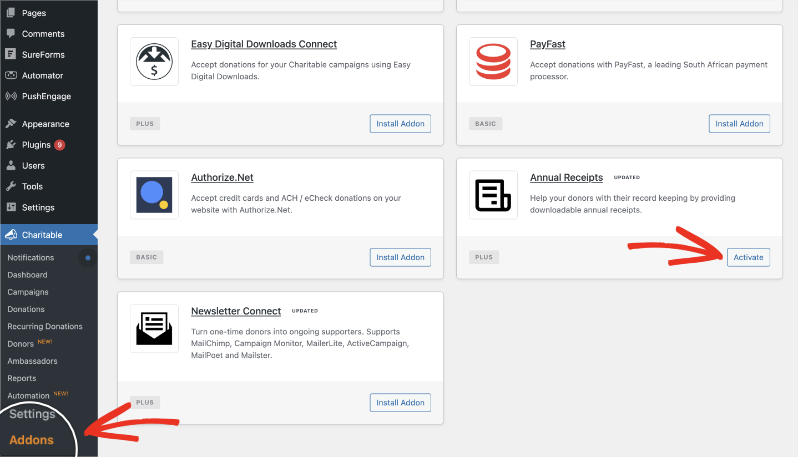
Head to Charitable » Addons, search for Annual Receipts, then click Install Addon and Activate. Charitable ships a lot of its bigger features this way, as an addon you turn on rather than a setting buried in a menu, so your dashboard stays uncluttered until you actually need it.
Step 2: Set Your Financial Year and Turn On Donor Downloads
Go to Charitable » Settings » Advanced » Annual Receipts. First, set the End of Financial Year date. Most US organizations leave this at December 31st, but if your fiscal year runs differently, say, ending March 31st, change it here so the totals line up with your own books, not just the calendar.
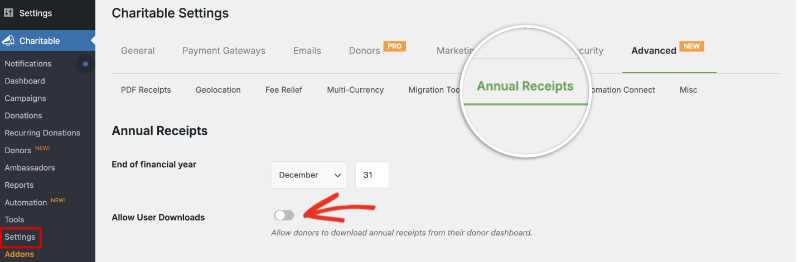
Right below that, toggle on Allow Donors to Download Their Annual Receipt. We recommend turning this on for pretty much every organization.
Here’s why: without it, every donor who wants their summary early, or who loses the email, or who just prefers to grab it themselves, has to email you and wait. With it on, they help themselves whenever they want it, and you never see the request.
It’s a genuinely low-effort way to remove a whole category of support emails from your plate during your busiest reporting month.
Step 3: Meet the Magic Link
Once that toggle is on, a donor who logs into their donor profile sees a straightforward Download Annual Receipt option.
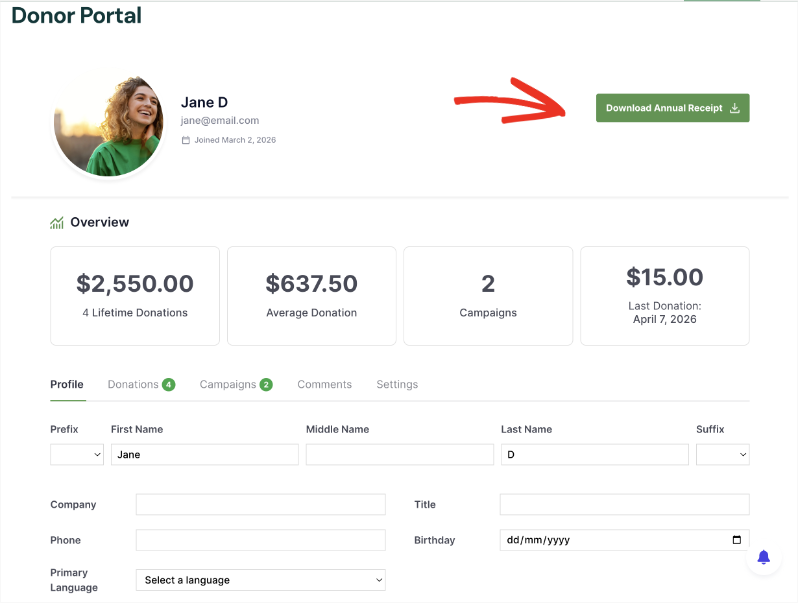
You’ll need to enable the donor dashboard first to offer donors this feature. You’ll find this option under Settings » Donors » Donor Dashboard.
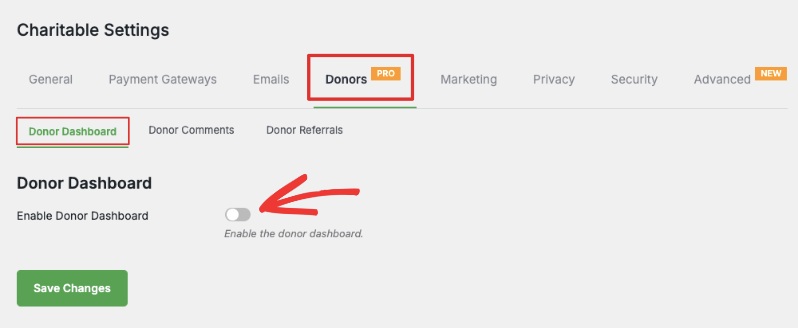
Once enabled, you can configure the settings and fields that appear to a donor that logins to their own dashbaord.
Here’s the part I actually love: donors don’t even need an account to get there.
Charitable generates a secure magic link, so a donor can click straight through to their receipt without creating a login or remembering a password. For a nonprofit, that means no password-reset tickets landing in your inbox in the middle of tax season. See it in action: Charitable’s Magic Link »
For a donor, especially one who gave once a while back and never bothered setting up a profile, it means they don’t have to jump through a single hoop to get a document they need for their taxes. Everybody wins, and nobody has to remember a password to make it happen.
Step 4: Exclude Any Campaigns That Shouldn’t Count
Back to Charitable » Settings » Advanced » Annual Receipts. Scroll to Exclude Campaigns. If you run campaigns that shouldn’t feed into a tax-deductible total, event ticket sales, merchandise, a raffle, move them to the Excluded list so their donations get stripped out of every annual receipt and bulk send automatically.
This step is skippable entirely if every campaign you run is straightforward, tax-deductible fundraising.
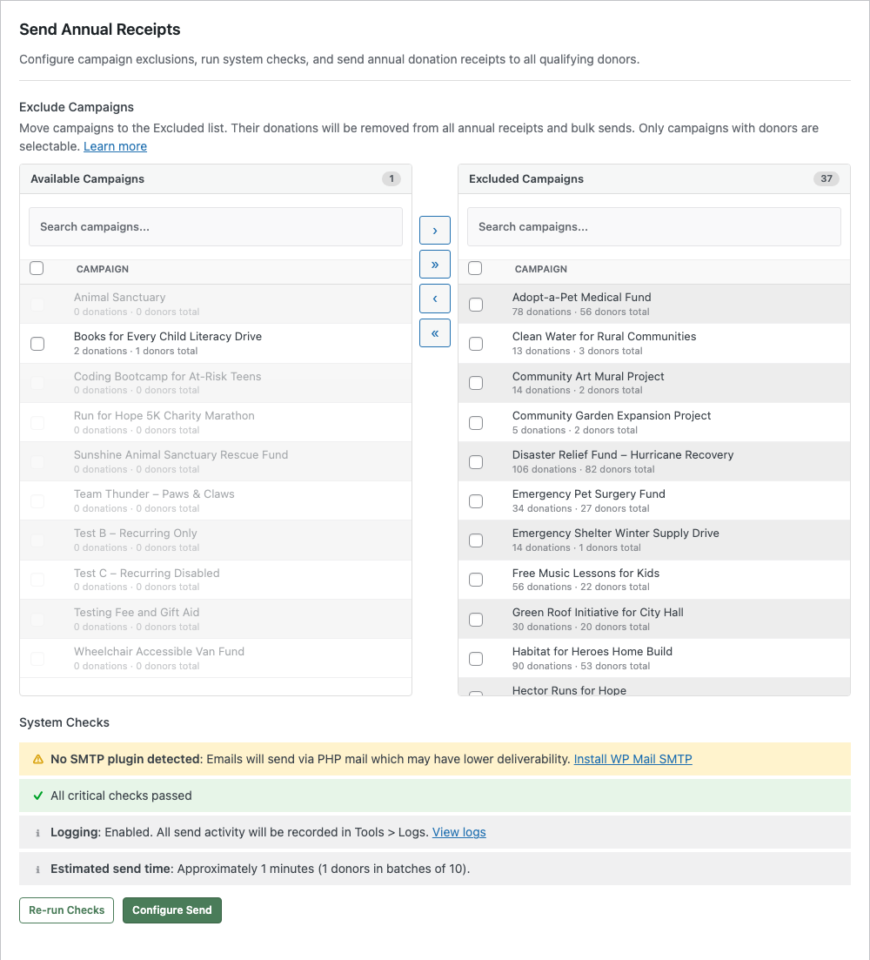
The panel shows two lists side by side.
- Available Campaigns, on the left, shows what’s currently included, with each campaign’s all-time donation and donor totals.
- Excluded Campaigns, on the right, shows what’s been removed.
Click a campaign to select it, then use the arrow button to move it across, or just double-click to move it instantly. The double-arrow button moves everything visible at once, and campaigns with zero donors are greyed out since there’s nothing to exclude.
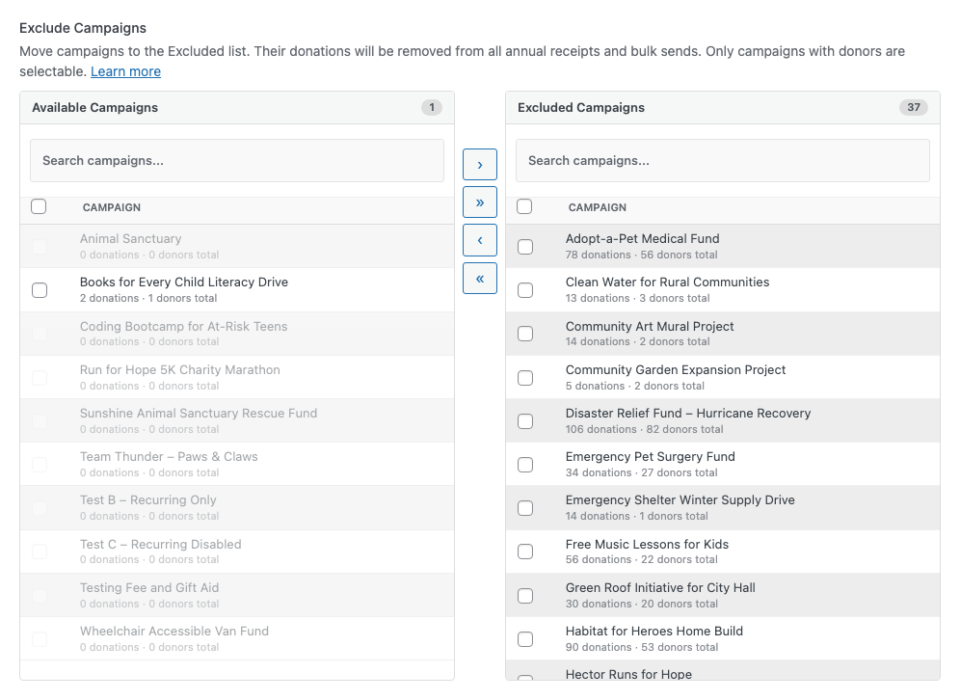
One thing worth knowing: the totals shown here are all-time, not just this year, so don’t be alarmed if a campaign shows a bigger number than you expected.
The actual donor count on a receipt still depends only on gifts made in the fiscal year you select later.
Click Save Changes once you’re done.
Step 5: Let Charitable Check Your Setup
Before you can send anything, Charitable runs a quick set of system checks and shows you exactly where things stand. This is the part that actually protects you from sending a broken summary to 200 donors, so don’t skip past it.
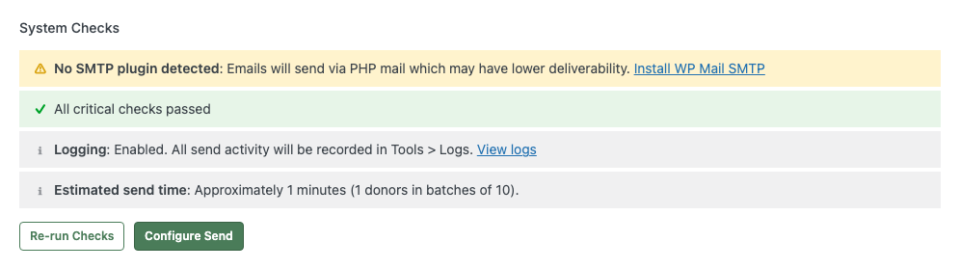
Checks come in three flavors.
- Critical, in red, actually blocks sending until it’s fixed, things like the Annual Receipt email needing to be turned on.
- Warnings, in amber, are advisory but won’t stop you, like not having an SMTP plugin installed for better deliverability.
- Info, in grey, just tells you your current setup: which email provider you’re using, whether logging is on, and roughly how long the send will take.
Click Re-run Checks after fixing anything, and once every critical item passes, the Configure Send button lights up.
Step 6: Configure Your Send
Click Configure Send to open the wizard.
First choice is the Year: pick the wrong year and every donor gets a document with the wrong total on it, which is exactly the kind of mistake you want to catch before it happens rather than after. The donor count updates live as you change the year, which is a handy way to sanity-check you picked correctly.
Use Send Test Email to fire a sample straight to your own inbox first, with the PDF attached if you’ve got that option checked. Always look at this before donors do.
The PDF Attachment option itself only shows up if your server has enough memory (128MB or more) to generate it; if it doesn’t, Charitable tells you so you’re not left wondering why the checkbox is missing.
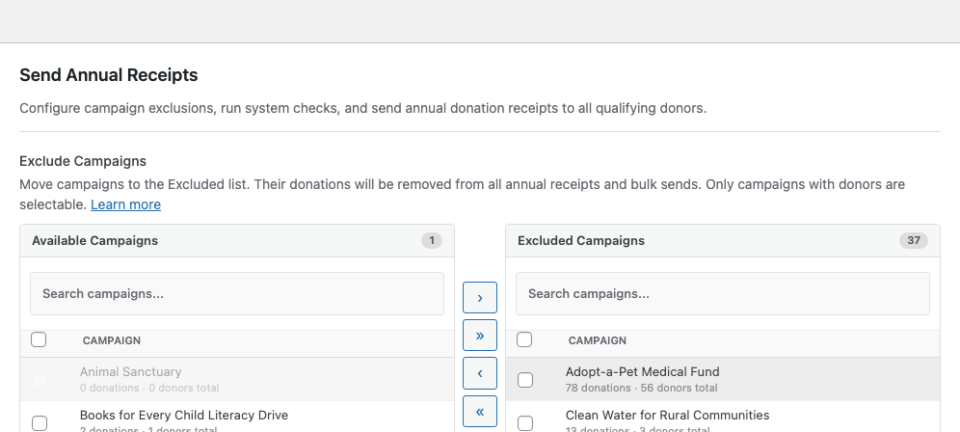
Click Next: Review once your test email checks out.
Step 7: Review, Then Run a Dry Run
Step 2 of the wizard shows exactly what’s about to happen: how many donors will receive a receipt, how many will be skipped because they have no email on file, and a checkbox (off by default) to include donors who already got a receipt for this year, so you don’t accidentally double-send.
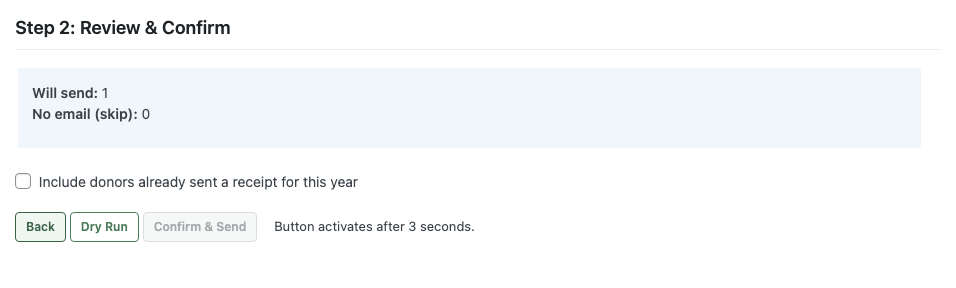
The bulk-send wizard gives you two buttons here: Dry Run and Confirm & Send.
Always hit Dry Run first. It runs the entire process, deduplication, campaign exclusions, email checks, everything, without actually sending a single email.
You get a clear “would send / would skip / would fail” breakdown, and because it doesn’t mark anyone as already-sent, you can run it as many times as you need until the numbers look right.
Only once that matches what you expect should you go back and hit Confirm & Send, which builds in a 3-second delay specifically so a stray click doesn’t blast your entire donor list by accident.
Step 8: Send It and Watch It Go
Once you confirm, Step 3 shows a live progress bar with running counts for Sent, Skipped, Failed, and Remaining, plus an error log if anything failed along with the specific reason.
Emails go out in batches in the background, so you can close the browser tab and it’ll keep working. There’s an Abort button if you need to stop the rest of a batch, and anything already sent stays sent, it just halts what’s left.
One heads-up: if your email provider caps how many you can send per day (Gmail tops out around 500), Charitable notices automatically, pauses the job, and shows you when it’ll pick back up.
No emails get lost, it just spreads the batch across days as needed.
Step 9: Know Where to Check Afterward
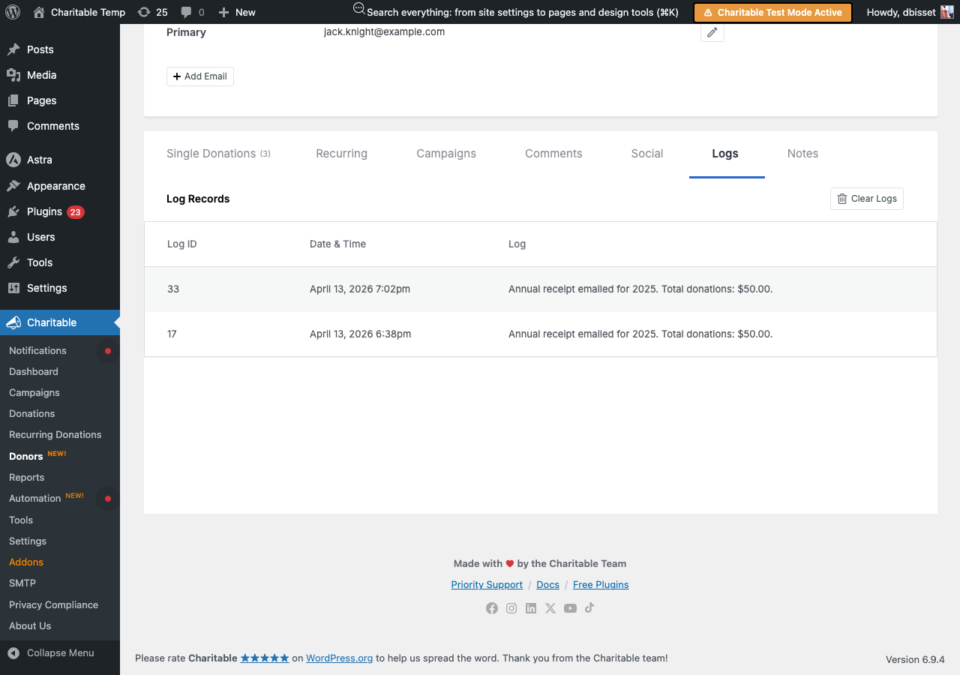
Two places to look once a batch is out. First, open any donor’s profile under Charitable » Donors and click the Logs tab. Every successful send shows up there with its date, year, and total, so if a donor swears they never got theirs, you can check in seconds instead of guessing.
Second, a Send History table sits below the wizard, showing the year, how many donors got sent, and the date of the last send. Need to resend a whole year because something was off?
Click Clear next to that year, which resets the dedup log so everyone becomes eligible again, then run the wizard once more. Or skip clearing entirely and just check the “include already sent” box in Step 2 to resend without touching the history.
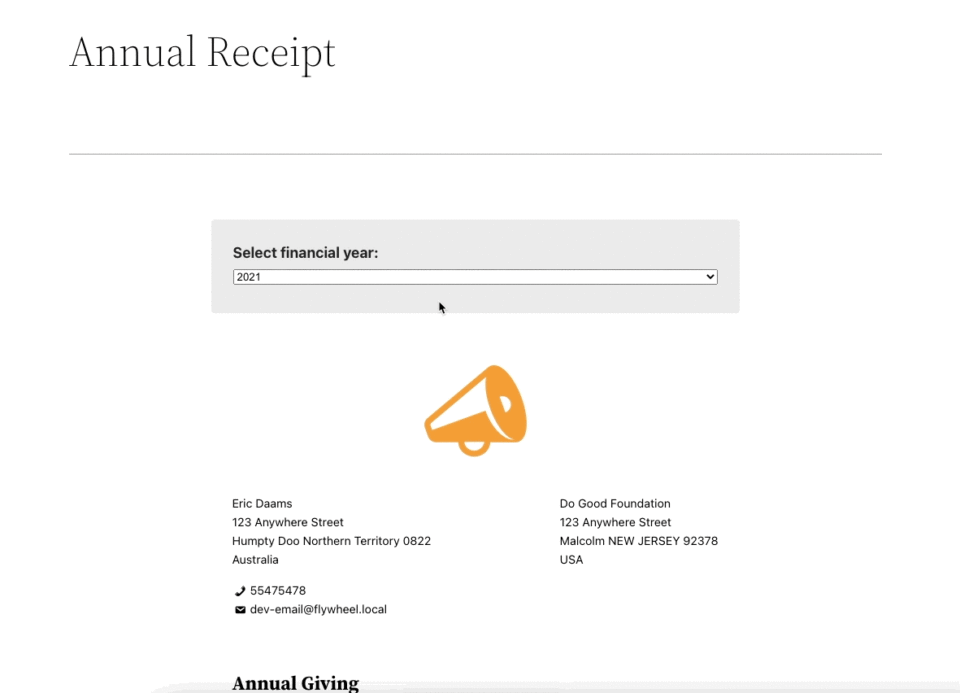
And here’s what a donor actually sees on their end when they use that magic link or download from their dashboard, a clean, printable receipt they can save for their own records.
Bonus Step: Make the Email Sound Like You
The default email works fine, but you can customize it in a minute making it sound like your organization instead of a generic system notice.
Head to Charitable » Settings » Emails, find Donor: Annual Receipt, and click Email Settings to edit the subject line, headline, and body copy.
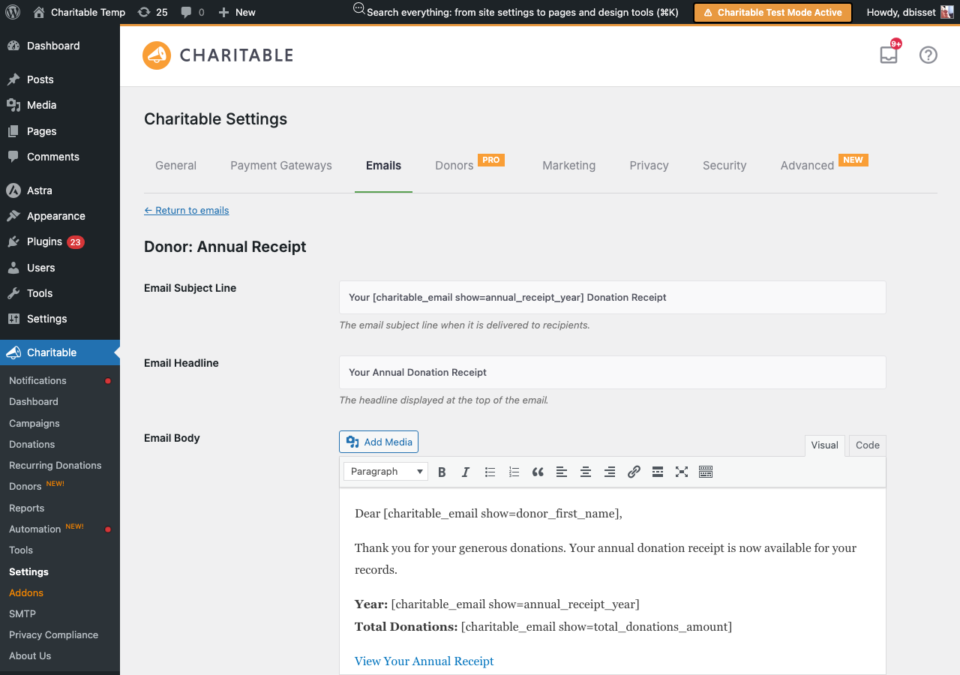
A handful of merge tags do the heavy lifting so you’re not typing anything manually: the donor’s first and last name, the fiscal year, their total donation amount, your organization’s name, and the annual receipt link itself. That link, worth remembering, is the same secure magic-link technology from Step 3 baked right into the email, and it expires after 30 days by default.
If a donor waits until March to click it, plan on regenerating a fresh one rather than assuming the original still works.
With the summaries out the door, it’s worth pausing on a few mistakes that trip up organizations doing this for the first time.
Common Mistakes to Avoid
Most problems with annual summaries come from data gaps rather than the sending process itself. A few show up often enough that they’re worth checking before your first real batch goes out.
Offline gifts left out of the total. A check mailed in or a gift handed over at an event doesn’t automatically appear in your donation records unless someone tracks that offline donation in Charitable manually. If a donor’s summary is missing a $500 check they mailed in October, that’s a data entry gap, not a plugin error, and it’s worth confirming offline gifts get logged consistently all year rather than trying to reconstruct them all in January.
Duplicate donor records. If the same person gave once under a personal email and once through a company email, they may exist as two separate donor records with two partial totals instead of one accurate one. Merge duplicate donor profiles before generating summaries and save yourself an awkward correction later.
Failed recurring payments counted as gifts. A recurring donation that failed to process shouldn’t show up on the summary as a completed gift. Spot-check a donor with a recurring gift and confirm the total only reflects payments that actually went through.
Skipping the dry run. It’s tempting to just hit Confirm & Send the first time, especially when you’re in a hurry. Don’t. The dry run exists specifically to catch a wrong year, a missing exclusion, or a donor count that doesn’t match what you expected, and it costs you nothing but a couple of minutes.
Sending before the year is actually closed out. A gift made on December 30th needs a few days to fully process and record before it’s safe to run the batch. Sending on January 1st risks missing the last handful of December gifts. Wait until at least the first week of January to give that processing time to settle.
Treating benefit-inclusive gifts as fully deductible. As covered earlier, a gala ticket or auction item reduces the deductible portion of a gift. If that’s not reflected, donors who attended fundraising events may end up with an inflated deductible total on paper.
Ignoring currency differences for international donors. If you accept gifts in more than one currency, make sure totals are reported in a single, clearly labeled currency rather than mixed figures. A donor who gave in euros shouldn’t have to guess whether the total reflects the original amount or a converted one.
None of these are hard to fix once you know to look for them. They’re just easy to miss the first time through, which is exactly why the dry run and a quick spot-check are worth the extra five minutes.
Timing Annual Summaries Around Other Year-End Communications
January is a crowded month for donor communication, and the annual summary isn’t the only thing landing in a supporter’s inbox. Most nonprofits are also sending year-end impact reports, thank-you campaigns tied to giving totals, and sometimes a January appeal to kick off the new fundraising year. Send all of these within 48 hours of each other and you risk burying the one document a donor actually needs for their taxes underneath three other emails they’ll skim and forget.
A simple sequence works well for most organizations.
Send any year-end impact recap first, in the last few days of December or the very first days of January, while the emotional momentum of the year is still fresh.
Follow that a week or so later with the annual summary on its own, with a subject line that makes clear what it is, something like “Your 2026 Giving Summary for Tax Purposes” rather than folding it into a general newsletter subject. A donor scanning their inbox for a tax document should spot it immediately.
If you run a January appeal to start the new year’s fundraising, give the annual summary a few days of separation before that appeal goes out. A donor who just got thanked for last year’s generosity and immediately gets asked for a new gift can read that sequence as transactional, even when that’s not the intent.
Keep the subject line and sender name consistent every year once you settle on a format. Donors who give annually start to recognize what that email looks like, and a predictable arrival builds the same kind of trust as a bank sending a statement on the same day every month.
If your team is small and January already feels stretched thin, put this on a fixed date every year rather than deciding fresh each time. A week after your impact recap, a few days ahead of any new appeal, done. The sequencing happens correctly without anyone having to remember the order in the middle of a busy month.
Charitable Has 1.2+ Million Downloads!
Trusted by millions to power successful fundraising campaigns. Try Charitable risk-free today.
✅ 14-day money-back guarantee
✅ Transparent pricing
✅ Code-free setup
FAQs on Annual Donation Summaries
Do nonprofits have to send annual donation summaries?
This depends on the laws of your country. Generally, if donations to your organization are tax-deductible, then donors must submit an annual summary to claim the tax benefit.
In the US, the IRS requires written acknowledgment for any single gift of $250 or more, but there’s no separate legal requirement for a consolidated annual summary. It’s a best practice, not a mandate, and most donors who give multiple times a year will ask for one anyway.
What’s the difference between a donation receipt and an annual summary?
A receipt covers one gift and goes out right after that donation completes. An annual summary rolls up every gift from the year into one document, usually sent once in January.
Does Charitable Lite support annual donation summaries?
Lite sends automated receipts after each individual donation, which covers a lot on its own. The consolidated Annual Receipts addon is part of Charitable’s Plus plan and above.
Can donors get their own summary without waiting for an email?
Yes, two ways. They can log into their donor dashboard and download it directly, or use the secure magic link included in their email, which needs no account or password at all.
What if a donor gave through both a one-time gift and a recurring donation?
Both are pulled into the same summary automatically. The itemized list shows every gift by date, and the total reflects everything combined.
When should annual summaries go out?
The first two weeks of January work well for most organizations. That gives late-December gifts time to fully process while still getting donors their document before they need it for tax preparation.
Can I customize the design and wording?
Yes. Your logo and colors carry through automatically, and the email’s subject line, headline, and body are all editable in Settings » Emails using merge tags for things like the donor’s name and total.
What happens if a donor made a gift that included a benefit, like a gala ticket?
Only the deductible portion of that gift should appear as tax-deductible on the summary. Log the fair market value of any goods or services provided at the time of the gift so the deductible amount calculates correctly.
How do I resend or fix a batch if something went wrong?
Run a dry run first to see exactly what would happen, since it doesn’t send anything or mark donors as already-sent. For a real resend, click Clear next to that year in the Send History table and run the wizard again, or just check “include donors already sent a receipt” to resend without clearing anything.
Do offline donations, like checks or cash, show up on the annual summary?
Only if they’ve been logged in Charitable as a donation record. Offline gifts don’t record themselves, so it’s worth entering them consistently all year rather than tracking them down before the batch goes out.
What if my organization’s fiscal year isn’t the calendar year?
Set the End of Financial Year date in Settings » Advanced » Annual Receipts to match. Most donors still expect a calendar-year summary for their own tax filing, though, so consider running both if your fiscal and calendar years differ significantly.
Your donors already trust you with their giving history. Sending it back to them in one clear, well-timed document is one of the easiest ways to prove that trust is well placed, and it takes a fraction of the effort that answering each request one by one would cost you.
Start small if you need to. Even organizations without a formal recurring giving program often discover, the first time they run this, that more donors gave more than once than anyone on staff had assumed. That’s usually the moment the case for turning this on becomes obvious rather than theoretical.
Stay Connected for More Nonprofit Resources
For more tutorials and videos tailored to nonprofits, subscribe to our YouTube channel. We regularly publish expert tips, step-by-step guides on online donations, fundraising strategies, and practical resources to help your organization succeed.
🗞️ Get weekly tips and exclusive guides in your inbox
Join our newsletter →
🎥 Watch step-by-step tutorials and success stories
Subscribe to our YouTube channel →
👩🏽💻 Connect with our community and get daily nonprofit insights
Follow us on LinkedIn →
🥳 Fun reels and non-profit insights
Follow us on Instagram →
👀 Insightful & fun videos to help you grow your cause
Follow us on TikTok→
🌎 Subscribe and follow for general fundraiser tips
Get Fundraiser Tips on TikTok →
Powerful Fundraising Resources
🤖 Use Charitable with Your AI Assistant
⬇️ Download proven strategies, campaign ideas, and expert tools
Get the Fundraising Kit →
💸 Get Free Fundraising Resources
Head to the Charitable Fundraising Hub →
🤔 Got questions about Charitable?
Charitable FAQs →
🏎️ Take Charitable for a spin
Create your Charitable Demo →
Understand non-profit terms and jargon
Non-Profit Glossary →
% Looking for non-profit deals and discounts?
Best Non-Profit Deals and Discounts →







Leave a Reply