Charitable Documentation

Learn how to make the most of Charitable with clear, step-by-step instructions.

How to Use the Donor Dashboard

The Donor Dashboard provides a personalized and secure space for your donors to manage their information, view donation history, and access important documents, making it easy for them to stay connected with your organization.

To access the Donor Dashboard settings, navigate to Charitable » Settings » Donors » Donor Dashboard in your WordPress admin. Here, you can enable the dashboard and customize the fields you want to appear.

First, let’s explore what your donors see when they login to the Donor Dashboard.

Viewing the Donor Dashboard as a Donor

This section shows you the front end of the dashboard that donors will see. You can customize this dashboard and we’ll show you how to do that in the next section.

Overview
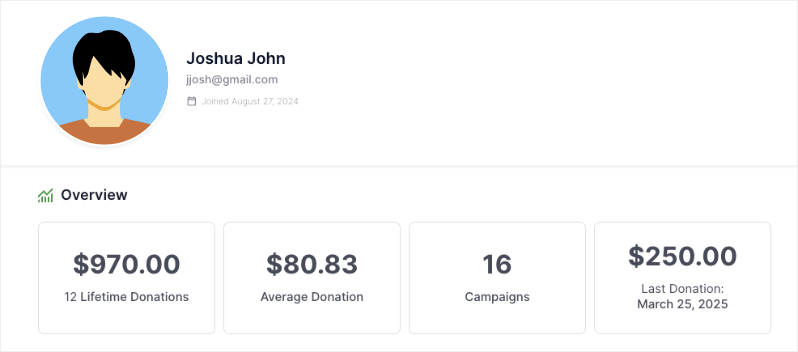
Donor dashboard overview

First, they will see an overview of their donation metrics that include:

  • Lifetime donations
  • Average donations
  • Number of campaigns they’ve contributed to
  • The last donation they made

Personal & Donation Information

There are several tabs to keep things organized, each providing access to different features and information. By default, Charitable will show the Profile, Donations, and Settings tabs. Optional tabs include Comments and Settings.

Let’s explore each tab.
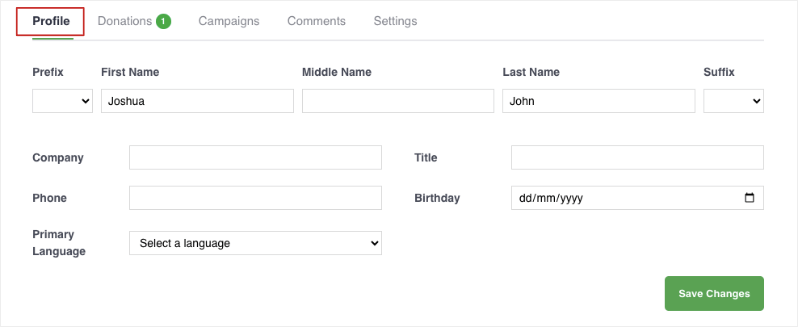
Edit profile in donor dashboard

Profile

Donors can update their profile information, including:

  • Prefix, name and suffix
  • Company and title
  • Phone
  • Birthday
  • Primary language
  • Address
  • Email
  • Social profiles
  • Avatar

Donations

Donations tab in donor dashboard

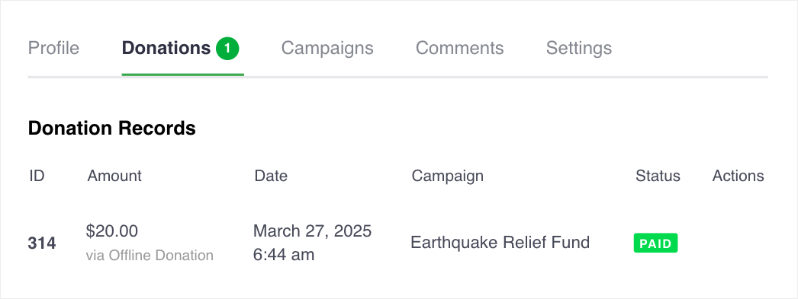
There are 2 tabs that will show donors their one-time donations and recurring contributions. They’ll see a list of their donations, including details such as amount, campaign, date, payment method, and status. They can also download a PDF receipt for each donation.

Campaigns

This will show donors a list of campaigns they’ve contributed to along with the donation amount, status, and end date.

Comments

This will show donors a list of the comments they have posted on their donations. They can also see if their comment has been approved or is pending approval.

Settings
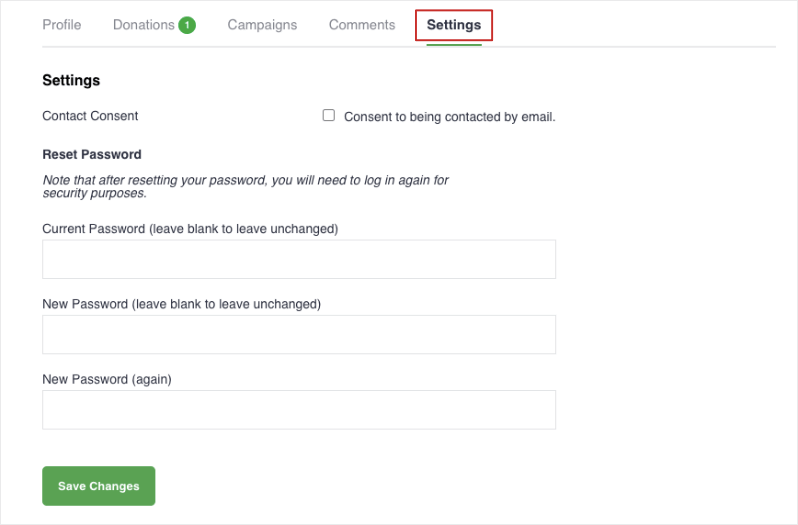
Donor-dashboard-settings-password

They can consent to being contacted by email. They can also update their password for added security.

Now let’s learn how to customize this dashboard.

Customizing the Donor Dashboard as Admin

This section shows you how to customize the donor dashboard and control what will appear to the donor on the front-end.

To enable and customize the donor dashboard, go to the Charitable » Settings » Donor Dashboard page in your WordPress admin.

On this page, you’ll see a toggle switch to enable/disable the dashboard with one click. Click on it to enable the dashboard.
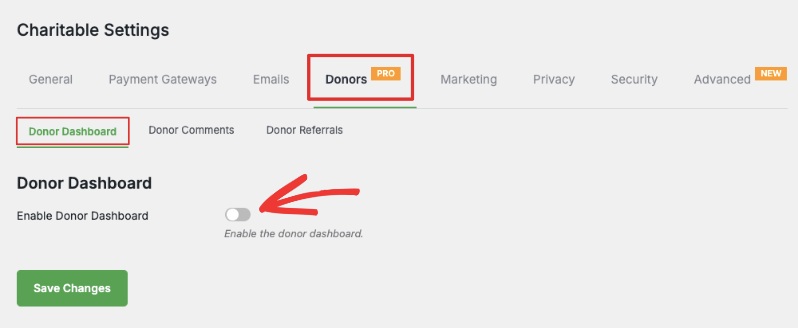
Enable donor dashboard

Below this, you can decide what information you want to appear in the dashboard.

Customize the Overview
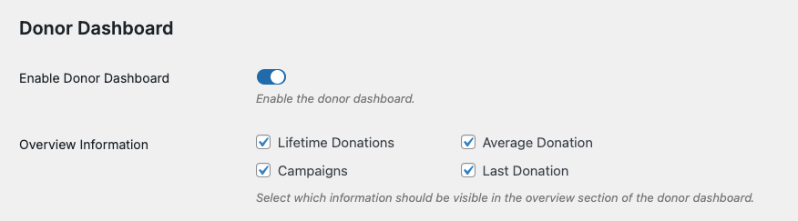
Overview in donor dashboard customization

You can choose to show/hide these fields that appear in the Overview section:

  • Lifetime Donations: Shows the total amount the donor has given across all campaigns which shows their overall impact.
  • Average Donation: Displays how much the donor gives on average
  • Campaigns: Shows how many campaigns they’ve participated in and helped
  • Last Donation: Shows most recent contribution date and amount

Customize Communication & Social Preferences

Next, you can choose to allow donors to add and manage their postal or shipping addresses as well as email addresses.

You can also allow them to add and edit their social media links.

Contact in donor dashboard customization

Customize Profile Information

Remember, Charitable can show these tabs:

Tabs in donor dashboard
  • Profile: Appears by default and can be customized
  • Donations: Appears by default and is automatically configured, no customizations needed
  • Campaigns: Can be shown or hidden
  • Comments: Can be shown or hidden
  • Settings: Appears by default and can be customized

Profile Tab

By default, Charitable will show first and last names. You can customize other fields that appears in the Profile tab:

  • Prefix (Mr., Mrs., etc)
  • Suffix (Jr., Sr., etc)
  • Middle Name
  • Company
  • Title/Position
  • Phone Number
  • Birthday
  • Primary Language
  • Avatar Upload

By default, all fields are selected for you. Simply click on the ticked checkbox to unselect the ones you want to hide.
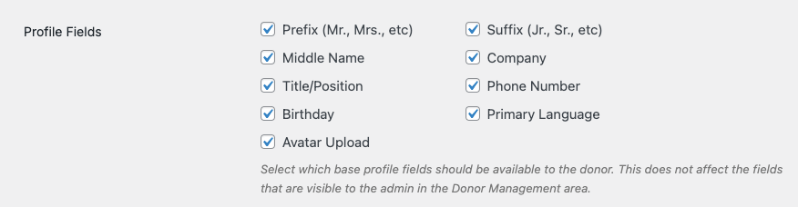
Profile fields in donor dashboard customization

Note: The choices you make here will not affect the fields that are visible in your admin Donor Management area.

Donations Tab

This tab appears by default and is automatically configured. It will display a list of all the donations made by the donor across all campaigns. They can manage their donation records and download PDFs here. There are no customizations needed.

Campaigns Tab

You can choose to display a list of all campaigns the donor has created or participated in.

Simply click the checkbox next to Campaigns to enable this feature and save your changes.
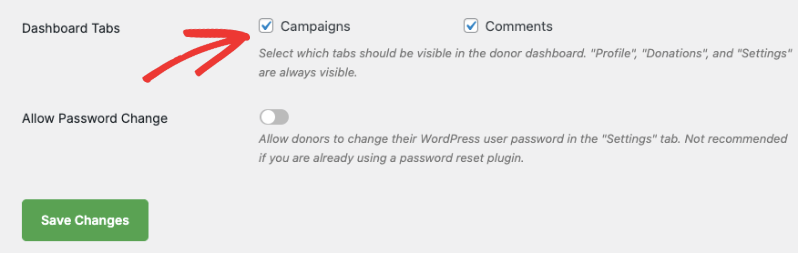
Enable campaigns tab

Comments Tab

You can choose to display any comments made by the donor across various campaigns. They’ll be able to see the status of their comment as well.

Simply click the checkbox next to Comments to enable this feature and save your changes.
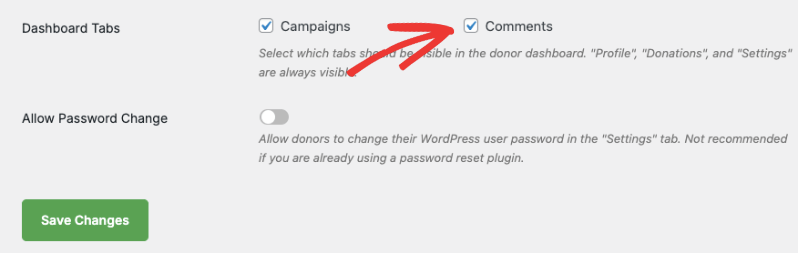
Enable comments tab

Pro Tip: Collect only the information you need from donors. This increases the chances of getting your donors to fill out all the fields in the dashboard.

Settings Tab

This tab gives your donors the option to consent to being contacted by email or withdraw their consent.

You can also give them to option to change their password for added security. You can enable this option in the same Donor Dashboard settings page like so:
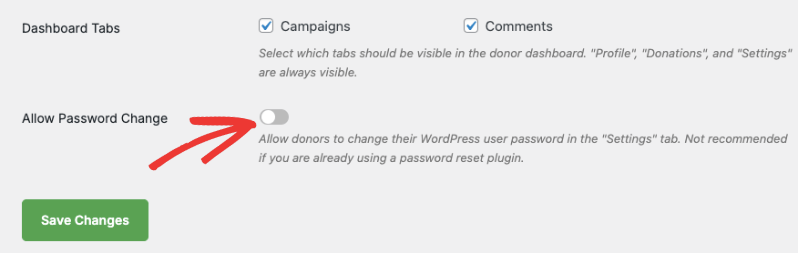
Allow password change

Hit the ‘Save Changes’ button to store all your dashboard settings.

Create a Static Donor Dashboard Page

Charitable automatically creates a donor dashboard for you. You’ll find this setting under the Charitable » Settings » General » Pages tab.

If you’d like to create a static page, then head to Pages » Add New in your WordPress admin panel.

In the page editor, give your page a title such as “Donor Portal”. In the content section, add this shortcode [charitable_donor_dashboard]
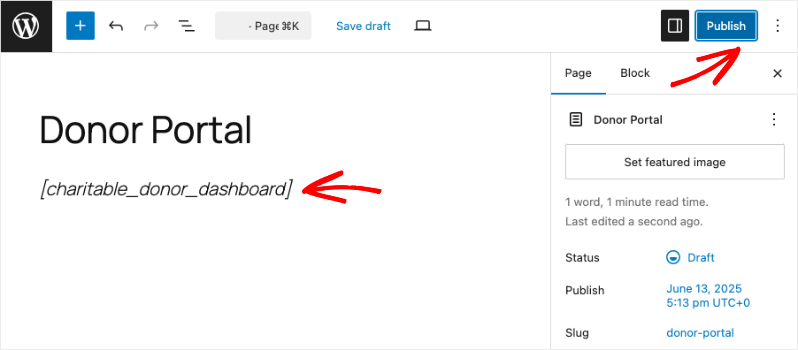
Donor portal page in block editor

Save and publish your page.

Now, go to the Charitable » Settings » General tab. Switch to the Pages tab.
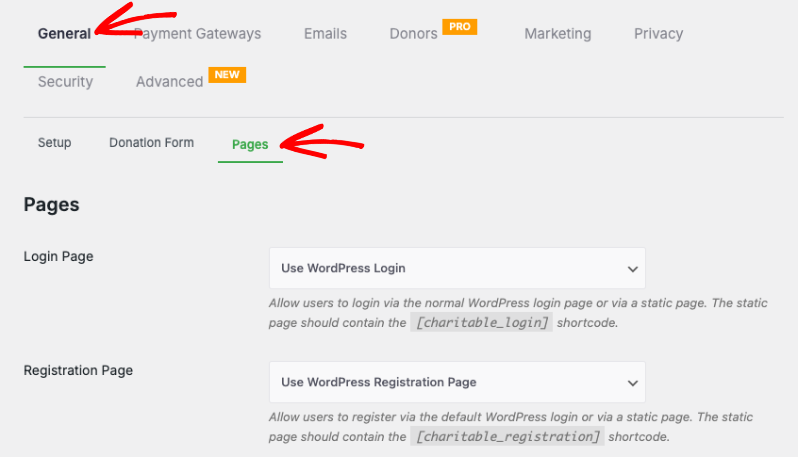
Charitable pages settings

Scroll down to “Donor Dashboard Page”. There’s a dropdown menu to choose the page you just created.
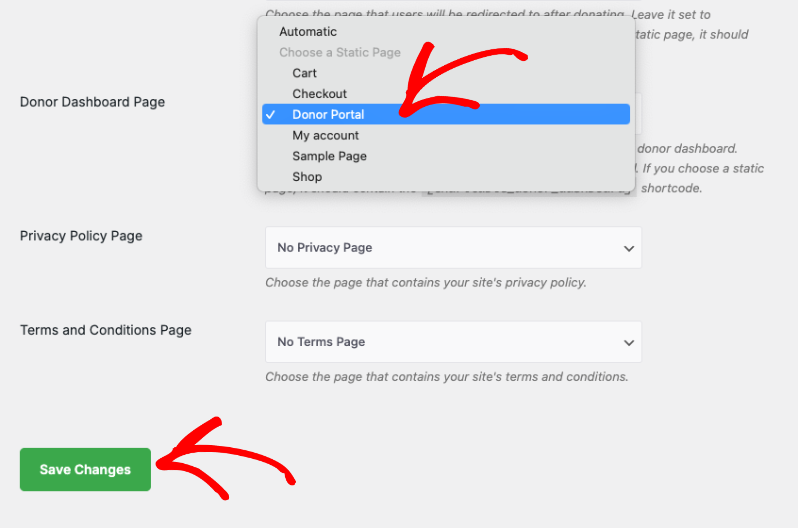
Donor portal page

Save your changes. Now you can visit this Donor Portal page and you’ll get the option to log in as a donor and access the dashboard.

That’s it. You’ve learned how to use the Donor Dashboard. Next, you may also want to learn more about How to Use the Donor Management System »
Still have questions? We’re here to help!

Last Modified:

What's New In Charitable

View The Latest Updates
🔔 Subscribe to get our latest updates
📧 Subscribe to Emails

Email Subscription

Join our Newsletter

We won’t spam you. We only send an email when we think it will genuinely help you. Unsubscribe at any time!

Integration page builder

👉🏻 New in Charitable: Native Elementor Widgets for Seamless Campaign Building

With native Elementor widgets, you design donation campaigns right alongside the rest of your page without touching code. Here’s how it works, and why it’s worth turning on today.

Create fundraising pages that are VISUAL, NATIVE, AND SHORTCODE-FREE. You can also:

⚡ Mini Donation: Add a compact, high-converting donation widget with preset amounts and full color control.

⏳ Campaign Countdown: Build urgency for a deadline-driven appeal, complete with optional confetti when the goal is hit.

📣 Donation Feed: Prove momentum by showing visitors the social proof of real people giving right now.

🏆 Donor Leaderboard: Celebrate top supporters with gold, silver, and bronze styling to spark friendly giving.

🖼️ Campaign Showcase: Feature multiple campaigns in a landing page grid or carousel, with search, filters, and badges.

Learn more here.

Addon New

🗒️ Custom Receipts… New Addon!

With Custom Receipts, you decide which page your donors see, on every campaign. Here’s how it works, and why it’s worth turning on today.

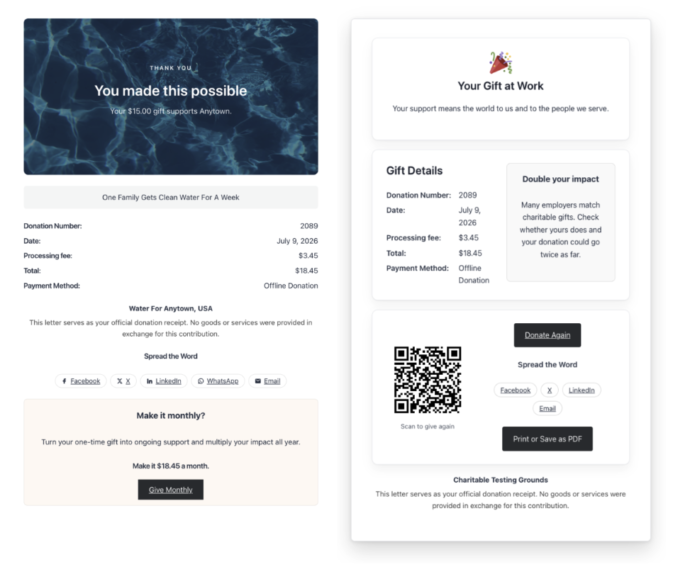
Left side shows a donation receipt with donation number, date, total, and payment method for a  gift to Anywhere, titled 'One Family Gets Clean Water For A Week.'

Create receipts that are CUSTOM TO THE DONOR OR CAMPAIGN. You can also:

📅 Year-end appeal: Reinforce the goal and invite donors to share while momentum is high.

🎗️ Memorial or tribute campaign: Give a gentle, respectful thank-you that fits the moment.

💎 Major gifts: Show a special message only to donors who give above a threshold.

🔁 Recurring growth: Invite one-time donors to become monthly supporters right on the receipt.

🌍 Global campaigns: Surface a country-specific note, like a Gift Aid reminder, only where it applies.

Learn more here.

New templates

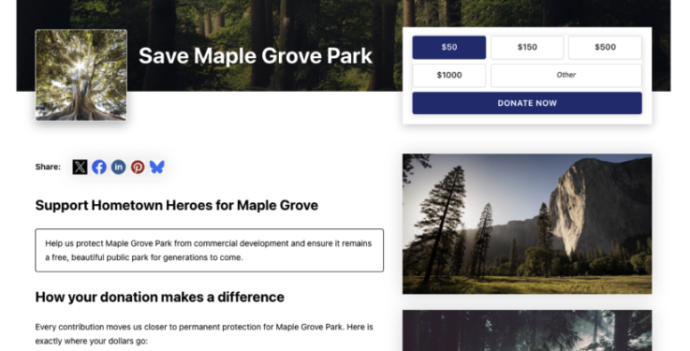
🤩 New Beacon Campaign Templates w/ “Hero” Block!

With the new Beacon Campaign Templates for Charitable Pro, you can launch a stunning, full-width fundraising page that instantly captures visitor attention above the fold.

Fundraising page header for Save Maple Grove Park with a donation widget and a small square photo of a sunlit tree thumbnail on the left.

🔦 Above-the-Fold Impact: Lead with a full-width hero image, your logo, and your goal with a donation widget locked right on top of the banner so your ask and momentum register instantly without scrolling.

📐 Two Flexible Layouts: Choose between a structured two-column layout for side-by-side storytelling and supporting details, or a clean one-column view designed for uninterrupted long-form narratives.

⚡ All-in-One Hero Field: Powered by the new Campaign Hero field, bringing background media, live progress bars, custom donation amounts, and recurring giving tabs together into a single cohesive block that can be dropped into any layout.

🎨 Automatic Theme Matching: The hero banner and donation widget automatically inherit your campaign theme’s button and accent colors, ensuring your entire presentation stays beautifully on-brand without touching a line of CSS.

Learn more here.

donation form Feature New

📝 Donation Form Block: Embed a Working Donation Form Anywhere

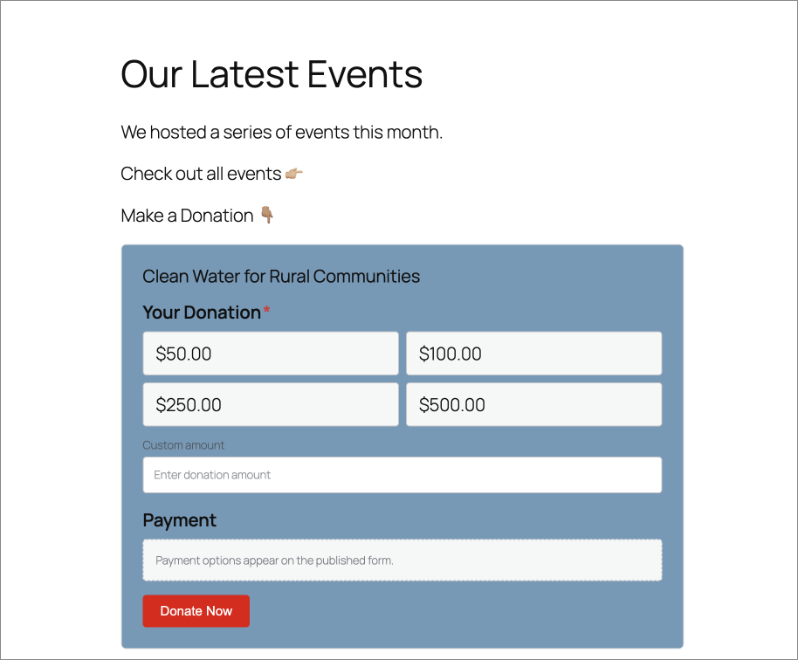
With the new Donation Form Block for Charitable Pro, you can drop a fully working donation form directly onto any page or post in the WordPress block editor. No redirects, no page reloads, and zero friction between reading your story and making a contribution.

📝 Drop Forms Anywhere: Place a working form directly onto your homepage, inside a story-driven blog post, on a dedicated landing page, or within a campaign announcement.

🎯 Dynamic Campaign Binding: Easily choose a specific campaign from the block sidebar or set it to automatically bind to whichever campaign is currently being viewed.

📐 Full vs. Minimal Form Views: Switch between a full layout or a compact minimal view to perfectly fit sidebars, narrow columns, or wide landing pages.

🎨 Scoped No-Code Styling: Customize typography, container spacing, border radius, amount buttons, and accent colors independently for every form instance without touching a line of CSS.

Learn more here.

ambassadors New

👤 Creator Profiles: Put a Face to Every Peer-to-Peer Campaign

Ambassadors 3.3.0 now provies Creator Profiles — giving your supporters a permanent, shareable public home that turns one-time fundraisers into ongoing relationships.

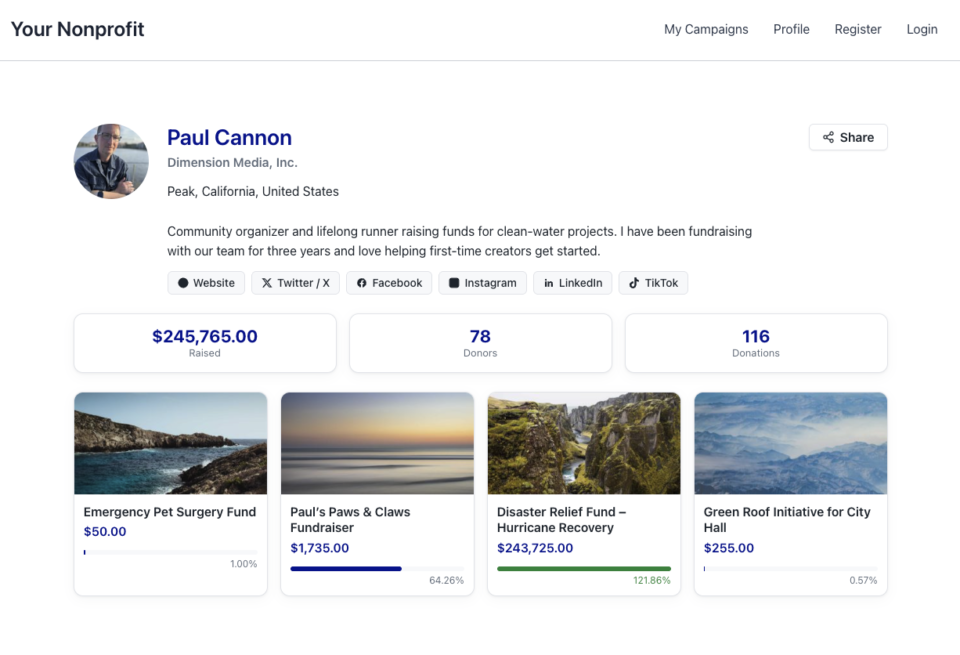
👤 Public Creator Pages: Give every fundraiser an instant, clean landing page at /creator/their-name/ to showcase their custom avatar, bio, and a browsable grid of their campaigns.

📊 Proof of Impact: Boost donor trust by displaying site-wide milestones on the profile—like total funds raised and total donor counts.

💳 Interactive Hover Cards: When donors hover over a creator’s name on a campaign page, a compact card expands with their bio and social handles right at the moment of decision.

📍 Responsible Location Sharing: Allow creators to safely show local supporters where they are based using only city, state, and country details.

🛠️ Self-Serve Customization: Fundraisers can update their own profiles and link up to six social networks directly from the My Campaigns hub, saving you admin time.

Ready to empower your advocates? Update to Ambassadors 3.3.0 and turn on “Enable Public Creator Page” today!