Are you spending countless hours manually sending donation receipts, or worse, not sending them at all? 😓 We know how overwhelming nonprofit management can be, and ensuring donors receive timely, professional receipts often falls by the wayside.
But what if you could automate this process, improving donor satisfaction while freeing up valuable time? Today, I’m going to show you how to achieve this in just one day with Charitable.
⚡ Quick Answer: How to Set Up Automated Donation Receipts
Install and activate Charitable on your WordPress site.
- Configure PDF receipt settings including your logo, contact details, and custom labels under Charitable » Settings » Advanced
- Go to Charitable » Settings » Emails, enable automatic email delivery so Charitable detects the donor’s email from the donation form and sends their receipt instantly
- Attach the PDF directly to your donation receipt email.
- Personalize receipt emails with your logo. Customize content using shortcodes like
[charitable_email show=donor]and[charitable_email show=donation_amount] - Give donors self-serve access to past receipts through the donor dashboard
- Download any donor’s receipt as an admin from Charitable » Donors
All offline donations appear alongside your online gifts in Charitable » Reports, giving you a complete and accurate fundraising picture. Receipts and year-end summaries are sent automatically – no spreadsheets, no separate email platform required.
Why Automate Donation Receipts
Before we dive into the setup, it’s worth understanding what’s actually at stake here.
Manually tracking donations and firing off individual receipt emails is the kind of administrative nightmare that quietly eats hours you simply don’t have. And if a donor doesn’t get their receipt promptly? They start to wonder whether their contribution actually went through, or worse, whether your organization is trustworthy.
For nonprofits, donation receipts aren’t just a courtesy. They’re a legal requirement for donors who want to claim their charitable contributions on their taxes. Getting them right – and getting them out fast – matters enormously for donor trust and retention.
When a donor gives to your organization, they expect three things almost immediately:
- Confirmation that their payment went through
- A receipt they can keep for their records
- A sense that you appreciate them
Every minute that passes without a receipt is a minute of doubt. Automated receipts eliminate that doubt entirely, your donor gets a professional, personalized confirmation the moment their transaction is complete, without anyone on your team lifting a finger.
Here’s the good news: you don’t have to do any of this manually. If your nonprofit runs on WordPress, you can have a fully automated, professional donation receipt system up and running in a single day. I’m going to walk you through exactly how to do it using Charitable, step by step.
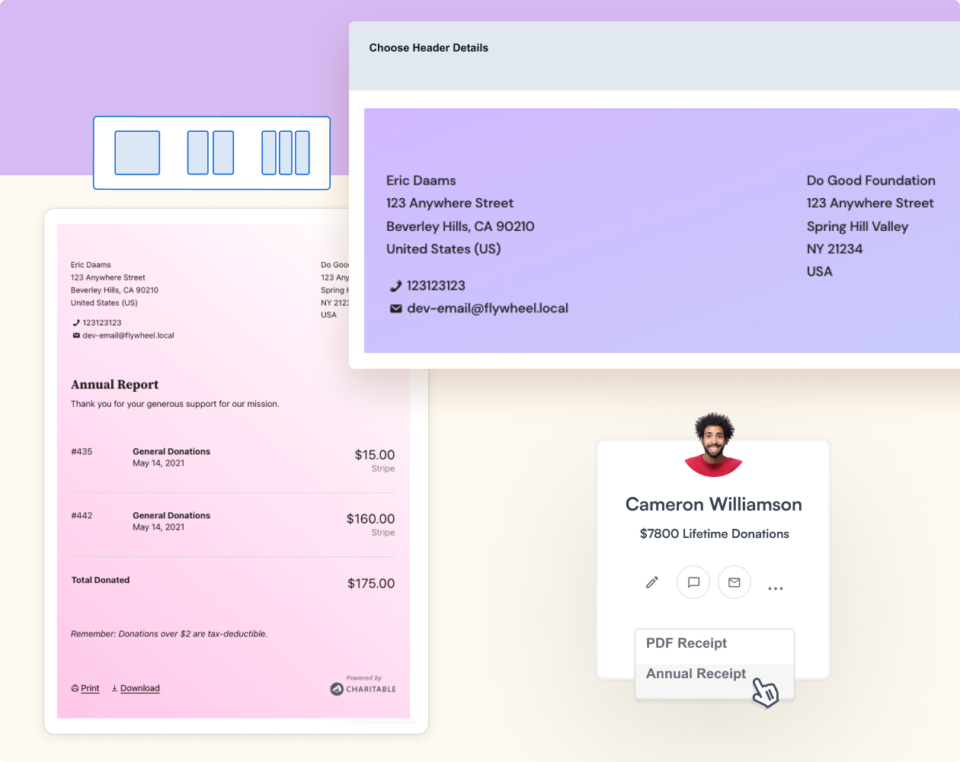
On the administrative side, automation means:
- No more manual data entry for receipts
- Fewer donor inquiries asking “did you receive my donation?”
- Consistent, professional branding on every receipt
- Downloadable PDF records for both donors and your accounting team
By the end of this guide, you’ll have:
- ✅ A customized donation receipt page on your website
- ✅ Automated PDF receipts emailed to donors the moment they give
- ✅ A donor dashboard where supporters can download receipts anytime
- ✅ Admin tools to pull up any donor’s receipt instantly
Let’s get started.
Setting Up and Customize PDF Receipts
Charitable includes a default donation receipt page right out of the box, so donors will always see something after they give. But customizing this page lets you reinforce your brand, add a warm thank-you message, and make the post-donation experience feel intentional rather than generic.
📋 A Quick Note Before You Begin
All Charitable plans – including the free Charitable Lite – come with automated donation receipts out of the box. Upon a successful donation, Charitable will automatically display a receipt and send a customizable email to your donor. You can personalize the subject line, headline, body, and even add your logo – no extra cost, ever.
See the difference between Charitable Lite vs Pro »
For PDF receipts, you’ll need Charitable Pro (available on all paid plans). With Pro, you can generate beautiful, fully customizable PDF receipts that are automatically attached to your donor emails, available for donors to download anytime from their donor dashboard, and accessible to you as an admin from your Charitable dashboard whenever you need them.
Not yet a Charitable Pro user? Sign up today and get up to 50% off on your plan. We’re confident you’ll love raising funds with Charitable. If, for any reason, Charitable is not the right fit for you, we’ll refund your purchase with our 14-day money-back guarantee. Get Charitable Pro Now »
How To Set Up Your Custom Donation Receipt
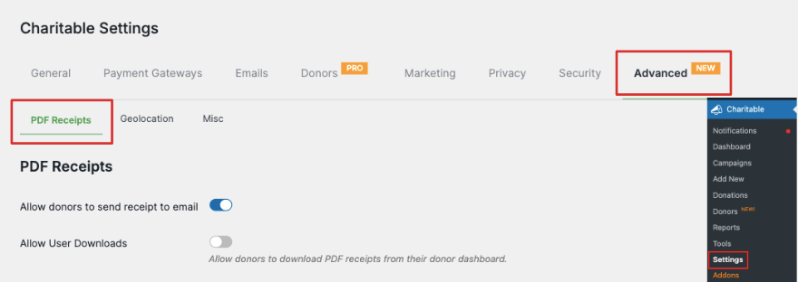
To get started, head to Charitable » Settings in your WordPress admin menu and select the Advanced tab from the menu at the top of the page. This is where you’ll find all the PDF Receipt settings you need to customize.
Let’s walk through everything available to you here.
Email Delivery First, you can enable automatic receipt delivery straight to your donors’ inboxes. Charitable will detect the email address entered in the donation form, generate a receipt, and send it off – completely hands-free.Let’s walk through everything available to you here.
Donor Dashboard Downloads You can also give donors the ability to download their receipts directly from their own donor dashboard. If you haven’t set that up yet, check out this guide: How to Use the Donor Dashboard »
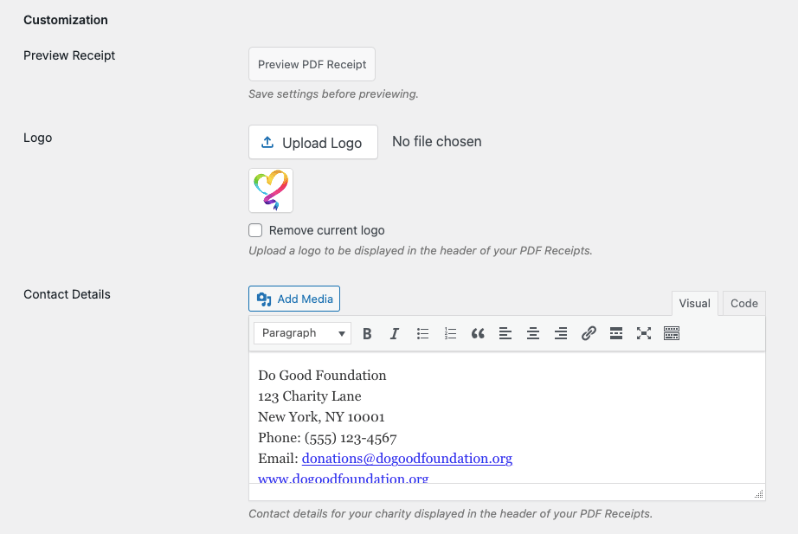
Logo and Contact Details: Want to make your receipt look polished and on-brand? Use the Upload Logo button to add your logo to the receipt. Below that, you can fill in your contact details, including your address, phone number, and email address. You can even add media files if you’d like to display an image.
Customizing Your Receipt Labels: Next, you’ll see a list of label settings for the different fields that appear on your receipt. Here’s what each one does:
- Donation Number: Displays the donation or receipt number
- Campaign: Shows which campaign the donor contributed to
- Donation To: Appears before your foundation or nonprofit’s name
- Your Donations: Appears above the contribution details, amount, and total
Now you’ll see a list of options below the contact details box. These are the labels that will appear in your receipt for the different fields.
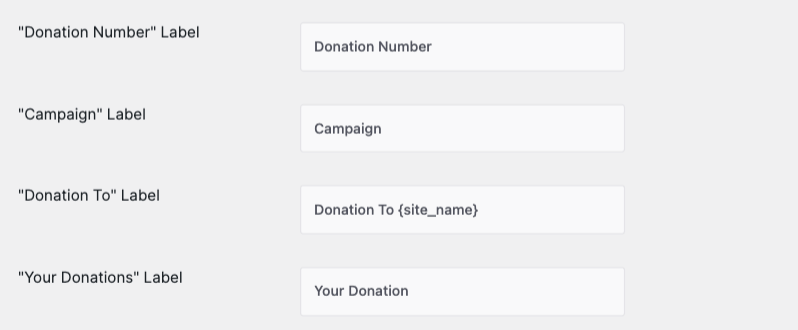
It’s worth noting that you’re only changing the label text here – the actual data, like the donation number, campaign name, and site name, is automatically pulled in by Charitable.
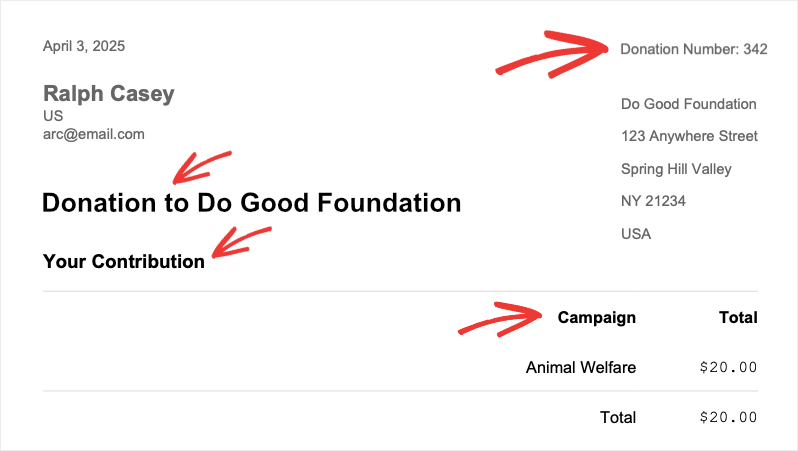
For example, here’s a sample receipt where we’ve renamed “Your Donation” to “Your Contribution”:
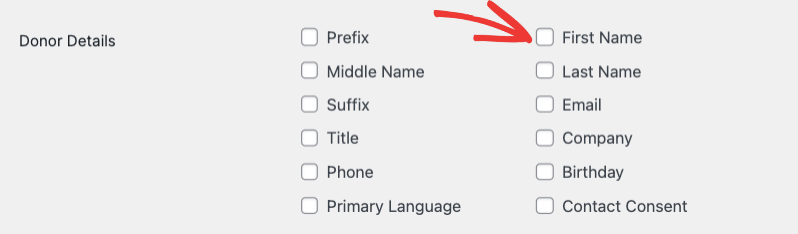
Donor Details: You can also choose which donor details appear on the receipt, such as their name and contact information. We recommend including their prefix, first and last name, email address, and one additional contact detail.
QR Code and Thank You Message: Looking to add a personal touch? There’s an option to include a QR code linked to a campaign for easy sharing, as well as a thank you message that displays at the top of the receipt. It’s a great way to show your donors some appreciation!
Receipt Footer Finally, you can customize the footer of your receipt with your logo, images, or any important information about your organization. This is a great spot to explain what the contribution will help fund or to add a personalized closing message.
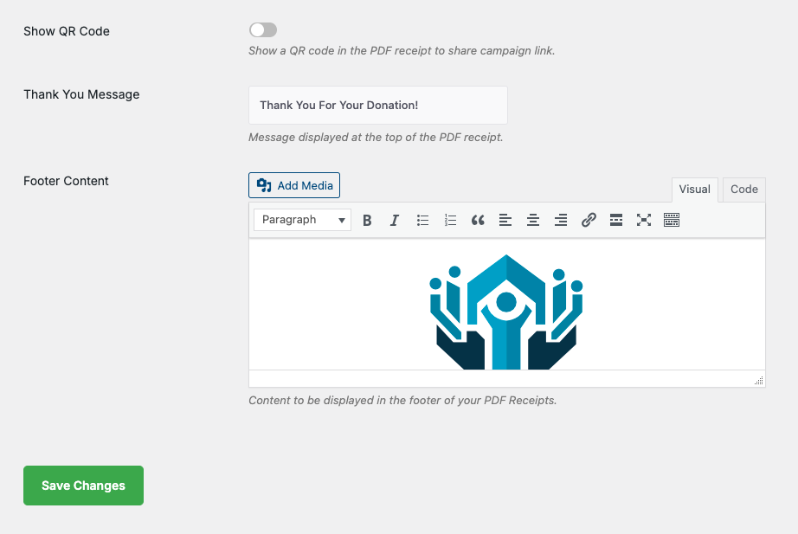
Once you’re happy with everything, be sure to hit Save Changes to store your customizations.
Next, we’ll show you how to send these receipts in an email.
How To Send Donation Receipts by Email
Charitable makes it easy to automatically send a donation receipt to your donor the moment they complete a contribution. Here’s how to set it up.
Navigate to Charitable » Settings and open the Emails tab. You’ll see a list of available emails that can be toggled on or off with a single click.
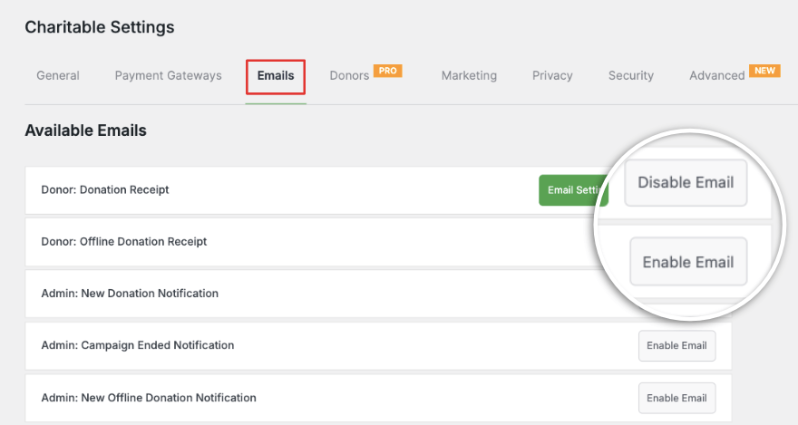
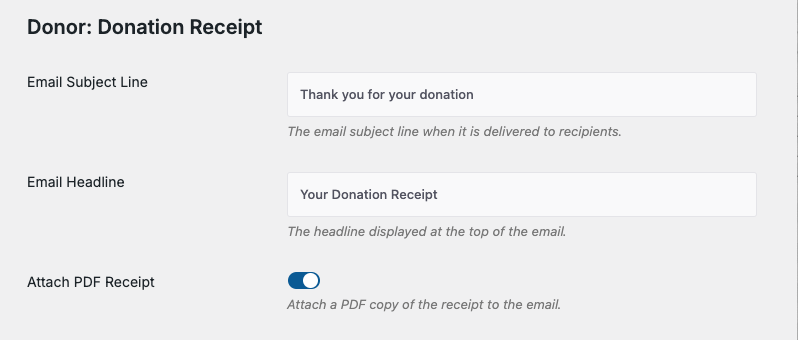
The Donation Receipt email is already enabled by default. Click the Email Settings button to start customizing it. On the next screen, you can set your own subject line and headline to match your organization’s voice.
There’s also a handy toggle to attach the PDF receipt directly to the email – it will be generated in the exact format and style you configured above.
Customizing the Email Body: Below the header settings, you can customize the body of your email. Charitable uses a simple shortcode system, so you can personalize your message without any technical knowledge. Just copy and paste the shortcodes you need directly into the email.
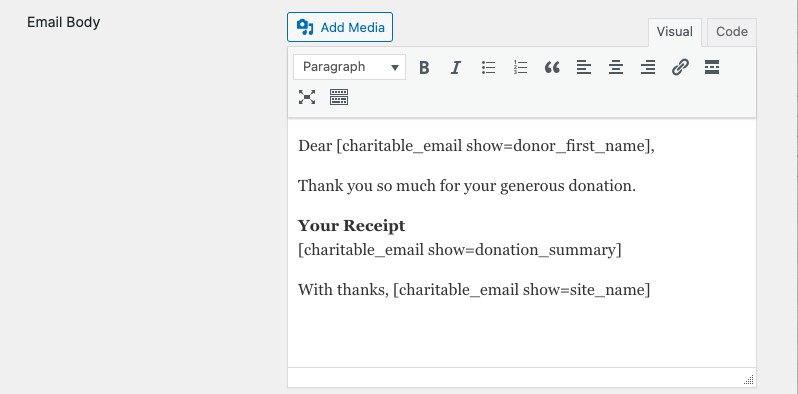
For example, to include the donor’s full name, simply use:
[charitable_email show=donor]
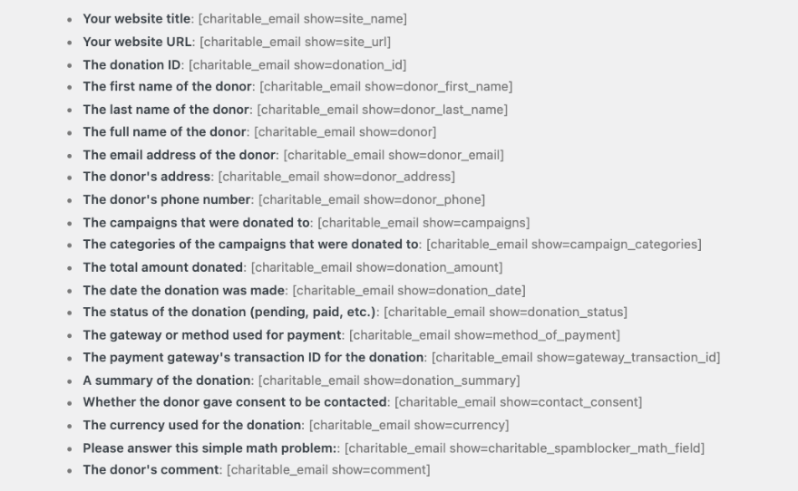
Here’s a full list of the most useful shortcodes for your donation receipt email:
- Your website title: [charitable_email show=site_name]
- Your website URL: [charitable_email show=site_url]
- Donation ID: [charitable_email show=donation_id]
- First name of the donor: [charitable_email show=donor_first_name]
- Last name of the donor: [charitable_email show=donor_last_name]
- Full name of the donor: [charitable_email show=donor]
- Donor’s email address: [charitable_email show=donor_email]
- Donor’s address: [charitable_email show=donor_address]
- Donor’s phone number: [charitable_email show=donor_phone]
- Campaigns that were donated to: [charitable_email show=campaigns]
- Total amount donated: [charitable_email show=donation_amount]
- Date the donation was made: [charitable_email show=donation_date]
- Gateway or method used for payment: [charitable_email show=method_of_payment]
- Payment gateway’s transaction ID for the donation: [charitable_email show=gateway_transaction_id]
- A summary of the donation: [charitable_email show=donation_summary]
- Whether the donor gave consent to be contacted: [charitable_email show=contact_consent]
- The donor’s comment: [charitable_email show=comment]
Once you’ve finished customizing, take advantage of Charitable’s built-in email preview to make sure everything looks just right before it goes out.

When you’re satisfied, click Save Changes and you’re all set!
How To Download a PDF Receipt as an Admin
Need to pull up a donor’s receipt at any time? Charitable makes that simple too.
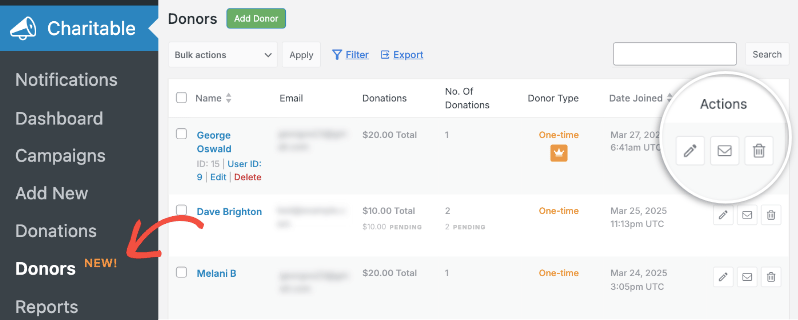
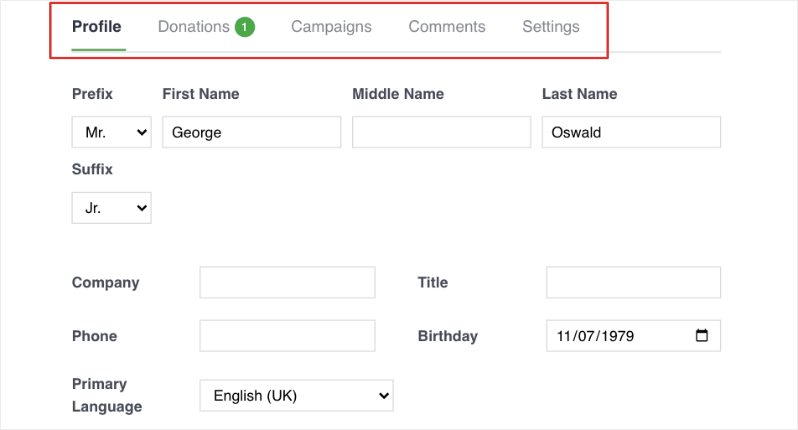
Go to Charitable » Donors in your WordPress dashboard, where you’ll find a full list of your donors. Use the search bar to locate the specific donor you’re looking for, then click the pencil icon or the Edit button to open their profile.
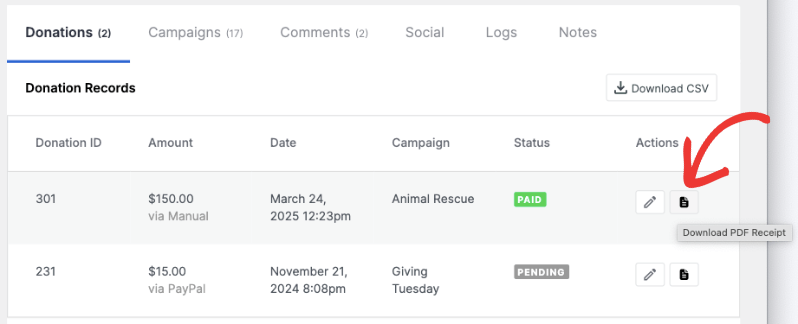
On the donor profile page, scroll down to the bottom section, which displays all of that donor’s contributions. You’ll see a PDF icon next to each donation record – just click it, and the receipt will download instantly to your computer.
Now let’s also see how your donor can download the receipt on their own through their own donor dashboard.
How To Download a PDF Receipt as a Donor
Your donors don’t need to reach out to you every time they need a copy of their receipt. They can download it themselves right from their donor dashboard!
All they need to do is log in using their credentials and navigate to the Donations section.
There, they’ll see a full history of their contributions, each with a PDF icon they can click to download the corresponding receipt immediately.
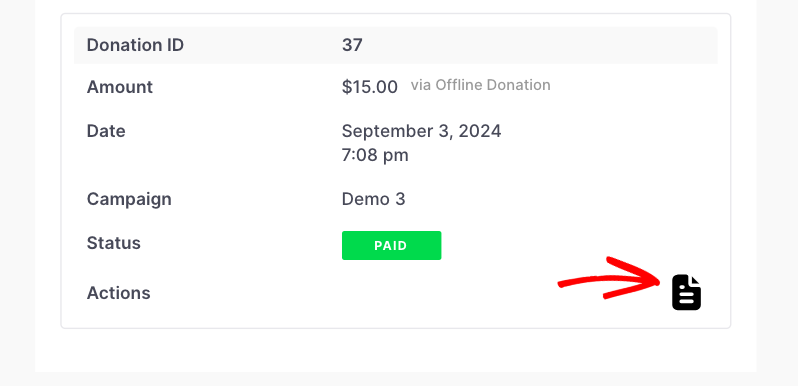
It’s a seamless experience that saves time for both you and your donors – a win all around!
Start Sending Professional Donation Receipts Today
Setting up automated donation receipts with Charitable is one of the best things you can do for your nonprofit’s donor relationships. Not only does it keep your donors informed and confident in their contributions, but it also saves you valuable time by handling the entire process automatically.
From customizing your PDF receipts with your branding and contact details to setting up personalized email notifications with shortcodes, Charitable gives you everything you need to create a professional, seamless experience for your donors – no technical expertise required.
With Charitable, you don’t just get powerful PDF receipts – you also unlock features like recurring donations, donation teams, donor management, automated emails, and so much more, all designed to help your nonprofit raise more and do more.
And the best part? You can try it completely risk-free with our 14-day money-back guarantee. No questions asked.
Ready to get started? Install Charitable today and start building stronger donor relationships with automated, professional donation receipts.
FAQs on PDF Donation Receipts
Can donors automatically receive PDF receipts via email after making a donation?
Absolutely! Once you enable the option in your PDF Receipts settings, Charitable will automatically detect the donor’s email address from the donation form, generate the receipt, and send it off without any manual effort on your part. You can also configure the donation receipt email to include the PDF as an attachment, so donors get everything they need in one place.
What information can I customize on the PDF receipts?
Quite a lot, actually! You have control over:
- Your organization’s logo
- Contact details such as your address, phone number, and email
- Field labels (for example, renaming “Your Donation” to “Your Contribution”)
- Which donor details appear on the receipt
- A thank you message at the top of the receipt
- Footer content, including images or organizational information
- An optional QR code linked to a campaign
The actual donation data – like amounts, campaign names, and transaction details – is automatically populated by Charitable, so you don’t have to worry about that.
Where do donors access their PDF receipts if they want to download them later?
Donors can download their receipts anytime through their donor dashboard. Once logged in, they simply navigate to the Donations section, where they’ll find a full history of their contributions. Each donation has a PDF icon next to it, one click and the receipt downloads instantly.
How do I enable the donor dashboard so supporters can access their receipts?
Check out our step-by-step How to Use the Donor Dashboard » guide to get this feature configured and ready for your donors.
Can I preview donation receipt emails before they’re sent to donors?
Yes! After customizing your email content with shortcodes, Charitable gives you a built-in preview option so you can see exactly how the email will look before it goes out. It’s a great way to catch any errors and make sure everything looks polished before saving your changes.
What shortcodes are available for customizing donation receipt emails?
Charitable offers a comprehensive set of shortcodes that automatically pull in the relevant information for each donation. You can include things like the donor’s full name with [charitable_email show=donor], the total donation amount with [charitable_email show=donation_amount], campaign details, payment methods, transaction IDs, and even the donor’s own comments. Check the full shortcode list in the email settings to see everything that’s available.
How can I, as an admin, download PDF receipts for any donor?
It’s straightforward! Head to Charitable » Donors in your WordPress dashboard and search for the donor you need. Click the pencil icon or Edit button to open their profile, then scroll to the donations section at the bottom of the page. You’ll see a PDF icon next to each donation record – just click it to download that receipt right away.
Do I need technical knowledge to set up and customize PDF receipts?
Not at all! Charitable is designed to be user-friendly for everyone. You can upload your logo with a simple button click, fill in your contact details in straightforward text fields, adjust labels through an easy-to-use interface, and use ready-made shortcodes that you can simply copy and paste into your email templates. Charitable handles all the technical heavy lifting behind the scenes.
Now you know how to manage donation receipts for your donors. Next, you’ll also want to learn about how to use the Donor Management System »
Charitable Has 1+ Million Downloads!
Trusted by millions to power successful fundraising campaigns. Try Charitable risk-free today.
✅ 14-day money-back guarantee
✅ Transparent pricing
✅ Code-free setup
Stay Connected for More Nonprofit Resources
For more tutorials and videos tailored to nonprofits, subscribe to our YouTube channel. We regularly publish expert tips, step-by-step guides on online donations, fundraising strategies, and practical resources to help your organization succeed.
🗞️ Get weekly tips and exclusive guides in your inbox
Join our newsletter →
🎥 Watch step-by-step tutorials and success stories
Subscribe to our YouTube channel →
👩🏽💻 Connect with our community and get daily nonprofit insights
Follow us on LinkedIn →
🥳 Fun reels and non-profit insights
Follow us on Instagram →
👀 Insightful & fun videos to help you grow your cause
Follow us on TikTok→
🌎 Subscribe and follow for general fundraiser tips
Get Fundraiser Tips on TikTok →
Powerful Fundraising Resources
🤖 Use Charitable with Your AI Assistant
⬇️ Download proven strategies, campaign ideas, and expert tools
Get the Fundraising Kit →
💸 Get Free Fundraising Resources
Head to the Charitable Fundraising Hub →
🤔 Got questions about Charitable?
Charitable FAQs →
🏎️ Take Charitable for a spin
Create your Charitable Demo →
Understand non-profit terms and jargon
Non-Profit Glossary →
% Looking for non-profit deals and discounts?
Best Non-Profit Deals and Discounts →