
If you’re reading this, you’re one of the few non-profits that are backing up their website. From our conversations with people running non-profits, we know that many are not tech-savvy.
That’s fine. It’s absolutely okay to get a developer or even AI to build a website. But once your website is up, you simply can’t ignore backups, security, and maintenance.
So I’ve made it part of my mission to make sure non-profits know how to backup their site in the least amount time, with the least amount of effort – but still get the best!
In this tutorial, I will show you how to make one for free, where to keep it so it survives whatever breaks your site, how to set it to run on its own, and how to use the backup to restore site when you need it.
If you have not built your nonprofit site yet, start with our guide to creating a nonprofit website and come back to this after. Or you can watch our YouTube tutorial too!
Table of Contents
- What Is Actually at Risk Without a Backup
- What a Real Backup Includes
- What You Need Before You Start
- How to Backup Your Nonprofit Website With Duplicator (Code-Free)
- Where to Store Your Nonprofit Website Backups
- How to Schedule Backups So They Run Without You
- How to Restore Your Nonprofit Website From a Backup
- What a Backup Covers in Charitable
- Important Notes Before You Rely on Your Backups
- FAQs on Nonprofit Website Backups
What Is Actually at Risk Without a Backup
When a nonprofit site goes down, the missing pages are the part people notice. The part that hurts is everything sitting behind them.
- Your donor records. Names, email addresses, giving history, and the notes your team has added over years of relationship building. This is the single hardest thing to reconstruct, because it does not exist anywhere else in that shape.
- Your donation history. Every gift, its amount, its date, and the campaign it belonged to. You need these numbers for your annual filings, your board reports, and your grant applications.
- Your campaign pages. The story, the photos, the goal, the progress bar, and the donation form that someone spent weeks getting right.
- Your receipts and email setup. Your branded receipt design, your custom wording, and the automated emails your donors expect after they give.
- Your search rankings. A site that returns errors for days does not hold its position, and getting it back is slow work.
- Donor confidence. Someone who clicks your donate button and lands on a broken page rarely comes looking for you a second time.
One useful clarification here. Your payment processor keeps its own records, so if you take recurring gifts through Stripe or PayPal, those active plans and the money attached to them do not disappear with your website. What you lose is your own copy of who those donors are, what they gave, and which appeal brought them in.
That copy is the thing you use to thank people, to send receipts, and to plan next year’s year-end appeal. Losing it sets your fundraising back further than losing the pages does.
What You Need to Know
A WordPress site is made of 2 halves, and a backup is only useful if it has both.
- The files. WordPress itself, your theme, your plugins, and your uploads folder. Your logo, your campaign photos, and any images in your receipts all live in uploads.
- The database. Your pages and posts, your settings, your users, and all of your fundraising data. Campaigns, donations, and donor records are stored here.
Take only the files and you get a site with no donations in it. Take only the database and you get your data with no theme, no plugins, and no images to display it. A full backup takes both, which is what Duplicator does by default.
Duplicator also creates an installer file alongside the archive. That installer is what unpacks everything and puts it back, so keep the two together.
What You Need Before You Start
- A WordPress site you can log into as an administrator
- The free Duplicator plugin, which is enough to make and restore a backup by hand
- A paid Duplicator plan if you want backups on a schedule and saved straight to cloud storage
- Somewhere to keep a copy that is not your web server, such as a cloud drive your organization controls
- About 10 minutes, and no coding at all
One note on the screenshots below. They were taken with the paid plugin, where the menu reads Duplicator Pro. On the free plugin the menu is simply Duplicator and a few of the screens have fewer options, which I will point out as we go.
How to Backup Your Nonprofit Website With Duplicator (Code-Free)
I am using Duplicator here because it handles the files and the database together, it runs from inside your dashboard, and the free version is genuinely usable rather than a demo.
Step 1: Install Duplicator and Add Your License Key
To get started, head to Plugins » Add New in your WordPress dashboard, search for Duplicator, then install and activate it. If you are on the free version, you can skip straight to step 2.
If you bought a plan, go to Duplicator Pro » Settings » General and paste your license key into the License Key field. The screen confirms your plan and your renewal date once the key is accepted.
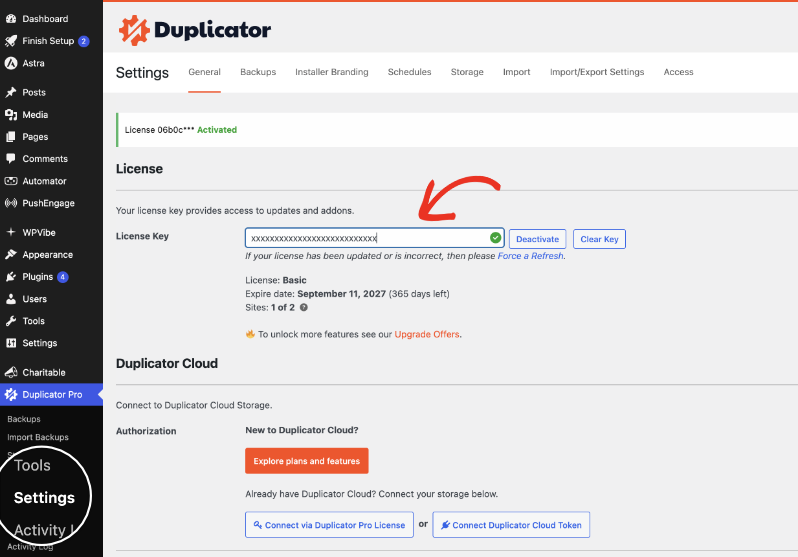
Adding the key is what turns on scheduled backups and the cloud storage destinations. Without it the plugin still works, you just run each backup yourself.
Step 2: Start a New Backup
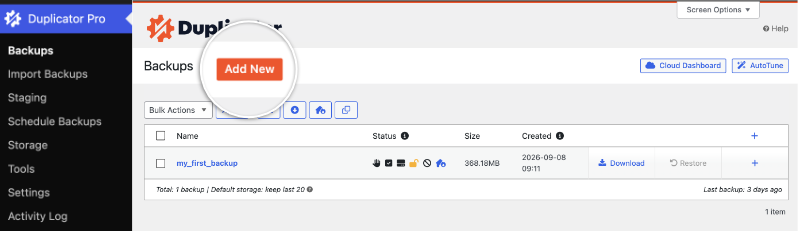
Now go to Duplicator » Backups and click Add New. If you have made a backup before, this screen also lists what you already have, along with its size and the date it was created.
Step 3: Name the Backup and Choose Where It Is Saved
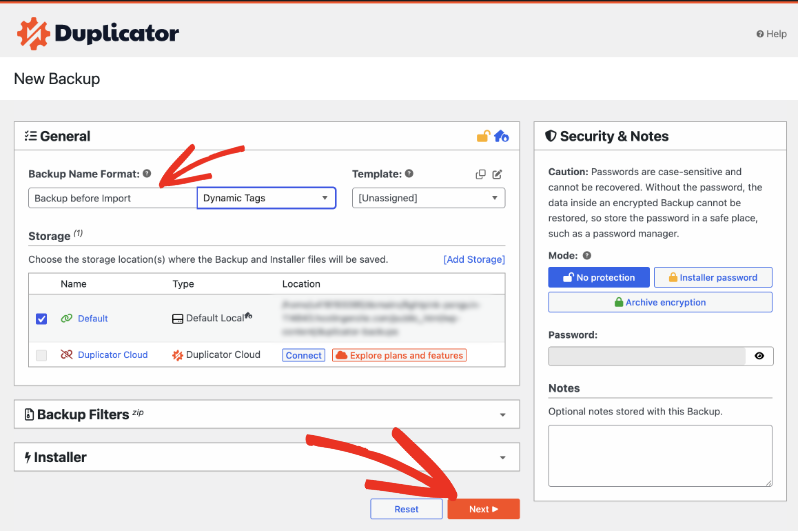
The New Backup screen is where you decide what this copy is called and where it goes. Give it a name you will recognise in 6 months, such as Before Theme Update or Before Import. The Dynamic Tags option adds the date for you.
Under Storage, tick the destinations you want this backup saved to. Default Local is selected already, and any cloud storage you have connected appears here as well.
On the right, Security & Notes lets you protect the archive. You can leave it open, require a password to run the installer, or encrypt the archive itself. The Notes box is a good place to record why you made this copy.
When you are happy with it, click Next.
If you encrypt the archive, store that password in a password manager your team can reach. An encrypted backup cannot be opened without it, and there is no way to recover it later.
The Backup Filters panel underneath is for partial copies, so you could take the database on its own if you only want your donation data. For your main backup, leave the filters alone and take everything.
Step 4: Let Duplicator Scan Your Site
Duplicator now checks your site before it packages anything. Leave the tab open while it runs. On a small nonprofit site, this is usually quick, and on a large one with years of campaign photos it can take a few minutes.
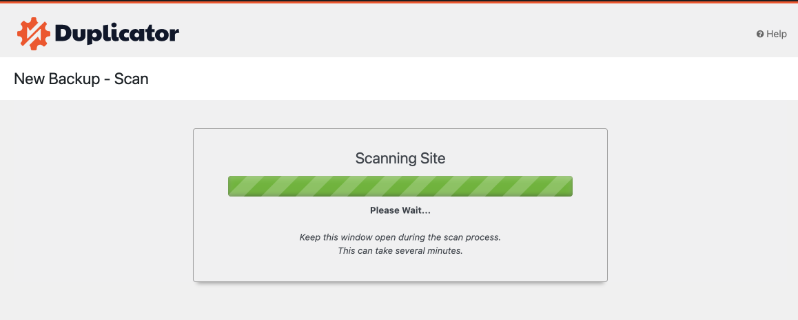
When it finishes, you get a Scan Complete report covering your hosting setup, your files, and your database.
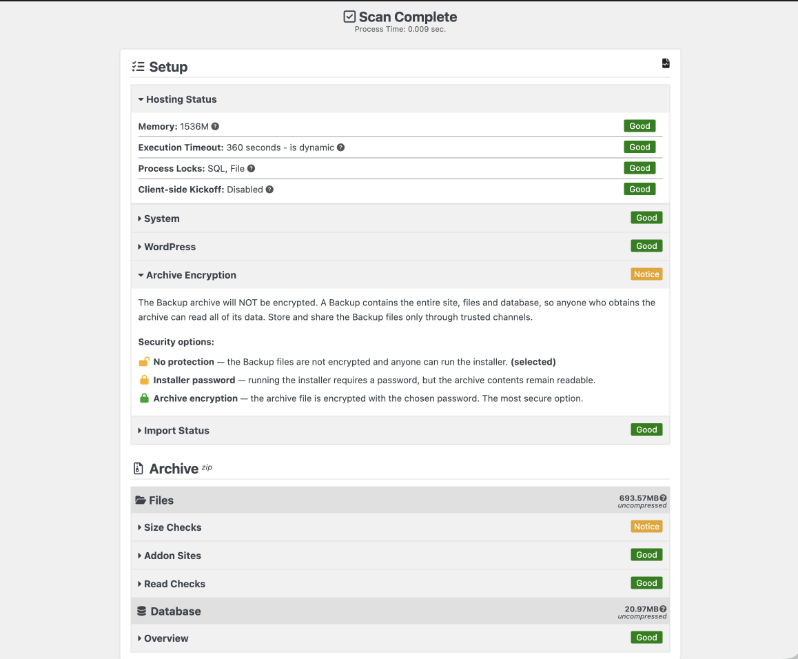
A yellow Notice is not a failure. The 2 you will most likely see are harmless in normal use.
- Archive Encryption simply tells you the archive is not encrypted, which is expected if you left it unprotected in step 3.
- Size Checks flags that your site is large enough that the build may be slow on modest hosting. Click the heading to see which folders are taking up the room.
Scan checks do not have to pass for the backup to work. Read anything marked Notice, then carry on.
Step 5: Build the Backup
Scroll to the bottom of the scan report and click Create Backup. Duplicator now packages your files and your database into an archive and generates the installer that goes with it.
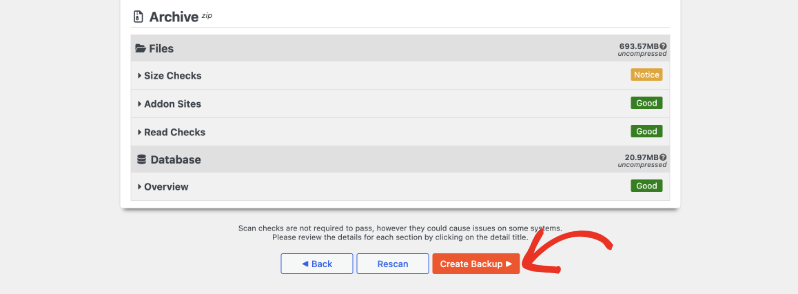
That is the backup done. Everything up to here works on the free plugin.
Step 6: Download a Copy and Get It Off Your Server
Back on the Backups screen, your new copy appears at the top of the list with its size and timestamp. Use the Download link to save the archive and the installer to your own computer or a cloud drive.
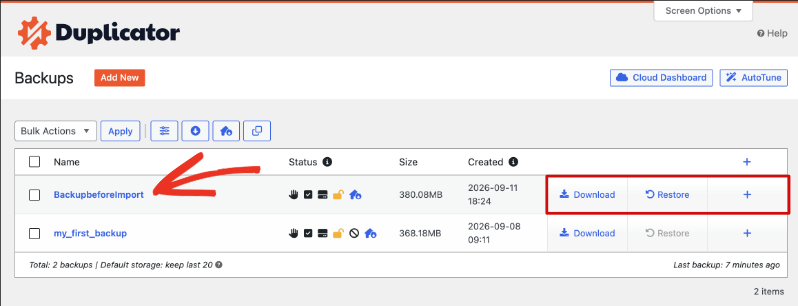
This is the step people skip, and it is the one that matters most. A backup sitting on the same server as your website will not help you when the server itself is the problem.
Step 7 (Bonus): Test the Restore Once
A backup you have never restored is a guess. If your host gives you a free staging site, restore your backup there once and click around your campaign pages and donation form.
Do it while nothing is wrong. Half an hour now saves you from finding out your only copy was incomplete on the day you actually need it.
Where to Store Your Nonprofit Website Backups
To add a destination, go to Duplicator Pro » Storage and click Add New.
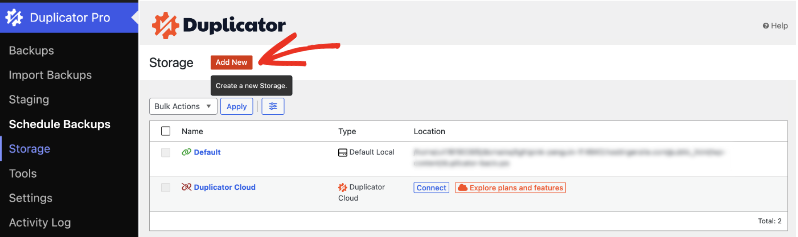
Give the destination a name, then pick a type. Duplicator supports quite a few.
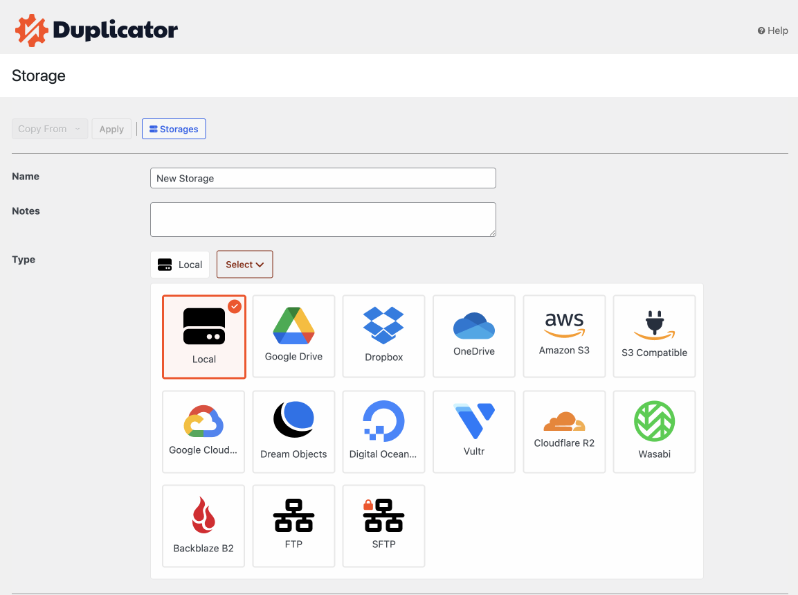
The free plugin saves to your server and to Duplicator Cloud. The everyday services most nonprofits already pay for are on the paid plans, so that is Google Drive, Dropbox, OneDrive, Amazon S3, Backblaze B2, Wasabi, Cloudflare R2, and plain FTP or SFTP among others.
You do not need anything complicated. Three habits cover most nonprofits.
- Keep 2 copies in 2 different places, and make sure 1 of them is off your web server.
- Use an account the organization owns. A backup full of donor records should not sit in a volunteer’s personal Google Drive. When that person moves on, your only off-site copy leaves with them.
- Set a retention limit and let old copies go. Duplicator can keep the last few and delete the rest, which stops the archives from filling your hosting space.
Treat these files the way you treat your donor database. Anyone who gets hold of an unencrypted archive can read everything inside it, so share them only through channels your team controls.
How to Schedule Backups So They Run Without You
Manual backups work until the week everyone is busy, which for a nonprofit is most weeks. A schedule takes the remembering out of it.
To set one up, go to Duplicator Pro » Schedule Backups and add a schedule. This part needs a paid plan.
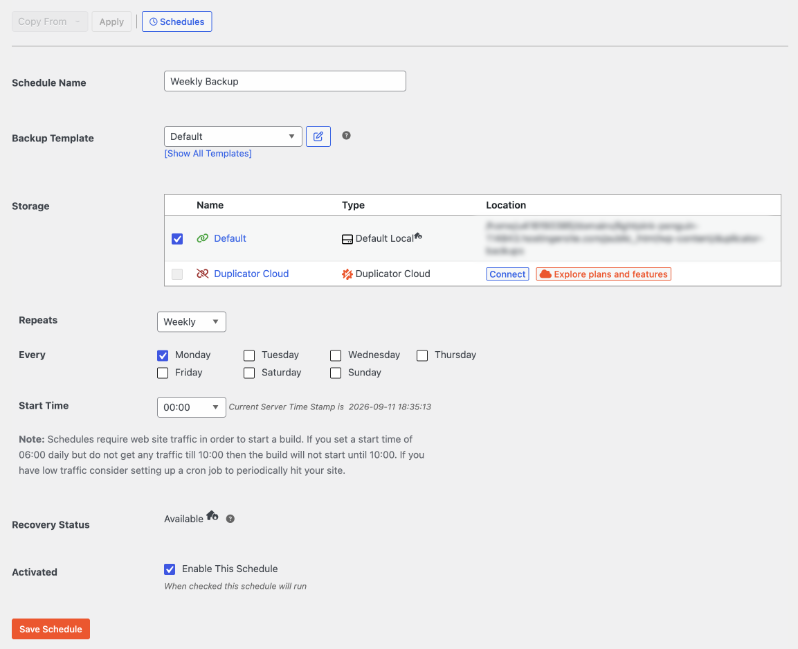
There are 5 things to fill in here.
- Schedule Name. Something plain like Weekly Backup.
- Backup Template. Default covers the whole site. A template is just a saved set of backup settings, so you can make one for a database-only copy if you want a second, lighter schedule.
- Storage. Tick where these scheduled copies should be saved.
- Repeats. Hourly, daily, weekly, or monthly, then the days and the start time.
- Enable This Schedule. Tick it, then click Save Schedule.
For cadence, weekly is enough for a site that mostly sits still. Switch to daily while a campaign is live, because a day of lost donations during an appeal is a real cost.
There is one detail on that screen that catches people out. Schedules need someone to visit your site before a build can start, so if you set 06:00 and your first visitor arrives at 10:00, the backup starts at 10:00.
Most nonprofit sites are quiet overnight. If yours is, ask your host to set up a cron job that visits the site on a timer, which is a small request and they will know what you mean.
How to Restore Your Nonprofit Website From a Backup
Making backups is the easy half. Here is what actually happens when you need one.
Step 1: Open the Restore Screen
On the Duplicator » Backups screen, find the copy you want and click Restore. Duplicator launches its installer and shows you Step 1 of 2.
Read the Overview panel before you go further. It names the backup you are about to restore and its age, and it states plainly that this clears the current site data.
Underneath, the Validation section checks your server, your PHP setup, and your database. Tick I have read and accept all terms & notices, which is what activates the Restore Backup button.
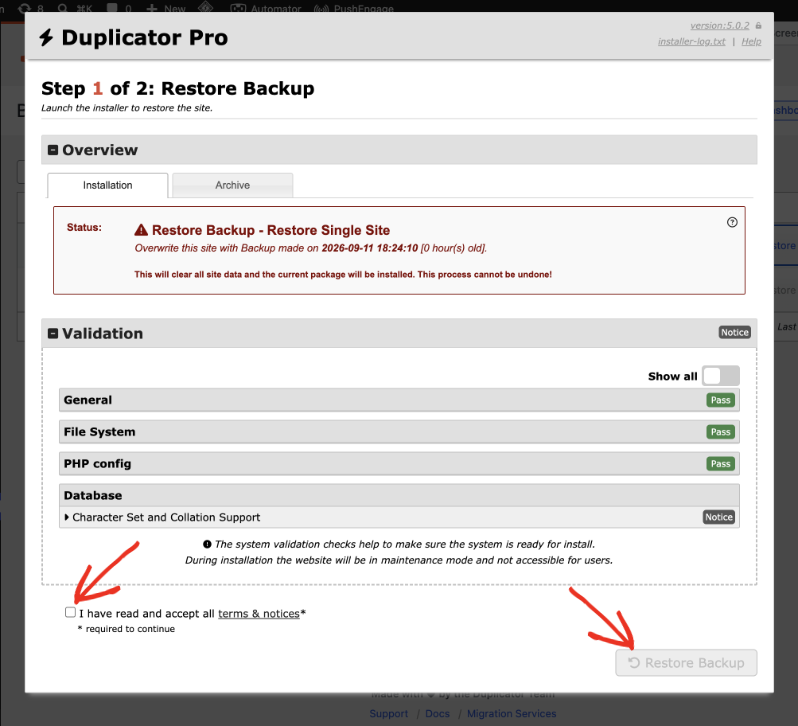
Your site goes into maintenance mode while this runs, so visitors will not see a half-restored page.
Step 2: Check the Install Details and Confirm
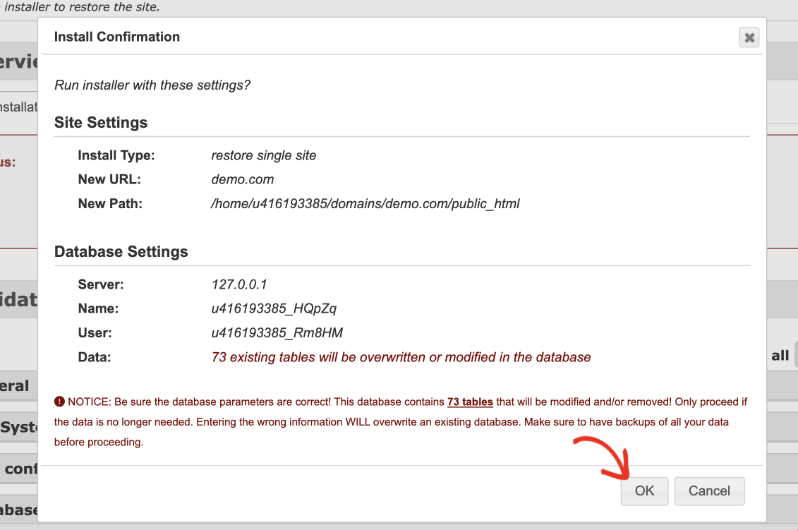
A confirmation box appears with the URL, the file path, and the database the installer is about to write to. Read the database name here. This is the one screen where a wrong value causes real damage, because the tables listed will be overwritten.
If it all points at the right site, click OK.
Step 3: Log Back Into Your Site
Step 2 of 2 reports what was restored, including your database tables and your plugins. Leave Auto delete installer files after login ticked, then click Admin Login.
Your login details are the ones from the backup, not from the broken site. If you changed your password after that copy was made, the older password is the one that works.
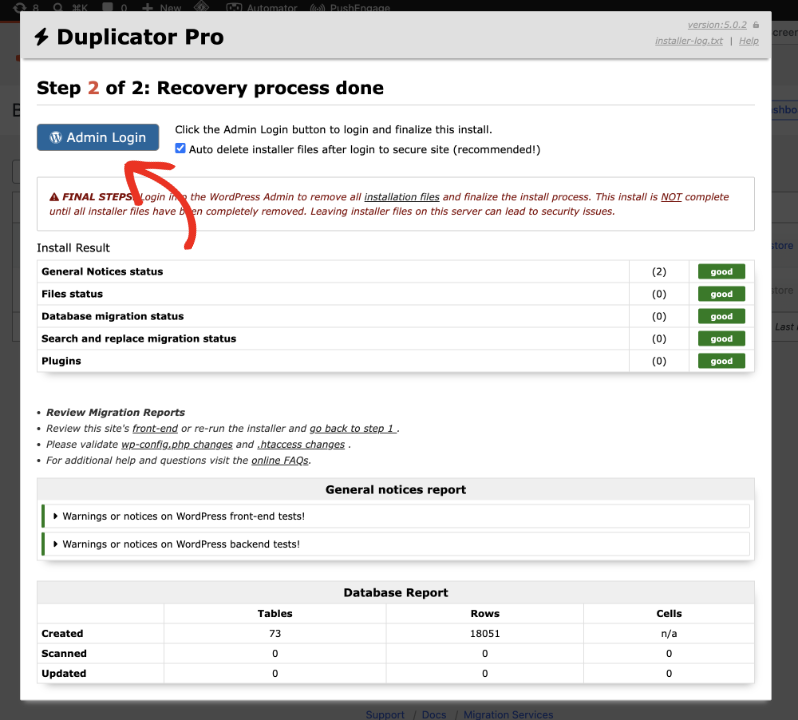
Logging in is a required step rather than a formality. The install is not finished until the installer files have been removed, and leaving them on your server is a security problem.
Step 4: Confirm the Cleanup Ran
Once you are back in your dashboard, Duplicator confirms the restore and lists the installer files it removed for you.
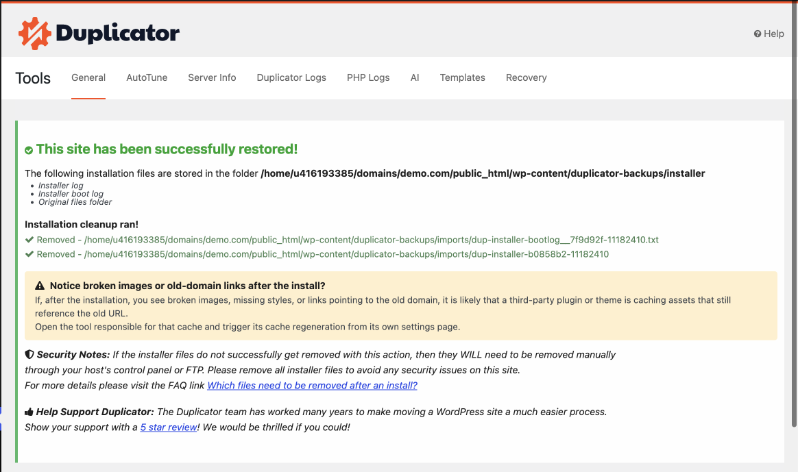
Now check the site itself. Open your homepage, open a campaign page, and make a small test donation so you know the donation form is recording gifts again.
If images or styles look broken straight after a restore, it is almost always a caching plugin still pointing at the old address. Clear the cache from that plugin’s own settings page and reload.
Restoring a Backup From a Different Site
The steps above cover a backup made on the same site. If you are moving to new hosting, or rebuilding on a fresh WordPress install, you upload the archive instead.
For that, install Duplicator on the new site and go to Duplicator Pro » Import Backups. Drag your archive into the upload area, or use Select File to find it, and the same installer takes over from there.
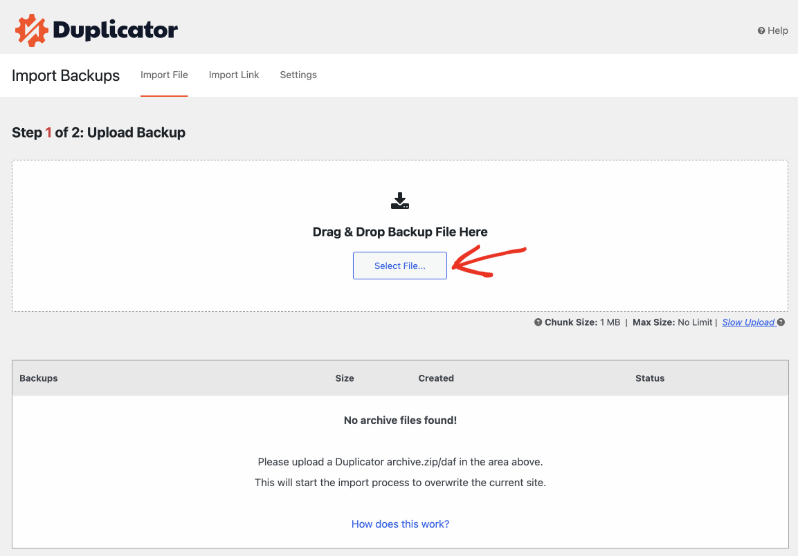
Drag and drop imports are a paid feature. On the free plugin, you upload the archive and the installer to the new server yourself and run the installer in your browser, which takes longer but gets you to the same place.
What a Backup Covers in Charitable
If you raise money with Charitable, your fundraising data is WordPress data. It sits in your site’s own database rather than on someone else’s platform, which is the whole reason your donors never leave your site to give.
That means a full Duplicator backup already includes it. Nothing extra to switch on.
- Your campaigns, with their goals, end dates, stories, and progress bars
- Every donation record, including amounts, dates, and the campaign each gift belonged to
- Your donor records and the history attached to each one
- Your donation forms and the fields you added to them
- Your email and receipt settings, including your own wording
- Your gateway settings, your reports data, and any addons you have active
- Your logo and campaign images, which travel in the files half of the backup
I would add one habit on top of the backup. Every quarter, export your donations and donors to CSV from your Charitable reports and save that file with your other records.
A Duplicator archive restores your whole site, which is what you want in a real emergency. A CSV is something your treasurer can open in a spreadsheet without restoring anything, and it is useful for board reports and audits too.
If you’re looking for more plugins to make managing your website easier, see our list of WordPress plugins we recommend for nonprofits.
Getting Started With Charitable Is Simple
If you are not fundraising on your own site yet, this is the short version of how to get there.
- Install the Charitable plugin from your WordPress dashboard
- Create your first campaign with the drag and drop builder
- Connect a payment gateway such as Stripe, Square, or PayPal
- Publish your donation page
- Take your first backup, using the steps above
You can start with Charitable Lite for free, with unlimited campaigns and unlimited donations, and your donor data stays yours. It has been downloaded over 1.2 million times.
When you need recurring donations, PDF receipts, or peer-to-peer fundraising, the paid plans add them. Every plan is covered by a 14-day money-back guarantee, no questions asked.
And now Charitable even works with your AI assistant like ChatGPT. You simply ask ChatGPT to build you a campaign and a new one appears inside the Charitable campaigns list, complete with the title, description, image, goal, deadline you’ve given it in your prompt!

There’s a lot more that can help you raise funds faster! See what Charitable Pro has to offer »
Important Notes Before You Rely on Your Backups
A few things I tell every nonprofit team once their first backup is done.
Back up before you change anything. Plugin updates, theme changes, and imports are when sites break. Take a copy first and name it after what you are about to do.
Keep the archive and the installer together. The archive on its own is much harder to put back.
Make sure installer files are gone after a restore. If the automatic cleanup did not run, go to Duplicator Pro » Tools » General and use Delete Installation Files.
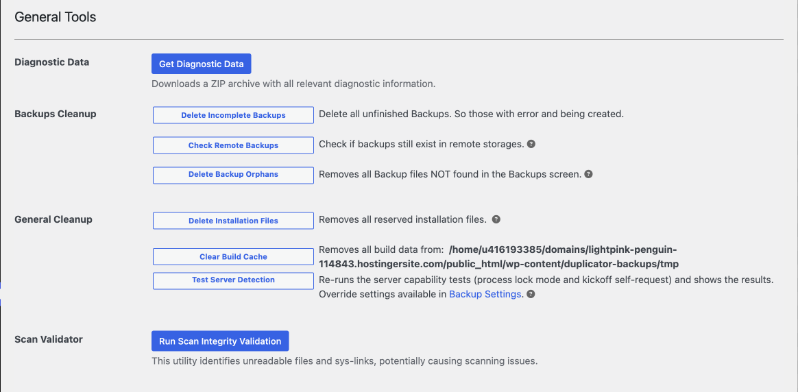
That same screen is where you clean up after problems. Delete Incomplete Backups clears failed attempts, Check Remote Backups confirms your cloud copies are still there, and Run Scan Integrity Validation finds files that break a scan.
If a build keeps stopping, your host is usually the reason. Shared hosting limits how long a process can run. Use Backup Filters to leave out large folders you do not need, or ask your host to raise the limit.
Write down who is responsible. Put the backup schedule, the storage location, and the person who owns it in one shared document. Add the encryption password to your team’s password manager while you are there.
Remember that backups hold personal data. Your archives contain donor names, email addresses, and giving history, so the same care you apply to your donor database applies to them.
Check in once a quarter. Open the Backups screen, confirm recent copies are there, and check the last one is not 4 months old because a schedule quietly stopped running.
FAQs on Nonprofit Website Backups
How often should a nonprofit back up its website?
Weekly is enough for a site that changes rarely. Move to daily while a campaign or appeal is running, and always take a manual copy before you update or import anything.
Can I back up my nonprofit website for free?
Yes. The free Duplicator plugin makes a complete backup of your files and database, lets you download it, and can restore it. Scheduling and cloud storage destinations are what the paid plans add.
Does my web host’s backup count?
It helps, but keep your own as well. Host backups often sit on the same server as your site, only go back 7 to 14 days, and sometimes need a support ticket to restore.
Will a backup include my donations and donor records?
Yes, as long as it includes your database. Charitable stores campaigns, donations, and donor records in your WordPress database, so a full Duplicator backup covers all of it.
Does restoring a backup cancel recurring donations?
No. Your payment processor holds the active plans, so the charges carry on as normal. If you restore an older copy, check your recent donation records against your gateway so your own reports match.
How long does a backup take?
Usually a few minutes. A large site with years of photos on modest hosting can take longer, and the scan report will warn you when that is likely.
Where is the safest place to keep backups?
Somewhere off your web server, in an account your organization owns rather than a staff member’s personal one. Two copies in 2 places covers most nonprofits.
Do I need a developer to do any of this?
No. Everything in this tutorial happens inside your WordPress dashboard with no code. You may need your host for a cron job if your site is very quiet overnight.
How many backups should I keep?
Keep the last 3 to 5, plus one copy from before any major change. Duplicator can delete older ones for you so they do not fill your hosting space.
Wrapping Up
Your website holds years of donor relationships, and it is the reason someone can give to you at 11pm on a Sunday. Protecting that does not take a technical team or a bigger budget.
Make one backup today and download it. Then set a schedule so you never have to think about it again.
Next, you might like to read about setting up a donor portal in WordPress, or how to track offline donations so your cash and cheque gifts live in the same records as everything else.
Charitable Has 1.2+ Million Downloads!
Trusted by millions to power successful fundraising campaigns. Try Charitable risk-free today.
✅ 14-day money-back
✅ Transparent pricing
✅ Code-free setup
Stay Connected for More Nonprofit Resources
For more tutorials and videos tailored to nonprofits, subscribe to our YouTube channel. We regularly publish expert tips, step-by-step guides on online donations, fundraising strategies, and practical resources to help your organization succeed.
🗞️ Get weekly tips and exclusive guides in your inbox
Join our newsletter →
🎥 Watch step-by-step tutorials and success stories
Subscribe to our YouTube channel →
👩🏽💻 Connect with our community and get daily nonprofit insights
Follow us on LinkedIn →
🥳 Fun reels and non-profit insights
Follow us on Instagram →
👀 Insightful & fun videos to help you grow your cause
Follow us on TikTok→
🌎 Subscribe and follow for general fundraiser tips
Get Fundraiser Tips on TikTok →
Powerful Fundraising Resources
🤖 Use Charitable with Your AI Assistant
⬇️ Download proven strategies, campaign ideas, and expert tools
Get the Fundraising Kit →
💸 Get Free Fundraising Resources
Head to the Charitable Fundraising Hub →
🤔 Got questions about Charitable?
Charitable FAQs →
🏎️ Take Charitable for a spin
Create your Charitable Demo →
Understand non-profit terms and jargon
Non-Profit Glossary →
% Looking for non-profit deals and discounts?
Best Non-Profit Deals and Discounts →





Leave a Reply