
Most charities have a sentence they want every donor to read, and almost nowhere good to put it.
It might explain why the first amount is $25 and not $20. It might say the receipt arrives in a few minutes, so nobody emails you at midnight to ask. Or it might be your refund policy, which you are happy to honor and which nobody can find.
The campaign page has room for all of it. But by the time someone is choosing an amount, they’re looking at the form, not the page around it.
From the Charitable Pro plugin 1.8.19.1, you can put your words inside the form, right where the donor is looking, with a new field called Text Block. ✍️
Here’s What the Text Block Field Looks Like
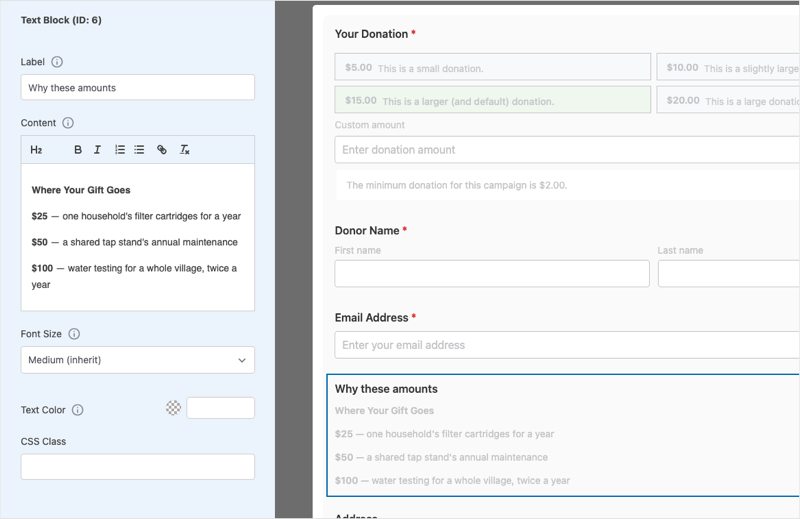
Before we get into placement and styling, here’s the field’s settings panel in the campaign builder.
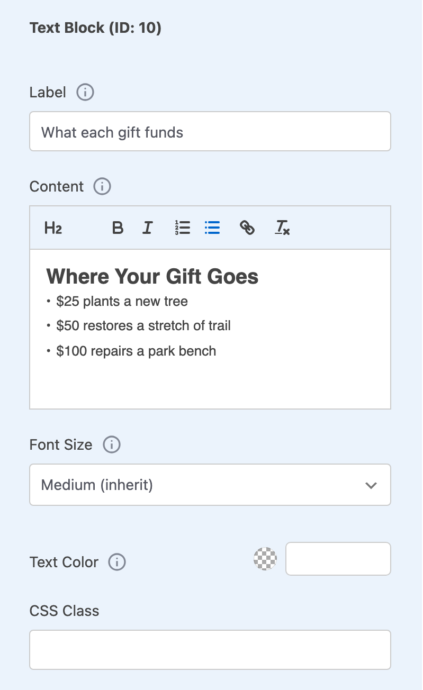
You get a small rich-text editor, a font size and a text color, and that is close to the whole feature.
We kept it small on purpose. This is a field for saying something to your donors, not a page builder inside your form.
See the Text Block Field in Action
If you’d rather watch than read, here’s the short version of everything below.
Why the Donation Form Is the One Page Everybody Reads
Think about how attention moves through a donation. Someone arrives from an email, a social post or a search, and skims the campaign page in a few seconds. They are checking that this is the right cause and roughly what it costs.
Then they reach the form, and they slow down. They read, because they are about to type a card number, and that is when people get careful.
So the form is the part of the journey that nearly every donor reads closely. A Text Block gives you a place there for the answer to the question a donor has just before they pay.
When You’ll Feel the Difference
Here are the moments where a sentence in the right place helps a donor finish their gift.
- 💵 A donor hesitating at the amounts. Preset amounts don’t explain themselves. “$50 covers a shared tap stand’s annual maintenance” turns a number into a thing, and it does far more 2 inches above the buttons than in a paragraph the donor scrolled past.
- ❓ A custom question nobody expected. If your form asks for a membership number, a dedication or how they heard about you, a line above it saying why helps people keep going.
- 🔒 The moment before payment. A short note that the payment is processed securely and the receipt arrives by email answers a whole group of support emails before they’re sent.
- 🧾 The policy you are proud of. Lots of charities will gladly refund a donation made in error, then hide that in a footer. Put it where the decision happens and it becomes a reason to trust you.
- 🔁 A gentle permission. “Give monthly or once. Both help, and monthly helps us plan.” Donors often want to hear that the smaller option is welcome.
It Shows Words and Collects Nothing
The name could make you think a Text Block is something donors type into, so let’s be clear about this.
A Text Block is display only. There is nothing for the donor to fill in, so nothing from it ends up in the donation record, an export or an email. It is your voice in the form.
That’s also why you can use it freely. Adding a Text Block gives the donor nothing extra to do, so it doesn’t make your form any harder to finish.
Text Block or Text Input? They Do Opposite Jobs
Version 1.8.19.1 has 2 fields with similar names. Here’s how to tell them apart now, so it doesn’t turn into a support ticket later.
| What it does | Does the donor type into it? | |
|---|---|---|
| Text Block | It shows your text to the donor. | No. It collects nothing. |
| Text Input | It collects a long written answer and saves it with the donation. | Yes. |
Text Input isn’t new. It’s the field that used to be called Rich Text, and we renamed it in the same release because “Rich Text” described the editor rather than the job.
Forms already using it are unaffected, and your donors see no change at all.
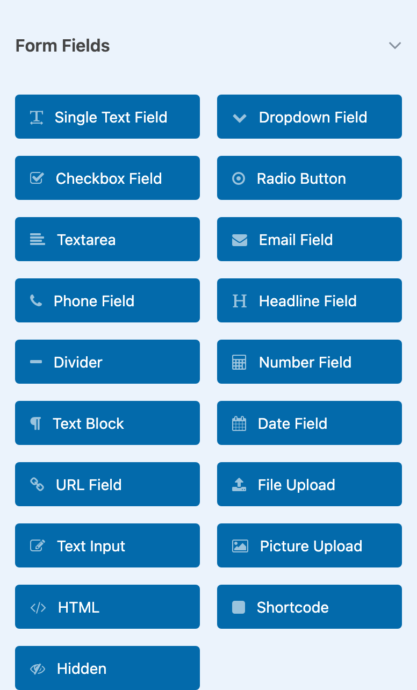
In the field list, both sit several buttons apart with different icons. Text Block has a paragraph mark and Text Input has a pencil.
If you remember one thing, make it this. The pencil is the one the donor writes in.
Getting Started: Adding Your First Text Block
Setting up a block takes about as long as writing the sentence that goes in it.
Step 1: Open the Form Fields
To get started, open a campaign in the campaign builder and choose Form in the left sidebar. You’ll find Text Block under Form Fields on the Add Field tab.
Step 2: Drop the Block Where the Words Belong
Drag Text Block onto the form preview. The preview updates as you drop it, so you can see straight away whether it landed where you meant.
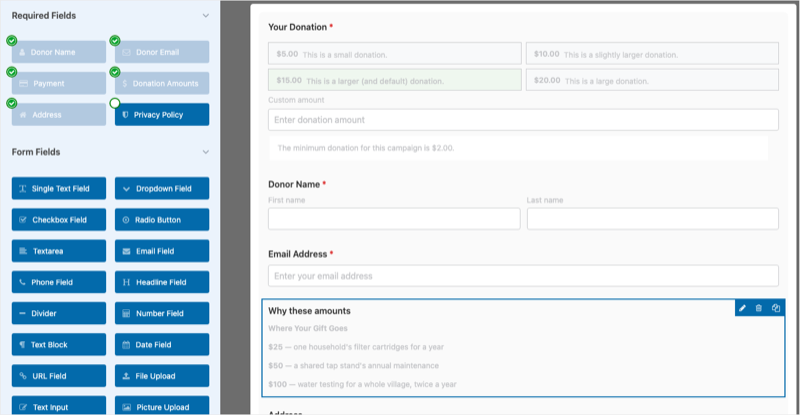
Where you drop it is the most important choice you’ll make with this field. The donor reads the form from top to bottom, so a note about receipts does little above the amounts and a lot just before the payment section. If it isn’t in the right place, drag it again, because nothing is saved until you save the campaign.
Step 3: Name It for Yourself
The Label is for you, not the donor. It never appears on the form.
It’s there so a form with 3 blocks in it is still easy to work on a month from now. Name each one for what it says, like Why these amounts, Receipt note or Refund policy.
Step 4: Write It
The Content box gives you an H2 heading, bold and italic, numbered and bulleted lists, a link, and a button to clear formatting.
Keep it short. A Text Block works best as a sentence or two, or a tight bulleted list. If you find yourself writing 4 paragraphs, those words belong on the campaign page, where there’s room for them.
Step 5: Set the Size and Color, If You Need Them
Font Size has 4 values, Medium (inherit), Small, Large and Extra Large. They are relative to the form’s own base size, so everything inside the block scales together and a heading in a Large block is still bigger than the paragraph below it.
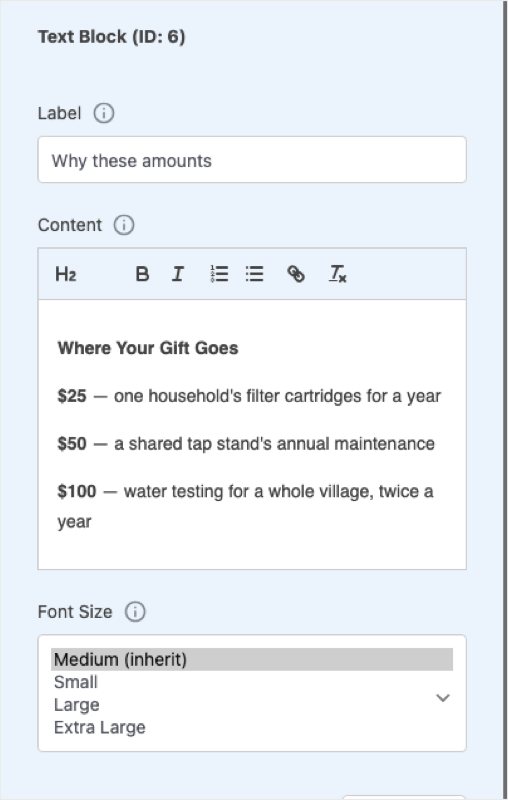
Most blocks should stay on Medium. Use Large when the block is doing a heading’s job, and Small for a note you want present but quiet, like a legal line or a processing-fee disclosure.
Text Color sets the color for the whole block. Leaving it empty is usually right, because a block that matches the form around it reads as part of the form. One block in a different color draws the eye, while 3 different colors in one form just looks broken.
Save the campaign, and your words are live on the form.
Read the Full Text Block Setup Guide →
A Complete Example: A Form That Explains Its Own Amounts
Let’s say a clean-water campaign offers $25, $50 and $100 and keeps losing people at the amount step. Here’s the whole form, built out with 3 blocks.
The first block sits above the amounts. It’s labeled Why these amounts, set to Medium, with no heading.
Every amount below covers a specific, costed piece of work. Pick the one that fits.
The second block sits below the amounts. It’s labeled What each gift funds, with an H2 and then a bulleted list.
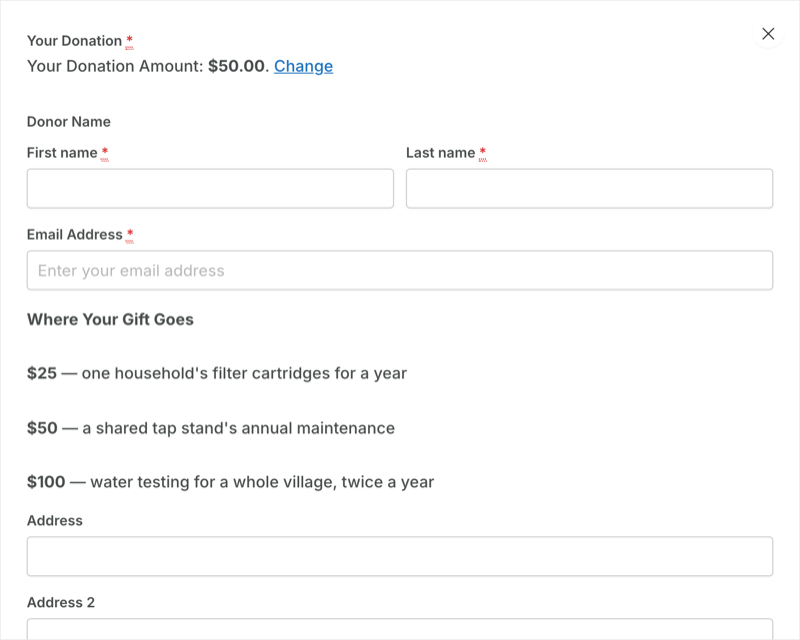
Where Your Gift Goes
- $25 covers one household’s filter cartridges for a year.
- $50 covers a shared tap stand’s annual maintenance.
- $100 covers water testing for a whole village, twice a year.
Here’s how that block looks to a donor on the live form.
The third block sits just above payment. It’s labeled Receipt and refund note and set to Small.
Receipts arrive by email within a few minutes. If you donate in error, contact us within 14 days and we will refund in full.
That’s 3 blocks, one heading, one size change and no color changes at all.
The part to copy is the restraint. Every block answers a question the donor was already asking, and none of them is there to fill space.
Per-Block Styling That Works With Your Form’s Typography
Each Text Block carries its own font size and color, so 2 blocks in the same form can look completely different. A clear explanation above the amounts and a quiet legal note above the payment button are the same field doing 2 different jobs, and they shouldn’t look alike.
The same release also added Typography settings for visual donation forms, under Visual Style on the Form Options tab. Those set the size and color for the whole form, including body text, labels and help text.
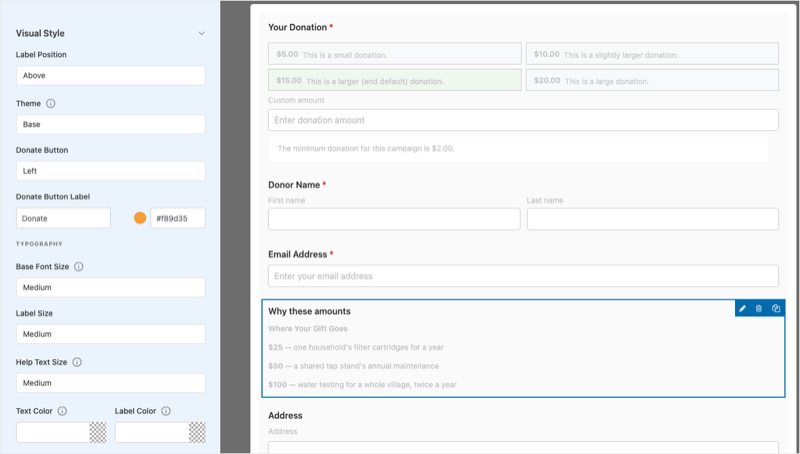
The 2 settings work in layers. Form Options » Visual Style sets the baseline for everything in the form, and a Text Block’s own Font Size and Text Color override that baseline for that block alone.
So set the form’s typography once to keep the whole thing consistent, then override a block only when it really needs to stand apart. And if you built your forms before 1.8.19.1, they keep the size and color they have now until you change one of those settings yourself.
Safe to Paste Into
Content is sanitized twice, once in the browser as you type and again on the server before it’s stored or shown. In practice, the formatting the toolbar produces is the formatting that survives.
Text pasted from a word processor often carries extra markup that will be stripped out, so paste it as plain text and format it with the toolbar. If you really need raw markup, the HTML field is still there and is the right field for it.
3 Ways to Get the Text Block Wrong
This field is easy to overuse, and an overused Text Block does more harm than having none at all.
The first mistake is moving your campaign page into your form. A donor who wants 4 paragraphs of detail hasn’t reached the form yet, and one who has reached the form wants to finish.
The second is using it as a second headline, with Extra Large text, a bright color and an exclamation mark. The donor has already decided to give, which is why they’re on the form, so shouting at this point reads like a sales pitch after the sale.
The third is using 3 colors and 4 sizes in one form. Per-block styling is there so a clear explanation and a quiet legal note can look different from each other. Two visual styles in one form is plenty.
Here’s the test for any block. Does this answer a question the donor is already asking? If it doesn’t, it’s decoration, and decoration on a payment form costs you donations.
For Agencies and Developers
Hooks and Filters
The field’s type slug is text-block-field, and it appears inside the hook names. Note the hyphens, because the slug is used in the hook name exactly as written.
// Filter a Text Block's rendered output before it reaches the page.
apply_filters( 'charitable_campaign_builder_text-block-field_field_display', $html, $campaign_data );

// Runs at the top and bottom of the block's settings panel in the builder.
do_action( 'charitable_builder_text-block-field_settings_display_start', $field_id, $campaign_data );
do_action( 'charitable_builder_text-block-field_settings_display_end', $field_id, $campaign_data );
For example, this adds a standard note to the end of every Text Block. You can add it with a code snippets plugin rather than editing your theme.
add_filter(
    'charitable_campaign_builder_text-block-field_field_display',
    function ( $html, $campaign_data ) {
        return $html . '<p class="standard-note">Donations are processed securely.</p>';
    },
    10,
    2
);
CSS Classes and Template Overrides
If you manage many campaigns, setting Font Size and Text Color by hand on every form will drift over time. Put a class in the block’s CSS Class field instead and keep the styling in one stylesheet.
.charitable-form .refund-policy {
    font-size: 0.85em;
    color: #6b6b6b;
    border-top: 1px solid #e5e5e5;
    padding-top: 12px;
}
A Text Block renders through the visual donation form templates, so you can override it the usual Charitable way. Copy the template into your-theme/charitable/ and edit it there.
FAQs on the Text Block Field
Which Charitable plans include the Text Block field?
Text Block is part of the visual donation form builder, which is in the Charitable Pro plugin, Basic plan and higher. It isn’t in the free version of Charitable.
Does a Text Block make my form longer for the donor?
It adds nothing the donor has to do. It’s words on the form, not another field to complete.
Will it work on a multi-step form?
Yes. The block belongs to the step you drop it into and appears when the donor reaches that step, so put a reassuring note on the step where donors tend to stop.
Can I show a block only to some donors?
Not on its own. A Text Block shows to everyone who sees that form.
I made my text bold and large. Why isn’t it styled like a heading?
Because it’s still a paragraph. Use the H2 button, which makes a real heading that your theme will style as one.
Do my existing forms change when I update?
No. Forms built before 1.8.19.1 keep their current look until you change a typography setting yourself.
Get Started With the Text Block Field
If you already use the Charitable Pro plugin, update to 1.8.19.1 and you’ll find Text Block in the Form tab of any campaign. Start with one block above your amounts, say what the amounts mean, and see how your donors respond.
Read the Text Block Documentation →
Not on a Charitable Paid Plan Yet?
Charitable Has 1.2+ Million Downloads!
Trusted by millions to power successful fundraising campaigns. Try Charitable risk-free today.
✅ 14-day money-back guarantee
✅ Transparent pricing
✅ Code-free setup
What’s New in Charitable
We also launched several new features and improvements recently.
📊
Dashboard Compare, Export and Score
Compare periods, export reports and score your campaigns from one rebuilt dashboard.
🎟️
Sell event tickets inside your campaigns, with tickets and gifts in the same reports.
🔁
Donors set up a gift once on Windcave, and Charitable bills every renewal on schedule.
⚡
See each automation as a drag-and-drop flow on a full-screen canvas, with no code.
We’re adding to Charitable all the time, with features and improvements designed to help you raise more and serve your donors better. See everything we’ve shipped at the Charitable Changelog.
Not yet a Charitable Pro user? Sign up today and get up to 50% off on your plan. We’re confident you’ll love raising funds with Charitable. If, for any reason, Charitable is not the right fit for you, we’ll refund your purchase with our 14-day money-back guarantee. Get Charitable Pro Now »
If you have any questions or need a hand setting up your first Text Block, our support team is ready to help.
Stay Connected for More Nonprofit Resources
For more tutorials and videos tailored to nonprofits, subscribe to our YouTube channel. We regularly publish expert tips, step-by-step guides on online donations, fundraising strategies, and practical resources to help your organization succeed.
🗞️ Get weekly tips and exclusive guides in your inbox
Join our newsletter →
🎥 Watch step-by-step tutorials and success stories
Subscribe to our YouTube channel →
👩🏽💻 Connect with our community and get daily nonprofit insights
Follow us on LinkedIn →
🥳 Fun reels and non-profit insights
Follow us on Instagram →
👀 Insightful & fun videos to help you grow your cause
Follow us on TikTok→
🌎 Subscribe and follow for general fundraiser tips
Get Fundraiser Tips on TikTok →
Powerful Fundraising Resources
🤖 Use Charitable with Your AI Assistant
⬇️ Download proven strategies, campaign ideas, and expert tools
Get the Fundraising Kit →
💸 Get Free Fundraising Resources
Head to the Charitable Fundraising Hub →
🤔 Got questions about Charitable?
Charitable FAQs →
🏎️ Take Charitable for a spin
Create your Charitable Demo →
Understand non-profit terms and jargon
Non-Profit Glossary →
% Looking for non-profit deals and discounts?
Best Non-Profit Deals and Discounts →









Leave a Reply