
Requires: Charitable Pro plugin 1.8.19.1+
Basic plan and higher
Do you want to tell donors something right inside your donation form, like what an amount pays for or when their receipt will arrive?
A Text Block puts your own words inside a visual donation form. It’s display only, so it collects no information and adds nothing to the donation record.
This guide covers where to find the field, how to add and write a block, its size and color settings, how it works with form typography, troubleshooting, and the developer hooks.
Donors read the form more closely than any other part of the page, because that’s where they enter their payment details. A short note in the right place can answer their question before they stop.
What’s in This Guide?
- Watch the Text Block Video
- When to Use a Text Block in Your Donation Form
- Text Block vs. Text Input: Which Field to Use
- Where to Find the Text Block Field
- How to Add a Text Block to a Donation Form
- How to Write Text Block Content
- How to Set the Text Block Font Size
- How to Set the Text Block Text Color
- How Text Block Styling Works With Form Typography
- What the Text Block Field Does Not Do
- Example: A Donation Form That Explains Its Own Amounts
- Where to Place a Text Block in Your Donation Form
- Tips To Keep In Mind
- Troubleshooting the Text Block Field
- Developer Reference for the Text Block Field
- Wrapping Up
- You May Also Want to Read
Watch the Text Block Video
This short video shows how to add a Text Block to a donation form and set it up.
When to Use a Text Block in Your Donation Form
Use a Text Block for the sentence a donor needs at that point in the form.
- Explaining an amount. “A $25 gift covers one family’s water filter for a year” does more work beside the amounts than on the campaign page above them.
- Setting expectations before payment. A short note can say that donations are processed securely, or that receipts arrive by email within a few minutes.
- Showing your refund or cancellation policy. Donors see it where they look for it, rather than in a footer.
- Giving instructions for an unusual field. If you have added a custom question, a Text Block above it can say why you are asking.
- Listing what the campaign covers. A short bulleted list reads faster than a long paragraph.
Text Block vs. Text Input: Which Field to Use
The Charitable Pro plugin 1.8.19.1 has 2 fields with similar names, and they do opposite things. It helps to get this straight before you build.
| What it does | Does the donor type into it? | |
|---|---|---|
| Text Block | It shows your text to the donor. | No. It collects nothing. |
| Text Input | It collects a long written answer and saves it with the donation. | Yes. |
Text Input was called Rich Text before 1.8.19.1. Forms already using it are unaffected, and your donors see no change.
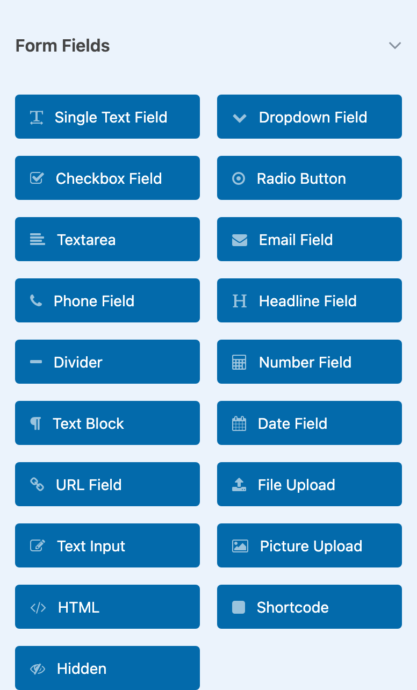
In the field list, the 2 fields sit several buttons apart and have different icons. Text Block has a paragraph mark, and Text Input has a pencil.
Where to Find the Text Block Field
You’ll find Text Block in the donation form fields of the campaign builder.
- To start, open a campaign in the campaign builder.
- Choose Form in the left sidebar.
- On the Add Field tab, look under Form Fields for Text Block.
Note: If you can’t select the Form tab, the campaign doesn’t have a template yet. Pick one on the Template tab first.
How to Add a Text Block to a Donation Form
Drag Text Block from the field list onto the form preview, and drop it where you want the words to appear. The preview updates as you drop it, so you can see right away whether it sits in the right place.
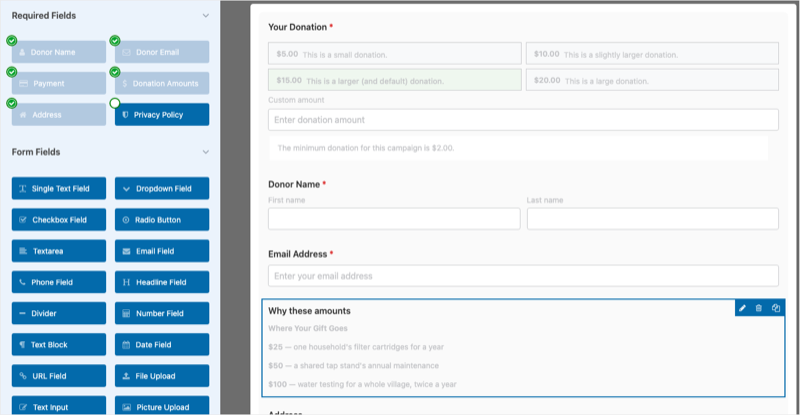
The field list is where you pick fields from, and it doesn’t set their order. Where you drop the block decides where the donor sees it, whether that’s above the amounts, between the amounts and the name fields, or just before the payment section.
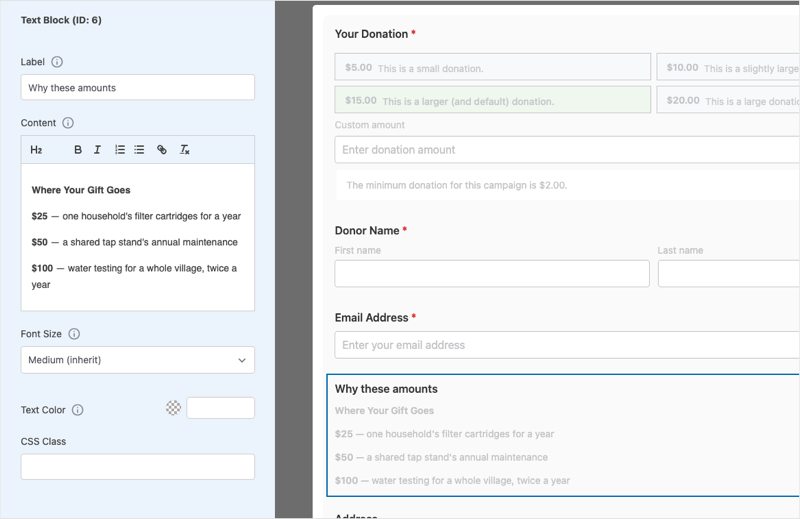
Once the block is on the form, its settings open on the Field Options tab. The panel is titled Text Block (ID: n), where n is the field’s ID inside this form.
How to Write Text Block Content
The Content box is a small rich-text editor. Its toolbar gives you these options.
- H2 adds a heading.
- Bold and italic add emphasis.
- Numbered list and bulleted list turn lines into a list.
- Link adds a link to the selected text.
- Clear formatting removes styling from the selected text.
Keep a block short. If you find yourself writing several paragraphs, those words probably belong on the campaign page, where there is room for them.
How to Label a Text Block
Label is for you, not the donor. It names the block in the builder so you can find it again in a form with several blocks, and it never shows on the form.
A form with 3 blocks all labeled “Text Block” is hard to work with. Name each one for what it says, such as “Why $25”, “Refund policy” or “Gift Aid note”.
How to Set the Text Block Font Size
Font Size has 4 values.
| Value | Effect |
|---|---|
| Medium (inherit) | It follows the form’s own body text size. |
| Small | It’s smaller than body text. |
| Large | It’s larger than body text. |
| Extra Large | It’s the largest size. |
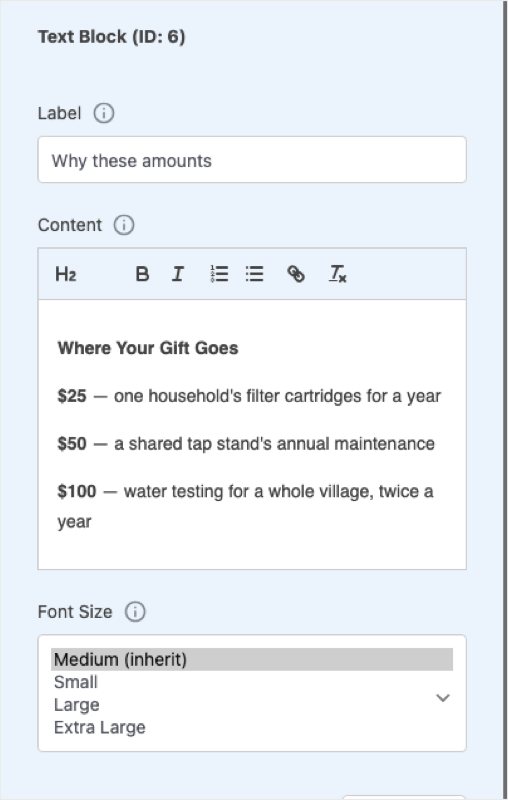
Sizes are relative to the form’s base font size, not fixed pixel values. Everything inside the block scales together, so a heading in a Large block is still larger than the paragraph beneath it.
Pro tip: Leaving it on Medium (inherit) is usually right. Choose Large when a block is doing a heading’s job, and Small for a legal note you want present but quiet.
How to Set the Text Block Text Color
Text Color sets the color for everything in that block. Leave it empty to use the form’s own text color, which is what most forms need, because a block that matches everything around it reads as part of the form.
Use it with care. A single block in a different color draws the eye, while 3 different colors in one form just look broken.
How to Add a CSS Class to a Text Block
CSS Class adds a class to the block’s wrapper so you can style it from your theme. The developer reference below has an example.
How Text Block Styling Works With Form Typography
Version 1.8.19.1 also added Typography settings for visual donation forms, under Visual Style on the Form Options tab. Those set the size and color for the whole form, including body text, labels and help text.
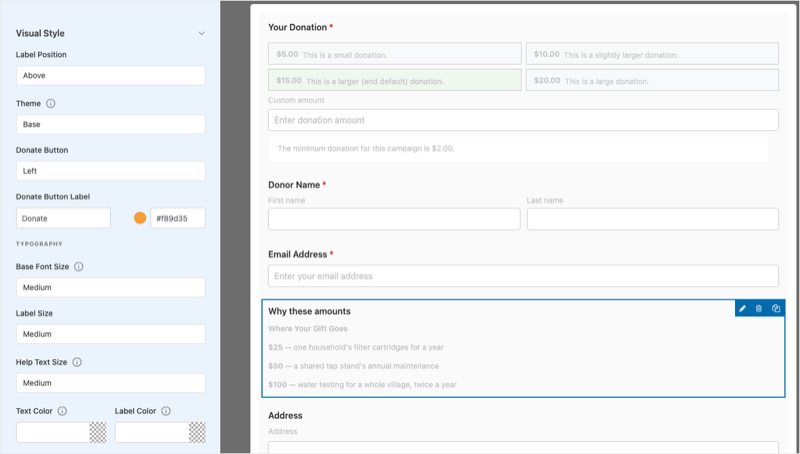
The 2 sets of settings work together like this.
- Form Options » Visual Style sets the baseline for everything in the form.
- A Text Block’s own Font Size and Text Color override that baseline, for that block only.
Note: Forms you built before 1.8.19.1 keep the size and color they have now until you change one of the typography settings.
What the Text Block Field Does Not Do
The name can suggest otherwise, so here is what a Text Block leaves out.
- It doesn’t collect anything. Nothing from a Text Block reaches the donation record, an export or an email. To collect an answer, use Text Input.
- It isn’t conditional on its own. It shows to every donor who sees that form.
- It doesn’t accept arbitrary HTML or scripts. Content is sanitized on the way in and on the way out, so pasted markup beyond the toolbar’s formatting may be removed. If you need raw markup, use the HTML field.
Example: A Donation Form That Explains Its Own Amounts
Let’s say a clean-water campaign offers $25, $50 and $100, and the team finds donors hesitating at the amount step. Here is the form built to answer the question those donors are asking.
1. Add a Short Lead-In Above the Amounts
Drag a Text Block to the very top of the form, above the donation amounts. Label it Why these amounts, and in Content, write one sentence with no heading.
Every amount below covers a specific, costed piece of work. Pick the one that fits.
Leave Font Size on Medium (inherit), because this is ordinary body text doing an ordinary job.
2. Add a Bulleted Breakdown Below the Amounts
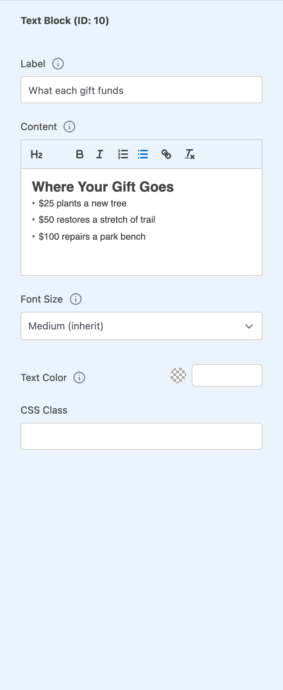
Drag a second block below the amounts and label it What each gift funds. Use H2 for a heading, then add a bulleted list.
Where Your Gift Goes
- $25 covers one household’s filter cartridges for a year.
- $50 covers a shared tap stand’s annual maintenance.
- $100 covers water testing for a whole village, twice a year.
Here’s how that block looks to a donor on the live form.
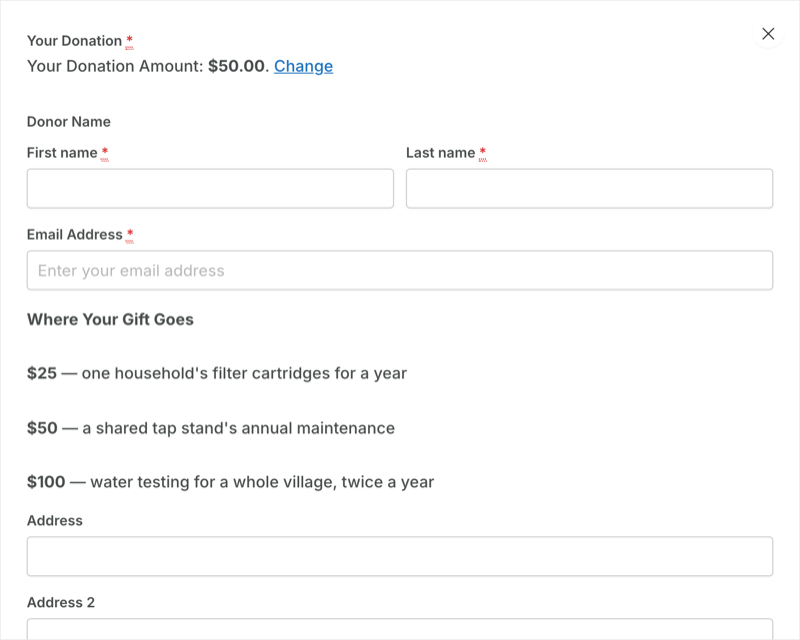
Keep Font Size on Medium (inherit) again. The heading already stands out, so making the whole block Large as well would be too loud.
3. Add a Quiet Note Just Before Payment
Drag a third block directly above the payment section. Label it Receipt and refund note, set Font Size to Small, and leave Text Color empty.
Receipts arrive by email within a few minutes. If you donate in error, contact us within 14 days and we will refund in full.
4. Save and Check the Live Form
The builder preview is close to the live page but not identical, because your theme’s typography applies on the front end. Always look at the real form before you call the job done.
The part to copy from this example is the restraint. It uses 3 blocks, one heading, one size change and no color changes, and the words do the work.
Where to Place a Text Block in Your Donation Form
Donors read a Text Block in the order they reach it, so where you drop it matters more than any of the styling options.
| Position | Good for |
|---|---|
| Above the amounts | It frames the choice the donor is about to make. |
| Between the amounts and donor details | It explains what the amounts buy, once they are visible. |
| Beside an unusual custom field | It says why you are asking for that information. |
| Just above the payment section | It reassures donors about security, receipts and refunds. |
| At the very bottom | It holds legal notes that nobody needs before deciding. |
Text Blocks on Multi-Step Forms
If your form is split into steps, a Text Block belongs to the step you drop it into and appears when the donor reaches that step. Someone who leaves on step 1 never sees a note on step 3, so put reassuring words on the step where donors tend to stop.
Text Block Headings and Accessibility
The Content toolbar offers H2. Screen readers and search engines read headings as an outline of the page, so a form with several H2 blocks reads as several equal sections, which is usually correct.
Use the H2 button rather than bold, large text, because they look similar but behave differently. And skip the heading for a single short sentence, since one line of prose is a paragraph.
Tips To Keep In Mind
These habits keep your Text Blocks helpful to donors rather than in their way.
- Ask whether the block answers a question. Every block should answer something the donor is already wondering at that point in the form.
- Keep 2 blocks apart. If 2 blocks sit next to each other with nothing between them, they are really one block with a paragraph break.
- Paste as plain text. Format with the toolbar afterward, so nothing you paste gets removed.
- Use a CSS class across many campaigns. A class keeps the styling in one stylesheet, so it doesn’t drift from form to form.
Troubleshooting the Text Block Field
The Text Block Button Is Not in the Field List
Check these 3 things, in order.
- You are on the Form tab, not the Design or Settings tab. The campaign layout fields and the donation form fields are 2 separate lists, and Text Block is in the donation form one.
- The Charitable Pro plugin is active. The visual donation form builder, and so Text Block, is only in the paid version of Charitable.
- You are on version 1.8.19.1 or later. Earlier versions don’t have the Text Block field.
The Text Block Shows Nothing to the Donor
A Text Block with an empty Content box has nothing to show, so it shows nothing. Open the block on the Field Options tab and type something into Content.
The Text Block Heading Does Not Look Like a Heading
Use the H2 button in the Content toolbar rather than making text bold and large. Bold text at a Large font size looks like a heading in the editor, but it’s still a paragraph, and your theme won’t style it as a heading.
The Font Size Setting Does Not Seem to Change Anything
Font Size is relative to the form’s base size. If the form’s body text is already large under Form Options » Visual Style, the step from Medium to Large looks smaller than you might expect, so check that baseline first.
Some Pasted Formatting Disappeared
Content is sanitized, so formatting beyond what the toolbar produces is removed. Text from a word processor often carries markup that doesn’t survive, so paste it as plain text and format it with the toolbar instead.
The Text Block Shows in the Builder but Not on the Live Page
Save the campaign. The builder preview shows unsaved changes, but the live page doesn’t.
If it’s saved and still missing, confirm the campaign uses the visual donation form rather than the legacy form. A visual form needs its required fields, and a form missing them falls back to the classic layout, which has no Text Blocks in it.
I Want a Text Block to Show Only to Some Donors
A Text Block can’t do this by itself. It shows to everyone who sees the form.
Developer Reference for the Text Block Field
Text Block Hooks and Filters
The field’s type slug is text-block-field, and it appears inside the hook names.
// Filter the rendered output of a Text Block before it reaches the page.
// $html          string  the block's markup
// $campaign_data array   the campaign's builder data
apply_filters( 'charitable_campaign_builder_text-block-field_field_display', $html, $campaign_data );

// Runs at the top and bottom of the block's settings panel in the builder.
// $field_id      int     the field's id within the form
// $campaign_data array   the campaign's builder data
do_action( 'charitable_builder_text-block-field_settings_display_start', $field_id, $campaign_data );
do_action( 'charitable_builder_text-block-field_settings_display_end', $field_id, $campaign_data );
Note the hyphens. The hook names use the type slug exactly as written, with hyphens and not underscores.
How Text Block Content Is Sanitized
Content passes wp_kses_post() twice, once in the browser as you type and again in PHP before it is stored or rendered. Anything wp_kses_post() disallows won’t survive in either direction, so don’t plan a workflow that depends on storing markup beyond that allowance.
Override the Text Block Template in Your Theme
A Text Block renders through the visual donation form templates. To change its markup, override the donation form template the usual Charitable way, by copying the template into your-theme/charitable/ and editing it there.
Code Example to Add a Standard Note to Every Text Block
add_filter(
    'charitable_campaign_builder_text-block-field_field_display',
    function ( $html, $campaign_data ) {
        return $html . '<p class="my-standard-note">Donations are processed securely.</p>';
    },
    10,
    2
);
Code Example to Style One Text Block With a CSS Class
Set CSS Class on the block to refund-policy, then add this to your theme.
.charitable-form .refund-policy {
    font-size: 0.85em;
    color: #6b6b6b;
    border-top: 1px solid #e5e5e5;
    padding-top: 12px;
}
This is the cleaner route when you want the same look across many campaigns. You set the class once per block and keep the styling in one stylesheet, rather than setting Font Size and Text Color by hand on every form.
Code Example to Find Every Campaign Using a Text Block
$campaigns = get_posts( array(
    'post_type'      => 'campaign',
    'post_status'    => array( 'publish', 'draft' ),
    'posts_per_page' => -1,
    'fields'         => 'ids',
) );

foreach ( $campaigns as $campaign_id ) {
    $forms  = get_post_meta( $campaign_id, 'donation_forms', true );
    $active = get_post_meta( $campaign_id, 'active_donation_form', true );
    $fields = isset( $forms[ $active ]['fields'] ) ? $forms[ $active ]['fields'] : array();

    foreach ( (array) $fields as $field ) {
        if ( isset( $field['type'] ) && 'text-block-field' === $field['type'] ) {
            // $campaign_id uses a Text Block.
            break;
        }
    }
}
Note that post_status is passed explicitly. A get_posts() call on campaigns without it won’t match what you expect.
Wrapping Up
You now know how to add a Text Block to a donation form, write and style it, and place it where donors will read it. Your forms can now answer donors’ questions at the moment they ask them.
If you get stuck on any step, our support team is happy to help.
You May Also Want to Read
These guides cover the rest of the visual donation form builder.
- Visual Donation Form Builder. See every field and setting the form builder offers.
- How to Use the Donation Form Visual Builder. Build a visual donation form from start to finish.
- How to Switch Donation Form Templates. Change which template a donation form uses.
- Customizing Donation Forms With Code Snippets Using WPCode. Add the filters on this page without editing theme files.
Helpful Links
🤝 Get help when you need it
Connect with Customer Support →
📑 Find the guide you need
Browse the Documentation Hub →
⬇️ Download proven strategies, campaign ideas, and expert tools
🔗 Let your AI Assistant do the fundraising work for you.
Connect Charitable to your AI assistant →
💸 Get Free Fundraising Resources
Head to the Charitable Fundraising Hub →
🤔 Got questions about Charitable?
Charitable FAQs →
Need help understanding non-profit terms and jargon?
See our Non-Profit Glossary →




