
Automations are supposed to save you time, but they only help if you can actually see what they do.
Until now, each Charitable automation was a single webhook tied to a single event, configured in a form.
That works, but it hides the bigger picture: what happens, in what order, and under what conditions.
With Charitable Automation Connect 2.3.0, we are changing that.
🎉 Meet the Visual Automation Builder.
Building Automations Visually
The Visual Automation Builder is a full-screen canvas where every automation appears as a flow of connected cards.
You set a Trigger that starts the flow. Next, optional Conditions decide whether it should continue, and one or more Actions run in order.
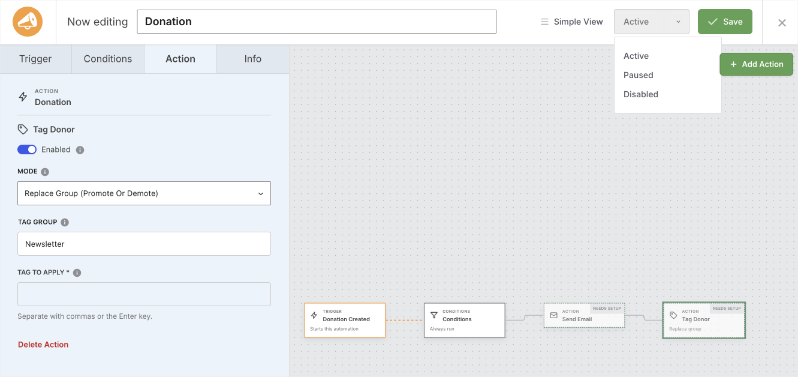
Connecting lines show you exactly how the automation moves from one step to the next. It is styled to match the Charitable Campaign Builder, so if you have built a campaign, you already know your way around.
This is not just a nicer coat of paint. It reflects a real change in what an automation can do.
See It In Action
One Trigger Can Have Many Actions
The biggest shift in 2.3.0 is that an automation is no longer a single webhook. It is now an ordered list of actions that all run when your trigger fires and your conditions pass.
⚡ Do more from one event: When a donation comes in, tag the donor, notify your team, and push the record to your CRM, all from a single automation.
🎯 Control the order: Drag actions to arrange them. They run top to bottom, every time.
🧩 Mix and match: Combine an in-WordPress action with an external webhook in the same flow.
Tag Donors Automatically, No External Tool Required
Automation Connect has always been about connecting Charitable to other apps. Version 2.3.0 introduces many actions including one that has been highly requested: Tag Donor.
Here’s what you need to know:
🏷️ Add, remove, or swap tags: Automatically tag a donor when they give, when they hit a milestone, or when any of your 21 trigger events fire.
🤝 Segment your supporters: Build donor segments in real time as donations happen, then use those tags across your fundraising.
✅ No round trip: Because Tag Donor writes inside Charitable, there is no external service to set up and nothing to break.
Send Emails and Notes, Personalized Automatically
Tagging is just the start. Version 2.3.0 gives you a full library of actions you can stack in any order, so an automation can do real work inside Charitable, not just hand data off to another app.
✉️ Send Email: Email the donor, your site admin, the campaign creator, or any custom address when an automation runs. Write the subject and message, and optionally wrap HTML emails in your branded Charitable template so they match your receipts.
📝 Add Donor Note: Append a note to a donor’s record automatically, so you build a running history of milestones and follow-ups without lifting a finger.
🔤 Merge tags: Personalize any email or note with live fields like {first_name}, {total}, and {campaign_name}. An Insert merge tag picker shows every field available for the trigger you chose.
Reach the Donors You Already Have
New automations usually only affect what happens next. The Visual Automation Builder can also work backward.

🔁 Apply to existing donors: For actions that support it, like Tag Donor, run the automation against donors who already exist in your database.
👁️ See the impact first: Charitable estimates how many donors will be affected and asks you to confirm before anything runs.
⚙️ Runs in the background: The backfill processes quietly so your site stays fast. Webhooks are skipped for past donors, so you never re-fire an old donation to an external tool.
Two Ways to Work
Not every automation needs a full canvas. That is why Automation Connect gives you two views of the same automation.
🖥️ Canvas: The full-screen visual builder, best for multi-step flows you want to see at a glance.
📝 Simple: The classic embedded form, best for a quick edit or a single delivery.
The Simple View link in the builder’s top bar drops you into the form.

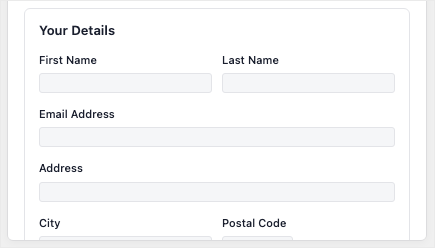
Below is what the form looks like. And from the form, the Canvas View link in the top right takes you back.
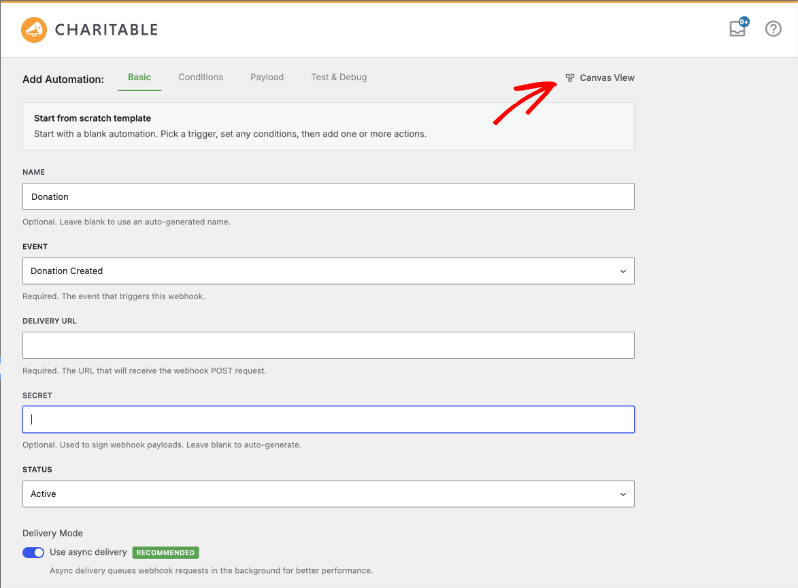
Switch between them whenever you like. They edit the same automation, so nothing is locked to one view.
How to Build an Automation, Step by Step
Building your first automation takes a couple of minutes. Here is the whole flow, screen by screen.
Step 1: Open the Automations Screen
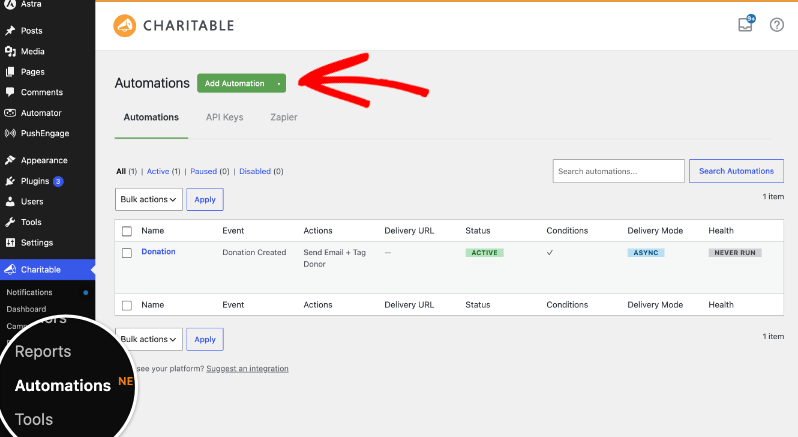
In your WordPress dashboard, go to Charitable » Automations and click Add Automation.
Step 2: Pick a Template or Start From Scratch
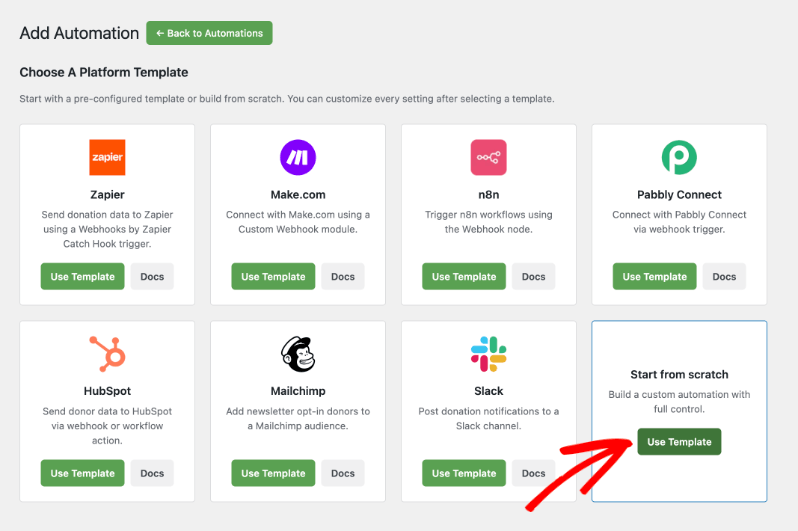
Choose a platform template if you are sending data to Zapier, Make.com, n8n, Pabbly Connect, HubSpot, Mailchimp, or Slack. If you would rather build your own, click Use Template under Start from scratch. You can change every setting afterwards either way.
Step 3: Take the Tour or Start Building
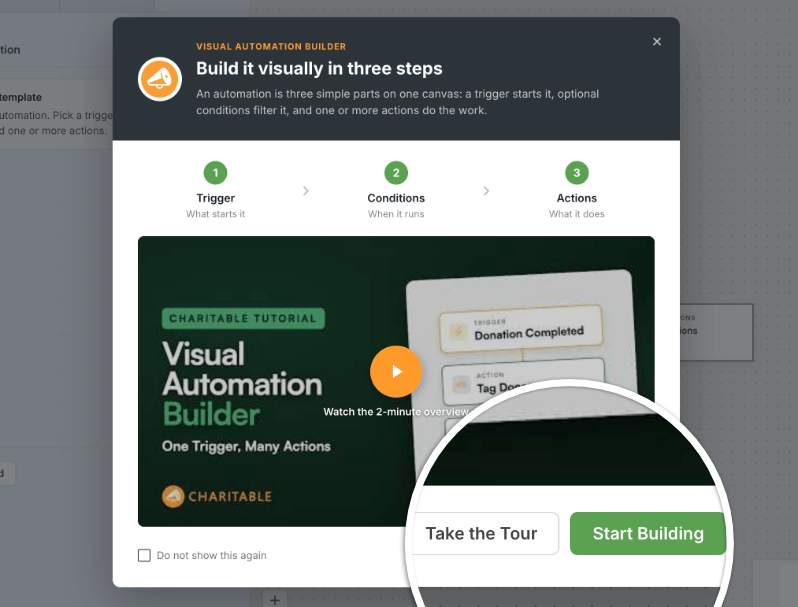
The canvas opens with a short welcome that explains the 3 parts of an automation. Click Take the Tour for a guided walkthrough, or Start Building to jump straight in.
Step 4: Name It and Pick a Trigger
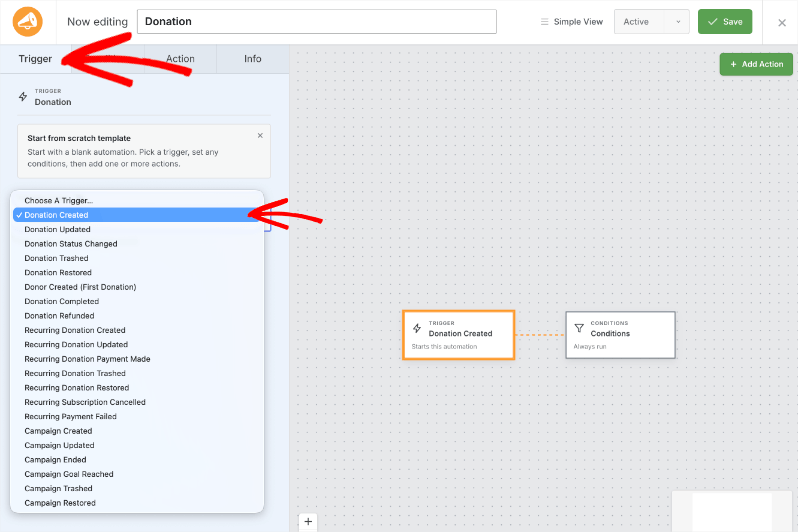
Type a clear name in the top bar, something like “Thanking Major Donors”. The name updates live as you type.
Then open the Trigger tab on the left and choose the event that starts the automation. Each one has a short description under it, so you can tell Donation Created apart from Donation Completed without guessing.
Step 5: Add Conditions
On the Conditions tab you can narrow things down, for example only donations over a certain amount, or only a specific campaign. Leave this empty and the automation runs every time the trigger fires.
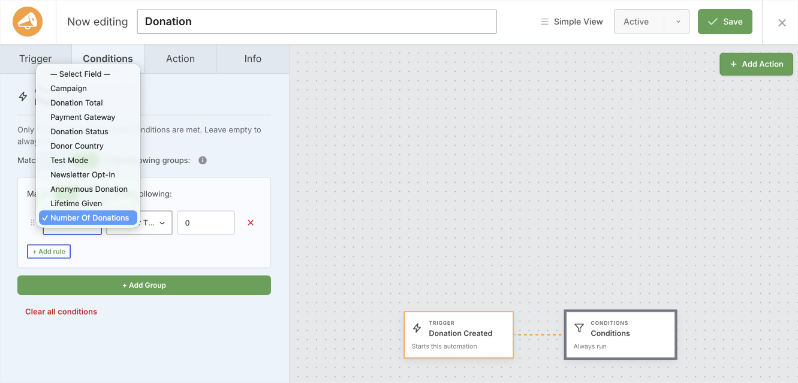
Step 6: Add Your Actions
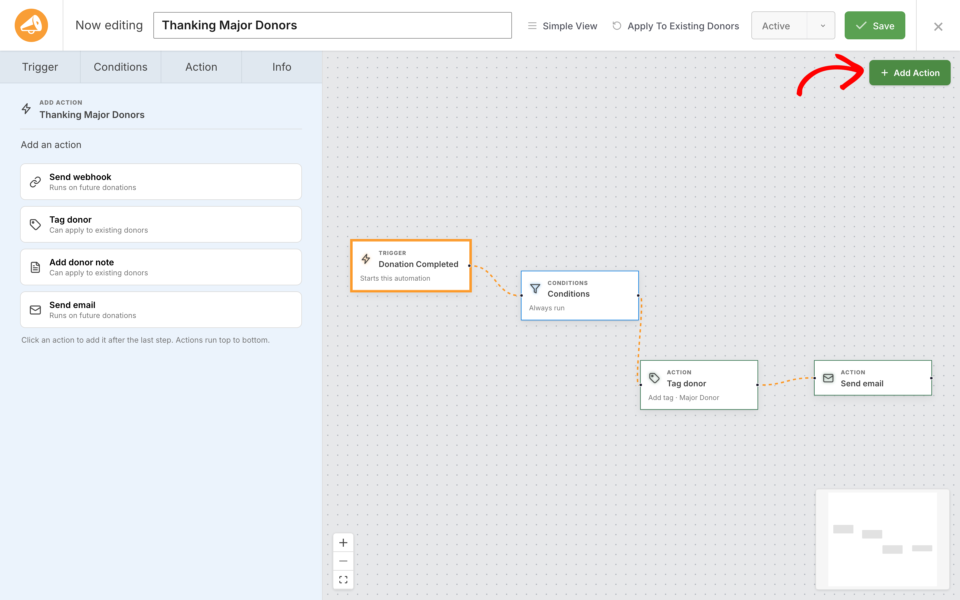
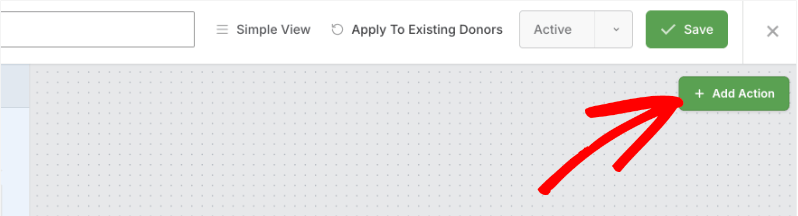
Click Add Action in the top right and pick Send webhook, Tag donor, Add donor note, or Send email. The action shows up as a new card wired into your flow.
Click the card to set it up on the Action tab. A webhook needs a Delivery URL, Tag Donor needs the tag you want to add, and Send Email needs a recipient, subject, and message.
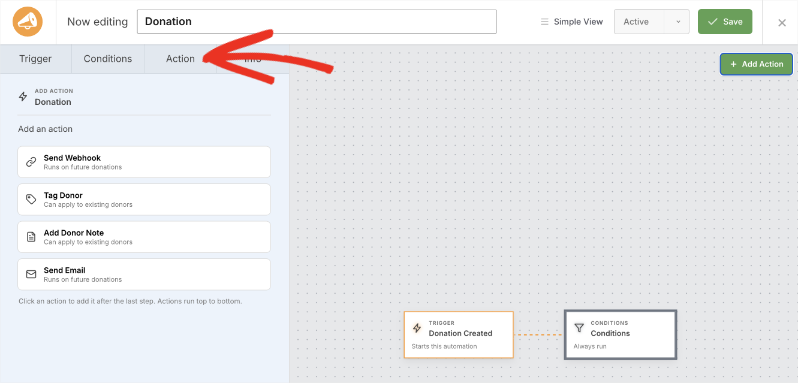
Repeat as many times as you like, then drag the cards to set the order they run in.
Step 7: Test It, Then Save
If your automation sends a webhook, send a test payload first and check the response inline. When it looks right, click Save.

Step 8: Confirm It Is Live
Back on Charitable » Automations, your new automation is listed with its trigger event, its actions, and an Active status. It will run the next time that trigger fires.
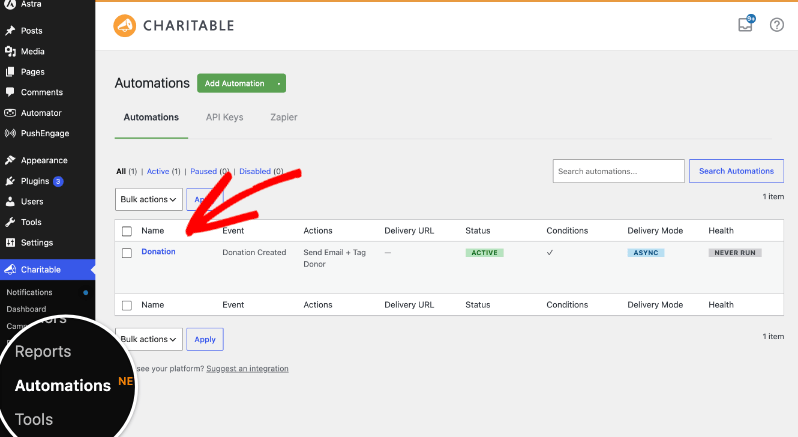
That is the whole process. No code, no connecting screens, and no guesswork about what will happen.
Read the Full Visual Automation Builder Setup Tutorial →
What Can Trigger an Automation?
Automation Connect 2.3.0 gives you 21 trigger events across donations, donors, recurring donations, and campaigns. A few of the most useful:
💸 Donation Completed: Act only on successfully paid donations, perfect for thank-you and CRM workflows.
🌱 Donor Created (First Donation): Welcome a brand-new donor the moment they give for the very first time.
🔁 Recurring Donation Payment Made: Fire on every renewal, with the renewal number included in the data.
⚠️ Recurring Payment Failed: Start a dunning or win-back sequence the moment a scheduled charge fails.
🎯 Campaign Goal Reached: Celebrate and notify your team the moment a campaign hits its fundraising goal.
You will also find events for donation status changes and refunds, recurring plan updates and cancellations, and the full campaign lifecycle. See the documentation for the complete list of all 21 events.
Test Before You Trust
Before an automation ever runs on a real donation, you can send a test webhook and see the response inline. Test with sample data, or with a real record so you see exactly what a live delivery will send. Once an automation is live, delivery history and a resend control help you diagnose anything that goes wrong.
For Agencies and Developers
The action system is extensible. Developers can filter the available trigger events, condition fields, starter templates, and webhook payloads to fit any client’s workflow.
Also this version built to stay compatible, every automation you built before 2.3.0 keeps working. A legacy single-webhook automation is treated as an automation with one webhook action, so existing deliveries and Zaps fire exactly as before. There is no migration step for you or your clients.
Get Started with the Visual Automation Builder
Update Charitable Automation Connect to 2.3.0, then head to Charitable » Automations and click Add. Your new automation opens right on the canvas, ready to build.
Read the Visual Automation Builder Documentation »
Charitable Has 1.2+ Million Downloads!
Trusted by millions to power successful fundraising campaigns. Try Charitable risk-free today.
✅ 14-day money-back guarantee
✅ Transparent pricing
✅ Code-free setup
What’s New in Charitable
We also launched several powerful features and improvements recently:
🧾
Show a different thank-you page to every donor, based on their campaign, gift size, or country.
📝
Drop a fully working donation form directly into any page or post in the block editor.
👤
Give every peer-to-peer fundraiser a permanent, shareable page with their bio, avatar, and campaigns.
📱
Apple Pay and Google Pay in Mollie
Let mobile donors check out with a face scan or fingerprint instead of typing out a card number.
📋
Moderate and manage your whole peer-to-peer network from new directory and reporting screens.
⚡
Accept UPI, cards, and more from India-based donors with a native, no-code connection.
We’ve been adding to Charitable constantly, features and improvements designed to help you raise more and serve your donors better. See everything we’ve shipped at the Charitable Changelog.
Not yet a Charitable Pro user? Sign up today and get up to 50% off on your plan. We’re confident you’ll love raising funds with Charitable. If, for any reason, Charitable is not the right fit for you, we’ll refund your purchase with our 14-day money-back guarantee. Get Charitable Pro Now »
Stay Connected for More Nonprofit Resources
For more tutorials and videos tailored to nonprofits, subscribe to our YouTube channel. We regularly publish expert tips, step-by-step guides on online donations, fundraising strategies, and practical resources to help your organization succeed.
🗞️ Get weekly tips and exclusive guides in your inbox
Join our newsletter →
🎥 Watch step-by-step tutorials and success stories
Subscribe to our YouTube channel →
👩🏽💻 Connect with our community and get daily nonprofit insights
Follow us on LinkedIn →
🥳 Fun reels and non-profit insights
Follow us on Instagram →
👀 Insightful & fun videos to help you grow your cause
Follow us on TikTok→
🌎 Subscribe and follow for general fundraiser tips
Get Fundraiser Tips on TikTok →
Powerful Fundraising Resources
🤖 Use Charitable with Your AI Assistant
⬇️ Download proven strategies, campaign ideas, and expert tools
Get the Fundraising Kit →
💸 Get Free Fundraising Resources
Head to the Charitable Fundraising Hub →
🤔 Got questions about Charitable?
Charitable FAQs →
🏎️ Take Charitable for a spin
Create your Charitable Demo →
Understand non-profit terms and jargon
Non-Profit Glossary →
% Looking for non-profit deals and discounts?
Best Non-Profit Deals and Discounts →




Leave a Reply