
Requires: Charitable Pro 1.8.16+
Charitable Ambassadors 3.0.0+
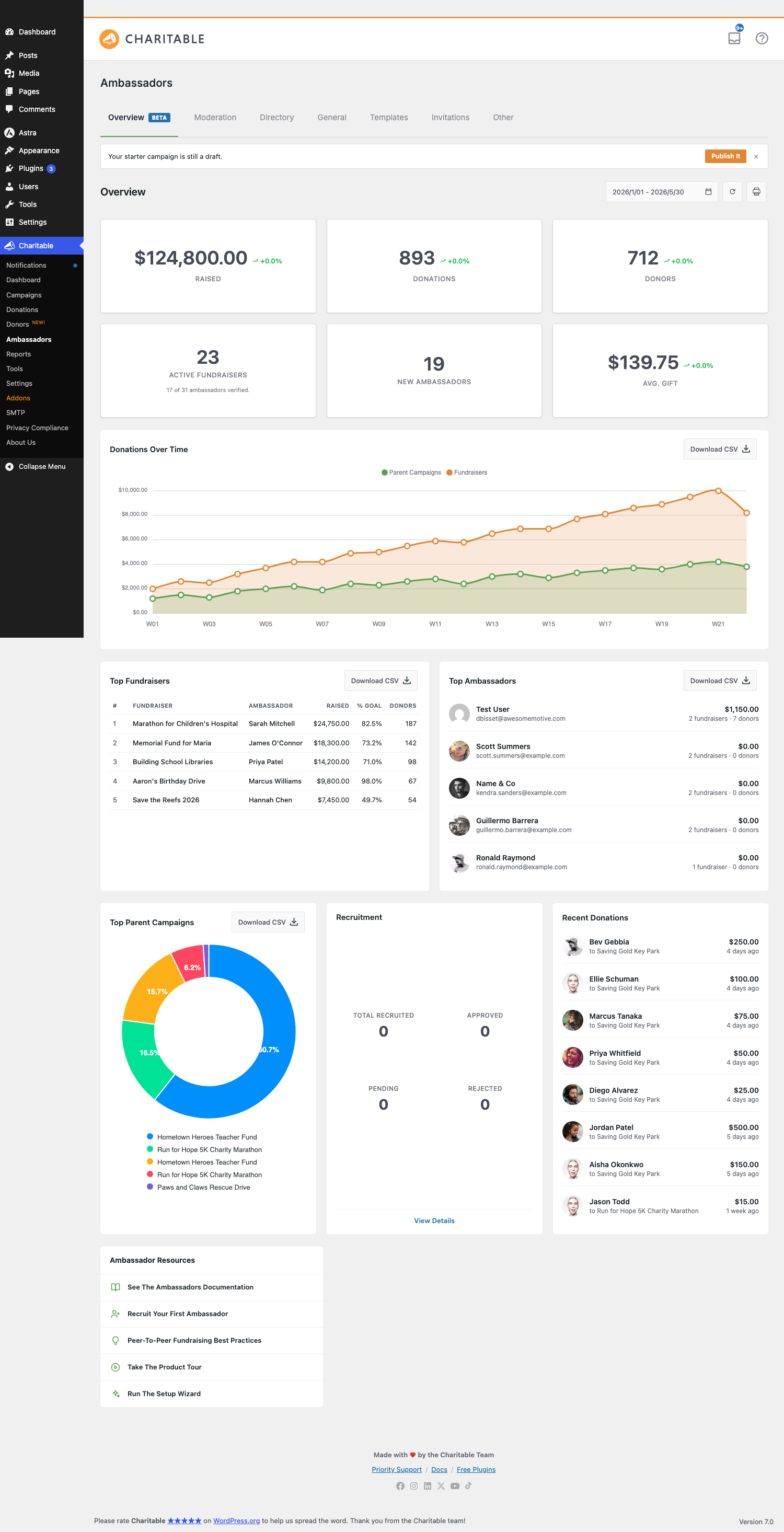
The Overview is your peer-to-peer fundraising program’s home screen. It’s the first page you’ll see when you open Ambassadors in your WordPress admin, and it’s designed so you can answer the questions every program manager asks themselves each morning:
- How much have we raised this month?
- Who’s our top fundraiser right now?
- Are new ambassadors signing up, or has growth stalled?
- Which campaigns are pulling their weight?
Instead of you running reports or piecing together donation lists, the Overview shows it all at a glance.
When You’d Use It
A few common moments where the Overview earns its keep:
- Monday-morning check-in: pick “Last 7 days” and scan the KPI tiles to see how the weekend went.
- Monthly board report: switch to “Last month,” click Print Summary, and you have a one-page snapshot for your meeting.
- End-of-campaign retrospective: pick a custom range covering the campaign window and download CSVs of each section.
- Spotting a struggling cause: the Top Parent Campaigns donut highlights cause concentration; the Top Ambassadors list shows who you could thank publicly to keep momentum.
Finding The Overview
Once Charitable Ambassadors is installed and activated, you’ll find Overview at:
WordPress Admin » Charitable » Ambassadors » Overview
It’s the leftmost tab and the default landing page for the Ambassadors area, so most of the time you don’t need to click anything to get there.
The Three Things You’ll Do Most Often
1. Pick a Date Range
Everything on the Overview respects whichever date range is selected at the top right of the page. Click the date input and choose from the presets:
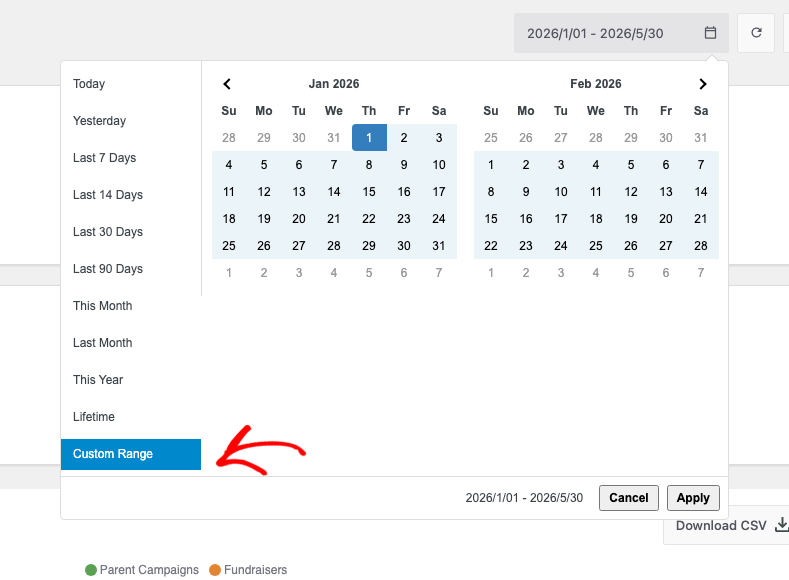
- Last 7 days, Last 14 days, Last 30 days (the default), Last 90 days
- This month, Last month, This year
- Lifetime – every donation since you started
- Custom – opens a calendar so you can pick any pair of dates
Whichever range you pick is remembered just for you – the next time you visit, the page loads in the same range automatically. If you share a login with a teammate, they’ll see their own default.
2. Read the Headline Numbers
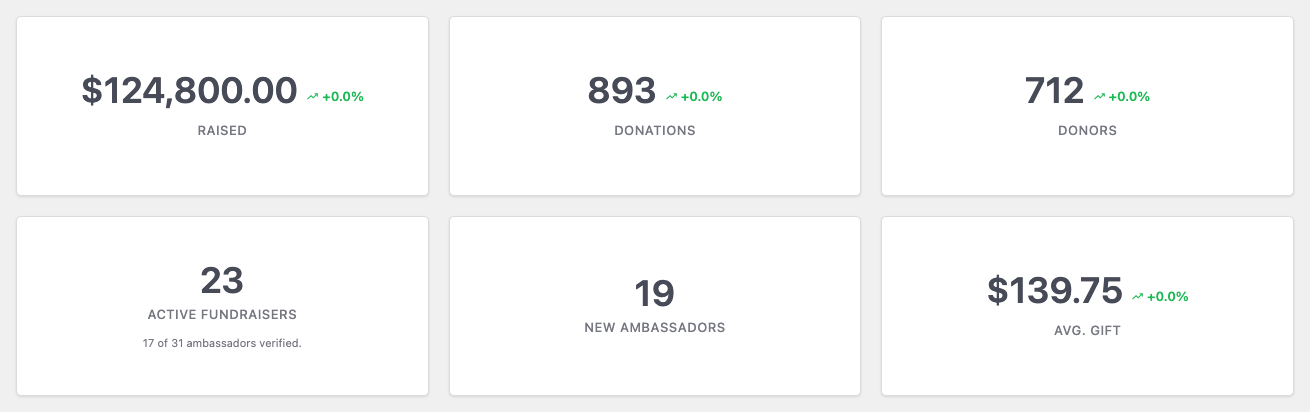
The six big tiles at the top are the headline of your program:
| Tile | What it means in plain English |
|---|---|
| Raised | Total dollars that came in through ambassador campaigns during the range you picked. |
| Donations | How many gifts that took, counting each donation as one (even multiple gifts from the same person). |
| Donors | How many unique people gave. Someone who gave twice counts once. |
| Active Fundraisers | How many individual fundraisers got at least one donation in the range. The line underneath (“17 of 31 ambassadors verified”) is lifetime so you can see how much of your roster is vouched-for. |
| New Ambassadors | How many people created their first fundraiser during the range – your growth signal. |
| Avg. Gift | The average dollar amount per donation. Useful for spotting changes in donor behavior. |
The little arrow next to each number compares it to the previous equal-length period. Green-up = growth; red-down = decline. If either the current or previous value is zero, the arrow is suppressed so you never see a meaningless “−100% from $0.”
3. Spot Your Top Performers
Below the headline tiles you’ll find leaderboards for fundraisers, ambassadors, and parent campaigns:
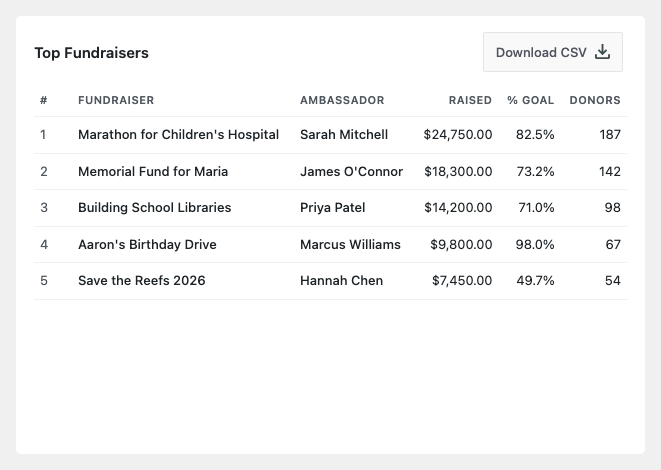
- Top Fundraisers – the 5 individual fundraisers that brought in the most money in the range.
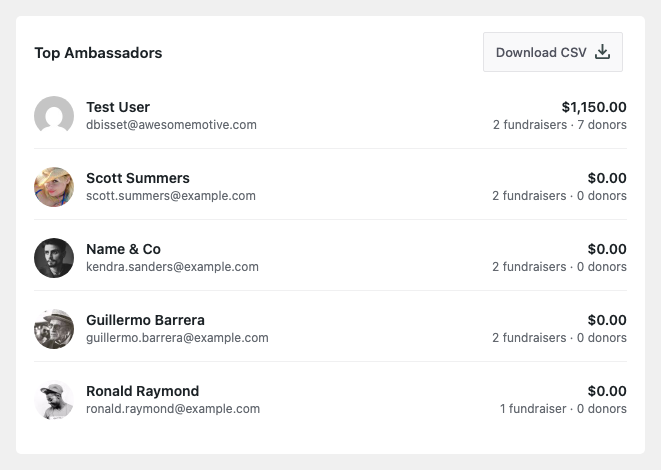
- Top Ambassadors – the 5 people (campaign authors) who personally raised the most, even if they ran multiple fundraisers.
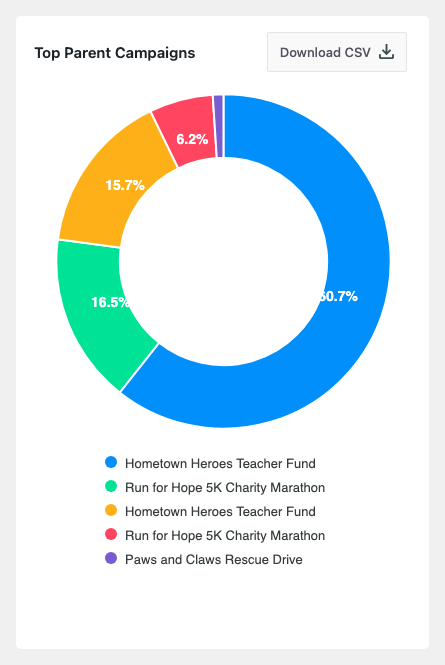
- Top Parent Campaigns – a donut chart showing which causes are pulling the most. Helpful for spotting cause concentration (“oh, 70% of our money is going to the marathon – we should rally support for the other causes too”).
Click any name in the Top Ambassadors widget to open their full profile in the Directory.
Watching the Trend Over Time
The Donations Over Time chart in the middle of the page shows your fundraising velocity:
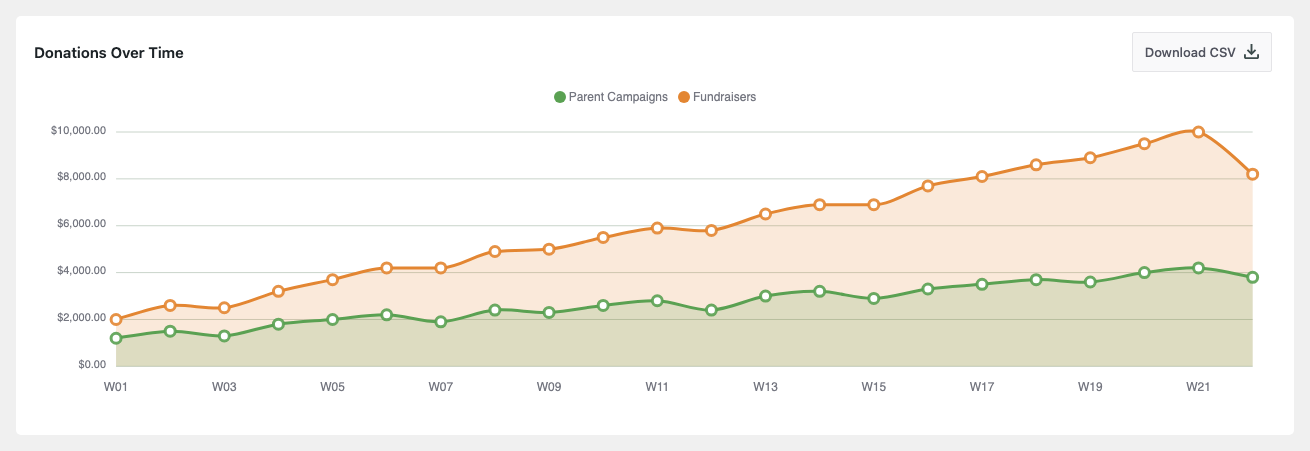
Two layers stack on top of each other:
- Green is donations made directly to your parent (cause) campaigns.
- Orange is donations made to individual ambassador fundraisers underneath.
The bigger the orange area relative to green, the more your fundraisers are driving the program rather than direct giving. That’s usually the sign of a healthy peer-to-peer effort.
The buckets along the bottom change automatically depending on the range you picked:
- Pick a range up to 90 days, and you’ll see day-by-day bars.
- Pick a quarter or a year, and the chart switches to weeks.
- Pick “Lifetime” or a multi-year range, and you’ll get monthly buckets.
Click Download CSV at the top right of the chart to export the bucketed data – handy if you want to drop it into a spreadsheet for your board deck.
Tracking Recruitment Activity
If you’ve turned on Invitations – the feature that lets your existing ambassadors recruit new ones – you’ll see a Recruitment widget further down the page.
It shows how many new ambassadors came in through personal invite links, broken down by status (Approved, Pending, Rejected), with a chart of recruitment velocity and a leaderboard of your top recruiters. If you haven’t enabled Invitations yet, you’ll just see an empty-state card with a link to turn it on.
The Most Recent Activity
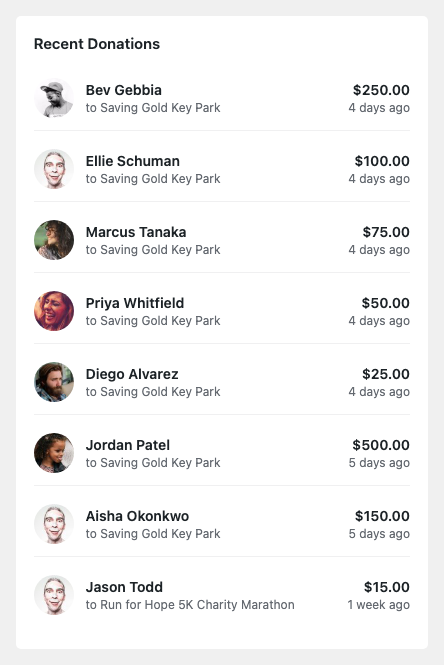
Scroll to the bottom and you’ll find Recent Donations – the eight most recent gifts across every ambassador campaign on your site, with donor avatars and “5 minutes ago” timestamps. Unlike everything else on the page, this list ignores the date range you picked at the top – it’s always showing the freshest activity so you can see what’s happening right now.
Exporting the Data
Most sections on the Overview have a Download CSV button in their header:
- KPI section: CSV of the six headline numbers + trends
- Donations Over Time: bucket-by-bucket totals
- Top Fundraisers, Top Ambassadors, Top Parents: ranked lists
- Recruitment: the full recruit log for the range
These are pure CSV files (every cell sanitized to prevent Excel formula-injection), capped at 10,000 rows so you can safely open them in any spreadsheet program.
Printing a One-Pager
Click the printer icon next to the date range picker, and your browser will open a print preview that strips away the admin sidebar, your other admin chrome, and the page header – leaving just a clean one-pager you can save as PDF for board meetings or share with your director.
What to Do If You See All Zeros
A blank Overview usually means one of three things:
| What you see | What’s going on | How to fix it |
|---|---|---|
| A “Get Started” card with a list of your campaigns | You haven’t enabled peer-to-peer on any campaign yet. | Click Enable Peer-to-Peer on a campaign – you’re picking which cause your ambassadors will fundraise for. |
| A banner saying “no fundraisers yet” | You have a peer-to-peer-enabled campaign, but no ambassadors have signed up to fundraise for it yet. | Share that campaign’s submission URL with potential ambassadors, or set up Invitations. |
| Skeleton charts with “No donations yet” | You have fundraisers, but no donations came in during the date range you’ve picked. | Try switching to “Lifetime” – your data might just be older than the range. |
Tips
- The KPI tiles, charts, and lists are cached for 5 minutes to keep the page snappy. If you just made a change and want to see it immediately, click the circular refresh icon next to the date picker.
- Hover the small trend arrows next to each KPI to see the exact previous-period numbers.
- The “Pending Approvals” tile only appears when you’re using Manual Approval and there’s at least one fundraiser waiting for your review. Click it to jump straight to the Moderation queue.
Developer Reference
The rest of this page is for developers customizing the Overview or building on top of it.
Filters
| Filter | Default | Purpose |
|---|---|---|
charitable_ambassadors_overview_top_fundraisers_limit | 5 | Number of fundraisers in the Top Fundraisers table (1-50). |
charitable_ambassadors_overview_top_ambassadors_limit | 5 | Number of ambassadors in the Top Ambassadors widget. |
charitable_ambassadors_overview_top_parents_min_parents | 2 | Minimum parent-campaign count before the donut renders. Below this threshold the donut shows a skeleton. |
charitable_ambassadors_overview_include_inactive_ambassadors | true | Include zero-raised ambassadors in Top Ambassadors. Set false to inner-join instead of left-join the donations table. |
charitable_ambassadors_overview_transient_ttl | 5 * MINUTE_IN_SECONDS | TTL for the per-section transient cache. |
charitable_ambassadors_overview_range_presets | array of 9 presets | Override the date-range preset list shown in the picker. |
charitable_ambassadors_overview_csv_max_rows | 10000 | Max row cap on every CSV export. |
charitable_ambassadors_overview_welcome_enabled | true | Return false to suppress the welcome notice site-wide. |
charitable_ambassadors_overview_welcome_docs_url | documentation/charitable-ambassadors-addon-update URL | Override the URL the welcome notice links to. |
Actions
| Action | Args | Fires when |
|---|---|---|
charitable_ambassadors_overview_before_kpi_tiles | – | Just before the six KPI tiles render. Use to inject a custom tile or banner. |
charitable_ambassadors_overview_after_recent_donations | – | After the Recent Donations widget. Use for an additional bottom-of-page block. |
AJAX Endpoints
All four are wp_ajax_ only (no nopriv_), nonce action charitable_ambassadors_overview, capability manage_charitable_settings.
| Action | Purpose |
|---|---|
charitable_ambassadors_overview_hero_chart | Returns the Donations Over Time series for the active range. Called once per page load, after first paint. |
charitable_ambassadors_overview_save_range | Persists the user’s chosen date range to user_meta so it loads on next visit. |
charitable_ambassadors_overview_enable_p2p | Toggles a single campaign’s _campaign_supports_child_campaigns meta from the zero-parents empty-state inline picker. Gated by per-row current_user_can( 'edit_post', $campaign_id ). |
charitable_ambassadors_overview_dismiss_welcome | Per-user dismiss flag for the welcome notice. Stored in user_meta('charitable_ambassadors_overview_welcome_dismissed'). |
Data Class
Charitable_Ambassadors_Overview_Data (singleton, get_instance()) is the data source for every Overview section. The public methods are:
get_donation_aggregates( $start, $end )       // raised, donations, donors, active_campaigns
get_new_ambassadors_count( $start, $end )     // int
get_verified_ambassador_split()               // [ 'verified' => int, 'total' => int ]
get_top_fundraisers( $start, $end, $limit )   // array of fundraiser rows
get_top_ambassadors( $start, $end, $limit )   // array of ambassador rows
get_top_parents( $start, $end )               // donut data
get_donations_by_day( $start, $end )          // hero chart data
get_recent_donations( $limit )                // range-independent, default 8
get_pending_approvals_count()                 // range-independent
calculate_trend( $current, $previous )        // { direction, percent }|null
get_total_raised_all_time()                   // float - reused by the Notifications feature
get_p2p_campaign_ids()                        // [ 'all' => [], 'parent_ids' => [], 'fundraiser_ids' => [] ]
get_recruitment_breakdown( $range )           // Invitations feature
get_recruitment_timeseries( $range )          // Invitations feature
get_top_recruiters_widget( $range, $limit )   // Invitations feature
Date arguments are MySQL datetime strings ('Y-m-d H:i:s'). All methods cache results in transients keyed by section + date range.
Cache Busting
The transient cache is busted automatically when:
- A donation is saved, refunded, or trashed (
charitable_donation_saved,charitable_donation_refunded). - A child fundraiser transitions in or out of
publish(transition_post_status). - A campaign’s
_campaign_supports_child_campaignsmeta is added, updated, or deleted.
The bust calls Charitable_Ambassadors_Overview_Data::bust_cache(), which:
DELETEs every_transient_charitable_ambassadors_overview_%row fromwp_options.- Evicts the
alloptionssuperkey and matching per-row entries from the WP object cache.
The raw-SQL DELETE is intentional – $wpdb->prepare() with trailing % wildcards was broken by WP 6.2’s placeholder hardening, so we use a literal LIKE clause inside a $wpdb->query().
To manually bust the cache for debugging, visit ?charitable_ambassadors_clear_overview_cache=1 while logged in as an admin.
Test-Mode Exclusion
Every donation aggregate excludes donations marked with _postmeta('test_mode') = '1'. The exclusion lives in get_donation_aggregates() and threads through to the hero chart and CSV exports. Switch Charitable into test mode via Charitable » Settings » Advanced » Test Mode.
CSV Exports
Form-POST to admin-post.php?action=charitable_ambassadors_overview_csv, nonce action charitable_ambassadors_overview_csv, capability manage_charitable_settings. The section query arg selects which dataset:
kpi_summarydonations_over_timetop_fundraiserstop_ambassadorstop_parentsrecruitment_logrecruitment_top_recruiters
Filenames follow the pattern ambassadors-<section>-<start>-to-<end>.csv. Every cell is run through Charitable_Ambassadors_Overview_CSV::neutralize_csv_cell() which prefixes a single quote ' to any string starting with =, +, -, @, tab, or CR (OWASP-recommended Excel formula-injection defense).
Capabilities
The single capability gate is manage_charitable_settings. This is granted to Administrators by default. To grant Overview access to a non-admin role without granting other Charitable settings access, add the cap to that role.
Welcome Notice
A blue-bordered card at the top of the Overview links to the 3.0 addon-update notes. It’s dismissible per-user, persisted via the charitable_ambassadors_overview_dismiss_welcome AJAX endpoint into user_meta('charitable_ambassadors_overview_welcome_dismissed').
To suppress the notice site-wide regardless of dismissal state:
add_filter( 'charitable_ambassadors_overview_welcome_enabled', '__return_false' );Customization Examples
A few small changes that come up often. Drop any of these into your theme’s functions.php or a code snippets plugin.
Show 10 fundraisers in the Top Fundraisers list instead of 5:
add_filter( 'charitable_ambassadors_overview_top_fundraisers_limit', function () {
    return 10;
} );
Hide zero-raised ambassadors from the Top Ambassadors widget:
add_filter( 'charitable_ambassadors_overview_include_inactive_ambassadors', '__return_false' );Cache for 30 minutes instead of 5:
add_filter( 'charitable_ambassadors_overview_transient_ttl', function () {
    return 30 * MINUTE_IN_SECONDS;
} );
Replace the welcome notice with a link to your own onboarding page:
add_filter( 'charitable_ambassadors_overview_welcome_docs_url', function () {
    return home_url( '/staff-resources/p2p-getting-started/' );
} );
Add a custom banner above the KPI tiles:
add_action( 'charitable_ambassadors_overview_before_kpi_tiles', function () {
echo 'Q4 push is on - share progress in #fundraising-team!
';
} );Related
- Setup Wizard – the three-path onboarding flow that scaffolds your first peer-to-peer program.
- Moderation – approve, reject, and request changes on fundraiser submissions.
- Directory – your full ambassador roster with profiles, donations, and recruitment lineage.
- Invitations – the recruitment system that powers the Recruitment widget above.
- Hooks & filters in Ambassadors – the full filter and action reference.
Helpful Links
🤝 Get help when you need it
Connect with Customer Support →
📑 Find the guide you need
Browse the Documentation Hub →
⬇️ Download proven strategies, campaign ideas, and expert tools
🔗 Let your AI Assistant do the fundraising work for you.
Connect Charitable to your AI assistant →
💸 Get Free Fundraising Resources
Head to the Charitable Fundraising Hub →
🤔 Got questions about Charitable?
Charitable FAQs →
Need help understanding non-profit terms and jargon?
See our Non-Profit Glossary →





