
Requires: Charitable Pro 1.8.16+
Charitable Ambassadors 3.0.0+
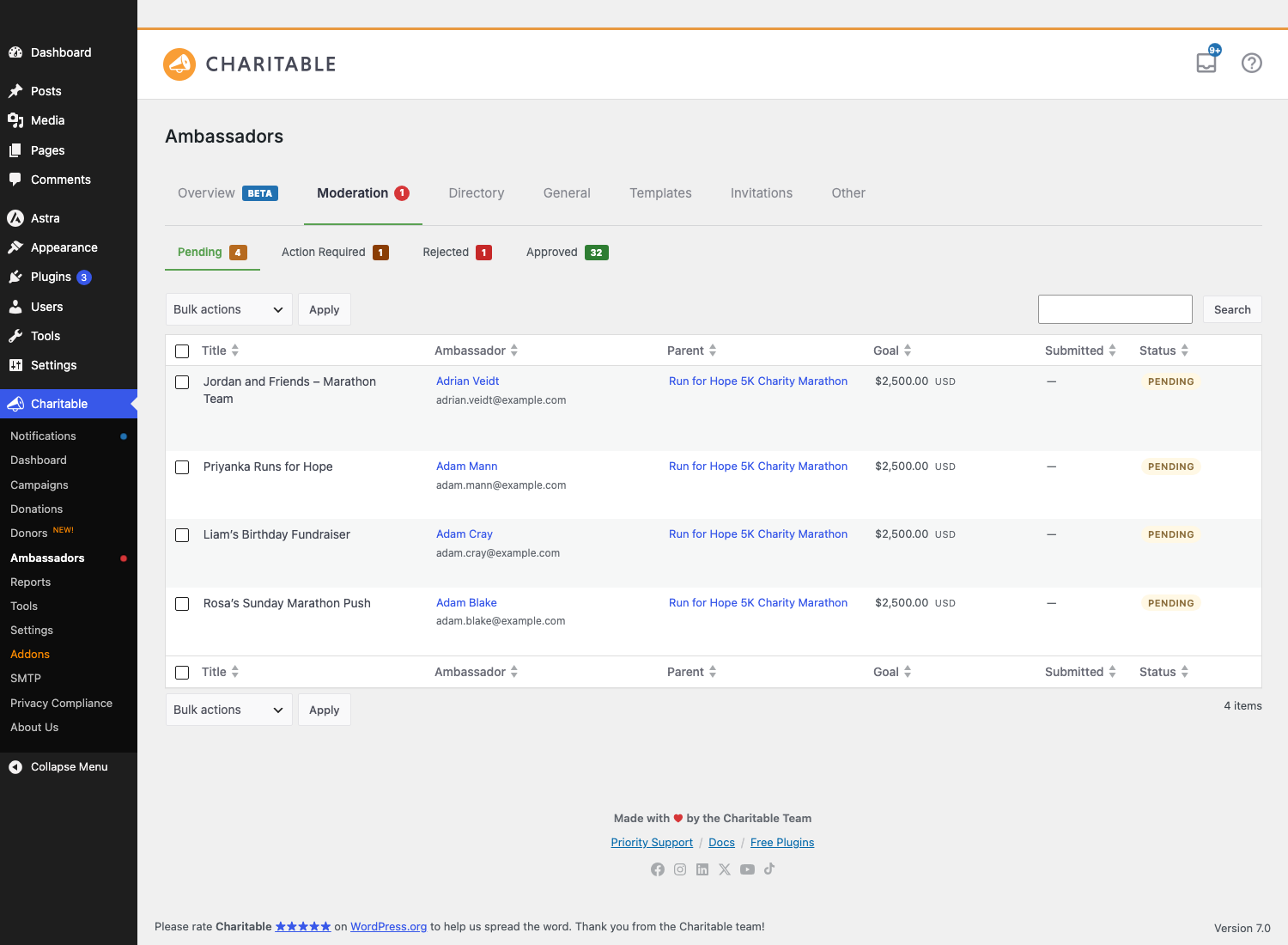
When ambassadors submit fundraisers on your site, you need a way to look them over before they go live – check the title makes sense, the goal is reasonable, the image isn’t off-brand.
The Moderation tab is the single place you do that. Every fundraiser submission flows through one queue with four clear views (Pending, Action Required, Rejected, Approved) and three actions you can take on each one (Approve, Reject, Request Changes).
It’s deliberately quick. You can approve a row in two clicks, reject with a written reason in three, or work through twenty at a time using bulk actions.
And if you change your mind right after approving, you have a 30-second window to undo it before the ambassador’s email is sent.
When You’d Use It
- Daily queue check – open Moderation first thing, glance at the Pending count, and clear the backlog before it grows.
- After a recruitment push – a flood of new submissions arrives because an ambassador shared their invite link. Bulk-approve the ones that look clean.
- Brand-safety review – a submission’s title or image doesn’t fit your cause. Request changes with a note explaining what to fix.
- Spam control – obvious junk submissions get rejected outright.
Where to Find Ambassadors Moderation
In your WordPress admin panel, go to Charitable » Ambassadors » Moderation
The number in the tab label (e.g. Moderation 7) is the count of fundraisers currently awaiting a decision. It updates as you work the queue, so when it hits zero you know you’re caught up.
Manual vs Auto Approval
Moderation only matters if you’re running manual approval. That’s the default for new installs, but it’s a single setting you can flip:
WordPress Admin > Charitable > Ambassadors > General > Automatically Approve Campaigns
| Setting | What happens | Who uses it |
|---|---|---|
| OFF (default) | Every submission lands in Pending. You decide whether it goes live. | Most nonprofits – especially when running fundraisers under a brand or for a cause that matters to be presented carefully. |
| ON | Submissions publish immediately. The Moderation queue still works for after-the-fact review and the audit log still records who did what, but you’re not gating the front door. | Programs that prioritize speed and trust their ambassadors, or use a separate community-moderation tool. |
You can switch modes at any time without losing history.
The Four Views
A sub-nav across the top of the Moderation tab splits the queue into four lists:

| View | What’s in it | Typical action |
|---|---|---|
| Pending | Fresh submissions waiting for your first decision. | Approve, reject, or request changes. |
| Action Required | Fundraisers you asked for revisions on. They’re sitting in draft until the ambassador updates and resubmits. | Re-review once the ambassador resubmits. |
| Rejected | Submissions you turned down. They stay here as an audit trail. | Usually nothing – they’re historical. You can un-reject by approving from this view. |
| Approved | Everything currently live. | View only. Use Undo Approve within 30s of approving; after that, edit the fundraiser directly. |
Each view has its own count badge so you can see at a glance where work is sitting.
Approving a Single Fundraiser
The default approve flow is two clicks: hover the row, click Approve, done. The fundraiser publishes, the audit log records who approved it and when, and an email goes out to the ambassador letting them know.

If you want to approve without sending the email (rare but useful for migration imports or test fundraisers), uncheck the “Notify ambassador” box that appears in the approval confirmation. Or set the global default with a filter (see Developer reference below).
Rejecting a Fundraiser
Click Reject on the row. A modal opens asking for a reason:
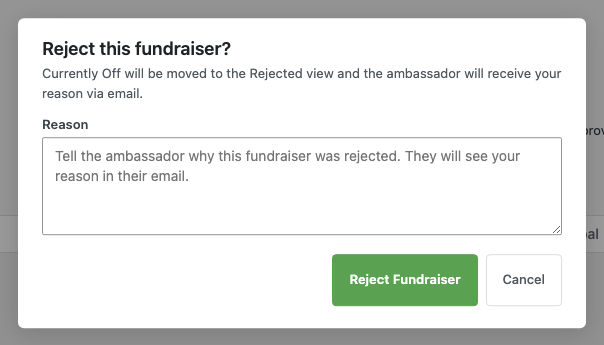
The reason is required – even a short note like “Title doesn’t match our brand guidelines” gives the ambassador something to act on. After you submit, three things happen:
- The fundraiser transitions to a custom
charitable-rejectedstatus (so it’s clearly distinguishable from drafts and trashed posts). - The reason is stored on the fundraiser so any moderator can see it later.
- The ambassador receives the Creator Campaign Rejected email with your reason quoted in the body.
The fundraiser disappears from Pending and shows up in Rejected.
Requesting Changes
Use Request Changes when a fundraiser is almost there – it needs a tweak, but isn’t outright wrong. Click the action and a similar modal opens asking for guidance:
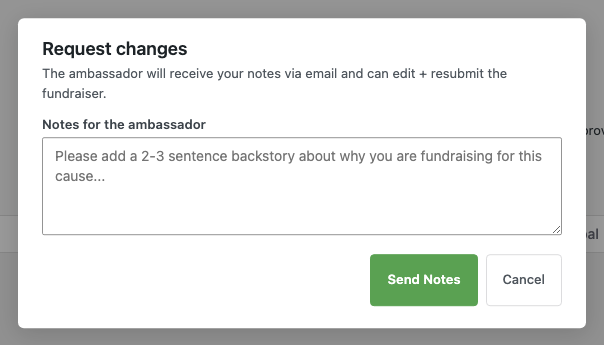
The fundraiser drops back to draft status. The ambassador gets the Creator Campaign Needs Revision email with your notes, edits the fundraiser, and resubmits. When they resubmit, it lands back in Pending with the change log preserved.
This is the kindest path for a fundraiser that’s close to good. Use it instead of rejection any time you’d rather the ambassador fix it than start over.
Bulk Actions
When the queue is busy, you can do several at once. Tick the checkboxes on the rows you want to act on, pick an action from the Bulk Actions dropdown above the table, and apply:

- Bulk Approve publishes them all at once, sending the approval email to each ambassador.
- Bulk Reject opens a single Reject modal where the reason you enter applies to every selected row.
- Bulk Request Changes does the same for change requests.
A bulk action shows a single confirmation notice at the top of the page when it’s done (“3 fundraisers approved”). The audit log still records each decision individually.
The 30-Second Undo
Right after you approve a fundraiser, a small “Undo” pill appears next to the row for 30 seconds:

Click it and the approval is rolled back: the fundraiser transitions back to Pending, the audit log records an “undo_approve” entry, and the approval email is not sent (we deliberately don’t send the email until the undo window has passed for inline approvals – so undoing inside the window means the ambassador never knows you nearly approved them).
After 30 seconds, the pill disappears. After that, the only way back is to manually unpublish the fundraiser via the standard WordPress post editor.
The Undo is per-action, not per-row. If you approve five fundraisers in a row, you get five separate Undo pills, each independent.
The Audit Log
Every action – approve, reject, request changes, undo, resubmit – is recorded on the fundraiser itself in an append-only audit log. To see it, click into a single row in any view and scroll down:

Each entry shows:
- Action – approved / rejected / changes_requested / undo_approve / resubmitted
- Moderator – which admin took the action
- Timestamp – when it happened
- Reason or notes – the text you typed (rejections and change requests)
- Notified flag – whether the email was sent (for approvals)
The log is append-only – you can’t edit or delete entries from the UI. It’s the record you can fall back to if an ambassador ever asks “why was my fundraiser rejected?” or “who approved this?”
The Pending Count Is Everywhere
The Pending view’s count badge powers two other places in the admin so you don’t have to keep an eye on it manually:
- The Moderation tab label itself (
Moderation 7). - The Pending Approvals KPI tile on the Overview dashboard – this one only appears when at least one fundraiser is waiting.
Both pull from the same single source so they’re always in sync.
Editing Approved Fundraisers
In Ambassadors 3.0, edits to already-approved fundraisers go live immediately – they don’t loop back through Moderation. The reasoning is that an ambassador correcting a typo in their already-approved fundraiser shouldn’t need to wait again for your team. If post-approval edit moderation is important to your workflow, it’s flagged for a future version.
Tips
- Set an SLA. A pending fundraiser is a fundraiser not raising money. Aim to clear Pending within 24 hours.
- Use Request Changes generously. It’s the most ambassador-friendly action – shows you read the submission and want to help, not just gatekeep.
- Lean on bulk actions. If 80% of submissions look clean, tick them all and bulk-approve in one go. Save the slow individual review for the outliers.
- Read the reason field as a template. When the same reject reason comes up three times, that’s a sign your submission form needs better guidance up front.
Developer Reference
The rest of this page is for developers customizing the Moderation workflow.
Custom post status
Rejected fundraisers transition to a custom charitable-rejected status registered in includes/charitable-ambassadors-post-status.php. It’s:
- Excluded from the front-end campaign archive (
is_archive_visible() = false). - Excluded from
wp_count_posts()for visitor-facing counts. - Included in admin queries when you filter the Moderation list table by Rejected.
To restore a rejected fundraiser, transition it back to draft or publish through the standard wp_update_post() call.
Audit-log storage
The audit log lives at post-meta key _charitable_ambassadors_moderation_log on each fundraiser. The value is an indexed array; each entry is an associative array:
[
    'action'          => 'approved' | 'rejected' | 'changes_requested' | 'undo_approve' | 'resubmitted',
    'moderator_id'    => int,   // WP user ID
    'timestamp'       => int,   // Unix epoch
    'reason_or_notes' => string,
    'notified'        => bool,  // optional, only on approve entries
]
The Charitable_Ambassadors_Moderation_Log class is the single read/write API:
Charitable_Ambassadors_Moderation_Log::append( $campaign_id, $action, $moderator_id, $reason_or_notes, $extra = [] );
Charitable_Ambassadors_Moderation_Log::get( $campaign_id ); // array of entries, oldest first
Charitable_Ambassadors_Moderation_Log::render_html( $campaign_id ); // newest-first HTML for the expanded row
Custom-table migration is deferred to a future version. Until then, the post-meta storage is the source of truth.
Reason/notes meta
The most recent reject reason and change-request notes are mirrored to dedicated post-meta keys so emails and template overrides can read them directly:
| Meta key | Stamped by |
|---|---|
_charitable_ambassadors_rejection_reason | do_reject() |
_charitable_ambassadors_needs_revision_notes | do_request_changes() |
These keys are cleared on the next status transition out of charitable-rejected / draft – so once a fundraiser is approved, they’re gone.
Filters
| Filter | Default | Purpose |
|---|---|---|
charitable_ambassadors_moderation_default_notify_on_approve | true | Default value of the “notify ambassador” checkbox in the inline approve flow. Return false to default-to-silent approvals. |
charitable_ambassadors_skip_creator_campaign_approved | false | Used internally to suppress the approval email during a single approve call. Generally not for site code – flip the default-notify filter above instead. |
Actions
| Action | Args | Fires when |
|---|---|---|
transition_post_status | $new_status, $old_status, $post | Standard WP. Moderation hooks at priority 20 to catch ambassador resubmissions and log them. |
AJAX endpoints
All on wp_ajax_ only, nonce per row, capability manage_charitable_settings:
| Action | Purpose |
|---|---|
charitable_ambassadors_moderation_approve | Approve a single fundraiser. Returns the re-rendered row HTML plus a one-time undo nonce. |
charitable_ambassadors_moderation_reject | Reject with reason. Returns the re-rendered row HTML. |
charitable_ambassadors_moderation_request_changes | Request changes with notes. Returns the re-rendered row HTML. |
charitable_ambassadors_moderation_undo_approve | Roll back a recent approval. Requires the one-time undo nonce returned by the approve call. |
Form-POST handlers
| URL | Used by |
|---|---|
admin-post.php?action=charitable_ambassadors_moderation_bulk | The Bulk Actions form at the top of the table. |
admin-post.php?action=charitable_ambassadors_moderation_single | The Approve / Reject / Request Changes banner on the Ambassadors preview page. Same business logic as the AJAX endpoints; redirects back to Moderation with a result query-arg. |
Reusable business logic
The same approve/reject/request-changes path is used everywhere (AJAX, bulk, banner). The methods on Charitable_Ambassadors_Moderation are public and callable from your own code once you’ve handled capability + nonce checks:
Charitable_Ambassadors_Moderation::get_instance()->do_approve( $campaign_id, $notify = true );
Charitable_Ambassadors_Moderation::get_instance()->do_reject( $campaign_id, $reason = '' );
Charitable_Ambassadors_Moderation::get_instance()->do_request_changes( $campaign_id, $notes = '' );
Pending count source
The Pending count badge across the admin (tab label, Overview KPI tile, anywhere else) is sourced from a single helper to keep them in sync:
Charitable_Ambassadors_Overview_Data::get_instance()->get_pending_approvals_count();
The value is range-independent (it always reflects “right now,” not the active Overview date range) and is cached by the Overview transient layer. Saving an approval or rejection busts the cache automatically through the Overview data class’s existing hooks.
Capabilities
Single gate: manage_charitable_settings. Granted to Administrators by default. Add the cap to another role to grant Moderation access without granting full Charitable settings access.
Logging
Every moderation action writes to Charitable Tools > Log via charitable_ambassadors_log(). The structured log entries have ambassadors_event keys:
| Event | When |
|---|---|
moderation_approved | Approve action committed. |
moderation_rejected | Reject action committed. |
moderation_changes_requested | Request Changes committed. |
Customization examples
Default to silent approvals (no email):
add_filter( 'charitable_ambassadors_moderation_default_notify_on_approve', '__return_false' );
Notify a Slack channel on every rejection:
add_action( 'transition_post_status', function ( $new, $old, $post ) {
    if ( 'charitable-rejected' !== $new ) {
        return;
    }
    if ( get_post_type( $post ) !== 'campaign' ) {
        return;
    }
    $reason = get_post_meta( $post->ID, '_charitable_ambassadors_rejection_reason', true );
    // ...post to Slack webhook with $post->post_title and $reason.
}, 30, 3 );
Read the audit log for a fundraiser:
$log = Charitable_Ambassadors_Moderation_Log::get( $campaign_id );
foreach ( $log as $entry ) {
    printf( "%s by user #%d at %sn", $entry['action'], $entry['moderator_id'], gmdate( 'c', $entry['timestamp'] ) );
}
Programmatically approve a fundraiser from an external workflow (e.g. a CRM webhook):
if ( current_user_can( 'manage_charitable_settings' ) ) {
    Charitable_Ambassadors_Moderation::get_instance()->do_approve( $campaign_id, true );
}
Related
- Moderation Actions Deep Dive – the Approve / Reject / Request Changes / Undo flow in detail.
- Email Templates – the three transactional emails Moderation fires.
- Overview Dashboard – where the Pending count shows up as a KPI.
- Submit Campaign – the form ambassadors use to submit fundraisers.
- Hooks & filters in Ambassadors – the full filter and action reference.
Helpful Links
🤝 Get help when you need it
Connect with Customer Support →
📑 Find the guide you need
Browse the Documentation Hub →
⬇️ Download proven strategies, campaign ideas, and expert tools
🔗 Let your AI Assistant do the fundraising work for you.
Connect Charitable to your AI assistant →
💸 Get Free Fundraising Resources
Head to the Charitable Fundraising Hub →
🤔 Got questions about Charitable?
Charitable FAQs →
Need help understanding non-profit terms and jargon?
See our Non-Profit Glossary →





