
Requires: Charitable Pro 1.8.16+
Charitable Ambassadors 3.0.0+
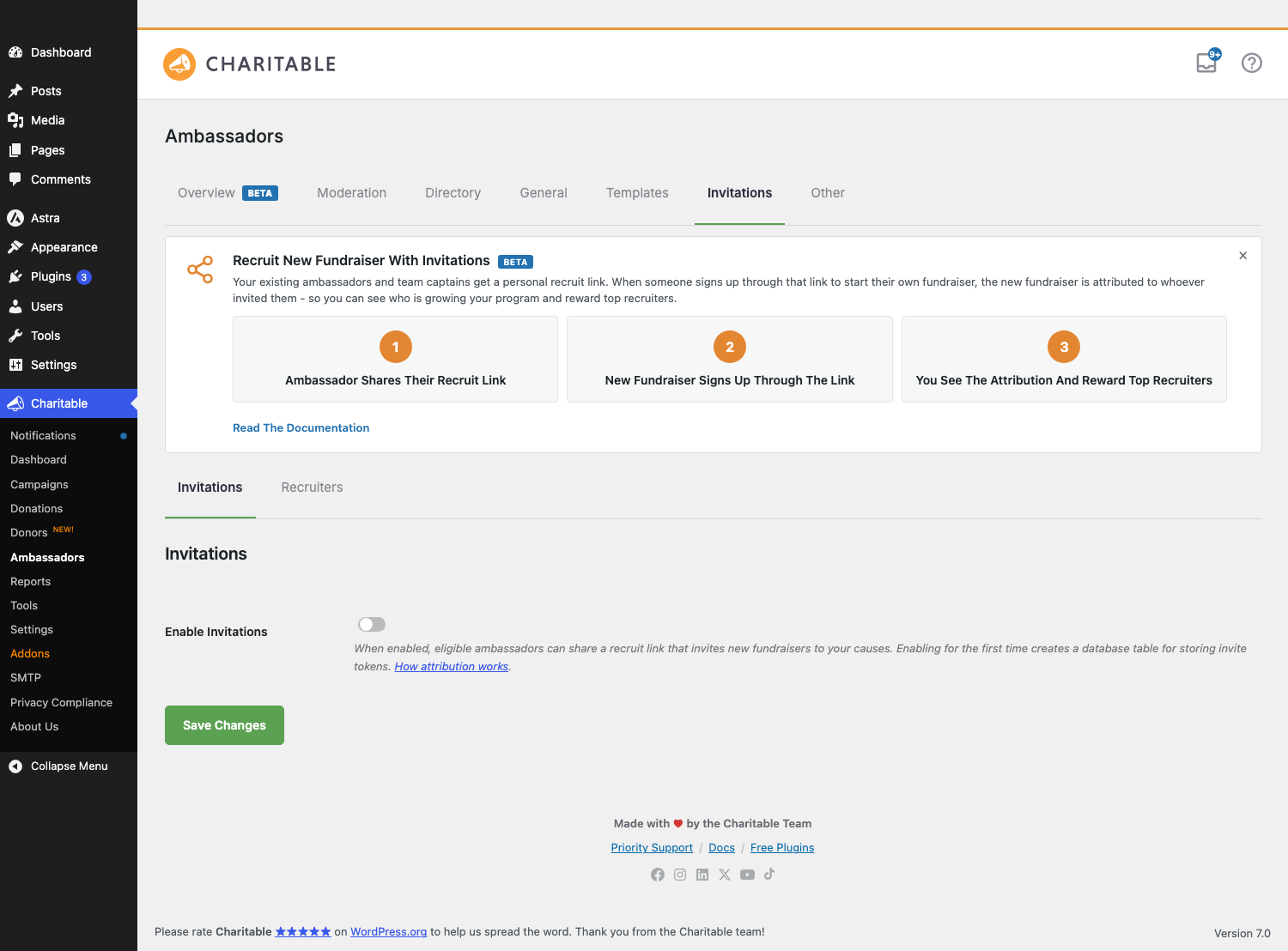
The hardest part of running a peer-to-peer fundraising program isn’t usually the donations – it’s finding new ambassadors to fundraise for you. Invitations turns that on its head: instead of you recruiting one ambassador at a time, your existing supporters do the recruiting for you.
Each one gets a personal “invite link” they can share with their friends, family, and network. Every fundraiser who signs up through that link is automatically credited back to the person who invited them.
It’s a small feature with a big effect: the people most likely to bring you new ambassadors are the ones already involved in your cause.
When You’d Use It
- Growing a program past your network. You’ve recruited your initial 10-15 ambassadors. Now those 10-15 ambassadors can each pull in 2-3 of their people.
- Rewarding your champions. Some supporters are naturally evangelical. Invitations gives you a leaderboard of who’s bringing in the most fundraisers – perfect for public recognition.
- Running a “bring a friend” campaign. “Forward this link to one person who’d care about the cause” is an ask that fits in a single email, a single text, a single social post.
How Invitations Work and How You Can Benefit
Peer-to-peer fundraising works because people are far more likely to give when someone they know asks them – not when a charity emails them cold. Invitations doubles down on that principle.
Instead of you trying to reach 100 new potential fundraisers a year through marketing, you give the 20 fundraisers you already have a way to each bring in 2-3 of their own people. Within a single fundraising season, your roster has multiplied without you spending an additional dollar on acquisition.
The math is striking. Most nonprofits spend $1-$3 to acquire a new donor through traditional channels (email lists, paid social, direct mail). Acquiring a new fundraiser – someone who will then go on to raise from their network – costs even more.
Invitations brings that cost effectively to zero: the marginal cost of one more recruit is just the recruit clicking a link. The cost savings compound when you remember that fundraisers tend to bring in donations from people who would never have donated to your cause directly, so each new recruit unlocks an entirely new pool of supporters.
There’s a social dimension too. When someone signs up because a friend asked them, they arrive with more emotional investment than someone who saw an ad. They already trust your cause through their personal connection.
They’re statistically more likely to run an active fundraiser (rather than signing up and going dormant), and more likely to stick around for a second campaign next year. Many nonprofits report a 2-3x retention boost on recruited fundraisers vs cold sign-ups.
A few practical tips to get the most out of Invitations:
- Make a personal ask of your top 5 supporters. Don’t send a generic “now you can recruit!” email to your full ambassador list. Instead, call or email your 5 most engaged supporters directly: “We’re trying a new way to grow the program – would you share this link with two friends?” Champions respond to being asked personally, not bulk-emailed.
- Recognize publicly. Each month, send a short note (email, social post, or even a brief mention at your next event) thanking your top 3 recruiters by name. Public recognition drives the next month’s behavior more reliably than any feature could.
- Make the ask specific. “Share this with one runner who’d join you for the marathon” converts better than “share this with anyone who might be interested.” Specificity gives the inviter clarity on who to think of, and makes the recipient feel like the right person to be asked.
- Watch your moderation queue. If recruits sign up but their fundraisers stay stuck in “Pending” for days, the bottleneck isn’t acquisition – it’s your approval workflow. Set a 24-hour SLA for approving (or rejecting with feedback) new recruits, and you’ll keep the momentum going.
- Tell stories, not statistics. When a recruited fundraiser hits a milestone (their first $100, their goal, their 10th donor), share their story across your channels. Stories of “Sarah brought in Marcus, who raised $2,500 for the kids” are far more shareable than “we have 50 new recruits this month.”
Where to Find Invitations in Ambassadors
In your WordPress admin, go to Charitable » Ambassadors » Invitations tab.
You’ll see a single toggle the first time you visit. Until you flip it on, everything else stays hidden.
How to Enable Invitations
Invitations is opt-in. Click the Enable Invitations toggle, and the system will ask you to confirm – that’s because turning it on for the first time creates a small custom database table to store the invite tokens. (Don’t worry: turning it off later doesn’t lose any data, and there’s a separate “permanently delete” button if you ever want to wipe the table for good.)
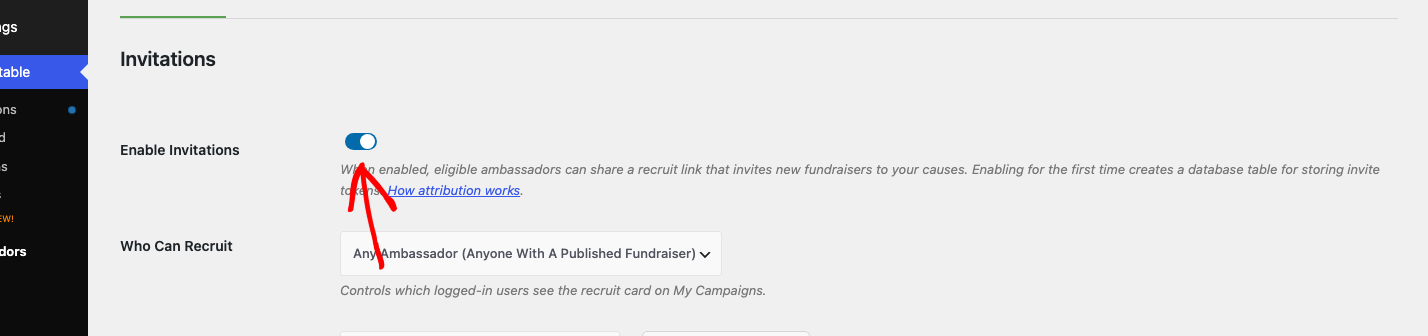
Once it’s on, five more settings appear:
| Setting | Plain-English meaning |
|---|---|
| Who Can Recruit | Either “Any Ambassador” (anyone who has at least one published fundraiser) or “Parent Campaign Owners Only” (just the people running the underlying causes). Start with parent-owners only and broaden later. |
| Landing Page | The page on your site where recruit links land. You’ll create a page, paste the [charitable_invite_landing] shortcode into it, then pick that page here. |
| Landing Page Intro Copy | Optional rich text shown above the cause card on the landing page. Use this to set context – “Help us bring more runners to the marathon,” etc. |
| Landing Fallback Image | If the cause campaign someone’s recruiting for doesn’t have a featured image, this is the image the landing page uses instead. |
| Email Inviter On Approval | When ON, the recruiter gets a celebratory email the moment their recruit’s fundraiser is approved. Highly recommended – it reinforces the behavior you want more of. |
Setting up your landing page
- Create a new page in WordPress (Pages > Add New). Title it something like “Become a Fundraiser” or “Join Our Team.”
- Paste this shortcode into the page content:
[charitable_invite_landing] - Publish the page.
- Back on the Invitations tab, pick that page in the Landing Page setting and save.
That’s it – the page will now render with your hero, the cause card for whoever the recruit came from, and a Become a Fundraiser button that walks them into your existing campaign submission form.
If you want to see what it’ll look like before sharing any invite links, visit the page directly while logged out. You’ll see a “generic” version with placeholder content (no specific cause). When someone clicks a real invite URL, the landing page swaps in the actual cause they were referred to.
How Your Ambassadors Will Use It
Once Invitations is enabled, anyone eligible to recruit (per your Who Can Recruit setting) will see a new card at the top of their My Campaigns page:
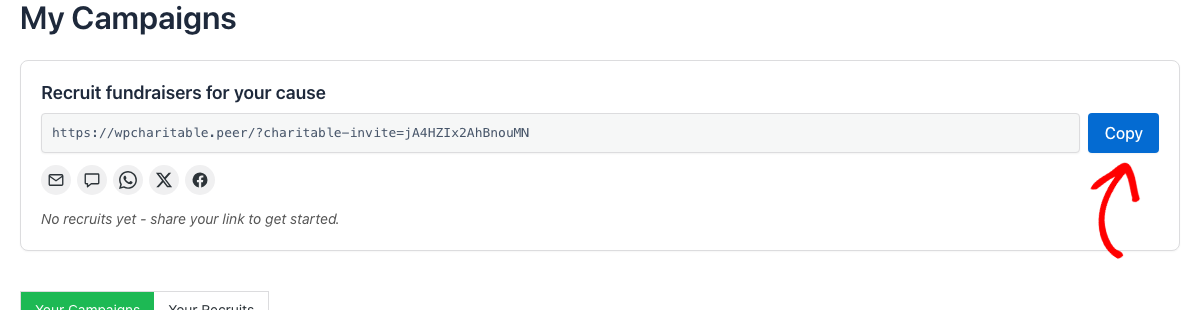
The card has:
- Their personal invite URL – a unique link that ties any signup back to them. They can copy it with one click.
- Share buttons – email, SMS, WhatsApp, X/Twitter, and Facebook. Each opens the matching app pre-filled with a friendly message.
- A stats line – how many people they’ve recruited so far, broken down by status.
- A “Your Recruits” toggle – they can switch their My Campaigns page to see everyone they’ve brought in.
If they own multiple parent campaigns, they also get a per-campaign Recruit button (in the actions row of each campaign card) that opens a popover with a campaign-specific invite URL. That way they can say “recruit for this cause” instead of leaving it up to the recruit to pick one.
What Happens When Someone Clicks The Link
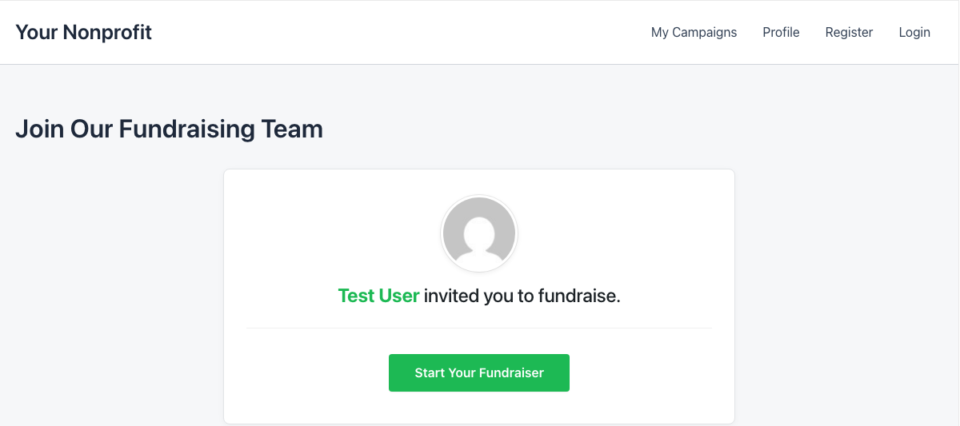
The journey, from the recruit’s perspective:
- Click the invite URL their friend sent them.
- Land on your invite landing page, which shows the cause they’re being invited to support.
- Click “Become a Fundraiser” to walk into the campaign submission form.
- Sign up and submit their fundraiser.
- Your moderation team approves it (if you’re using Manual Approval) – or it publishes immediately under auto-approval.
Behind the scenes, the system has been quietly tracking that this recruit came from a specific inviter, using a 30-day cookie. For the full mechanics, see How attribution works.
Seeing Who Recruited Whom
The Recruitment widget on the Overview dashboard gives you the program-level view: total recruits this month, status breakdown, time-series chart, and a Top Recruiters leaderboard.
Individual ambassadors see their own recruits by clicking the “Your Recruits” toggle on their My Campaigns page:
Filter chips at the top split the list into All / Approved / Pending / Rejected. Each chip shows a count, so they can see at a glance how many of their recruits are still waiting for your approval.
When Something’s Off – The Self-Check Notices
The Invitations tab shows colored banners at the top when something needs your attention:

| You’ll see | What’s wrong | What to do |
|---|---|---|
| Red: “Enabled but database table missing” | A plugin update or manual DB cleanup wiped the table. | Click Recreate Table – the schema gets rebuilt in place. |
| Yellow: “Schema out of date” | An upgrade introduced a newer table schema; your install hasn’t migrated yet. | Click Run Upgrade. It’s safe and idempotent. |
| Blue: “Disabled but data exists” | You turned the feature off but recruit history is still in the table. | Either Re-enable to restore access, or click Permanently delete and remove table to purge. (The destructive option asks you to type the table name to confirm.) |
| Blue: “Cache compatibility off” | Some caching plugins may cache your invite landing page, which would prevent the click-to-attribution flow. | Turn on Cache Compatibility under Charitable > Settings > Advanced > Misc. |
| Yellow: “No landing page configured” | You enabled Invitations but didn’t pick a Landing Page setting. | Pick one – see “Setting up your landing page” above. |
Each banner also has a “Learn about invite storage” link to the storage docs page if you want more detail.
Tips for Getting Recruitment Going
- Email your top 5 ambassadors personally. “We’re trying a new way to grow the program – would you be willing to share this link with one or two people who’d care?” beats any generic announcement.
- Recognize recruiters publicly. A monthly “shout out to our top 3 recruiters” email or social post drives the next month’s behavior.
- Make the ask specific. “Share this link with one runner who’d join you” converts better than “share this link with people who might be interested.”
- Watch the Pending column. If recruits keep showing up but their fundraisers stay in Pending, the bottleneck is moderation – make sure someone owns reviewing the queue.
Developer Reference
The rest of this page is for developers customizing the Invitations system.
Settings storage
All Invitations settings are stored under the ambassadors sub-array of wp_options.charitable_settings, e.g.:
charitable_settings > ambassadors > invites_enabled
charitable_settings > ambassadors > invites_who_can_recruit
charitable_settings > ambassadors > invites_landing_page_id
…
Read via the helper:
charitable_ambassadors_get_invites_setting( $key, $default );
charitable_ambassadors_invites_enabled(); // bool
Custom table
When the feature is first enabled, Charitable_Ambassadors_Invites_Schema::create() creates a small custom table named {$wpdb->prefix}charitable_ambassadors_invite_tokens via dbDelta(). The schema is managed entirely by the plugin – the class exposes create(), exists(), is_current(), upgrade(), and drop(). The current schema version is stored in wp_option('charitable_ambassadors_invites_schema_version'). See How invitation data is stored for the full table lifecycle (creation, soft-disable, schema upgrades, destructive uninstall).
Filters
| Filter | Default | Purpose |
|---|---|---|
charitable_ambassadors_invitations_settings_field_definitions | array of 6 fields | Add, remove, or modify Invitations admin settings. |
charitable_ambassadors_user_can_invite | bool (computed) | Override eligibility for who sees the recruit card. Signature ( $can, $user_id, $campaign_id_or_null ). |
charitable_ambassadors_invite_attribution_mode | 'last_click' | Return 'first_click' to credit the earliest clicked inviter instead of the most recent. |
charitable_ambassadors_invite_cookie_lifetime | 30 * DAY_IN_SECONDS | Override the cookie TTL. |
charitable_ambassadors_invitations_storage_docs_url | wpcharitable.com URL | Override the docs URL the self-check notices link to. |
charitable_ambassadors_recruit_card_learn_more_url | '' | Add a “Learn more” link to the recruit card. Empty string suppresses it. |
charitable_ambassadors_recruit_card_learn_more_label | __( 'Learn more' ) | Label for the Learn more link. |
charitable_ambassadors_recruit_card_empty_text | “No recruits yet…” | Empty-state copy when an inviter has zero recruits. |
charitable_ambassadors_recruits_view_empty_text | “You haven’t recruited anyone yet…” | Empty-state copy on the Your Recruits tab. Receives $status + $user_id. |
charitable_ambassadors_invitations_csv_max_rows | 10000 | Cap on CSV exports. |
Actions
| Action | Args | Fires when |
|---|---|---|
charitable_ambassadors_my_campaigns_before_grid | $campaigns, $user_id | Just before the campaign grid renders. The recruit card mounts here. |
charitable_ambassadors_my_campaigns_card_actions | $campaign_id, $context | In each campaign card’s actions row. The per-campaign Recruit popover mounts here for parent campaigns. |
charitable_ambassadors_recruit_card_footer | $user_id, $token, $invite_url | Inside the recruit card, just above the Learn more link. Echo your own HTML; callbacks responsible for escaping. |
charitable_ambassadors_invite_clicked | $token_row, $request | After the URL handler resolves a valid token. |
charitable_ambassadors_invite_claimed | $token_row, $fundraiser_id, $inviter_user_id | After attribution meta is stamped. |
charitable_ambassadors_invite_self_recruit_skipped | $token_row, $fundraiser_id | Self-recruit guard blocked an attribution. |
Helper functions
charitable_ambassadors_invites_enabled()                       // bool
charitable_ambassadors_get_invites_setting( $key, $default )   // mixed
charitable_ambassadors_user_can_invite( $user_id, $campaign_id = null )  // bool, filterable
charitable_ambassadors_invites_log( $code, $context )          // logs to Charitable Tools > Log
The eligibility helper is the function the recruit card uses to decide whether to render. Use it in your own code (e.g. an admin notice or a custom My Campaigns extension) to keep eligibility consistent.
Classes
| Class | File | Role |
|---|---|---|
Charitable_Ambassadors_Invites | includes/invites/class-charitable-ambassadors-invites.php | Bootstrap. Registers the [charitable_invite_landing] shortcode, the URL handler, the attribution listener, the email trigger, and the My Campaigns render hooks. |
Charitable_Ambassadors_Invites_Schema | class-charitable-ambassadors-invites-schema.php | Create/drop/upgrade for the invite tokens table. |
Charitable_Ambassadors_Invites_Tokens | class-charitable-ambassadors-invites-tokens.php | Token CRUD: get_or_create, lookup, increment_view, increment_claim, revoke, build_invite_url. |
Charitable_Ambassadors_Invitations_Data | class-charitable-ambassadors-invitations-data.php | Admin-side queries: top recruiters, recent activity, breakdown, recruits-for-user. |
Charitable_Ambassadors_Invitations | class-charitable-ambassadors-invitations.php | Admin tab renderer, 5 AJAX endpoints, form-POST destructive uninstall handler, self-check notices. |
Charitable_Ambassadors_Invitations_CSV | class-charitable-ambassadors-invitations-csv.php | CSV export handler with formula-injection neutralization. |
Charitable_Ambassadors_Email_Inviter_Recruit_Approved | class-charitable-ambassadors-email-inviter-recruit-approved.php | The transactional email. Resolves 5 shortcode tags via charitable_email_content_field_value_* filters. |
URL handler
The URL handler runs on init priority 1. It looks for ?charitable-invite=<token> and, if a valid token is found:
- Sets the
charitable_invite_tokencookie (30 days, SameSite=Lax,securewhen SSL). - Increments the token’s
view_count. - Emits no-cache headers via
charitable_nocache_headers()(Pro 1.8.15.2+) ornocache_headers()(WP core fallback). - Redirects to the configured landing page with
?charitable-invitestripped.
The redirect uses 302 (not 301) so cache layers don’t memoize the redirect itself.
Attribution
Attribution is triggered by Pro’s charitable_campaign_submission_save action with signature ( $data, $campaign_id, $user_id, $form ). The hook handler in Charitable_Ambassadors_Invites::on_campaign_submission_save():
- Reads the
charitable_invite_tokencookie. - Looks the token up; bails silently on miss.
- Checks
inviter_user_id !== submitter_user_id(self-recruit guard). - Writes two post-meta keys on the new fundraiser:
_charitable_ambassadors_invited_by_user_id_charitable_ambassadors_invited_via_token_id
- Increments the token’s
claim_count+last_claimed_at.
The handler is signature-adaptive: it accepts both the canonical 4-arg shape and a legacy 2-arg ( $fundraiser_id, $user_id ) shape used by the verification harness.
Logging
Every invite event is logged to Charitable Tools > Log via charitable_log():
type=addon
source=ambassadors_invites
level=info  (or warning for the skip cases)
Log codes: invite_clicked, invite_claimed, self_recruit_skipped, inviter_deleted_at_approval, attribution_skipped_revoked_token, unconfigured_landing_page_admin_view, recreate_table_invoked, permanent_delete_invoked.
AJAX endpoints
All on wp_ajax_ only, nonce charitable_ambassadors_invitations, capability manage_charitable_settings:
| Action | Purpose |
|---|---|
charitable_ambassadors_invitations_recreate_table | Run Schema::create() after a self-check showed the table missing. |
charitable_ambassadors_invitations_run_schema_upgrade | Run Schema::upgrade() from the self-check “out of date” state. |
charitable_ambassadors_invitations_disable_feature | Toggle invites_enabled off. |
charitable_ambassadors_invitations_re_enable | Toggle invites_enabled back on without re-running the create-table modal. |
charitable_ambassadors_invitations_search_landing_pages | Page autocomplete for the Landing Page setting. |
The destructive uninstall (“permanently delete and remove table”) is a form-POST handler at admin-post.php?action=charitable_ambassadors_invitations_purge, gated by a nonce + a manually-typed table-name confirmation.
Cache Compatibility
The invite landing page is dynamic (per-user, per-token). Pro 1.8.15.2’s charitable_is_dynamic_page filter is wired to flag the landing page so cache plugins skip it. If that Pro feature isn’t available (older Pro), the URL handler still emits nocache_headers() directly.
Customization Examples
Common tweaks. Add any of these to your theme’s functions.php or a site-specific plugin.
Switch to first-click attribution (credit the first inviter, not the most recent):
add_filter( 'charitable_ambassadors_invite_attribution_mode', function () {
    return 'first_click';
} );
Extend the recruit-tracking cookie from 30 days to 90 days:
add_filter( 'charitable_ambassadors_invite_cookie_lifetime', function () {
    return 90 * DAY_IN_SECONDS;
} );
Add a “Learn more” link to the recruit card on My Campaigns:
add_filter( 'charitable_ambassadors_recruit_card_learn_more_url', function () {
    return home_url( '/ambassador-handbook/recruiting/' );
} );

add_filter( 'charitable_ambassadors_recruit_card_learn_more_label', function () {
    return 'Tips for inviting friends';
} );
Inject your own content (e.g. a video) into the recruit card:
add_action( 'charitable_ambassadors_recruit_card_footer', function ( $user_id, $token, $invite_url ) {
    echo '<p style="margin-top: 16px;"><a href="https://example.com/recruiting-video">Watch our 2-minute walkthrough</a></p>';
}, 10, 3 );
Restrict recruiting to a custom role (e.g. only users with verified_ambassador):
add_filter( 'charitable_ambassadors_user_can_invite', function ( $can, $user_id, $campaign_id ) {
    if ( ! $can ) {
        return false;
    }
    $user = get_userdata( $user_id );
    return $user && in_array( 'verified_ambassador', (array) $user->roles, true );
}, 10, 3 );
Customize the empty-state copy on the Your Recruits tab:
add_filter( 'charitable_ambassadors_recruits_view_empty_text', function ( $message, $status, $user_id ) {
    if ( 'rejected' === $status ) {
        return 'No rejected recruits - your standards are solid!';
    }
    return $message;
}, 10, 3 );
Related
- How attribution works – the click-to-credit flow explained.
- How invitation data is stored – the custom table, lifecycle, destructive uninstall.
- Invite landing page – shortcode customization and template overrides.
- Recruit Card Customization – filters and actions for the My Campaigns card.
- Hooks & filters in Ambassadors – the full filter and action reference.
Helpful Links
🤝 Get help when you need it
Connect with Customer Support →
📑 Find the guide you need
Browse the Documentation Hub →
⬇️ Download proven strategies, campaign ideas, and expert tools
🔗 Let your AI Assistant do the fundraising work for you.
Connect Charitable to your AI assistant →
💸 Get Free Fundraising Resources
Head to the Charitable Fundraising Hub →
🤔 Got questions about Charitable?
Charitable FAQs →
Need help understanding non-profit terms and jargon?
See our Non-Profit Glossary →





