

Whether it’s a walkathon or a concert, almost any event can become a virtual one where you raise money online through a fundraising page.
We live in an increasingly digital world, after all. In recent years, overall online fundraising revenue increased by 23%. It’s clear that more and more people prefer online giving, so give them an easy way to do it!
Don’t worry—the website doesn’t have to be extravagant, and the process doesn’t need to be complicated. Below, we’ll walk you through the steps to making a simple fundraising event microsite.
What is a microsite?
As you might infer from the name, a microsite is a small site, usually part of a bigger one, consisting of a single page or a few pages that exist to promote a specific event or product. A microsite can be:
- its own domain (example: myevent.com)
- a subdomain of your existing website (example: myevent.mywebsite.com)
- or even a single webpage of your existing website (mywebsite.com/myevent)
In the context of fundraising, a microsite can be a separate event website for a charity.
Getting ready to make a fundraising page
To prepare you for your fundraising event, we’re going to show you how to create a fundraising event website on WordPress with Charitable.
Goals
- Have a unique URL where supporters can visit to learn more about your event
- Peer-to-peer fundraising: A place where people can create teams and campaigns, and donors can give online
What you’ll need to get started
- Domain
- Hosting
- WordPress
- Charitable donations plugin (free!)
- Ambassadors 2.0 extension
- Optional: Other payment gateways, Recurring Donations, Fee Relief, Newsletter Connect
3 steps to making your fundraising event website
Step 1: Install Charitable
Our popular WordPress donation plugin is completely free and never charges transaction fees (though it’s worth noting that the payment gateway you choose—such as PayPal or Stripe—will charge fees. Unfortunately, we don’t have control over that).
The easy way to install Charitable
To make installation as easy as possible, simply enter your WordPress website’s URL (including https://) below and submit the form:
[ninja_form id=’48’]
On the following screen, simply click “Install Now” for the Charitable plugin, followed by “Activate” once the installation is complete.
The slightly less easy way to install Charitable
If the form above didn’t work for you, don’t worry! You can still get started with Charitable through your WordPress. You can typically find this at [yoursite].com/wp-admin.
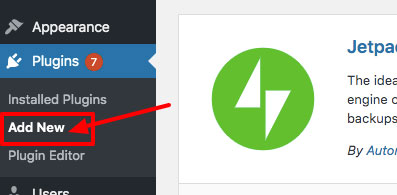
On the left-hand side, navigate to Plugins > Add New.
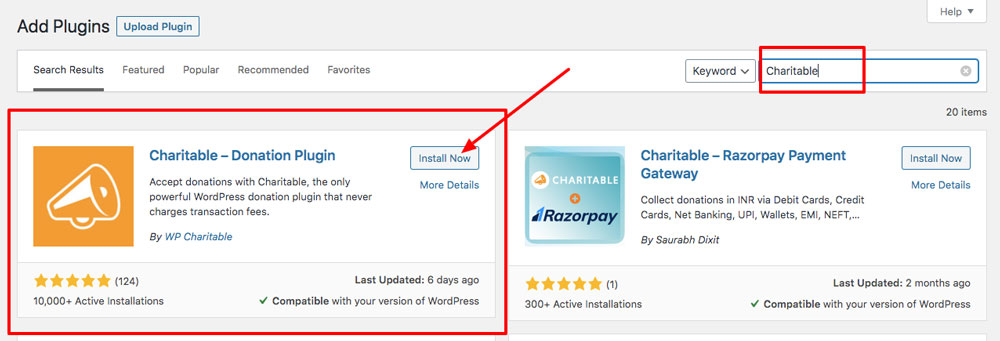
When you arrive at the Add Plugins page, type “Charitable” in the search bar. Click “Install Now” on the Charitable plugin.
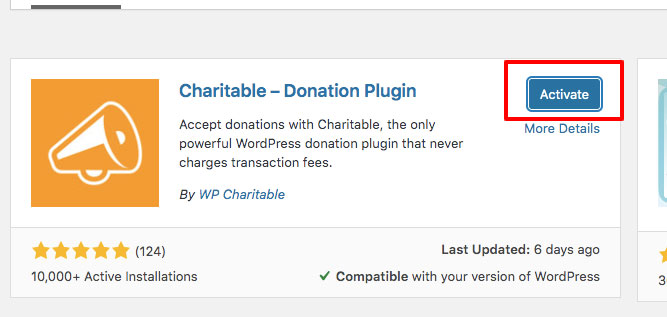
Then, click “Activate.”
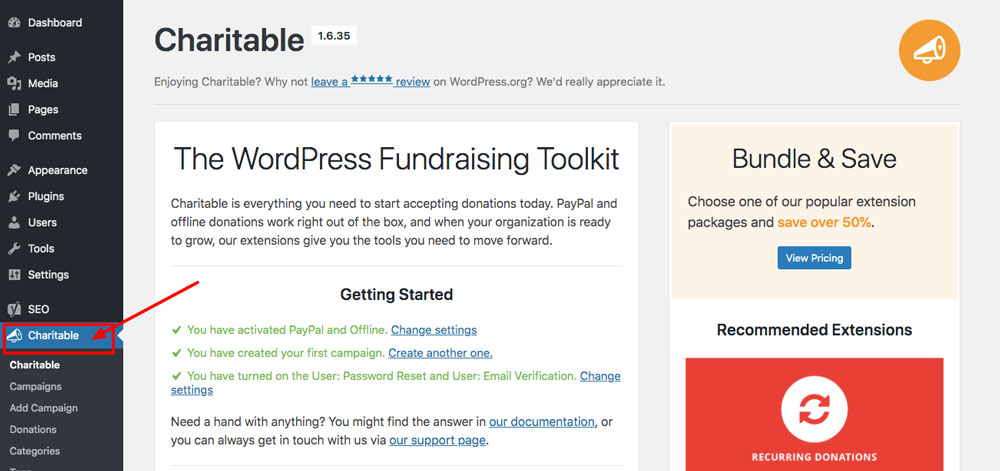
Congrats! Charitable is now installed and active on your website. To find it at any time, just go to the menu on the left and select “Charitable.”
Now, let’s get your Charitable plugin set up so you can start collecting donations on your fundraising event website!
Step 2: Basic Charitable configuration
Enable payment gateways
To accept donations online and offline, click the “Payment Gateways” tab. Then, click “Enable Gateway” on Offline and/or PayPal.
Next, click “Gateway Settings” to set up each gateway.
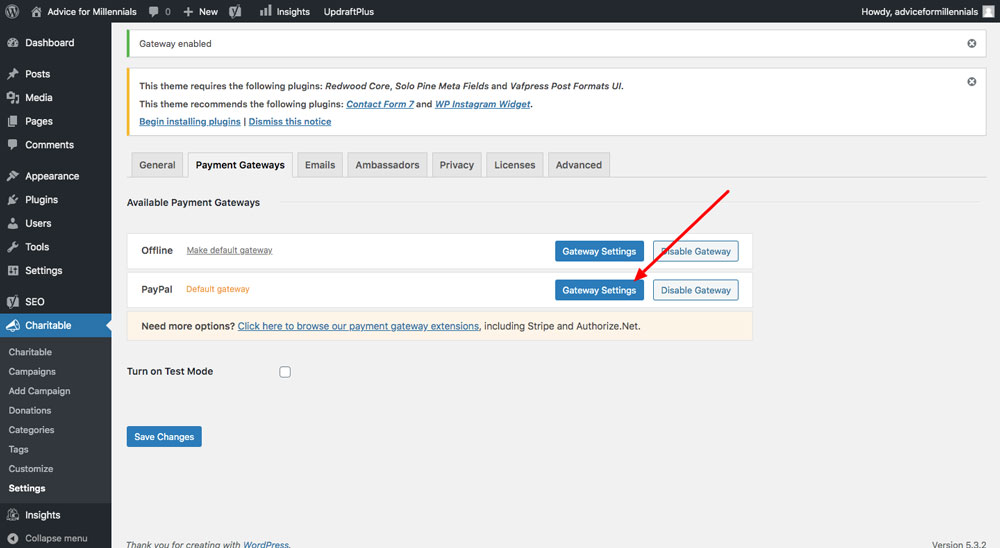
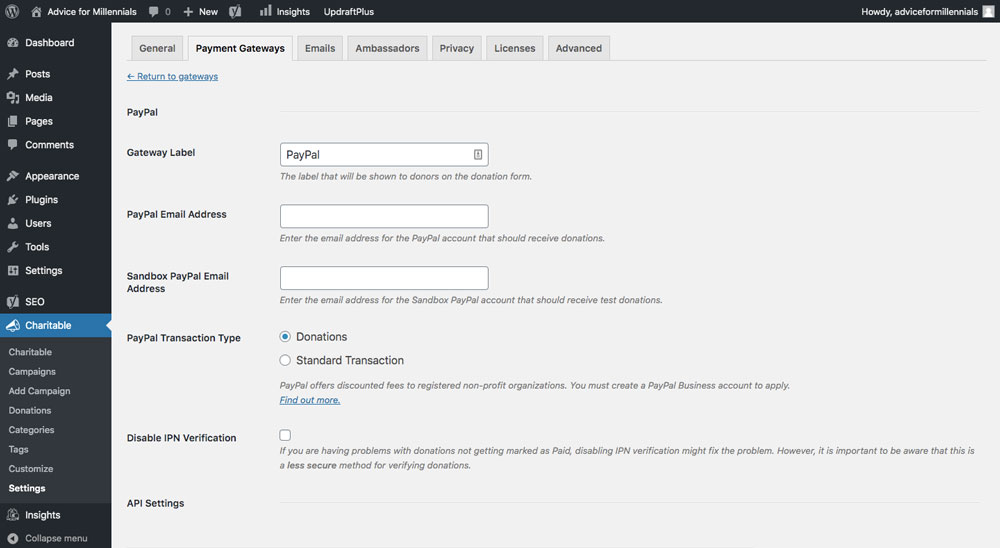
Enter the necessary information. For PayPal, you’ll need:
- The email address associated with the PayPal account that should receive the donations
- (Optional) If you want to test donations first with Sandbox PayPal, you’ll need the email address associated with that account.
API credentials for PayPal. You can find these by going to https://www.paypal.com/businessprofile/mytools/apiaccess/firstparty/signature. For Sandbox PayPal API credentials, go to https://developer.paypal.com/developer/accounts/.
Set up emails
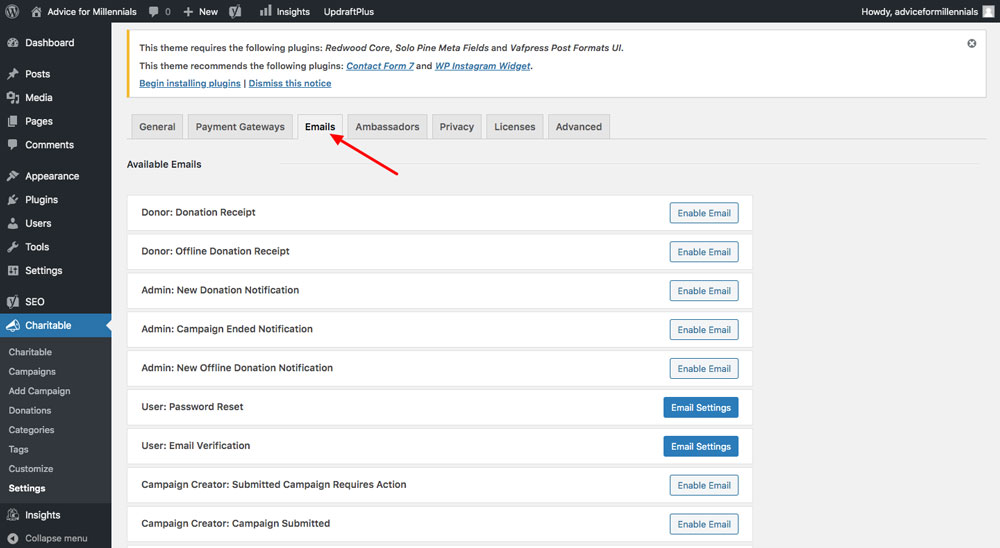
Within Charitable, you can set up automatic emails that get sent to donors, such as donation receipts and end-of-campaign notifications. To set these up, click the “Emails” tab within the Charitable settings. Most of the emails should already be enabled, and you can click “Email Settings” to customize the content of each email.
Profile, Registration & Login Pages
You’ll also need to create your Profile, Registration and Login pages.
To create your Profile page, go to Pages > Add New. Copy and paste this shortcode into the text editor: [charitable_profile]. Then click “Publish.”

Next, navigate to Charitable > Settings.
In the Profile Page section, select “Profile” from the dropdown menu (or whatever name you gave to the Profile page).
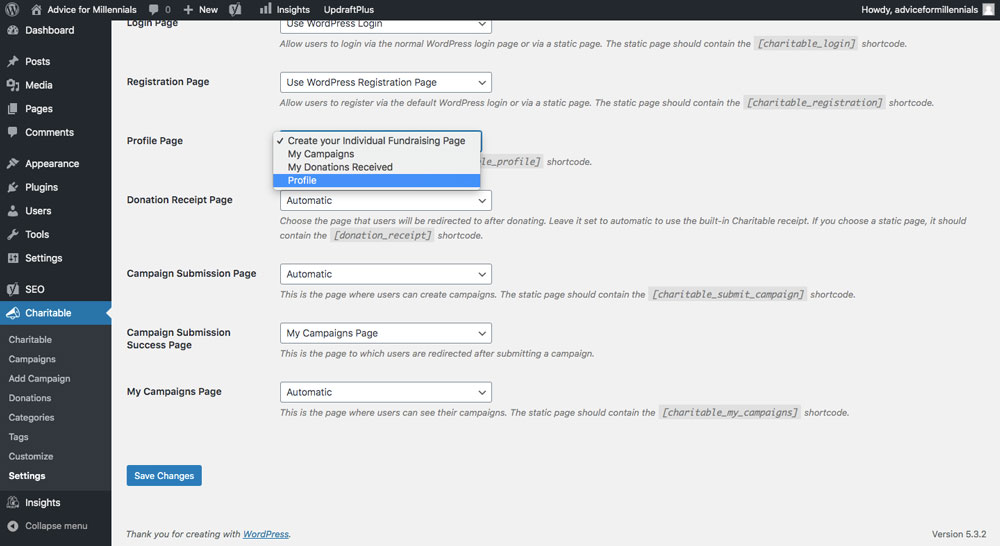
Be sure to click the “Save Changes” button.
Repeat the same steps for the Registration and Login pages.
Step 3: Install the Ambassadors extension
Ambassadors, our peer-to-peer fundraising extension, will be a huge benefit for your fundraising event. The biggest advantage of installing Ambassadors is now not only can you receive donations on your website, but you can also recruit people to help you fundraise for your event! With this extension, you can also:
- Create teams
- Create email marketing campaigns with the Newsletter Connect extension
- Customize your campaign forms
Step A) Purchase the Charitable Pro package
Visit our pricing page and purchase the Pro (or Elite) package which includes the Ambassador addon.
Step B) Download Charitable Ambassadors
Once you have purchased the Ambassadors extension, you will receive an email receipt with a download link. Your download will be a .zip file. Do NOT unzip it.
Step C) In your WordPress dashboard, go to Plugins > Add New
Click “Upload Plugin.” Click “Choose File.” Select the Ambassadors zip file you just downloaded. Then click “Install Now.”

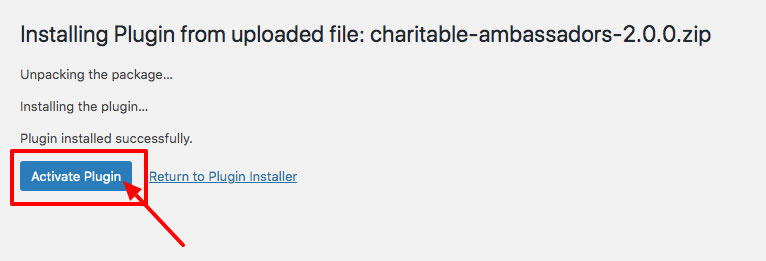
Step D) Activate the plugin.
Click the blue “Activate Plugin” button.
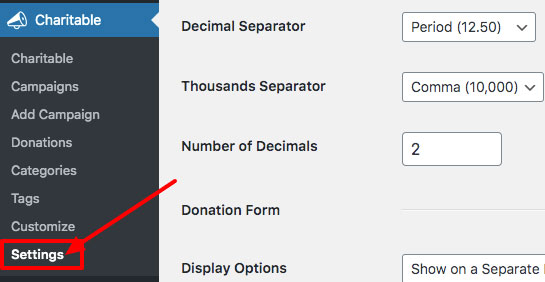
Your Ambassadors plugin is now installed and can be found by going to the menu on the left-hand side of your WordPress dashboard and navigating to Charitable > Settings.
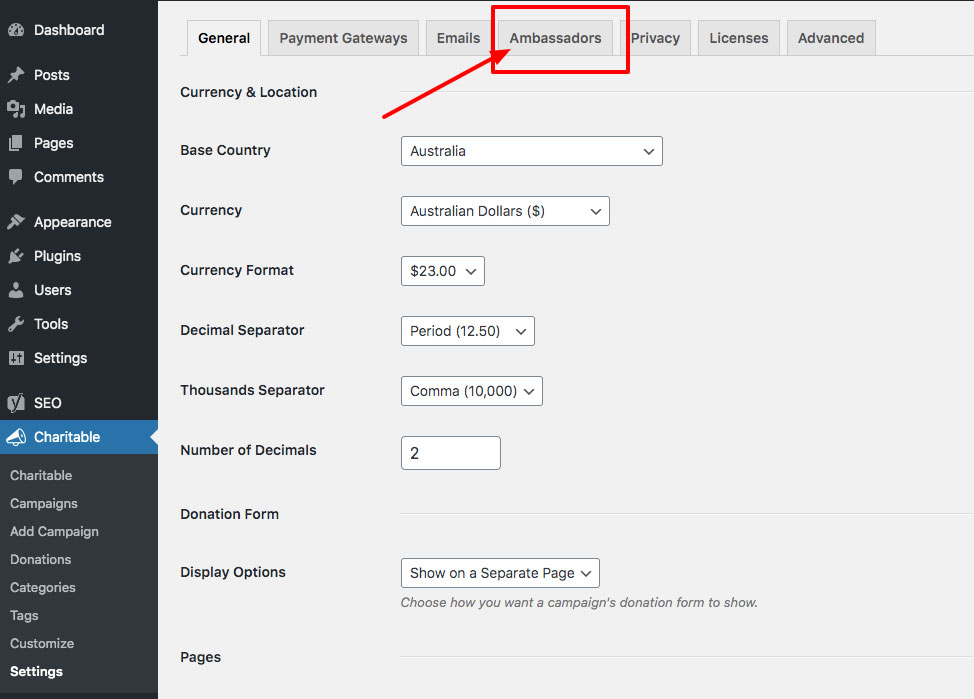
Configure Ambassadors
Click the “Ambassadors” tab to start configuring these settings.
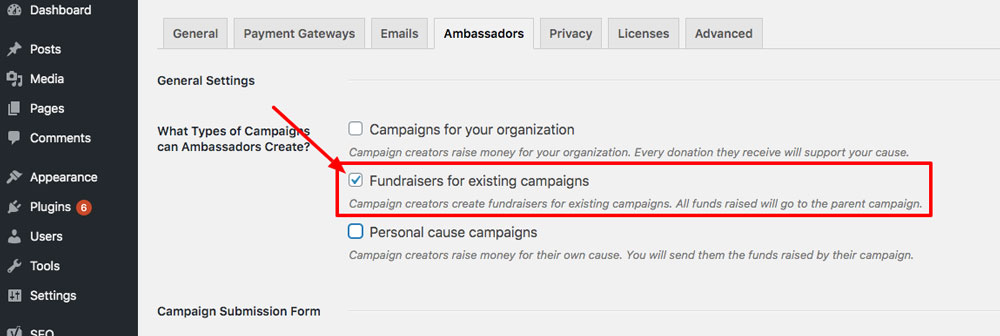
Important: To enable peer-to-peer fundraising, be sure to check the box next to “Fundraisers for existing campaigns” in the “What Types of Campaigns can Ambassadors Create?” section.
We also recommend turning off the requirement for users to register an account before they submit their campaign, as it provides a more streamlined process for your fundraisers. After your fundraisers set up their fundraising page, they will be required to register an account in order to be able to edit their campaign.

If you want supporters to be able to band together to form teams and raise even more money for your event, you can do this when you are creating your peer to peer fundraising campaign.
Create your event’s main fundraising campaign
Next, create a fundraising campaign for your event. This campaign will act as the “parent” of all your supporters’ fundraising pages.
What that means is people will get their own fundraising page and can invite their friends and family to donate to their page. All the funds raised will still go straight to your organization, and on the main campaign page (the parent campaign), it will show how much the campaign has raised overall, across all fundraisers.
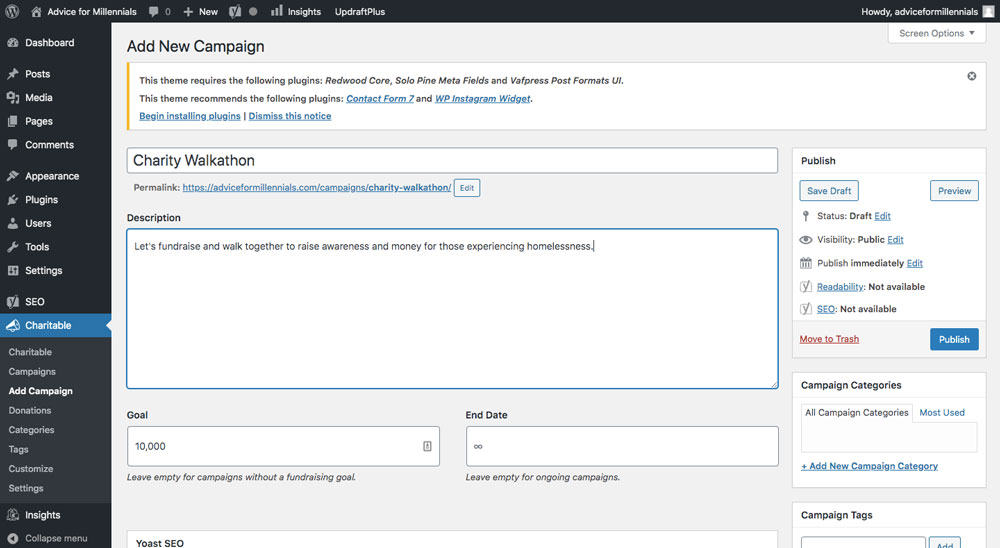
To create a parent campaign, go to Charitable > Add Campaign.
Name your campaign and fill in the details, such as description, funding goal, and end date.
Scroll down to the “Campaign Settings” box and click the tab that says “Peer to Peer Fundraising.” Check the box that says “Allow peer to peer fundraisers for this campaign.”

Be sure to click the “Publish” button at the top right of the page.
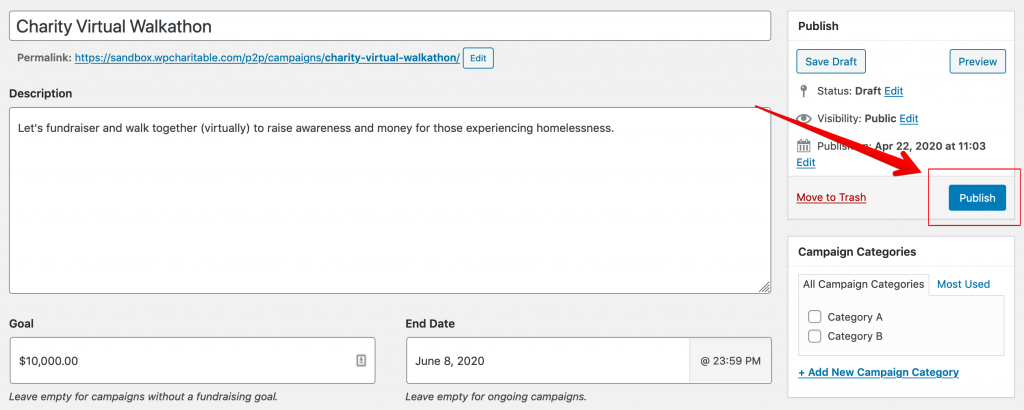
You now have your parent campaign, the main campaign for your upcoming fundraising event.
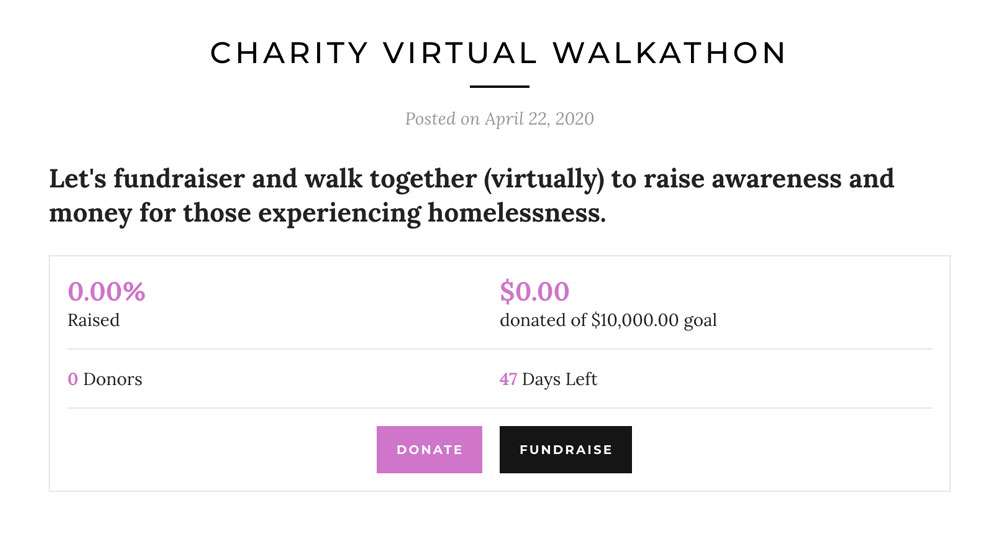
Next, let’s learn how your supporters can create their own fundraising pages (child campaigns) to raise money for your event.
How your ambassadors can use peer to peer fundraising by creating child campaigns beneath your parent campaign
So you just created a parent campaign on the back-end in WordPress. Now, here’s how a donor would create a campaign on the front-end of your website.
Step 1: Give them the URL to your “submit campaign” page.
Option A: For most, this will be [yoursite].com/profile/submit-campaign. But it might be different. For this example, I created my own submit campaign page at [mysite].com/create-a-campaign.
Option B: Use the Fundraise Button shortcode to give visitors a prominent, simple way to submit a campaign. Copy and paste the following: [charitable_fundraise_button]. You can create a new page to add this to, or you can add this to your homepage (or both!).
When your visitor clicks the link or button, they’ll see this:
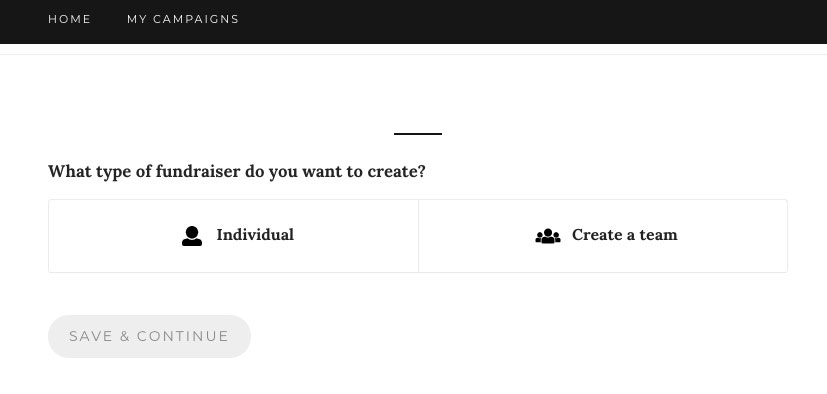
Next, click “Save & Continue”
At this point, they will be prompted to fill in details about their fundraiser. Because this is “Another Campaign” fundraiser, all money will go toward your event fundraiser (parent campaign), not to the donor themselves.
Once the visitor has set up their fundraiser, they will be asked to register an account (or log in if they already have an account) and will also be required to verify their email address, for security purposes.

Once they have registered or logged in and verified their email address, their campaign will be ready to go, and they can raise money for your event.
Customize your fundraising event website with the following extensions
Payment gateways
The Charitable plugin allows you to enable Offline and PayPal payment gateways to receive donations. If you’d like, there are even more payment gateways you can enable by purchasing the following extensions:
Learn more about how to add payment gateways to Charitable.
Recurring Donations
If you’d like to ensure a steady, reliable stream of income, install Charitable’s Recurring Donations extension. With this extension, when someone gives an online donation, they can check a box to make it monthly, quarterly, or annual. Ongoing donations make it more likely that your donor will give a higher amount over the course of a lifetime than if they’d selected “one-time.”
Fee Relief
While Charitable never charges fees, third-party payment gateways have their own processing fees that are outside of our control. To bypass these fees, consider installing Charitable’s Fee Relief extension. This will boost your donations by allowing donors to elect to cover the processing fees of their donations for you.
Newsletter Connect
An email marketing campaign should be a part of your fundraising event promotional strategy. Through email newsletters, you can raise awareness for your event and encourage participation. One way to boost newsletter signups is to get the Charitable Newsletter Connect extension.
How to sell tickets to your fundraising event
If your fundraising event is ticketed, it’s wise to allow visitors to purchase tickets on your event website ahead of time. To do this, you could use Eventbrite and link to it from your site. Alternatively, we have another way to do it by using free WordPress plugins. Learn more about how to sell tickets to your fundraising event with WordPress.
See it in action! Two real-life examples of fundraising event websites made with Charitable
Example #1: Concern America’s Walk Out of Poverty
Concern America, which works to improve economically impoverished regions, hosts an annual Walk Out of Poverty to raise money to bring health care, clean water, and education to parts of Colombia, Guatemala, and Mexico.
For their fundraising event website, they chose to host it on a subdomain. So Concern America’s website is concernamerica.org, while their Walk Out of Poverty microsite is at walk.concernamerica.org. Not including the individual fundraiser pages, this microsite has only three webpages.
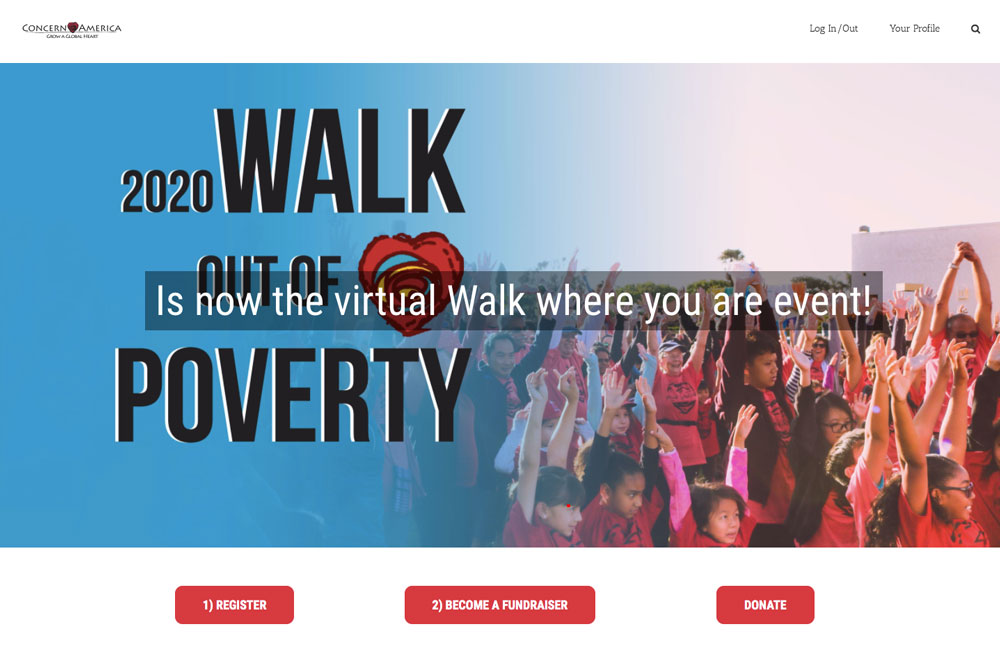
On their fundraising event microsite, participants can register, create a fundraiser, or donate. Thanks to Charitable Ambassadors, supporters can create teams and fundraise for the parent campaign.
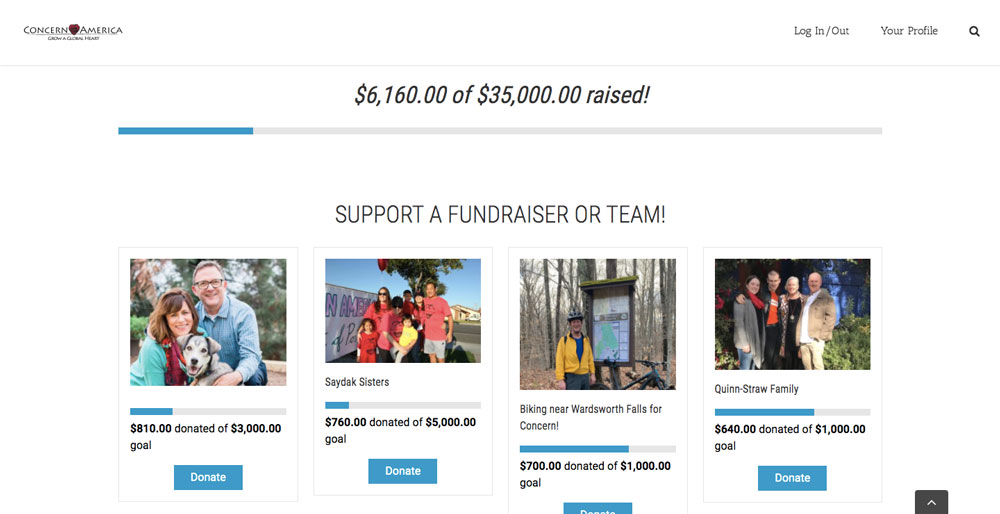
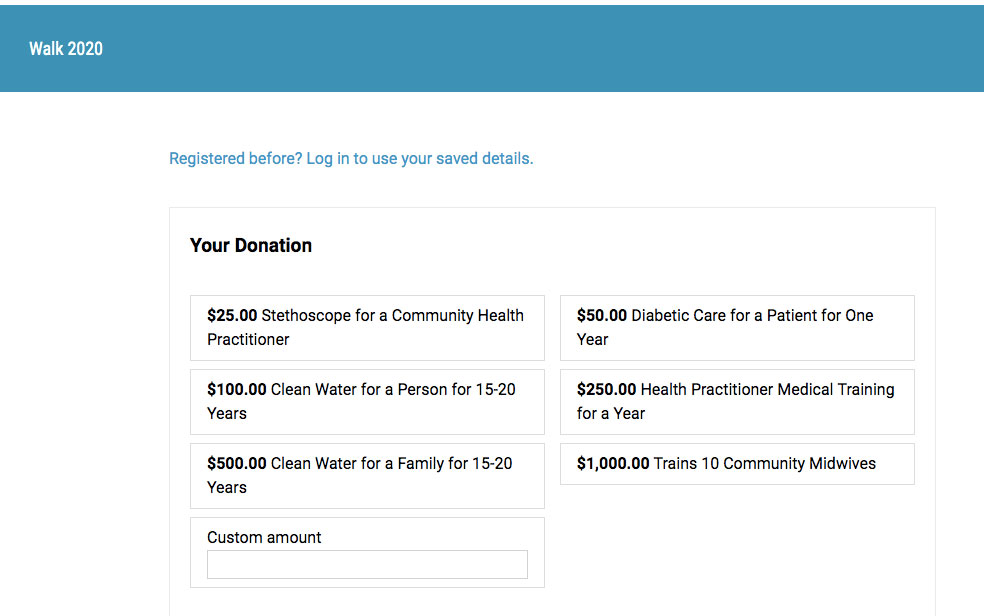
Additionally, website visitors can choose to directly donate to the cause, rather than create a fundraising campaign.
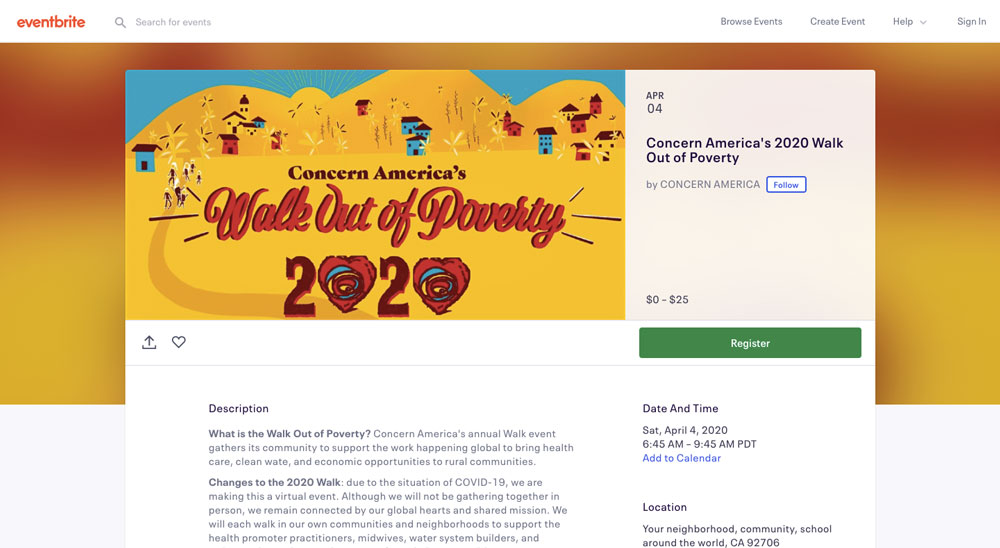
For its registration process and to sell tickets to the event, Concern America links directly to Eventbrite.
Example #2: The Organization for Understanding Congenital Hearts (T.O.U.C.H.) Heart of Illinois CHD Walk
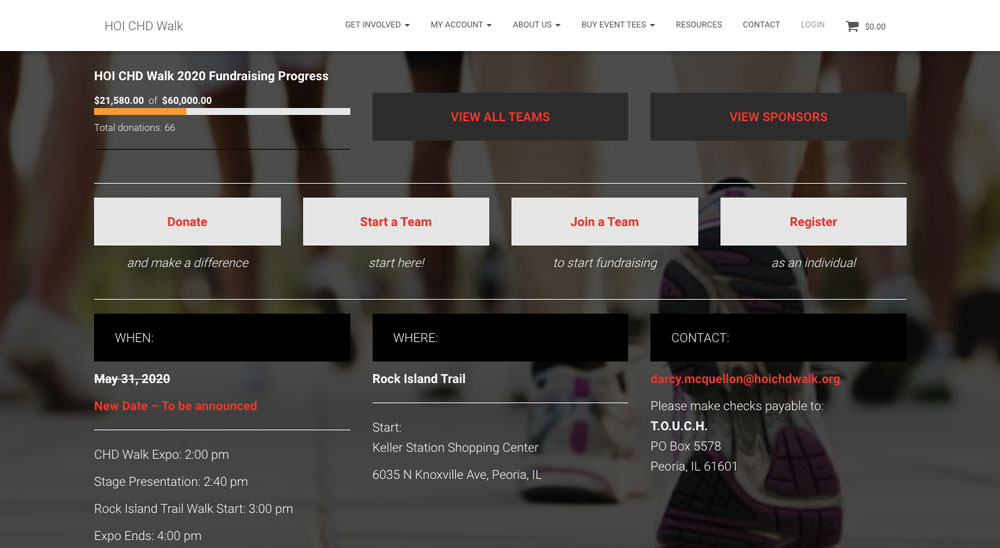
Nonprofit T.O.U.C.H. hosts an annual Heart of Illinois CHD Walk to raise money and awareness to empower people affected by congenital heart defects. They host their fundraising event microsite on a completely separate domain: T.O.U.C.H’s domain is touchhearts.org, while its Heart of Illinois CHD Walk’s domain is hoichdwalk.org.
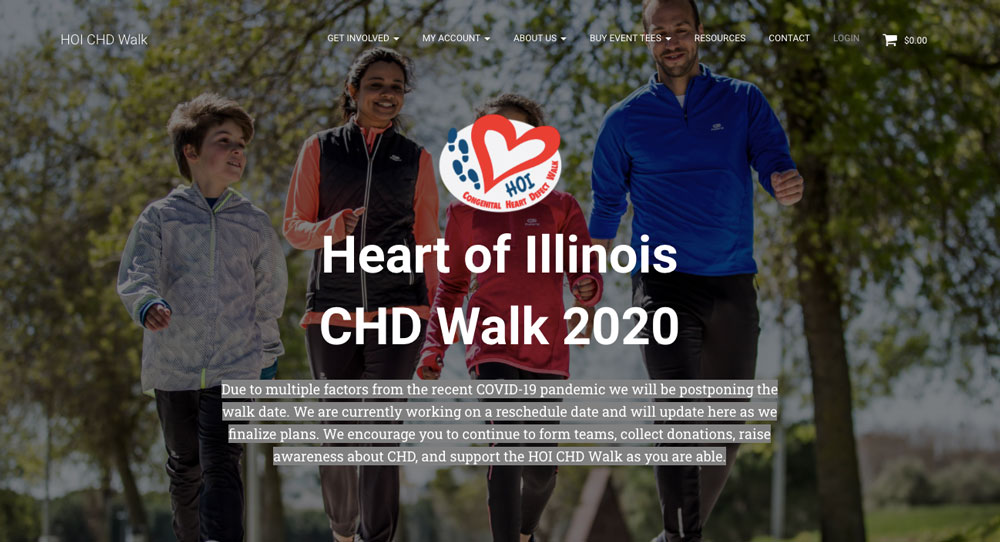
Visitors to the microsite can find all the information they need about the walk. And thanks to Charitable, visitors can donate, start a team, join a team, or create an individual campaign.
Ready to make your fundraising event microsite?
Of course, we’ve shared only the basic steps to making a fundraising event website. There are so many ways to customize your microsite from here, but these steps will get you to a simple, functioning page where your supporters can recruit their friends and family to help raise money for your event’s cause. No need to complicate things!
If you already have a website for your non-profit, start by installing our free Charitable plugin. From there, it’s only two more steps before you’ve got a fundraising page ready to go. To recap, those steps are:
- Install Charitable
- Complete the basic Charitable configurations
- Install and configure the Ambassadors extension
If you don’t yet have a website for your non-profit, check out our guide on how to build a non-profit website with a free WordPress theme.






Leave a Reply