
If a monthly donor emailed to say they’d like to give $40 a month instead of $25, you’d want to say yes that same day.
Until now, the cleanest way to do that was to cancel their subscription and ask them to sign up again. Their giving history split into 2 records, and their start date reset to today.
We built Recurring Amount Changes so you can change the amount and billing period of an active recurring donation right from your WordPress dashboard.
It’s the same Stripe subscription, with the same history and the same start date, just a new amount or schedule from the next billing date. 🔁
Here’s What Recurring Amount Changes Looks Like
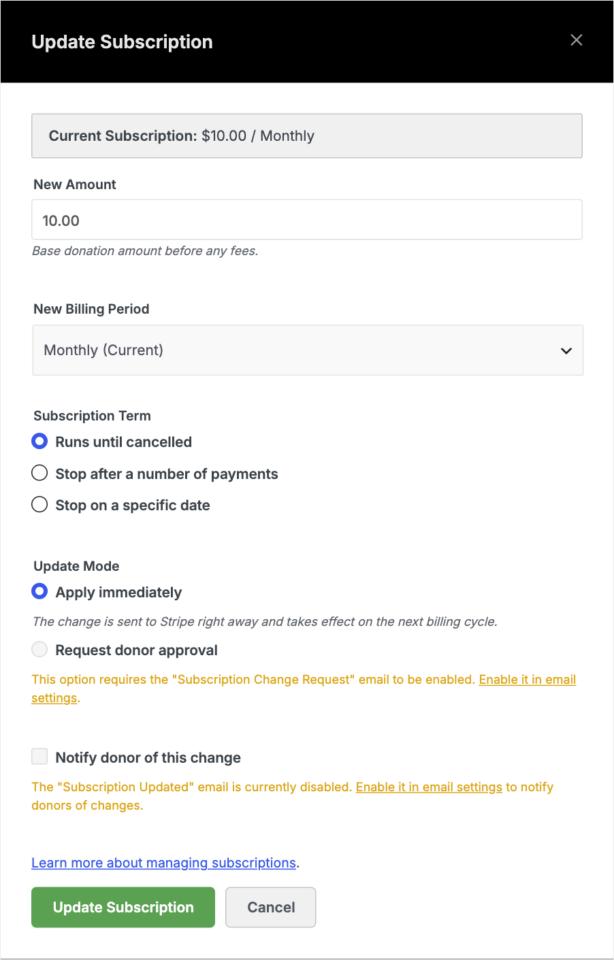
Before we walk through how it works, here’s the window you’ll see when you update a recurring donation.
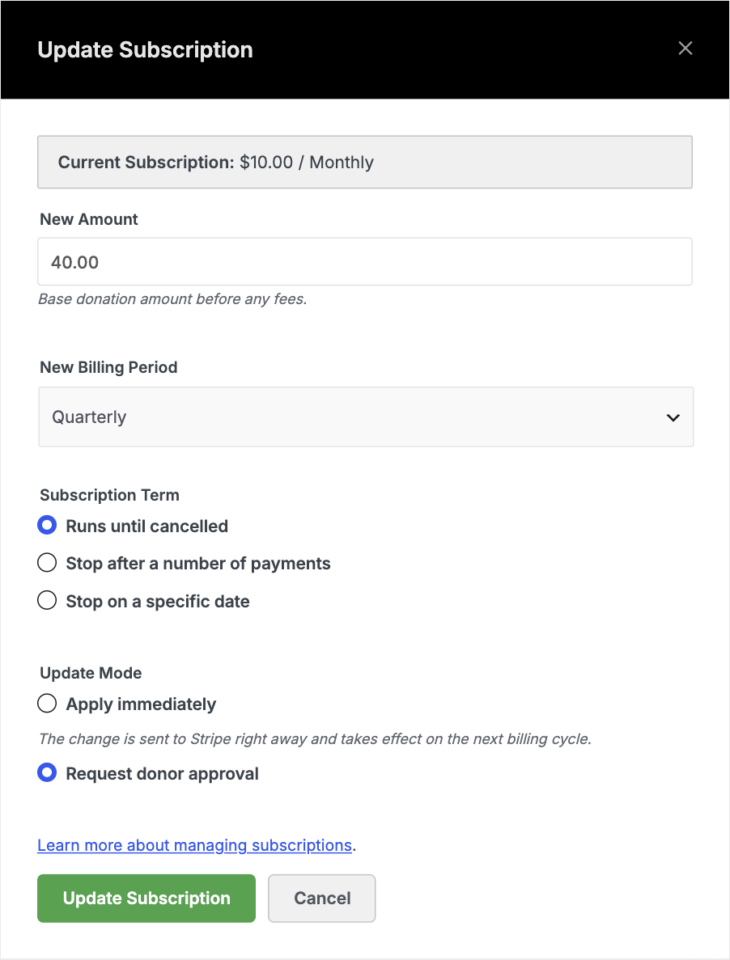
The top of the window shows the donor’s current amount and schedule. Below that, you type a new amount, pick a new billing period, or both.
The same window also lets you change the subscription term, so a gift can run until it’s cancelled or stop after a set number of payments or on a date. That works with fixed-term subscriptions.
Then you choose whether the change goes to Stripe right away or waits for the donor to approve it. A checkbox at the bottom decides whether the donor gets an email about it.
Why Changing a Gift Shouldn’t Mean Starting Over
A donor who asks to give more is telling you they trust you. The fastest way to thank them is to make the change without asking them to do anything again.
Keeping the original subscription also keeps your donor records clean. The donor’s full giving history stays in one place in Charitable’s Recurring Donations feature, so your reports and receipts show one steady supporter instead of 2 separate ones.
It helps when a donor wants to give less, too. If someone can’t afford $50 a month anymore, you can lower the amount for them instead of losing the gift completely. It works alongside Card Updates, which lets donors fix an expired card without losing their subscription.
When You’ll Use Recurring Amount Changes
Here are the requests that usually land in your inbox.
- 📈 A donor wants to give more. They got a raise or feel closer to your cause, and they’d like their monthly gift to go up.
- 📅 A donor prefers one yearly payment. They’d rather see one charge a year than 12, so you switch them from monthly to yearly.
- 🤝 A donor needs to give less for a while. Lowering the amount keeps them giving when they might otherwise cancel.
- ⛪ A church member gives by the quarter. They want their tithe to match how they budget, so you move them to a quarterly schedule.
- 💌 You’re running an upgrade appeal. You ask monthly donors to raise their gift, and each one approves the new amount by email before anything changes.
Apply the Change Now or Ask the Donor First
Every update gives you 2 ways to send it. Apply immediately sends the new amount or billing period to Stripe as soon as you save it. Use this one when the donor asked for the change themselves.
Request donor approval holds the change and emails the donor first. The email shows the proposed change with an Approve this change link and a link to decline it. Nothing changes in Stripe until the donor approves.
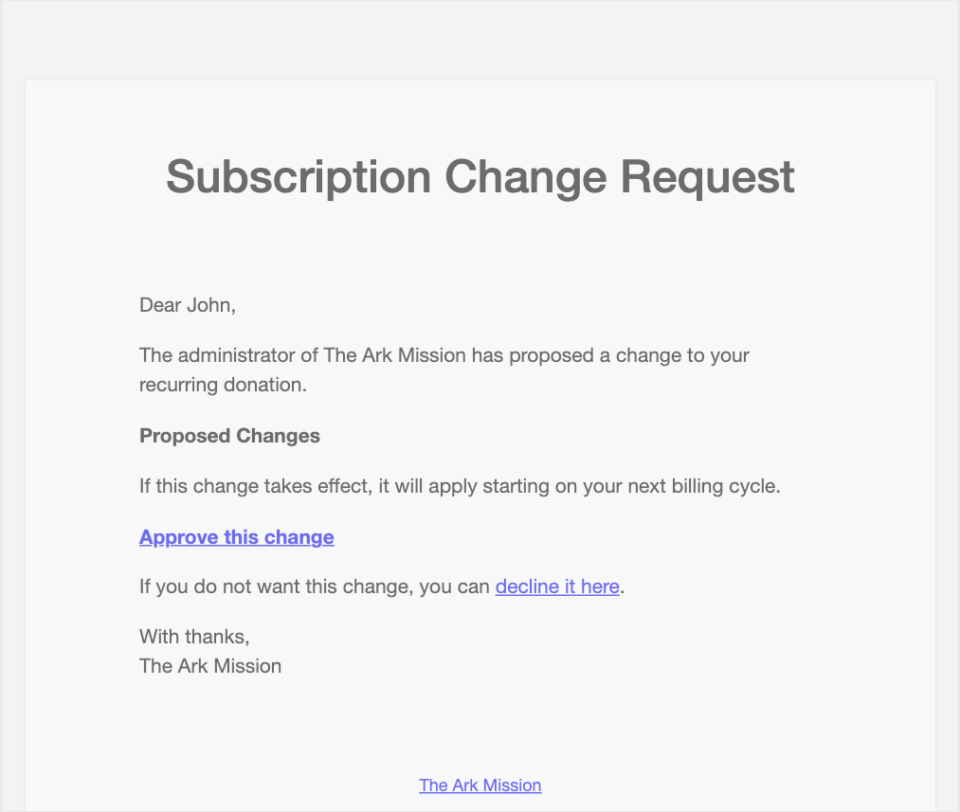
We’d use donor approval for any change the donor didn’t ask for, like an upgrade appeal. It means a donor is never charged a new amount they didn’t agree to.
The approval links are built to be safe. Each one is signed and tied to a single donation, works only once, and expires after 7 days.
If you send a new request before the donor answers, the new one replaces the old one and the first link stops working. If the donor declines, the subscription stays exactly as it was.
Since the approval link arrives by email, it helps to send your WordPress email through a reliable SMTP plugin so it lands in the donor’s inbox.
The Change Starts on the Next Billing Date
An update never touches the billing cycle the donor is already in. The current cycle finishes as normal, and the new amount or schedule starts on the next billing date.
There’s no proration, so the donor won’t see a partial charge or a refund. They won’t be charged twice in the same period either.
Changes Made in Stripe Sync Back to Charitable
Some teams like to work in the Stripe Dashboard. If you change a subscription there, Charitable picks up the change through the Stripe webhook you already have set up.
You don’t need any extra setup for this. The amount and schedule in WordPress will match Stripe either way.
Every Subscription Change Is Logged
Each update is written to Charitable » Tools » Logs. The entry shows the old value, the new value, who made the change and when.
You can filter the Charitable log by donation ID. So if a donor asks when their gift went up, you can answer in a few seconds.
How to Change a Recurring Donation’s Amount or Billing Period
The whole update takes about a minute. The donation needs to use Stripe and have an Active status.
Step 1: Open the Recurring Donation
To get started, head over to Charitable » Recurring Donations and open the donation you want to change.
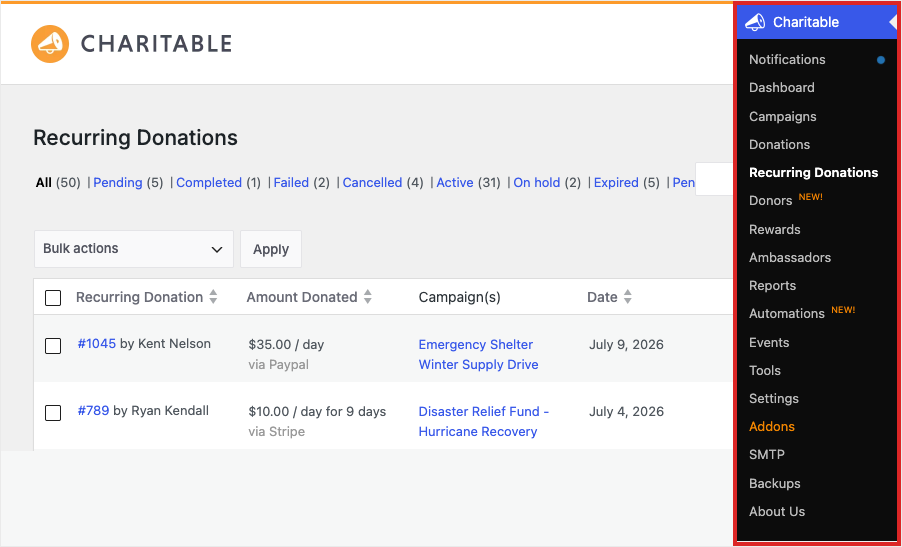
Step 2: Choose Update Subscription
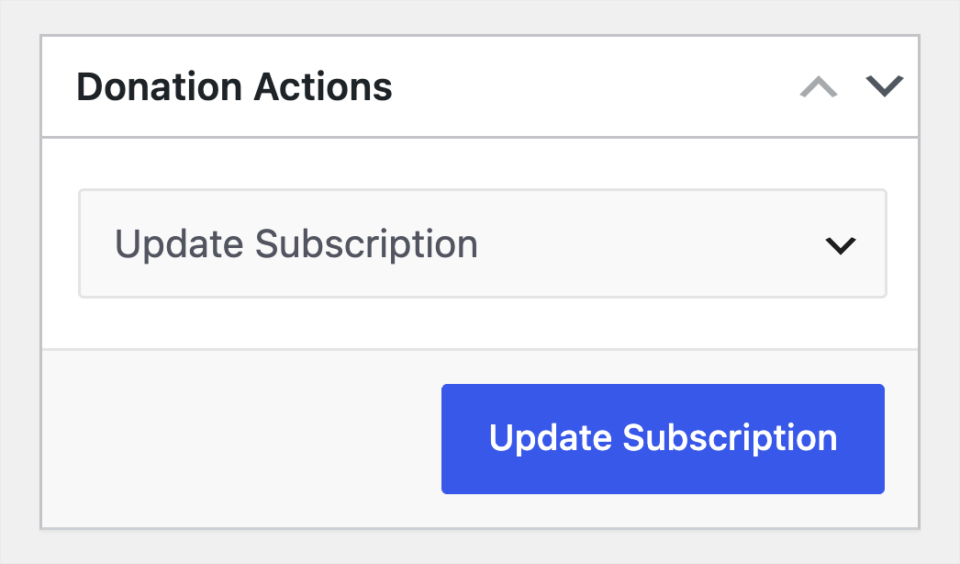
In the Donation Actions box, select Update Subscription from the dropdown. Then click the Update Subscription button.
Step 3: Set the New Amount or Billing Period
Type a new amount, choose a new billing period, or change both. Leave a field as it is to keep the current value.
Step 4: Choose How the Change Is Applied
Under Update Mode, pick Apply immediately if the donor asked for the change. Pick Request donor approval if you’d like the donor to confirm it by email first.
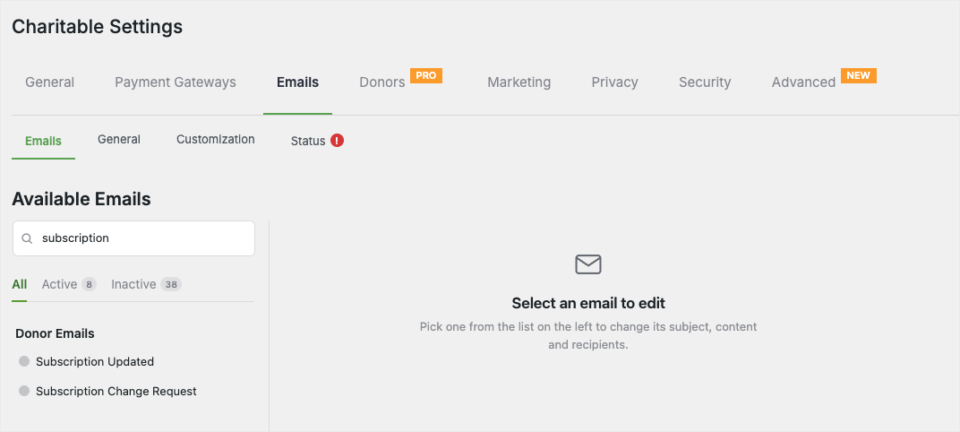
Request donor approval needs the Subscription Change Request email to be turned on. If it’s off, the option is greyed out with a note telling you where to switch it on.
Step 5: Decide Whether to Notify the Donor
When you apply a change right away, tick Notify donor of this change to send the donor a Subscription Updated email. Then click the green Update Subscription button, and you’re done!
Both emails live under Charitable » Settings » Emails. Make sure they’re switched on before your first update.
Read the Full Recurring Amount Changes Tutorial →
For Agencies and Developers
Hooks and Filters
The charitable_process_subscription_update_stripe filter handles the update and returns a result array. The update also runs 3 actions, charitable_recurring_subscription_updated, charitable_recurring_subscription_change_requested and charitable_stripe_subscription_details_changed.
The donor’s approval confirmation page has its own filters for colors, the heading, the message and the button. You can also replace it with your own HTML.
If you need to work with updates in code, charitable_recurring_update_local_subscription(), Charitable_Recurring_Subscription_Change_Handler and Charitable_Gateway_Stripe_AM::update_subscription() are the helpers to start from.
How Billing Periods Map to Stripe
Monthly and yearly map straight to Stripe’s month and year intervals. Quarterly is sent as a month interval with a count of 3, and semi-annually as a month interval with a count of 6. The mapping also covers day and week periods.
FAQs on Recurring Amount Changes
Which plan includes Recurring Amount Changes?
It’s part of Recurring Donations in the Charitable Pro plugin, Plus plan and higher. You’ll need Charitable Pro plugin 1.8.16 or later and Recurring Donations 2.1.0 or later.
Which payment gateways does it work with?
Recurring Amount Changes works with recurring donations made through Stripe.
Why don’t I see the Update Subscription option?
Check the subscription’s status first. Only Active subscriptions can be updated, so paused, cancelled, completed and pending ones won’t show the option.
Will the donor be charged twice when the amount changes?
No. The current billing cycle finishes as normal, and the new amount starts on the next billing date with no proration.
What happens if the donor never answers the approval email?
Nothing changes. The link expires after 7 days, and the subscription carries on at its current amount and schedule.
Get Started With Recurring Amount Changes
Recurring Amount Changes is ready in the Charitable Pro plugin 1.8.16+ with Recurring Donations 2.1.0+, Plus plan and higher. Open any active Stripe recurring donation and the Update Subscription action is waiting in the Donation Actions box.
Read the Recurring Amount Changes Documentation →
Not Yet on a Charitable Paid Plan?
Charitable Has 1.2+ Million Downloads!
Trusted by millions to power successful fundraising campaigns. Try Charitable risk-free today.
✅ 14-day money-back guarantee
✅ Transparent pricing
✅ Code-free setup
What’s New in Charitable
Here’s what else we’ve launched in Charitable recently.
👥
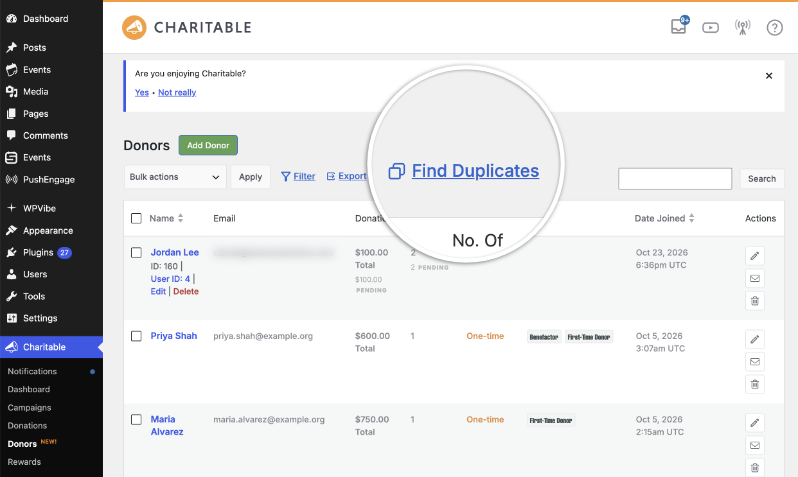
Find supporters who appear twice in your donor list and merge them into one record.
🔑
Supporters sign up to fundraise with just an email address, no password needed.
🏃
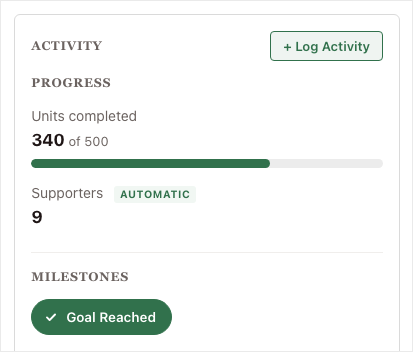
Show progress on minutes read, miles walked or meals packed beside the money raised.
🖨️
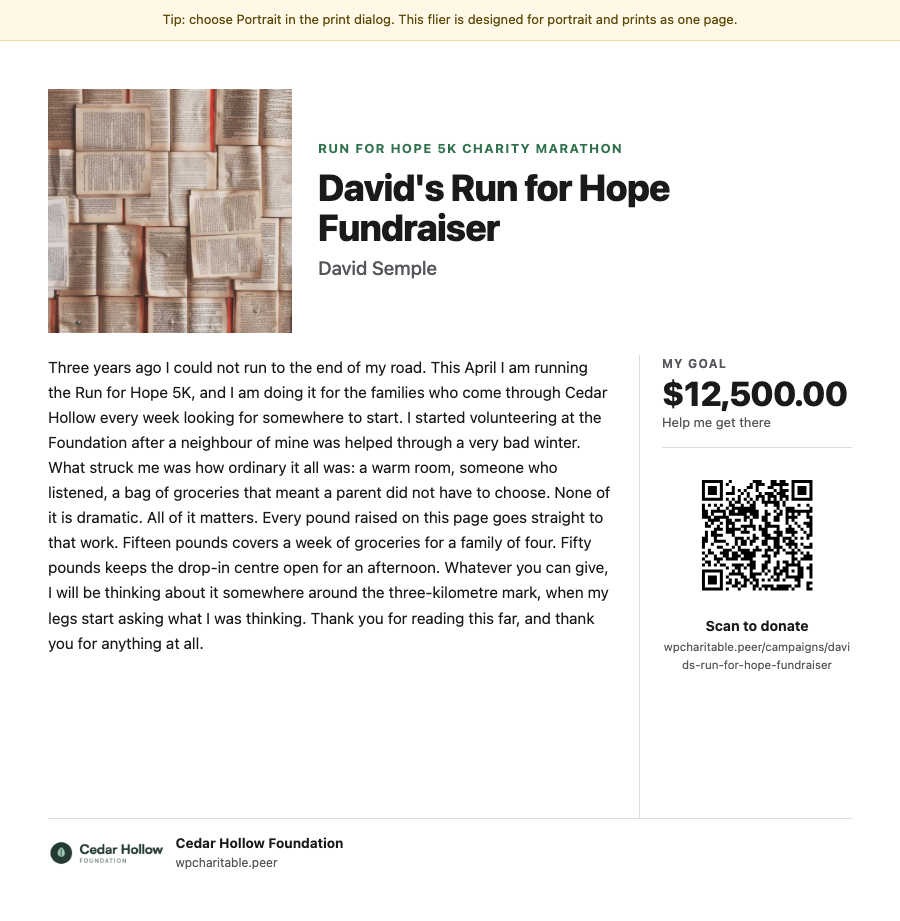
Fundraisers print a flier with a QR code that takes people straight to their page.
💸
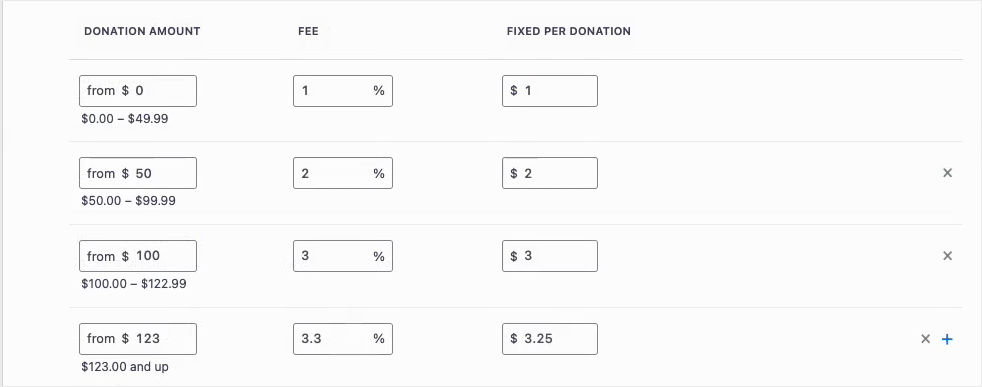
Set a different fee rate for different gift sizes, so the ask fits the gift.
📊
Compare each period with the last one and see which change would help most today.
We add new features to Charitable all the time to help you raise more and look after your donors. See everything we’ve launched in the Charitable Changelog.
Not yet a Charitable Pro user? Sign up today and get up to 50% off on your plan. We’re confident you’ll love raising funds with Charitable. If, for any reason, Charitable is not the right fit for you, we’ll refund your purchase with our 14-day money-back guarantee. Get Charitable Pro Now »
Stay Connected for More Nonprofit Resources
For more tutorials and videos tailored to nonprofits, subscribe to our YouTube channel. We regularly publish expert tips, step-by-step guides on online donations, fundraising strategies, and practical resources to help your organization succeed.
🗞️ Get weekly tips and exclusive guides in your inbox
Join our newsletter →
🎥 Watch step-by-step tutorials and success stories
Subscribe to our YouTube channel →
👩🏽💻 Connect with our community and get daily nonprofit insights
Follow us on LinkedIn →
🥳 Fun reels and non-profit insights
Follow us on Instagram →
👀 Insightful & fun videos to help you grow your cause
Follow us on TikTok→
🌎 Subscribe and follow for general fundraiser tips
Get Fundraiser Tips on TikTok →
Powerful Fundraising Resources
🤖 Use Charitable with Your AI Assistant
⬇️ Download proven strategies, campaign ideas, and expert tools
Get the Fundraising Kit →
💸 Get Free Fundraising Resources
Head to the Charitable Fundraising Hub →
🤔 Got questions about Charitable?
Charitable FAQs →
🏎️ Take Charitable for a spin
Create your Charitable Demo →
Understand non-profit terms and jargon
Non-Profit Glossary →
% Looking for non-profit deals and discounts?
Best Non-Profit Deals and Discounts →



Leave a Reply