Requires:
- Charitable Pro 1.8.16+
- Charitable Recurring Donations 2.1.0+
A donor’s situation changes. Maybe next month is tight and they want to drop their $50 monthly gift to $25, or a matching grant came through and they’d like to bump up their annual donation. Before Charitable Recurring 2.1, the only way to handle that was to cancel the subscription and ask the donor to start a new one, which loses the payment history and risks the gift never coming back.
Now you can update an active recurring donation’s amount and billing period directly from your WordPress admin, and the change syncs to Stripe automatically. The same subscription stays in place, so the payment history is preserved and the donor keeps their original start date.
You can apply a change immediately, or send the donor a secure approval link first. Every change is written to your audit log, and changes you make in the Stripe Dashboard sync back to Charitable on their own.
When you’d use it
- A donor asks to change their amount – update it in seconds instead of cancel-and-resubscribe.
- A donor wants to switch from monthly to annual (or any other period) – change the billing period in place.
- A change needs the donor’s sign-off – send an approval email and let the donor confirm before anything happens at Stripe.
- Someone edited the subscription in the Stripe Dashboard – Charitable picks up the new amount and period automatically.
- You need a record of who changed what – every update lands in Charitable’s logs with the old value, new value, and who made it.
Finding it
Open the recurring donation you want to change:
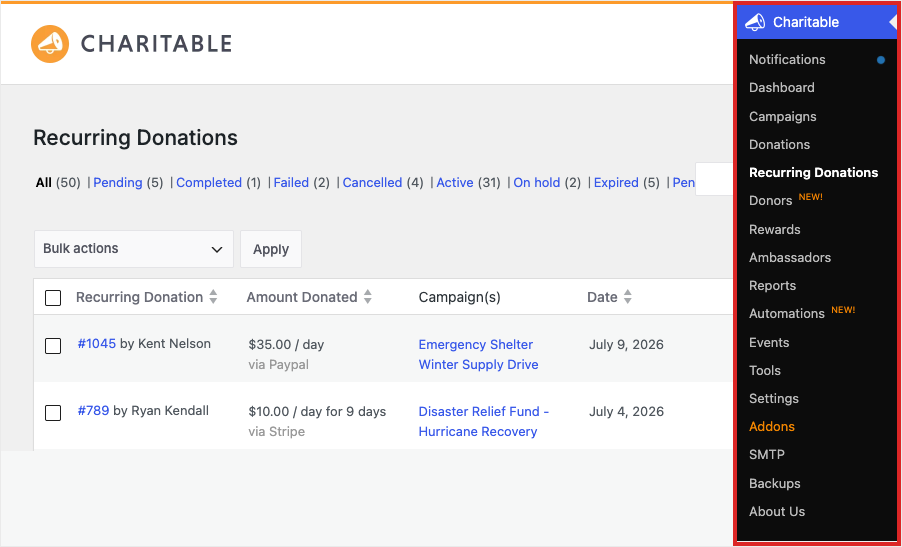
WordPress Admin > Donations > Recurring Donations > (click the donation)
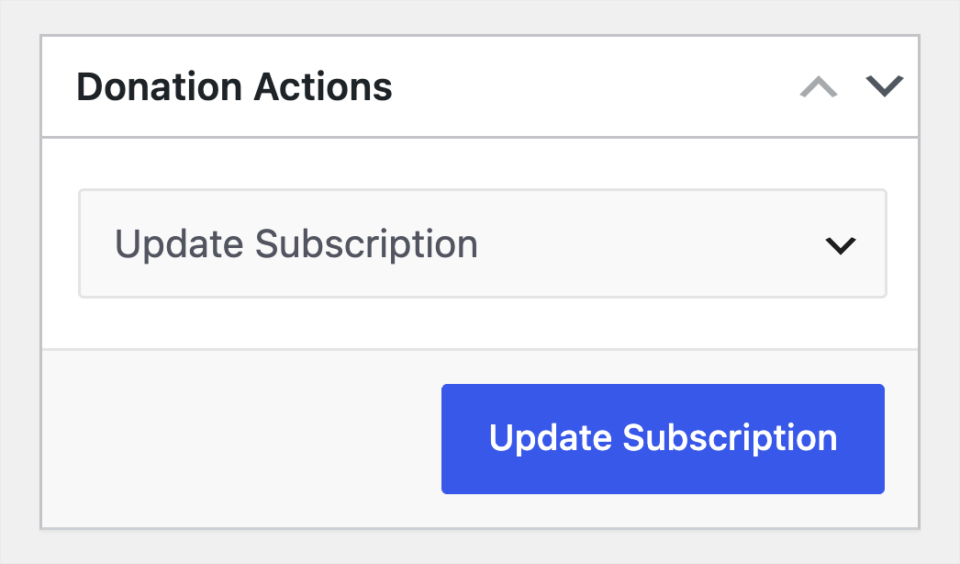
In the Donation Actions box on the right, choose Update Subscription from the dropdown, then click the Update Subscription button.
The donation must use the Stripe gateway and be in Active status. Paused, cancelled, completed, and pending subscriptions can’t be edited, which keeps the donor from being surprised by an unexpected charge.
Updating a subscription
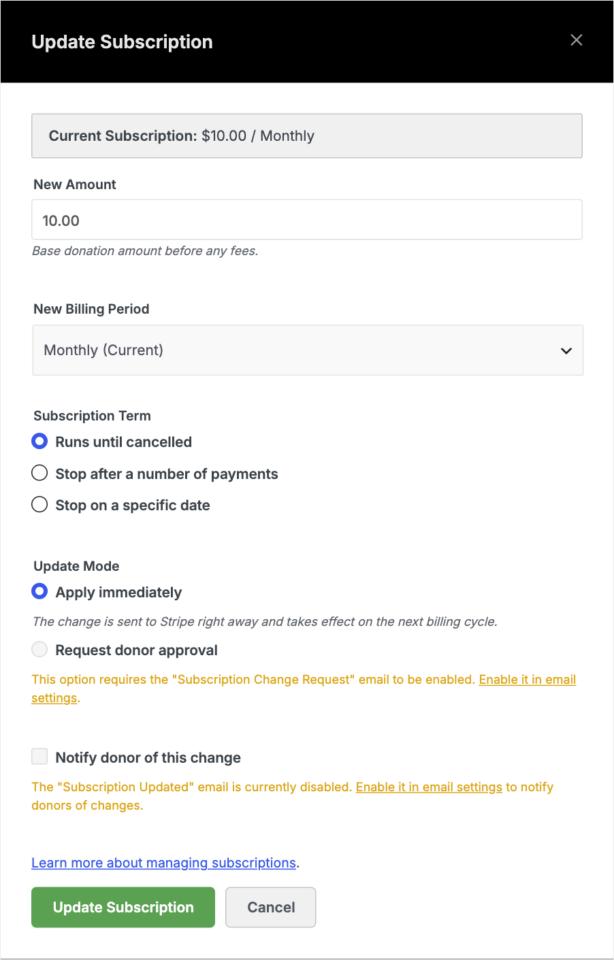
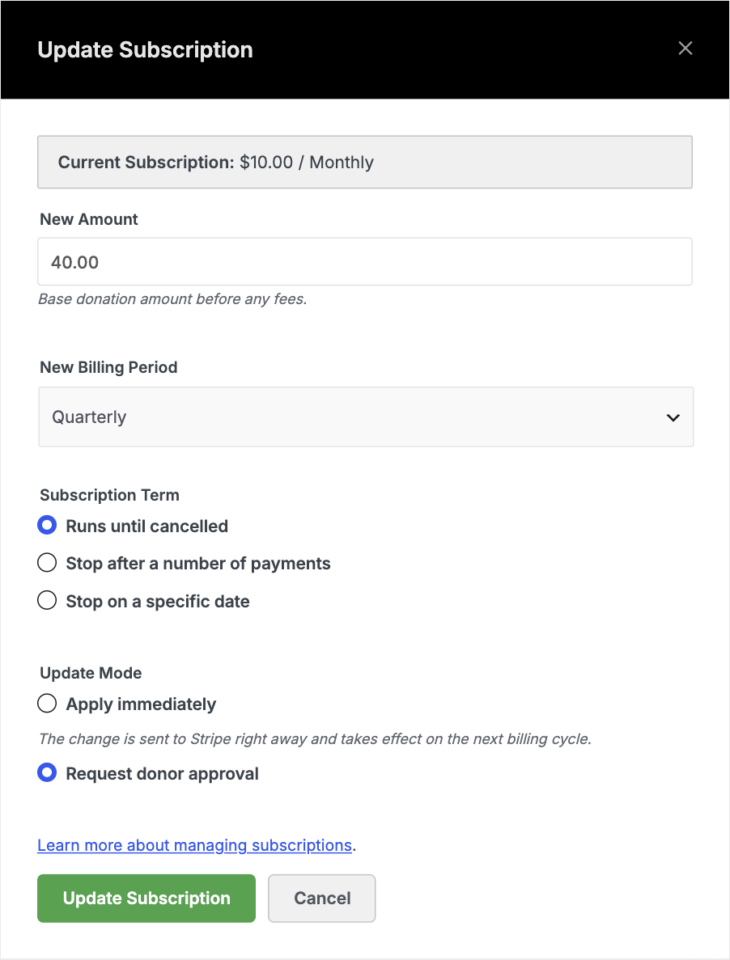
The Update Subscription window shows the current subscription at the top, then the fields you can change.
1. Set the new amount and/or period
- New Amount – enter any value from 1.00 up to (in theory) 999999.99. Leave it unchanged to keep the current amount.
- New Billing Period – choose from daily, weekly, monthly, quarterly, semiannually, or yearly. Leave it on the current period to keep it.
You can change one or both. The change takes effect on the donor’s next billing date; their current cycle finishes normally, and no proration is applied.
2. Choose how the change is applied
- Apply immediately – the change is sent to Stripe right away.
- Request donor approval – a pending change is stored and the donor receives an email with secure approve and deny links. Nothing changes at Stripe until they approve.
3. Decide whether to notify the donor
The Notify donor of this change checkbox is on by default. When checked, the donor receives a “Subscription Updated” email with the old and new amount or period. Uncheck it for back-office adjustments the donor doesn’t need to hear about.
When you click Update Subscription, you’ll see a success message and the donation total updates on the page.
The donor approval workflow
When you choose Request donor approval, the donor gets an email with two links: one to approve the change and one to deny it.
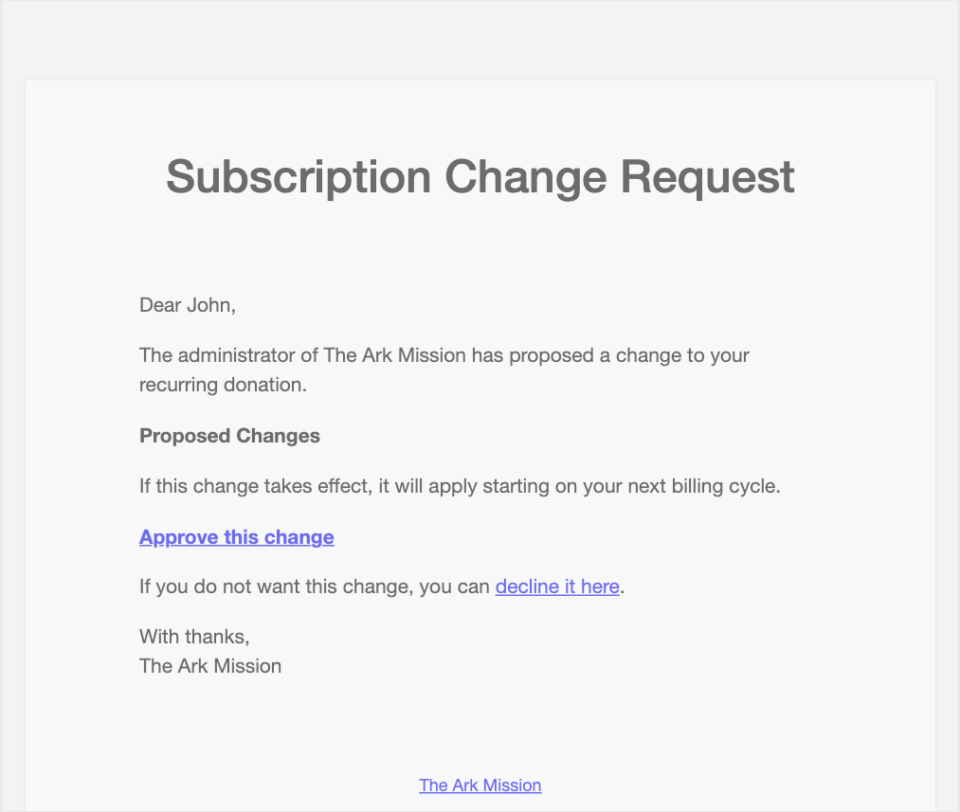
A few things worth knowing about how the approval links work:
- Secure and donation-specific. Each link carries a signed token tied to that exact donation. A link for one donation can’t be used on another.
- They expire. Approval links are valid for 7 days. After that, the link stops working and you’d need to re-issue the request.
- One use only. Once the donor approves or denies, the link is spent. Clicking it again does nothing.
- A new request replaces an old one. If you issue a second change while one is still pending, the newer request supersedes the older one and the old link stops working.
If the donor clicks Approve, the change is pushed to Stripe and the donation updates. If they click Deny, the subscription stays exactly as it was and the pending change is cleared.
Changes made in the Stripe Dashboard
If you (or a teammate) edit a subscription’s amount or billing period directly in the Stripe Dashboard, Charitable notices and updates the local donation to match. This happens through the Stripe webhook you already have configured, so there’s nothing extra to set up. It means the donation record in WordPress stays accurate no matter where the edit was made.
Reading the audit log
Every subscription change is recorded in your Charitable logs, whether it came from an admin update, a donor approval, or the Stripe Dashboard.
WordPress Admin » Charitable » Tools » Logs
Each entry records the old value, the new value, who made the change, and when. You can filter by donation ID to see the full history of a single subscription.
The donor notification email
By default, donors receive a “Subscription Updated” email after a successful change, laying out what changed. You can customize or disable it from:
WordPress Admin » Charitable » Settings » Emails
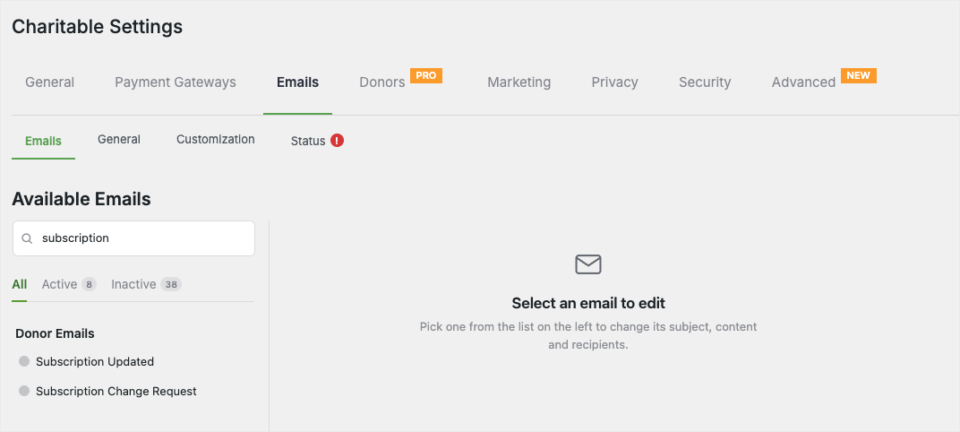
Two emails relate to this feature:
- Subscription Updated – sent to the donor after a change is applied. On by default.
- Subscription Change Request – the approval-request email, sent when you choose “Request donor approval.”
Click either email to edit its subject, headline, and body, or to turn it off.
Tips
- Use Request donor approval for any change a donor didn’t explicitly ask for, so they always have the final say.
- The donation’s Active status is required. If the Update Subscription option is missing or disabled, check the subscription status first.
- Changes take effect on the next billing cycle, not immediately, so the donor is never double-charged in the current period.
Developer reference
The full update path is built on hooks, so you can intercept, extend, or react to subscription changes.
Filters
| Filter | Default | Purpose |
|---|---|---|
charitable_process_subscription_update_stripe | array( 'success' => false, 'message' => ... ) | Implemented by Charitable Pro 1.8.16+. Receives the recurring donation and the proposed changes, pushes them to Stripe, and returns a result array. Both the admin update endpoint and the donor approval handler call it. |
charitable_recurring_confirmation_page_colors | brand colors | Colors for the donor-facing approve/deny confirmation page. |
charitable_recurring_confirmation_page_heading | per-action heading | The heading shown on the confirmation page. |
charitable_recurring_confirmation_page_message | per-action message | The body message on the confirmation page. |
charitable_recurring_confirmation_page_button | return-home button | The button shown on the confirmation page. |
charitable_recurring_confirmation_page_html | empty | Return custom HTML to replace the entire confirmation page. |
Actions
| Action | Arguments | When it fires |
|---|---|---|
charitable_recurring_subscription_updated | $donation, $changes, $old_values | After a successful update. Triggers the “Subscription Updated” donor email when that email is enabled. |
charitable_recurring_subscription_change_requested | $donation, $pending_data, $raw_token | When an admin requests donor approval. Triggers the approval-request email. |
charitable_stripe_subscription_details_changed | $subscription, $stripe_object | Fired by Pro’s webhook processor on a Stripe customer.subscription.updated event. The reverse-sync listener reads the new amount and period off the Stripe object. |
Helper functions and classes
charitable_recurring_update_local_subscription( $donation, $changes )– updates local meta only. Handles single-campaign and multi-campaign proportional distribution of a new amount.Charitable_Recurring_Subscription_Change_Handler::process_approval()– handles the donor’s approve click (?donation_id=X&token=Y&action=approve).Charitable_Recurring_Subscription_Change_Handler::process_denial()– handles the deny path.Charitable_Recurring_Subscription_Change_Handler::cleanup_expired_pending_changes()– removes expired pending-change records (runs on a scheduled event).Charitable_Gateway_Stripe_AM::$period_map– static array mapping each Charitable period to a Stripeintervalandinterval_count.Charitable_Gateway_Stripe_AM::update_subscription( $result, $donation, $changes )– the method behind the filter; mints a Stripe Plan for the new args and swaps the subscription’s item to it with proration disabled.
Period mapping
The amount and period you set map to Stripe’s billing model like this:
| Charitable period | Stripe interval | interval_count |
|---|---|---|
| day | day | 1 |
| week | week | 1 |
| month | month | 1 |
| quarter | month | 3 |
| semiannual | month | 6 |
| year | year | 1 |
Approval token
The approval link uses an HMAC-SHA256 token bound to the donation ID, the time the change was proposed, and a one-time 32-character secret. Tokens expire after 7 days. A repeated-attempt counter is stored in the charitable_sub_token_attempts_{donation_id} transient, and the pending-change record is deleted on approve or deny so a link can’t be replayed.
Customization examples
Add a custom log line whenever a subscription is updated:
add_action( 'charitable_recurring_subscription_updated', function ( $donation, $changes, $old_values ) {
    error_log( sprintf(
        'Subscription #%d updated: %s',
        $donation->ID,
        wp_json_encode( $changes )
    ) );
}, 10, 3 );
Notify your team in Slack when a donor approval is requested:
add_action( 'charitable_recurring_subscription_change_requested', function ( $donation, $pending_data, $raw_token ) {
    my_slack_notify( sprintf(
        'Approval requested for recurring donation #%d',
        $donation->ID
    ) );
}, 10, 3 );
Brand the donor confirmation page:
add_filter( 'charitable_recurring_confirmation_page_colors', function ( $colors ) {
    $colors['primary'] = '#16a34a';
    return $colors;
} );
Related
- Recurring Donations – the overview of recurring giving in Charitable.
- Stripe Gateway – connecting and configuring Stripe.