
Requires: Charitable Pro plugin 1.8.16+
Pro plan and higher
Do you want to build a set of rewards you can use across all your campaigns? In Charitable Rewards, your rewards live in a catalog, which is a shared library you build once and use for any campaign.
This guide covers the 4 reward types, the fields every reward carries, attaching rewards to campaigns, inventory, and archiving.
A tote bag you created for the spring appeal can serve the fall appeal too, without building it again.
Charitable Rewards needs version 1.8.16 or higher of the Charitable Pro plugin, on the Pro plan and higher.
What’s In This Guide?
Watch the Video
This video shows you how to create a reward in the catalog and attach it to a campaign.
Where to Find the Catalog
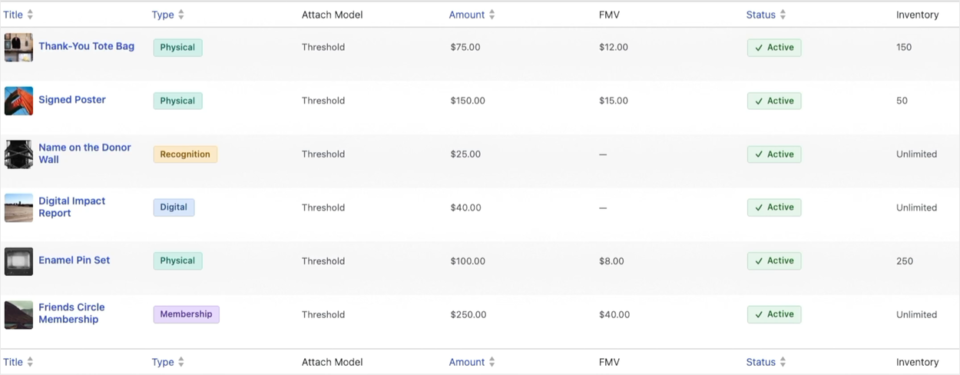
To get started, head over to Charitable » Rewards » Catalog in your WordPress admin.
From there, click “Add Reward” to create a new reward, or click a reward’s title to edit it.
The 4 Reward Types
A reward’s type decides what Rewards does when a donor earns it. To pick one, ask yourself what has to happen next.
| Type | Use it when | What happens on a claim |
|---|---|---|
| Recognition | There’s nothing to deliver, like a name on a donor wall or a mention in the annual report. | It’s recorded and done, and it never joins the fulfillment list |
| Digital | You’re sending a file, a link, or a code. | It’s delivered by email through a protected, expiring download link |
| Physical | You’re mailing something. | Rewards collects a shipping address and adds it to the fulfillment list |
| Membership | It’s an ongoing benefit rather than an object. | It’s recorded as claimed, and it can renew if the donation recurs |
Important: A reward’s type can’t be changed after you create it. This is the one choice in Rewards you can’t undo, and everything else about a reward stays editable.
The reason is that the type controls things that have already happened by the time you’d want to change it. A digital reward has sent download links, and a physical one has collected addresses.
Changing the type would leave those records describing something that no longer matches. If you picked the wrong type, create a replacement and archive the original.
What Every Reward Carries
| Field | Notes |
|---|---|
| Title | Required. This is what donors see on the card |
| Description | Keep it to a sentence, because long text makes the cards uneven |
| Type | Required, and permanent |
| Amount | The donation that unlocks it, or the price if used on a level |
| Fair market value | What the item would cost to buy. This drives tax receipting |
| Image | The card picture |
| Inventory cap | An optional limit on how many can be claimed |
| Show remaining | Whether donors see “147 of 150 left” |
| Estimated delivery | Physical rewards only. Free text, shown to donors |
| Recurring behavior | Whether a renewal creates a new claim |
Fair Market Value Is Not the Same as the Amount
The amount is what a donor has to give to earn the reward. The fair market value is what the item would cost to buy. A tote bag that unlocks at $75 might have a fair market value of $12.
They’re separate because the deductible part of a gift is the amount minus the value received. See Tax Receipting and Fair Market Value for more.
Attaching a Reward to a Campaign
Creating a reward doesn’t put it on any campaign. Attaching it does.
From a reward’s edit screen, or from the campaign’s own Rewards panel, pick the campaigns it should appear on. Each attachment can carry its own settings, so the same reward can behave a little differently in 2 places.
- A display order controls where it sits among that campaign’s rewards.
- An optional threshold override lets 1 campaign unlock it at a different amount.
- An enabled switch removes it from 1 campaign without detaching it.
Shared vs Per-Campaign Inventory
When a reward is attached in more than 1 place, you choose whether the stock is shared or separate.
| Scope | Behavior |
|---|---|
| Per campaign | Each campaign gets its own allowance from the cap |
| Shared | All attached campaigns draw from 1 pool |
Shared scope is what makes peer-to-peer work. A parent campaign’s 50 signed posters are 50 posters in total across every fundraiser page, not 50 each. See Rewards on Peer-to-Peer Campaigns.
Inventory and Running Out
When you set an inventory cap, Rewards counts claims against it. Turn on “Show Remaining” and donors see the count on the card, which encourages them to act on items that are truly limited.
When the cap is reached, the reward switches to a sold-out state. It stops unlocking, and the card says so instead of quietly disappearing.
The Reservation Hold
There’s a short gap between a donor choosing a reward and their payment going through. Without protection, 2 people could both claim the last poster during that gap, and 1 of them would be disappointed.
Rewards places a short hold on a limited item while the donation is still processing, and the item counts as taken during that time.
If the payment goes through, the hold becomes a real claim. If it fails or the donor leaves, the hold expires and the item goes back into stock.
You set the hold time for the whole site on the Other tab, as “Reservation Hold” in minutes. It starts at 30.
Set it a little longer than your slowest checkout. If it’s too short, 2 donors can claim the same item again, and if it’s too long, unfinished donations keep stock out of reach.
Holds only apply to rewards with an inventory cap. An unlimited reward has nothing to reserve.
Archiving, Because There Is No Delete
There’s no delete button anywhere in Rewards, and that’s on purpose.
Every claim record points back at the reward that produced it. Deleting a reward would leave past donors holding a perk with no definition behind it, and it would break the history in your own reports.
Archive the reward instead. An archived reward behaves in 3 ways.
- It stops being offered on new donations.
- It drops out of the catalog’s default view.
- It keeps every past claim intact and readable.
Archiving is also the right way to retire the Example: rewards the setup wizard can add.
Tips Worth Keeping in Mind
These habits keep your catalog tidy and your tax records easy.
- Name rewards the way a donor would describe them. “Enamel Pin Set” beats “Pin SKU 2.”
- Put a fair market value on anything physical, even if it’s a few dollars. Working out values at tax time is much harder than recording them now.
- Use Recognition for thank-you perks. That keeps the fulfillment list to things that actually need mailing.
- If you only ever run 1 campaign, you can still think of the catalog as that campaign’s reward list. The library setup costs you nothing.
- Archive the wizard’s example rewards before going live.
FAQs on Creating Rewards
I picked the wrong reward type. What do I do?
The type can’t be changed, so create a replacement reward with the right type and archive the original.
Why isn’t my new reward showing on the donation form?
Creating a reward doesn’t put it on any campaign. Attach it to the campaign from the reward’s edit screen or the campaign’s Rewards panel.
Developer Reference
Filters
| Filter | Default | Purpose |
|---|---|---|
charitable_rewards_tier_image_size | thumbnail | Registered image size for reward card images |
charitable_rewards_reservation_ttl | the setting value | Override the hold window programmatically |
charitable_rewards_catalog_search_limit | plugin default | How many results the catalog search returns |
charitable_rewards_allowed_file_types | plugin default | Permitted uploads for digital rewards |
charitable_rewards_max_file_size | plugin default | Upload ceiling for digital rewards |
Reward Value Object
Charitable_Rewards_Reward exposes the type, scope, attach model, status, and payload constants.
| Constant group | Values |
|---|---|
| Type | recognition, digital, physical, membership |
| Scope | library, campaign |
| Attach model | threshold, tier |
| Status | active, scheduled, retired, disabled |
Optional settings live in the reward’s payload array rather than as columns. They’re keyed as inventory_cap, show_remaining_inventory, estimated_delivery, recurring_claim_behavior, image_id, digital_code, digital_link, digital_file, and download_limit.
Attachment Scopes
Charitable_Rewards_Attachment_Repository exposes SCOPE_SHARED and SCOPE_PER_CAMPAIGN, plus an optional per-attachment threshold_override.
Storage
Rewards, attachments, claims, claim activity, reservations, and campaign levels each have their own table. Names and lifecycle are covered on the storage page, and schemas aren’t reproduced here because they change between releases.
Customization Examples
Hold limited rewards for an hour instead of 30 minutes.
add_filter( 'charitable_rewards_reservation_ttl', function () {
    return HOUR_IN_SECONDS;
} );
Allow ePub uploads on digital rewards.
add_filter( 'charitable_rewards_allowed_file_types', function ( $types ) {
    $types['epub'] = 'application/epub+zip';
    return $types;
} );
Wrapping Up
You now know how to create a reward, choose its type, attach it to campaigns, manage its stock, and archive it when you’re done.
Next, choose a mode for your campaign so donors can start earning rewards. If you get stuck on any step, our support team is happy to help.
You May Also Want to Read
These guides pick up where your catalog leaves off.
- Setup Wizard. Follow the guided path to your first reward.
- Automatic Mode. Set amounts that unlock rewards as the gift grows.
- Levels Mode. Offer priced tiers that can include a reward.
- Delivering Rewards. See how digital and physical rewards reach donors.
- Tax Receipting and Fair Market Value. Learn why fair market value matters.
Helpful Links
🤝 Get help when you need it
Connect with Customer Support →
📑 Find the guide you need
Browse the Documentation Hub →
⬇️ Download proven strategies, campaign ideas, and expert tools
🔗 Let your AI Assistant do the fundraising work for you.
Connect Charitable to your AI assistant →
💸 Get Free Fundraising Resources
Head to the Charitable Fundraising Hub →
🤔 Got questions about Charitable?
Charitable FAQs →
Need help understanding non-profit terms and jargon?
See our Non-Profit Glossary →




