
Is your nonprofit website safe?
Most of the nonprofit teams I talk to know security matters, but the advice online is full of words like “firewall,” “malware” and “hardening,” and it’s hard to know where to start.
I co-founded a nonprofit and I’ve spent over 15 years building and running websites. I’ve seen sites go down because of a hacker, because of a volunteer who clicked the wrong button, and because a web server simply broke. All thes issues are fixable, and all are much easier to prevent than to clean up.
This guide walks you through securing your WordPress site one step at a time. You don’t need to be technical. Every time a piece of jargon comes up, you’ll find a small box that explains it in plain English.
By the end, you’ll have a security plugin scanning your site, safer logins, a plan for updates, protection against mistakes, and backups you can count on.
What’s in This Guide
Why Nonprofit Websites Need Protecting
A lot of small nonprofits believe hackers won’t bother with them. Sadly, that isn’t how most attacks work.
Most attacks are automated, so a program scans thousands of websites looking for any weak spot it can use. It doesn’t care whether you’re a global charity or a local animal shelter.
Your website also holds things people want. It has donor names and email addresses, a donation form that accepts cards, and a good reputation that spammers would love to borrow.
When I plan a site’s security, I group the risks into 3 buckets. Each one needs a slightly different fix, so it helps to know them apart.
Hackers and Bots
This is the risk everyone thinks of first. Bots try thousands of passwords on your login page. Others look for plugins with known security holes so they can slip in and plant harmful code.
The numbers are growing fast. Patchstack’s State of WordPress Security in 2026 report found 11,334 new security holes in WordPress plugins and themes in 2025. Of those, 91% were in plugins, and WordPress itself had only 6.
That tells you where to focus. WordPress is well looked after, and the add-ons you install are where most trouble starts.
What Is Malware?
Malware is short for “malicious software.” It’s harmful code that someone sneaks onto your site. It might send your visitors to a scam page, show spam links, or steal information.
Human Errors
Not every problem starts with a hacker. Sometimes a staff member deletes the wrong page. A volunteer might reuse a weak password, or someone might answer a fake email that asks for their login.
This happens far more than people expect. Verizon’s 2025 Data Breach Investigations Report found that about 60% of breaches involved a person, through a mistake, a trick, or misuse of access.
What Is a Breach?
A breach is when someone who shouldn’t have access gets into your systems or sees private information, such as your donor list.
Server Problems
Your website lives on a computer owned by your web host. Like any computer, it can break. A hard drive can fail, an update on the host’s side can go wrong, or the whole data center can lose power.
You can’t stop a server from failing. You can make sure a failure only costs you an hour instead of your whole website, and that’s what the backup step in this guide is for.
What Is a Server?
A server is the computer that stores your website’s files and shows your pages to visitors. Your web host rents you space on one.
How to Secure Your Non-Profit Site
Step 1: Install Sucuri Security (Our Top Pick)
If you only do one thing from this guide, install Sucuri Security. It’s my first recommendation for nonprofits because the free plugin covers a lot, and there’s a clear path to more protection when you’re ready.
Why Sucuri
Sucuri is a website security company, and its plugin has 600,000+ active installs on WordPress.org. The free version gives you several layers of protection from one dashboard.
Here’s what you get without paying anything.
- Activity auditing. It keeps a record of who logged in and what changed on your site.
- File integrity checks. It compares your WordPress files to the official copies and tells you if anything was changed.
- Remote malware scanning. Sucuri scans your site from the outside, looking for harmful code and spam links.
- Blocklist monitoring. It checks whether Google or other services have flagged your site as unsafe.
- Security hardening. It gives you 1-click fixes for common weak spots.
- Post-hack actions. It gives you tools to recover quickly if something does go wrong.
What Is a Blocklist?
A blocklist is a list of websites that browsers and search engines think are dangerous. If your site lands on one, visitors may see a big red warning page instead of your homepage, and your donations can stop overnight.
How to Install the Free Sucuri Security Plugin
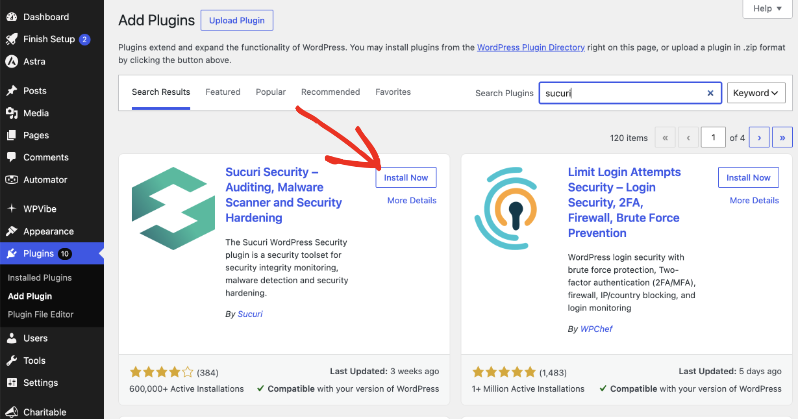
Installing Sucuri works just like any other plugin. To get started, head over to Plugins » Add Plugin in your WordPress dashboard and type “Sucuri” into the search box.
Look for Sucuri Security – Auditing, Malware Scanner and Security Hardening, then click Install Now and Activate. This takes less than a minute.
If you use an AI assistant like Claude or ChatGPT, it can do this part for you. WPVibe is a free plugin that connects your AI assistant to your WordPress site, and its free plan covers plugin installs.
Once your site is connected, ask your assistant to “install and activate Sucuri Security.” WPVibe shows you the plugin details first and only installs it after you confirm.
You’ll now see a new Sucuri Security menu on the left side of your dashboard. The first time you open it, Sucuri may show a box asking for a Firewall API key. You can click Maybe later for now, since you only need that key if you buy the firewall.
What Is an API Key?
An API key is a long code that works like a password between 2 services. When you paste Sucuri’s key into the plugin, the plugin can talk to your Sucuri account.
Check Your Malware Scan and File Integrity
To see your first results, go to Sucuri Security » Vulnerability Scanning. The top of the page shows the WordPress Integrity check.
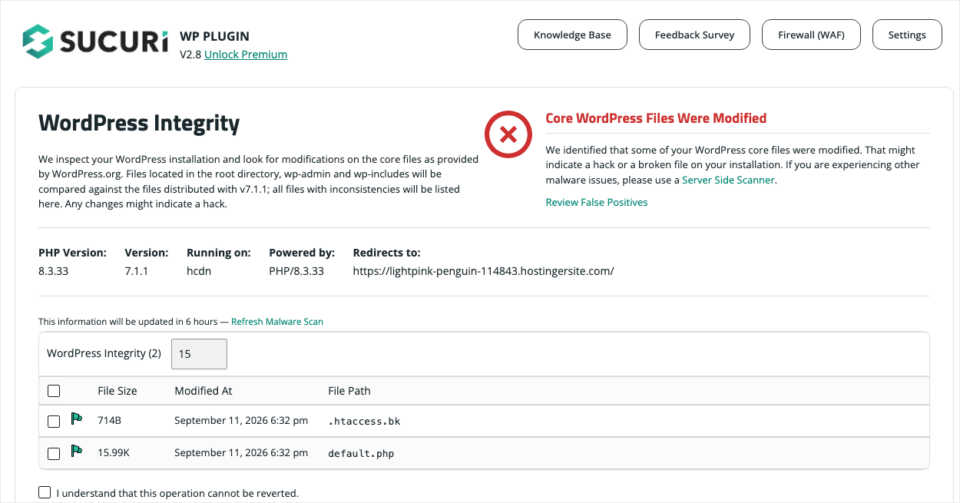
If Sucuri finds a WordPress file that doesn’t match the official version, it lists it here. Don’t panic if you see a warning. Some hosts add their own files, and those show up too.
Look at each file name. If you don’t recognize one, ask your web host about it before you delete anything. If the file is expected, you can mark it as fixed so it stops showing.
Scroll down to see the malware scan results. You want to see green check marks next to items like “No malicious JavaScript” and “No blackhat SEO spam,” plus a list of blocklist services that say your site is clean.
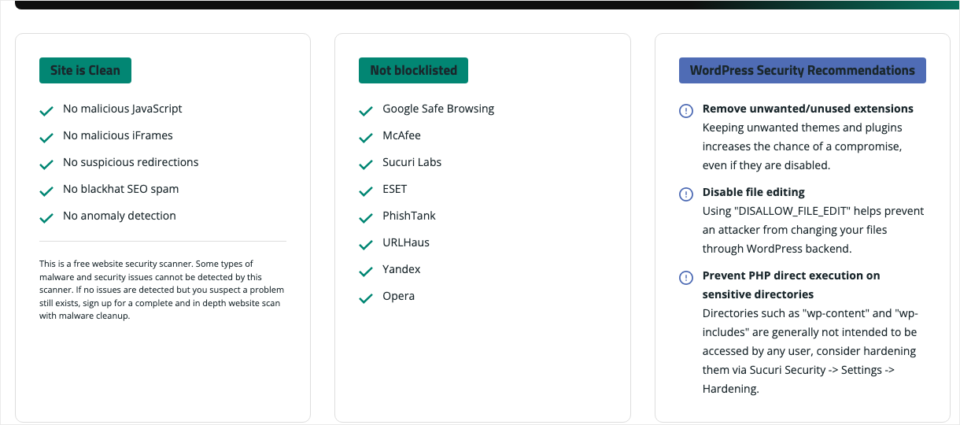
Beside the results, Sucuri shows its own security recommendations for your site. Keep that list open, because it lines up with the next few steps.
Apply Sucuri’s Hardening Options
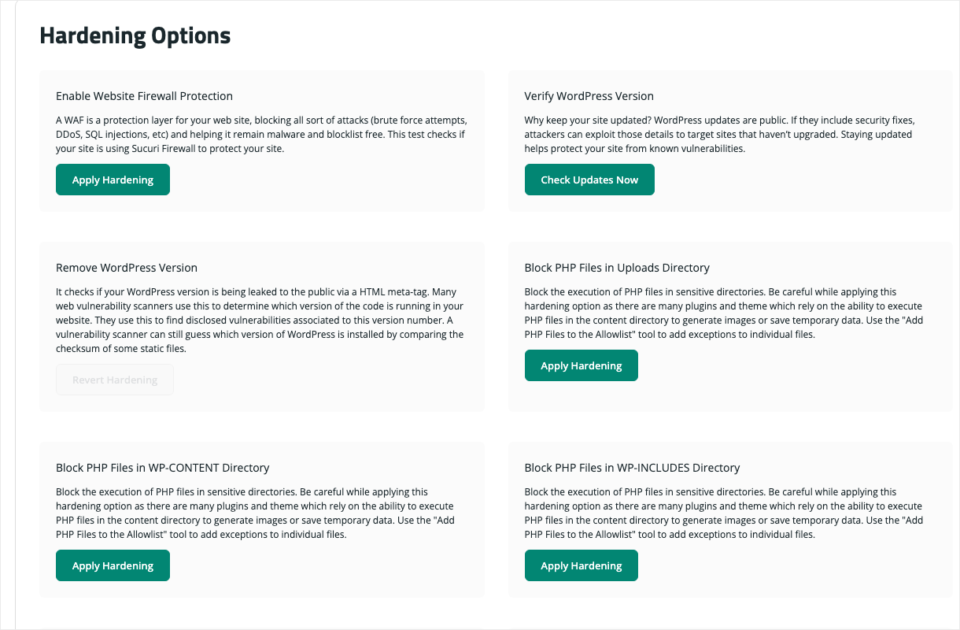
To get started, head over to Sucuri Security » Hardening & Prevention and you’ll see a list of fixes, each with an Apply Hardening button.
What Is Hardening?
Hardening means closing doors that attackers could use. Think of it like locking your windows as well as your front door.
I suggest starting with these options, because they’re safe for almost every site.
- Block PHP Files in Uploads Directory. This stops anyone from running code from your images folder, which is a common trick after a break-in.
- Remove WordPress Version. This hides your WordPress version number, so bots can’t easily look up which holes to try.
- Disable Plugin and Theme Editor. This removes the built-in code editor, which protects you from hackers and from accidental edits. I cover this again in Step 4.
- Verify Default Admin Account. This checks whether your main account still uses the name “admin,” which is the first name bots guess.
Apply 1 option at a time and check your website in another browser tab after each one. If something looks broken, you can come back and click Revert Hardening.
What Is PHP?
PHP is the programming language WordPress is written in. A PHP file is a small program. Your uploads folder should only hold images and documents, so there’s no good reason for a program to be in there.
Turn On Audit Logs and Email Alerts
Sucuri starts recording activity as soon as you activate it. To see the record, go to Sucuri Security » Events Reporting.
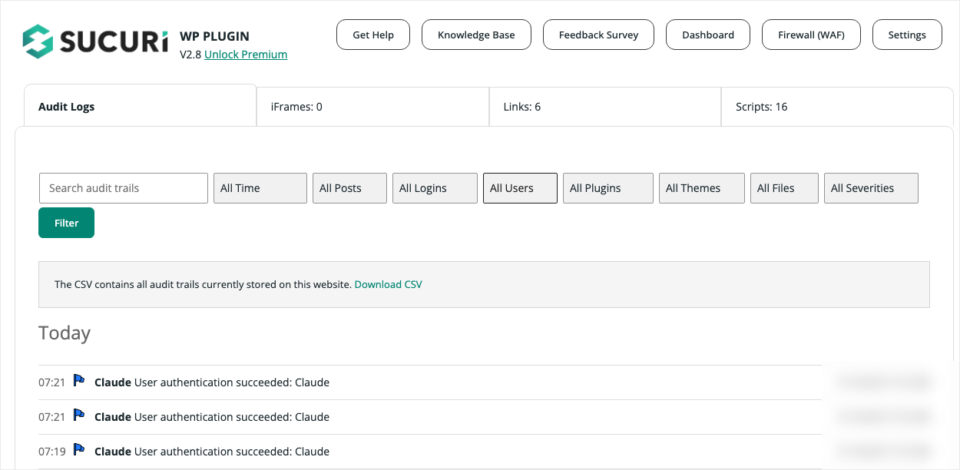
What Is an Audit Log?
An audit log is a diary of everything that happens on your site. It shows who logged in, when, and what they changed. When something goes wrong, it’s the first place to look.
You won’t want to check this every day, so let Sucuri email you instead. Go to Sucuri Security » Settings and click the Alerts tab.
First, add the email address that should get the alerts under Alerts Recipient. Then scroll down to Security Alerts and tick the events you care about.
Sucuri sends these alerts through your WordPress email. If they don’t arrive, WP Mail SMTP can fix that, and I explain how in the WP Mail SMTP section below.
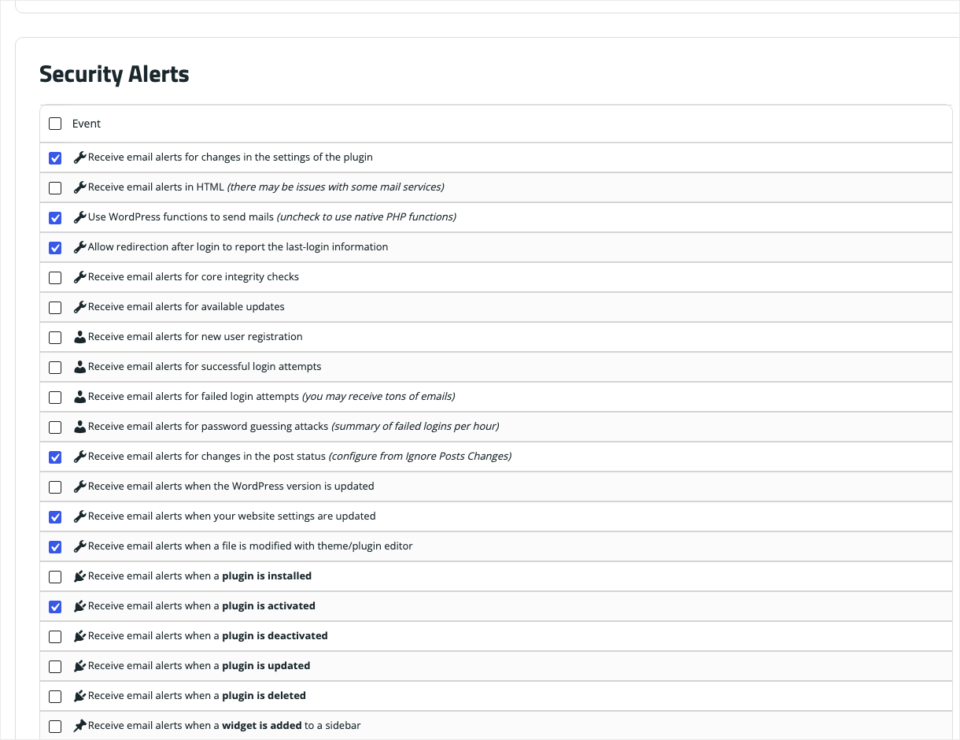
For a small team, I’d turn on these alerts and leave the rest off, so your inbox doesn’t fill up. Each one starts with “Receive email alerts” on the screen.
- Changes in the settings of the plugin
- Core integrity checks
- New user registration
- When a plugin is installed
- When a plugin is activated
- When a file is modified with theme/plugin editor
When you’re done, click Submit to save. From now on, Sucuri will email you whenever one of these things happens on your site.
Add the Sucuri Firewall When You’re Ready
The free plugin watches your site and warns you about problems. The paid Sucuri Firewall goes a step further and blocks bad traffic before it reaches your site at all.
What Is a Firewall (WAF)?
A web application firewall, or WAF, is a security guard that stands in front of your website. Every visitor passes the guard first, and the guard turns away anyone who looks like an attacker.
Sucuri’s firewall runs on Sucuri’s own servers, not on yours. That means blocked attacks never use up your hosting resources. It also includes a CDN and protection from DDoS attacks, which keeps your site online when a flood of fake traffic arrives.
What Are a CDN and a DDoS Attack?
A CDN, or content delivery network, keeps copies of your pages on servers around the world, so your site loads faster for everyone.
A DDoS attack, or distributed denial of service attack, is when thousands of computers visit your site at once to overload it and knock it offline.
When I checked in September 2026, Sucuri’s firewall plans started at $9.99 a month. Its full security platform, which adds unlimited malware removal if your site is ever hacked, started at $229 a year.
Once you sign up, you’ll get an API key. To connect it, go to Sucuri Security » Firewall Management, paste the key into the Firewall API Key field, and click Save.
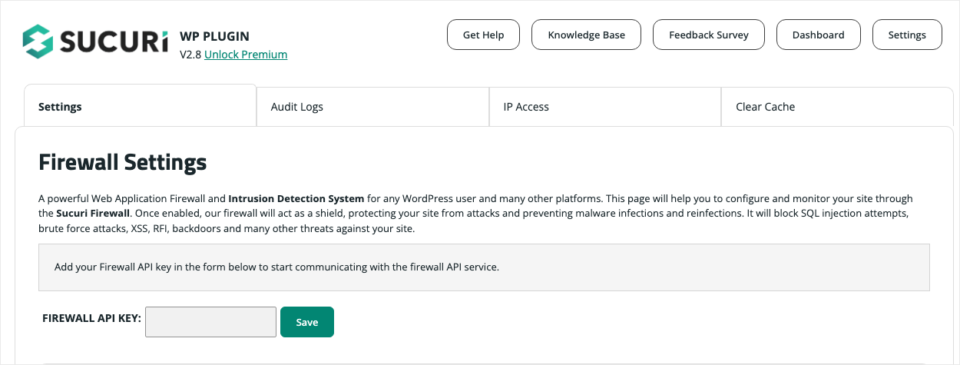
Start free, upgrade when it makes sense. If your site takes a lot of donations or has been attacked before, the firewall is money well spent. If you’re just starting out, the free plugin plus the steps below will already put you ahead of most sites.
That’s Sucuri set up. Next, I’ll show you how to make your logins much harder to break into.
Step 2: Lock Down Every Login
If someone gets your password, they can log in as you, and most of your other protection won’t stop them.
Use Strong, Unique Passwords
A strong password is long and random. A good one is at least 16 characters and isn’t used anywhere else.
Nobody can remember dozens of passwords like that, and you don’t need to. A password manager creates and stores them for you, so you only remember 1 main password.
Reusing passwords is the real danger. If your email password leaks from another website and you use it for WordPress too, bots will try it on your site within days.
What Is a Brute Force Attack?
A brute force attack is when a bot guesses password after password, thousands of times, until one works. Long random passwords make this almost impossible.
Turn On Two-Factor Authentication
Two-factor authentication adds a second lock to your login. Even if someone steals your password, they can’t get in without your phone.
What Is Two-Factor Authentication (2FA)?
2FA means you prove who you are in 2 ways. The first is your password. The second is a 6-digit code from an app on your phone, which changes every 30 seconds.
Sucuri includes 2FA, so you don’t need another plugin. To set it up, go to Sucuri Security » Two-Factor Authentication.
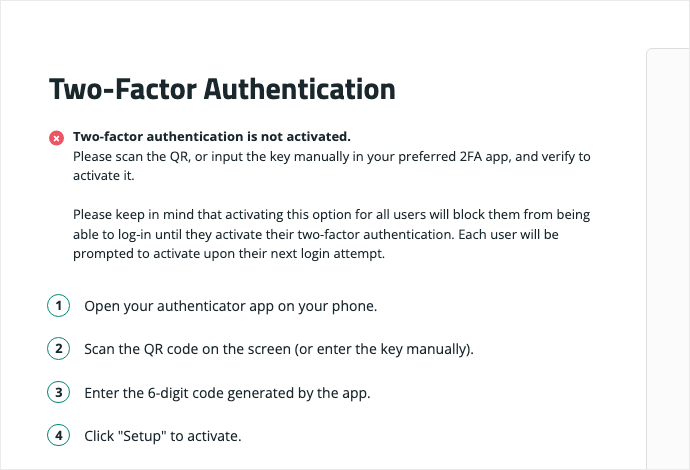
Sucuri walks you through 4 short steps.
- First, open an authenticator app on your phone, such as Google Authenticator or Microsoft Authenticator.
- Scan the QR code on the screen with the app.
- Type the 6-digit code from the app into the box.
- Finally, click Setup to turn it on.
Further down the page, you can switch on 2FA for every user at once. Before you do that, tell your team, because each person will be asked to set it up the next time they log in.
Stop Using “admin” as a Username
Older WordPress sites often have a user called “admin.” Bots know this, so it’s the first username they try.
WordPress won’t let you rename a user. Instead, create a new administrator with a different username, log in as that new user, and delete the old “admin” account. When WordPress asks what to do with that user’s content, choose to give it to your new account so nothing is lost.
Limit Failed Login Attempts
A real person rarely gets their password wrong 10 times in a row. A bot does it all day. Limiting failed attempts locks bots out after a few wrong guesses.
The Sucuri Firewall includes brute force protection. If you’re on the free plugin, you can still turn on an alert for password guessing under Sucuri Security » Settings » Alerts, and I cover free plugins that block these attempts in the other plugins section.
Step 3: Keep WordPress, Plugins and Themes Updated
Updates are the least exciting part of website security. They’re also one of the most important.
Why Updates Matter So Much
When a developer finds a security hole in their plugin, they release an update to fix it. The problem is that the fix also tells attackers exactly where the hole was.
Attackers move quickly. Patchstack’s 2026 report looked at the holes that attackers used the most, and the median time before the first attack was just 5 hours. About half of the high-impact holes were attacked within 24 hours.
So when an update is waiting, every day you leave it gives bots another day to find you.
What Is a Vulnerability?
A vulnerability is a weakness in software that an attacker can use to get in or cause harm. A “patch” is the update that fixes it.
Set a Simple Update Routine
You don’t need to watch for updates all day. A simple weekly habit is enough for most nonprofits.
- Pick 1 day each week, such as Monday morning.
- Make a backup first. I explain how in Step 5.
- Next, head over to Dashboard » Updates and update WordPress, then plugins, then themes.
- Once that’s done, open your homepage and your donation page to make sure they still look right.
For plugins you trust, you can also turn on automatic updates. On the Plugins » Installed Plugins screen, click Enable auto-updates next to each one.
Sucuri helps here too. Its Post-Hack Actions page includes a list of every plugin and theme with an update waiting, so you can see everything in one place.
Delete Plugins and Themes You Don’t Use
A deactivated plugin is still on your server. If it has a security hole, it can still be attacked in some cases.
Go through your plugins once every few months. If you haven’t used one in a while, delete it. Keep 1 spare default theme, such as the latest “Twenty” theme, and delete the other themes you’re not using.
Fewer plugins means fewer things to update and fewer ways in. If you’re not sure which plugins a nonprofit site really needs, my list of the best WordPress plugins for nonprofits is a good place to start.
Only Install Plugins From Trusted Sources
Some websites offer paid plugins for free. These are called nulled plugins, and I’d never install one on a nonprofit site.
What Is a Nulled Plugin?
A nulled plugin is a pirated copy of a paid plugin. Someone has removed its license check and shared it on a third-party website, without permission from the company/developer that made it.
They’re free for a reason. Nulled plugins often come with hidden code that lets an attacker into your site. They also don’t get security updates, because they aren’t tied to a real license.
To stay safe, get your plugins from WordPress.org or straight from the company that makes them. Many free plugins on WordPress.org also have a paid version you can trust, like Charitable.
Before you install a plugin, check its WordPress.org page for these details.
- The number of active installations shows how many sites already use it.
- The star rating and reviews tell you how it works for other people.
- The Last Updated date shows whether the team still looks after it.
- The compatibility note tells you if it has been tested with your version of WordPress.
Go with reputable companies that have been around for a while. A well-known team is far more likely to fix a security hole quickly.
Test Big Updates on a Staging Site
Most updates are small and safe. A big update, like a new major version of your theme, can sometimes change how your site looks or works.
What Is a Staging Site?
A staging site is a private copy of your website where you can test changes. If something breaks there, your real site and your donors are never affected.
Many web hosts include staging with 1 click in their control panel. Ask your host if yours does. If you’re choosing a host now, it’s one of the things I look for, and I cover hosts in more detail in Step 5.
Step 4: Protect Your Site From Human Error
Nonprofits often have lots of people touching the website. Staff come and go, volunteers help for a season, and board members sometimes need access too. Every extra login is another chance for a mistake.
Most human errors are easy to limit with a few settings.
Give People Only the Access They Need
WordPress has different user roles, and each role can do different things. Only 1 or 2 trusted people should be administrators.
What Is a User Role?
A user role is a set of permissions.
An Administrator can change anything, including plugins and settings. An Editor can manage all posts and pages. An Author can only write and publish their own posts.
Here’s a simple way to decide who gets what.
- Administrator. Give this to the person who manages the website and maybe 1 backup person.
- Editor. Give this to the staff member who looks after your blog and pages.
- Author or Contributor. Give this to volunteers who write the occasional post.
- Campaign Manager. If you use Charitable, this role lets someone manage campaigns and donations without being able to change Charitable’s settings. Charitable’s user roles and permissions guide explains exactly what it can do.
To change someone’s role, go to Users » All Users, click the person’s name, and pick a new role from the Role dropdown.
Remove Access When People Leave
When a staff member or volunteer moves on, their login often stays behind. Months later, nobody remembers it exists, and it’s still using the same old password.
Add website access to your offboarding checklist. The day someone leaves, delete their account or lower their role to Subscriber, and give their posts to another user.
Sucuri can help you spot old accounts. Its Last Logins page shows who has logged in recently, so anyone who hasn’t logged in for a long time stands out.
Turn Off the Built-In File Editor
WordPress includes an editor that lets administrators change plugin and theme code from the dashboard. One typo in there can take your whole site down, and there’s no undo button.
It’s also one of the first things a hacker uses once they’re in. Turning it off protects you from both problems.
You already saw the fix in Step 1. Go to Sucuri Security » Hardening & Prevention and click Apply Hardening on Disable Plugin and Theme Editor.
If you ever need to add custom code, such as a tracking script or a snippet from a tutorial, use WPCode instead of editing your theme files. I cover it in the WPCode section below.
Teach Your Team to Spot Phishing
Phishing emails are one of the most common ways people lose their passwords. They’re often dressed up to look like they came from your web host, WordPress, or your own director.
What Is Phishing?
Phishing is a fake message that tries to trick you into giving away a password or clicking a harmful link. The name comes from “fishing,” because the attacker is hoping you’ll bite.
Share these 3 warning signs with everyone who logs in to your site.
- The email says something urgent will happen unless you log in right now.
- The link goes to a web address that’s slightly different from the real one.
- The message asks for your password, which no real company will ever do by email.
The safest habit is to never log in from a link in an email. Type your website address yourself instead.
Step 5: Prepare for Server Failures With Backups
Your web host looks after the hardware, but you decide how quickly you can recover when something breaks.
Choose a Host That Takes Security Seriously
A good host keeps its servers updated, watches for attacks, and helps you when things go wrong.
When you compare hosts, ask these questions.
- Does the plan include a free SSL certificate?
- Does the host make its own daily backups, and how long does it keep them?
- Is there a staging site you can use?
- Can you reach support quickly if your site goes down?
I’ve compared the options side by side in my guide to the best web hosting for nonprofits, including which hosts offer nonprofit discounts.
Make Sure Your Site Uses HTTPS
Look at your website address in your browser. If it starts with “https” and shows a small padlock, you’re set. If it starts with “http” without the “s,” fix this first.
What Are SSL and HTTPS?
An SSL certificate scrambles the information that travels between your visitor’s browser and your website, so nobody in between can read it. HTTPS is what your address shows when SSL is switched on.
Donors look for the padlock before they type in their details. Most browsers also warn visitors away from pages without it. Most hosts include a free SSL certificate, and their support team can switch it on for you.
Watch Your Site’s Uptime
If your site goes down on a Saturday night, you want to know before a donor emails you about it. An uptime monitor checks your site every few minutes and emails you if it stops loading.
What Is Uptime?
Uptime is the amount of time your website is online and working. Downtime is the opposite.
Many hosts include basic uptime alerts, and there are free monitoring services too. It only takes a few minutes to set up.
Back Up Everything, Then Test the Backup
Backups are the one fix that works for all 3 risks in this guide.
If you’re hacked, you restore a clean copy. If a volunteer deletes your donation page, you restore it. If the server fails, you move your backup to a new server.
Test your backup at least once. Until you’ve restored it, you don’t know for sure that it works.
What Is a Full Backup?
A full backup is a copy of your website’s files plus its database. The files hold your theme, plugins and images.
The database holds your pages, settings, and donation records. You need both to bring a site back.
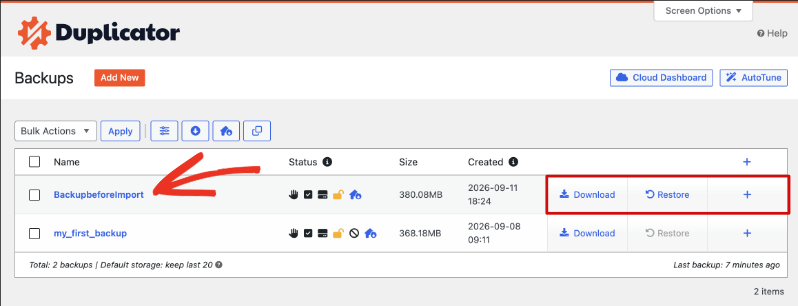
My tool of choice is Duplicator, which has over 1 million active installs. The free version makes full backups, lets you restore with 1 click, and can lock each backup with a password.
I wrote a full, step-by-step tutorial on this, so I won’t repeat it all here. Follow my guide on how to back up your nonprofit website to make your first backup, schedule them, and test a restore.
Keep a Copy Away From Your Server
Here’s a mistake I see a lot. The backup is stored on the same server as the website. When that server fails, the website and the backup disappear together.
What Is an Off-Site Backup?
An off-site backup is a copy stored somewhere other than your web server, such as cloud storage or your own computer. If the server is lost, this copy is still safe.
Your host’s backups are helpful, but they live with your host. Keep at least 1 copy that you control. My guide to storing nonprofit website backups covers the easiest places to put it.
Step 6: Protect Your Donation Forms
Donation forms accept card payments, so they attract a type of bot that other pages don’t.
Why Donation Forms Get Targeted
Criminals who buy stolen card numbers need to know which cards still work. Donation forms are an easy place to test them, because a $1 gift doesn’t look strange.
What Is Card Testing?
Card testing is when a bot makes many tiny payments with stolen card numbers to find out which ones still work. The cards that pass get used for bigger purchases somewhere else.
You might notice a card testing attack in a few ways.
- You see dozens of small donations or failed payments in a short time.
- The donor names and email addresses look random.
- Your payment company sends you a warning, or charges you for chargebacks.
What Is a Chargeback?
A chargeback is when a card owner asks their bank to reverse a payment. The bank takes the money back, and your payment company may add a fee on top.
Add a CAPTCHA to Your Forms
A CAPTCHA is a quick check that tells humans and bots apart. Modern ones are almost invisible, so real donors barely notice them.
What Is a CAPTCHA?
CAPTCHA stands for “Completely Automated Public Turing test to tell Computers and Humans Apart.” You’ve seen the old kind that asks you to click every photo with a bus in it. Newer ones watch how a visitor behaves in the background instead.
If you use Charitable for donations, a CAPTCHA is already built into the free plugin. I’ll show you where to find it in the Charitable section below.
Use a Trusted Payment Gateway
Your payment gateway is the company that actually processes each card payment. Well-known gateways like Stripe and PayPal run their own fraud checks on every payment, on top of anything your website does.
What Is a Payment Gateway?
A payment gateway is the service that takes a donor’s card details, checks them with the bank, and moves the money to your account. Stripe, PayPal and Square are all payment gateways.
Check your gateway’s own fraud settings too. Stripe accounts come with Radar, which blocks payments that look suspicious, and PayPal business accounts have free Fraud Protection tools in the Business Tools area. For help picking a gateway, see my roundup of the best payment gateways for nonprofits.
Sucuri is my first pick, but I’d happily recommend a few other plugins too.
Other WordPress Plugins That Help Keep Your Site Safe
Every site is different, and some teams prefer a plugin that runs its firewall right on their own server. Here are the tools I trust, and when each one makes sense.
Only run 1 security plugin with a firewall. Running 2 firewalls at once can slow your site down, and they can clash with each other.
Wordfence Security
Wordfence is the most widely used WordPress security plugin, with over 5 million active installs. Its free version includes a firewall that runs on your own server, a malware scanner, 2FA, and a CAPTCHA for your login page.
Free users get new firewall rules and malware signatures 30 days after paying customers. That’s still solid protection, but it’s slower to react to brand new threats.
Wordfence is a good choice if you want a free firewall and login limits today, and you’re happy to check its dashboard now and then.
Kadence Security
Kadence Security, which used to be called Solid Security and iThemes Security before that, focuses on logins. It has over 700,000 active installs.
The free version includes 2FA, brute force protection, password rules for your users, and a scanner that checks for known holes in your plugins and themes up to 4 times a day. It’s a nice fit if your biggest worry is lots of staff and volunteers logging in.
WP Activity Log
WP Activity Log keeps a very detailed record of every change on your site, including logins, failed logins, page edits, plugin changes and user role changes.
Sucuri already keeps an audit log, so most small teams won’t need this. It’s helpful for larger teams where you need to know exactly who changed what, and when.
Cloudflare
Cloudflare isn’t a plugin you install from the dashboard. It sits in front of your whole website, a lot like the Sucuri Firewall. Its free plan includes a CDN and a setting called Bot Fight Mode that blocks many bots before they reach you.
Setting it up means changing a setting with the company where you bought your domain name, so ask your host to help if that sounds scary. If you already pay for the Sucuri Firewall, you don’t need Cloudflare as well.
ActiveLayer
ActiveLayer catches spam in your contact forms, comments and sign-up forms without a CAPTCHA. It checks each form in the background, so your visitors never have to prove they’re human.
It works with form plugins like WPForms, Contact Form 7 and Gravity Forms, plus WordPress comments. It comes from Syed Balkhi, the founder of WPBeginner and co-founder of WPForms, so it’s built by a team with a long track record in WordPress.
The plugin is free, and a free account gives you 200 spam checks to try it. Paid plans started at $48 a year when I checked in September 2026. For your donation forms, use Charitable’s built-in CAPTCHA and DonationGuard, which I cover in the next section.
WPCode
Tutorials often ask you to paste code into your theme’s functions.php file. One typo there can take your site down, so I use WPCode for custom code instead. It’s free, with over 3 million active installs.
WPCode keeps every snippet in one place and checks your code for common errors before you save it. If a snippet causes a problem, you can switch it off without touching your theme.
We use it for Charitable too. Our guide to customizing donation forms with WPCode shows how it works.
WP Mail SMTP
WordPress sends email straight from your web server by default. A lot of those emails land in spam or never arrive at all.
WP Mail SMTP sends your site’s email through a real email service, such as Gmail, Outlook or SendGrid, so you never miss important emails from your site. That includes Sucuri’s security alerts, password reset emails and your donation receipts.
What Is SMTP?
SMTP is the standard way email travels across the internet. An SMTP plugin makes WordPress send email through a proper mail service, the same way your normal inbox does, so it’s much less likely to be marked as spam.
The free version has over 4 million active installs, and a setup wizard walks you through connecting your email service.
WPConsent
If your site uses Google Analytics, a Facebook pixel or other tracking tools, privacy laws like GDPR may ask you to get a visitor’s permission before those tools run. Asking first also shows donors that you respect their privacy.
WPConsent adds a cookie consent banner to your site and scans your pages to find the cookies they use. It also blocks tracking scripts until the visitor agrees, and it can create a cookie policy page for you.
What Is Cookie Consent?
Cookies are small files a website saves in a visitor’s browser. Cookie consent means asking visitors whether they’re happy for your site to use the ones that track them, before any of those cookies are saved.
The free plugin has over 200,000 active installs. The rules differ from country to country, so if you’re not sure what applies to your donors, a local advisor can walk you through what your country expects.
Duplicator
I mentioned Duplicator in Step 5, and it belongs on this list too. Security plugins try to stop problems. A backup plugin is how you recover when one slips through anyway.
With the free version you can make full backups and restore them with 1 click, and store them on your server or in Duplicator Cloud. The paid version adds scheduled backups and more storage choices, such as Google Drive and Dropbox.
How Charitable Can Help Keep Your Donations Safe
If you accept donations on your WordPress site with Charitable, you already have several security tools built in. You don’t need a separate plugin to protect your donation forms, and your donors stay on your own website the whole time.
All of these settings live in one place. To find them, head over to Charitable » Settings » Security.
🆓 A Built-In CAPTCHA in the Free Plugin
The free Charitable plugin includes a CAPTCHA for your donation forms, registration pages and campaign creation forms. You can pick from 4 providers.
- Cloudflare Turnstile. It’s free, invisible, and doesn’t need a Google account. The Charitable Pro plugin marks it as recommended.
- Google reCAPTCHA v3. It scores each visitor in the background and hides from most donors.
- Google reCAPTCHA v2. The free plugin uses the invisible version, which only challenges visitors who look suspicious. The Charitable Pro plugin also offers the familiar checkbox.
- hCaptcha. It’s a privacy-focused option that doesn’t need a Google account either.
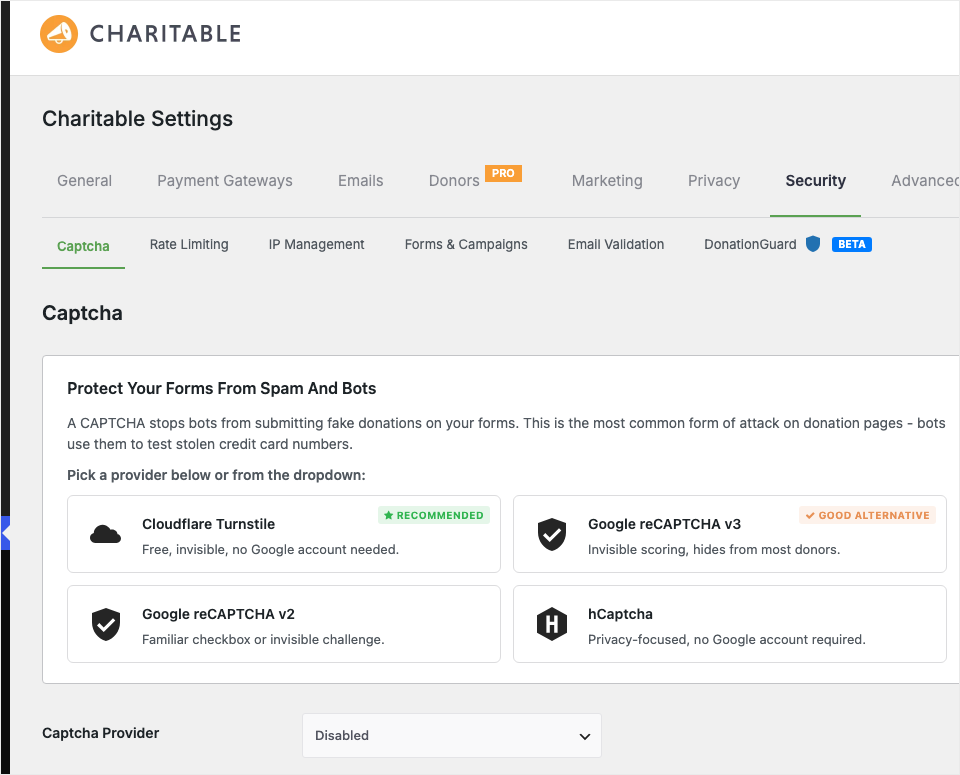
To turn it on, choose a provider from the Captcha Provider dropdown, add the keys from that provider, and click Save Changes. If you leave Require captcha for logged-in users set to No, your own team won’t be slowed down.
Our team wrote more about why we added this in Secure Your Donation Forms with New Built-in Security.
DonationGuard Watches for Bot Attacks
A CAPTCHA checks one visitor at a time. DonationGuard looks at all your donations together. It learns what normal donation activity looks like on your site, then flags coordinated attacks like card testing as they start.
It does this by watching several signals together.
- It notices when lots of payments start failing at once.
- It spots forms being sent from many different places at the same time.
- It catches forms that are filled in far faster than a person could type.
- It adds 2 invisible traps that catch basic bots before they reach your payment gateway.
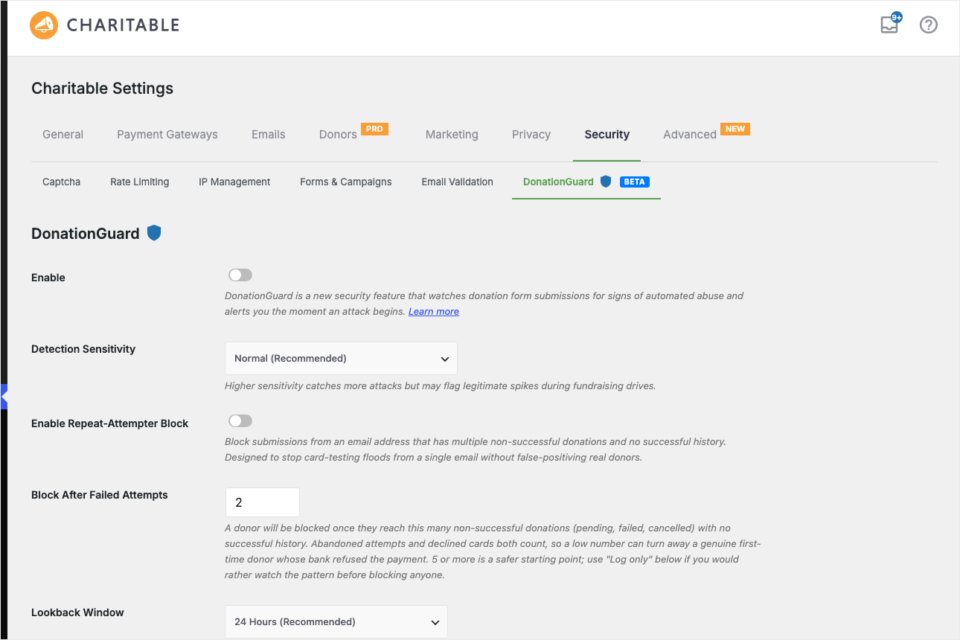
You’ll find it under Charitable » Settings » Security » DonationGuard. One click on Apply Recommended Settings gives you a safe starting point, and you can choose whether DonationGuard blocks attacks or just records them for you to review.
DonationGuard is part of the Charitable Pro plugin, version 1.8.16 and higher, and it’s marked as beta on the settings screen for now. If something serious happens, it emails you with a link straight to the attack record. Read the full story in Introducing DonationGuard, or follow the DonationGuard setup guide.
More Protection in the Paid Plans
The same Security screen has a few more tabs in the Charitable Pro plugin. You can use them to add more protection when bots keep hitting your forms.
- Rate Limiting. It caps how many times one visitor can submit a form in a short window.
- IP Management. It lets you block addresses that keep attacking, or always allow ones you trust.
- Forms & Campaigns. It turns on a Honeypot, which is a hidden field only bots fill in, and a Time Trap, which rejects forms sent faster than a person could type.
- Email Validation. It helps catch fake email addresses before a donation goes through.
What Is an IP Address?
An IP address is a number that identifies a device on the internet, a bit like a street address for a computer. Blocking an IP address stops that device from reaching your forms.
Clean Up After a Spam Attack
If bots have already filled your records with fake donations, Charitable has a tool to clear them out. Head over to Charitable » Tools and open the Misc tab. Under Bulk Remove Donations, choose pending or failed donations, and pick a date range if you only want to clear the attack window.
Make a backup before you run it, since removed donations can’t be brought back. Our guide to handling donation spam and card testing attacks walks you through the whole cleanup.
Safer Access for Your Team
Remember the advice in Step 4 about giving people only the access they need? Charitable’s Campaign Manager role was made for that. Your fundraising staff can see campaigns and donations, and export reports, without being able to touch your plugin settings.
Donors can have their own safe space too. The Donor Dashboard, in the Basic plan and higher, gives each donor a private login where they can see their history and download receipts, so your team doesn’t have to email personal records back and forth.
For privacy settings, such as how long donor data is kept, see the Charitable user privacy guide.
Getting Started With Charitable Is Simple
If you don’t use Charitable yet, you can have a secure donation form running in an afternoon.
- Install Charitable from Plugins » Add Plugin. The installation guide shows each click.
- Connect Stripe, PayPal or Square. Stripe connects with 1 click.
- Then create your first campaign with the visual campaign builder.
- Turn on a CAPTCHA under Charitable » Settings » Security.
- Publish your campaign and share it with your supporters.
You can start with Charitable Lite for free, with unlimited campaigns and donations. When you want DonationGuard, recurring donations and more, the paid plans start at $69 a year and come with a 14-day money-back guarantee.
You can compare what each version includes on the Lite vs. Pro page.
What to Do If Your Site Gets Hacked
Finding out your site has been hacked is stressful. The most important thing is to stay calm and work through the steps in order.
Signs Your Site May Be Hacked
Hacks aren’t always obvious. Keep an eye out for these signs.
- Visitors say your site sends them to a different website.
- Google shows a warning next to your site in search results.
- You find new admin users you didn’t create.
- Sucuri emails you about changed files or a new plugin you didn’t install.
Use Sucuri’s Post-Hack Actions
Sucuri has a whole page for this moment. Go to Sucuri Security » Post-Hack Actions.
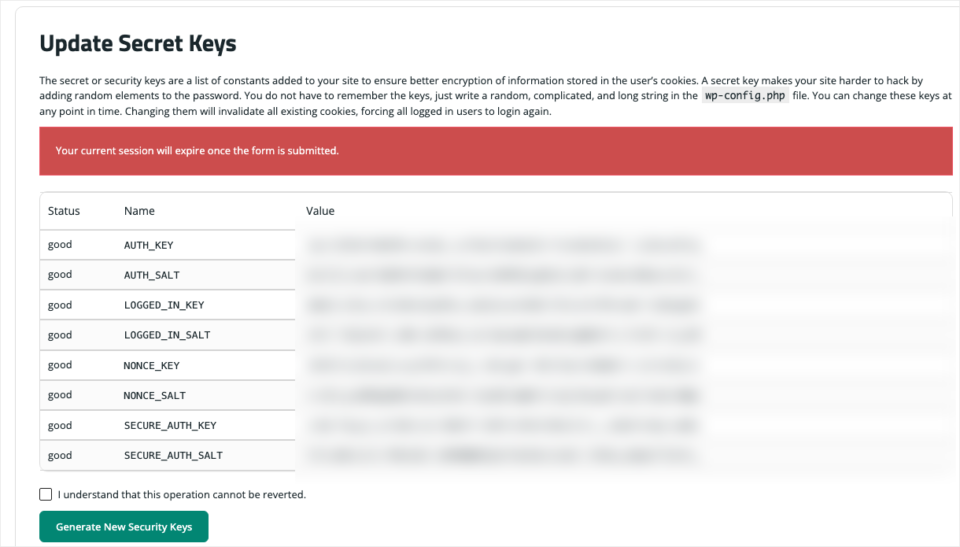
Work through the tools on this page from top to bottom.
- Update Secret Keys. This logs everyone out at once, including the attacker. You’ll need to log back in afterwards.
- Reset User Password. This sends new passwords to the users you pick, so any stolen passwords stop working.
- Reset Installed Plugins. This replaces free plugins with fresh copies from WordPress.org, in case the attacker changed their code.
- Available Plugin and Theme Updates. This shows anything that’s out of date, which is often how the attacker got in.
What Are Secret Keys?
Secret keys are long random codes that WordPress uses to protect the login cookies in your browser. Changing them makes every existing login invalid, so anyone who snuck in is kicked out.
Restore a Clean Backup or Get Expert Help
If you have a backup from before the hack, restoring it is often the fastest fix. Just remember to update everything and change passwords straight after, or the attacker can come back the same way. My backup restore steps walk you through it.
If you don’t have a clean backup, or the hack keeps coming back, get professional help. Sucuri’s paid platform includes unlimited malware removal, and your web host’s support team may help too.
Finally, tell the people who need to know. If donor information may have been seen, a local advisor can walk you through what your country expects you to report, and when.
Quick Start: Your Nonprofit Website Security Checklist
Feeling a little overwhelmed? You don’t have to do everything today. Start with these 3 steps this week, and add the rest over the next month.
- Install Sucuri Security and apply the 4 hardening options from Step 1.
- Turn on 2FA for every administrator.
- Make a full backup with Duplicator, download a copy, and test that it restores.
After that, set a weekly update day, tidy up your user list, and switch on a CAPTCHA for your donation forms. Each one takes less than 30 minutes.
If you’re still building your site, my guide on how to create a nonprofit website shows you how to set it up with these habits in place from day one.

Charitable Now Works With the AI Assistant You Already Use
This is the most fun thing we’ve shipped all year, and you have to try it. You can now use ChatGPT, Claude, or any AI assistant you’re already using to build and launch fundraiser campaigns.
You can create donation records, manage donor profiles, fetch data, and get fundraising reports too. Simply connect your AI agent, and start asking for what you want.
No Charitable addon needed, no coding, and no elaborate setup. Anyone can do it!
FAQs on Nonprofit Website Security
Is Sucuri Security free?
Yes, the Sucuri Security plugin is free on WordPress.org and includes malware scanning, audit logs, hardening, 2FA and post-hack tools. The firewall and malware removal service are paid extras.
Can I use Sucuri and Wordfence together?
I don’t recommend running 2 firewalls at the same time, because they can clash and slow your site down. Pick 1 main security plugin and stick with it.
How often should a nonprofit back up its website?
If you take donations every day, back up daily. For a quieter site, weekly is usually enough, plus an extra backup before any big update. My nonprofit website backup guide, linked in Step 5, shows you how to schedule them.
Do small nonprofits really get hacked?
Yes. Most attacks are run by bots that scan every site they can find, so size doesn’t protect you. Small sites are often easier targets because nobody is watching them.
How do I stop fake donations on my website?
Add a CAPTCHA to your donation forms first. If you use Charitable, the CAPTCHA is built into the free plugin, and DonationGuard in the Charitable Pro plugin adds real-time detection of card testing attacks.
Does my web host keep my site secure?
A good host protects its servers, but it can’t control your passwords, plugins or users. Website security is shared between you and your host.
What should I do first if my site is hacked?
Change your passwords and use Sucuri’s Update Secret Keys tool to log everyone out. Then restore a clean backup or ask for professional malware removal.
Charitable Has 1.2+ Million Downloads!
Trusted by millions to power successful fundraising campaigns. Try Charitable risk-free today.
✅ 14-day money-back
✅ Transparent pricing
✅ Code-free setup
Stay Connected for More Nonprofit Resources
For more tutorials and videos tailored to nonprofits, subscribe to our YouTube channel. We regularly publish expert tips, step-by-step guides on online donations, fundraising strategies, and practical resources to help your organization succeed.
🗞️ Get weekly tips and exclusive guides in your inbox
Join our newsletter →
🎥 Watch step-by-step tutorials and success stories
Subscribe to our YouTube channel →
👩🏽💻 Connect with our community and get daily nonprofit insights
Follow us on LinkedIn →
🥳 Fun reels and non-profit insights
Follow us on Instagram →
👀 Insightful & fun videos to help you grow your cause
Follow us on TikTok→
🌎 Subscribe and follow for general fundraiser tips
Get Fundraiser Tips on TikTok →
Powerful Fundraising Resources
🤖 Use Charitable with Your AI Assistant
⬇️ Download proven strategies, campaign ideas, and expert tools
Get the Fundraising Kit →
💸 Get Free Fundraising Resources
Head to the Charitable Fundraising Hub →
🤔 Got questions about Charitable?
Charitable FAQs →
🏎️ Take Charitable for a spin
Create your Charitable Demo →
Understand non-profit terms and jargon
Non-Profit Glossary →
% Looking for non-profit deals and discounts?
Best Non-Profit Deals and Discounts →






Leave a Reply