Requires: Charitable Pro 1.8.16+
Note: DonationGuard is currently in beta in 1.8.16.
DonationGuard is a real-time bot-attack detection layer for your donation forms. It watches submissions for the patterns coordinated attackers leave behind — abnormally fast form fills, runs of failed cards from rotating IPs, donor-to-view ratios that no human browsing rhythm produces — opens severity-tiered Attack Records when it sees them, and alerts you the moment a campaign starts taking fire.
Key Features
- Monitor every donation submission in real time for five distinct attack signals
- Score activity against a learned baseline of your site’s normal donation traffic
- Open a structured “attack record” so you can review and bulk-act on suspicious donations
- Alert the site admin by email, admin-bar warning, and an in-plugin notification
- Apply a one-click “Recommended Settings” preset that turns on Honeypot, Time Trap, and Rate Limit modules
- Block repeat offenders by email address with a configurable threshold and lookback window
- Store IP addresses as one-way hashes for GDPR-friendly attack logging
- Auto-clean closed attack records after a retention window you choose
Why Use DonationGuard?
Card-testing bots target nonprofits because donation forms are public, free to submit, and instantly tell the attacker whether a stolen card works. A single bot run can post hundreds of declined transactions in minutes, inflate your gateway fees, and trigger fraud reviews from your processor. DonationGuard watches for those patterns automatically and lets you respond in seconds, instead of finding out from Stripe a day later.
Requirements
- Charitable Pro 1.8.16 or later
- An active Charitable Pro license (required for the Quick Protection preset, which enables Spam Blocker modules)
- WordPress 6.0 or later
Getting Started
Activation
- In your WordPress admin, go to Charitable > Settings.
- Click the Security tab.
- Click the DonationGuard sub-tab.
- Check Enable and click Save Changes.
DonationGuard begins monitoring on the next donation submission. The detector throttles to one full cycle per 60 seconds, so a single spike of activity is consolidated into one attack record rather than dozens of duplicates.
DonationGuard Settings
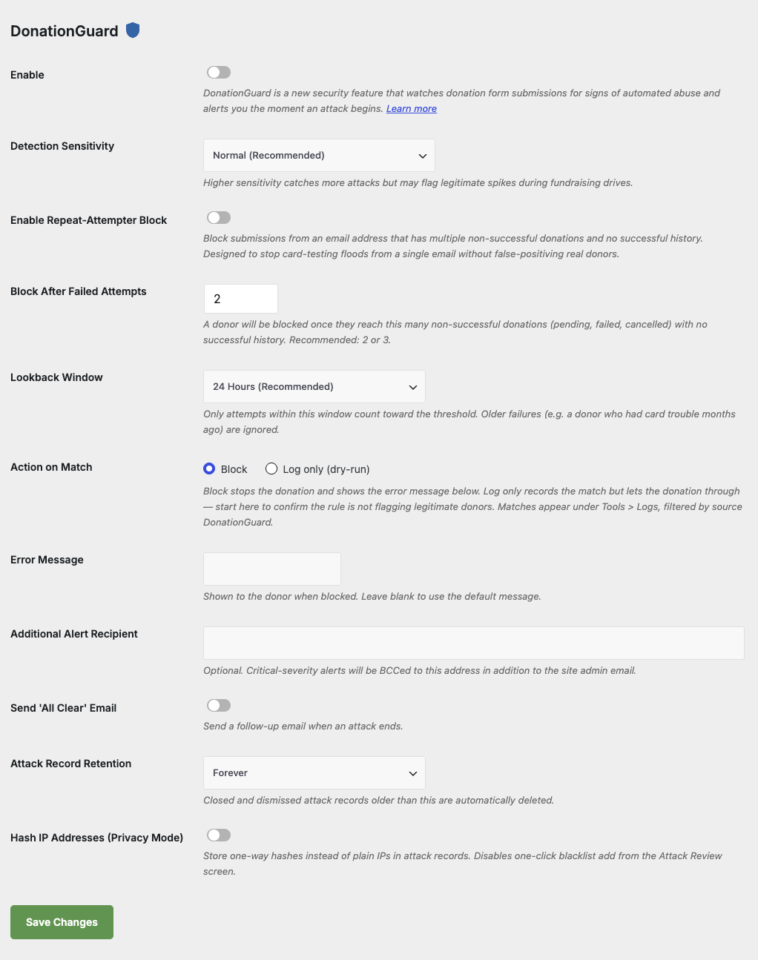
One-Click Recommended Settings
Inside the DonationGuard tab you will see a Quick Protection card with an Apply Recommended Settings button. Clicking it enables three Spam Blocker modules with sensible defaults:
- Honeypot — adds an invisible field that real donors never fill in
- Time Trap — rejects submissions that arrive faster than a human could type
- Rate Limit — caps submissions from a single visitor to 10 per window
These modules require an active Pro license. If your license is inactive, the button is replaced with an Activate License link.
Configuration Options
Core Detection Parameters
| Parameter | Type | Default | Description |
|---|---|---|---|
| Enable | checkbox | Off | Master switch for DonationGuard. |
| Detection Sensitivity | select | Normal | Low, Normal, or High. Higher catches more attacks but may flag legitimate fundraising spikes. |
| Additional Alert Recipient | (empty) | Optional second email that critical alerts are BCCed to in addition to the site admin. | |
| Send ‘All Clear’ Email | checkbox | Off | Send a follow-up email when an attack ends. |
| Attack Record Retention | select | Forever | Auto-delete closed and dismissed attack records older than 30 days, 90 days, 1 year, or never. |
| Hash IP Addresses (Privacy Mode) | checkbox | Off | Store one-way hashes instead of plain IPs. Disables the one-click blacklist add from Attack Review. |
Repeat-Attempter Block Parameters
The Repeat-Attempter Block stops card-testing floods that come from a single email address without false-positiving real donors who simply had card trouble.
| Parameter | Type | Default | Description |
|---|---|---|---|
| Enable Repeat-Attempter Block | checkbox | Off | Block submissions from an email with multiple non-successful donations and no successful history. |
| Block After Failed Attempts | number | 2 | Block once this many non-successful donations (pending, failed, cancelled) accumulate. Recommended: 2 or 3. |
| Lookback Window | select | 24 Hours | Only attempts within this window count. Choices: 1 hour, 6 hours, 24 hours, 7 days, 30 days, Forever. |
| Action on Match | radio | Block | Block stops the donation. Log only records the match in Tools > Logs but lets the donation through. |
| Error Message | text | (default) | Shown to the donor when blocked. Leave blank to use the built-in message. |
Quick Protection Preset
| Module | Default | What It Does |
|---|---|---|
| Honeypot | Off | Adds an invisible form field that bots fill in but humans cannot see. |
| Time Trap | Off | Rejects submissions that arrive in less than the configured minimum seconds. |
| Rate Limit | Off | Caps the number of submissions a single visitor can make per window (default: 10). |
How Detection Works
DonationGuard runs a detection cycle each time a donation enters pending status (via the charitable_donation_pending_recorded action), throttled to one cycle per 60 seconds. Each cycle:
- Computes five signals against a learned per-hour baseline of your normal traffic.
- Combines those deviations into a single weighted score.
- Maps the score to a tier: Warning or Critical.
- Opens a new attack record, escalates an existing one, or closes a quiet attack.
- Dispatches notifications subject to a 4-hour cooldown and a 6-emails-per-day cap.
The Five Signals
| Signal | What It Watches |
|---|---|
| Pending Rate | Volume of pending donations in the recent window vs. the baseline for this hour. |
| Ratio | Ratio of pending to successful donations. |
| IP Fanout | Distinct IP addresses submitting in the window. A high count from many IPs is a classic botnet signal. |
| Decline Rate | Share of gateway declines in the window. Card-testing produces a decline burst. |
| Timing | Time-to-submit pattern. Bots tend to submit far faster than humans. |
Until your site has collected enough donation history to learn its own baseline, DonationGuard falls back to a safe static default (“warmup mode”).
Reviewing Attacks
When DonationGuard opens an attack, you have several ways to see and act on it.
Admin Bar and Banner
Open attacks surface as a warning in the WordPress admin bar and an inline banner on the Charitable dashboard. Click either to jump to the Attack Review screen.
Attack Review Screen
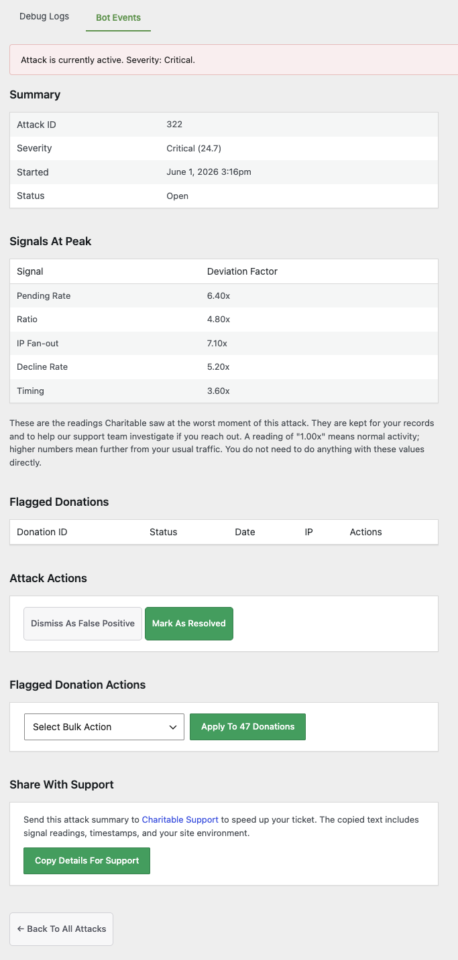
Located at Charitable > Tools > Logs > Attack Reviews. The screen lists open attacks with severity tier, signal breakdown, donation count, and time opened. Click into an attack to see every suspicious donation grouped together, with bulk actions to mark them as spam, cancel them, or dismiss false positives.
Email Alerts
Critical alerts go to the site admin and to the optional Additional Alert Recipient address. Each email includes the severity, the top signals that triggered it, the donation count, and a direct link to the Attack Review screen. Email volume is rate limited to one every 4 hours and 6 per day so an extended attack does not bury your inbox.
Customization
Filter the Alert Recipient List
add_filter( 'charitable_bot_email_recipients', function ( $recipients ) {
    $recipients[] = '[email protected]';
    return $recipients;
} );
Adjust Signal Weights
add_filter( 'charitable_bot_signal_weights', function ( $weights ) {
    $weights['ip_fanout'] = 2.0;
    return $weights;
} );
Disable the Feature for a Specific Environment
add_filter( 'charitable_bot_protection_enabled', '__return_false' );Troubleshooting
Recommended Settings button is greyed out or replaced by an Activate License link
The Quick Protection preset toggles Spam Blocker modules that require an active Pro license. Visit Charitable > Settings > Licensesand activate your license, then return to the DonationGuard tab.
No attack records are opening despite suspicious activity
Confirm that Enable is checked under Settings > Security > DonationGuard. The detector also requires that the master kill-switch filter charitable_bot_protection_enabled returns true. The first 14 days of detection use a static baseline (warmup), which is intentionally conservative.
Repeat-Attempter Block is flagging legitimate donors
Switch Action on Match to Log only (dry-run) for a week. Matches will appear in Tools > Logs filtered by source DonationGuard so you can review without blocking real donations. Lengthen the Lookback Window or raise Block After Failed Attempts if you see false positives.
Email alerts stopped arriving during an active attack
DonationGuard enforces a 4-hour cooldown between alert emails and a hard cap of 6 emails per day per site. Banner, admin-bar, and in-plugin notifications continue to update in real time even when email is throttled.
Privacy team is asking about IP storage
Turn on Hash IP Addresses (Privacy Mode) under the DonationGuard tab. IPs in attack records will be stored as one-way hashes. The one-click “blacklist this IP” action on the Attack Review screen is disabled in this mode.
Misc Notes.
Note: Activation of DonationGuard will automatically activate Usage Tracking. While no new information is sent as the result of this action, and no changes to how privacy is maintained, the data will allow DonationGuard to be improved in future updates.
What gets protected
DonationGuard inspects every donation form submission against a rolling set of behavioral signals (timing, decline rate, IP fanout, ratio, pending rate) and computes a severity score. When the score crosses a threshold, an Attack Record is opened. As more submissions arrive matching the same pattern, the record escalates from Warning to Critical. When activity dies down, the record auto-closes; you can also Dismiss false positives manually.
The 1.8.16 feature ships with three layers that work independently:
| Layer | What it does | Where it lives |
|---|---|---|
| DonationGuard detector | Passive, signal-based scoring. Opens Attack Records, sends email alerts, optionally blocks the repeat-attempter pattern. | Settings > Security > DonationGuard |
| Form-field modules | Active per-submission defenses: Honeypot (decoy field bots fill) and Time Trap (rejects sub-2-second submits). | Settings > Security > Forms & Campaigns |
| Cloudflare Turnstile + setup wizard | A free, no-friction captcha alternative to reCAPTCHA. A 3-step inline wizard helps you get a key and paste it in. | Settings > Security > Captcha |
Finding it
| What | Where |
|---|---|
| Attack history (the running record of detected attacks) | Charitable > Tools > Logs > Bot Events |
| DonationGuard settings (detection sensitivity, alerts, repeat-attempter rule) | Charitable > Settings > Security > DonationGuard |
| Honeypot + Time Trap toggles | Charitable > Settings > Security > Forms & Campaigns |
| Cloudflare Turnstile setup wizard | Charitable > Settings > Security > Captcha (when Turnstile is the selected provider) |
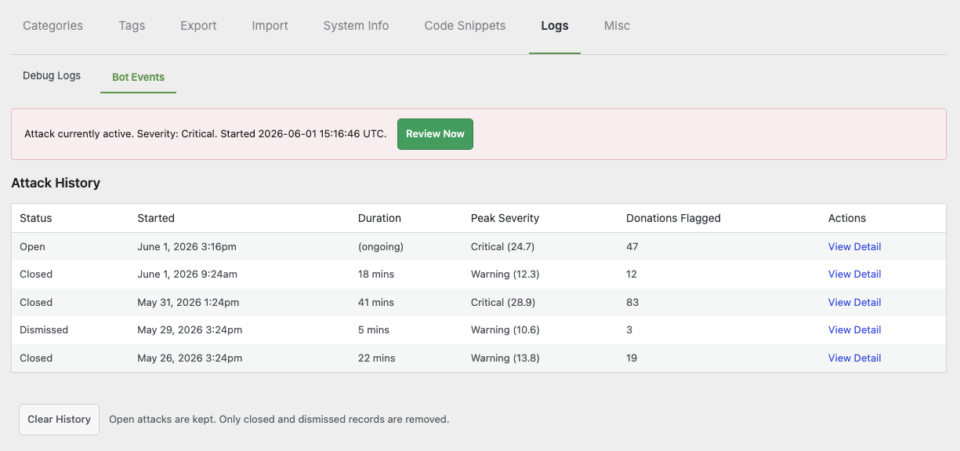
Attack History
The Bot Events sub-tab under Tools > Logs is where every detected attack lands. Each row is one Attack Record:
| Column | What it shows |
|---|---|
| Status | Open (currently active), Closed (activity died down — DonationGuard closed it automatically), or Dismissed (you marked it as a false positive). |
| Started | When the first qualifying submission landed. |
| Duration | How long the burst lasted from first to last matching submission, or (ongoing) if still open. |
| Peak Severity | The highest score the record reached during its run. Critical or Warning, with a numeric score (e.g. Critical (0.9)). |
| Donations Flagged | Number of form submissions tied to this attack pattern. |
| Actions | A View Detail link to the per-record drill-in. |
Below the table, the Clear History button removes closed and dismissed records but leaves open attacks in place (so you can’t accidentally hide an active incident from your own view).
Honeypot and Time Trap
DonationGuard works with two new no-friction form modules ship in 1.8.16, both under Settings > Security > Forms & Campaigns:
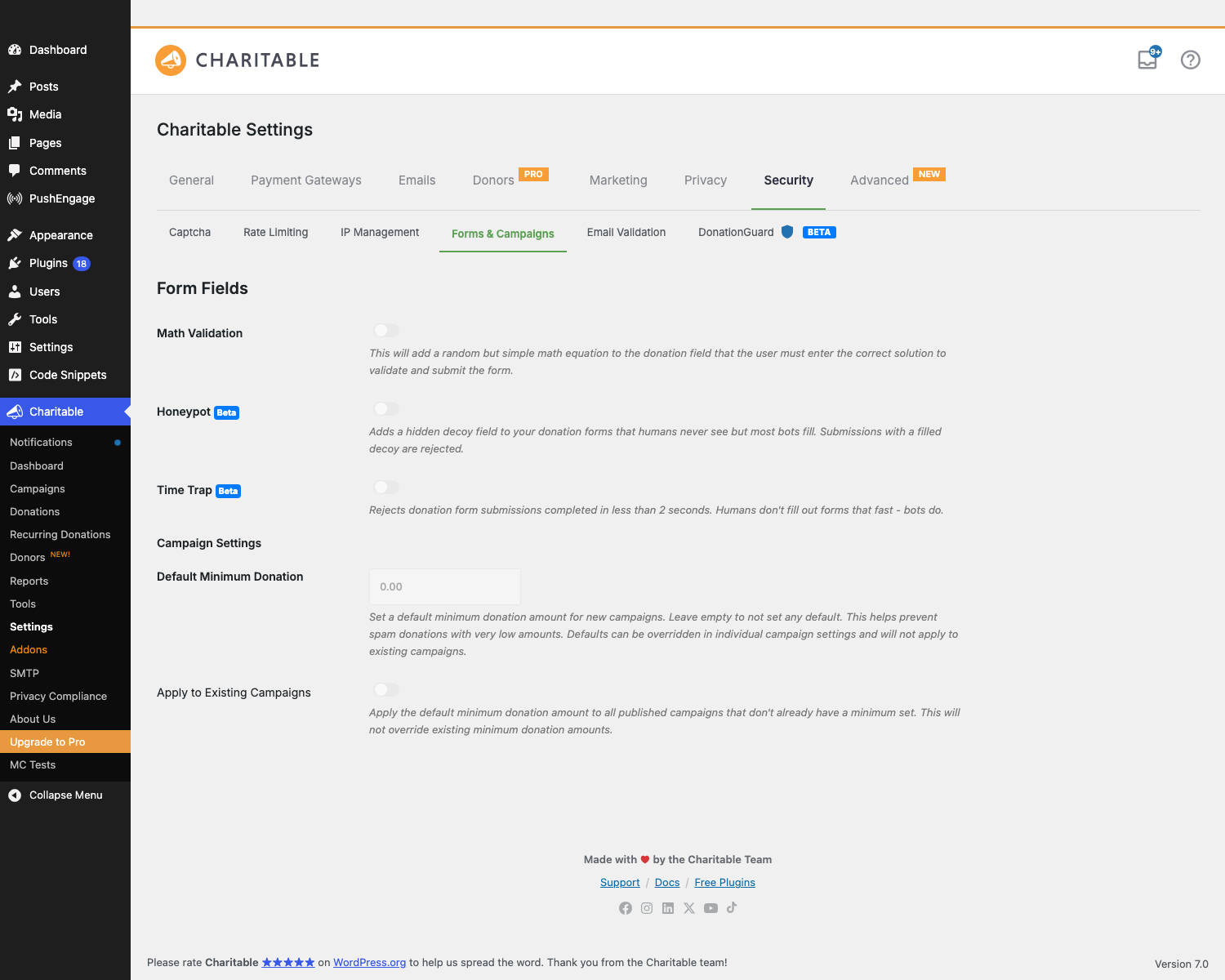
Honeypot
A hidden decoy field is injected into every donation form. Real humans never see it (it’s a <input type="hidden">). Naive bots auto-fill anything that looks like a URL or website input — when the field comes back populated, the submission is silently rejected.
- Setting: Honeypot — a single on/off toggle.
- Donor experience: zero. No captcha, no math problem, no friction.
- What it catches: dumb form-spam bots that fill every field on a form. Doesn’t catch sophisticated bots that target Charitable specifically.
- Recommended: always on. Costs nothing, catches a meaningful chunk of low-effort abuse.
Time Trap
Rejects donation form submissions completed in less than 2 seconds. Donors don’t fill out a multi-field form that fast; bots do.
- Setting: Time Trap — a single on/off toggle.
- Donor experience: zero. Real humans take 8–60 seconds to fill the form even if they’re fast.
- What it catches: scripted submitters that POST directly to the form endpoint without rendering the page first. Good complement to Honeypot.
- Recommended: always on.
Math Validation (older but still here)
A pre-existing module, kept for completeness on this tab: adds a random math problem (8 - 5 = ?) to the donation form that donors must answer correctly to submit. More friction than Honeypot or Time Trap; turn this on only if you’re getting through bots that defeat the no-friction layers.
Tips
- Dry-run before blocking. When you first enable Repeat-Attempter Block, set Action on Match to Log only (dry-run) for a week. Watch the matches under Tools > Logs. If they’re all real attackers, flip to Block. If you see legitimate donors, raise the threshold or lookback window first.
- Privacy Mode trade-off. Hash IP Addresses makes Attack Records GDPR-friendlier but disables one-click blacklist-add. If you don’t blacklist by IP anyway, leave it on.
- Quick Protection is one click. If you’re not sure where to start, hit Apply Recommended Settings on the DonationGuard panel — it enables Honeypot, Time Trap, and Rate Limiting in one shot.
- An open attack record is more useful than a closed one. Don’t dismiss-as-false-positive in the heat of an incident. Leave it open until the burst is over so you can drill in, gather IP/email patterns, and only then make calls about whether it was real.
- The ‘All Clear’ email is the calmest signal. Watching active incidents tick down to closed is more reassuring than tracking ongoing alerts. Turn this on.
Developer reference
Storage
| Where | What |
|---|---|
Post type charitable_bot_atk | Each attack record is a post of this type. Statuses are publish (open), cb_bot_closed, cb_bot_dismissed. |
Post meta _charitable_bot_attack_severity | Numeric severity score (0.0 — 1.0+) for an attack at peak. |
Post meta _charitable_bot_attack_severity_tier | String: warning or critical. |
Post meta _charitable_bot_attack_signals_at_peak | JSON snapshot of the five signal values at the moment severity peaked. |
Post meta _charitable_bot_attack_donation_ids | JSON array of donation post IDs flagged by this attack. |
Option charitable_bot_protection_settings | Internal mirror of the DonationGuard settings that the detector hot path reads directly (no setting round-trip to charitable_settings). |
Actions
| Action | When it fires |
|---|---|
charitable_bot_attack_opened | A new attack record is opened. Receives $post_id, $tier. |
charitable_bot_attack_escalated | An existing record’s tier changes upward (warning → critical). Receives $post_id, $previous_tier, $new_tier. |
charitable_bot_attack_closed | A record is auto-closed because activity died down. Receives $post_id, $reason. |
Signal extension
The five built-in signals live in includes/pro/bot-protection/class-charitable-bot-signal-*.php. Each implements a common interface (compute a deviation factor for the current submission). Add a custom signal by extending Charitable_Bot_Signal_Abstract and registering it through the charitable_bot_signals filter — your signal will be evaluated on every submission and rolled into the scorer alongside the built-ins.
Custom error messages
The Repeat-Attempter Block error message is filterable per donor — useful if you want different copy for different campaigns:
add_filter( 'charitable_bot_repeat_attempter_block_message', function( $message, $email, $campaign_id ) {
    if ( $campaign_id === 123 ) {
        return 'Your donation could not be processed. Please contact our support team.';
    }
    return $message;
}, 10, 3 );
Customization examples
Disable DonationGuard alerts entirely (keep detection, suppress emails):
add_filter( 'charitable_bot_attack_should_send_alert', '__return_false' );
Lower the open-record severity threshold (more sensitive — open records on lower-score events):
add_filter( 'charitable_bot_scorer_open_threshold', function( $threshold ) {
    return 0.5; // Default is around 0.6.
} );
Auto-dismiss attacks below a score:
add_action( 'charitable_bot_attack_opened', function( $post_id, $tier ) {
    $score = (float) get_post_meta( $post_id, '_charitable_bot_attack_severity', true );
    if ( $score < 0.65 ) {
        wp_update_post( array( 'ID' => $post_id, 'post_status' => 'cb_bot_dismissed' ) );
    }
}, 10, 2 );
Route critical alerts to a Slack webhook:
add_action( 'charitable_bot_attack_opened', function( $post_id, $tier ) {
    if ( 'critical' !== $tier ) {
        return;
    }
    $score = get_post_meta( $post_id, '_charitable_bot_attack_severity', true );
    wp_remote_post( SLACK_WEBHOOK_URL, array(
        'body' => json_encode( array(
            'text' => sprintf( 'DonationGuard: CRITICAL attack opened (#%d, score %.2f)', $post_id, $score ),
        ) ),
    ) );
}, 10, 2 );
Related
- Charitable Documentation Hub – The main documentation index.