

When people hear “tribute donation,” they usually picture a memorial: a gift made after someone has died.
That’s part of it, but only part. A tribute is just a gift made in someone else’s name, and that covers a lot more ground than a memorial:
- A Little League team honoring a coach who’s moving on
- A congregation collecting a gift for a member’s recovery
- A family marking a milestone birthday instead of asking for presents
Whatever the occasion, your website usually isn’t built to handle it. A donor wants to dedicate their gift, and the best you can offer is a text field on a generic form, with no record of who the gift was for and no way to tell them it meant something specific.
I’ve set up donation pages for nonprofits for more than 15 years, and tribute giving is one of the requests I hear the most. It shows up in so many different forms and needs to feel right every single time.
In this guide, I’ll walk you through exactly how to set up tribute and honor donations on a WordPress nonprofit site using Charitable Tributes, from installing the addon to publishing a finished page that honoree, or their family, would be proud of.
By the end, you’ll know how to launch a dedicated tribute page in minutes, what your donors see when they dedicate a gift, and how to keep everyone involved updated without doing any of it by hand. If you don’t have a donation form on your site yet, start with Charitable Lite first, then come back here.
Table of Contents
- Why Tribute Giving Deserves Its Own Setup
- Charitable Tributes: The Memorial & Tribute Giving Addon for WordPress
- How to Set Up Tribute & Memorial Donations (Code-Free)
- What Your Donors Actually See at Checkout
- Keeping the Family in the Loop: Notifications, E-Cards, and Receipts
- Tracking Results: Reports, Honorees, and the Leaderboard
- Advanced Tips: Shortcodes, Patterns, and Custom Fields
- FAQs on Tributes
Why Tribute Giving Deserves Its Own Setup
A gift made in someone’s name is not the same as a gift made to a cause. When a donor gives “in memory of” a parent or “in honor of” a friend’s recovery, the dedication is often the entire reason the gift happened at all.
That changes what the donor needs from your website, and it changes what your organization needs to track.
A generic donation form can accept the money. It can’t tell you who Sarah’s donation was for, whether the family already knows, or how much has been raised in that person’s name across every gift anyone has ever made.
That last part is the piece most donation plugins get wrong. They treat a tribute as a checkbox on a form: yes, this is a dedication, here’s some free text.
So if 10 different donors give in memory of the same grandmother, you end up with 10 disconnected donations and no way to see the full picture.
Charitable Tributes handles this differently by separating 2 ideas that are easy to conflate. A tribute is the dedication a donor adds to one gift, like “In Memory Of.” An honoree is the person, pet, or cause being honored, stored as its own record.
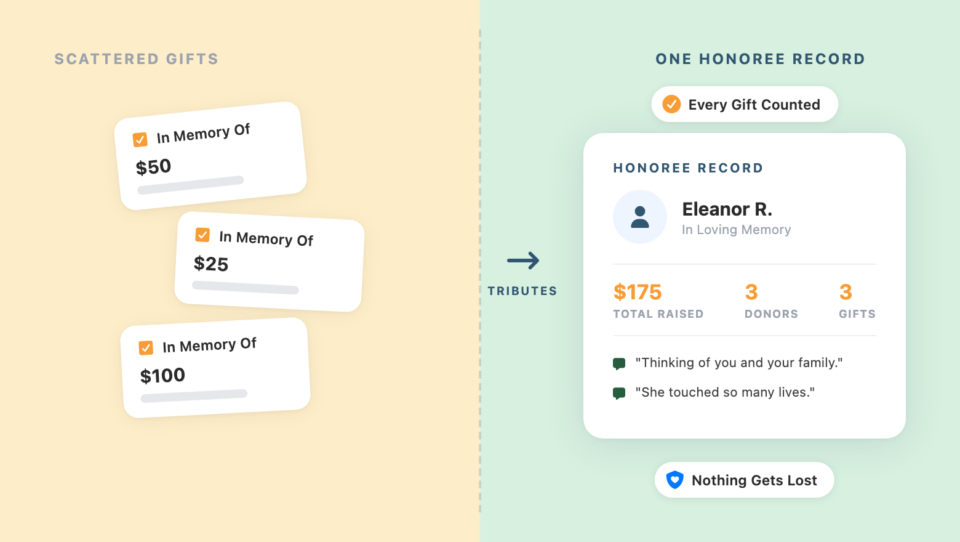
Once you understand that distinction, everything else in this guide will make a lot more sense.
There’s also a practical reason to set this up before you need it rather than during a crisis. Memorial requests are time-sensitive by nature.
A family planning a service this weekend isn’t going to wait while you figure out your donation page. Getting the setup right once, in a calm moment, means you can respond to the next “in lieu of flowers” call with a link instead of a scramble.
Tribute giving also tends to bring in people who wouldn’t otherwise find your organization. A donor giving in memory of a coworker’s mother may never have heard of your nonprofit before that moment, and the experience they have on that page shapes whether they ever give again on their own.
A cluttered form or a dead link wastes the goodwill that brought them there in the first place.
A page built specifically for the honoree, with the family kept in the loop automatically, does the opposite: it turns a one-time act of grief or gratitude into the start of an actual relationship with your organization.
Stewardship matters just as much on your side of the relationship. A finance volunteer who has to dig through spreadsheets to tell a family how much was raised in their mother’s name, weeks after the fact, isn’t giving that family anything close to the experience they deserve.
An honoree record updates itself the moment a gift is completed. That means you can answer the question the same day it’s asked, without opening a single export.
That’s the real difference. A donation form can treat tribute giving as an afterthought, or your organization can be built to handle it well. Here’s the tool that does that.
Charitable Tributes: The Memorial & Tribute Giving Addon for WordPress
Charitable Tributes is an addon for Charitable Pro that adds tribute and memorial giving to any WordPress fundraising site. Instead of a plain “is this a tribute?” checkbox, it gives every honoree a real record in your dashboard, with running totals, the donors who gave, and the family contacts you choose to keep updated.
It runs inside WordPress, alongside the forms and reports you already use, with no separate subscription to manage.
Here’s what it actually lets you do once it’s installed:
- Built-in and custom tribute types: Offer “In Memory Of,” “In Honor Of,” and “On Behalf Of” out of the box, or define your own tribute type for something specific to your organization.
- Honoree records that remember: Every person, pet, or cause honored gets its own record with a total raised, a donor list, and any messages left for them, even across multiple gifts from different people.
- A guided setup wizard: Launch a dedicated tribute campaign with its own shareable page in 5 short steps, no separate page-building session required.
- Automatic e-cards: Let a donor notify a loved one that a gift was made in their honor, with a styled digital card sent the moment the gift is completed.
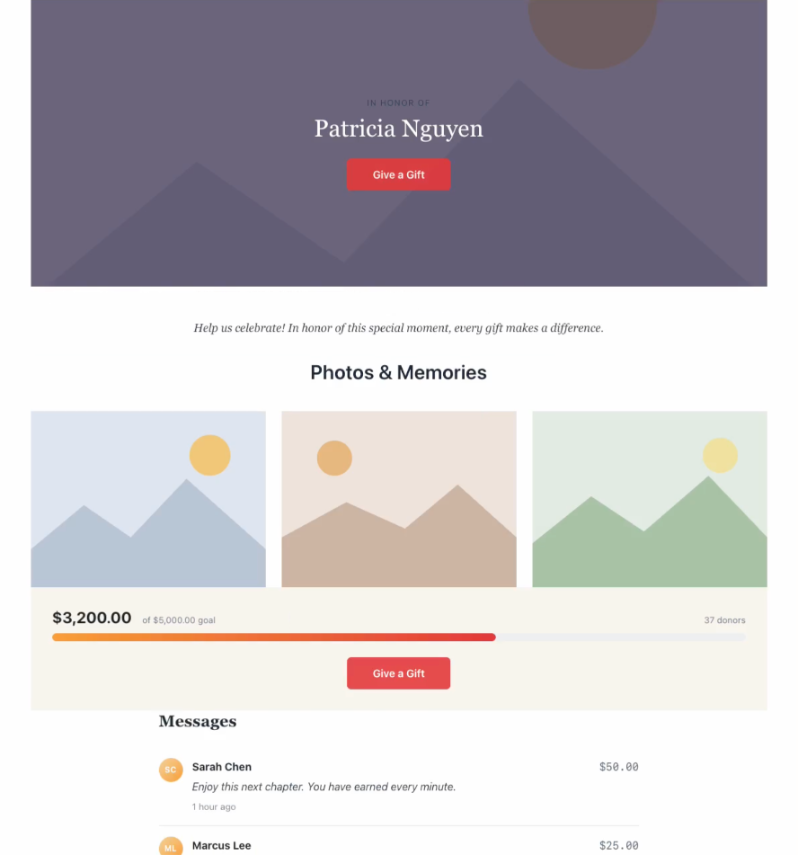
- 6 memorial page blocks: Build a beautiful tribute page in the block editor with an Honoree Card, a goal meter, a donor wall, and more, all without touching code.
- Annual tribute giving: A donor can turn a one-time gift into a recurring annual tribute on a date that matters, like a birthday or a day of remembrance.
- Tribute-aware receipts: Donation receipts and PDF receipts automatically include who the gift honored, so a donor’s record matches what they actually gave.
- Reports built for this use case: A dedicated Tribute Donations report and an Honoree Leaderboard, so you can see which tributes are resonating without exporting anything to a spreadsheet.
I’ll be straightforward about the one limitation worth knowing up front: Tributes requires Charitable Pro (version 1.8.16 or later) plus the Tributes addon (1.0.0 or later) active on your site. It isn’t available on Charitable Lite.
If you’re currently running Lite, everything else about your donation forms stays exactly the same after upgrading, and you can compare what changes on the Lite vs. Pro comparison page.
Getting started is genuinely simple once you’re on a Pro plan, and it breaks down into 5 moves:
- Install the Tributes addon from Charitable » Addons.
- Create a campaign by clicking New Tribute Campaign and running the 5-step wizard.
- Customize the page with the 6 Tributes blocks in the standard block editor.
- Enable notifications for e-cards and receipts under Tributes » Settings.
- Launch by publishing and sharing the link with the family or donors.
That’s what you need to know about Tributes before you start, and I’ll walk through every click of it below. Try Charitable Pro now and you’re covered by a 14-day money-back guarantee, so there’s no risk in testing the wizard on your own site before you commit.
Note: Two other addons extend Tributes further but aren’t required to start: Recurring Donations, if you want the annual tribute option, and PDF Receipts, if you want the tribute section to appear on downloadable receipts too.
For the full requirements list, including the minimum WordPress and PHP versions, see the Charitable Tributes Guide in the documentation.
How to Set Up Tribute & Memorial Donations (Code-Free)
The fastest path to a live memorial page is the setup wizard, so that’s the route I’ll cover first. Near the end of this section, I’ll also show you the alternative: turning on tributes for a campaign you’re already running, without a dedicated page at all.
Step 1: Install Tributes and Open the Setup Wizard
In your WordPress admin, go to Charitable » Addons, find Tributes, and click Install, then Activate. If you downloaded it as a ZIP file, you can also install it from Plugins » Add New » Upload Plugin.
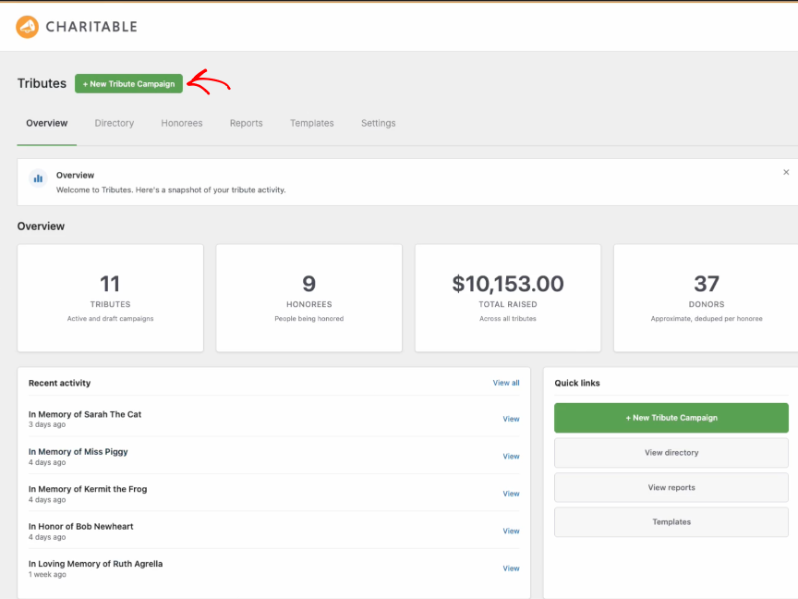
This takes less than a minute, and no developer is needed. Once it’s active, a new Tributes menu appears under Charitable in your sidebar, with tabs for Overview, Directory, Honorees, Reports, Templates, and Settings.
Click + New Tribute Campaign at the top of any of those tabs to open the wizard.
Step 2: Pick a Template
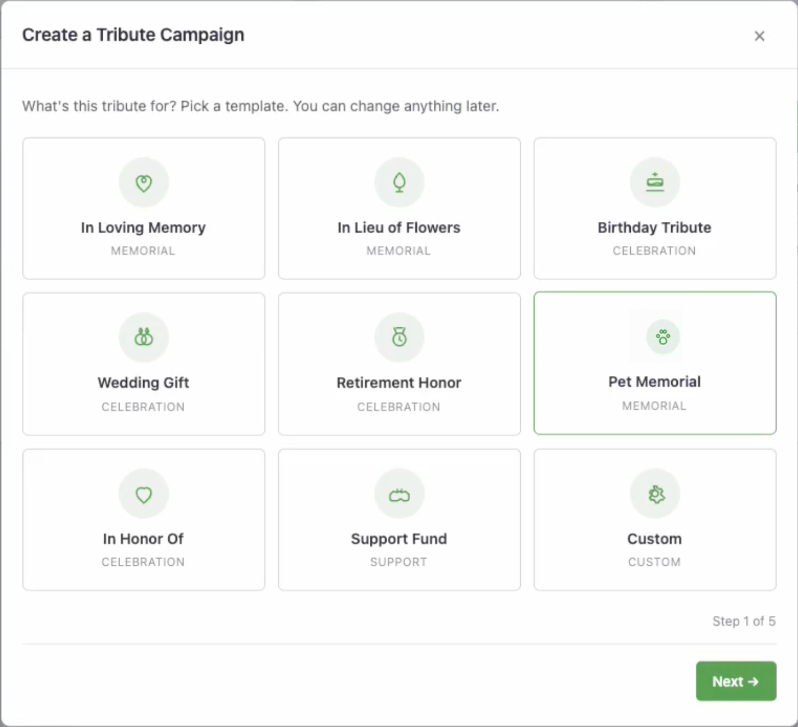
The wizard opens on a grid of 9 starting templates, grouped by category:
- Memorial: In Loving Memory, In Lieu of Flowers, and Pet Memorial
- Celebration: Birthday Tribute, Wedding Gift, Retirement Honor, and In Honor Of
- Support: Support Fund
- Custom: a blank starting point you build yourself
Pick whichever tone matches the request in front of you. The template sets sensible defaults for the tribute type and the honoree fields you’ll fill in next, and you can change any of it later, so don’t overthink this choice.
Step 3: Name the Honoree
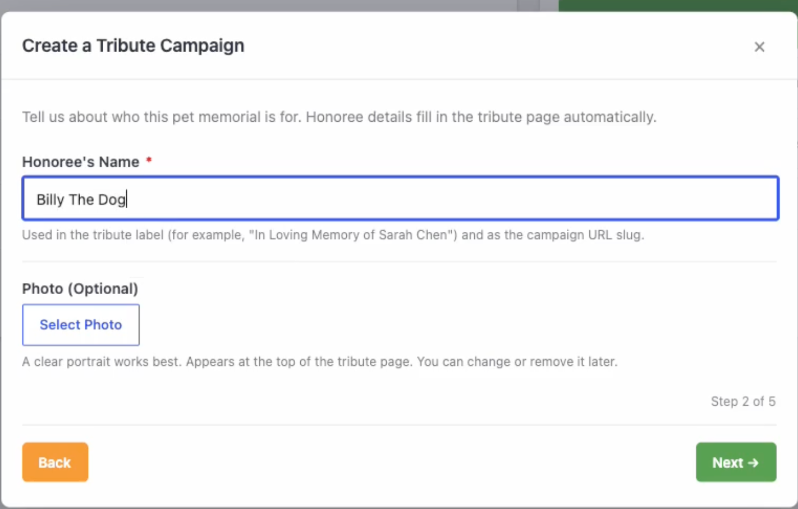
The next step of the wizard is entering who this tribute is for. Enter the honoree’s name. It’s required, and it’s used in the tribute label (something like “In Loving Memory of Sarah Chen”) and in the page’s URL slug.
Depending on your template, you may also see fields for a date of birth and a date of passing, which power the date range shown on the page, and an optional photo upload. If you picked a support-fund template created with the honoree’s knowledge, you’ll see a consent checkbox confirming they agreed to be featured.
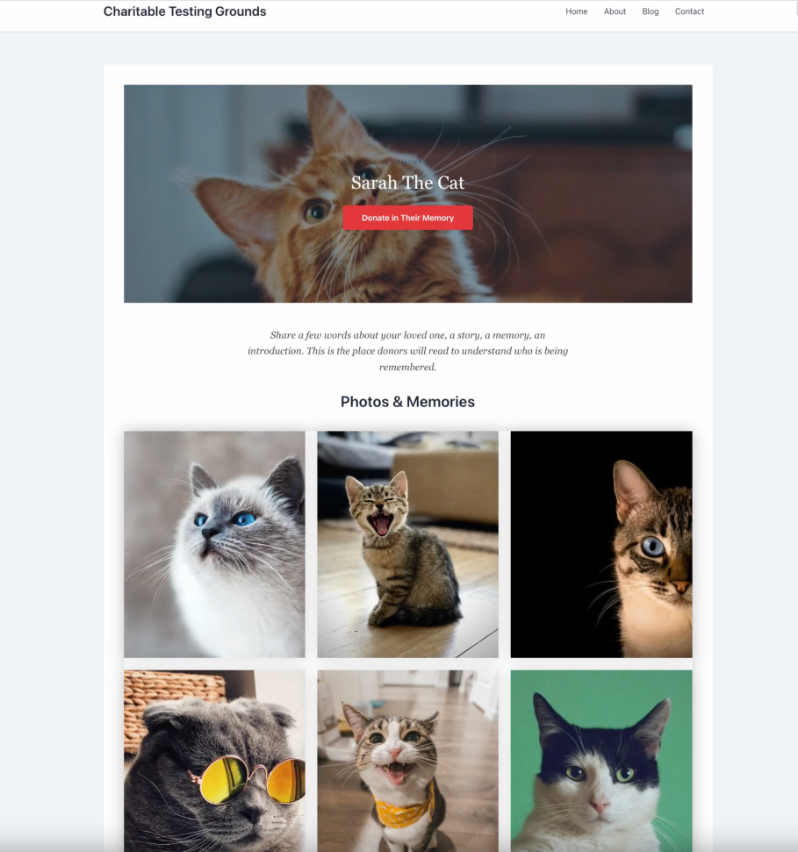
Yes, pet and cause memorials work here too. I’ve seen “Billy the Dog” and “Sarah the Cat” go through this exact same flow.
Step 4: Choose How Donors Can Share, and Who Can See the Page
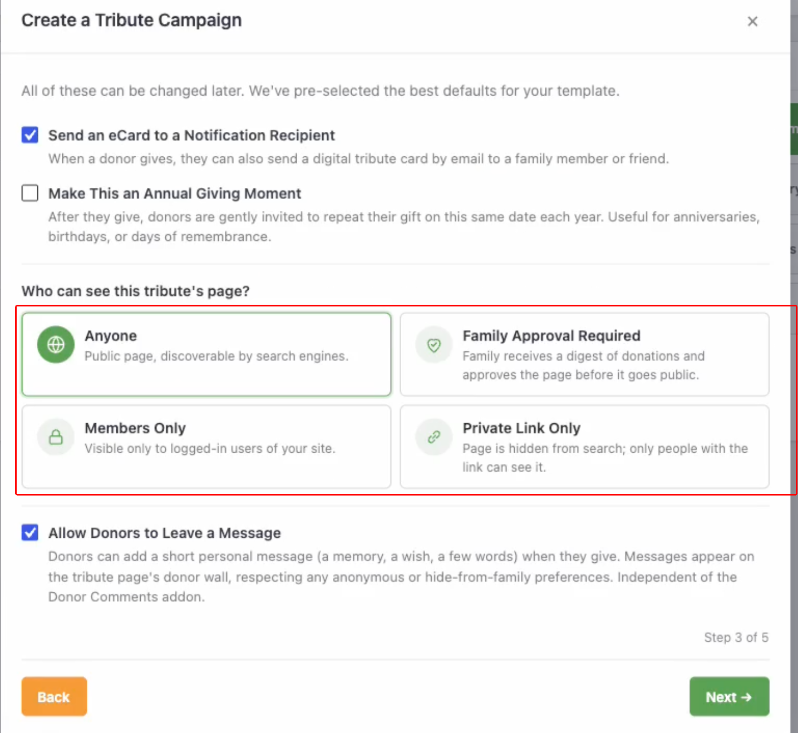
The next step of the wizard covers 2 separate decisions. First, toggle whether donors can send an e-card to notify a loved one, and whether they can opt into making this an annual giving moment. This second option needs the Recurring Donations addon active, or it stays hidden.
Then choose who can see the tribute’s page, and think about which fits the moment you’re actually in:
- Anyone: makes the page public and indexed by search engines, the right call for an established memorial fund you want people to find.
- Family Approval Required: sends the family a digest of donations to approve before the page goes public, useful when you’re not yet sure how visible the family wants this to be.
- Members Only: restricts the page to logged-in users of your site, which fits a staff or congregation tribute.
- Private Link Only: hides the page from search entirely, reachable only by anyone you send the URL to directly. It’s the one I reach for most often when a service is still being planned and the family just wants a quiet way to collect gifts before anything is public.
You can also toggle whether donors are allowed to leave a personal message on this same step.
Step 5: Set the Destination Fund and a Goal
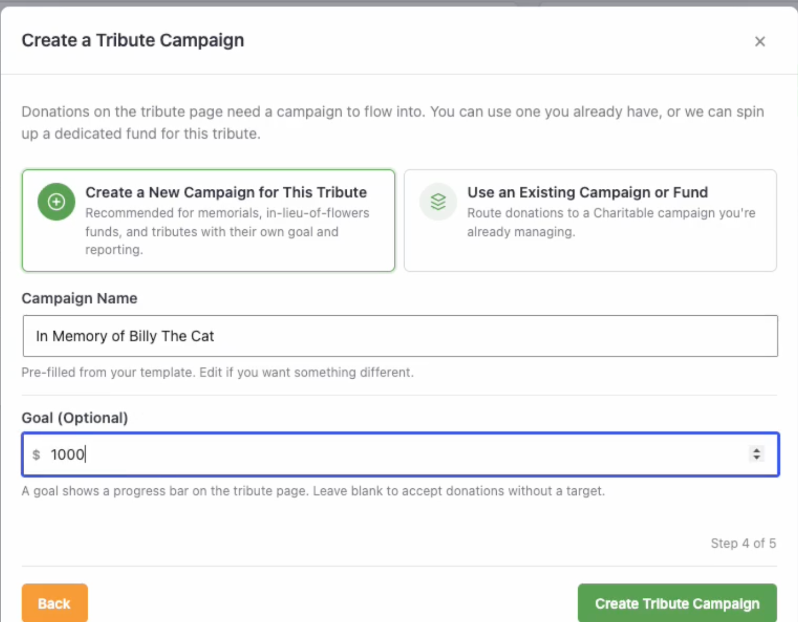
Every tribute needs somewhere for the money to go. The next step of the wizard lets you create a brand-new campaign just for this tribute. This is the recommended option for most memorials, since it gives the tribute its own reporting.
Or you can route donations into an existing campaign you’re already running, which is useful when a tribute is really just a dedication within a broader fund.
If you create a new campaign, you can rename it from the pre-filled suggestion and set an optional fundraising goal, which will show as a progress bar on the finished page. Leave the goal blank if you’d rather just accept gifts without a target.
Step 6: Publish and Grab Your Share Link
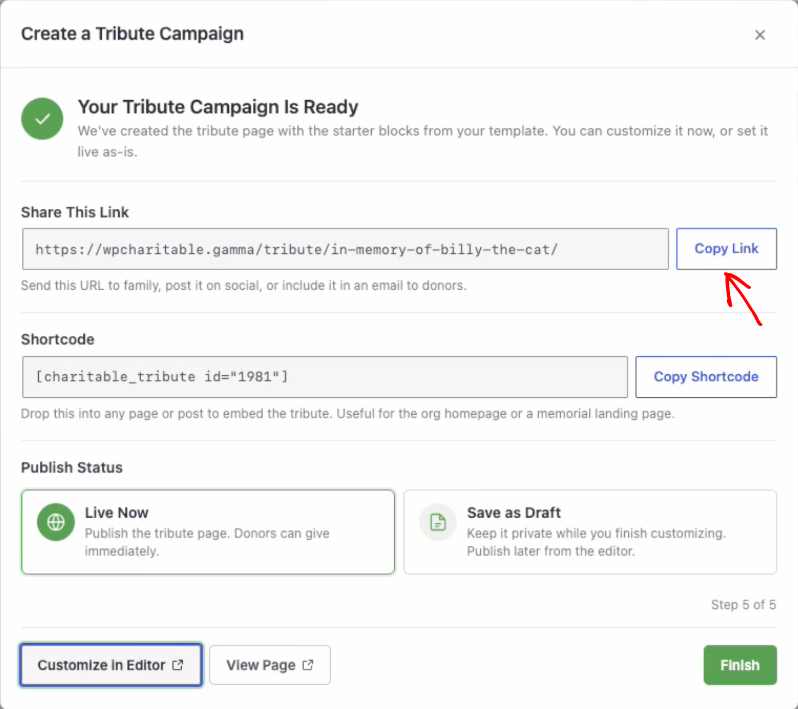
The final step of the wizard is the finish line. You’ll see a confirmation that your tribute campaign is ready, along with the page’s share link and a shortcode. You can drop the shortcode into any other page or post to embed the same tribute content.
Choose Live Now to publish immediately so donors can give right away, or Save as Draft if you want to finish customizing before it goes public. Click Customize in Editor to jump straight into the block editor, or View Page to see it live.
Copy the share link here. You can share this with the family or the people who want this tribute campaign set up. This link opens to a working page that already links back to a real honoree record.
Step 7: Customize the Page with the 6 Tributes Blocks
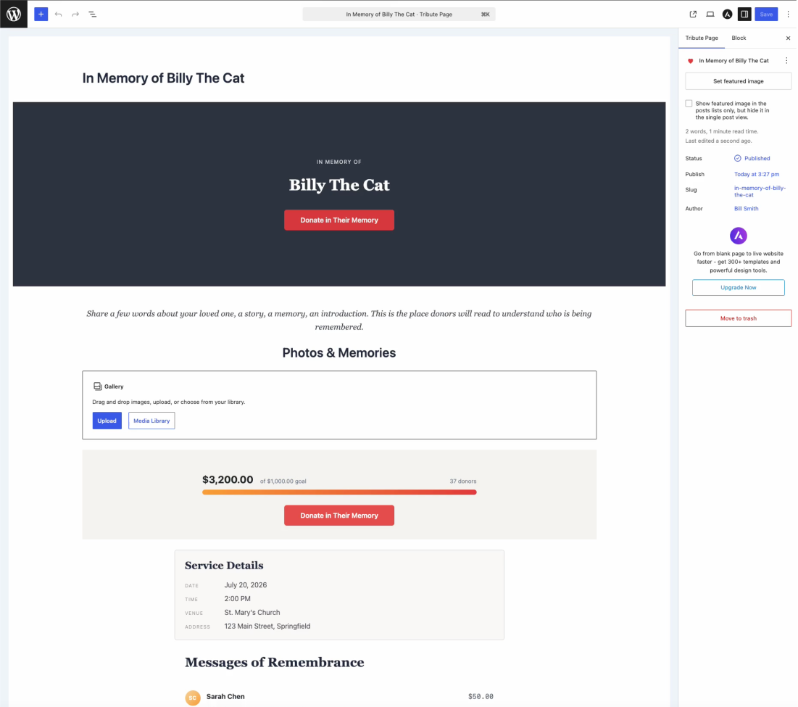
Every tribute page comes pre-loaded with starter blocks from your template, and you’re free to rearrange, delete, or add to them. In the WordPress block editor, you can find and add the Tributes block category. This gives you 6 blocks:
- Honoree Card: photo, name, tribute label, and date range.
- Tribute Goal Meter: amount raised, goal, and donor count, with customizable bar colors.
- Tribute Donor Wall: who gave and their messages, respecting anonymous and hide-from-honoree choices automatically.
- Personal Message: a styled quote from the family.
- Service Details: date, time, venue, and an optional embedded map.
- Tribute Donate Button: a call to action linked to the right campaign.
On a tribute page, the block inserter is intentionally limited to these 6 blocks plus core layout blocks, so it stays easy to build something clean without getting lost in options.
For a closer look at each block’s individual settings, the Tribute Pages and Blocks documentation covers all 6 in detail, including the block patterns mentioned below.
Step 8: Publish and Share the Link with the Family
Once you’re happy with the layout, hit Publish (or switch from Draft if you saved it earlier). Send the family the share link from Step 6, or the shortcode if you’d rather feature the tribute inside an existing page, like your homepage or a dedicated memorials section.
The Donor Wall and goal meter update themselves automatically as gifts come in, so there’s no page-editing required when a new donation lands. This takes less than a minute, and it’s the last manual step; everything from here happens on its own.
Bonus Step: Turn On Tributes for a Campaign You Already Run
You don’t need a dedicated page for every tribute.
If you’d rather let any donor dedicate a gift on a general donation form, without a separate memorial page, open the campaign in the Campaign Builder, go to its Settings area, find the Tributes panel, and turn on Enable tributes for this campaign. Save, and that’s it.
Nothing changes for donors who just want to give normally; the tribute fields only appear when someone opts in, and gifts that do include a tribute still create and link honoree records automatically, exactly like the wizard-built pages do.
Think of the wizard as the right call when you need one honoree with their own page, the kind of request that starts with a specific name and a specific service date. Reach for the campaign toggle instead when you want an “any gift can be a tribute” form that stays open indefinitely, like a general fund where donors occasionally want to dedicate a birthday or anniversary gift without a formal memorial behind it.
Plenty of organizations end up running both at once. You can also control where the tribute fields sit on the form under Tributes » Settings » Donation Form, choosing between the fields appearing inline with the donation amount or on their own step in a multi-step form, and you can rewrite the short helper text shown above the fields so it speaks in your organization’s voice instead of a generic default.
The full walkthrough of both paths, including the wizard’s developer-facing details, lives in Creating Tribute Campaigns.
Common Mistakes to Avoid
Most of these mistakes only show up after a family has already noticed, which is exactly why I’d rather you catch them here first.
- Leaving the default privacy level too public for sensitive requests. “Anyone” is the right default for most campaigns, but a support fund set up while someone is still in treatment often calls for “Family Approval Required” or “Private Link Only” instead. Check the default under Settings » General before you run the wizard for a sensitive case, since it pre-fills whatever you’ve set there.
- Never sending a test e-card. Wording that reads fine in a settings field can land oddly in an actual inbox. Use Send Test E-card before the first real donor triggers one, especially if you’ve customized the wording per tribute type.
- Assuming the notification will send because an email was entered. It won’t, unless the donor also checked the consent box. If a family says they never heard about a gift, that’s almost always the reason.
- Forgetting the PDF Receipts addon if donors expect a printable copy. The tribute section appears on the standard email receipt either way, but it only appears on the downloadable PDF if that addon is active.
- Skipping the family digest, then wondering why family contacts never hear anything between individual gifts. The digest is off by default. Turn it on once you have contacts who’ve opted in, or they’ll only ever see one-off notifications.
What Your Donors Actually See at Checkout
Understanding the setup wizard is only half the picture. It helps to know exactly what a donor sees when they give, so you can answer their questions with confidence instead of guessing.
For instance, if Elena gave $50 in memory of a coworker’s mother, she would land on the campaign and check the tribute box. Then a short set of fields will appear right there on the form. Nothing about the amount fields or payment step would change.
On a dedicated tribute page built by the wizard, Elena would see an even shorter version, since the honoree and tribute type are already set by the page itself. Either way, she would never be more than 1 extra click away from finishing her gift.
Here’s the full set of fields a donor can fill in, and what each one actually does:
- Tribute type: “In Memory Of,” “In Honor Of,” “On Behalf Of,” or a custom type you’ve defined, tailored per campaign if you’d like.
- Honoree name: If a matching honoree record already exists, the gift links to it automatically. If not, Tributes creates one.
- Personal message: A short note about the gift, limited to 500 characters by default (a limit you can raise with a filter if you’re comfortable with a small code snippet).
- Notify a loved one: Enter a recipient’s name and email to let the family know a gift was made in their honor.
- Send as an e-card: Upgrades the notification to a richer, styled format with the honoree’s photo.
- Consent: Confirms the donor has permission to contact the recipient. Nothing is sent unless this is checked, even if an email address was entered.
- Give anonymously: Hides the donor’s name from public display everywhere the gift appears, while still counting it toward totals.
- Hide from honoree: Keeps the gift out of the honoree’s public donor list entirely, useful for donors who want to give quietly.
- Make it annual: Turns the one-time gift into a recurring tribute on the same date each year, if the Recurring Donations addon is active.
Privacy choices are respected automatically everywhere the gift could show up, so you never have to manually police the Donor Wall or a notification for a donor who asked to stay quiet.
If a matching honoree record already existed, say Elena had typed the coworker’s mother’s name exactly as an earlier donor did, her gift would link straight to that record instead of creating a duplicate. The full mechanics of that matching, along with what happens to the donor-facing fields on the backend, are documented in The Tribute Donation Experience.
Once you’ve seen this flow from the donor’s side, the settings that control the next part, notifications and receipts, will make a lot more sense.
Keeping the Family in the Loop: Notifications, E-Cards, and Receipts
A tribute gift means more when the family actually knows about it. When a donor opts into notifying a loved one and confirms consent, Tributes sends either a standard text-and-branding notification, or, if the donor chose it, a richer e-card with the honoree’s photo and a styled border.
Only 1 of the 2 is ever sent per gift, and the notification is always gated on consent; nothing goes out if the donor didn’t check that box, regardless of what email address they entered.
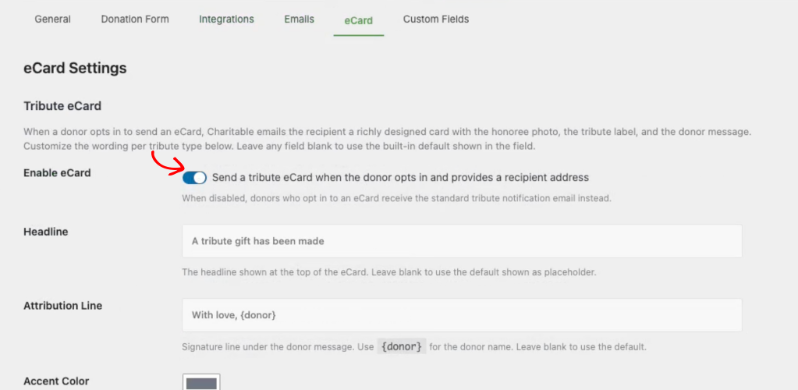
To set this up, go to Tributes » Settings » eCard. Turn on Enable eCard, then customize the headline and attribution line; you can use a {donor} merge tag so it reads something like “With love, Jordan” automatically.
Because memorial gifts should read with care and celebration gifts should feel joyful, the subject line, headline, and closing can all be set per tribute type, so “In Memory Of” and “In Honor Of” don’t have to share the exact same tone. Use the Send Test E-card button before any real donor triggers one; it’s the fastest way to catch a wording mistake before a grieving family sees it.
For honorees with family contacts who’ve opted in, you can also turn on a periodic family digest under Settings » Emails, summarizing gifts made in their loved one’s name. The schedule defaults to Off, and you can switch it to Weekly, Biweekly, or Monthly once you have family contacts who’ve agreed to receive it; every digest includes a one-click unsubscribe link.
Finally, tribute details flow straight into the donor’s own receipt: the standard donation receipt email includes a section naming the honoree, the tribute type, and the personal message, and if you have the PDF Receipts addon active, the generated PDF includes a matching tribute section too.
Anonymous and family-only choices are respected on the receipt exactly as they are everywhere else. If you want to get into the merge tags available for custom wording, or the exact email IDs Tributes registers into Charitable’s email system, Tribute Emails, E-cards, and Receipts has the full developer reference.
Tracking Results: Reports, Honorees, and the Leaderboard
This is the part a plain donation form simply can’t give you, and it’s usually the part that convinces a skeptical board member the addon was worth it.
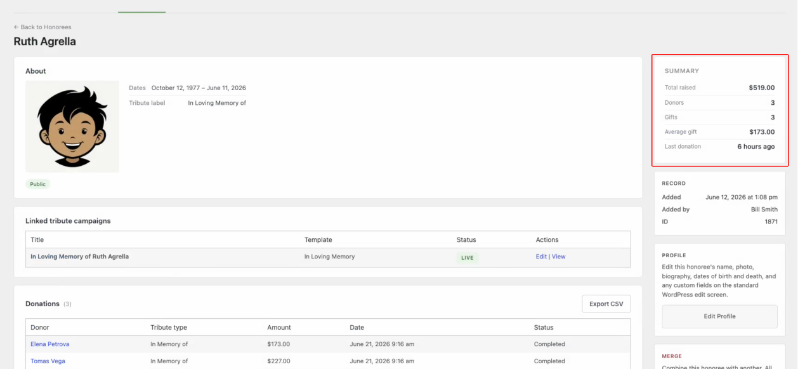
Every honoree lives in its own record under Tributes » Honorees, showing total raised, donor count, and every linked tribute campaign in one place. Click into any honoree and you’ll see a full donation history, family contacts, and a summary panel with total raised, number of gifts, and the average gift amount, all without exporting a single spreadsheet.
Zoom out to Tributes » Reports » Leaderboard and you’ll see every honoree ranked by total raised, donor count, or number of gifts, filterable and exportable to CSV.
It’s a genuinely useful way to spot which tribute campaigns are gaining momentum and which ones might need a nudge, a reminder email, or a fresh share on social media, and it turns what used to be a gut feeling about “which memorial is doing well” into something you can actually point to in a board meeting.
The Directory tab, meanwhile, lists every tribute campaign on your site, searchable by tribute type, template, and status, which is handy once you’ve got more than a handful running at once.
One thing worth knowing before you scale this up: if a duplicate honoree record ever gets created, say a donor spelled a name slightly differently than an earlier gift, you can merge two honoree records together from the honoree’s detail screen so the totals and donation history combine into one.
Family contacts, privacy levels, and the full merge workflow are covered in Honoree Records and the CRM, which is the doc I’d point a volunteer coordinator to if they’re going to be the one managing this day to day.
Advanced Tips: Shortcodes, Patterns, and Custom Fields
A few features are easy to miss the first time through, and they’re worth circling back to once your first tribute page is live.
- Block patterns speed things up. Instead of assembling a page block by block, Tributes ships with pre-arranged patterns that combine the 6 blocks into a ready-made layout. Insert a pattern, swap in your honoree, and you have a polished page in seconds rather than minutes.
- The shortcode works anywhere.
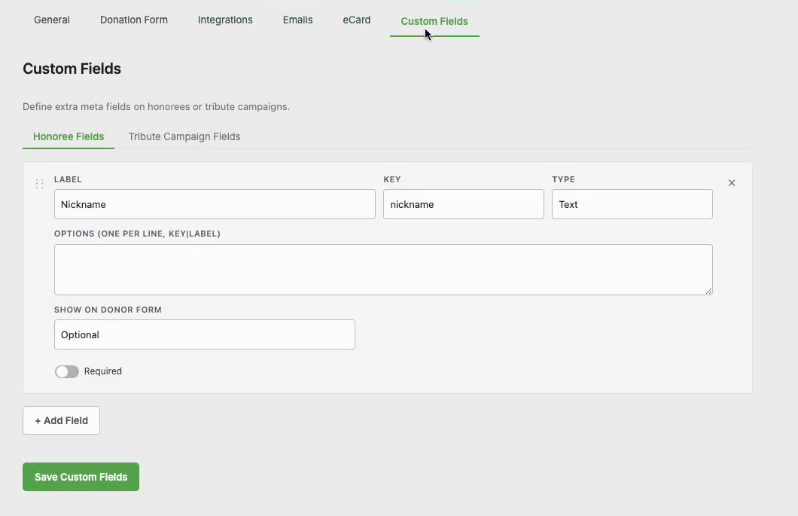
[charitable_tribute id="123"]renders the same block content the tribute page shows, so you can feature a memorial inside a blog post, a sidebar, or your homepage. The wizard gives you the exact shortcode for each campaign on its final step, so you never have to hunt for the ID. - Custom fields let you go beyond the defaults. Under Settings » Custom Fields, you can add extra fields to honoree records or tribute campaigns, like a nickname field, and choose whether each one shows on the donor-facing form as optional or required.
- Service Details plus a map answers the questions families get asked most. For a memorial with a service, that block combination covers the where and when without a single follow-up email.
Between the wizard, the blocks, and these smaller settings, most of what you’ll need to answer for a real family request is covered.
If you or your developer ever need to go deeper, the hooks, REST endpoints, and integration settings are all laid out in Settings, Integrations, and Developer Reference. For everyone else, a few questions still come up often enough that they’re worth addressing directly.
FAQs on Tributes
Do I need Charitable Pro to accept tribute and memorial donations?
Yes. Tributes is an addon for Charitable Pro (1.8.16 or later) and requires the Tributes addon (1.0.0 or later) to be active. It isn’t available on Charitable Lite.
What’s the difference between a “tribute” and an “honoree”?
A tribute is the dedication attached to a single gift, like “In Memory Of.” An honoree is the person, pet, or cause being honored, stored as its own record.
Can donors dedicate a gift without a dedicated tribute page?
Yes. Turn on the tribute option for any existing campaign from its settings in the Campaign Builder, and donors will see the option right on that form.
Does the family get notified automatically when someone gives in their loved one’s memory?
Only if the donor chooses to notify them and confirms they have permission to reach out. Nothing is sent without that consent, even if an email address was provided.
Can a one-time memorial gift become a recurring annual tribute?
Yes, if you have the Recurring Donations addon active. A donor can opt in to repeat their gift on the same date every year and manage it from their own donor account.
Will donor names always be public on the tribute page?
Not if the donor doesn’t want them to be. “Give anonymously” and “Hide from honoree” both keep a gift out of public view in different ways, and you can set the whole page’s visibility to private or members-only if the family prefers.
Can I set up a tribute page for a pet or a cause instead of a person?
Yes. The Honoree’s Name field accepts a person, a pet, or a cause, and the Pet Memorial template is built specifically for that case.
Does the tribute show up on the donor’s tax receipt?
Yes. The donation receipt email includes a tribute section naming the honoree, and the same section appears on the generated PDF if you’re using the PDF Receipts addon.
Can I customize the wording for different tribute types?
Yes. The e-card and standard notification wording can both be set per tribute type under Settings » eCard and Settings » Emails, so “In Memory Of” can read with care while a birthday tribute feels more celebratory.
What happens if two donors accidentally create the same honoree twice?
You can merge the two honoree records from the honoree’s detail screen. Their donation histories and totals combine into a single record.
Do I need coding knowledge to build a tribute page?
No. Everything in this guide works in the standard WordPress block editor with no code required. Custom fields, filters, and hooks exist for developers who want to extend it, but they’re entirely optional.
Can I change a tribute page’s privacy level after it’s published?
Yes. Privacy level is a per-campaign setting, not a one-time choice locked in during the wizard, so you can change it in either direction at any time.
Your supporters are already looking for a way to turn their grief, or their gratitude, into something that lasts. Charitable Tributes just makes sure your website is ready to hold it. Get Charitable Pro today, backed by the same 14-day money-back guarantee, and have your first tribute page ready before the next request comes in.
Charitable Has 1.2+ Million Downloads!
Trusted by millions to power successful fundraising campaigns. Try Charitable risk-free today.
✅ 14-day money-back
✅ Transparent pricing
✅ Code-free setup
Stay Connected for More Nonprofit Resources
For more tutorials and videos tailored to nonprofits, subscribe to our YouTube channel. We regularly publish expert tips, step-by-step guides on online donations, fundraising strategies, and practical resources to help your organization succeed.
🗞️ Get weekly tips and exclusive guides in your inbox
Join our newsletter →
🎥 Watch step-by-step tutorials and success stories
Subscribe to our YouTube channel →
👩🏽💻 Connect with our community and get daily nonprofit insights
Follow us on LinkedIn →
🥳 Fun reels and non-profit insights
Follow us on Instagram →
👀 Insightful & fun videos to help you grow your cause
Follow us on TikTok→
🌎 Subscribe and follow for general fundraiser tips
Get Fundraiser Tips on TikTok →
Powerful Fundraising Resources
🤖 Use Charitable with Your AI Assistant
⬇️ Download proven strategies, campaign ideas, and expert tools
Get the Fundraising Kit →
💸 Get Free Fundraising Resources
Head to the Charitable Fundraising Hub →
🤔 Got questions about Charitable?
Charitable FAQs →
🏎️ Take Charitable for a spin
Create your Charitable Demo →
Understand non-profit terms and jargon
Non-Profit Glossary →
% Looking for non-profit deals and discounts?
Best Non-Profit Deals and Discounts →





Leave a Reply