
Do you want to add a simple donation form to your WordPress site?
Sometimes you just need a simple form that works! No frills, no fluff.
Just a form on your site that will collect donations while you check back on your site once in a while.
In this tutorial, I’ll walk you through every step to get this set up.
The best part is that there’s no coding or developer needed. I’ll even show you how to make sure receipts are auto generated and sent to every donor.
You’ll be able to export your donation records as and when you need along with basic fundraising reports.
Let’s free up your time, run things on auto pilot, and just make life easier!
What’s in this Guide
What You Need Before You Start
This tutorial assumes a few things are already in place. Here’s a quick checklist before you begin:
- A live WordPress site. Self-hosted WordPress (WordPress.org) is what we’re working with here. If you’re still setting yours up, start with this setup tutorial on our YouTube channel before continuing.
- Admin access. You’ll need to log into the WordPress dashboard and install a plugin. If you have editor access but not admin access, ask your site administrator to handle Step 1 (installing the plugin), then hand it back to you.
- A payment method for your donors. Charitable works with PayPal, Stripe, Square, and several other gateways right out of the box. You don’t need to have this fully configured before creating your first form, but you will need it before accepting live donations. We’ll note where payment setup fits into the flow.
That’s genuinely all you need. No developer, no custom code, and no third-party accounts are required to follow this tutorial.
Note: This tutorial uses Charitable Lite which is free to download and use. It includes unlimited fundraising forms and campaigns, templates, offline donations, and automated receipts.
For more powerful features that include a visual donation form builder, recurring donations, advanced fundraising reports, you’ll want to upgrade to Charitable Pro »
See the difference between Charitable Lite and Pro »
Before we go ahead, you need to understand how Charitable works.
First, Charitable lets you create a “Campaign”. This can be a general campaign for your cause, or it can be for specific missions. The campaign is more visually appealing and complex. You can add background colors, images, videos, a progress bar, and a countdown timer. You can also allow donors to leave comments and messages. Things like that.
Now your campaign can run infinitely, or it can have a fundraising goal and deadline, like $100,000 by 31st December.
A sample campaign would look like this:
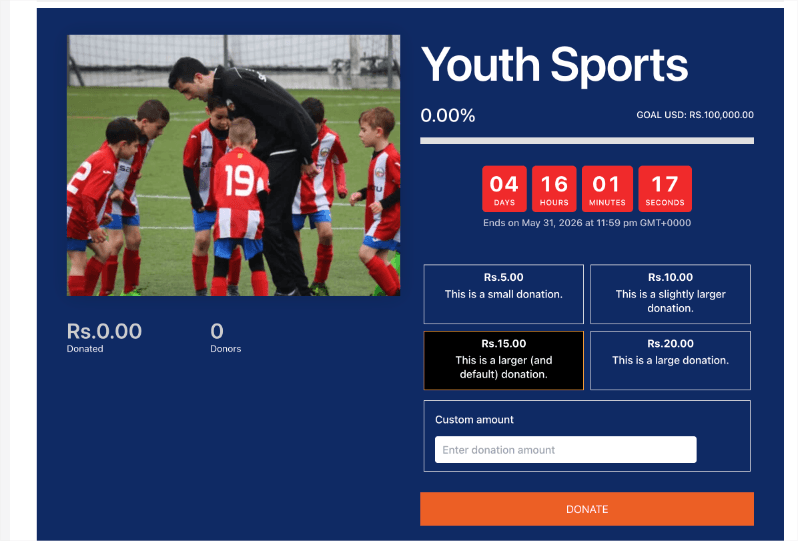
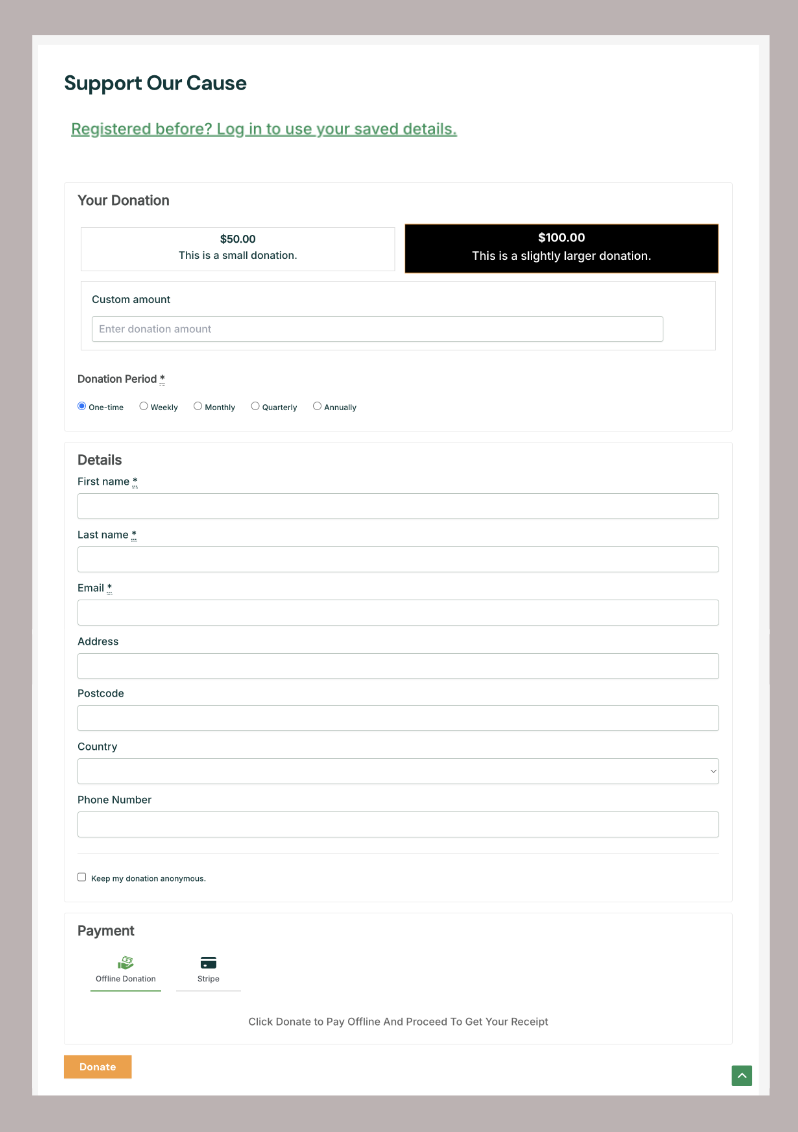
Once you create a campaign, Charitable automatically attaches a donation form to it. The donation form is simple. It will display suggested donation amounts (this is set by you), any recurring donation options, fields for name, email, address, and payment options.
Here’s a sample of what it can look like when it’s live on your site:
Once you create a campaign, you can choose to:
- Add the fundraising campaign to your site
- Add just the simple donation form
Let’s explain this with an example. Say you create a Charitable campaign and embed the donation form on your homepage to collect funds, in general, for your overall mission.
Now, for the winter, you plan on raising funds to provide warm blankets to the homeless. That’s a time-bound mission with a specific purpose and goal.
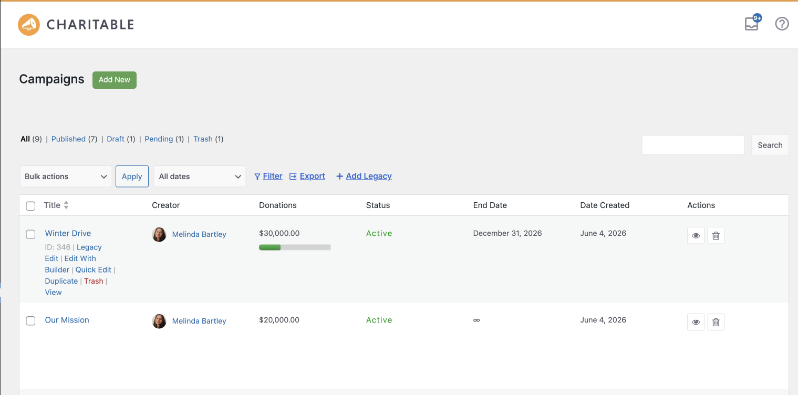
You can use Charitable to create and launch a separate campaign just for that mission. Every donation received will be organised under that campaign. Your reports will reflect the same.
This is why I love using Charitable for raising funds for non-profits. It just works in a way that non-profits really need.
For this tutorial, let’s create a general fundraising campaign to collect donations across your website for all purposes.
How to Add a Donation Form in WordPress (Step by Step)
Step 1: Install and Activate Charitable
To install Charitable, in your WordPress dashboard, go to Plugins » Add New Plugin.
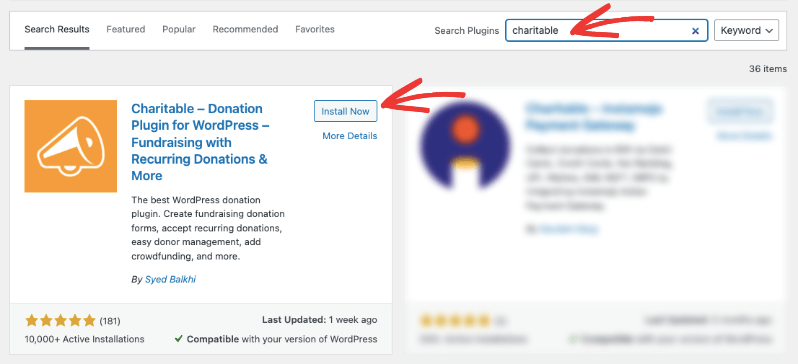
In the search bar, type Charitable.
Find the plugin by Charitable in the results. It should appear near the top and will show over a million active installs.
Click Install Now, then click Activate once the installation finishes.
Once activated, Charitable will prompt you to run its Setup Wizard. I recommend doing this, especially if you’re new to the plugin.
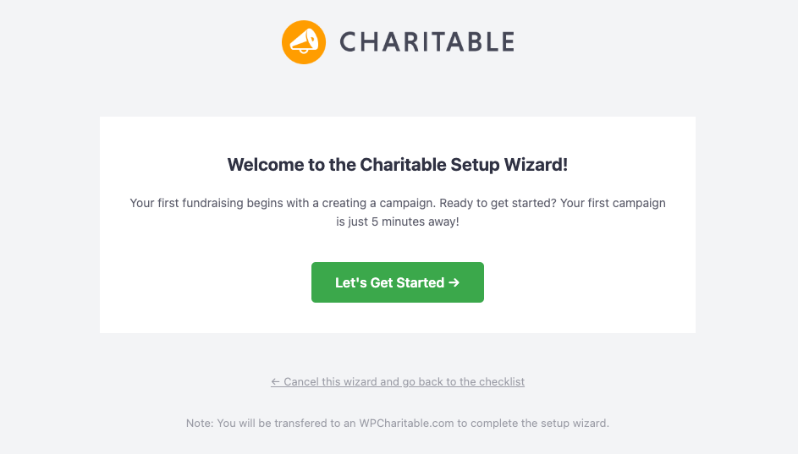
The wizard walks you through connecting a payment gateway, setting your currency, and creating your first campaign in about five minutes. If you skip it now, you can always go back to it via Charitable » Settings.
Step 2: Create, Customize, and Publish Your Campaign
Go to Charitable » Add New in your WordPress dashboard.
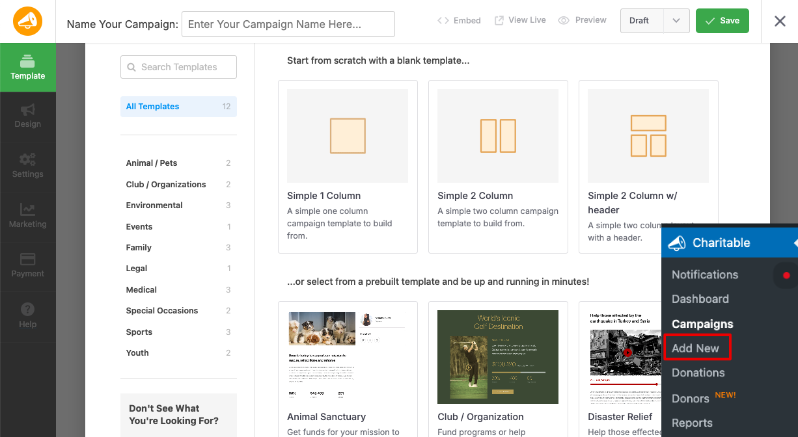
You’ll see a library of campaign templates. Choose one that fits your cause, or start with a blank template. Templates are a good starting point because they’re already structured for donor conversion.
The campaign builder opens. This is a drag-and-drop visual editor. You’ll see fields available on the left that you can simply drag and drop into the preview on the right.
You can simply click on any text to edit it, such as the campaign title and description.
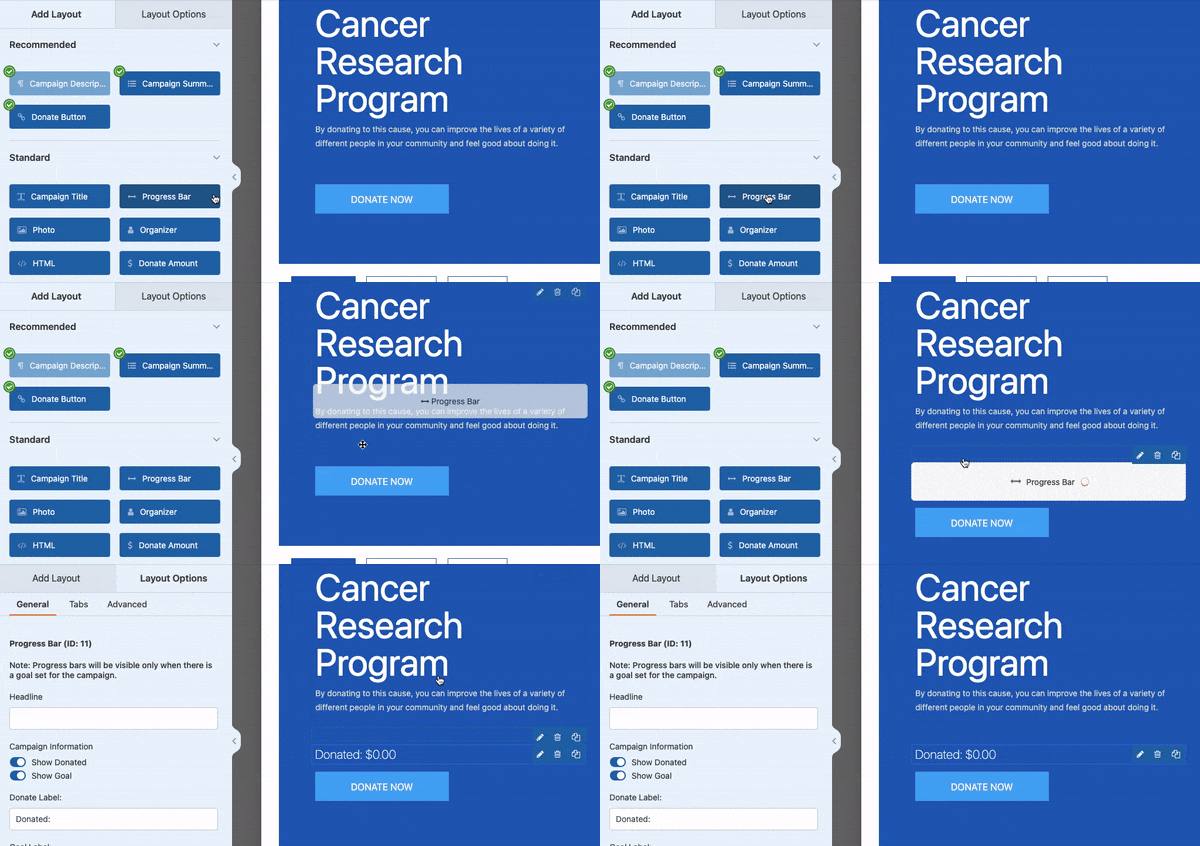
On the right side of the builder, a live preview updates as you work. Take a few minutes to customize the colors and layout so the campaign looks like it belongs to your site.
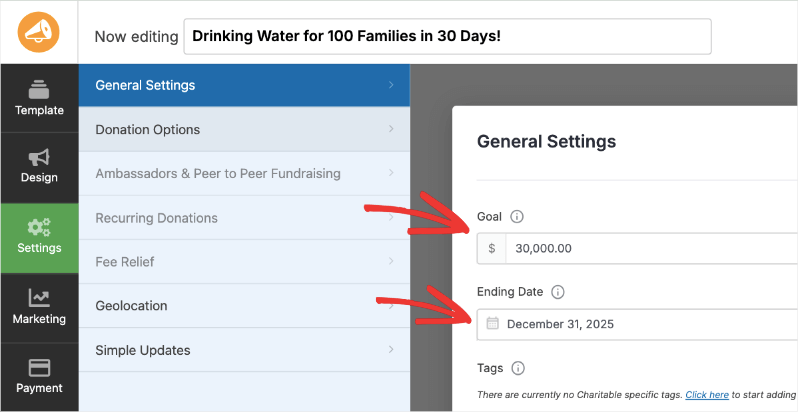
Next, go to the Settings tab on the far-left menu. Under General Settings, you can add a Goal and End Date for your campaign if you need. Since this is a general ongoing donation form, you can leave this blank.
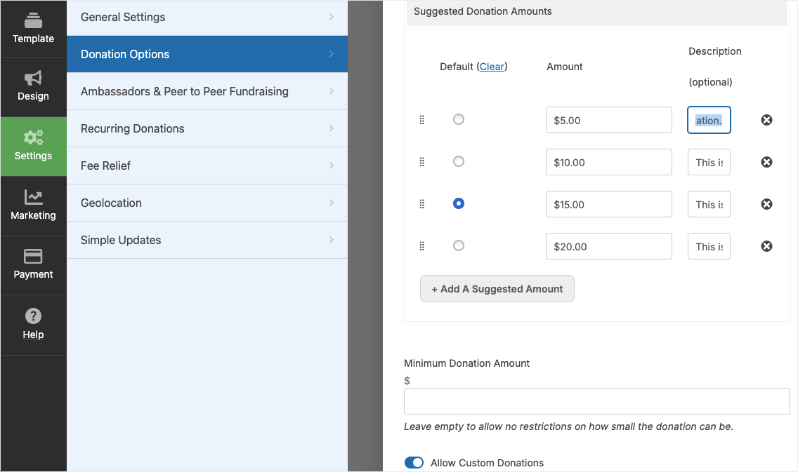
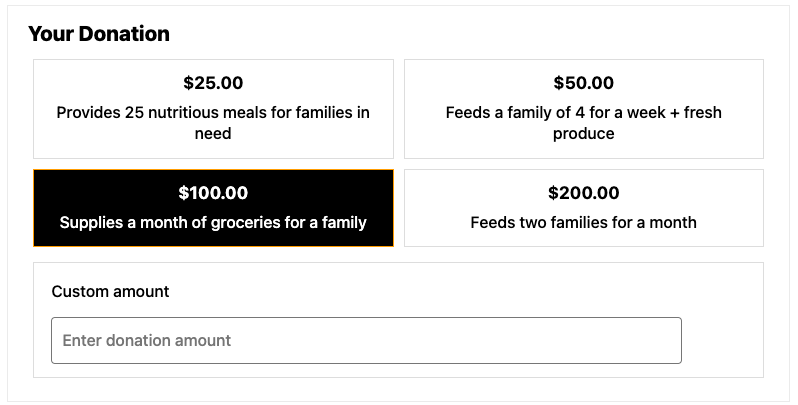
Go to the Donation Options tab. You can add suggested donation amounts along with a description here. You can also add a minimum donation amount and allow the donor to add a custom amount of their choice.
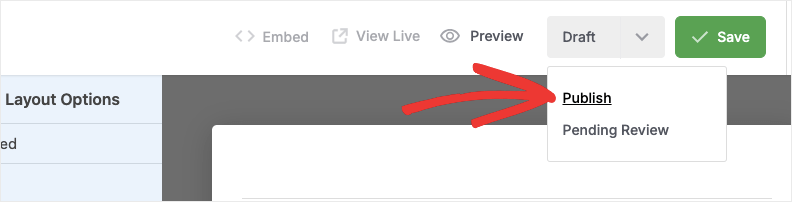
I recommend going through the settings here, and when you’re satisfied, click Publish and Save in the top menu bar.
Your campaign is now live and has its own page on your site. That page includes the full campaign layout: your description, a progress bar, and the donation form all in one place.
You can embed this campaign anywhere on your site. There are readymade widgets in the block editor, as well as in popular page builders like Elementor, WP Bakery, and Divi. For this tutorial, you don’t need the campaign, just the donation form.
So in the next step, you’ll get the code that lets you show just the donation form on any other page, without the surrounding campaign layout. That’s useful when you want a simple, focused form rather than the full campaign experience.
For a more detailed walkthrough of campaign setup, including how to add donor tiers, custom fields, and campaign images, see our full guide: How to Create Your First Fundraising Campaign in Charitable.
Step 3: Connect Your Payment Gateway
In Charitable Lite, you get Stripe, PayPal, and Square – right out of the box. No addons needed, it’s included.
If you already have a Stripe, PayPal, or Square account, it should take about 2 minutes to connect your account.
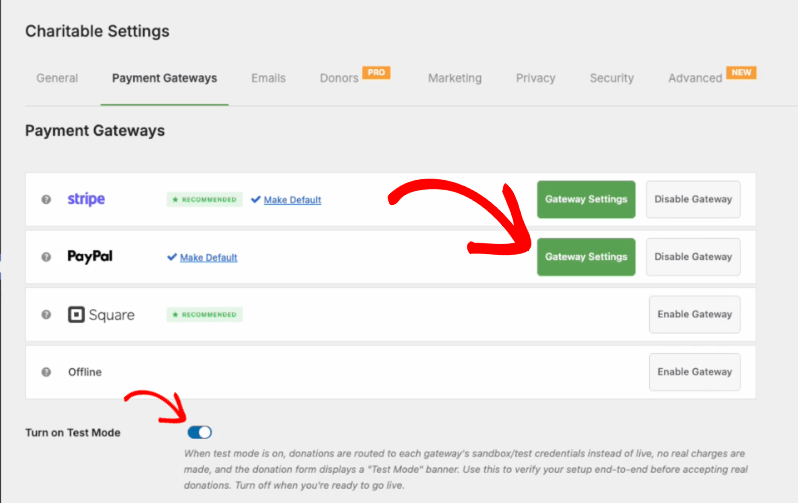
Go to Charitable » Settings » Payment Gateways. You can enable and disable gateways here. Use the green “Gateway Settings” button to go to the settings page where you can connect your account.
You can also turn on test mode here while you set up so that no payments accidentally go through from real donors when you aren’t ready.
For more details: Follow this payment setup guide »
See all payment gateways available »
Step 4: Automate Your Email Receipts
Charitable makes it easy to create and send receipts to donors. It’s automated and handled for you. You can customize the email to add your own logo and messaging.
Go to Charitable » Settings » Emails. Here, you can enable emails such as the Donation Receipt. Then a green “Email Settings” button will appear.
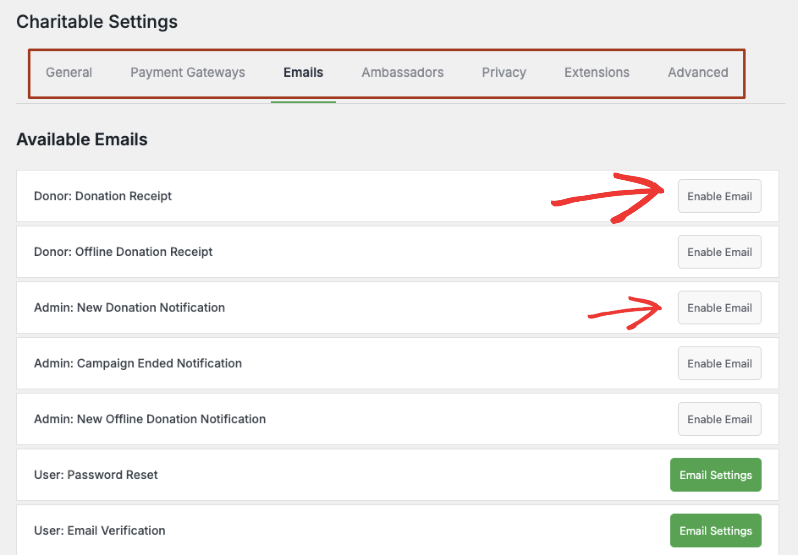
This will take you to the email page where you can customize it. You can add an email subject line and headline. If you’re using Charitable Pro, you’ll also get the option to create and attach PDF receipts.
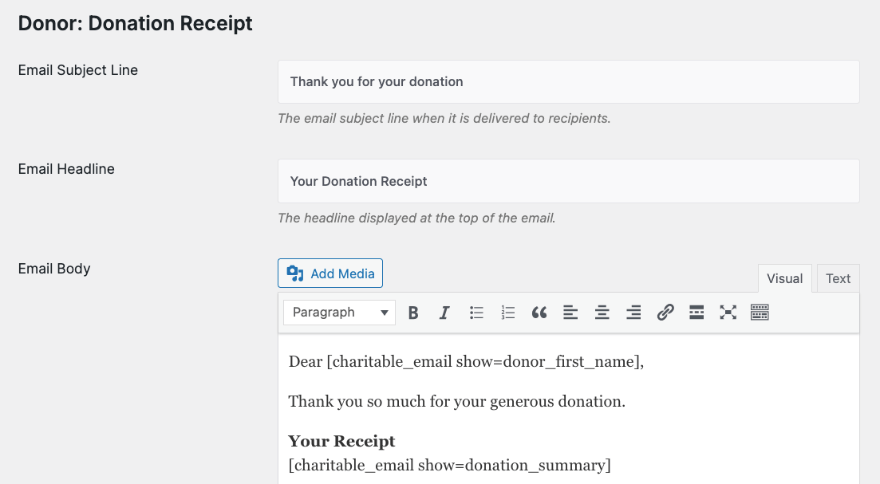
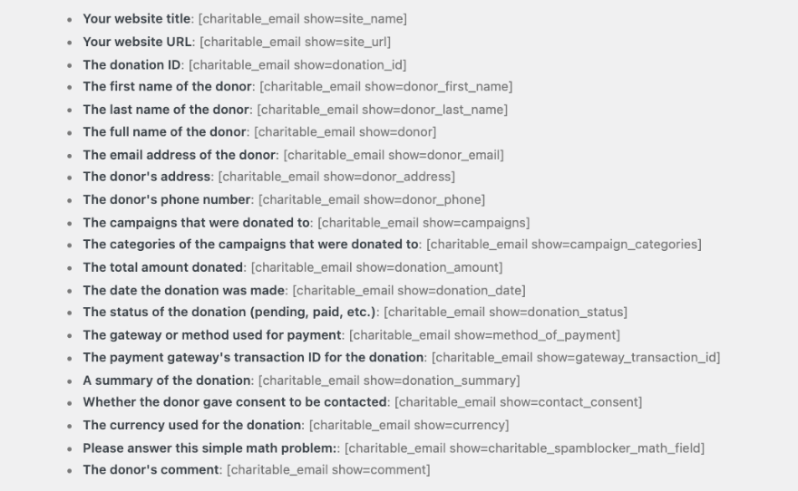
Next, you can add the email body. Charitable gives you a list of shortcodes you can use to auto-fetch donor and donation information from the form filled out by the donor. This includes the donor’s first name, donation summary, and more.
Step 5: Get Your Embed Code from the Wizard
Now that your campaign is published, Charitable gives you a simple way to grab the embed code. There are two places to find it, and both work without any technical knowledge.
Option A: Use the Embed Wizard (Recommended)
While still inside the campaign builder, look at the top menu bar. You’ll see an Embed button next to the Publish and Save controls. Click it to open the Embed Wizard.
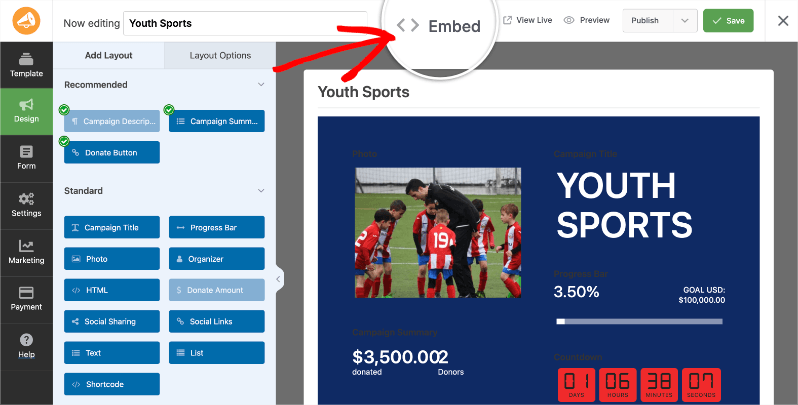
The wizard shows you a few display options. You can click on the blue link “Embedding a form? Click here”.
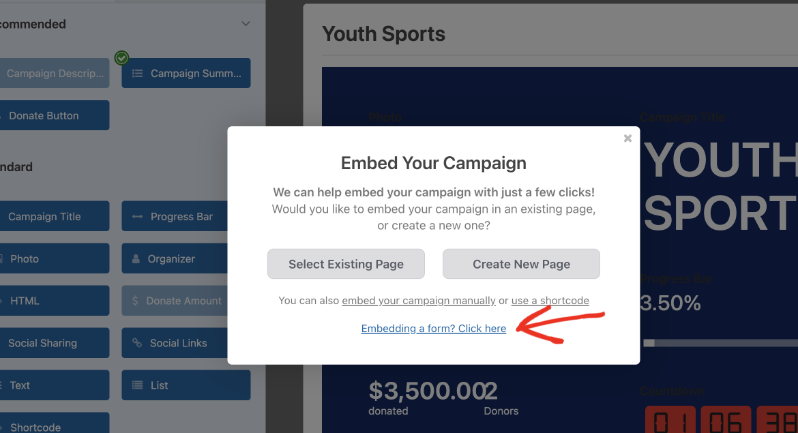
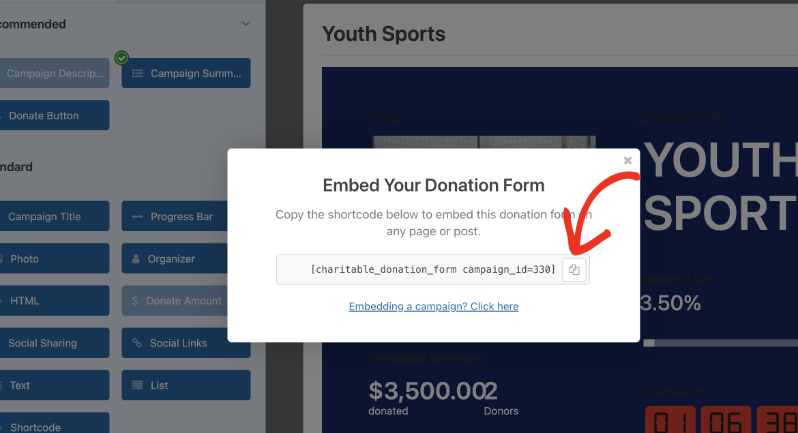
This will display code that you can copy. It should look like [charitable_donation_form campaign_id=123].
The number after campaign_id= is your campaign’s unique ID.
Copy this shortcode. You’ll paste it into your page in the next step.
Option B: Find the ID in the Campaigns List
If you’ve already closed the campaign builder, you can find your campaign ID without reopening it. Go to Charitable » Campaigns in your dashboard. You’ll see a list of all your campaigns. The campaign ID appears in small text directly below each campaign title.
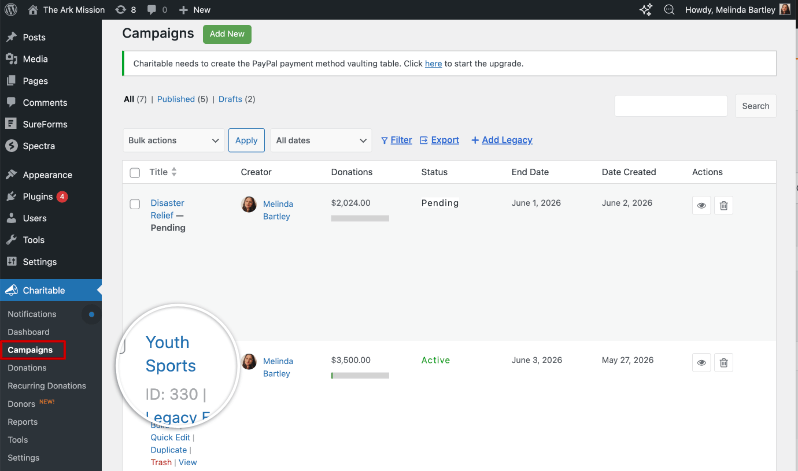
Note that number, then build the shortcode yourself:
[charitable_donation_form campaign_id=YOUR_ID_HERE]Replace YOUR_ID_HERE with the number from your campaigns list.
Either way, you now have the shortcode you need. On to placing it on your site.
Step 6: Add the Shortcode to a Page or Post
Open the page or post where you want the donation form to appear. This might be a standalone “Donate” page, your homepage, a campaign-specific landing page, or a blog post. The shortcode works anywhere WordPress lets you add content.
Here’s how to add it using the WordPress block editor:
- Click the + icon to add a new block wherever you want the form to appear on the page.
- In the block search bar, type Shortcode and select the Shortcode block from the results.
- Paste the shortcode you copied in Step 4 into the shortcode field. It should look like:
[charitable_donation_form campaign_id=123] - The block editor will display a placeholder in editing view. The actual rendered form appears when you preview or publish the page.
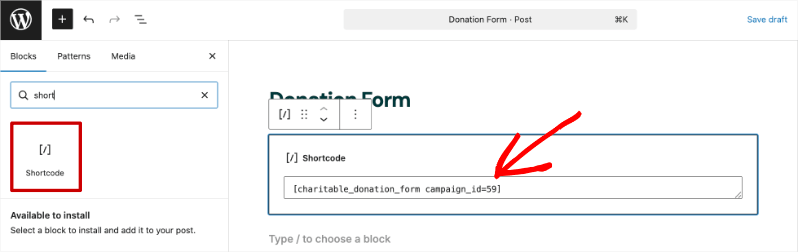
If you’re using the Classic Editor instead of the block editor, paste the shortcode directly into the text editor at the point where you want the form to appear. It works exactly the same way.
You can place this shortcode on as many pages as you want. Each page will show the same donation form for that campaign. If you run multiple campaigns, each one has its own shortcode with a different campaign ID, so you can embed them independently across your site.
Before you publish, preview the page to confirm the form is rendering correctly. Click the Preview button in the top-right corner of the page editor. WordPress will open a preview tab showing exactly what visitors will see.
Check that the form appears where you placed it, that the campaign title and donation amounts look right, and that the form fields are all present. If you haven’t connected a payment gateway yet, the form will display but won’t process real transactions.
Once everything looks good, click Publish. Your donation form is live. Anyone who visits that page can now give directly on your site, without leaving your domain, without their data going to a third party, and without a platform taking a cut of the donation.
In case you want to add the fundraising campaign, simply add a new block. Search for “Charitable”. Add the Charitable Campaign block and then choose the campaign you want to display from the dropdown. That’s it.
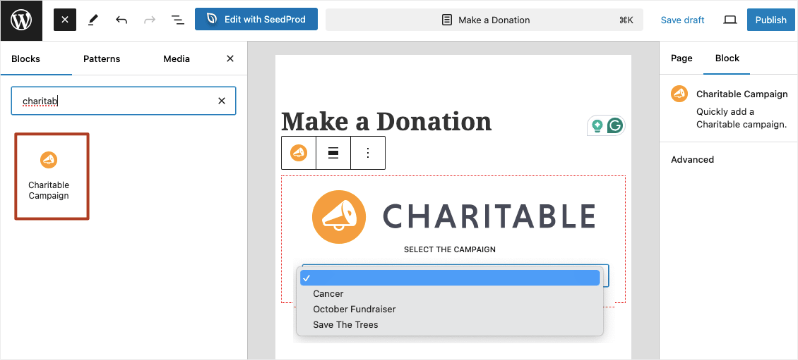
You’ve successfully added a donation form on your site. Next, I’ll show you a few form settings you’ll want to know about.
Configure Donation Form Settings
Charitable offers you options to tweak your donation form. Head over to Charitable » Settings » General tab. Open the Donation Form section.
Here are the settings available:
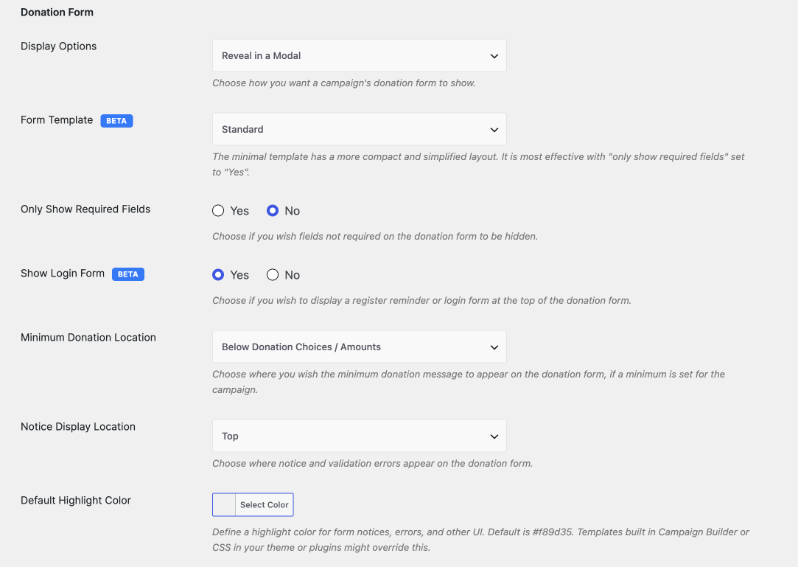
Donation Options: You can choose to display the form in a modal, separate page, or same page.
Form Template: Choose between a standard template and minimal template.
Only show required fields: This will make your form as simple as it can be for your donors.
Show login form: If you wish to have donors log in before making a donation, you can choose to enable that here.
Minimum donation location: If you’re setting a minumum donation option, you can decide where that message would appear on your form.
Default highlight color: There’s an option to set the color for notices and validation errors. You can choose to have them displayed at the top or bottom of the page.
Accessing Donation Records & Reports
Every time a donation is made, Charitable automatically creates a donation record. You can access these under Charitable » Donations.
You can view donations here, along with the name, amount, campaign, date and status.
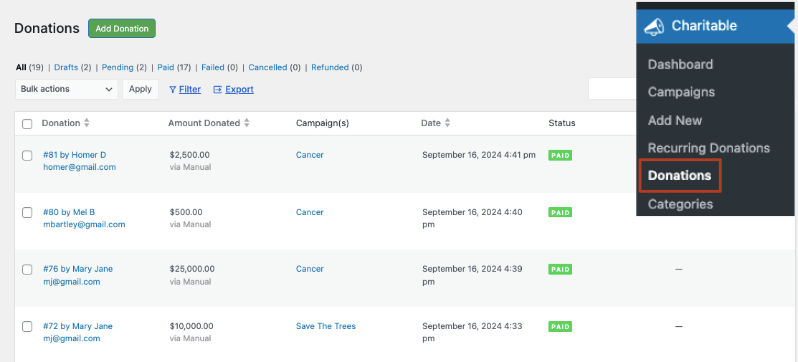
Hover over any name and you’ll see options to edit the record. This will take you to the individual record page. Here, you can view details about the donor, alond with the donation details, payment method, the activity log.
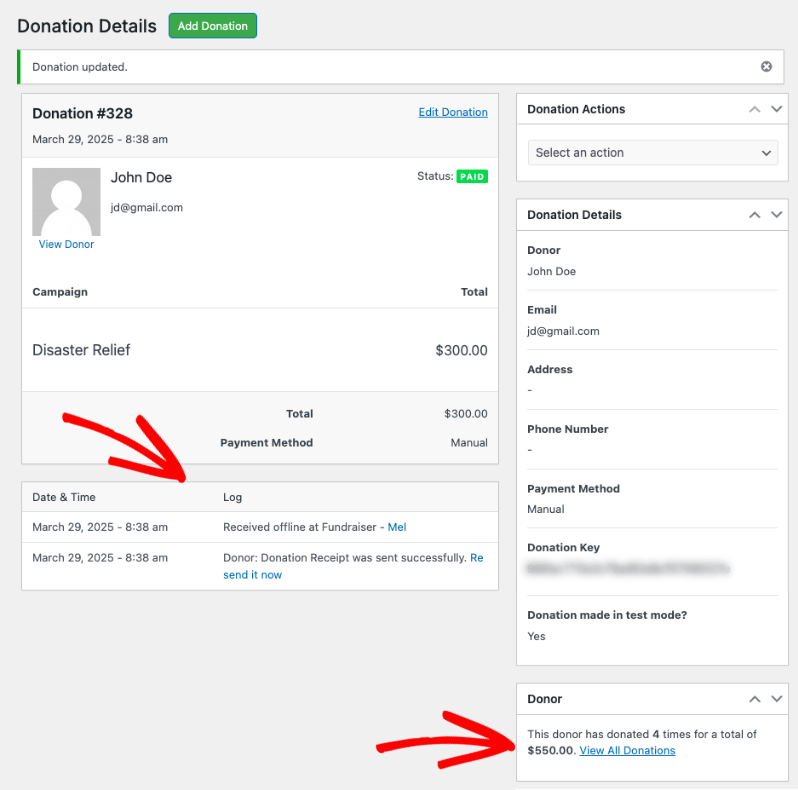
You can also set the donation status to pending, paid, cancelled, or refunded.
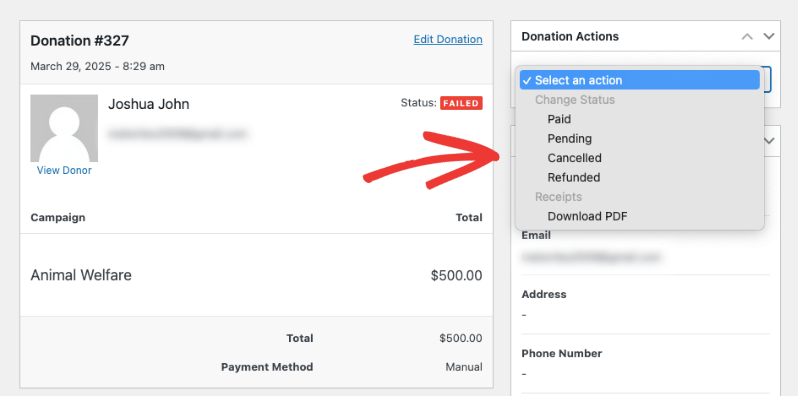
A cool feature about Charitable is that you can add a donation manually here. So if you’ve collected donations through other methods such as offline, you can create those records here and treat Charitable as your centralized database.

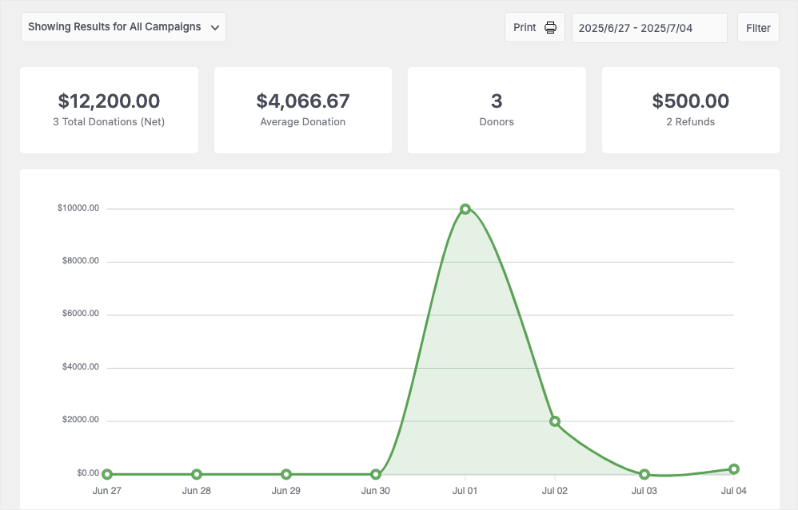
Charitable also creates readymade reports for you. You can access them under Charitable » Reports. You’ll see total donations, average donations, number of donors and refunds. You can filter and export these reports as and when you need.
Tips for Getting More from Your Donation Form
Getting the form live is the foundation. These tips help you turn that foundation into a form that actually converts. Each one is something I’ve seen make a measurable difference for organizations using Charitable.
Set Suggested Donation Amounts
Forms without suggested amounts put the entire decision on the donor, which often results in lower average gift sizes. When you set three or four suggested amounts, most donors choose one of them rather than entering their own number. The middle option tends to get the most selections. In the campaign builder, you can configure preset donation amounts and label each one. “Feeds one family for a week: $35” is more compelling than a blank dollar field with no context. Take five minutes to think through what different gift levels actually cover for your work, then name them accordingly.
Use a Specific Fundraising Goal
A progress bar tells donors they’re part of a movement, not just writing a check into a void. When your embedded form shows “We’ve raised $3,200 of our $5,000 goal,” donors feel both the urgency and the traction simultaneously. Charitable displays a goal progress bar automatically when you set a fundraising goal inside the campaign builder, and it updates in real time with every donation. It’s one of the simplest conversion improvements you can make.
Connect an Email Marketing Integration
Every donor who fills out your form is someone who cares about your cause. If you’re not adding them to an email list, you’re leaving future fundraising on the table.
Charitable’s Plus plan and above include integrations with Mailchimp, ActiveCampaign, MailerLite, Campaign Monitor, MailPoet, and Mailster. When a donor submits a form, they can be automatically added to a list and triggered into a welcome sequence. That single automation can dramatically improve donor retention over time. Learn more about Charitable’s email marketing integrations.
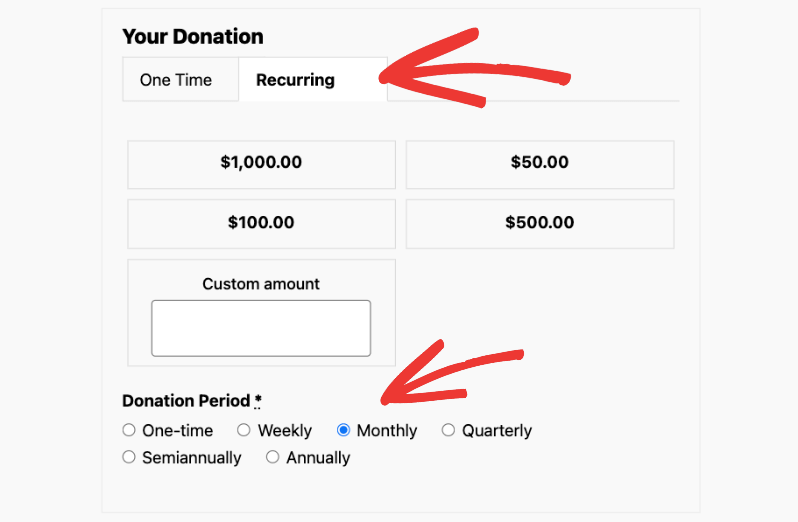
Enable Recurring Donations
One-time donors are valuable. Monthly donors are transformative. A supporter who gives $25 once is worth $25. The same supporter on a monthly plan is worth $300 over a year, with no additional acquisition cost. Recurring donations are available on Charitable’s Plus plan and above. When enabled, a simple “Make this a monthly gift” option appears on your donation form. It’s one checkbox for the donor, and it changes the entire financial picture for your organization over time. See how recurring donations work in Charitable.
Test Your Form Before Promoting It
Before you send your donation page link to your whole email list, run through the form yourself. Submit a test donation using your payment gateway’s sandbox or test mode. Check that the confirmation email arrives correctly and that the donation appears in your Charitable dashboard. Stripe and PayPal both provide test card numbers specifically for this purpose. The five minutes it takes to test will save you from the much worse scenario of finding out something is broken through a confused donor email.
Why Consider Upgrading to Charitable Pro
Charitable Lite has all the features you need to raise funds online with 0 investment needed.
Charitable Pro gives you access to advanced fundraising features. For the donation form, you’ll get a visual form builder that lets you customize the form as you need in a live preview. You’ll also get more options on how payment methods are displayed.
Other powerful features include:
- PDF receipts
- Donor Updates
- Full Donation Management
- Advanced reports
- Donor dashboard
- Donor leaderboards
- Recurring donation
- Fee relief
- Anonymous Donations
- Donation Teams
- Peer to peer fundaising
- Donation recovery
- More payment gateways
- Email marketing integrations
…and more!
Want to see it in action? Try a Charitable Pro demo »
Ready to power up your fundraising?
Frequently Asked Questions
What is the shortcode to add a donation form in WordPress?
The Charitable shortcode for embedding a donation form is [charitable_donation_form campaign_id=123]. Replace 123 with your actual campaign ID. You can find your campaign ID in two places: the Embed Wizard inside the campaign builder, or in the Charitable > Campaigns list, displayed in small text below each campaign title.
Do I need to create a campaign before adding a donation form?
Yes. In Charitable, every donation form is tied to a specific campaign. The campaign holds your fundraising goal, description, and campaign details. Once you create and publish a campaign, you can embed its donation form anywhere on your site using the shortcode. This structure lets you run multiple campaigns simultaneously, each with its own independent form.
Can I put the donation form on more than one page?
Yes. Copy the shortcode and paste it into as many pages, posts, or widget areas as you want. Every instance shows the same form and sends donations to the same campaign. This is useful if you want a form on your homepage, on a dedicated “Donate” page, and embedded in relevant blog posts at the same time.
What donation form templates are available in Charitable?
Charitable offers two donation form templates: the Standard template and the Minimal template. You can switch between them in Charitable » Settings » General » Donation Form using the Form Template dropdown. The Standard template includes more visual structure; the Minimal template is a stripped-down form that integrates cleanly into any page layout. You can also customize colors, field display options, and add custom CSS if needed.

I made changes to my campaign but they’re not showing on the form. What should I do?
First, make sure you clicked Publish and Save inside the campaign builder after making your changes. If you saved and still don’t see the update on the front end, the most likely culprit is a caching plugin. Go to your caching plugin’s settings and clear the cache, then reload the page. If you don’t use a caching plugin, try a hard refresh in your browser (Ctrl+Shift+R on Windows, Cmd+Shift+R on Mac).
Is Charitable free? Do I need to pay anything to accept donations?
Charitable Lite is completely free and available on WordPress.org. It includes unlimited campaigns, unlimited donations, PayPal and Stripe support, automated receipts, and full donor data ownership. There are no monthly fees and no setup costs. Charitable’s paid plans start at $69 per year and add features like recurring donations, fee recovery, email marketing integrations, and more. All paid plans come with a 14-day money-back guarantee.
Does Charitable take a percentage of donations?
No. Charitable does not take any percentage of donations. If you’re on a paid plan, you pay the annual license fee for the software, and that’s it. Your payment processor (Stripe, PayPal, etc.) charges its standard processing fees, which go directly to them. Charitable has no role in that transaction and takes nothing from it. This is one of the key differences between self-hosted WordPress fundraising and third-party platforms that charge a platform fee on top of processing fees.
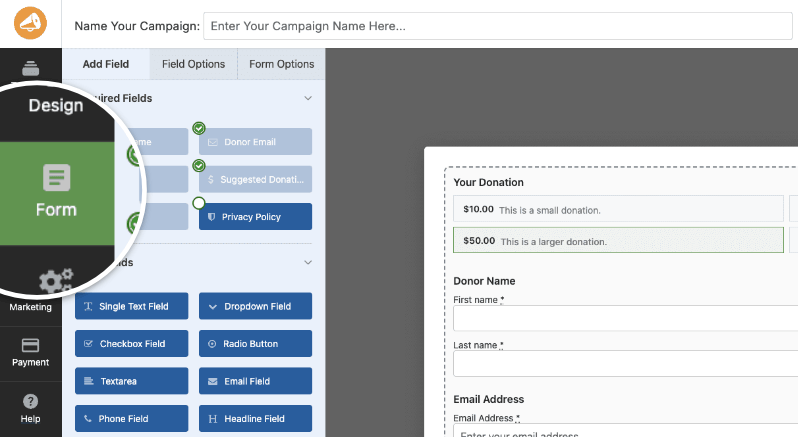
Does Charitable have a visual form builder?
Yes, the visual donation form builder is easy to use. You can access it inside any campaign once you open the builder, switch to the Donation Form tab.
Where can I get help if something isn’t working?
Free users can post questions on the Charitable support forum on WordPress.org, where the team responds regularly. If you have an active Charitable Pro license, you have access to direct priority support through the Charitable support portal. There’s also a full documentation library covering every feature and setting in detail.
Stay Connected for More Nonprofit Resources
For more tutorials and videos tailored to nonprofits, subscribe to our YouTube channel. We regularly publish expert tips, step-by-step guides on online donations, fundraising strategies, and practical resources to help your organization succeed.
🗞️ Get weekly tips and exclusive guides in your inbox
Join our newsletter →
🎥 Watch step-by-step tutorials and success stories
Subscribe to our YouTube channel →
👩🏽💻 Connect with our community and get daily nonprofit insights
Follow us on LinkedIn →
🥳 Fun reels and non-profit insights
Follow us on Instagram →
👀 Insightful & fun videos to help you grow your cause
Follow us on TikTok→
🌎 Subscribe and follow for general fundraiser tips
Get Fundraiser Tips on TikTok →
Powerful Fundraising Resources
🤖 Use Charitable with Your AI Assistant
⬇️ Download proven strategies, campaign ideas, and expert tools
Get the Fundraising Kit →
💸 Get Free Fundraising Resources
Head to the Charitable Fundraising Hub →
🤔 Got questions about Charitable?
Charitable FAQs →
🏎️ Take Charitable for a spin
Create your Charitable Demo →
Understand non-profit terms and jargon
Non-Profit Glossary →
% Looking for non-profit deals and discounts?
Best Non-Profit Deals and Discounts →





Leave a Reply