
Requires: Charitable Pro plugin 1.8.16+
Pro plan and higher
Do you need to keep track of which donors earned a reward and what still has to be sent? Every time a donor earns a reward, Charitable Rewards writes a claim, which records who earned what, on which donation, and what still needs to happen.
This guide covers the Claims tab, what each claim status means, how to fulfill claims 1 at a time or in bulk, and the emails donors receive along the way.
With one list for everything you owe, nothing a donor earned gets forgotten.
Charitable Rewards needs version 1.8.16 or higher of the Charitable Pro plugin, on the Pro plan and higher.
What’s In This Guide?
Watch the Video
If you’d rather watch than read, this video shows a claim moving from confirmed to fulfilled.
Where to Find Your Claims
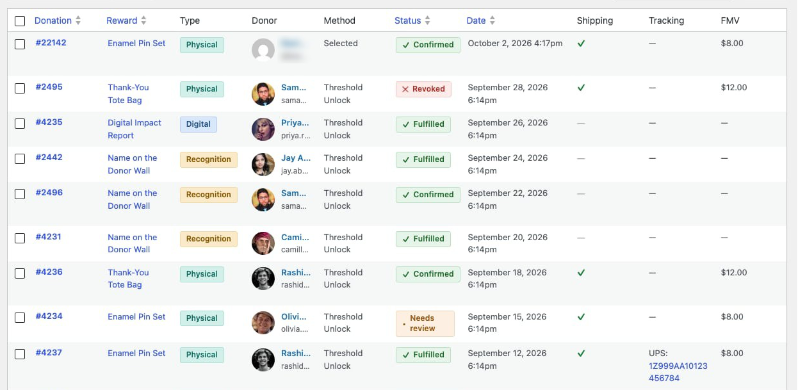
To see your claims, head over to Charitable » Rewards » Claims.
The 2 Ways a Claim Happens
The Method column tells you how the donor earned each reward.
| Method | Means |
|---|---|
| Threshold Unlock | The donor’s amount crossed a reward’s amount in automatic mode. They didn’t choose the reward |
| Selected | The donor picked it on purpose, by choosing a giving level |
This helps when a donor asks why they received something. A threshold unlock happened automatically.
Claim Statuses
Each claim has 1 of 6 statuses, and each status tells you whether you need to do anything.
| Status | Means | What you do |
|---|---|---|
| Reserved | The reward is held while the donation is still processing | Nothing. It resolves itself |
| Confirmed | The donation went through, and the reward is owed | Fulfill it, if it needs fulfilling |
| Fulfilled | The reward was delivered or mailed | Nothing. It’s done |
| Needs review | Something needs a person to decide | Look at it and resolve it |
| Revoked | You cancelled the claim | Nothing |
| Refunded | The donation was refunded | Decide whether to recover the item |
A recognition reward goes from confirmed to complete without you touching it, because there’s nothing to mail. Physical rewards are the ones that build up in the list.
Fulfilling a Claim
When you open a claim, you’ll see the donor, the reward, the donation it came from, and the shipping address if there is one. You’ll also see a “Mark Fulfilled” action.
For anything you mailed, record the carrier and tracking number at the same time. Rewards turns them into a tracking link on the claim and adds them to the reward shipped email, so the donor gets the details without you writing a message.
The carrier list includes USPS, UPS, FedEx, DHL, and Other by default. A developer can add more carriers with a filter.
Fulfilling in Bulk
To fulfill several claims at once, select them and apply “Mark Fulfilled” to all of them. This is the right tool after a packing session where you’ve mailed 30 tote bags.
Note: Bulk fulfillment doesn’t ask for tracking numbers. When tracking matters, fulfill each claim on its own instead.
Notes and the Activity Trail
Every claim keeps an activity log of status changes, fulfillment, emails sent, and any notes you add yourself. System entries are marked, so you can tell automatic events from changes a person made.
Add a note whenever something will need explaining later. “Donor asked us to hold shipping until June” can save a confusing conversation 3 months from now.
Filtering, Searching, and Exporting
You can filter the list by status, reward, campaign, and date range, and search it by donor. Whatever is on screen can be exported to CSV, including the tax columns when tax receipting is on.
The export makes a handy packing list. Filter to confirmed physical claims and export them, and you’ll have names and addresses in a spreadsheet.
What Donors Receive by Email
Rewards comes with 3 emails, and you can edit each one under Charitable’s email settings.
| Sent when | Notes | |
|---|---|---|
| Reward confirmation | A claim is confirmed | Turned on per reward, so you can stay quiet on recognition perks |
| Reward digital delivery | A digital reward is claimed | Carries the protected download link |
| Reward shipped | You mark a physical claim fulfilled with tracking | Includes the carrier and tracking number |
Recurring Donations
A reward on a recurring donation needs to know what a renewal means. Each reward has its own setting for this.
| Behavior | On each renewal |
|---|---|
| Fulfill once (default) | Nothing new happens. The donor keeps what they got |
| Claim every renewal | A new claim is created |
“Fulfill once” suits a one-time object like a signed poster. “Claim every renewal” suits something that really does repeat, like a quarterly magazine.
Important: Take care with “Claim every renewal” on a physical reward with a stock limit. A year of monthly renewals means 12 claims against your stock.
Tips Worth Keeping in Mind
These habits keep your claims list short and your donors informed.
- Filter the list to Confirmed and the physical type. That’s your real to-do list.
- Record tracking numbers as you go rather than afterward. The shipped email only includes them if they’re there when you mark the claim fulfilled.
- If a claim is in Needs review, resolve it rather than leaving it. The Overview dashboard counts it as needing attention and will keep reminding you.
- Before a packing session, export the filtered list. It’s easier than working from the screen.
Developer Reference
Actions
| Action | Runs when |
|---|---|
charitable_rewards_claim_confirmed | A claim moves to confirmed |
charitable_rewards_claim_fulfilled | A claim is marked fulfilled |
charitable_rewards_claim_revoked | A claim is revoked |
These are the integration points for syncing claims to a fulfillment service or your CRM.
Filters
| Filter | Default | Purpose |
|---|---|---|
charitable_rewards_carriers | USPS, UPS, FedEx, DHL, Other | The carrier list offered when recording tracking |
charitable_rewards_backers_statuses | confirmed, fulfilled | Which statuses count toward public claim counts |
charitable_rewards_log_renewal_to_donor | plugin default | Whether a renewal claim is logged against the donor |
charitable_email_reward_confirmation_recipient | the donor | Who the confirmation email goes to |
charitable_email_reward_shipped_recipient | the donor | Who the shipped email goes to |
charitable_email_reward_digital_delivery_recipient | the donor | Who the delivery email goes to |
Each of the 3 emails also exposes _default_subject, _default_headline, and _default_body filters under the same prefix.
Claim Value Object
Charitable_Rewards_Claim exposes the statuses as constants, which are STATUS_RESERVED, STATUS_CONFIRMED, STATUS_FULFILLED, STATUS_REVOKED, STATUS_REFUNDED, and STATUS_NEEDS_REVIEW. Claim types are TYPE_SELECTED and TYPE_THRESHOLD.
Each claim carries an idempotency_key, so the same donation and reward pairing can’t produce duplicate claims if a payment webhook arrives twice.
Tracking Storage
Carrier and tracking number are stored as donation post meta keyed per reward, rather than on the claim row, via Charitable_Rewards_Tracking::save(). Read them back with parts_for_donation_reward().
Capabilities
Working the claims list needs charitable_fulfill_rewards. Seeing donor names and addresses needs charitable_view_reward_pii. See Permissions.
Customization Examples
Push fulfilled claims to an external service.
add_action( 'charitable_rewards_claim_fulfilled', function ( $claim_id ) {
    // Send $claim_id to your warehouse API.
} );
Add a regional carrier.
add_filter( 'charitable_rewards_carriers', function ( $carriers ) {
    $carriers['canada-post'] = __( 'Canada Post', 'your-textdomain' );
    return $carriers;
} );
Count only fulfilled claims in public claim counts.
add_filter( 'charitable_rewards_backers_statuses', function () {
    return array( 'fulfilled' );
} );
Wrapping Up
You now know how to read each claim status, fulfill claims 1 at a time or in bulk, and export a packing list.
Next, you can check how digital and physical rewards reach your donors. If you get stuck on any step, our support team is happy to help.
You May Also Want to Read
These guides cover what happens before and after a claim is created.
- Delivering Rewards. See how digital files and physical items reach donors.
- Creating Rewards. Learn about stock limits and the reservation hold behind Reserved claims.
- Reporting. Use the dashboard that shows what needs your attention.
- Tax Receipting and Fair Market Value. Understand the tax columns in the claims export.
Helpful Links
🤝 Get help when you need it
Connect with Customer Support →
📑 Find the guide you need
Browse the Documentation Hub →
⬇️ Download proven strategies, campaign ideas, and expert tools
🔗 Let your AI Assistant do the fundraising work for you.
Connect Charitable to your AI assistant →
💸 Get Free Fundraising Resources
Head to the Charitable Fundraising Hub →
🤔 Got questions about Charitable?
Charitable FAQs →
Need help understanding non-profit terms and jargon?
See our Non-Profit Glossary →




