
Do you want to see how your fundraising is going the moment you log in? The Charitable dashboard shows your headline figures, a donations chart, your site status and your latest activity on one screen.
This guide covers where to find the dashboard, how to read the tiles and chart, and what each card on the screen tells you.
Once you know where everything sits, you’ll be able to check on your fundraising in under a minute, and spot anything that needs fixing before a donor does.
The redesigned dashboard is available in version 1.8.19 of the Charitable Pro plugin.
What’s In This Guide?
Before You Start
To see the new dashboard, update the Charitable Pro plugin to version 1.8.19 or later under Plugins » Installed Plugins.
The first time you open the dashboard after updating, you’ll be offered a short guided tour. It shows you where each figure comes from and what to do with it. You can take it or dismiss it, and you won’t see it again either way.
Where to Find the Dashboard
To open the dashboard, go to Charitable » Dashboard in your WordPress admin menu.
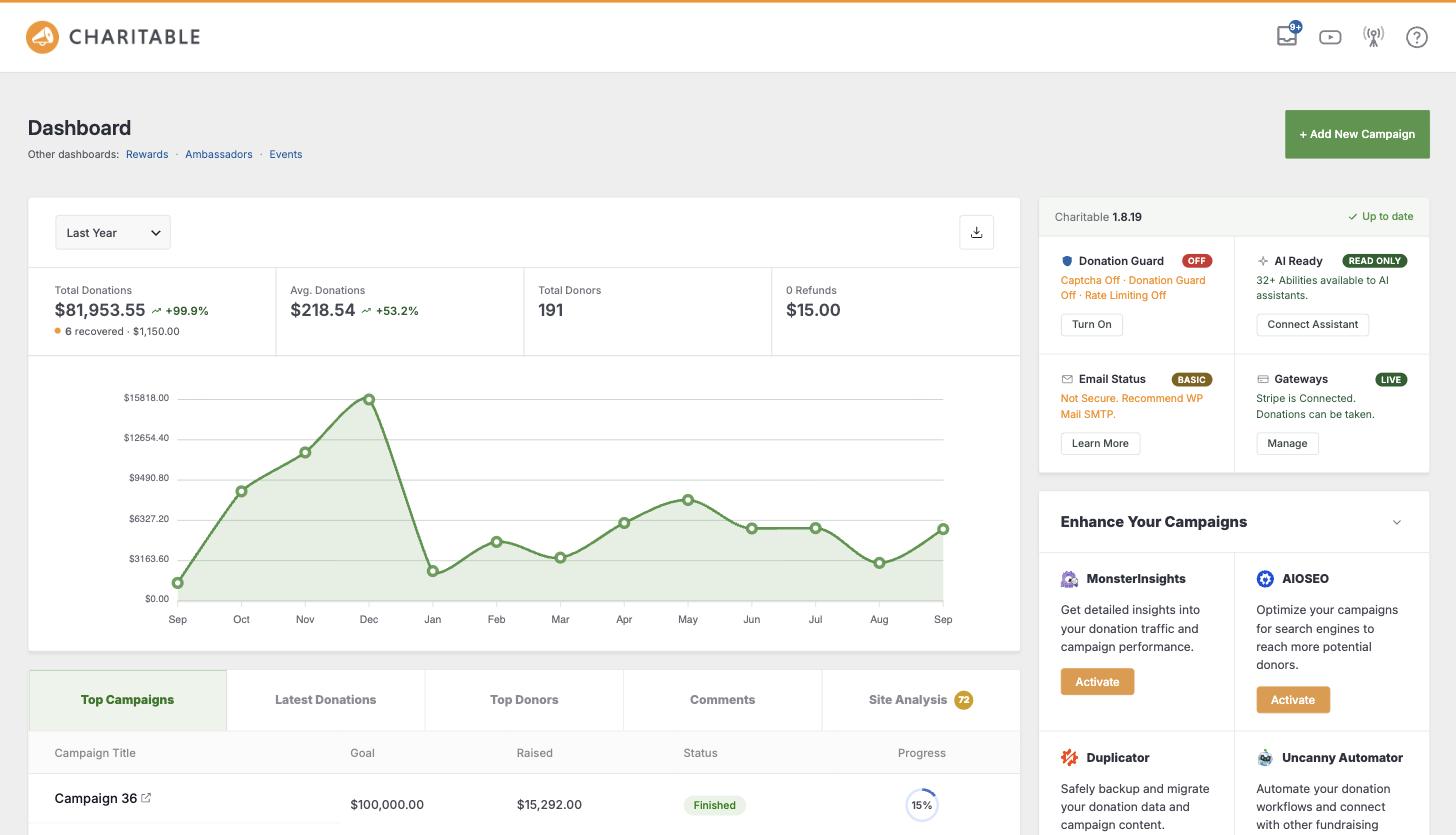
If you use other Charitable features with their own dashboards, such as Ambassadors or Events, you’ll see links to them under Other dashboards below the page title.
Reading the Tiles
At the top of the dashboard, you’ll see 4 tiles.
- Total Donations is the amount you raised in the period.
- Avg. Donations is the average size of a gift.
- Total Donors is the number of people who gave.
- Refunds is the amount you refunded.
Each figure shows its trend against the previous period, so you can tell straight away whether it went up or down. If you use Donation Recovery, you’ll also see how many abandoned donations were recovered under Total Donations.
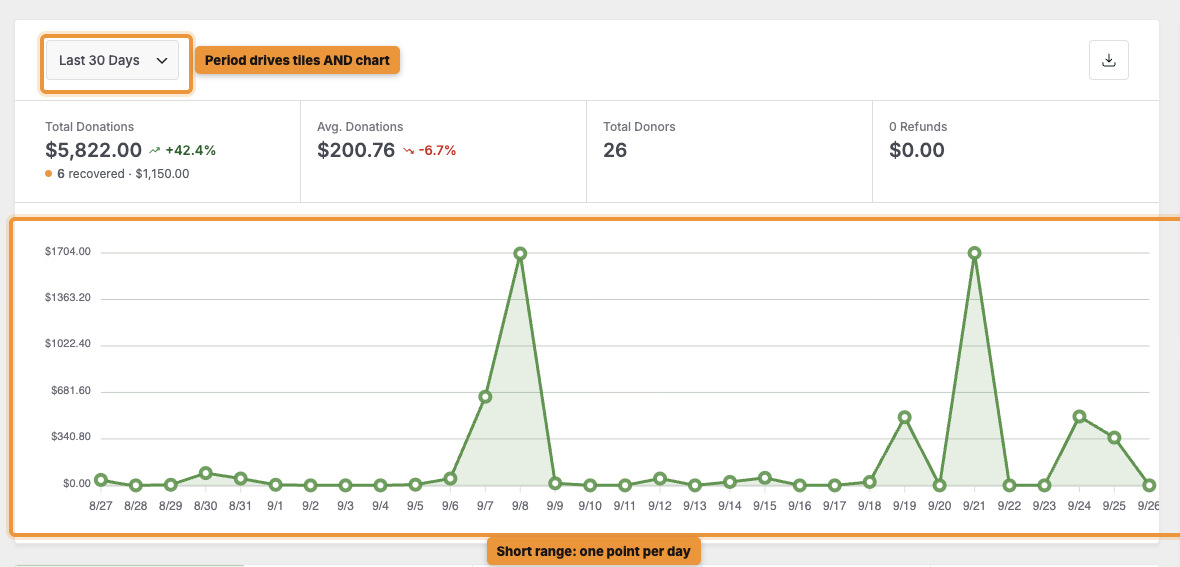
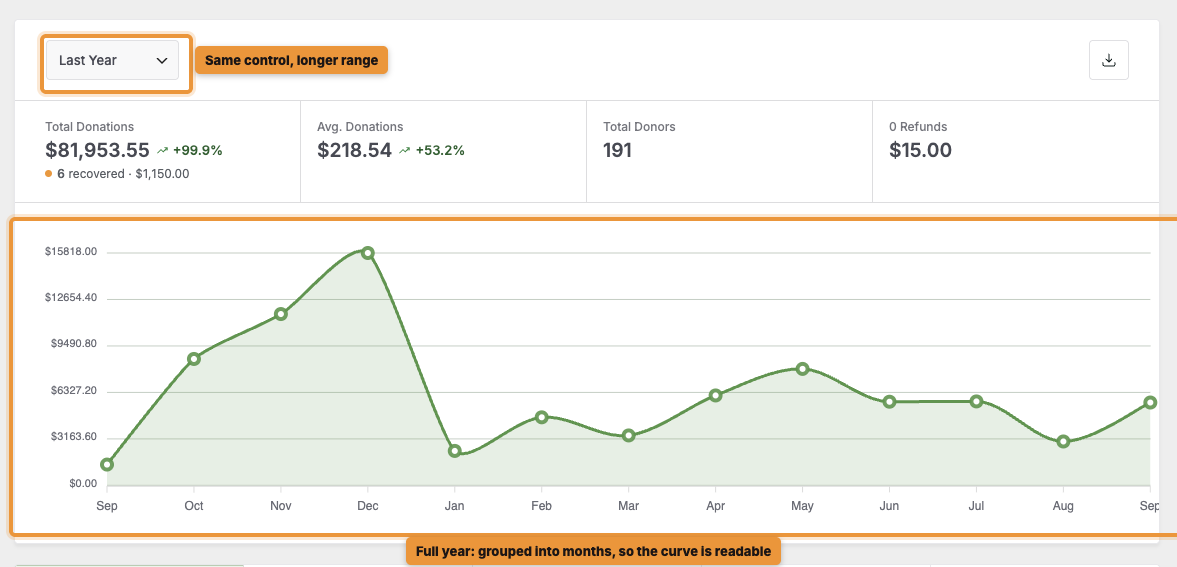
To change the period, use the dropdown above the tiles. When you pick a new period, the tiles and the chart both update together.
Reading the Donations Chart
The chart groups your donations to suit the period you pick. For a short range, such as the last 30 days, you’ll see your donations day by day.
For a longer range, such as last year, you’ll see them grouped by week or month. That way, the chart stays easy to read even over a full year.
To save the dashboard summary as a PDF, click the download icon at the top right of the chart. You can read more about this in How to Export Your Donation Reports as a PDF or CSV.
Your Latest Activity
Below the chart, you’ll find 5 tabs.
- Top Campaigns lists your campaigns with their goal, amount raised, status and progress.
- Latest Donations shows the most recent gifts.
- Top Donors shows who has given the most.
- Comments shows the latest donor comments.
- Site Analysis shows your fundraising score, with the score itself on the tab so you can see it without clicking.
To learn how your score is worked out, see Site Analysis: How to Run and Read the Report.
The Status Card
On the right side of the dashboard, the status card shows your Charitable version and whether it’s up to date. Below that, you’ll see 4 checks for Donation Guard, AI Ready, Email Status and Gateways.
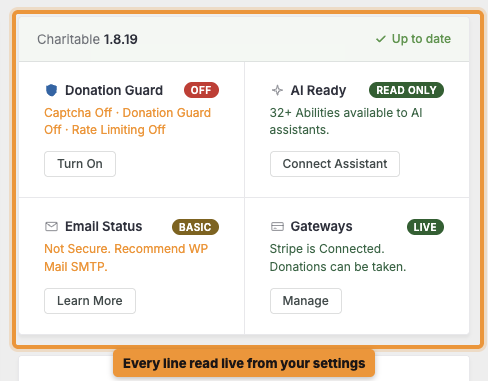
Each check is read live from your settings, so you’re always seeing what’s running right now. If something still needs setting up, you’ll see a button beside it.
For what each check means and how to fix it, see How to Fix Issues on Your Dashboard Status Card.
Keeping Up With What’s New
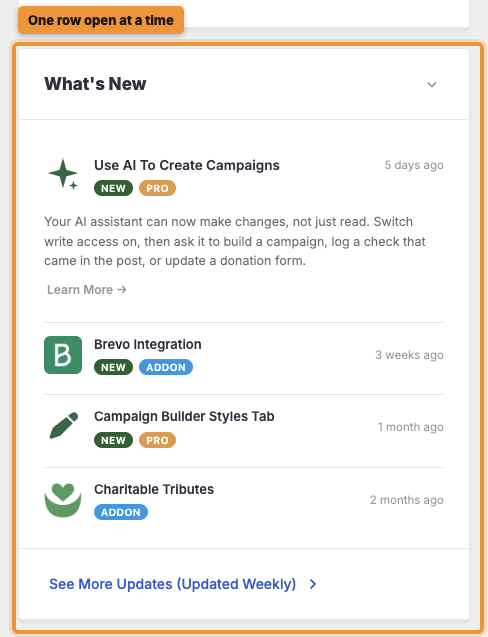
The What’s New card lists the latest Charitable features and releases. It’s updated every week, so you’ll hear about new features as soon as they’re available.
To read about a feature, click its row to open it. Only one row opens at a time. To see every update, click “See More Updates (Updated Weekly)” at the bottom of the card.
The Recommendation Cards
Further down the dashboard, you’ll see the Raise More With Charitable card. It suggests ways to raise more, matched to how you already fundraise.
You’ll also see the Works With Your Tools card. From here, you can set up email, analytics, automation and page builder tools without leaving the page.
Tips Worth Keeping in Mind
A few habits that help you get the most out of your dashboard.
- Glance at the status card after any change to your gateways or email settings.
- Switch the period to last year once a quarter, to see your seasonal pattern.
- Check the Site Analysis tab after you make a change, to see whether your score went up.
FAQs on the Charitable Dashboard
Which version do I need for the new dashboard?
You need version 1.8.19 or later of the Charitable Pro plugin.
Will updating change my donation data?
No. The update changes how your data is shown, and your donations, donors and campaigns stay exactly as they are.
Can I bring the guided tour back?
Once you take or dismiss the tour, it won’t appear again. This guide covers everything the tour shows you.
Wrapping Up
You now know how to read your dashboard tiles and chart, check your latest activity, use the status card and keep up with new releases.
For a fuller report, head over to the Reports Overview next. If you get stuck on any step, our support team is happy to help.
You May Also Want to Read
These guides cover the rest of your reporting tools.
- How to Use the Reports Overview. Filter by campaign and date, and read every section of the full report.
- How to Compare Fundraising Between 2 Periods. See how this year did against last year.
- How to Email a Weekly Fundraising Summary to Your Team. Send your numbers out every Monday without anyone logging in.
- Site Analysis: How to Run and Read the Report. Understand your fundraising score and what to fix first.
Helpful Links
🤝 Get help when you need it
Connect with Customer Support →
📑 Find the guide you need
Browse the Documentation Hub →
⬇️ Download proven strategies, campaign ideas, and expert tools
🔗 Let your AI Assistant do the fundraising work for you.
Connect Charitable to your AI assistant →
💸 Get Free Fundraising Resources
Head to the Charitable Fundraising Hub →
🤔 Got questions about Charitable?
Charitable FAQs →
Need help understanding non-profit terms and jargon?
See our Non-Profit Glossary →

Charitable Now Works With the AI Assistant You Already Use
This is the most fun thing we’ve shipped all year, and you have to try it. You can now use ChatGPT, Claude, or any AI assistant you’re already using to build and launch fundraiser campaigns.
You can create donation records, manage donor profiles, fetch data, and get fundraising reports too. Simply connect your AI agent, and start asking for what you want.
No Charitable addon needed, no coding, and no elaborate setup. Anyone can do it!



