Charitable Documentation

Learn how to make the most of Charitable with clear, step-by-step instructions.

How to Email a Weekly Fundraising Summary in Charitable

Do you want your treasurer or board to see your fundraising numbers every week, without logging in to WordPress? The Email This Report card sends your Reports Overview by email at the start of each week.

This guide covers turning on the weekly summary, editing the email, and what your recipients will get.

Once it’s set up, nobody has to remember to check the numbers, because the numbers come to them.

The weekly summary is available in version 1.8.19 of the Charitable Pro plugin.

What’s In This Guide?

  • Before You Start
  • Turning On the Weekly Summary
  • Editing the Weekly Summary Email
  • What Your Recipients Will Get
  • Tips Worth Keeping in Mind
  • FAQs on the Weekly Summary

Before You Start

The summary is sent by your site’s email. Check that Email Status on your Charitable dashboard isn’t showing a warning before you turn it on.

Important: If Email Status says your emails are not secure, set up email delivery first. Otherwise, the summary may land in spam or not arrive at all.

Turning On the Weekly Summary

To turn on the summary, follow these steps.

  1. To get started, head over to Charitable » Reports.
  2. On the right side of the page, find the Email This Report card. While it’s off, the card says Report disabled.
  3. Turn on the switch. Your change saves straight away, with no page reload.
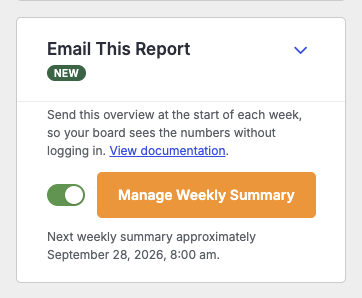
The Email This Report card with the weekly summary switch turned on and the Manage Weekly Summary button

Under the switch, you’ll now see the date and time the next summary will go out.

Editing the Weekly Summary Email

To edit the email, click “Manage Weekly Summary” on the Email This Report card.

The email will open under Charitable » Settings » Emails as Admin: Weekly Report Summary. You’ll also find it there any time, under Admin Notifications in the list of available emails.
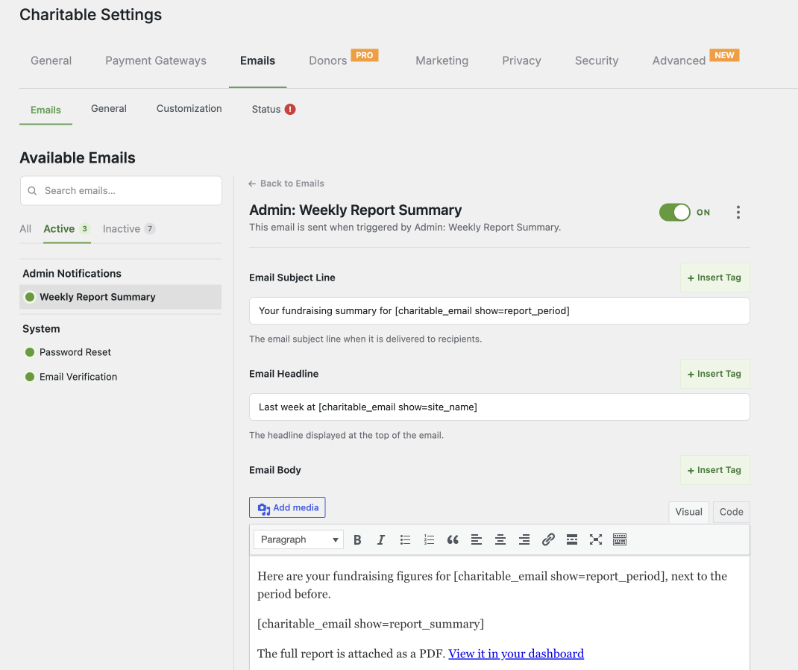
The Admin Weekly Report Summary email in Charitable Settings, with the subject line, headline and body fields

On this screen, you can change 4 parts of the email.

  • Email Subject Line is the subject your recipients see in their inbox. By default, it reads “Your fundraising summary for” followed by the dates.
  • Email Headline is the large line at the top of the email. By default, it reads “Last week at” followed by your site name.
  • Email Body is the message itself, with the table of figures and a link back to your dashboard.
  • Recipients lets you choose who receives this email.
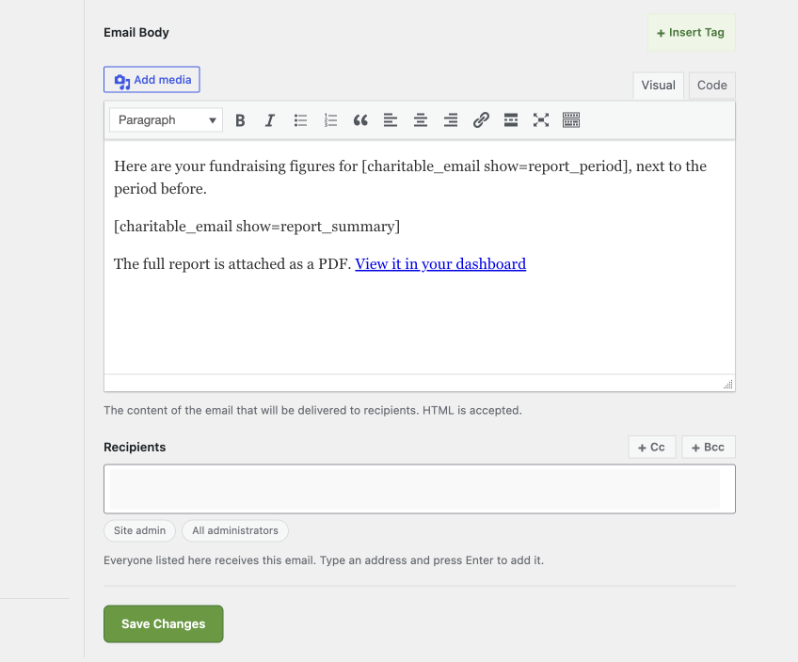
email recipients

To add the dates, your site name or the figures anywhere in the email, click “+ Insert Tag” beside the field. The tag [charitable_email show=report_period] adds the dates, and [charitable_email show=report_summary] adds the table of figures.

Important: Keep the [charitable_email show=report_summary] tag in the Email Body. Without it, your recipients won’t see any figures.

You can also turn the email on or off with the switch at the top right of this screen. When you’ve finished your changes, save the email.

What Your Recipients Will Get

Each summary covers the previous Monday to Sunday. Your recipients will see the dates written out in full, a table of that week’s figures next to the week before, and a link to view the report in your dashboard.

The full report is also attached as a PDF, so anyone without a WordPress login can still read it.

Tips Worth Keeping in Mind

A few habits that keep the weekly summary useful.

  • Read the first summary yourself before you rely on it, so you know what your team sees.
  • Add a line to the Email Body that tells recipients who to contact with questions.
  • Check the summary still arrives after any change to your email settings.

FAQs on the Weekly Summary

When does the summary go out?

At the start of each week. You’ll see the exact date and time of the next one under the switch on the Email This Report card.

Do recipients need a WordPress account?

No. The figures are in the email and the PDF is attached. They’ll only need a login if they click through to your dashboard.

How do I stop the summary?

Turn off the switch on the Email This Report card. The card will say “Report disabled”, and no more summaries will be sent.

Wrapping Up

You now know how to turn on the weekly summary, edit its subject, headline and body, and what your recipients will get each week.

Your team will see your numbers every Monday without anyone having to ask. If you get stuck on any step, our support team is happy to help.

You May Also Want to Read

These guides help you get the most out of your Charitable emails.

Helpful Links

🤝 Get help when you need it

Connect with Customer Support →

📑 Find the guide you need

Browse the Documentation Hub →

⬇️ Download proven strategies, campaign ideas, and expert tools

Get the Fundraising Kit →

🔗 Let your AI Assistant do the fundraising work for you.

Connect Charitable to your AI assistant →

💸 Get Free Fundraising Resources
Head to the Charitable Fundraising Hub →

🤔 Got questions about Charitable?
Charitable FAQs →

Need help understanding non-profit terms and jargon?
See our Non-Profit Glossary →

Friendly gray robot beside a chat window with green and blue speech bubbles indicating a chatbot interaction.

Ask ChatGPT or Claude to Do Your Fundraising Tasks

Charitable now works with ChatGPT, Claude and other AI assistants. You type what you need in plain words, and it gets done on your own site.

Here are a few things you can ask.

  • “Create a spring appeal campaign with a $5,000 goal.”
  • “Record a $50 check that came in from Sarah Jones.”
  • “How much did we raise last month?”
  • “Which campaign is doing best this year?”

It works on the free version of Charitable too, with no coding and no addon to buy. Paid plans add donor lookups and giving history. Anyone can do it!
Still have questions? We’re here to help!

Last Modified:

What's New In Charitable

View The Latest Updates
🔔 Subscribe to get our latest updates
📧 Subscribe to Emails

Email Subscription

Join our Newsletter

We won’t spam you. We only send an email when we think it will genuinely help you. Unsubscribe at any time!

ambassadors New

🔑 Introducing Passwordless Fundraisers: Sign Up With Just an Email!

Supporters arrive wanting to help, and then the form asks them to invent a password for a website they may only visit twice. A lot of them stop right there. Passwordless Fundraiser Accounts, new in Charitable Ambassadors 3.5.0, let a supporter start a peer to peer fundraiser with nothing but an email address. Why this is important:

  • 🔑 No password step to lose them at: Switch it on in Charitable » Ambassadors » Templates » Submit Form and the create-fundraiser form asks only for a name, an email address and a page title.
  • 👤 Still a real WordPress account: One click in one email confirms the address, signs them in and creates the account, so they can come back later to edit their story, change their photo and see who has donated.
  • 🎚️ Your call on every campaign: Each peer to peer campaign can follow the site default or override it, which matters when a campaign pays fundraisers through Stripe Connect and those people do need a password.
  • 📋 See who has not clicked yet: The Charitable » Ambassadors » Directory » Awaiting Sign-In tab lists everyone still waiting, with the campaign they joined and a Resend button, so a typo or a spam folder is something you can spot and fix.
  • 🛡️ Links a scanner cannot use up: Opening the link only shows a page, and your fundraiser is signed in when they press the button on it, so corporate email scanners never burn the link. Each one works once, expires on its own and is stored only as a hash.

Check out our announcement here.

ambassadors New

🏃 Introducing Activity: Show Progress on More Than Money!

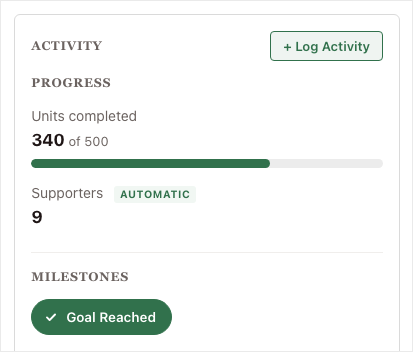
Most peer-to-peer fundraisers are about more than the money. A read-a-thon is about minutes read, a walkathon is about miles walked, and a food drive is about meals packed. Activity for Charitable Ambassadors lets your fundraisers show that effort right beside the dollars they raise. Why this is important:

  • 🎯 Progress on what you actually count: A progress bar shows each thing you count against its own target, sitting right beside the money raised.
  • 🏅 Milestones for the yes or no things: A milestone badge marks the efforts that are simply done or not done, with no number to chase.
  • ✍️ Fundraisers log their own numbers: Your supporters enter their totals from their own pages, so the effort stops living in a spreadsheet, a comment, or nowhere at all.
  • 🤖 Some numbers count themselves: An AUTOMATIC tag appears wherever the site worked the figure out from completed donations, so you can see at a glance what nobody typed in.
  • 🧩 Set it up once, use it anywhere: You decide what gets counted one time, then choose which campaigns count it. Available now in Charitable Ambassadors 3.4.7, with no new plugin and no developer.

Check out our announcement here.

ambassadors New

🖨️ Introducing Fliers and Posters: Raise Money Away From the Screen!

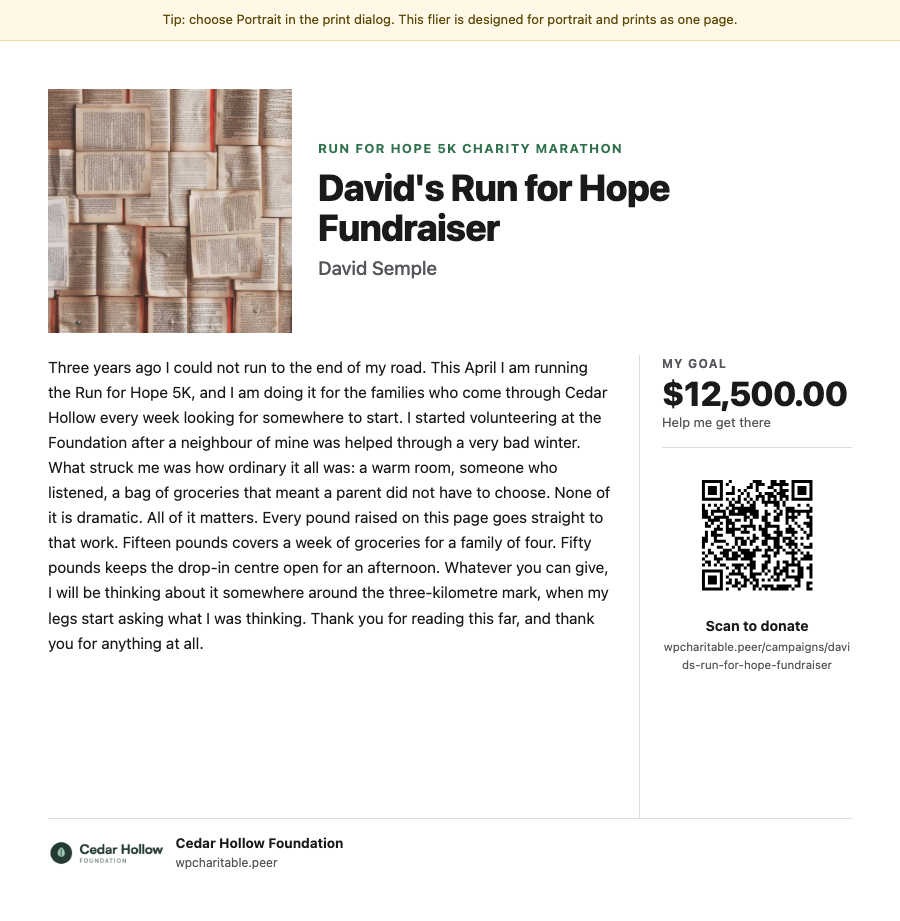
A lot of peer-to-peer fundraising happens away from a screen: at the finish line of a 5K, on a school noticeboard, in an office kitchen. Charitable Ambassadors 3.4.7 adds 2 printables, a fundraiser flier carrying each fundraiser’s own story and QR code, and a recruitment poster that signs new fundraisers up. Both open as a normal web page and print straight from the browser. Why this is important:

  • 🏁 A flier for every fundraiser: Each one carries that fundraiser’s own photo, story and goal, with a QR code that opens their page rather than your main campaign.
  • 📌 A poster that recruits: It shows “Now Recruiting” above your campaign name with a large QR code that opens your sign-up form, so someone can start fundraising without waiting on a link from you.
  • 🪄 No design tool needed: Both printables render as a normal web page and print from the browser, with no PDF plugin and no designer.
  • 📄 2 flier layouts: Hand out carries the full story for giving to friends and family, and Post up carries a short hook with 5 tear-off tabs for a noticeboard.
  • 🛡️ Off until you switch it on: Fliers stay off after the update until you enable them under Charitable » Ambassadors » Other » Fliers, and only the owner or an administrator can open one.

Check out our announcement here.

Improvement Payments

💸 Introducing Tiered Rates for Fee Relief: Match the Ask to the Gift!

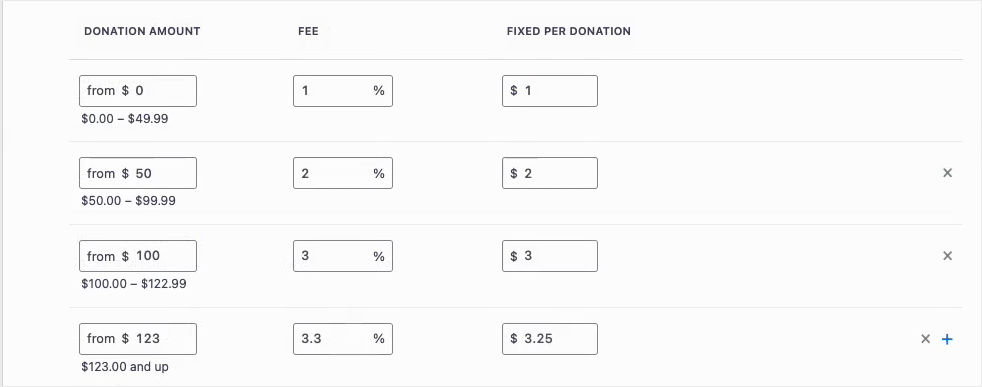
Fee Relief asks your donors one short question at checkout: would you like to cover the processing fee on this gift? Until now that question used a single rate for every donation on a gateway, so a $10 gift and a $500 gift were asked for the same percentage. Fee Relief 1.3.0 lets you set as many donation bands as you like, each carrying its own rate. Why this is important:

  • 🪙 Gentler on small gifts: A fixed transaction cost is a far bigger share of a $10 donation than a $500 one, so bands let you ask for less at the bottom.
  • 🎚️ As many bands as you need: Each band carries its own percentage and its own fixed amount, and the top band runs on with no upper limit.
  • 🛑 An optional ceiling: A Maximum fee field stops any donor being asked for more than a number you choose, however large the gift.
  • 🔌 Set per payment gateway: Stripe can run on four bands while Windcave and Payfast stay on a single rate, because bands belong to a gateway and not to your whole site.
  • 🛡️ Nothing changes until you say so: Your current rates stay exactly as they are until you switch Use Tiered Rates on under Charitable » Settings » Advanced » Fee Relief.

Check out our announcement here.

Donations Improvement

📊 Your Pro Dashboard Can Now Compare, Export, and Score!

Most fundraising dashboards only tell you how much you have raised. Charitable Pro 1.8.19 rebuilds the dashboard and the Reports Overview around the harder questions: whether anything is broken, whether this period beat the last one, and which single change would make the most difference today. Why this is important:

  • 📈 Every figure has a trend: Pick a period and the tiles and the chart move together, with each total shown against the previous period.
  • 🗓️ Charts that stay readable: Short ranges group donations day by day, while longer ranges group by week or month, so a full year reads as a curve instead of a flat line.
  • 🔀 Compare any 2 periods: Not just consecutive ones, so you can ask how this December did against last December. That matters because fundraising is seasonal.
  • 📤 Export the whole summary: Send the full overview out as CSV or PDF, ready for a board pack or a funder report.
  • 🎯 Score your setup for free: Have your fundraising setup scored, so the one change worth making next is the one you can see.

Check out our announcement here.