
Requires: Charitable Pro 1.8.16+ Charitable Ambassadors 3.1.0+
The Donations tab on the My Campaigns page lets each campaign creator see every donation to their own fundraiser, filter and sort the list, export a CSV, and optionally send a personal thank-you to each donor. None of this requires WordPress admin access – the whole flow lives on the front-end ambassador dashboard.
For nonprofits running peer-to-peer programs, the win is twofold. Creators get the recognition tool they keep asking for (“can I thank my donors myself?”), and admins keep the master donor relationship intact (replies route back to the creator, not the admin inbox).
When you’d use it
- Giving creators ownership of donor relationships. Most ambassadors want to thank the people who supported their fundraiser – they just need a tool that makes it one click.
- Cutting down admin workload. If creators can thank donors themselves, your admins stop being the bottleneck for every personal acknowledgement.
- Exporting per-fundraiser data without exposing the full site donations table. Each creator gets a CSV scoped to their own fundraiser only.
- Running creator-led recurring outreach. Active recurring donations show up in the KPI strip so a creator can see who’s still supporting them month-over-month.
How creators benefit
A donation arrives at 3pm. The ambassador used to wait until you (the admin) sent a generic thank-you email later that night, or they checked nothing because they had no visibility. Now the ambassador opens My Campaigns > Donations, sees the new donation at the top of the list, and clicks Send Thanks. The donor gets a personal note from the ambassador within minutes, with the donor’s reply routed back to the ambassador’s inbox – not yours.
The behavioural shift matters. Donors who receive a personal thank-you within 24 hours are dramatically more likely to give again, and to give larger amounts when they do. By moving the acknowledgement closer to the donation event, and personalising it through the actual creator, you compound the goodwill that the donation itself generated.
Finding it
Ambassador front-end > My Campaigns > Donations tab
Once you’ve enabled Donations in the admin (see below), every ambassador sees a new tab on their My Campaigns page next to “My Campaigns” itself. The tab strip is keyboard-accessible (use arrow keys to move between tabs).

What creators see
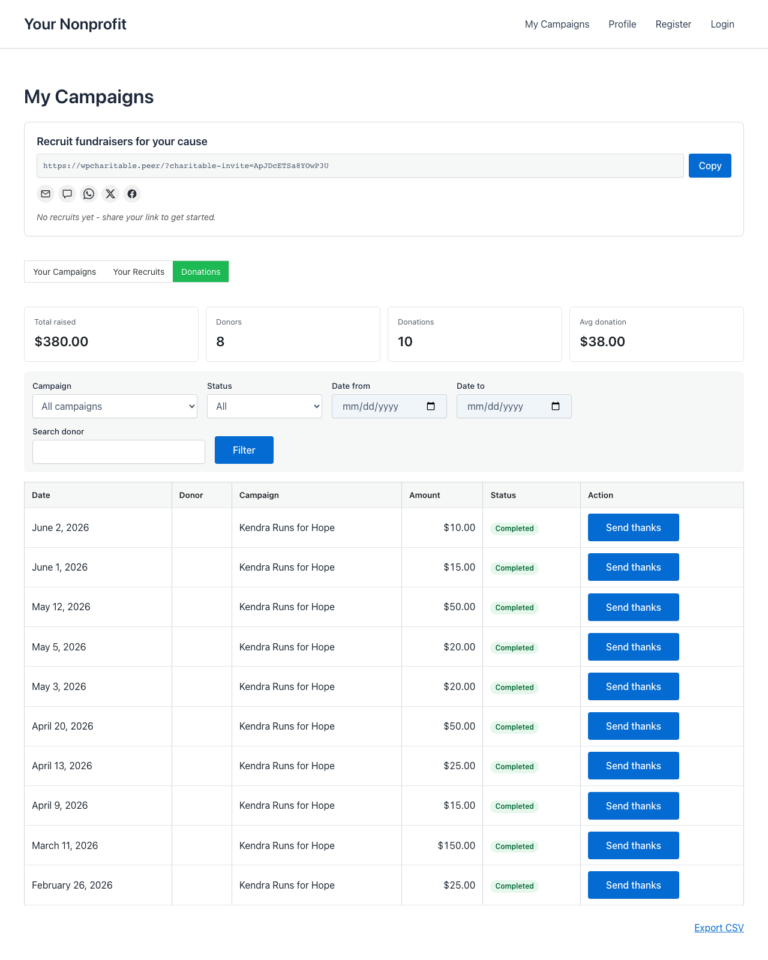
At the top of the Donations tab is a KPI strip – five numbers that summarise the creator’s own fundraising activity at a glance:
| KPI | Plain-English meaning |
|---|---|
| Total raised | The full amount the creator’s fundraisers have brought in. Refunded and pending donations are excluded. |
| Donors | Unique donor count. A donor who gave twice still counts as one. |
| Donations | Total number of completed donations. |
| Avg donation | Total raised divided by donation count. |
| Active recurring | Number of recurring donation plans still active. Only shows when the Recurring Donations addon is enabled. |
Below the KPIs, the donation list. Each row shows the donor name (or “Anonymous” if the donor chose to remain anonymous), donation amount, donation date in the site’s local timezone, campaign the donation was made to, and a status badge (Completed / Pending / Failed / Refunded).

Filtering and sorting
The toolbar above the list has two controls:
| Control | Options |
|---|---|
| Date Range | All Time, Last 7 Days, Last 30 Days, Last 90 Days. |
| Status | Completed, Pending, Failed, Refunded. Default is Completed. |
Pagination respects the current filter, so a creator filtering to “Last 7 Days, Completed” sees only those rows across all pages.
Exporting a CSV
The Export CSV button at the top of the list streams a CSV of the currently-filtered donations to the creator’s browser. The file includes the same columns as the on-screen list, plus the donation ID and the donor email when the donor wasn’t anonymous.
The CSV export is formula-injection safe – any cell starting with =, +, -, @, or a control character is prefixed with a single quote so Excel and Google Sheets render it as text rather than evaluating it as a formula.
Send Thanks – personal thank-you emails
If you (the admin) enable thank-you emails, every donation row gets a Send Thanks button. Clicking it opens a modal with a templated email that the creator can review and send.
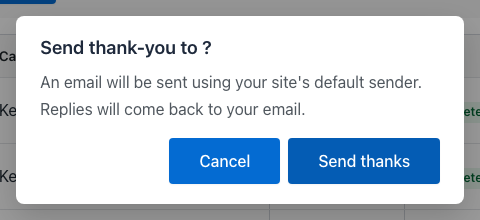
What the creator can do in the modal:
- Review the templated subject and body (admin-configured – see below).
- Edit the body before sending. Smart tags like
{donor_name}and{campaign_title}are already substituted at this point – what the creator sees is what the donor will see. - Send. The email is sent immediately. The button on the donation row changes to a green “Thanked” badge so the creator can see at a glance which donors they’ve already reached out to.
A few practical guardrails are built in:
- Race-guard. If the creator clicks Send Thanks twice in quick succession, only the first send is processed – the second is silently ignored. No duplicate emails.
- Rate-limit. A creator can send at most one thank-you email per donation, and at most 60 thank-you emails per hour. Beyond that, the button shows a friendly “please slow down” message.
- Reply-to routing. The email’s
Reply-Toheader is set to the creator’s own email address, so any reply lands in the creator’s inbox, not the admin’s. TheFromaddress remains your site’s default sender.
Admin setup
The whole feature is off by default. To turn it on:
WordPress Admin > Charitable > Ambassadors > Settings > My Campaigns
There are two settings that govern this feature:
| Setting | What it controls |
|---|---|
| Show Donations Tab | Whether the Donations tab appears on the My Campaigns page at all. Off by default; flip it to On to enable the tab. |
| Allow Creators to Send Thanks | Whether the Send Thanks button appears on each donation row. Off by default; only enable after you’ve reviewed the email template (next section). |
Then the email template:
WordPress Admin > Charitable > Ambassadors > Settings > Emails
Look for the Creator Thank-You row. Click to edit the subject and body. The template supports the following smart tags:
| Tag | Substitutes to |
|---|---|
{donor_name} | The donor’s display name, or “Anonymous” if they opted out. |
{donor_first_name} | The donor’s first name only. |
{donation_amount} | The donation amount with currency symbol. |
{campaign_title} | The campaign the donation was made to. |
{creator_name} | The fundraiser owner’s name. Used in sign-offs. |
{site_name} | Your site’s name. |
A reasonable default template ships with the plugin so you don’t need to write one from scratch. Review the wording, adjust the tone to match your brand, save.

Tips
- Roll it out gradually. Enable the Donations tab first and let creators see their donor lists for a week or two. Only after that, flip on Send Thanks. This gives creators time to digest the new visibility before you put a send button in their hand.
- Set expectations in your onboarding email. When a new ambassador signs up, tell them about the Donations tab. They’ll find it on their own eventually, but a heads-up makes for a better first-week experience.
- Edit the template, don’t replace it. The default body uses smart tags in places that match how donors expect a thank-you to read. Tweak the wording, but keep the structural shape (greeting, gratitude, what the donation enables, sign-off).
- Monitor early thank-yous. For the first week after enabling Send Thanks, scan a few sent emails for tone. If a creator is being too casual or off-brand, a quick gentle nudge (“Hey, just so you know – our supporters tend to expect a slightly more formal tone”) is far easier than rolling back the feature.
Anonymity handling
Donors can mark a donation as anonymous at checkout. When they do:
- Their name appears as “Anonymous” in the creator’s donation list and CSV export.
- Their email is omitted from the CSV.
- The Send Thanks button is hidden for that row – there’s no way for the creator to email an anonymous donor through this tool.
- The donor’s identity is also hidden from the donor-search autocomplete used elsewhere in the plugin.
Anonymity is enforced at the data-access layer, not just the UI, so a creator can’t bypass it by inspecting the page source or hitting the AJAX endpoint directly.
Developer reference
Shortcode behavior
The Donations tab is rendered inside the existing [charitable_my_campaigns] shortcode – there’s no separate shortcode. The tab strip switches between two view modes via a cap_view query argument:
?cap_view=campaigns(default): the original list of the creator’s own campaigns.?cap_view=donations: the new donations view.
The shortcode reads the Show Donations Tab setting before rendering the strip; with the setting off, only the original view shows.
Filters
| Filter | Default | Purpose |
|---|---|---|
charitable_ambassadors_creator_donations_enabled | reads setting | Master toggle for the whole feature. Return false to hide it. |
charitable_ambassadors_creator_donations_send_thanks_enabled | reads setting | Toggle for the Send Thanks button. |
charitable_ambassadors_creator_donations_per_page | 20 | Page size for the donations list. |
charitable_ambassadors_creator_donations_rate_limit | 60 | Maximum thank-you emails a single creator can send per hour. |
charitable_ambassadors_creator_donations_date_window_years | 10 | How far back filters can reach. Increase if you need historical exports beyond 10 years. |
charitable_ambassadors_creator_donations_csv_columns | array | The CSV column list. Add or remove columns by filtering the array. |
charitable_ambassadors_creator_thank_you_smart_tags | array | Add custom smart tags. Return an array keyed by tag name with a callback for substitution. |
Actions
| Action | Fires when | Args |
|---|---|---|
charitable_ambassadors_creator_thank_you_sent | Creator successfully sends a thank-you email. | $donation_id, $creator_id, $donor_id |
charitable_ambassadors_creator_donations_csv_exported | A creator exports a CSV of their donations. | $creator_id, $filter_args, $row_count |
Classes and AJAX endpoints
| Symbol | Role |
|---|---|
Charitable_Ambassadors_Creator_Donations_Repo | Data-access class. Owns the query(), aggregates(), and owns_donation()methods. All anonymity masking happens here. |
Charitable_Ambassadors_Creator_Donations_Ajax | AJAX router. Handles the filter, paginate, send-thanks, and CSV-export requests. |
Charitable_Ambassadors_Email_Creator_Thank_You | The Charitable_Email subclass for the thank-you template. Adds the smart-tag layer on top of Charitable’s standard email plumbing. |
wp_ajax_charitable_ambassadors_creator_donations_query | AJAX action: filtered + paginated list. |
wp_ajax_charitable_ambassadors_creator_donations_export | AJAX action: CSV stream. |
wp_ajax_charitable_ambassadors_creator_donations_thank | AJAX action: send a single thank-you email. |
All three AJAX endpoints check is_user_logged_in() + verify the current user owns the campaign(s) the donation rows are scoped to. Anonymity is enforced at the repo layer; the AJAX endpoints are thin wrappers.
Template overrides
The shortcode renders through standard Charitable template overrides. To customise the Donations tab UI from your theme:
your-theme/charitable-pro/charitable-ambassadors/shortcodes/my-campaigns/donations-tab.php
your-theme/charitable-pro/charitable-ambassadors/emails/creator-thank-you.php
Customization examples
Allow only verified ambassadors to send thanks:
add_filter( 'charitable_ambassadors_creator_donations_send_thanks_enabled', function ( $enabled ) {
    if ( ! $enabled ) {
        return false;
    }
    return (bool) get_user_meta( get_current_user_id(), '_charitable_user_verified', true );
} );
Raise the thank-you rate-limit to 200 per hour:
add_filter( 'charitable_ambassadors_creator_donations_rate_limit', function () {
    return 200;
} );
Add a custom smart tag for the donor’s city:
add_filter( 'charitable_ambassadors_creator_thank_you_smart_tags', function ( $tags ) {
    $tags['donor_city'] = array(
        'description' => __( 'The donor city, from billing address.', 'your-theme' ),
        'callback'    => function ( $donation ) {
            return (string) get_post_meta( $donation->ID, 'donor_address_city', true );
        },
    );
    return $tags;
} );
Add a CSV column for the donation gateway:
add_filter( 'charitable_ambassadors_creator_donations_csv_columns', function ( $columns ) {
    $columns['gateway'] = array(
        'header'   => __( 'Gateway', 'your-theme' ),
        'callback' => function ( $donation ) {
            return (string) get_post_meta( $donation->ID, 'donation_gateway', true );
        },
    );
    return $columns;
} );
Related
- My Campaigns – The Ambassador Dashboard – the parent page that hosts the Donations tab.
- Email Templates – the full list of transactional emails Ambassadors sends.
- CSV Exports – all CSV exports across the plugin, including this one.
- Permissions – which capability gates what.
Asset list (for the docs editor)
| Filename | What to capture | Suggested alt text |
|---|---|---|
01-donations-tab.png | The Donations tab on My Campaigns, KPI strip + first 4-5 donation rows visible. | The Donations tab on the My Campaigns page, showing KPIs at the top and a filterable list of donations below |
02-tab-strip.png | Close-up of the My Campaigns tab strip, “Donations” tab highlighted. | The My Campaigns page now showing two tabs: My Campaigns and Donations |
03-donation-row.png | A single donation row close-up, Send Thanks button visible on the right. | A donation row with donor name, amount, date, campaign, status, and a Send Thanks button on the right |
04-send-thanks-modal.png | The Send Thanks modal open over the donations list, subject + body visible. | The Send Thanks modal, with the donor name pre-filled, the subject line, and the editable email body |
05-email-template.png | The Creator Thank-You email template editor in admin (Settings > Emails). | The Creator Thank-You email template editor in admin, showing the subject and body fields with smart tag references |
Notes
All five screenshots need the testbed to have:
- The Donations tab + Send Thanks settings both enabled in Ambassadors > Settings > My Campaigns.
- At least one logged-in ambassador account with 3+ completed donations on their own fundraiser.
- A configured Creator Thank-You email template (the defaults work; capture as-is).
- At least one anonymous donation in the list so the doc can show how that row renders (optional but ideal).
05-email-template.png is admin-side; the other four are taken while logged in as an ambassador (use User Switching to switch from admin to a seeded ambassador).


