
Requires: Charitable Pro plugin 1.8.19.1+
Basic plan and higher
Does one of your supporters show up twice in your donor list? It happens a lot. A donor gives once from a work email and once from a personal one, or an import brings in a second copy of them.
When that happens, their donation history is split across 2 records. Your donor count ends up too high, and each record’s lifetime total is too low.
Charitable’s donor merging combines those records into one. This guide shows you how to find duplicate donors, merge them, undo a merge and check the results. Donations move to the record you keep, the other email addresses stay searchable, and nothing is merged until you choose it.
What’s in This Guide?
- See Donor Merging in Action
- When to Merge Duplicate Donors
- Where to Find the Find Duplicates Link
- How Charitable Finds Duplicate Donors
- What the Duplicate Donor Badges Mean
- How to Merge Duplicate Donors in 3 Steps
- What a Donor Merge Changes
- How Charitable Flags Donor Merge Conflicts
- How to Undo a Donor Merge
- Example: Cleaning Up Duplicate Donors After an Import
- Tips Worth Keeping in Mind
- How Donor Merging Works With Tags, Exports and Filters
- What Donor Merging Does Not Do
- Troubleshooting Donor Merging
- Developer Reference for Donor Merging
- You May Also Want to Read
See Donor Merging in Action
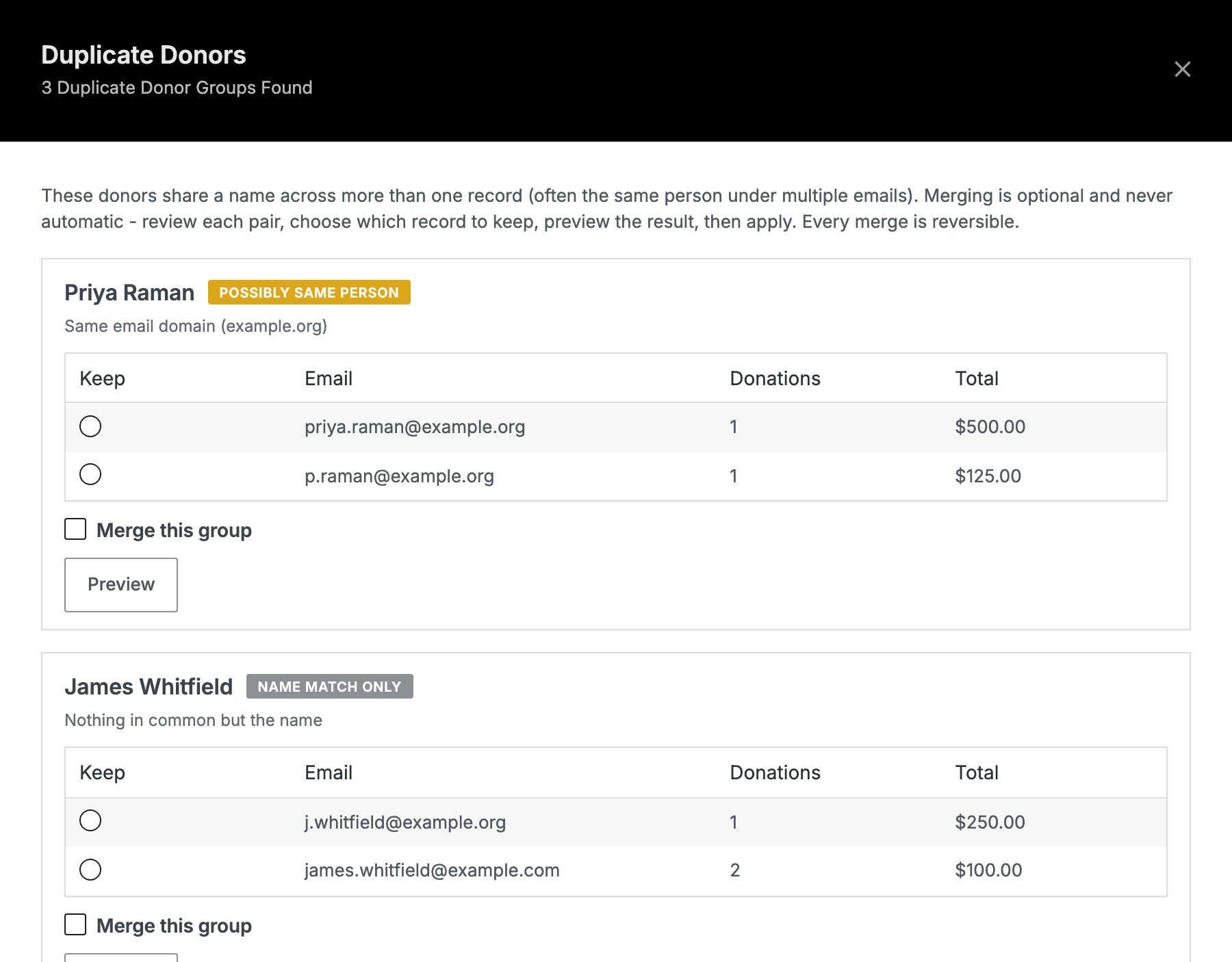
When to Merge Duplicate Donors
- After an import. Bringing donors in from another plugin is the most common way a site ends up with 2 records for one person.
- When a regular supporter uses 2 email addresses. Many donors have a work email and a personal email and have given from both over the years.
- Before a year-end mailing. Merging first means each household gets one letter instead of 2.
- When a donor’s lifetime total looks wrong. Split history is the usual reason a major donor shows up as 2 smaller ones.
- Before reporting to your board. A donor count that includes duplicates says you reach more people than you really do.
Where to Find the Find Duplicates Link
To get started, head over to Charitable » Donors. Above the donor list, next to Filter and Export, you’ll see Find Duplicates.
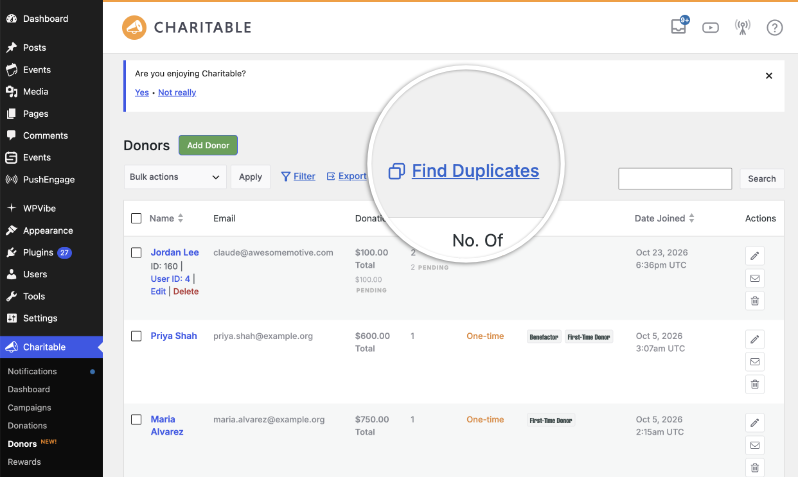
When you click it, the Duplicate Donors window opens and tells you how many groups Charitable found.
How Charitable Finds Duplicate Donors
Charitable groups donor records by name, not by email.
It compares the first and last name together and ignores capital letters, spacing and punctuation. So Maria Gonzalez, maria gonzalez and Maria Gonzalez all count as the same name.
Records with no first or last name at all are skipped.
If 2 records have the same name and different email addresses, Charitable shows them to you as a group. That’s the most common kind of duplicate.
If 2 records have the same email address and different names, Charitable won’t group them. So if one person is in your list as both “Bob Smith” and “Robert Smith”, that pair won’t be suggested, because the names don’t match.
This is on purpose. Matching by name finds the duplicates people actually create, and Charitable never merges anything without you.
What the Duplicate Donor Badges Mean
Each group carries a badge, because sharing a name doesn’t prove 2 records are the same person.
| Badge | What it means |
|---|---|
| POSSIBLY SAME PERSON | Something beyond the name matches. The records share an email domain, an address or a phone number, or they have very similar email addresses. |
| NAME MATCH ONLY | The records have nothing in common except the name. |
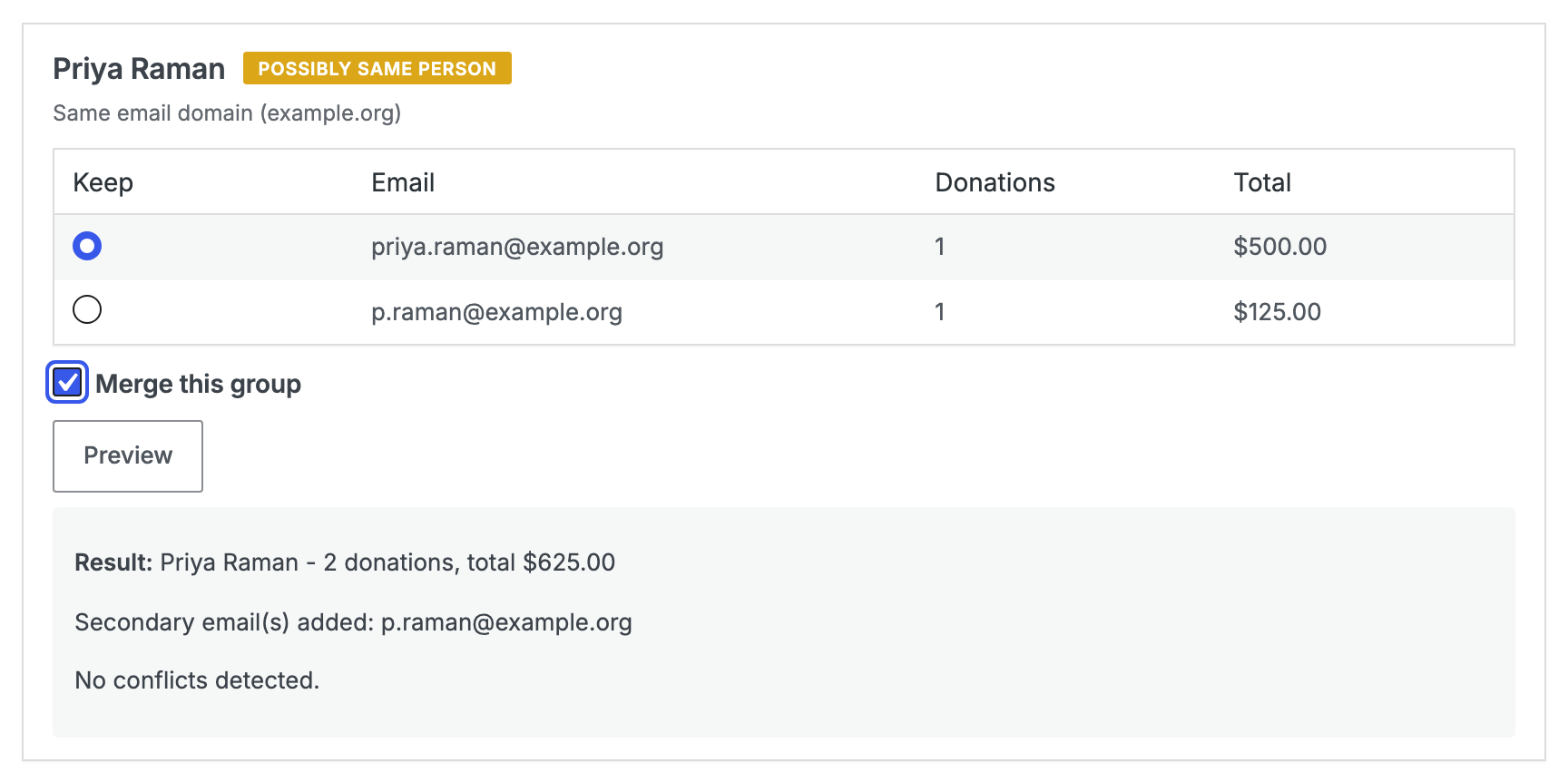
Under the badge, Charitable shows the reason in plain words, for example “Same email domain (example.org)” or “Nothing in common but the name”.
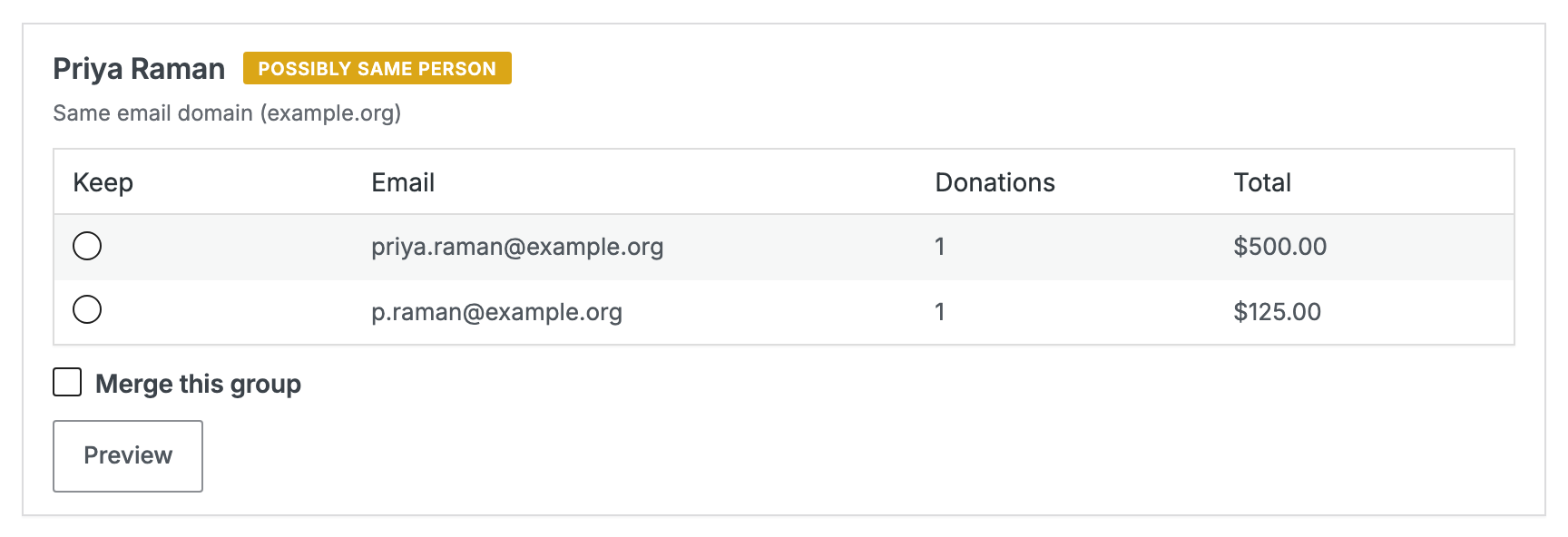
NAME MATCH ONLY is a warning, not a decision. 2 unrelated people really can share a name, so check the donation history before you merge one of these groups.
How to Merge Duplicate Donors in 3 Steps
The steps always run in the same order, and the window won’t let you skip ahead.
Step 1: Choose Which Donor Record to Keep
Each row in the group has a Keep button and shows that record’s email, donation count and lifetime total. Click Keep on the record you want to stay.
You won’t lose any donations or email addresses whichever record you pick. But the record you keep supplies the name, address, phone number and marketing consent from now on, so it’s usually best to keep the more complete or more recently used one.
Step 2: Preview the Donor Merge
Next, click Preview. Charitable shows you exactly what the merge will do before anything changes.
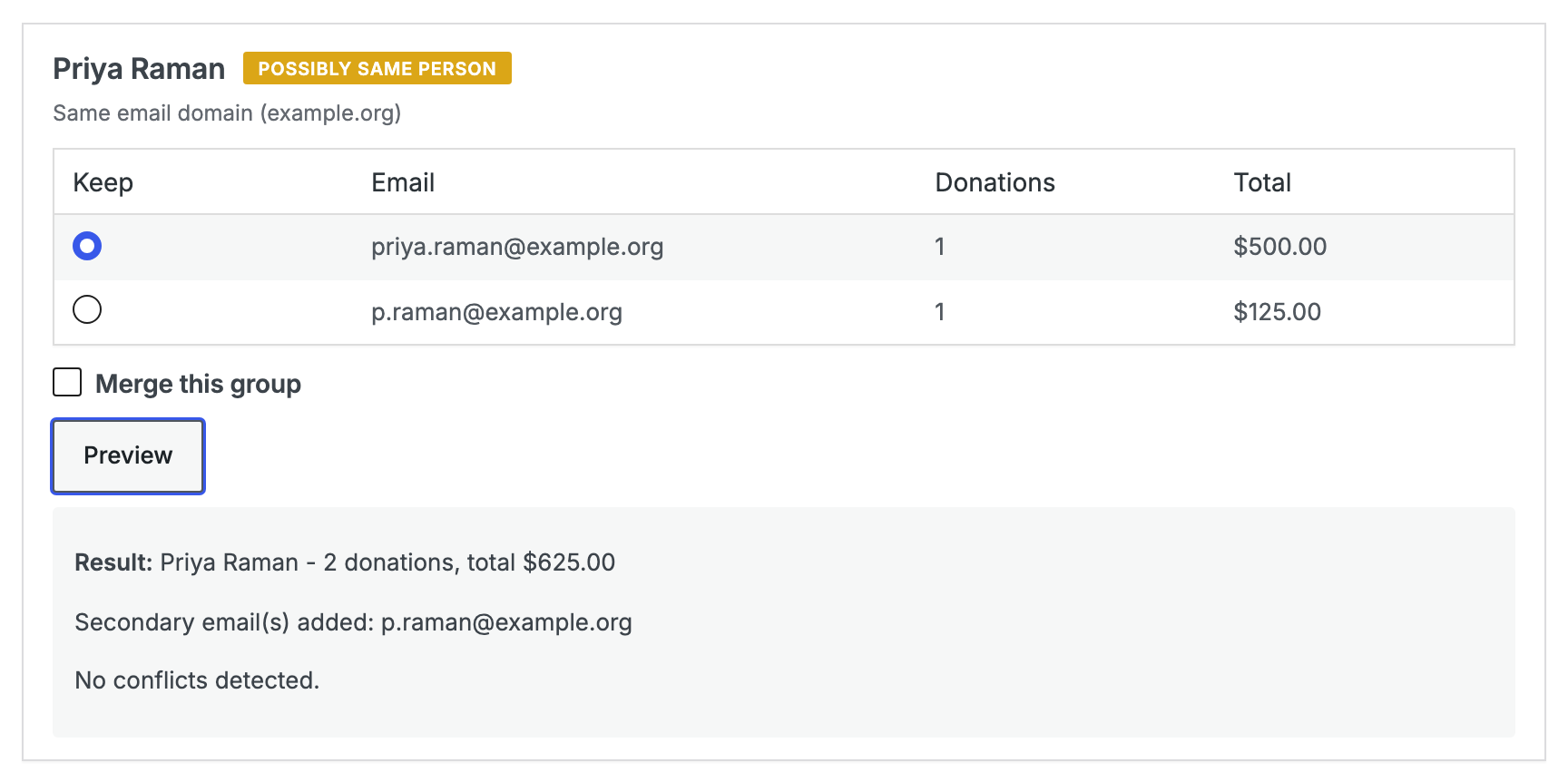
The preview names the donor you’re keeping, the combined number of donations and the combined total. It also lists the email addresses that will be added as secondary emails, plus any conflicts.
If you click Preview before choosing a record to keep, you’ll see “Choose which record to keep first.” That’s a reminder of the order, not an error.
Step 3: Tick the Group and Apply the Merge
Finally, tick Merge this group and click Apply Selected Merges at the bottom of the window. You can tick several groups and apply them all at once.
What a Donor Merge Changes
- Donations move from the other record to the one you kept, and the totals and counts combine.
- The other email addresses are kept on the record you kept as secondary emails, one row each. You can still search for them, so looking up the old address still finds the donor.
- The kept record’s own details stay. Its name, address, phone number and marketing consent are the ones used from now on.
- Charitable saves a full snapshot of the other record first. The snapshot is what lets an undo put everything back exactly.
How Charitable Flags Donor Merge Conflicts
When the 2 records disagree about something important, the preview tells you and leaves the decision with you.
| What’s flagged | What happens |
|---|---|
| Both records are linked to a WordPress user. | The record you keep keeps its own user. The other user account is never deleted. |
| A linked user has a membership or login. | The membership stays. A merge never deletes a membership account. |
| The marketing consent is different. | The record you keep keeps its own consent setting. |
| The billing addresses are different. | The record you keep keeps its own address. The other address is saved in the snapshot. |
| The phone numbers are different. | The preview tells you they’re different. |
Most people want to know 2 things before they click anything. Merging never deletes a WordPress user account or a membership, and you can undo every merge.
How to Undo a Donor Merge
Charitable keeps a record of every merge, and you can undo each one on its own. The snapshot saved before the merge puts the other record back as it was, down to fields that were empty.
You can only undo a merge once. If you try again, you’ll see “This merge was already undone.”
Example: Cleaning Up Duplicate Donors After an Import
Let’s say a charity moves 4,000 donors over from another plugin. The import works, but the donor count is higher than the number of people they know they have, because some long-time supporters came in again under a second email address. Here’s how they’d clean it up.
1. Export Your Donors First
Before you merge anything, go to Donors » Export and save a full CSV.
You can undo merges one at a time. But a CSV from before you started is the quickest way to see what a record looked like last week, without stepping through undo.
2. Open Find Duplicates and Check the Count
The top of the window tells you how many groups Charitable found. If the number is large, split the work over a few days, since you’ll make fewer mistakes that way.
3. Start With the POSSIBLY SAME PERSON Groups
These groups have extra evidence beyond the name. They’re the quickest to judge and the least likely to be wrong.
For each group, keep the record with the more complete details and click Preview. Then check the combined total and tick Merge this group.
4. Apply Several Merges at Once
Tick several groups, then click Apply Selected Merges once. You don’t need to apply after every group.
5. Take Your Time With NAME MATCH ONLY Groups
For these groups, open each donor record in another tab and compare the donation history before you decide.
2 donations from different cities 5 years apart are probably from 2 people. 2 donations of the same amount a week apart are probably from one person.
6. Leave Any Group You’re Unsure About
An unmerged duplicate only makes your list a little untidy. Merging 2 different people means an undo and possibly an apology, so when in doubt, leave it.
7. Check the Count Again
Once you’re done, open Find Duplicates again. The groups you merged are gone, and the ones left are the groups you chose to keep separate.
Tips Worth Keeping in Mind
Doing these 3 things before a large merge session saves you from finding problems halfway through.
- Take a donor export. It only takes a minute, as shown in the example above.
- Decide your rule for NAME MATCH ONLY groups and stick to it. “Merge only if the donation histories don’t overlap in time” is a rule you can apply the same way every time. “Merge if it looks fine” isn’t, and you’ll apply it differently across 200 groups.
- Check whether any of these donors have logins. If your donors sign in to a donor dashboard, the preview flags linked user accounts. Nothing is deleted, but the kept record keeps its own user, so decide which login should stay before you merge.
How Donor Merging Works With Tags, Exports and Filters
- Donor tags stay on the record they were added to. Tags on the record you merge away don’t move across, so if you use tags to group donors, check the kept record’s tags afterwards.
- Exports show the merged record straight away. A donor export run after a merge shows one row where there were 2, with the combined totals.
- Filters work the same way. A filter on a tag or a date range only sees the kept record.
- Date Joined stays as the kept record’s own date. If the record you merged away was older, the Date Joined doesn’t move back to match it, so keep this in mind if you report on how long supporters have been with you.
What Donor Merging Does Not Do
- It doesn’t delete a WordPress user account, even when both records have one.
- It doesn’t delete a membership or a login.
- It doesn’t match by email, so 2 records with the same email and different names aren’t suggested.
- It doesn’t run automatically, on a schedule or in bulk. Every merge needs you to choose a record, tick the group and click apply.
- It doesn’t change the donations themselves, apart from which donor they belong to. Amounts, dates, campaigns and statuses stay the same.
Troubleshooting Donor Merging
There’s No Find Duplicates Link on the Donors Screen
Check that the Charitable Pro plugin is active and on 1.8.19.1 or later. Before 1.8.19.1, merging was only available inside the GiveWP import tool, so most sites on an older version won’t see it.
The free version of Charitable doesn’t include the Donors screen.
It Says No Duplicate Donors Were Found, But I Know I Have Some
The window shows “No two donor records share a name, so there is nothing to merge.” This is usually right, and it means your duplicates have different names as well as different emails. That covers pairs like “Bob Smith” and “Robert Smith”, or a record where the name was never filled in.
Charitable only matches on name, so those pairs won’t appear. Edit one record’s name to match the other, and they’ll be grouped the next time you check.
A Group Shows 0 Donations and $0.00
That’s a real pair of donor records with no completed donations. They’re usually created by an import, or by a donation form where payment was never finished.
You can safely merge them, there’s just nothing to combine.
2 Different People Share a Name and I Don’t Want Them Merged
Leave the group alone. Nothing is merged unless you choose a record to keep, tick the group and apply, and there’s no bulk “merge everything” option.
I Kept the Wrong Donor Record
Undo the merge, then merge again with the other record chosen as the one to keep. Nothing is lost in between, because the snapshot restores the record exactly.
The Old Email Address No Longer Finds the Donor
It should. The other record’s emails are added to the kept donor as secondary emails, and you can still search for them.
If searching for the old address finds nothing, check that the merge actually went through. The window confirms each applied merge.
The Donor’s Lifetime Total Still Looks Wrong After Merging
Donation totals only count approved donations. Pending, failed and refunded donations aren’t counted as money received.
So a record with several pending donations shows a lower total than its number of donations suggests.
Developer Reference for Donor Merging
Donor Merge Hooks and Filters
// Runs after a merge completes.
// $survivor_id int   the donor kept
// $loser_id    int   the donor merged away
// $record      array the stored merge record, including the snapshot
do_action( 'charitable_donors_merged', $survivor_id, $loser_id, $record );

// Runs after a merge is undone.
do_action( 'charitable_donor_merge_undone', $survivor, $loser, $merge_id );

// The donor meta keys a merge will fill in on the survivor when the
// survivor's own value is empty.
apply_filters(
    'charitable_donor_merge_fillable_meta_keys',
    array( 'addresses', 'phone', 'company', 'title', 'first_name', 'last_name' )
);
How Donor Merge Data Is Stored
- Secondary emails are stored as donor meta under the key
secondary_email, with one row per address. That’s what keeps each one searchable on its own. - The surviving donor’s primary email is never copied into that list.
- Conflicts come back as an array of flags. Each flag has a
code, aseverityofhigh,warnorinfo, and a readablemessage. They’re advisory only, and nothing in the merge path resolves one on its own.
Example: Log Every Donor Merge for Your Own Audit Trail
add_action(
    'charitable_donors_merged',
    function ( $survivor_id, $loser_id, $record ) {
        error_log( sprintf(
            'Donor merge: %d absorbed %d',
            $survivor_id,
            $loser_id
        ) );
    },
    10,
    3
);
Example: Carry a Custom Field Across a Merge
If you store your own donor meta, you can have it filled in on the survivor when the survivor’s own value is empty.
add_filter(
    'charitable_donor_merge_fillable_meta_keys',
    function ( $keys ) {
        $keys[] = 'my_crm_reference';
        return $keys;
    }
);
Example: Send Donor Merges to an External CRM
add_action(
    'charitable_donors_merged',
    function ( $survivor_id, $loser_id, $record ) {
        $survivor = charitable_get_donor( $survivor_id );

        if ( ! $survivor ) {
            return;
        }

        my_crm_merge_contacts(
            $survivor->get_email(),
            isset( $record['snapshot']['email'] ) ? $record['snapshot']['email'] : ''
        );
    },
    10,
    3
);
You can now find duplicate donors, merge them safely and undo any merge you change your mind about. Your donor count, lifetime totals and donor history will show each supporter as one person.
If you have any questions, our support team is happy to help.
You May Also Want to Read
These guides cover the rest of the Donors screen and the tools that bring donors into Charitable.
- How to Use the Donor Management System walks through the Donors screen, including donor records, tags, filters and exports.
- How to Import From GiveWP to Charitable shows how to bring your donors and donations over from GiveWP.
- How to Import From Donorbox shows how to move your Donorbox donors and donations into Charitable.
Helpful Links
🤝 Get help when you need it
Connect with Customer Support →
📑 Find the guide you need
Browse the Documentation Hub →
⬇️ Download proven strategies, campaign ideas, and expert tools
🔗 Let your AI Assistant do the fundraising work for you.
Connect Charitable to your AI assistant →
💸 Get Free Fundraising Resources
Head to the Charitable Fundraising Hub →
🤔 Got questions about Charitable?
Charitable FAQs →
Need help understanding non-profit terms and jargon?
See our Non-Profit Glossary →
Not yet on Charitable Pro?
You can get up to 50% off when you sign up for or upgrade to Charitable Pro. We want to ensure that you can try the advanced fundraising features like Recurring Donations, Donation Recovery, and more at a significantly reduced cost.
Join over a million satisfied Charitable Pro users today. Every purchase comes with a 14-day money-back guarantee, ensuring you’re supported every step of the way.
If you have any questions or need assistance, our support team is ready to help you make the most of these new features.





