
Setting up a good automation comes down to a lot of small decisions. You pick the event that starts it, the donations it should apply to, and the ones it should skip.
Then you decide what happens, in what order, and whether the webhook runs before or after the thank-you email. None of it is hard, but it takes care, and that kind of task rarely reaches the top of the list.
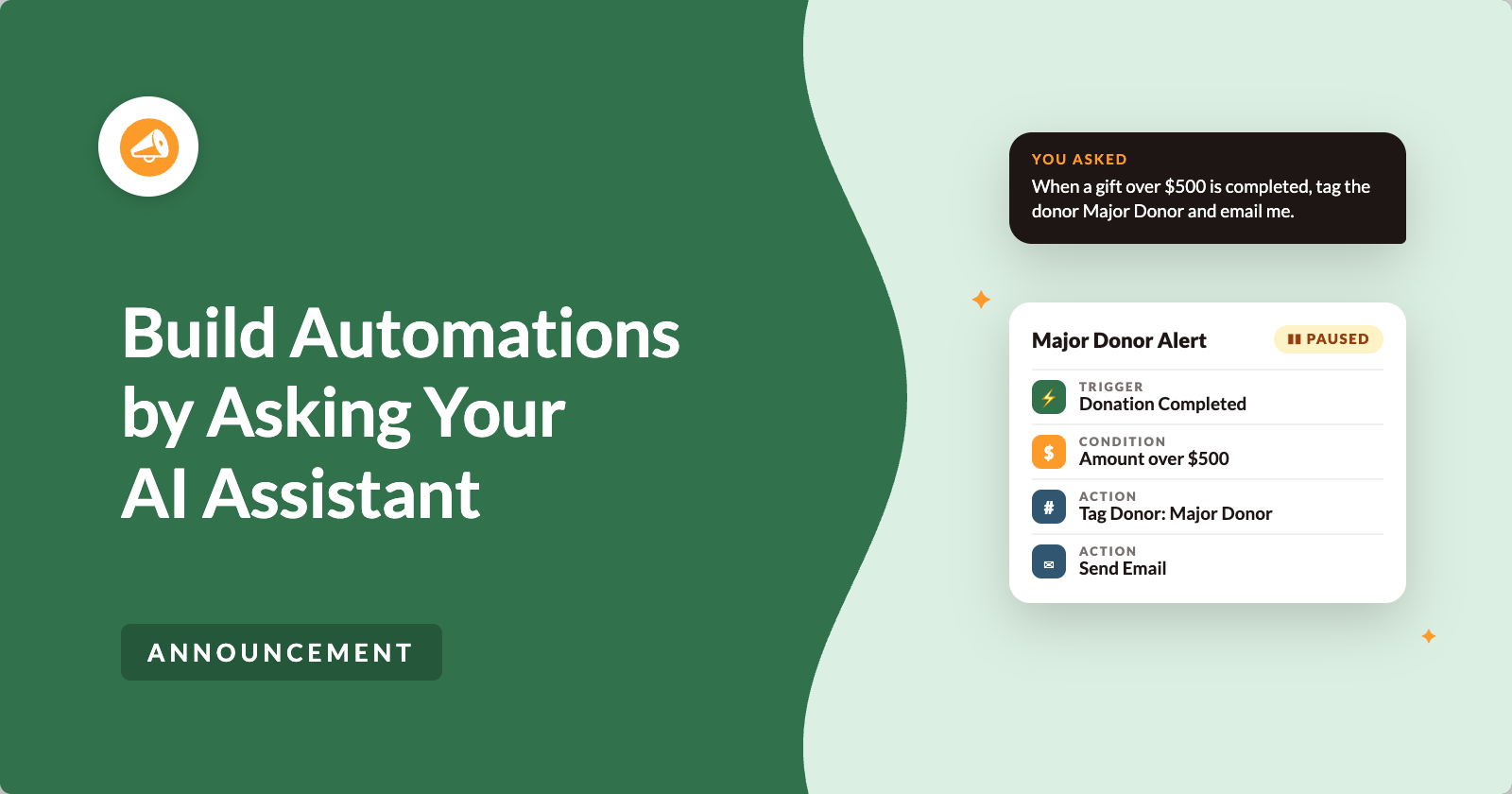
From Automation Connect 2.4.0, you can hand that work to an AI assistant. Connect Claude, ChatGPT or any other MCP client with the free WPVibe plugin, then ask for the automation you want in one sentence.
Your assistant builds it and leaves it paused for you to look at. You decide when it runs. ⚡
Ask for an Automation in One Sentence
Once your assistant is connected, here’s a real request you can make.
Create an automation. When a donation over $500 is completed, tag the donor as Major Donor and email me a heads-up.
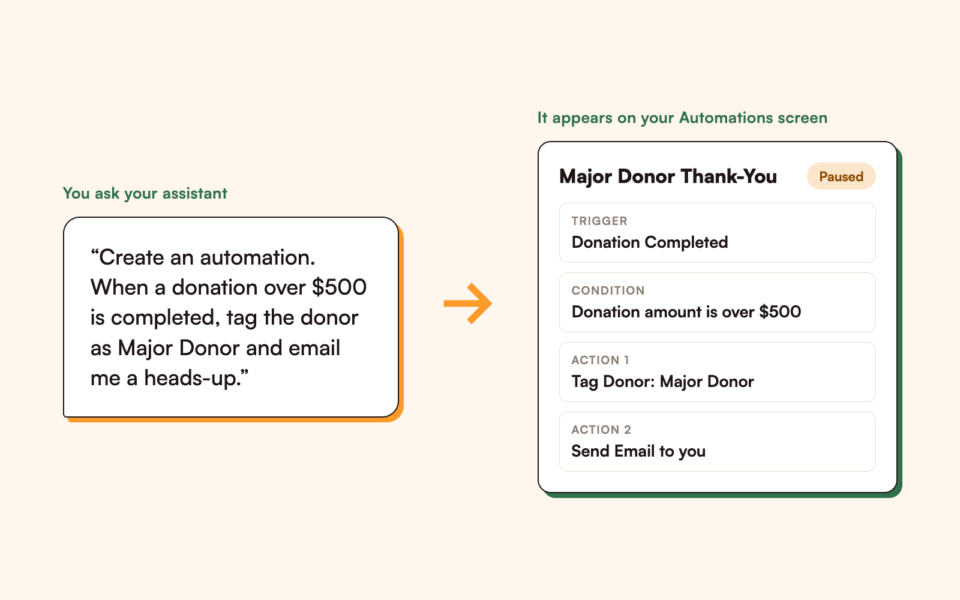
A few seconds later, a new automation appears on your Automations screen with the trigger, the condition and both actions in place. It’s paused, so nothing has run yet.
You open it and read it the way you’d read anything a colleague drafted. When you’re happy with it, you switch it on.
You describe the outcome, the assistant puts the pieces together, and a person stays in charge of what goes live.
How Your Assistant Talks to Your Site
Your assistant doesn’t read your admin screens or hold your password. It talks to your site through the WordPress Abilities API, a new WordPress standard that describes what a plugin can do in a way an assistant can read and use safely.
Automation Connect registers a small, named set of abilities for automations. Your assistant can only ever call those.
The bridge between your assistant and the API is WPVibe, a free plugin. No addon to buy, no API keys to paste, no setup screen to learn. You install it, connect your assistant once, and the abilities become available to it.
Claude, ChatGPT, Cursor and any other MCP client all connect the same way.
This builds directly on the write support we added across Charitable through the Abilities API. If you missed that announcement, it explains the foundation for everything here, so take a look at AI assistants can now create fundraisers and manage donations for you.
Watch an Assistant Build an Automation
If you’d rather watch than read, here’s the short version of everything below.
When Asking Is Faster Than Clicking
Asking is quicker than clicking in a few common moments.
- 🧩 A brand new automation: You describe it in one sentence instead of building it card by card.
- 🎯 A quick change: You narrow an automation to one campaign or reorder its actions without opening the editor.
- 📋 A similar automation: You ask for a copy of one that already works and change the parts that differ.
- 🔍 A check before launch: You see what an automation would do against a real recent gift, with nothing sent.
- ⏸️ A quick stop: You ask your assistant to pause an automation instead of looking for it.
You Control Access With 3 Switches
We designed this feature so an assistant can never surprise you. You control it with 3 separate switches, all off by default, at Charitable » Tools » AI MCP.
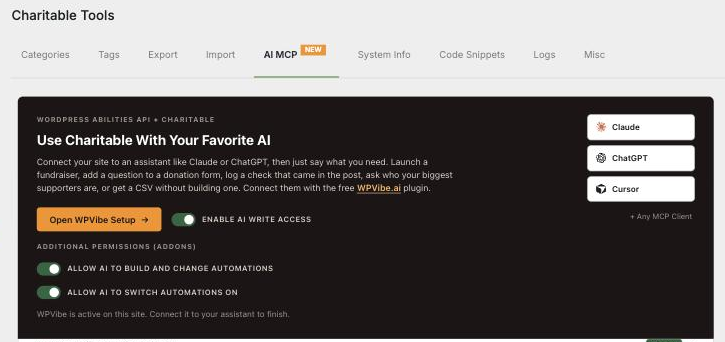
The first is Enable AI write access, Charitable’s master switch. With it off, an assistant can read everything and change nothing.
The second is Allow AI to build and change automations, which sits under Additional Permissions. Even with general write access on, your automations stay off-limits to AI until you turn this one on too.
The third is Allow AI to switch automations on. Making an automation run on real donations is a bigger step, so it has its own permission, separate from the one that lets the assistant build.
One rule holds however the switches are set. Anything the assistant creates or edits is saved as paused.
Your assistant can draft as much as you like, and it can always pause or disable an automation. It can only make one live when the third switch is on, and then it’s doing something you chose to allow.
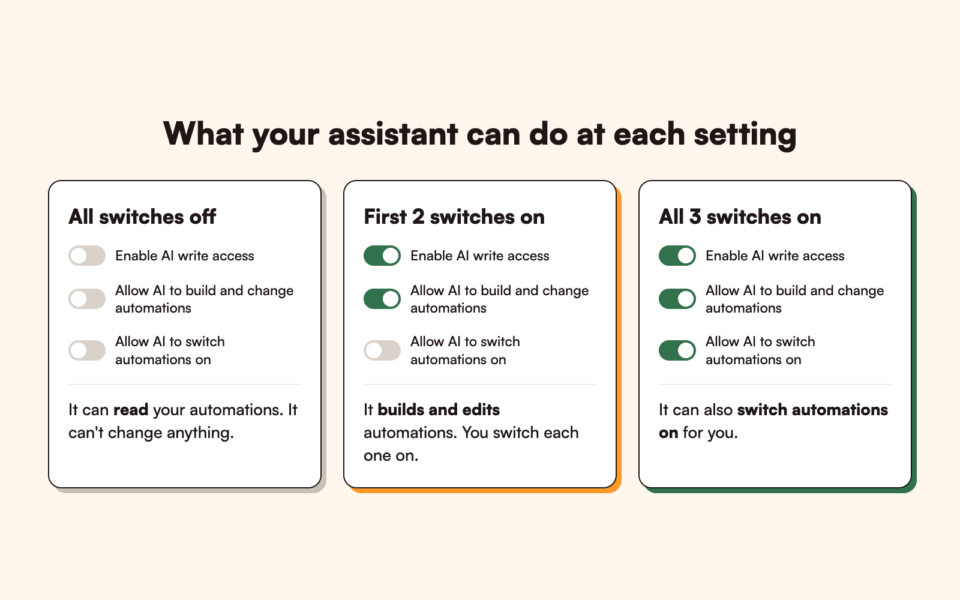
With every switch off, the assistant is read-only. Turn on the first 2 and it drafts and edits while you switch things on. Turn on all 3 and it can switch automations on as well, because you decided it should.
What Your Assistant Can Do With Your Automations
Reading works even with every write switch off. Your assistant can list your automations with their trigger, whether each one is on or off, and whether its last run succeeded.
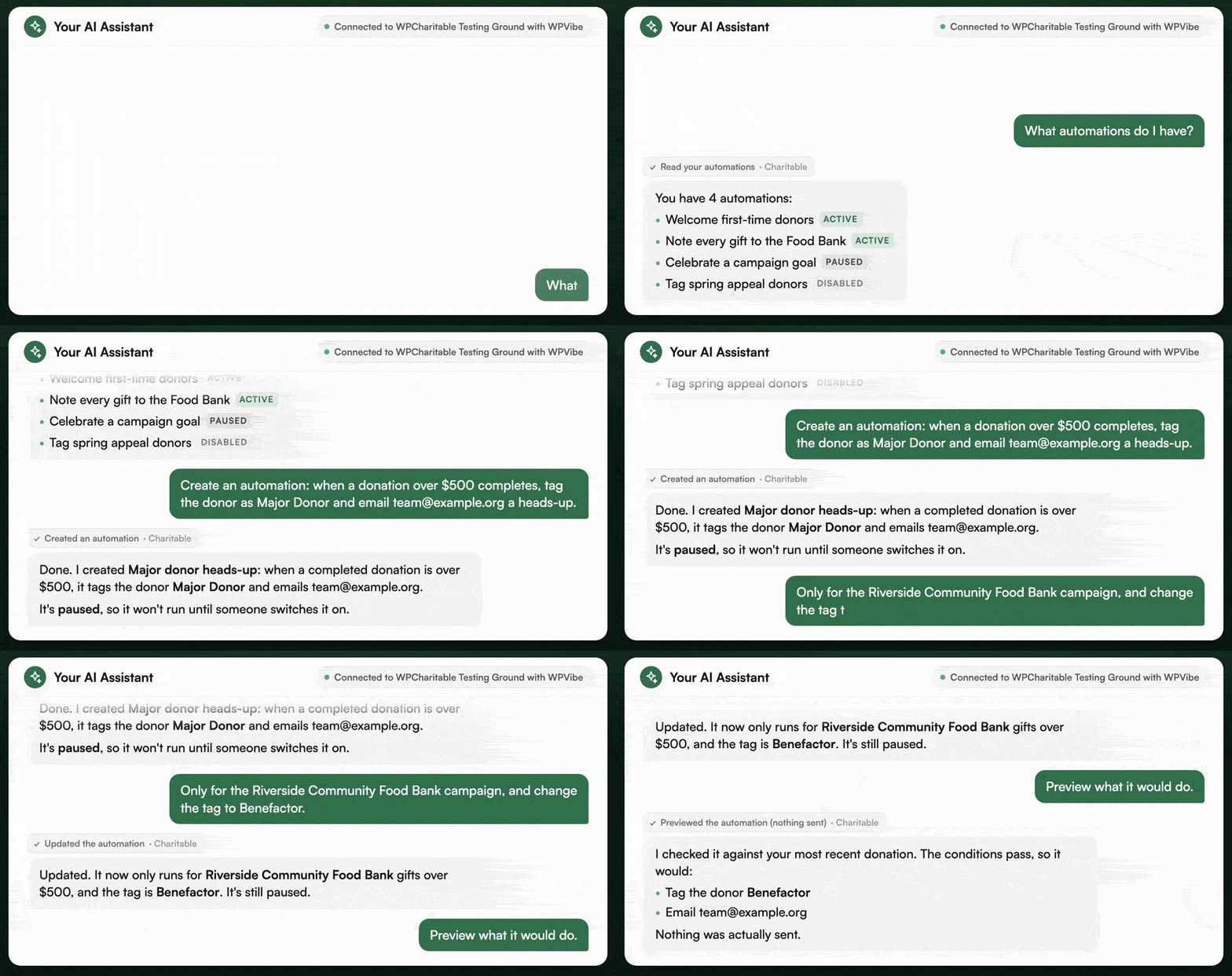
It can also open one automation in full, with its trigger, conditions and ordered actions, and show you its recent run history. Before it builds anything, it checks which triggers, actions and condition fields exist on your site, so it only uses pieces you actually have.
Writing needs the switches, and everything it writes is saved as paused. Your assistant can create a new automation from a trigger, optional conditions and one or more actions.
It can edit an existing automation’s name, trigger, conditions or actions, or duplicate one as a starting point. It can pause, disable or activate an automation too, and activating needs the third switch.
Then there’s the preview, which sends nothing. Your assistant shows you exactly what an automation would do against a recent real donation, with no webhook, no email and no tag. It’s the safe way to check your logic before you switch it on.
How to Build a Major Donor Automation by Asking
Say you want every large gift tagged and flagged to you, so every big donation gets a proper thank-you. Here’s how the whole thing goes.
First, you ask your assistant.
When a donation over $500 is completed, tag the donor as Major Donor and email me at [email protected].
The assistant builds it, and it appears paused. When you open it, you’ll see a Donation Completed trigger, a condition for the amount, a Tag Donor action and a Send Email action.
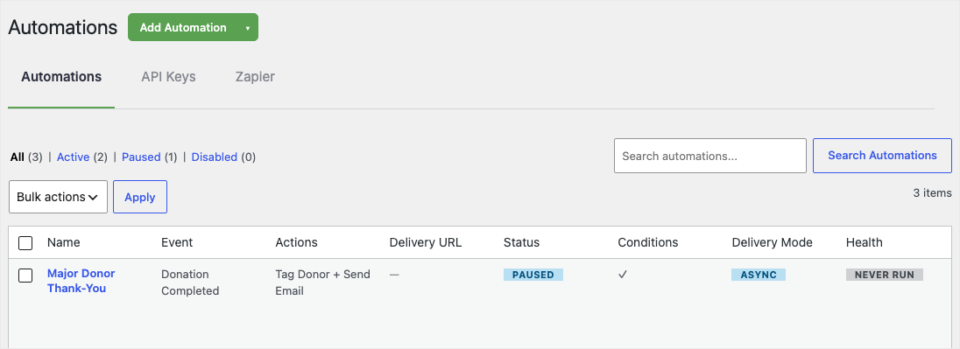
That’s exactly what you described, and you can still edit any of it by hand.
Then you realize you only want this for one appeal, so you ask again.
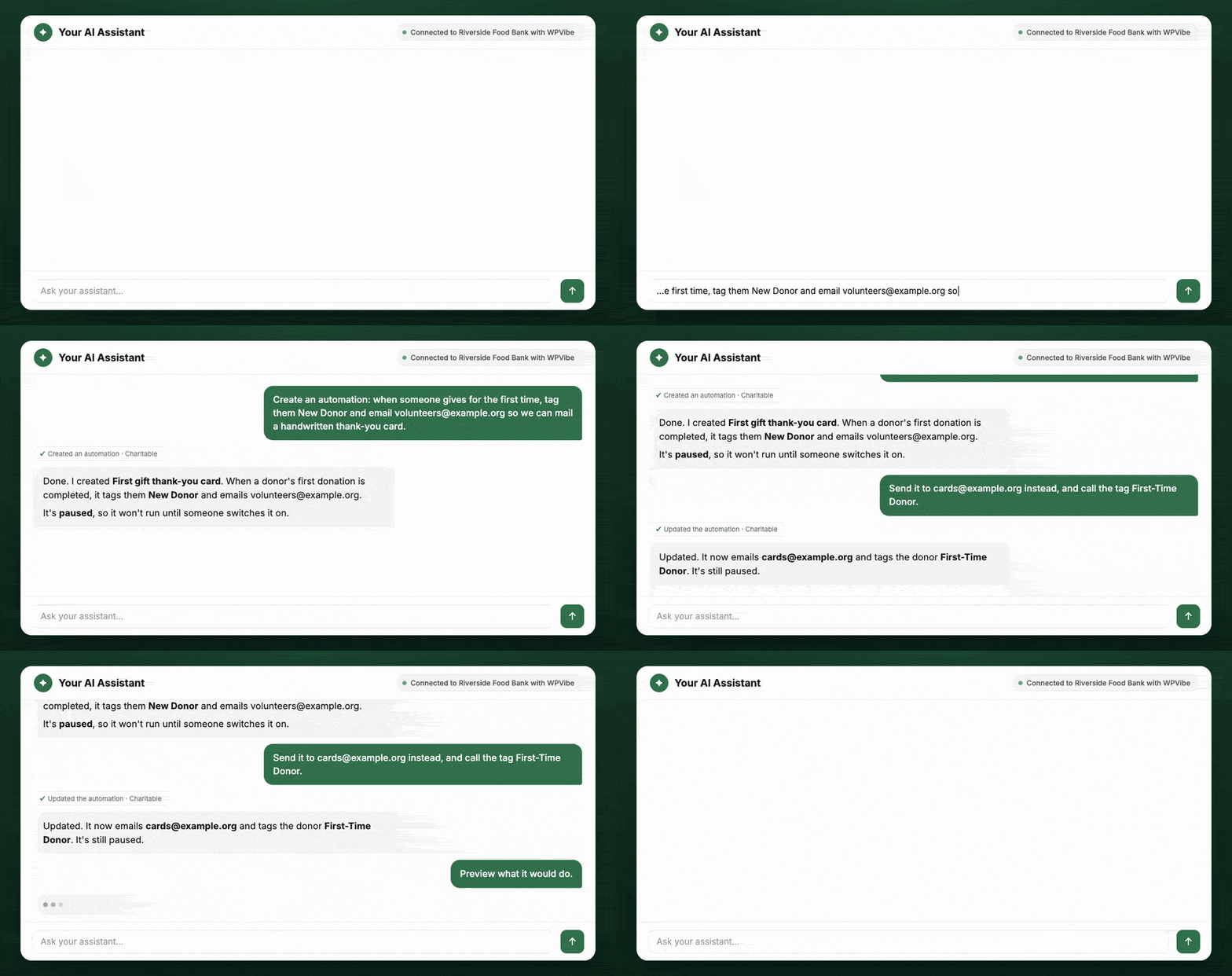
Only for the Spring Appeal campaign, and rename the tag to Benefactor.
Your assistant edits the existing automation, adds the campaign condition and changes the tag. It stays paused, because an edit always leaves it paused.
Before you switch it on, you ask for a preview.
Show me what that would do against a recent donation.
The preview shows which actions would run against a real recent gift, with nothing actually sent. Now you can see the logic is right.
Once you switch it on, every qualifying gift gets tagged and you get your email. If you ever want it to stop, you can pause it yourself, or ask your assistant to pause it in one sentence.
Change an Automation by Asking Again
The first build isn’t where you save the most time. You save it on the tenth small change, like “Add a condition for recurring donations only”, “Move the webhook before the email” or “Make a copy of this and change the tag”.
By hand, each of those means opening the builder, finding the right card and clicking carefully. By asking, each one is a sentence, and every edit is saved as paused, so a careless change can never go live on its own.
You Can See Every Change the AI Makes
Charitable records every change an assistant makes. Charitable » Tools » Logs shows what was read and what was changed, so you can always see what the AI did.
Your assistant can only do what a person with the right permission could already do in the dashboard. Donor contact details stay behind Charitable’s sensitive-data permission, and an assistant can never read your payment gateway keys.
How to Set Up AI-Built Automations
Setup takes a few minutes, and most of it is a one-time connection.
Step 1: Update Charitable and Automation Connect
To get started, update to the Charitable Pro plugin 1.8.19.1 and Automation Connect 2.4.0. You’ll need WordPress 6.9 or later.
Step 2: Install WPVibe
Next, install and activate the free WPVibe plugin. You can start from the Open WPVibe Setup button on Charitable » Tools » AI MCP.
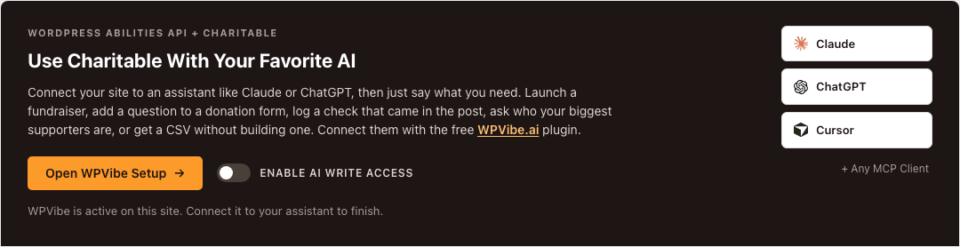
Step 3: Connect Your Assistant
Then connect your AI assistant through WPVibe. Claude, ChatGPT, Cursor and any other MCP client all work.
Step 4: Turn On the Switches You Want
Back on Charitable » Tools » AI MCP, turn on Enable AI write access. Under Additional Permissions, turn on Allow AI to build and change automations.
Leave Allow AI to switch automations on turned off until you want your assistant to switch automations on as well as draft them.
Step 5: Ask for Your First Automation
Finally, ask your assistant to build something.
It’s saved as paused, and you decide when it goes live.
Read the Full AI-Built Automations Setup Guide →
For Agencies and Developers
Filters for Each AI Switch
The abilities are registered in the charitable category and permissioned by manage_charitable_settings, the same capability that controls the Automation settings.
The 2 automation switches are their own gates, layered on top of Charitable’s general write gate, so a write is refused if either one is off. Each gate has a filter for programmatic control, which you can add with a code snippets plugin.
// Allow or refuse AI automation writes without the UI switch.
add_filter( 'charitable_abilities_allow_automation_write', '__return_false' );

// Allow or refuse AI switching automations on, separately.
add_filter( 'charitable_abilities_allow_automation_arm', '__return_false' );
License and Validation Checks
Both gates also need an active license, so a lapsed license fails closed.
Everything the assistant builds goes through the same validation and storage as a form submission. A condition or action an assistant writes is checked against the chosen trigger before it’s saved, exactly as if you’d built it by hand.
FAQs on AI-Built Automations
Does the AI Need My Password?
No. It connects through the WordPress Abilities API using WPVibe, with the same application password method other first-party integrations use, and it never sees your login.
Will an Automation the AI Builds Start Running Right Away?
No. Everything it creates or edits is paused, and it only goes live when a person switches it on, or the assistant does with the third switch turned on.
Can the Assistant Read My Donors’ Personal Details?
Only if the user it’s acting for has Charitable’s sensitive-data permission. Contact details are protected exactly as they are in the dashboard, and gateway keys are never readable.
Which AI Assistants Work With It?
Claude, ChatGPT, Cursor and any other MCP client work, all connected with the free WPVibe plugin.
Do I Need AI to Use Automations?
Not at all. The visual builder and the simple editor work exactly as before, and AI is another way in for when describing what you want is faster than clicking.
Is This Available in the Free Version of Charitable?
No. Charitable’s Automation Connect feature is in the Charitable Pro plugin, Pro plan and higher.
Try AI-Built Automations Today
If you’re already on the Charitable Pro plugin, update to 1.8.19.1 and Automation Connect 2.4.0, install WPVibe, and ask your assistant to build your first automation. Start with the one you’ve meant to set up for months, because now it takes a sentence! If you need ideas, our nonprofit task automation guide has plenty.
Read the AI-Built Automations Documentation →
Charitable Has 1.2+ Million Downloads!
Trusted by millions to power successful fundraising campaigns. Try Charitable risk-free today.
✅ 14-day money-back guarantee
✅ Transparent pricing
✅ Code-free setup
What’s New in Charitable
We’ve launched a few other features recently too.
💸
Set a different fee relief rate for each gift size, so the ask matches the gift.
📊
Compare date ranges, export your numbers and score your campaigns from one screen.
We keep adding to Charitable to help you raise more and look after your donors. See everything we’ve shipped in the Charitable Changelog.
Not yet a Charitable Pro user? Sign up today and get up to 50% off on your plan. We’re confident you’ll love raising funds with Charitable. If, for any reason, Charitable is not the right fit for you, we’ll refund your purchase with our 14-day money-back guarantee. Get Charitable Pro Now »
Stay Connected for More Nonprofit Resources
For more tutorials and videos tailored to nonprofits, subscribe to our YouTube channel. We regularly publish expert tips, step-by-step guides on online donations, fundraising strategies, and practical resources to help your organization succeed.
🗞️ Get weekly tips and exclusive guides in your inbox
Join our newsletter →
🎥 Watch step-by-step tutorials and success stories
Subscribe to our YouTube channel →
👩🏽💻 Connect with our community and get daily nonprofit insights
Follow us on LinkedIn →
🥳 Fun reels and non-profit insights
Follow us on Instagram →
👀 Insightful & fun videos to help you grow your cause
Follow us on TikTok→
🌎 Subscribe and follow for general fundraiser tips
Get Fundraiser Tips on TikTok →
Powerful Fundraising Resources
🤖 Use Charitable with Your AI Assistant
⬇️ Download proven strategies, campaign ideas, and expert tools
Get the Fundraising Kit →
💸 Get Free Fundraising Resources
Head to the Charitable Fundraising Hub →
🤔 Got questions about Charitable?
Charitable FAQs →
🏎️ Take Charitable for a spin
Create your Charitable Demo →
Understand non-profit terms and jargon
Non-Profit Glossary →
% Looking for non-profit deals and discounts?
Best Non-Profit Deals and Discounts →










Leave a Reply