
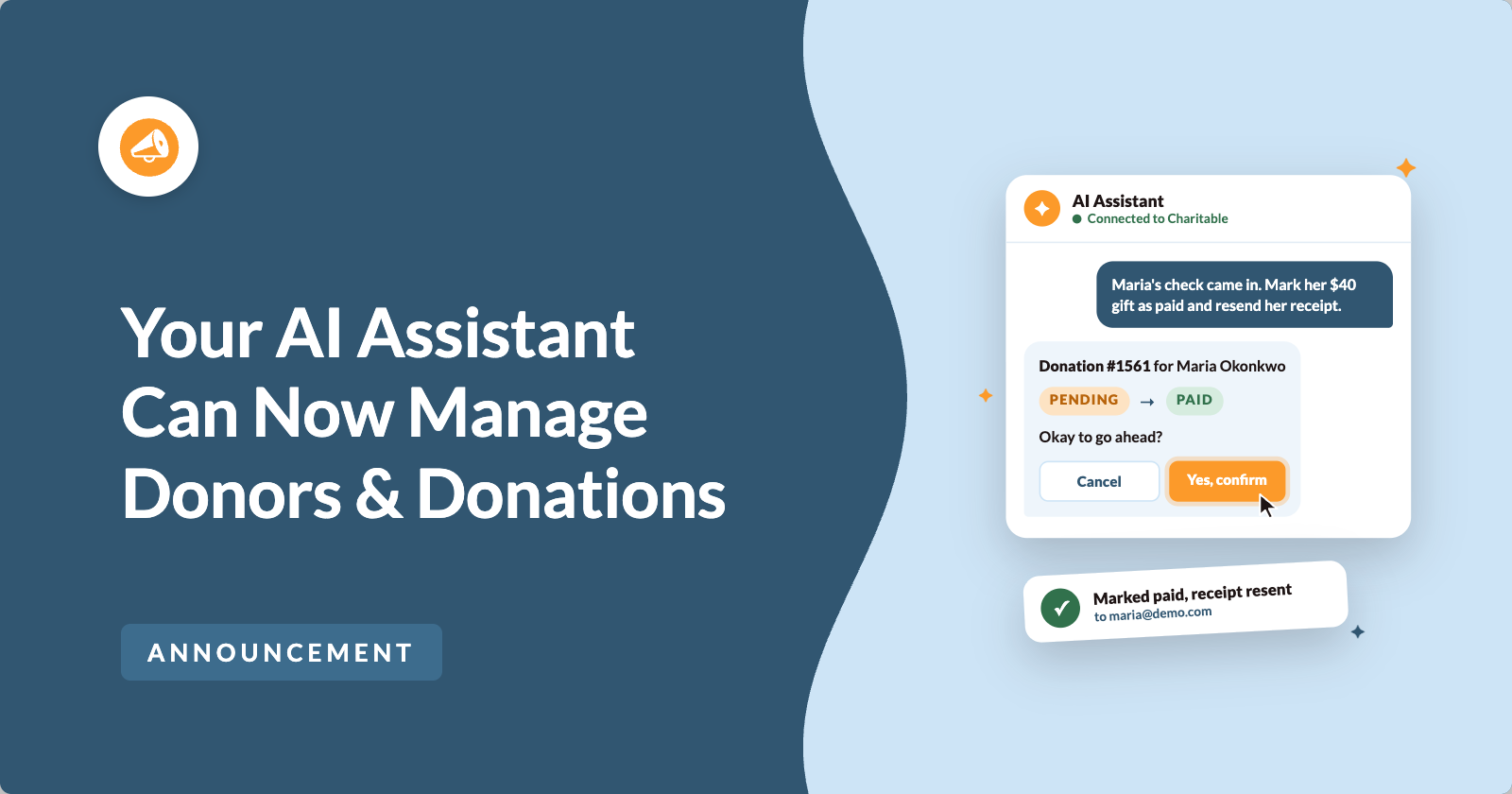
Your AI assistant can now look after your donors, not only your campaigns! 🎉
In version 1.8.20 of the Charitable Pro plugin, you can ask your assistant to fix a donor’s details, mark a pending donation as paid, send a receipt again or add a note to a donation. It can also erase a donor’s personal data when they ask you to.
These are the small jobs that pile up every week. Each one used to mean finding the right screen and working through a form. Now you can type one sentence, such as “update Maria’s email to the new one she sent us and resend her receipt”.
Since 1.8.18, your assistant could already build campaigns, edit donation forms and log offline gifts. With 1.8.20 it can work with donor records and existing donations too, and anything that can’t be undone waits for your yes first. ⚡
What’s New!
Here are a few things you can now ask for in plain English, the same way you’d ask a colleague.
- 🏠 A donor has moved: “Maria emailed to say she moved to 42 Harbour Road, Lagos. Update her donor record.” Only the fields you name are changed.
- ✅ A bank transfer has landed: “Her $40 donation is still pending, but the bank shows it cleared. Mark it paid.” Your assistant shows you what will happen and waits for you to agree.
- 📧 A donor lost their receipt: “Send Maria’s receipt again, to her new email address.” It goes to the address stored on the donation, or to the donor’s current one if you ask.
- 📝 You want a record of a phone call: “Add a note to donation 1561 that she called to say thank you.” The note appears in the donation’s log.
- 🧹 A donor asks you to delete their details: “Erase all personal data for this donor.” You see exactly what will be removed and what will be kept before anything happens.
- 📋 You’re running last year’s appeal again: “Copy the Winter Appeal as a new draft and add this photo as its main image.” The copy keeps the story, goal and design, and starts at zero raised.
Fix a Donor’s Details by Asking
Most of the time, a donor record needs a correction, not a report. A typo in an address, a new email after a job change, or a phone number that has changed.
Now you can tell your assistant what changed. It updates the donor’s name, email, phone number or postal address, and only the fields you mention. When it’s done, it tells you each field it changed, with the old value and the new one.
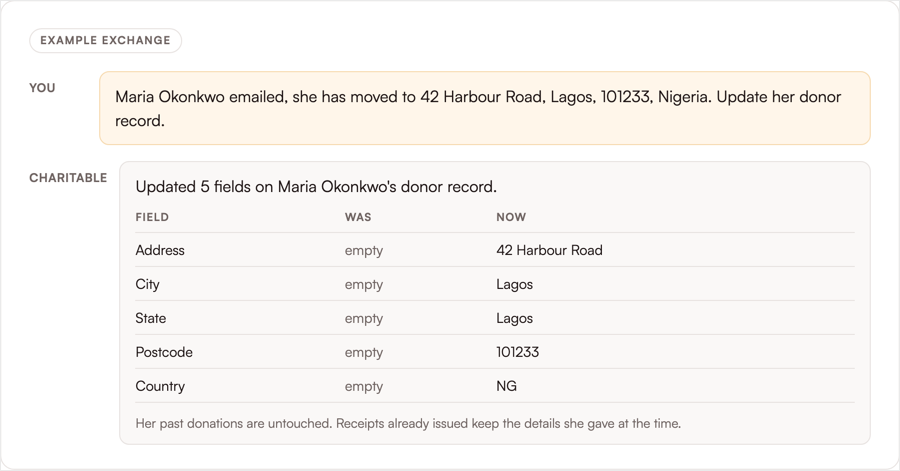
Past donations keep the details the donor gave at the time. So a receipt you sent 2 years ago still matches what was true back then.
There’s one case where your assistant stops and asks first. If the donor also has a WordPress account on your site, changing their email changes their login email too, which is where password resets go. Your assistant explains that and waits for your yes, or it can update only the donor record if you’d prefer.
Clear a Pending Gift and Resend the Receipt
Your assistant can now move a donation between Pending, Paid and Failed, the same way you would on the donation screen. The same emails and actions run as they do in your dashboard, so a donor who is marked paid gets their receipt and the gift counts toward your campaign total.
Because this changes money totals, it never happens on your first message. Your assistant comes back with the donation, the amount, the donor, and everything that will happen next. Then it waits.
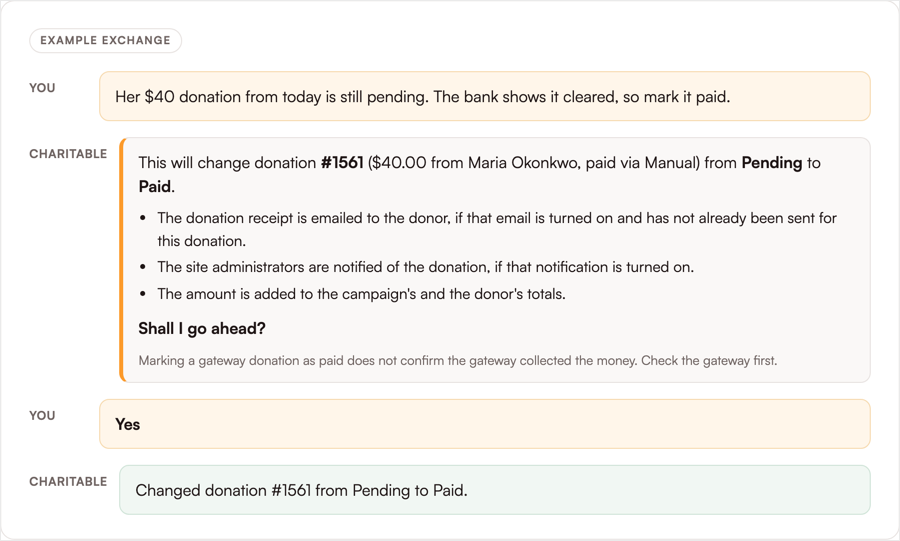
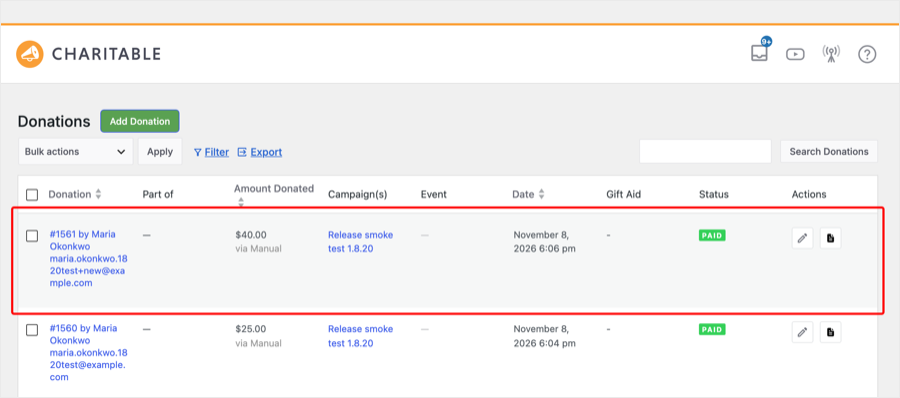
Once you agree, the donation is an ordinary Charitable donation marked Paid. You’ll find it in Charitable » Donations with every other gift.
One thing to keep in mind is that marking a gateway donation as paid doesn’t prove the gateway collected the money. Your assistant says this in its summary, so check your Stripe, PayPal or other gateway account first.
Sending a receipt again works for any paid donation. It goes to the email stored on the donation by default, or to the donor’s current email if you’ve just corrected it. You can also ask your assistant to add a plain-text note to a donation’s log, and Charitable marks that note as added by an AI assistant.
Erase a Donor’s Personal Data When They Ask
When a donor asks you to delete their details, your assistant can now do it. It does the same job as Tools » Erase Personal Data in your WordPress dashboard.
That removes the donor’s saved details and the personal fields on their donations. Amounts, dates and campaign totals are kept, so your reports still add up.
An erase can’t be undone, so your assistant always shows you a preview first. It names every donor profile with that email, any linked WordPress account, and how many donations are still inside the time your privacy settings keep data for.
Those donations keep the fields your settings say to keep. Nothing changes until you say yes.
Copy a Campaign and Finish Its Details
Two campaign jobs got easier too. Your assistant can now copy any campaign into a new draft, keeping its story, goal, design and donation form settings. Donations are never copied, so the new campaign starts at zero raised.
Updating a campaign now covers its main image as well. Give your assistant a link to a public image and it becomes the campaign’s main photo. It can also replace a campaign’s categories and tags by name.
Nothing Permanent Happens Without Your Yes
We spent the most time on this part. An assistant that can erase a donor is only helpful if it can never erase one by accident.
So anything that can’t be undone, or that changes money, now takes 2 steps. The first request changes nothing at all. It returns a plain-language summary of what would happen, how many records it affects and what will be kept.
Your assistant reads you that summary. Only after you agree does the change go through.
Your approval works once, expires after 10 minutes, and only covers the exact records in the summary. If anything changed in the meantime, it’s refused and you get a fresh summary.
Some jobs stay out of reach completely. Refunds and cancellations never go through an assistant, and a donation that’s already refunded or cancelled can’t be moved at all. Those stay in your dashboard and your payment gateway.
Every change is also written down under Charitable » Tools » Logs. Choose Abilities from the filter and you’ll see each operation, what it did and when.
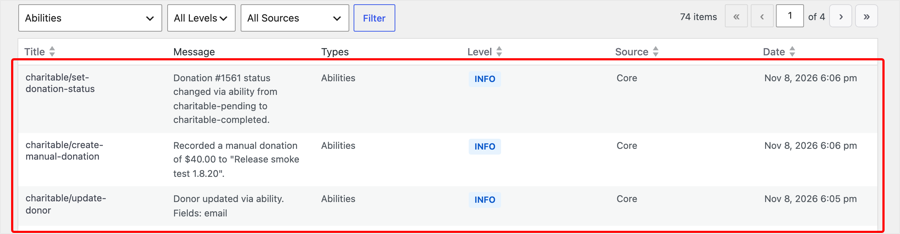
Look at the donor update in the last row. It says Fields: email, and not the email itself. The log records which fields changed and never their values, so it never becomes a second copy of your donors’ contact details.
Your Permissions Still Decide Who Can Do What
Write access doesn’t give anyone new powers. Your assistant acts as the person who connected it, so it can only make the changes that person could make in your dashboard.
Updating a donor needs permission to manage Charitable settings and to view sensitive data, which matches the donor edit screen. Erasing a donor also needs WordPress’s own Erase Personal Data permission. Resending a receipt needs permission to edit donations and to view sensitive data.
That means Campaign Managers can’t change donor records through an assistant. They hold donation permissions but not settings permissions, and we kept it that way on purpose. Your payment gateway keys are never readable by an assistant, whatever you set.
Getting Started: Turn On Write Access
Write access is off on every site until you turn it on. If you already turned it on for campaign work in 1.8.18 or 1.8.19, the new donor and donation jobs are covered by the same switch, so you only need step 1.
Step 1: Update to Version 1.8.20
To get started, update the Charitable Pro plugin to version 1.8.20 or later. You’ll also need WordPress 6.9 or later.
Step 2: Connect Your Assistant
Next, head over to Charitable » Tools » AI MCP. If you haven’t connected an assistant yet, click Install & Activate WPVibe. WPVibe is a free plugin that connects your site to Claude, ChatGPT or Cursor.
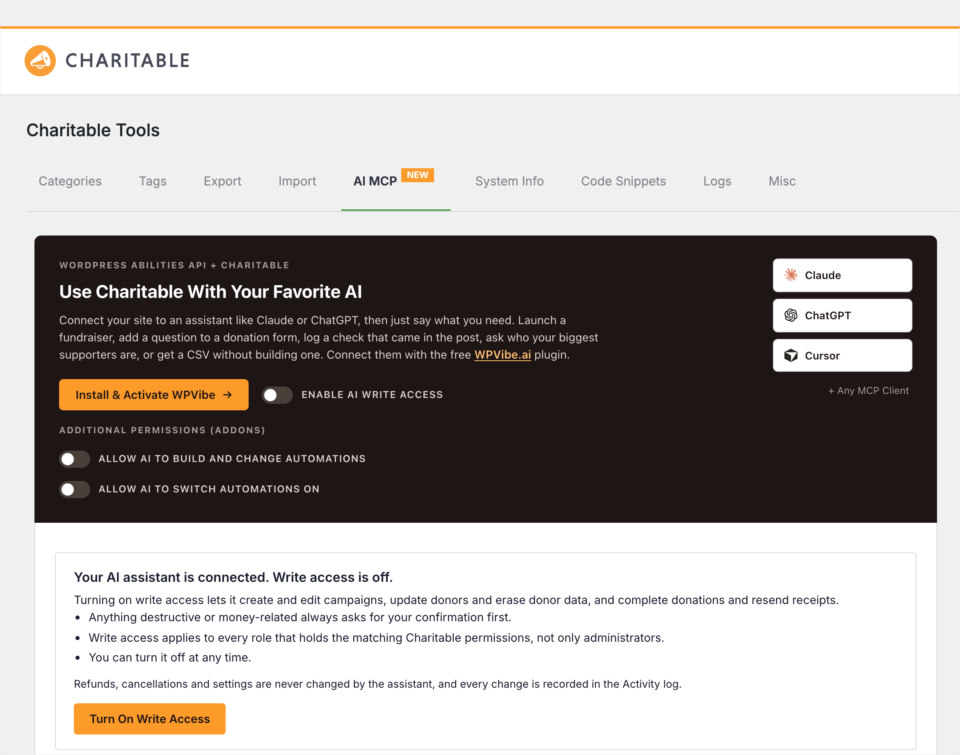
Step 3: Turn On Write Access
Once your assistant is connected, you’ll see a panel headed Your AI assistant is connected. Write access is off. It lists what write access allows before you turn it on.
From there, click Turn On Write Access. That’s the only click, and there’s no settings page to save.
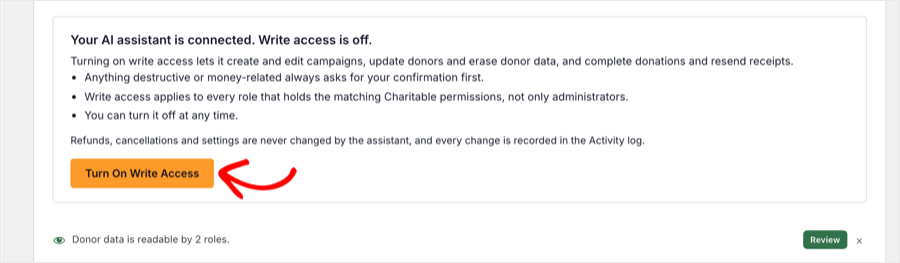
If you use Charitable’s Automations feature, you’ll also see 2 switches under Additional Permissions. Building automations and switching them on are separate choices, so turn on only the ones you want.
New in 1.8.20, you don’t have to go looking for this screen. Once an assistant has tried to use Charitable on your site, a notice appears on your Charitable screens offering the same one click.
Before you turn it on, check who on your team holds Charitable’s permissions. Write access applies to every role that has them, not only administrators. You can turn it off again at any time from the same screen.
Now open your assistant and ask it to update a donor’s details. You’ll see the changes listed in the chat a few seconds later!
Read the Full AI Assistants Setup Guide →
For Agencies and Developers
New and Extended Abilities in 1.8.20
This release adds 6 abilities and extends one, all registered with the core WordPress Abilities API.
charitable/update-donorchanges name, email, phone or address. Changing the email of a donor with a WordPress account asks for confirmation, andupdate_account_emailset to false leaves the login email alone.charitable/erase-donorruns the same erasure as the core personal data eraser. It always asks for confirmation, and it refuses a donor linked to an administrator-level account.charitable/set-donation-statusacceptscharitable-completed,charitable-pendingandcharitable-failed. A move into or out of a paid status asks for confirmation.charitable/resend-donation-receipttakessend_toasdonation_emailorcurrent_donor_email, and is limited to once a minute per donation.charitable/add-donation-notewrites a plain-text note of 1 to 1,000 characters. Notes can’t be edited or removed afterwards.charitable/duplicate-campaigncopies a campaign into a draft, the same as the Duplicate link on the Campaigns screen.charitable/update-campaignnow takesimage_url,categoriesandtags. Setting a past end date on a published campaign asks for confirmation, because it closes the campaign to donations.
How the Confirmation Step Works
A confirming ability returns a preview, a summary and a confirmation_token on its first call, and changes nothing. The client sends the same input again with that token once the user agrees. The token is tied to the user, the ability, the target and the previewed record set, and expires after 10 minutes.
The charitable_abilities_allow_write filter still overrides the write switch in code, which keeps production read-only while staging stays open.
FAQs on AI Donor and Donation Management
What do I need to use donor and donation management with AI?
You’ll need version 1.8.20 or later of the Charitable Pro plugin, WordPress 6.9 or later, and an assistant connected through WPVibe or another MCP client. Write access needs to be turned on under Charitable » Tools » AI MCP.
Does my assistant see donor contact details?
Only if the person it acts for can see them. Lists of donors never include email addresses, phone numbers or postal addresses, and reading one donor in full needs the sensitive-data permission.
Can an assistant refund a donation?
No. Refunded and Cancelled aren’t available as statuses, and a donation that’s already refunded or cancelled can’t be moved at all.
What happens to old receipts when a donor’s details change?
Nothing. Past donations keep the details the donor gave at the time, so an old receipt still shows what was true back then.
Will erasing a donor delete their donations?
No. It removes the personal details on them and keeps the amounts, dates and campaign totals. Donations still inside the time your privacy settings keep data for keep the fields those settings name.
How do I see what an assistant changed?
Head over to Charitable » Tools » Logs and choose Abilities from the filter. Each change is listed with the record it touched, the names of the fields that changed and the time.
More in Version 1.8.20
This release brings more than the AI work. The Addons screen is now a single grid you can filter, with live counts and walkthrough videos.
Apple Pay and Google Pay now always charge the campaign and amount of the form the donor clicked in. We fixed a Stripe issue that could save a manually entered key into the wrong field. Donor data erasure now also clears saved phone numbers, addresses and extra email addresses.
The French translation has also had a full review, with thanks to Jefferson Casimir.
Get Started With Donor and Donation Management
Update to version 1.8.20 of the Charitable Pro plugin, then head over to Charitable » Tools » AI MCP to check your write access. After that, ask your assistant to fix the next donor detail that lands in your inbox and see how quickly it’s done!
Read the AI Donor and Donation Management Documentation →
Not Yet on a Charitable Paid Plan?
Charitable Has 1.2+ Million Downloads!
Trusted by millions to power successful fundraising campaigns. Try Charitable risk-free today.
✅ 14-day money-back guarantee
✅ Transparent pricing
✅ Code-free setup
What’s New in Charitable
We also launched several other features and improvements recently.
🏃
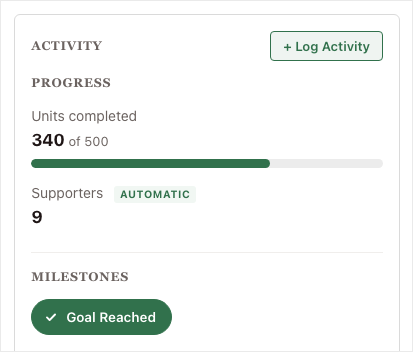
Let fundraisers show miles walked, minutes read or meals packed beside the money they raise.
🖨️
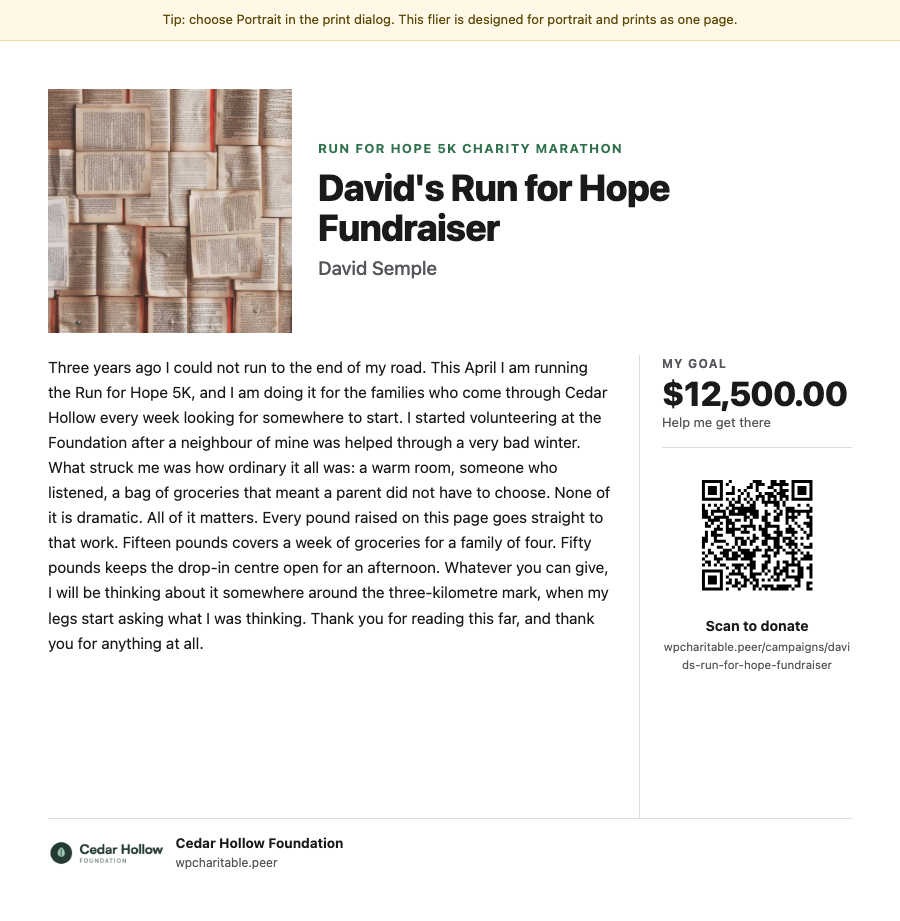
Print a flier with each fundraiser’s story and QR code, plus a poster that recruits new fundraisers.
💸
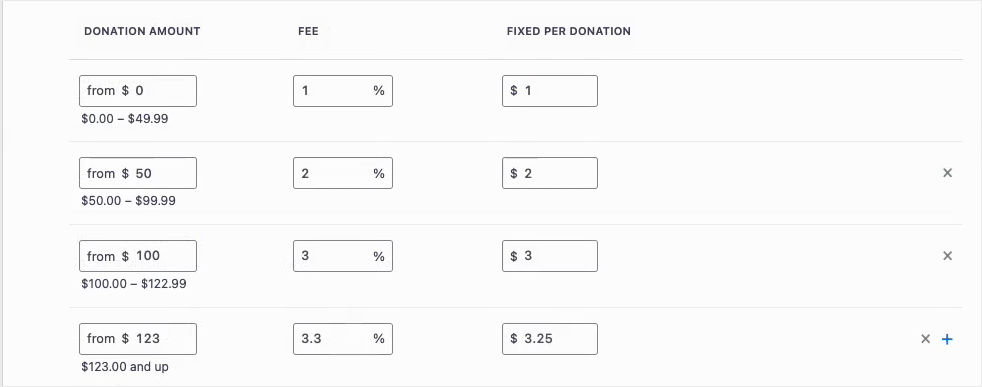
Set a different fee rate for each donation band, so small gifts get a gentler ask.
📊
See every total against the previous period, export your numbers and spot what to fix first.
🎟️
Sell event tickets through the donation forms and gateways you already use in Charitable.
🔁
Donors set up a gift once on Windcave and Charitable bills every renewal on schedule.
We’ve been adding to Charitable constantly, with features and improvements designed to help you raise more and serve your donors better. See everything we’ve shipped at the Charitable Changelog.
Not yet a Charitable Pro user? Sign up today and get up to 50% off on your plan. We’re confident you’ll love raising funds with Charitable. If, for any reason, Charitable is not the right fit for you, we’ll refund your purchase with our 14-day money-back guarantee. Get Charitable Pro Now »
Stay Connected for More Nonprofit Resources
For more tutorials and videos tailored to nonprofits, subscribe to our YouTube channel. We regularly publish expert tips, step-by-step guides on online donations, fundraising strategies, and practical resources to help your organization succeed.
🗞️ Get weekly tips and exclusive guides in your inbox
Join our newsletter →
🎥 Watch step-by-step tutorials and success stories
Subscribe to our YouTube channel →
👩🏽💻 Connect with our community and get daily nonprofit insights
Follow us on LinkedIn →
🥳 Fun reels and non-profit insights
Follow us on Instagram →
👀 Insightful & fun videos to help you grow your cause
Follow us on TikTok→
🌎 Subscribe and follow for general fundraiser tips
Get Fundraiser Tips on TikTok →
Powerful Fundraising Resources
🤖 Use Charitable with Your AI Assistant
⬇️ Download proven strategies, campaign ideas, and expert tools
Get the Fundraising Kit →
💸 Get Free Fundraising Resources
Head to the Charitable Fundraising Hub →
🤔 Got questions about Charitable?
Charitable FAQs →
🏎️ Take Charitable for a spin
Create your Charitable Demo →
Understand non-profit terms and jargon
Non-Profit Glossary →
% Looking for non-profit deals and discounts?
Best Non-Profit Deals and Discounts →






Leave a Reply