
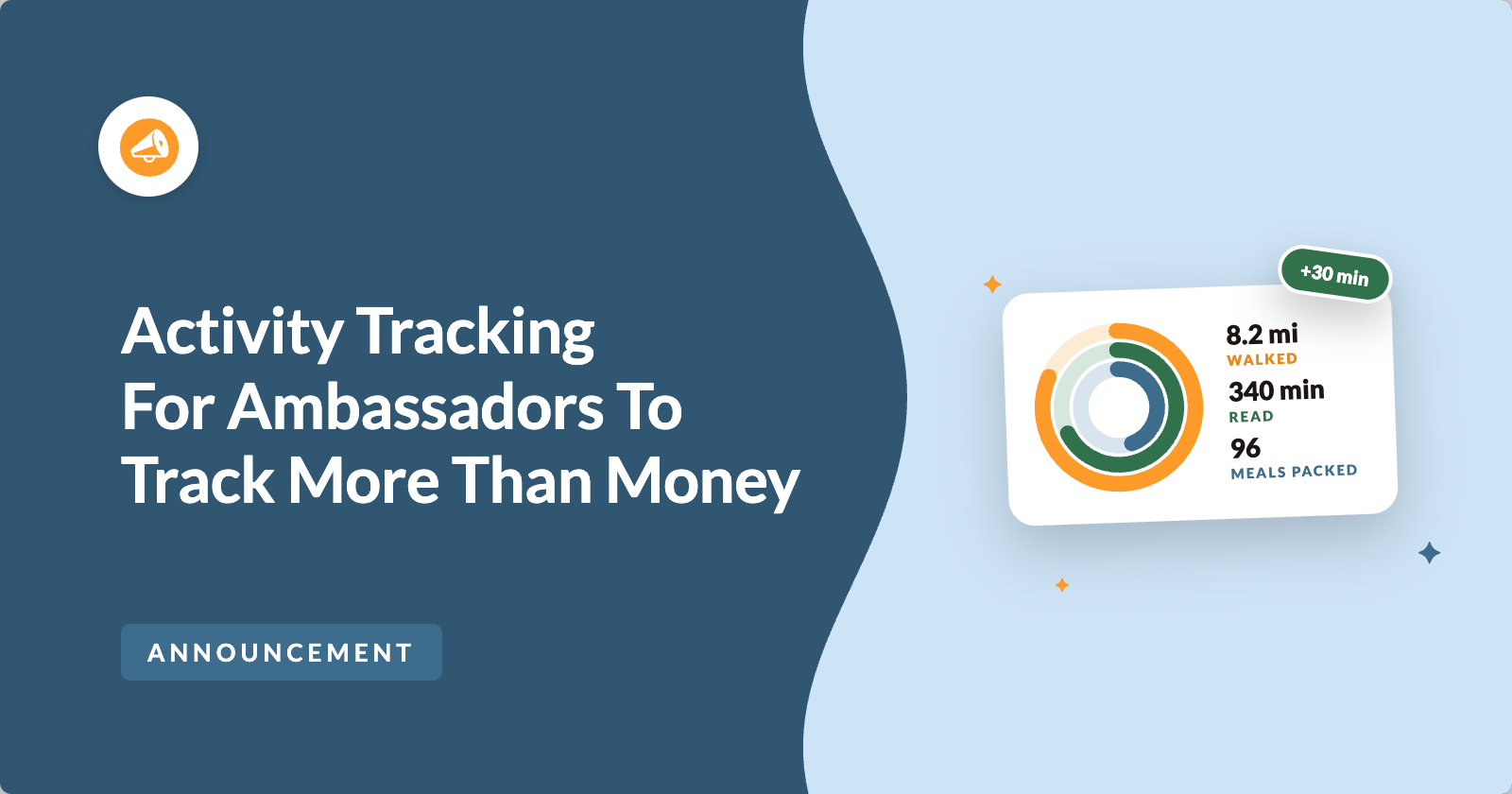
Most peer-to-peer fundraisers are about more than the money.
A read-a-thon is about minutes read. A walkathon is about miles walked. A food drive is about meals packed, and a volunteer day is about hours given.
The money follows the effort.
Until now, your fundraiser pages could only show the money. The thing your supporters actually did, the thing they want to tell people about, lived in a spreadsheet, in a comment, or nowhere at all.
A page that shows only a dollar figure gives a supporter one reason to share it, and that’s to ask for money again. A page that says “Maya has read 340 minutes toward her 500” gives them something to be proud of. Pride is a much better reason to send the link to family and friends.
So we built Activity for Charitable Ambassadors. You decide what gets counted once, pick which campaigns count it, and your fundraisers log their own numbers from their own pages.
You don’t need a new plugin, a developer or a spreadsheet. 🎉
Activity is available now in Charitable Ambassadors 3.4.7.
Here’s What Activity Looks Like on a Fundraiser Page
Before we get into how it works, take a look at the finished card on a fundraiser page.
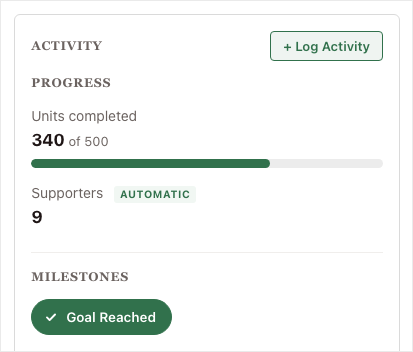
There are 3 parts to this card, and you choose each one per campaign.
The progress bar shows each thing you count against its own target, right beside the money. A milestone badge appears for things that are either done or not done.
Now look at the AUTOMATIC tag beside Supporters. The site counted that number from completed donations, and no person typed it in.
When a page mixes numbers people entered with numbers the site counted, supporters can tell which is which straight away.
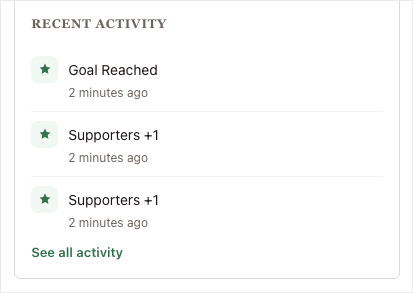
The feed lists what happened, newest first. It can also include the campaign’s own donations, so the page reads as one story instead of separate lists.
See Activity in Action
If you’d rather watch than read, here’s a 3-minute walkthrough of everything below.
Your Fundraisers Log Their Own Numbers
The person who knows how far they walked is the person who walked. So Activity lets your fundraisers record their own progress.
A signed-in campaign owner sees a + Log Activity button on their own page.
It opens a short form right there on the page, so they don’t need the admin area or an email to you.
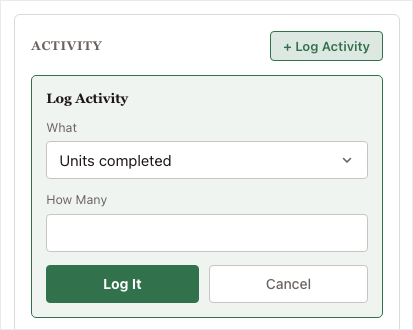
The form only offers what that campaign tracks. If a campaign counts minutes and nothing else, the form offers minutes and nothing else.
There’s nothing to explain in a welcome email, and nothing for a fundraiser to get wrong.
If they walk 4 miles on Saturday, they’ll open their page, type 4, and watch the bar move.
Entries are append-only, which means there’s no edit button. We chose this on purpose. To fix a mistake, the fundraiser adds a new entry, or an administrator removes the wrong one.
This keeps the feed an honest record of what was logged and when. It also means every total can be worked out again from the entries at any time, and it will always come out the same.
If you’d rather fundraisers didn’t log their own numbers, a setting on each campaign hands recording to administrators only.
When You’ll Feel the Difference
Activity fits any peer-to-peer fundraising program where the effort is part of the story. Here are a few examples.
- 📚 Read-a-thons and math-a-thons. Each child’s page shows minutes read or problems solved. Parents share the page because it shows their child’s effort.
- 🚶 Walkathons, rides and step challenges. Miles logged sit next to dollars raised. Your fundraisers also get a reason to post an update in the middle of the event, not only at the start.
- 🥫 Food and supply drives. Your pages can now show meals packed, kits assembled and coats collected. These were never dollar figures, so they never had a place on the page before.
- 🤲 Volunteer and service days. Hours given, houses painted and trees planted show up on the page. For many organizations, this is the number the board asks about.
- 🏁 Milestone campaigns. Some campaigns have no number at all, just moments like “We broke ground” or “The van is paid off.” A badge appears once it happens, so a long, quiet campaign has news to share along the way.
What Your Fundraisers See
The fundraiser’s experience decides whether anyone uses this feature, so here’s how it looks from their side.
They land on their own page, with their name, photo and goal. Now there’s also an Activity card with a progress bar at zero. An empty bar invites them to start, which works much better than a page with nothing on it yet.
They click + Log Activity, and a short form opens on the same page. It has a dropdown of what this campaign counts and a single number field.
They type a number and click Log It. The figure and the bar update straight away, without reloading the page, and a new row appears at the top of the feed.
Then they share the page. Their friends and family see a number that moved, a bar that’s part of the way along, and a feed showing it happened this morning. The donation form is still right there, and now it sits next to a reason to give.
A week later they’ll log again, and the feed fills in behind them. By the end of the campaign, their page is a record of what they did. That’s something people like to keep and share long after the fundraising closes.
Set Up Activity in 3 Steps
You turn recording on, decide what gets counted, and choose which campaigns count it. Here’s what each step looks like.
Step 1: Turn Recording On
To get started, head over to Charitable » Ambassadors » Other » Activity. Activity is switched off after you update, and nothing is recorded or shown until you turn it on. The strip at the top of this tab is the switch.
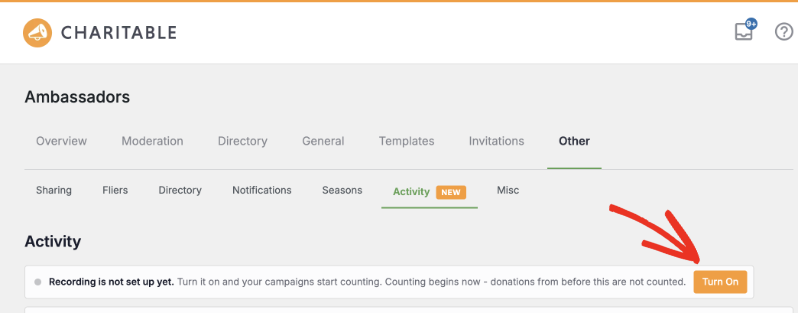
Clicking Turn On creates the small database table that holds entries and starts recording. The strip then tells you in plain language how many entries exist across how many campaigns, so you can see at a glance that the feature is live.
Recording starts from now. Activity can’t count things that happened before you switched it on, because nothing was storing them. Turn it on at the start of a campaign rather than halfway through.
If you switch it off later, everything already recorded is kept. It stops recording and stops displaying, so it’s a safe thing to try.
Step 2: Decide What Gets Counted
A definition is one thing you count. You set it up once for the whole site rather than per campaign, and 2 definitions come built in.
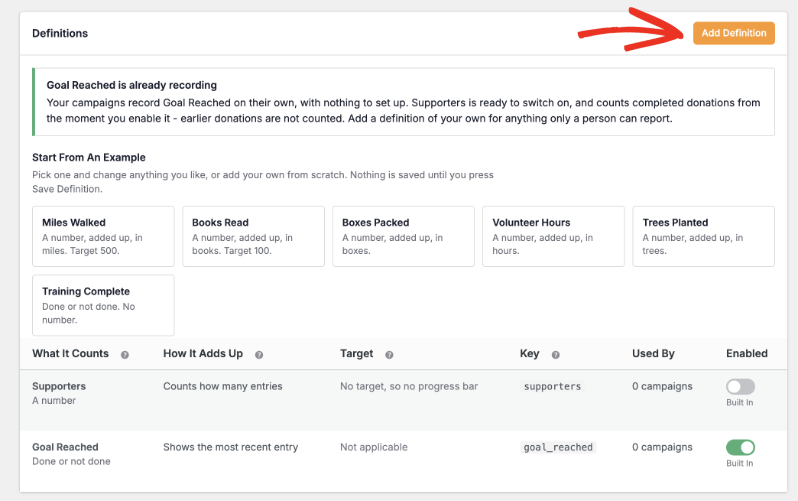
Goal Reached is switched on from the start. The moment a campaign hits its fundraising goal, the badge appears on its page, with nothing to set up per campaign.
Supporters counts completed donations, and it starts switched off. We did that on purpose. It can’t count donations from before you turned recording on, so on an established site it would show a wrong zero.
Switch Supporters on when you’re ready, and it counts from that point forward.
To add your own, click Add Definition. The panel on the right previews where each field will appear on the campaign page, and it updates as you type.
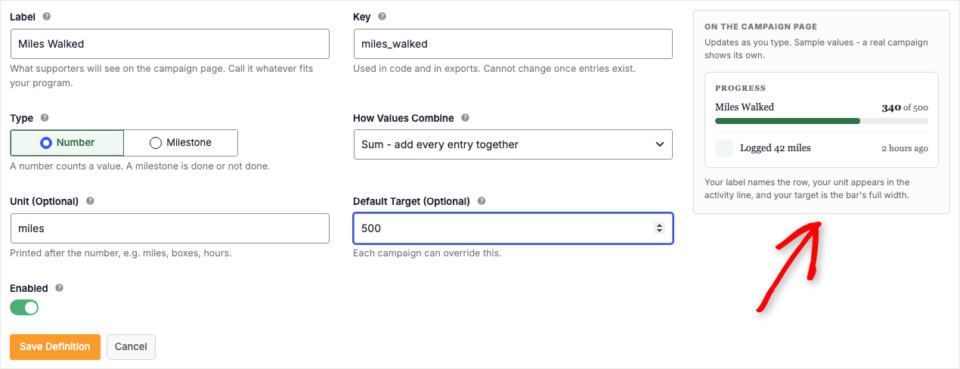
The Label is the public name, so use whatever your program already calls it. That’s the word your fundraisers will recognize. The Key is the machine name used in CSV exports and in code.
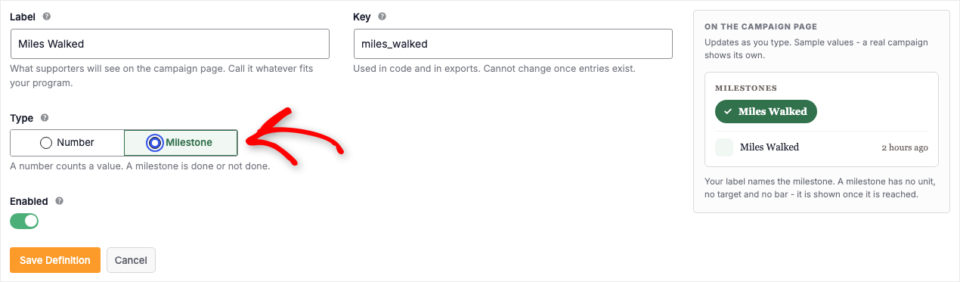
The Type is either a Number, which counts a quantity, or a Milestone, which is either done or not done.
The Unit prints after the number, so 1,250 reads as “1,250 miles.” The Default Target draws the progress bar, and every campaign can set its own target instead.
If you choose Milestone, the form hides the fields a milestone doesn’t use. That way it never asks you for settings that would be ignored.
Not sure where to start? On a fresh install, Start From An Example fills in the form with a working definition you can adjust.
How Values Combine
The How Values Combine setting decides how many separate entries become the single number on the page. Picking the right one is most of the thinking.
| Setting | What the page shows | When to use it |
|---|---|---|
| Sum | Every entry is added together. | It suits miles, minutes, meals and hours. |
| Count | It counts how many entries there are and ignores their values. | It suits supporters, shifts worked and visits made. |
| Latest | Only the most recent entry shows. | It suits a weight, a rank or a current reading. |
| Best | The highest single entry shows. | It suits a personal record or a longest run. |
What Locks Once Entries Exist
Once anything has been recorded against a definition, 3 of its fields can no longer be edited. These are the Key, the Type and How Values Combine.
This is the one thing you can’t undo later, so it helps to know before you start. All 3 fields describe how the entries you’ve already collected are read.
If you changed the type from Number to Milestone, 100 numeric entries would suddenly mean something else. If you changed Sum to Latest, a total would turn into a single reading. So Activity doesn’t allow the change, and the form tells you why.
For the same reason, you can’t delete a definition that has entries. The entries point to it, so deleting it would leave the total at zero and fill the feed with rows under a raw machine name.
Switching the definition off hides it everywhere and keeps the history. That’s usually what people want anyway.
Step 3: Choose Which Campaigns Count It
Next, open a campaign in the campaign builder, click Settings, and choose Ambassadors & Peer to Peer Fundraising. Expand the Peer to Peer Fundraising group, and you’ll find Activity Tracking at the bottom.
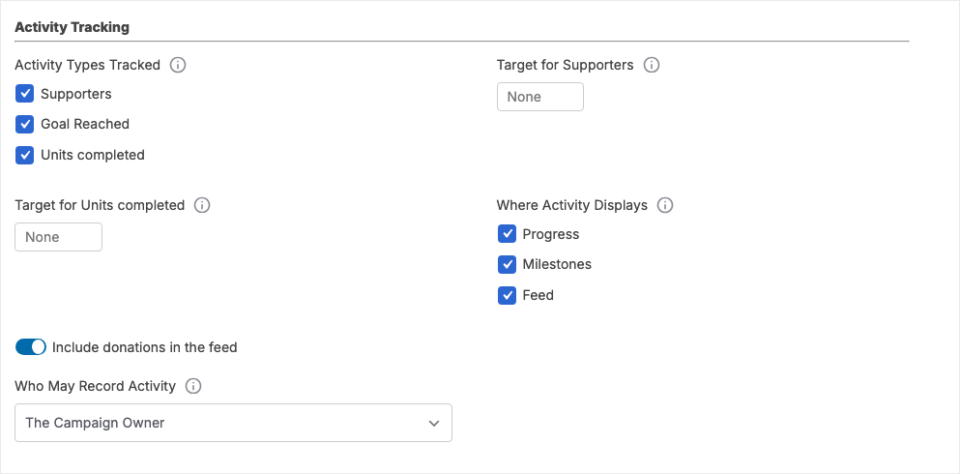
Under Activity Types Tracked, tick what this campaign counts and give each one its own target if the site default doesn’t fit. Where Activity Displays lets you pick any mix of Progress, Milestones and Feed, or none of them.
Include donations in the feed mixes the campaign’s own donations in with the activity entries. Who May Record Activity sets whether the campaign owner can log entries, or only administrators.
A campaign you’ve never configured counts every enabled definition and shows all 3 displays. That way a new campaign works without a visit to its settings, and you can untick anything you don’t want.
That’s the whole setup. Want every setting explained in more depth, screenshots included?
Read the Full Activity Setup Guide →
Setting Up a School Read-A-Thon From Start to Finish
It’s easier to see how the pieces fit together on a real program. Here’s a school read-a-thon, from nothing to a live page.
First, decide what you’re counting. Minutes read usually works better than books read, because books are different lengths. A child who picks a long book shouldn’t look like they did less.
So you’d create a Number definition called Minutes Read, with the unit minutes, combining as Sum, and a Default Target of 500. Every new fundraiser starts with that target, and you can give any of them their own.
Next, add a Finished the Challenge Milestone for the part that isn’t a number. A teacher or parent marks it once at the end, and it has no unit, target or total.
Then set up the parent campaign. Your “Spring Read-A-Thon” campaign is the one supporters find first, and its Peer to Peer Fundraising panel is where you tick both definitions. If you want the parent page to show only a progress bar, untick Milestones and Feed there.
Each child who signs up gets their own fundraiser page, and it takes the parent’s activity settings. There’s no setup per child, so a class of 30 means 30 pages that already count minutes.
Families only need 1 sentence of instructions. “Sign in, open your page, click Log Activity and type your minutes.”
You can follow everything from one screen. The Recent Entries card shows every minute logged across every page, newest first, with a link to each page.
At the end, Export CSV gives you every entry to total up per child for prizes. The Activity report in Charitable » Reports shows the same entries alongside your donations.
When the next term starts, switch the definitions off instead of deleting them, or leave them on and start a new parent campaign. Either way, the history stays.
Choose From 3 Displays on Each Campaign
Progress is a bar for each counted value, showing the current number, the target and the unit. Use it when the number is heading toward a goal. It looks a lot like the fundraising thermometer people already know.
Milestones is a row of badges for things that are done or not done. It suits campaigns where the story is a series of events rather than a rising number, and it gives a page news to show during quiet weeks.
Feed is the list of what was logged and when, newest first. Turn on Include donations in the feed and the campaign’s donations appear in the same list.
That’s usually the setting you’ll want. A page where a $50 gift and a 4-mile walk sit side by side shows a campaign that’s really happening.
You can switch each display off per campaign. So a parent campaign could show a single progress bar, while its fundraisers each show the full feed.
Automatic Numbers Are Always Labelled
Some definitions are filled in by the site, not by a person. Goal Reached is one, and Supporters is another.
These carry an AUTOMATIC label everywhere they appear, on the public page and in the admin entry list. They’re also left out of the Log Activity form, so a fundraiser can’t count something twice that the site already counts.
The donation count is protected in 2 more ways. Each donation is counted only once, so a payment gateway that sends its notice twice, or an admin who edits a donation, can’t raise the count.
Test-mode donations are left out too. A weekend of test payments won’t leave a fake number on a real campaign page.
Where the Activity Module Appears
The module places itself on all 9 of the Enhanced fundraiser page layouts, so there’s nothing to add or position.
On the Legacy template style, and on pages built with the Visual Campaign Builder, add this shortcode wherever you want the module to appear.
[charitable_activity]You’ll also use the shortcode on a parent campaign page, because the Charitable Pro plugin builds those pages, not Ambassadors. Point it at any campaign ID and choose which displays to show.
[charitable_activity campaign="123" mode="progress,feed"]The module only appears for campaigns the visitor is allowed to see. A draft, pending, private or password-protected campaign shows nothing, so you can place the shortcode while a campaign is still being prepared.
Entries You Can Manage and Export
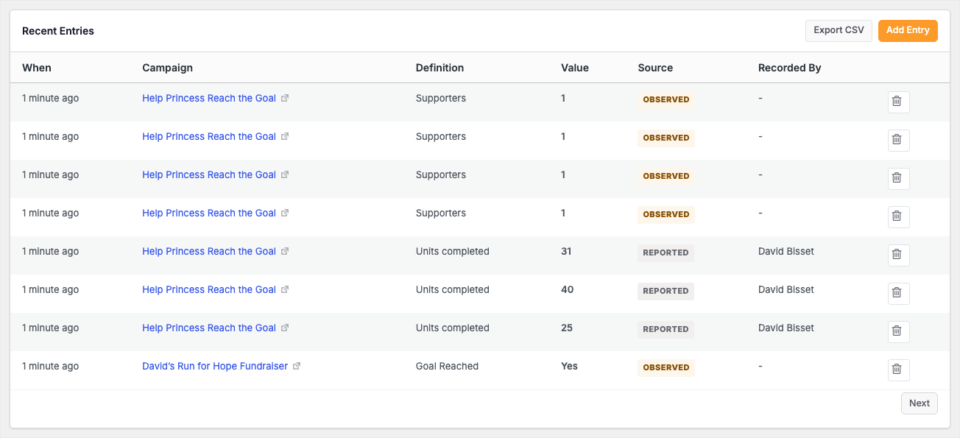
The Recent Entries card lists every entry, newest first. Each row shows the campaign, the value, whether it was automatic or reported, and who recorded it. It also links straight to the campaign’s public page, so checking a number takes one click.
Add Entry lets you record an entry by hand for any campaign, which helps when a fundraiser phones in their total. Export CSV downloads everything for a spreadsheet, a board report or a prize calculation.
Activity in Your Reports
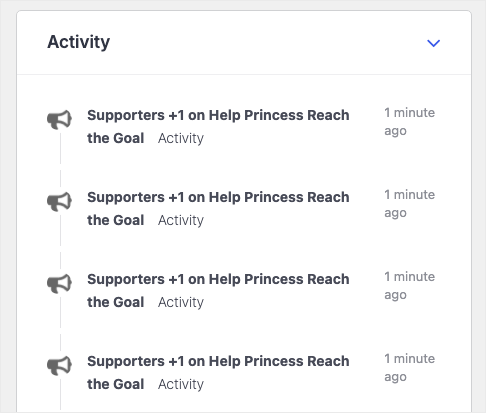
Activity also appears in your donation reports under Charitable » Reports.
What your campaigns logged shows up in the Activity report alongside donations, so it’s in the place you already check.
The Reports Overview also gets an Ambassadors line, with your verified ambassador count and total raised.
Turn It Off Anytime and Keep Your Data

Turn Off stops recording and hides the module everywhere, but keeps every entry. That’s the setting you’ll want between seasons.
Remove table and entries deletes everything. It asks you to type the word remove first, and it can’t be undone.
If you uninstall Charitable Ambassadors, your activity table and entries stay in place on purpose. A plugin conflict, a hosting move or a reinstall won’t cost you a season of numbers, and removing the data is always your choice.
For Agencies and Developers
Activity comes with 15 hooks, so you can build your own versions of this feature for your clients’ programs.
Hooks and Filters
Register definitions in code, for example with a code snippets plugin, using charitable_ambassadors_activity_definitions, so a client site can ship its own metrics without anyone touching the admin. Decide who may record with charitable_ambassadors_activity_can_record, and control who may see activity with charitable_ambassadors_activity_can_view.
The can_record filter runs even for a visitor with no account. That means a participant who signs in with a token can record without a WordPress login.
Change the computed number with charitable_ambassadors_activity_aggregations, supply a computed target with charitable_ambassadors_activity_target, and adjust or turn off the aggregate cache with charitable_ambassadors_activity_cache_ttl.
Two actions, charitable_ambassadors_activity_recorded and charitable_ambassadors_activity_deleted, run on every write and every removal. If you roll a parent campaign’s total up from its children, hook into both. That keeps the parent total correct when a child’s entry is removed, as well as when one is added.
Template Overrides
The whole module is one template, and you can override it at your-theme/charitable/charitable-ambassadors/campaign/activity.php.
Built for Whole Programs
Targets can be computed and totals can be replaced. So a school can show the sum of its classes, and a district can show the sum of its schools, with no duplicate totals stored anywhere.
The documentation has the full worked example, including the cache clearing that keeps those totals accurate.
FAQs on Activity
Which Plan Do I Need for Activity?
Activity is part of Charitable Ambassadors 3.4.7, which needs the Charitable Pro plugin 1.8.16 or higher, on the Pro plan and higher. If you already run peer-to-peer fundraising with Charitable Ambassadors, update it and Activity is there.
Will Activity Count Things That Already Happened?
No. Recording starts the moment you switch it on, so turn it on at the start of a campaign.
Do My Fundraisers Need a WordPress Account?
Yes. To log an entry from their own page, they need to be signed in as the campaign owner. Administrators can record for anyone from the admin side, and developers can open this up further with a filter.
Does Activity Change My Donations or Goals?
No. Activity is kept separate from the money, so your donation totals and reports stay exactly as they are.
What If Someone Logs the Wrong Number?
Add a correcting entry, or have an administrator delete the wrong one. There’s no edit button, which keeps the feed trustworthy.
Does Activity Work With My Page Builder?
The module places itself on the Enhanced fundraiser layouts. Anywhere else, including the Visual Campaign Builder and the Legacy style, use the [charitable_activity] shortcode.
Get Started With Activity
Activity is available now in Charitable Ambassadors 3.4.7. Update Ambassadors, open Charitable » Ambassadors » Other » Activity, and click Turn On.
Goal Reached starts working straight away. After that, you only need to decide what your program counts!
Read the Activity Documentation →
Not Yet on a Charitable Paid Plan?
Charitable Has 1.2+ Million Downloads!
Trusted by millions to power successful fundraising campaigns. Try Charitable risk-free today.
✅ 14-day money-back guarantee
✅ Transparent pricing
✅ Code-free setup
What’s New in Charitable
We also launched several powerful features and improvements recently.
📊
Compare any 2 periods and export your numbers straight from the rebuilt dashboard.
🤖
Ask your AI assistant to build, edit and manage your fundraising campaigns for you.
🔁
Donors set up a monthly gift once, and Charitable bills every renewal on schedule.
⚡
See every automation as a flow of connected cards on a full-screen canvas.
We’ve been adding to Charitable constantly, features and improvements designed to help you raise more and serve your donors better. See everything we’ve shipped at the Charitable Changelog.
Not yet a Charitable Pro user? Sign up today and get up to 50% off on your plan. We’re confident you’ll love raising funds with Charitable. If, for any reason, Charitable is not the right fit for you, we’ll refund your purchase with our 14-day money-back guarantee. Get Charitable Pro Now »
If you have any questions or want help setting up Activity for your program, our support team is ready to help.
Stay Connected for More Nonprofit Resources
For more tutorials and videos tailored to nonprofits, subscribe to our YouTube channel. We regularly publish expert tips, step-by-step guides on online donations, fundraising strategies, and practical resources to help your organization succeed.
🗞️ Get weekly tips and exclusive guides in your inbox
Join our newsletter →
🎥 Watch step-by-step tutorials and success stories
Subscribe to our YouTube channel →
👩🏽💻 Connect with our community and get daily nonprofit insights
Follow us on LinkedIn →
🥳 Fun reels and non-profit insights
Follow us on Instagram →
👀 Insightful & fun videos to help you grow your cause
Follow us on TikTok→
🌎 Subscribe and follow for general fundraiser tips
Get Fundraiser Tips on TikTok →
Powerful Fundraising Resources
🤖 Use Charitable with Your AI Assistant
⬇️ Download proven strategies, campaign ideas, and expert tools
Get the Fundraising Kit →
💸 Get Free Fundraising Resources
Head to the Charitable Fundraising Hub →
🤔 Got questions about Charitable?
Charitable FAQs →
🏎️ Take Charitable for a spin
Create your Charitable Demo →
Understand non-profit terms and jargon
Non-Profit Glossary →
% Looking for non-profit deals and discounts?
Best Non-Profit Deals and Discounts →









Leave a Reply