
Requires: Charitable Pro plugin 1.8.16+
Pro plan and higher
Charitable Ambassadors 3.4.7+
Do you want your peer-to-peer fundraiser pages to show more than the money raised?
A read-a-thon counts minutes. A walkathon counts miles. A food drive counts meals packed, and a volunteer day counts hours given.
Activity lets your fundraiser pages show that progress alongside the money. You define what gets counted once, choose which campaigns count it, and your fundraisers log their own numbers from their own pages.
See the full feature announcement »
This guide covers turning Activity on, creating definitions, setting up each campaign, what fundraisers see, managing entries, and the developer hooks.
Supporters share a page more often when it shows what they did. So it helps to get the setup right before your campaign opens.
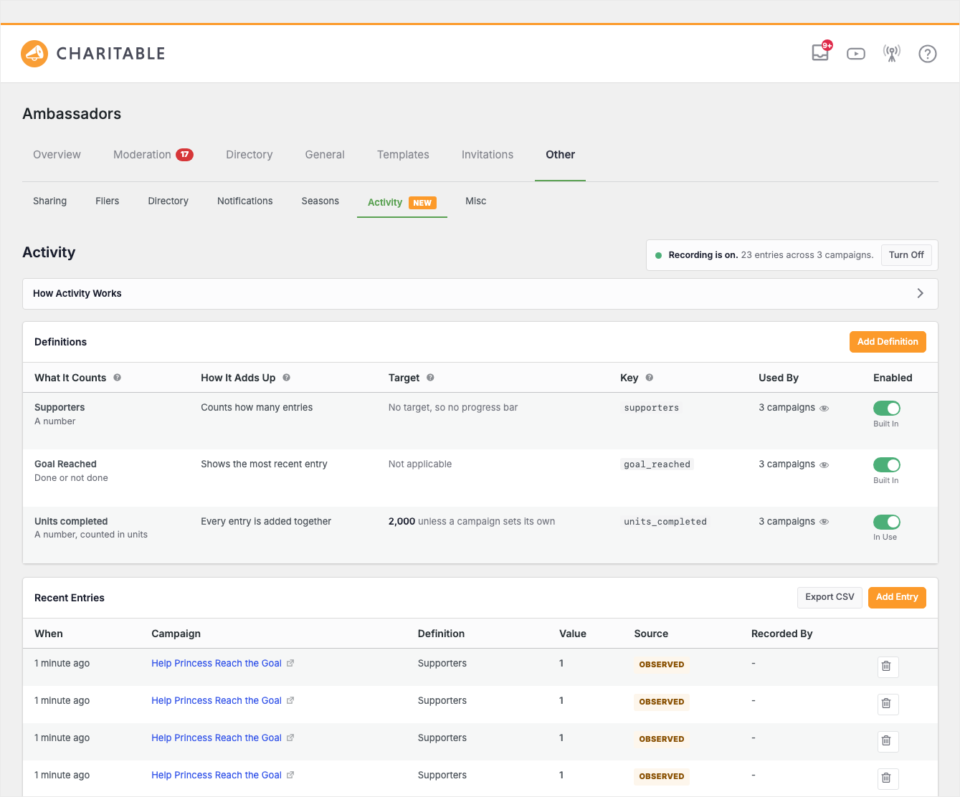
What’s in This Guide?
- Watch the Activity Setup Video
- What You Can Track With Activity
- Where to Find the Activity Settings
- How to Set Up Activity in 3 Steps
- How Activity Shows on Fundraiser Pages
- How to View and Delete Activity Entries
- Where to See Activity in Charitable Reports
- Tips Worth Keeping in Mind
- Troubleshooting Activity
- Developer Reference for Activity
- Wrapping Up
- You May Also Want to Read
Watch the Activity Setup Video
This 3-minute walkthrough covers turning recording on, adding a definition, choosing what each campaign counts, and logging an entry from a fundraiser’s own page.
What You Can Track With Activity
- Read-a-thons and math-a-thons. Each child’s page shows minutes read or problems solved. With a short code snippet, the class total can also roll up to the parent page.
- Walkathons, bike rides and step challenges. Miles logged sit next to dollars raised, so supporters see the effort behind the ask.
- Service and volunteer drives. The page shows hours given, meals packed, trees planted or kits assembled.
- Milestone campaigns. Some campaigns have no number at all. A moment like “we broke ground” or “the van is paid off” shows as a badge once it happens.
- Anything your fundraisers already share proudly. If they post it on social media, it probably belongs on their page.
Where to Find the Activity Settings
In your WordPress admin, go to Charitable » Ambassadors » Other » Activity.
How to Set Up Activity in 3 Steps
1. Turn On Activity Recording
Activity is switched off after you update, and nothing is recorded or displayed until you turn it on. The strip at the top of the Activity tab is the switch.
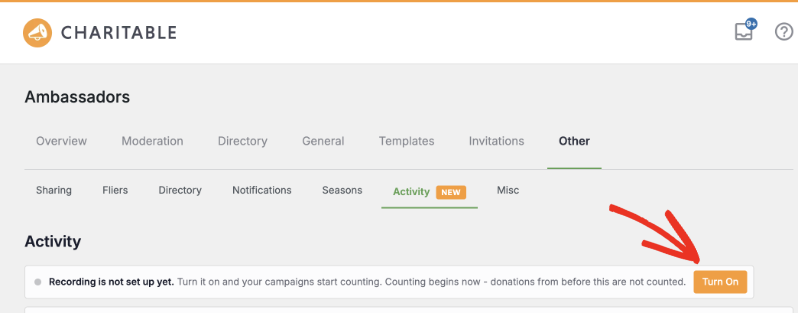
To get started, click “Turn On”. This creates the small database table that holds activity entries, and recording starts from that moment.
Important Note: Recording starts from now. Activity can’t count things that happened before you switched it on, because nothing was storing them. Last month’s numbers won’t be there.
If you switch recording off again later, everything already recorded is kept. Activity stops recording and stops displaying until you turn it back on.
2. Add a Definition for Each Thing You Count
A definition is one thing you count, and you set it up once for the whole site. Activity comes with 2 built-in definitions.
| Definition | What it does | Starts as |
|---|---|---|
| Supporters | It counts how many donations a campaign received. | It starts switched off, because it can’t count donations from before you turned recording on. Switch it on and it counts from there. |
| Goal Reached | It marks a campaign’s page once the campaign hits its fundraising goal. | It starts switched on and works without any per-campaign setup. |
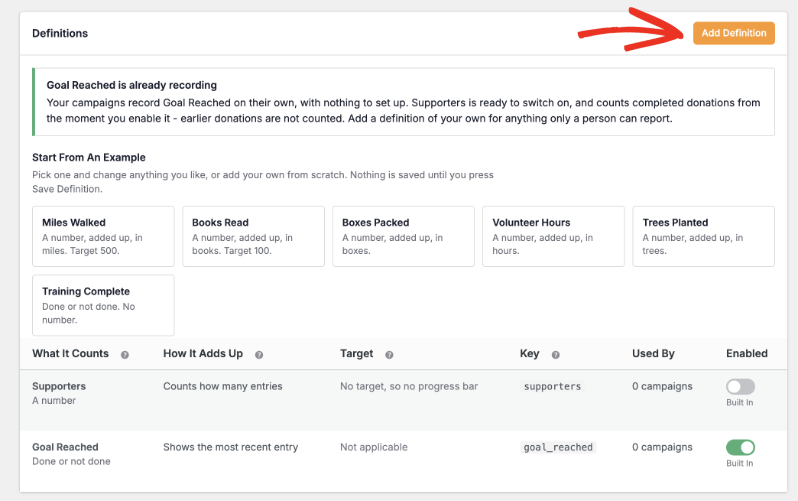
To add your own, click “Add Definition”. The panel on the right previews where each field will appear on the campaign page, and it updates as you type.
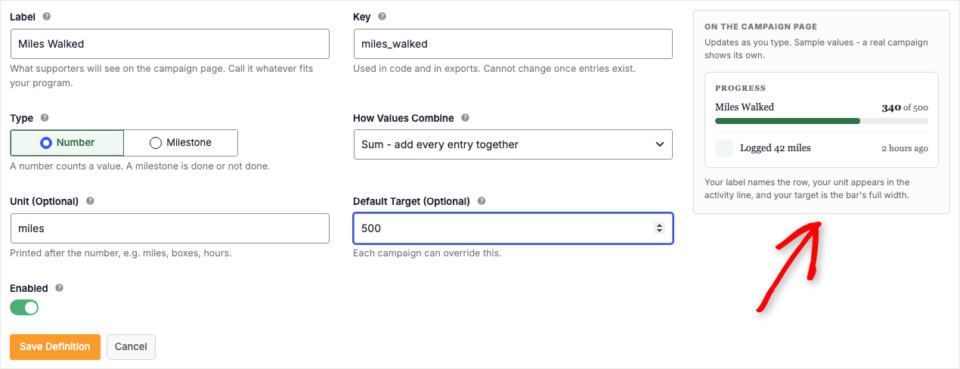
Here’s what each field does.
- Label is the public name. Call it whatever fits your program.
- Key is the machine name used in exports and in code. It can’t be changed once anything has been recorded against it, so choose it carefully.
- Type is either a Number or a Milestone. A Number counts a quantity and can have a target and a progress bar. A Milestone is one thing that is either done or not done.
- How Values Combine decides how many separate entries become the one number on the page. The table below explains each option.
- Unit is printed after the number, so
1,250reads as “1,250 miles.” - Default Target draws the progress bar. Each campaign can set its own target instead.
When you choose Milestone, the form hides Unit, Default Target and How Values Combine, because a milestone doesn’t use them.
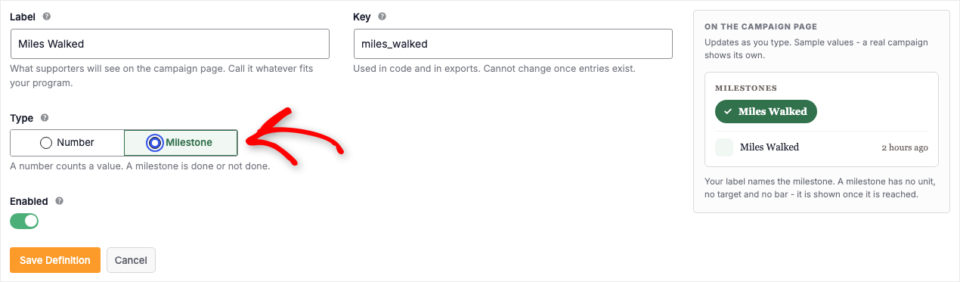
Pro tip: If you’re not sure where to start, the “Start From An Example” links on a fresh install fill in the form with a working definition you can adjust.
What the How Values Combine Setting Does
| Setting | What the page shows | When to use it |
|---|---|---|
| Sum | Every entry is added together. | It suits miles, minutes, meals and other running totals. |
| Count | It counts how many entries there are and ignores their values. | It suits supporters, shifts worked and visits made. |
| Latest | Only the most recent entry shows. | It suits a weight, a rank or a current reading. |
| Best | The highest entry shows. | It suits a personal record or a longest run. |
Important: Type and How Values Combine also lock once entries exist, because both describe how the entries already recorded are read.
3. Choose Which Campaigns Track Each Definition
Next, open a campaign in the campaign builder, click “Settings”, and choose “Ambassadors & Peer to Peer Fundraising”. Expand the “Peer to Peer Fundraising” group, and you’ll see the Activity Tracking block at the bottom of it.
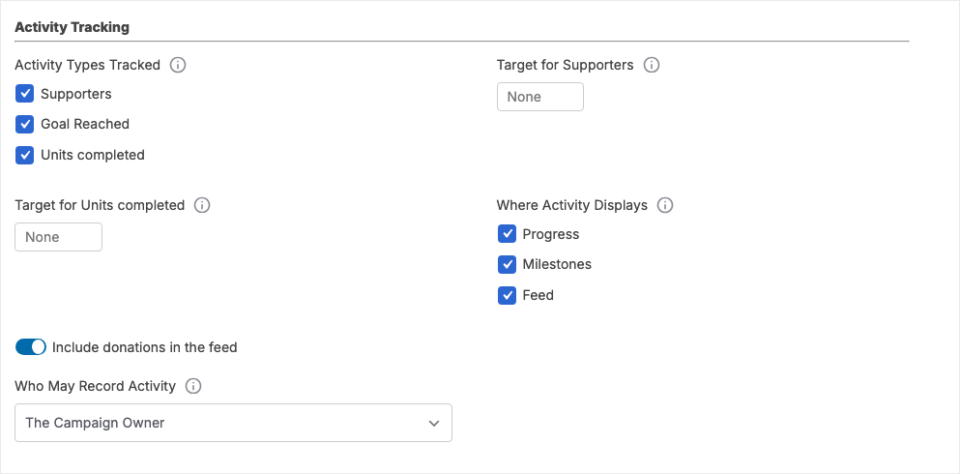
- Activity Types Tracked. Tick the definitions this campaign counts. You can also give each one a Target that overrides the site default.
- Where Activity Displays. Progress draws a bar for each counted value, Milestones shows a row of badges, and Feed shows a list of what happened, newest first. Tick any combination.
- Include donations in the feed. This mixes the campaign’s own donations into that list, so it reads as one story.
- Who May Record Activity. Choose either The Campaign Owner or Administrators Only.
Note: A campaign you’ve never configured counts every enabled definition and shows all 3 displays. Untick anything you don’t want.
How Activity Shows on Fundraiser Pages
The module appears on its own on the Enhanced fundraiser page layouts, so there’s nothing to place or configure.
At the top, each number the campaign tracks gets a progress bar, and each milestone it has reached gets a badge.
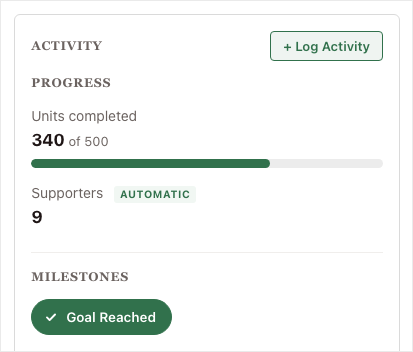
A value the site counted by itself carries an AUTOMATIC badge. That way nobody mistakes it for a number a person typed in.
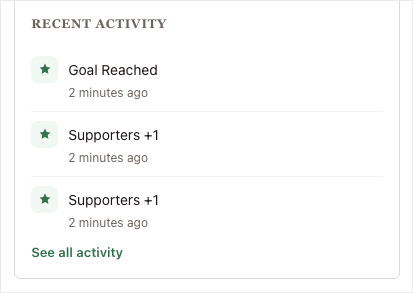
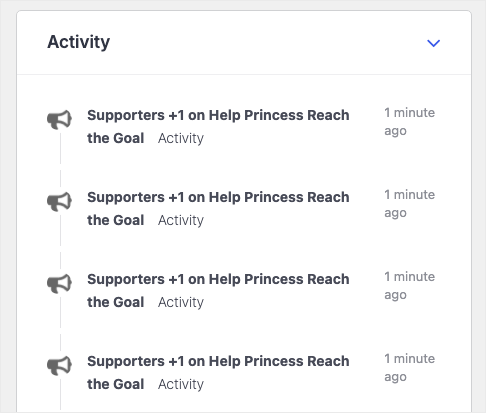
Below that, the Recent Activity feed lists the newest entries. The See all activity link opens the rest.
How Fundraisers Log an Activity Entry
A signed-in campaign owner, or an administrator, sees a “+ Log Activity” button on the page.
Clicking it opens a short form right there. The form only lists the things that campaign tracks.
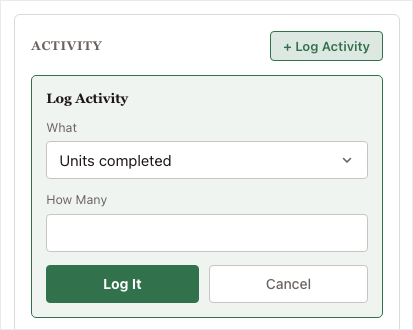
Entries are append-only, so there’s no edit button. To correct a number, add a new entry, or have an administrator delete the wrong one.
This keeps the feed honest. It also means every total can be worked out again from the entries.
Add Activity to Legacy and Visual Campaign Builder Pages
On the Legacy template style, and on any page built with the Visual Campaign Builder, place the module where you want it with this shortcode.
[charitable_activity]| Attribute | Type | Default | Description |
|---|---|---|---|
campaign | int | current post | The campaign to show. It defaults to the current page when that page is a campaign. |
mode | string | the campaign’s own setting | A comma-separated list of progress, milestones and feed. Anything else is ignored. |
A parent campaign page is the most common place you’ll need it, because the Charitable Pro plugin builds those pages, not Ambassadors. Replace 123 with your campaign ID.
[charitable_activity campaign="123" mode="progress,feed"]The module only appears for a campaign the visitor is allowed to see. A draft, pending, private or password-protected campaign shows nothing.
How to View and Delete Activity Entries
The Recent Entries card lists what has been recorded, newest first. Each row shows the campaign, the value, whether it was automatic or reported, and who recorded it.
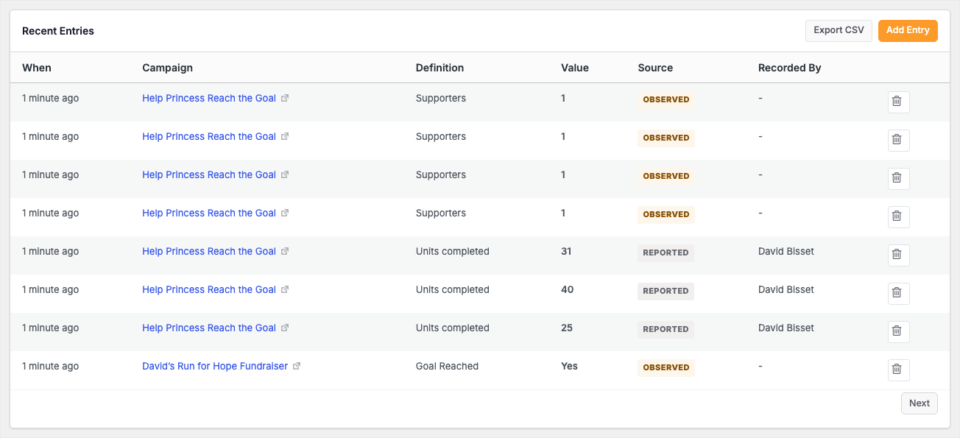
- Add Entry records an entry by hand from the admin side, for a campaign you pick.
- Export CSV downloads everything for a spreadsheet or a report.
- The bin icon on each row deletes that entry.
Turn Off Activity or Remove All Entries
Storage Details at the bottom of the tab holds the option you can reverse and the one you can’t.

- Turn Off stops all recording and hides the module everywhere, while keeping every entry.
- Remove table and entries deletes the table and everything in it. It asks you to type the word
removefirst, and it can’t be undone.
Note: Uninstalling Charitable Ambassadors leaves your activity table and entries in place on purpose, so a reinstall or a plugin conflict never costs you data.
Where to See Activity in Charitable Reports
Activity also shows up where you already read your numbers.
Go to Charitable » Reports. The Activity report lists what your campaigns logged, alongside donations.
The Overview tab adds an Ambassadors line to the Pro Addons card, with your verified ambassador count and total raised.
Tips Worth Keeping in Mind
These habits keep your activity numbers accurate from the first day of a campaign to the last.
- Turn recording on before the campaign opens. Activity only counts from the moment you switch it on, so starting halfway through leaves a gap.
- Choose each Key carefully. The Key, Type and How Values Combine all lock after the first entry, so set them up the way you want them to stay.
- Switch definitions off instead of deleting them. Switching off hides a definition everywhere and keeps its history for next season.
- Use the shortcode on parent campaign pages. The module only places itself on fundraiser pages with an Enhanced layout.
- Tell fundraisers the one step they need. “Sign in, open your page, click Log Activity and type the number” is enough, because the form only offers what the campaign tracks.
Troubleshooting Activity
The Module Isn’t Appearing on a Fundraiser Page
The module shows nothing at all rather than an empty box, so check these 4 things in order.
- Recording is on in Charitable » Ambassadors » Other » Activity.
- At least one definition is enabled.
- The campaign has at least one definition ticked under Activity Tracking.
- At least one display is ticked under Where Activity Displays.
The Module Isn’t Appearing on a Parent Campaign Page
The Charitable Pro plugin builds parent campaign pages, not Ambassadors, so the module isn’t placed there automatically. Add the [charitable_activity] shortcode to the page.
Nothing Shows on the Legacy Template Style
The module places itself on the Enhanced layouts only. Use the shortcode on Legacy pages.
The Supporters Count Is Showing Zero
Supporters starts switched off, and it can’t count donations that arrived before you turned recording on. Switch it on under Charitable » Ambassadors » Other » Activity and it counts from that point forward.
The Log Activity Form Has Nothing to Log
The form only offers what that campaign tracks, so if the campaign has no definitions ticked, there’s nothing to log. Also check that Who May Record Activity isn’t set to Administrators Only.
I Can’t Change a Definition’s Key or Type
Both lock once anything has been recorded against that definition, because entries point to it and both fields describe how those entries are read. Create a new definition instead, and switch the old one off.
I Can’t Delete a Definition
Activity won’t delete a definition that has entries. The entries would be left without a definition, and the feed would list them under a raw machine name.
Switch the definition off instead. That hides it everywhere and keeps the history.
Developer Reference for Activity
Activity Hooks and Filters
| Hook | Type | What it does |
|---|---|---|
charitable_ambassadors_activity_definitions | filter | Registers definitions in code rather than in the admin. |
charitable_ambassadors_activity_can_record | filter | Decides who may record on a campaign. It runs even for user 0. |
charitable_ambassadors_activity_can_view | filter | Decides whether the current request may see a campaign’s activity. |
charitable_ambassadors_activity_entry_value | filter | Adjusts a value immediately before it is written. |
charitable_ambassadors_activity_aggregations | filter | Post-processes or replaces a computed aggregate. |
charitable_ambassadors_activity_target | filter | Supplies a computed target, or removes one when it returns null. |
charitable_ambassadors_activity_cache_ttl | filter | Changes the aggregate cache lifetime. Returning 0 or less turns caching off. |
charitable_ambassadors_activity_observed_keys | filter | Sets which definitions the site records by itself. |
charitable_ambassadors_activity_observed_campaign_id | filter | Sets which campaign an automatic entry belongs to. |
charitable_ambassadors_activity_render_modes | filter | Sets which displays render for a given pageview. |
charitable_ambassadors_activity_headings | filter | Changes the section headings on the public module. |
charitable_ambassadors_activity_feed_items | filter | Changes the assembled feed rows. |
charitable_ambassadors_activity_csv_max_rows | filter | Sets the row cap on the CSV export. |
charitable_ambassadors_activity_recorded | action | Runs after an entry is written. |
charitable_ambassadors_activity_deleted | action | Runs after an entry is removed. |
Override the Activity Template in Your Theme
your-theme/charitable/charitable-ambassadors/campaign/activity.phpPHP Classes for Reading and Writing Entries
Charitable_Ambassadors_Activity_Entries::record( $campaign_id, $key, $value, $source, $user_id )writes one entry.Charitable_Ambassadors_Activity_Entries::can_record( $campaign_id, $user_id )is the write gate.Charitable_Ambassadors_Activity_Entries::can_view( $campaign_id )is the read gate.Charitable_Ambassadors_Activity_Aggregate::value( $campaign_id, $key )returns the displayed number.Charitable_Ambassadors_Activity_Aggregate::flush( $campaign_id, $key )clears its cache.
Code Example to Roll a Parent Campaign Up From Its Children
This shows a school page with the total of its pupils’ pages. The 2 actions keep the parent figure fresh, because a write or a delete on a child only clears the child’s own cache.
add_filter( 'charitable_ambassadors_activity_aggregations', function ( $out, $agg, $values, $campaign_id, $key ) {
    $children = get_children( array( 'post_parent' => $campaign_id, 'post_type' => 'campaign', 'fields' => 'ids' ) );
    if ( empty( $children ) ) {
        return $out;
    }

    $total = 0.0;
    foreach ( $children as $child_id ) {
        $total += (float) Charitable_Ambassadors_Activity_Aggregate::value( $child_id, $key );
    }

    return $total;
}, 10, 5 );

$cap_flush_parent = function ( $id, $campaign_id, $key ) {
    $parent = wp_get_post_parent_id( $campaign_id );
    if ( $parent ) {
        Charitable_Ambassadors_Activity_Aggregate::flush( $parent, $key );
    }
};

add_action( 'charitable_ambassadors_activity_recorded', $cap_flush_parent, 10, 3 );
add_action( 'charitable_ambassadors_activity_deleted', $cap_flush_parent, 10, 3 );
Code Example for a Computed Target
add_filter( 'charitable_ambassadors_activity_target', function ( $target, $campaign_id, $key ) {
    if ( 'minutes_read' !== $key ) {
        return $target;
    }

    $pupils = count( get_children( array( 'post_parent' => $campaign_id, 'post_type' => 'campaign', 'fields' => 'ids' ) ) );

    return $pupils ? $pupils * 500 : $target;
}, 10, 3 );
Code Example to Show a Live Number Instead of a Cached One
add_filter( 'charitable_ambassadors_activity_cache_ttl', function () {
    return 0; // 0 or less skips the cache entirely
} );
Code Example to Let a Teacher Record on a Pupil’s Page
add_filter( 'charitable_ambassadors_activity_can_record', function ( $allowed, $campaign_id, $user_id ) {
    if ( $allowed || ! $user_id ) {
        return $allowed;
    }

    return user_can( $user_id, 'edit_others_campaigns' );
}, 10, 3 );
Wrapping Up
You now know how to turn Activity on, create definitions, choose what each campaign counts, and manage the entries your fundraisers log. Your fundraiser pages can show the effort behind every gift.
If you get stuck on any step, our support team is happy to help.
You May Also Want to Read
These guides cover the parts of Ambassadors that Activity builds on.
- Peer-to-Peer Concepts. Learn how parent campaigns, fundraisers and teams fit together.
- Fundraiser Page. See the page the Activity module appears on.
- Templates and Styles. Compare the Enhanced layouts, which place the module automatically, with the Legacy style.
- Visual Template Mode. Find out when you’ll need the shortcode instead.
- CSV Exports. See every export Ambassadors offers.
- Hooks and Filters in Ambassadors. Browse the full developer reference.
Helpful Links
🤝 Get help when you need it
Connect with Customer Support →
📑 Find the guide you need
Browse the Documentation Hub →
⬇️ Download proven strategies, campaign ideas, and expert tools
🔗 Let your AI Assistant do the fundraising work for you.
Connect Charitable to your AI assistant →
💸 Get Free Fundraising Resources
Head to the Charitable Fundraising Hub →
🤔 Got questions about Charitable?
Charitable FAQs →
Need help understanding non-profit terms and jargon?
See our Non-Profit Glossary →




