
Requires: Charitable Pro 1.8.16+
Charitable Ambassadors 3.0.0+
Visual Template Mode lets you design a single campaign using the Charitable Visual Campaign Builder – drag blocks around, set typography, place a donor wall, add a sponsor strip.
Next, you can have every ambassador fundraiser inherit that design, personalized to each ambassador.
- Their name where placeholders sit.
- Their story where the template’s story block sits.
- Their image where the template’s hero image sits.
- Their progress against their goal where the template’s progress bar sits.
It’s the difference between every fundraiser looking the same (boring) and every fundraiser looking consistent (on-brand). The template is the brand layer; the ambassador’s content fills in the details.
When You’d Use It
- Sponsored events – the marathon’s gold-tier sponsor wants their logo on every ambassador’s page. Template carries the logo block; every fundraiser inherits it.
- Strict brand programs – your visual identity team wants tight control over how every page renders. Design it once; lock it in.
- A/B testing – clone the template, edit the copy, swap which template is active; every fundraiser swaps in real time.
- Cinematic causes – memorial campaigns, gala fundraisers – the same hero, the same color palette, the same emotional rhythm across every ambassador.
Finding the Visual Templates
In your WordPress admin, head to Charitable » Ambassadors » Templates
The Templates sub-tab has three settings groups:
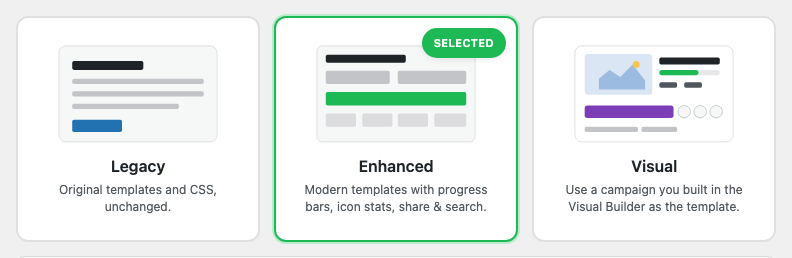
- Frontend Template Style – the Legacy / Enhanced / Visual chooser. This is where you turn Visual mode on.
- Fundraiser Template Campaign – the campaign chooser that picks which existing campaign acts as the template. Only shown when Visual is selected.
- Frontend Template – the layout-variant chooser (same as the Fundraiser Page sub-tab). When a template campaign is configured, this is informational only – the template wins.
Picking a Frontend Template Style
Three modes, each progressively more capable:
| Mode | Renders fundraiser pages with… |
|---|---|
| Legacy | The original 1.x templates. CSS and markup unchanged. Pick this if you’ve customized templates or CSS and don’t want anything to change. |
| Enhanced | The 3.0 templates (progress bars, icon stats, share popover, search) on top of the existing pages. Uses the Fundraiser Page layout chooser for shape. |
| Visual | Every fundraiser page is rendered from a Visual Campaign Builder layout you choose below. Maximum control. |
You can switch between modes at any time. Switching back to Legacy doesn’t lose any saved settings – Visual mode’s template-campaign pointer is preserved so you can flip back later.
Picking a Template Campaign
Once Visual is selected, the Fundraiser Template Campaign chooser appears.
The chooser is autocomplete-driven – start typing your template’s title, pick from results. It only offers campaigns that:
- Have been opened in the Visual Campaign Builder (have
campaign_settings_v2post-meta). - Are not the fundraiser you’re about to render (no infinite loop).
- Pass any
charitable_ambassadors_onboarding_visual_template_candidatesfilter you’ve added.
Pick one, save, and Visual mode is active. Every ambassador fundraiser on your site now renders using that campaign’s design.
How the Substitution Works
When a visitor loads an ambassador fundraiser page, Ambassadors intercepts the get_post_metadata filter for the campaign’s campaign_settings_v2 meta key. Here’s what happens:
- Pro asks for the fundraiser’s
campaign_settings_v2builder data. - Ambassadors checks: are we in Visual mode? Is a template configured? Is this a fundraiser page (not the template itself)? Does this fundraiser have its own builder data (if so, the fundraiser’s own data wins)?
- If all gates pass, Ambassadors deep-clones the template’s
campaign_settings_v2, rewritesidto the fundraiser’s ID andtitleto the fundraiser’s title. - Every string in the cloned data is run through the token substituter – any
{ambassador_name},{parent_title},{percent_raised}, etc. is replaced with the fundraiser’s actual values. - Pro reads the substituted data and renders. Each dynamic block (donate-form, progress-bar, donor-wall) rebinds to the fundraiser’s ID at render time.
The result: a fundraiser page that looks exactly like the template, but with the right ambassador’s content.
Available Tokens
You can use any of these tokens in the template’s text fields, alt text, captions, etc:
| Token | Substituted with |
|---|---|
{title} | The fundraiser’s post title. |
{ambassador_name} | The author’s display name. |
{parent_title} | The parent campaign’s title. |
{parent_url} | The parent campaign’s permalink. |
{goal} | The fundraiser’s goal amount (formatted). |
{raised} | The fundraiser’s raised amount (formatted). |
{donor_count} | The number of unique donors. |
{percent_raised} | Progress as a percentage (e.g. 42%). |
{fundraiser_image} | Featured image URL. |
Drop them anywhere in the template’s text content. For example, a hero heading of “Help {ambassador_name} reach their {goal} goal” becomes “Help Sarah Chen reach their $5,000 goal” on Sarah’s fundraiser, “Help Marcus Liu reach their $2,500 goal” on Marcus’s.
Per-Fundraiser Overrides
A fundraiser can opt out of the template by having its own campaign_settings_v2 meta. If you (or the ambassador) open a specific fundraiser in the Visual Campaign Builder and save it, that fundraiser’s data wins from then on – the template no longer applies to it.
To restore the template’s design on a fundraiser that’s gone its own way: delete the campaign_settings_v2 post-meta on that fundraiser:
delete_post_meta( $fundraiser_id, 'campaign_settings_v2' );
The next page load will re-apply the template.
Dynamic Blocks Still Work
Even though the template’s structure is cloned to every fundraiser, dynamic blocks like the donate form, progress bar, and donor wall still bind to the fundraiser’s ID at render time. So:
- The progress bar shows the fundraiser’s progress, not the template’s.
- The donate form posts to the fundraiser’s campaign.
- The donor wall lists the fundraiser’s donors, not the template’s.
This is what makes Visual mode work – the design is shared, but the data is per-fundraiser.
Social Links
If the template includes a Social Links block, that block becomes the ambassador’s social handles (pulled from their user profile fields). Ambassadors who haven’t filled out their social handles get an empty Social Links block – so we surface a warning in the admin if your template includes Social Links but the ambassador profile-completion is low.
Which Ambassador Template Shows What
Charitable Ambassadors has two layers of template control under Ambassadors → Templates:
- Frontend Template Style — the overall engine:
- Legacy — the original templates and CSS, unchanged. The Fundraiser Page settings (QR, donor wall, share popover, etc.) do not apply here.
- Enhanced — modern templates with hero image, progress bar, icon stats, share and search. Recommended for most installs. The Fundraiser Page settings apply.
- Visual — use a campaign you built in the Visual Builder as the template.
- Frontend Template — when the style is Enhanced, this picks the layout. Each layout renders a different mix of elements. Use the table below to choose the one that fits.
Enhanced template feature comparison
| Template | QR code (when enabled)* | Hero image | Progress bar | Icon stats | Donor wall | Donate card | Sticky nav | Best for |
|---|---|---|---|---|---|---|---|---|
| Classic | Corner sticker + Share popover | Yes | Yes | Yes | Yes | Right sidebar | No | A clean, familiar hero + story + donate layout |
| Story-Forward | Corner sticker + Share popover | Yes | Yes | Yes | Yes | Conversion band at bottom | No | Narrative-first campaigns |
| Stats-Forward | Corner sticker + Share popover | Yes (short) | Yes | Yes | Yes | Overlay on hero | No | Leading with progress and numbers |
| Donate-First | Corner sticker + Share popover | Yes (banner) | Yes | Yes | Yes | Inline, above story | No | Maximizing conversions; story collapsed |
| Magazine | Corner sticker + Share popover | Yes (cinematic) | Yes | Yes | Yes (top or bottom) | Stats band below story | No | Editorial / premium feel |
| Showcase | Corner sticker + Share popover | Yes | Yes | Yes | Yes | Stat band | Yes | Image-forward, browsable (tabbed) |
| Showcase Poster | Corner sticker + Share popover | Yes (tall) | Yes | Yes | Yes (tiered) | Inline band | Sticky FAB | Big visual “poster” pages |
| Rally | Inline QR card + Share popover | Yes | Yes | Yes | Yes | Mini widget (right) | No | Sharing in person; QR featured on the page |
* Turn on Ambassadors → Templates → Fundraiser Page → “Show QR Code On Fundraiser Page” to display the QR. When off, no QR appears on any template.
How the QR code appears
With “Show QR Code On Fundraiser Page” enabled, every Enhanced template shows the QR, with the placement suited to its layout:
- Rally features the QR as a large inline card in the sidebar — the most prominent placement.
- Every other Enhanced template shows a compact “Scan” QR sticker pinned to the top-right corner of the fundraiser card.
- All Enhanced templates also include a QR tile inside the Share popover (click Share → QR code) for a downloadable PNG.
So you no longer have to pick Rally just to get a QR — choose the layout you like best and enable the setting.
Notes: Changing the template only affects how the public fundraiser page is laid out, not your data. Switch freely and use Preview to compare. The QR is off by default; enabling it is a one-click setting.
Tips
- Start with an Enhanced layout – most cases don’t need Visual. Use one of the 8 enhanced variants as your “good enough” baseline; promote to Visual when you have a sponsor or brand reason to need maximum control.
- The template is just a campaign. You can preview the template directly – it has its own permalink, just like any campaign. Visit the URL while logged out to see exactly what ambassadors will see (with the template’s own content, not substituted).
- Use tokens for everything text-heavy. Don’t hardcode “Help Sarah” in the template – use
Help {ambassador_name}so the template stays generic. - Don’t put the template in your primary nav. It’s an internal “design source” that shouldn’t be findable as a real fundraiser. Set
_wp_old_slugor noindex it.
Developer Reference
The rest of this page is for developers customizing Visual Template Mode.
Settings storage
charitable_settings > ambassadors > ambassadors_ui_version          # 'legacy' | 'enhanced' | 'visual'
charitable_settings > ambassadors > p2p_template_campaign_id        # int (0 = none)
charitable_settings > ambassadors > ambassadors_enhanced_layout_variant  # used for Enhanced; informational under Visual
Helpers:
charitable_ambassadors_ui_version();                                // 'legacy' | 'enhanced' | 'visual'
charitable_ambassadors_should_use_p2p_template( $fundraiser_id );   // bool
charitable_ambassadors_substitute_p2p_tokens( $string, $fundraiser_id ); // string
charitable_ambassadors_fundraiser_template_is_theme_overridden();   // bool
Substitution gate
The substitution only fires when ALL of these are true:
ambassadors_ui_version === 'visual'.p2p_template_campaign_id > 0.- The requested post is a published fundraiser (a child of a peer-to-peer-enabled parent).
- The fundraiser is NOT the template itself.
- The fundraiser has no
campaign_settings_v2meta of its own (raw$wpdbcheck to avoid filter recursion). - The template DOES have
campaign_settings_v2meta. - The request is not an admin context (so the Visual Builder can edit a fundraiser’s own meta normally).
If any gate is false, the substitution is a no-op and Pro reads the fundraiser’s own meta (or falls back to legacy rendering).
The substitution hook
add_filter( 'get_post_metadata', [ self::class, 'maybe_substitute_p2p_template' ], 10, 4 );
The filter handler:
- Returns early on the gates above.
- Reads the template’s
campaign_settings_v2meta directly via$wpdb(no filter recursion). - Deep-clones the data, rewrites
id/title. - Recursively walks every string leaf and runs each through the token substituter.
- Returns the cloned-and-substituted array as if it were the fundraiser’s own meta.
Filters
| Filter | Default | Purpose |
|---|---|---|
charitable_ambassadors_p2p_template_tokens | array of 9 | Add custom tokens to the substituter. Receives ($tokens, $fundraiser_id). |
charitable_ambassadors_should_use_p2p_template | computed bool | Force-on or force-off the substitution for a specific fundraiser. Receives ($should, $fundraiser_id). |
charitable_ambassadors_p2p_template_campaign_id | setting value | Override the template ID at runtime (e.g. for per-parent template). |
charitable_ambassadors_onboarding_visual_template_candidates | computed | Which campaigns appear in the admin chooser autocomplete. |
Actions
| Action | Args | Fires when |
|---|---|---|
charitable_ambassadors_p2p_template_applied | $fundraiser_id, $template_id | Substitution committed for a fundraiser render. |
Token registry
add_filter( 'charitable_ambassadors_p2p_template_tokens', function ( $tokens, $fundraiser_id ) {
    $author = get_user_by( 'id', get_post_field( 'post_author', $fundraiser_id ) );
    $tokens['{ambassador_city}'] = $author ? (string) get_user_meta( $author->ID, 'billing_city', true ) : '';
    return $tokens;
}, 10, 2 );
Capabilities
Settings access: manage_charitable_settings. Front-end rendering has no capability gate.
Compatibility
When a Pro version older than the campaign-builder support is active, the chooser is gated and Visual mode falls back to Enhanced rendering. The check is implemented in charitable_ambassadors_visual_mode_is_available().
Customization Examples
Use a per-parent template (each parent campaign has its own template):
add_filter( 'charitable_ambassadors_p2p_template_campaign_id', function ( $template_id ) {
    $fundraiser_id = get_the_ID();
    $parent_id     = (int) get_post_meta( $fundraiser_id, '_campaign_parent', true );
    if ( $parent_id ) {
        $per_parent = (int) get_post_meta( $parent_id, '_ambassadors_template_campaign_id', true );
        if ( $per_parent > 0 ) {
            return $per_parent;
        }
    }
    return $template_id;
} );
Add a {donate_url} token:
add_filter( 'charitable_ambassadors_p2p_template_tokens', function ( $tokens, $fundraiser_id ) {
    $tokens['{donate_url}'] = add_query_arg( 'donate', '1', get_permalink( $fundraiser_id ) );
    return $tokens;
}, 10, 2 );
Skip Visual mode for fundraisers in a specific term (e.g. legacy migration):
add_filter( 'charitable_ambassadors_should_use_p2p_template', function ( $should, $fundraiser_id ) {
    if ( has_term( 'legacy-migration', 'campaign_tag', $fundraiser_id ) ) {
        return false;
    }
    return $should;
}, 10, 2 );
Restrict the template-chooser to a specific category:
add_filter( 'charitable_ambassadors_onboarding_visual_template_candidates', function ( $candidates ) {
    return array_filter( $candidates, function ( $candidate ) {
        return has_term( 'p2p-templates', 'campaign_category', $candidate['id'] );
    } );
} );
Related
- Fundraiser Page – the layout chooser used when Visual mode isn’t active.
- Layout Variants – the 8 built-in variants used by Enhanced.
- Display Features – the Templates tab orientation.
- Theming – the primary accent color flows into Visual mode too.
- Hooks & filters in Ambassadors – full reference.
Helpful Links
🤝 Get help when you need it
Connect with Customer Support →
📑 Find the guide you need
Browse the Documentation Hub →
⬇️ Download proven strategies, campaign ideas, and expert tools
🔗 Let your AI Assistant do the fundraising work for you.
Connect Charitable to your AI assistant →
💸 Get Free Fundraising Resources
Head to the Charitable Fundraising Hub →
🤔 Got questions about Charitable?
Charitable FAQs →
Need help understanding non-profit terms and jargon?
See our Non-Profit Glossary →





