
Requires:
Charitable Pro 1.8.16+
Charitable Ambassadors 3.0.0+
Before your ambassadors ever start fundraising, someone has to decide how their pages are going to look. That’s what the Templates tab is for.
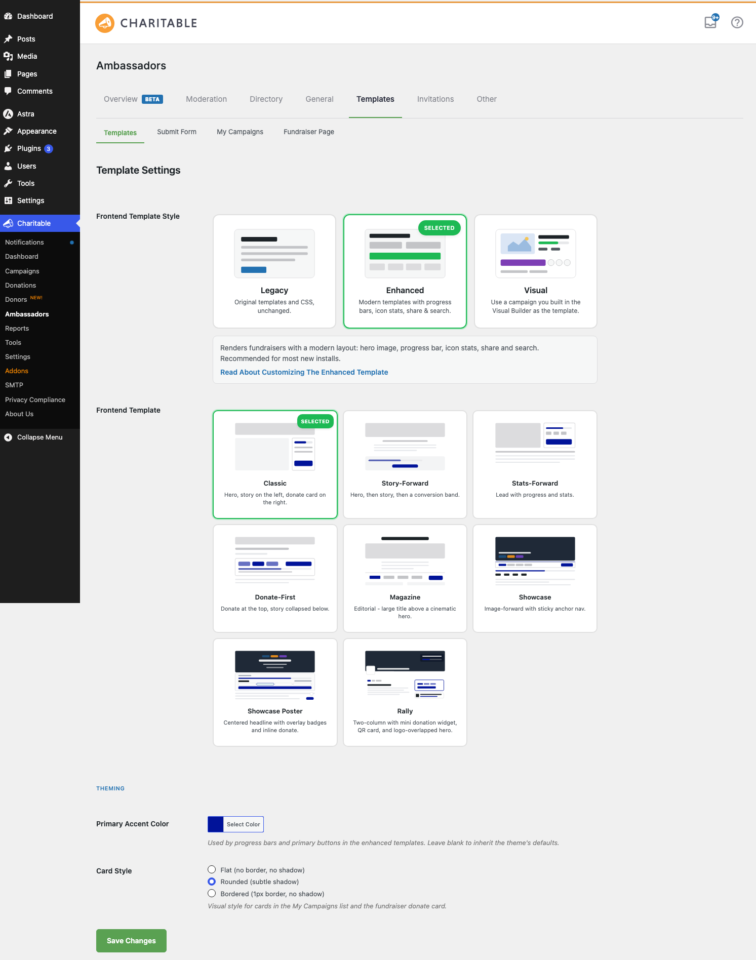
The Templates tab is the single home for the four most visual decisions in your Ambassadors setup: which family of templates renders (Legacy, Enhanced, or Visual), which layout variant the Enhanced family uses, your primary accent color, and your card style.
Most other display settings live on smaller sub-tabs like Fundraiser Page and My Campaigns, but Templates is the orientation. It’s the place you start when you’re deciding how the program should look and feel.
When You’d Use It
You’ll come back to this tab whenever something about how your program looks needs to change. The most common reasons:
- First-time setup: decide whether to stay on legacy templates or move to the modern Enhanced or Visual rendering.
- Brand refresh: update your accent color, switch card style, or pick a different layout variant.
- Rolling out Visual mode: flip from Enhanced to Visual and pick which campaign acts as the design source for all fundraiser pages.
How to Get There
Go to Charitable » Ambassadors » Templates.
What’s on the Templates Tab
Three groups of settings run top to bottom. In practice, you’ll usually work through them in order: pick a style, then refine the variant or template choice, then tune your theming.
| Group | What’s in it |
|---|---|
| Frontend Template Style | Three cards: Legacy, Enhanced, Visual. The biggest single decision on the tab. |
| Layout / Template | A second chooser that changes based on the style above. Under Enhanced it’s the 8-variant Layout chooser. Under Visual it’s the Fundraiser Template Campaign autocomplete. Hidden under Legacy. |
| Theming | The Primary Accent Color and the Card Style radio. |
Frontend Template Style
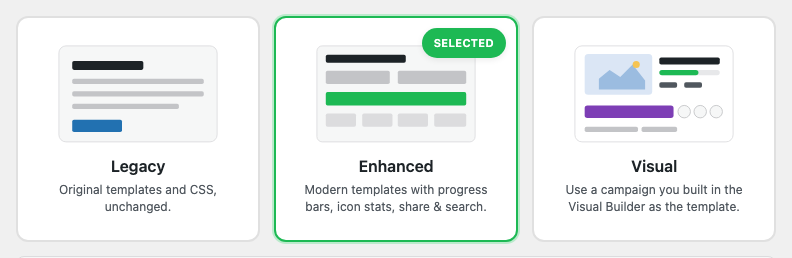
This is the master switch for how your fundraiser pages render. Pick the one that fits where you are in your program’s life.
| Style | What renders | Pick when |
|---|---|---|
| Legacy | The original 1.x templates and CSS, untouched. | You’ve customized templates or CSS in your theme and don’t want anything to change. |
| Enhanced | The 3.0 templates with progress bars, icon stats, share popover, and search. The variant chooser appears below. | You want the modern look but haven’t designed a custom campaign template yet. |
| Visual | Every fundraiser page renders from a Visual Campaign Builder layout you choose. The template campaign chooser appears below. | You want maximum brand control or have a sponsor-driven design requirement. |
You can switch between styles at any time. Switching back to Legacy doesn’t lose anything: your saved Enhanced variant and Visual template-campaign pointer are both preserved. For the full story on Visual mode, see Visual Template Mode.
Layout / Template (Contextual)
What appears in this section depends on whichever style you’ve selected above. It won’t show at all under Legacy, and it changes completely between Enhanced and Visual.
- Under Legacy: nothing renders here.
- Under Enhanced: the 8-variant Layout Variants chooser. Pick Classic, Story-Forward, Stats-Forward, Donate-First, Magazine, Showcase, Showcase Poster, or Rally.
- Under Visual: the Fundraiser Template Campaign autocomplete. Pick which campaign on your site acts as the design source for all fundraiser pages.
The layout chooser also appears on the Fundraiser Page sub-tab. They’re the same chooser sharing the same setting, so pick it from whichever sub-tab feels more natural to you.
Theming
Two settings affect every Ambassadors-rendered page across your site. Set them once and they flow everywhere automatically.
| Setting | Default | Effect |
|---|---|---|
| Primary Accent Color | (inherits theme) | Used by progress bars, primary buttons, hover states, and selected-state highlights across both Enhanced and Visual modes. Set via the WordPress color-picker. |
| Card Style | Rounded (subtle shadow) | Three options: Flat (no border, no shadow), Rounded (subtle shadow), Bordered (1px border, no shadow). Applies to My Campaigns cards and the fundraiser donate card. |
For a deeper look at theming including the --cap-accent CSS variable, the theme override chain, and dark-mode handling, see Theming.
How the Templates Tab Relates to the Other Sub-Tabs
The Templates tab is the orientation. The heavier per-feature settings live on their own dedicated sub-tabs. Here’s the map so you know where to go for what.
| Setting concern | Lives on |
|---|---|
| Which template family | Templates tab (this page). |
| Enhanced layout variant | Templates tab or the Fundraiser Page sub-tab. |
| Visual template campaign | Templates tab. |
| Fundraiser page behavior (share, breadcrumb, donor wall, chrome) | Fundraiser Page sub-tab. |
| My Campaigns page behavior (search, sort, thumbnail, share) | My Campaigns sub-tab. |
| Share popover network picks | Sharing Networks. |
| QR code rendering on each surface | QR Codes. |
Most people spend the majority of their template-tweaking time on this Templates tab plus the Fundraiser Page sub-tab. The rest are smaller on/off toggles you’ll set once and forget.
Tips Worth Keeping in Mind
A few things that will save you time when you’re first getting your program’s look dialed in.
- Pick Enhanced unless you have a reason to stay on Legacy. The Enhanced templates render the same content the legacy ones do, just with modern styling. You can switch back instantly if anything looks off.
- Upgrade to Visual when strict brand requirements arrive. Most sites run happily on Enhanced with a layout variant. Visual is the right move when a sponsor or brand guidelines require pixel-level control over the fundraiser page design.
- Set your accent color now, even if you’re staying on Legacy for the moment. Both Enhanced and Visual pick it up automatically. Setting it once means a future style switch already has your brand color baked in.
- Use the live previews on the sub-tabs before committing. Both the Fundraiser Page and My Campaigns sub-tabs have live SVG previews so you can see your changes before flipping browser tabs to check the front end.
Developer Reference
The rest of this page is for developers customizing the Templates tab behavior.
Settings Storage
charitable_settings > ambassadors > ambassadors_ui_version          # 'legacy' | 'enhanced' | 'visual'
charitable_settings > ambassadors > p2p_template_campaign_id        # int (0 = none)
charitable_settings > ambassadors > ambassadors_enhanced_layout_variant
charitable_settings > ambassadors > theme_primary_color             # hex string
charitable_settings > ambassadors > theme_card_style                # 'flat' | 'rounded' | 'bordered'
Helpers
charitable_ambassadors_ui_version();                                // 'legacy' | 'enhanced' | 'visual'
charitable_ambassadors_should_use_p2p_template( $fundraiser_id );   // bool
charitable_ambassadors_fundraiser_template_is_theme_overridden();   // bool
Filters
| Filter | Default | Purpose |
|---|---|---|
charitable_ambassadors_settings_display_fields | computed (legacy filter name) | Modify the field set on the Templates sub-tab. Filter name kept for backward compatibility with sites that added fields to the old “Display” tab. |
charitable_ambassadors_visual_mode_is_available | computed | Whether Visual mode is selectable on this install (depends on Pro version). |
charitable_ambassadors_rally_is_available | computed | Whether the Rally layout variant card appears in the chooser (depends on Pro’s Mini Donation Widget). |
charitable_ambassadors_ui_version_force | null | Force a specific UI version regardless of the saved setting. Useful for A/B testing. |
Actions
| Action | Args | Fires when |
|---|---|---|
charitable_ambassadors_ui_version_changed | $old, $new | The UI version setting was saved with a different value. |
charitable_ambassadors_layout_variant_changed | $old, $new | The Enhanced layout variant setting was saved with a different value. |
charitable_ambassadors_p2p_template_campaign_changed | $old_id, $new_id | The Visual mode template-campaign setting was saved. |
Templates
Each style has its own template file or family:
| Style | Template path |
|---|---|
| Legacy | templates/campaign/<filename>.php — unchanged from 1.x |
| Enhanced | templates/campaign/fundraiser-page-enhanced.php (+ per-variant partials) |
| Visual | Substitutes the template campaign’s campaign_settings_v2 into the fundraiser’s render at runtime |
Theme override path for Enhanced and Visual: your-theme/charitable-pro/charitable-ambassadors/fundraiser-page-enhanced.php.
Capabilities
Settings access requires manage_charitable_settings. Front-end rendering has no capability gate.
Customization Examples
Force Enhanced on existing installs that haven’t set a style yet:
add_filter( 'charitable_ambassadors_ui_version_force', function () {
    if ( ! get_option( 'charitable_settings' ) ) {
        return 'enhanced';
    }
    return null;
} );
Webhook your CRM whenever the UI version changes:
add_action( 'charitable_ambassadors_ui_version_changed', function ( $old, $new ) {
    wp_remote_post( 'https://crm.example.com/hooks/charitable', [
        'body' => [ 'event' => 'ui_version_changed', 'from' => $old, 'to' => $new ],
    ] );
}, 10, 2 );
Force Card Style to Bordered for a brand-strict program:
add_filter( 'pre_option_charitable_settings', function ( $value ) {
    if ( ! is_array( $value ) ) {
        return $value;
    }
    if ( isset( $value['ambassadors']['theme_card_style'] ) ) {
        $value['ambassadors']['theme_card_style'] = 'bordered';
    }
    return $value;
} );
Add an admin-only banner when Visual mode is active:
add_action( 'admin_notices', function () {
if ( 'visual' === charitable_ambassadors_ui_version() ) {
echo 'Visual mode is active. Edit the template campaign to change every fundraiser page at once.
';
}
} );Wrapping Up
That covers everything on the Templates tab. Whether you’re making a quick decision on your first install or fine-tuning a brand-controlled Visual setup, this is where it all starts. Pick your style, choose a layout, set your accent color, and everything else follows from there.
If you have questions or need help deciding which style is right for your program, our support team is happy to help.
You May Also Want to Read
These docs cover the settings that branch off from the Templates tab. Bookmark the ones most relevant to how your program is set up.
- Fundraiser Page – the per-fundraiser display toggles that live one tab over.
- Layout Variants – a deep dive on each of the eight Enhanced variants.
- Visual Template Mode – how the Visual rendering path works and how to set up your template campaign.
- Theming – accent color, the
--cap-accentCSS variable, and the full theme override chain. - My Campaigns – display settings for the ambassador-facing dashboard page.
- Hooks & filters in Ambassadors – the full developer reference.
Helpful Links
🤝 Get help when you need it
Connect with Customer Support →
📑 Find the guide you need
Browse the Documentation Hub →
⬇️ Download proven strategies, campaign ideas, and expert tools
Get the Fundraising Kit →
💸 Get Free Fundraising Resources
Head to the Charitable Fundraising Hub →
🤔 Got questions about Charitable?
Charitable FAQs →
Need help understanding non-profit terms and jargon?
See our Non-Profit Glossary →


