
Requires: Charitable Pro plugin 1.8.16+
Pro plan and higher
Do you want to know whether your rewards are bringing in gifts, and whether any packages are waiting to be posted? The Rewards Overview answers both on one screen.
This guide covers the attention banner, the headline tiles, the chart, the Rewards Status checks, the tables, and how to get your data out.
Checking it regularly means no donor waits too long for a reward they earned.
Charitable Rewards needs version 1.8.16 or higher of the Charitable Pro plugin, on the Pro plan and higher.
What’s In This Guide?
Watch the Video
If you’d rather watch than read, this short video walks through the Rewards Overview.
Finding the Overview
To open it, head over to Charitable » Rewards » Overview in your WordPress admin.
It’s the default tab, so opening Rewards lands you here.
What Needs Your Attention
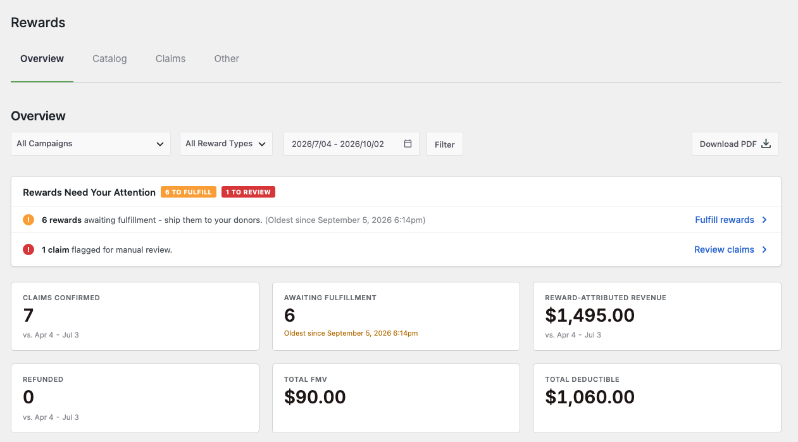
The banner at the top is the most useful thing on the page. It tells you the following in plain language.
- How many rewards are awaiting fulfillment, and how long the oldest has been waiting
- How many claims are flagged for manual review
Each comes with a link straight into a filtered claims list. So you go from “5 things need mailing” to the list of those 5 things in 1 click.
The Headline Numbers
There are 6 tiles, and all of them follow the selected date range.
| Tile | Means |
|---|---|
| Claims confirmed | Rewards earned in the period |
| Awaiting fulfillment | Rewards confirmed and still owed, with the oldest date |
| Reward-attributed revenue | The donation value on gifts that claimed a reward |
| Refunded | Claims on refunded donations |
| Total FMV | The combined fair market value claimed |
| Total deductible | The combined deductible portion |
The last 2 appear only with tax receipting turned on.
Reward-attributed revenue is the number people most often misread. It’s the donation total on gifts that earned a reward, not the value of the rewards themselves, and not revenue the rewards caused.
Treat it as “money that came in alongside a reward claim.”
The Chart
Rewards Over Time plots claims across the period, with 1 line per reward. You can see which perks donors are choosing and when.
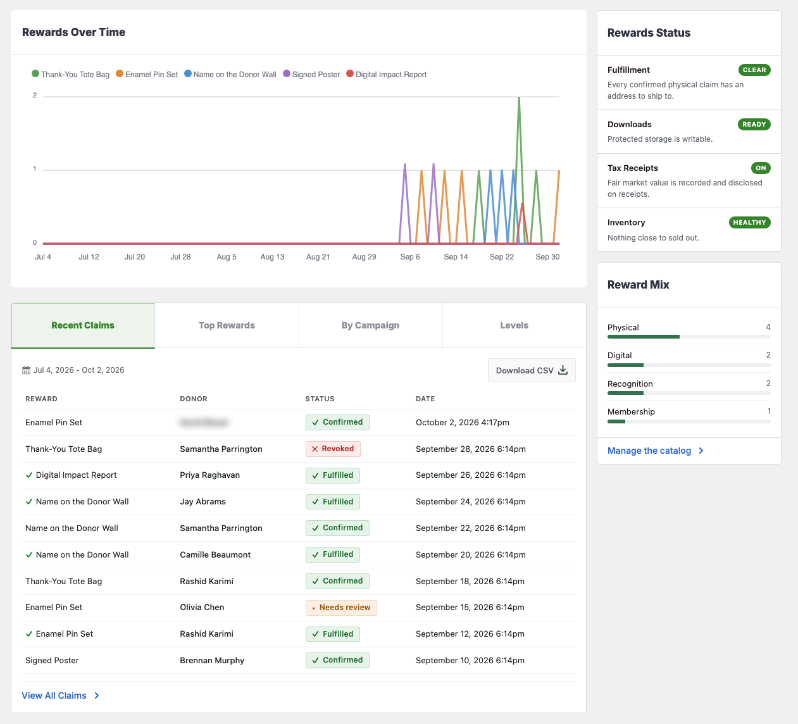
A spike after an email send tells you the email worked.
With a short date range and few claims, the chart looks sparse. That’s the data, not a fault.
Rewards Status
This panel runs 4 health checks. Each one is either clear or tells you what’s wrong.
| Check | Watches for |
|---|---|
| Fulfillment | Confirmed physical claims with no shipping address, which cannot be mailed |
| Downloads | Whether protected storage is writable |
| Tax receipts | Whether fair market value is being recorded and disclosed |
| Inventory | Rewards close to selling out |
The fulfillment check is the most important one. A physical claim with no address is hard to spot anywhere else, and this panel counts them and links you to them.
The Tables
You’ll see 4 tabs below the chart.
- Recent claims shows the latest activity, with donor and status.
- Top rewards shows which rewards are claimed most.
- By campaign shows which campaigns are bringing in reward claims.
- Levels shows performance by giving level, where levels are in use.
Reward Mix sits alongside and breaks claims down by type. At a glance, you can see whether you’re running a recognition program or a shipping operation.
Date Ranges
Everything follows the range picker at the top. Presets cover the usual windows, and a custom range opens a calendar.
The default range is the current month, so claims older than that are left out. If the dashboard looks emptier than you expect, widen the range before deciding anything is wrong.
Getting the Data Out
| Export | Gives you |
|---|---|
| Per-table CSV | Each table has its own download, scoped to the current range |
| Claims CSV | From the Claims tab, with filters applied and tax columns when turned on |
| Catalog CSV | The reward library itself |
| PDF summary | A 1-page dashboard snapshot |
Important Note. The PDF download needs version 1.8.19 or newer of the Charitable Pro plugin, because it relies on PDF and chart pieces that arrived in that release. On an older version, the button explains this rather than failing silently.
CSV exports block formula injection. A reward named with a leading = can’t run as a formula when the file is opened in a spreadsheet.
Per-Reward Performance Report
Beyond the dashboard, Rewards adds a report to Charitable’s own Reports area. Reward performance sits alongside your other reporting, with its own CSV export.
You’ll find it at Charitable » Reports.
Logs and System Info
Reward activity is written to Charitable’s log. This is the place to look when something didn’t happen and you need to know why, like an email that didn’t send or a claim that didn’t confirm.
You’ll find it at Charitable » Tools » Logs.
A Rewards section is also added to System Info. It reports the Rewards version, settings, table status and counts, so include it when you open a support ticket.
You’ll find it at Charitable » Tools » System Info.
Tips Worth Keeping in Mind
These habits keep the Overview useful week to week.
- Check the attention banner first and the tiles second. The banner is the part that tells you what to do next.
- When a number looks wrong, widen the date range to Lifetime before assuming something is broken.
- Export the claims CSV as your packing list rather than working from the screen.
- If the fulfillment check reports blocked claims, fix those before a packing session. A filtered list that assumes an address exists won’t show them.
FAQs on Rewards Reporting
Why does my Overview look empty?
The default range is the current month, so older claims are left out. Widen the date range and the older claims will appear.
Why don’t I see the Total FMV and Total Deductible tiles?
Those 2 tiles appear only when tax receipting is turned on.
Why can’t I download the PDF summary?
The PDF needs version 1.8.19 or newer of the Charitable Pro plugin. On an older version, the button explains this.
Developer Reference
Filters
| Filter | Purpose |
|---|---|
charitable_rewards_overview_range_presets | The date-range preset list |
charitable_rewards_overview_empty_state_html | Markup shown when there’s nothing to report |
charitable_rewards_admin_tabs | The Rewards tab list |
charitable_rewards_admin_tab_badges | Count badges on the tabs |
charitable_rewards_reports_overview_stat | A stat in the Reports integration |
charitable_reports_advanced_report_strings | Report labels in Pro’s Reports framework |
charitable_reports_advanced_report_type_filter_values | Report type filter values |
Overview Data
Charitable_Rewards_Overview_Data owns every query behind the dashboard, covering status counts, revenue totals, tax totals, the time series, and the top tables.
It’s admin-only and not loaded on the front end or under WP-CLI, so calling it from a CLI script will fail with a missing class.
Tax totals derive the deductible figure in SQL from the frozen fair market values rather than reading a stored column. See Tax Receipting.
PDF Export
The PDF action is charitable_rewards_download_overview_pdf. It’s gated on Pro 1.8.19, which introduced the PDF and chart-image pieces it depends on.
Customization Examples
Add a “Last 6 months” preset to the range picker.
add_filter( 'charitable_rewards_overview_range_presets', function ( $presets ) {
    $presets['last_6_months'] = __( 'Last 6 months', 'your-textdomain' );
    return $presets;
} );
Replace the empty-state message.
add_filter( 'charitable_rewards_overview_empty_state_html', function () {
    return '<p>' . esc_html__( 'No reward claims yet. Attach a reward to a campaign to get started.', 'your-textdomain' ) . '</p>';
} );
Wrapping Up
You now know how to read the Rewards Overview, act on the attention banner, check the health of your rewards, and export your data.
If you get stuck on any step, our support team is happy to help.
You May Also Want to Read
These guides cover the screens the Overview links you to.
- Claims and Fulfillment. Work through the claims the attention banner sends you to.
- Tax Receipting and Fair Market Value. Learn where the 2 tax tiles get their numbers.
- Creating Rewards. Set the stock limits the status panel watches.
Helpful Links
🤝 Get help when you need it
Connect with Customer Support →
📑 Find the guide you need
Browse the Documentation Hub →
⬇️ Download proven strategies, campaign ideas, and expert tools
🔗 Let your AI Assistant do the fundraising work for you.
Connect Charitable to your AI assistant →
💸 Get Free Fundraising Resources
Head to the Charitable Fundraising Hub →
🤔 Got questions about Charitable?
Charitable FAQs →
Need help understanding non-profit terms and jargon?
See our Non-Profit Glossary →




