
Requires:
- Charitable Pro plugin 1.8.16+
- Pro plan and higher
Do you want donors to give any amount they like, and see rewards unlock as their gift grows? That’s what automatic mode does in Charitable Rewards.
This guide covers setting it up, choosing what a donor actually receives, letting donors decline a reward, and the display options.
Nobody picks a tier in this mode. Donors decide what to give, and the form shows them what that gift earns.
Charitable Rewards needs version 1.8.16 or higher of the Charitable Pro plugin, on the Pro plan and higher.
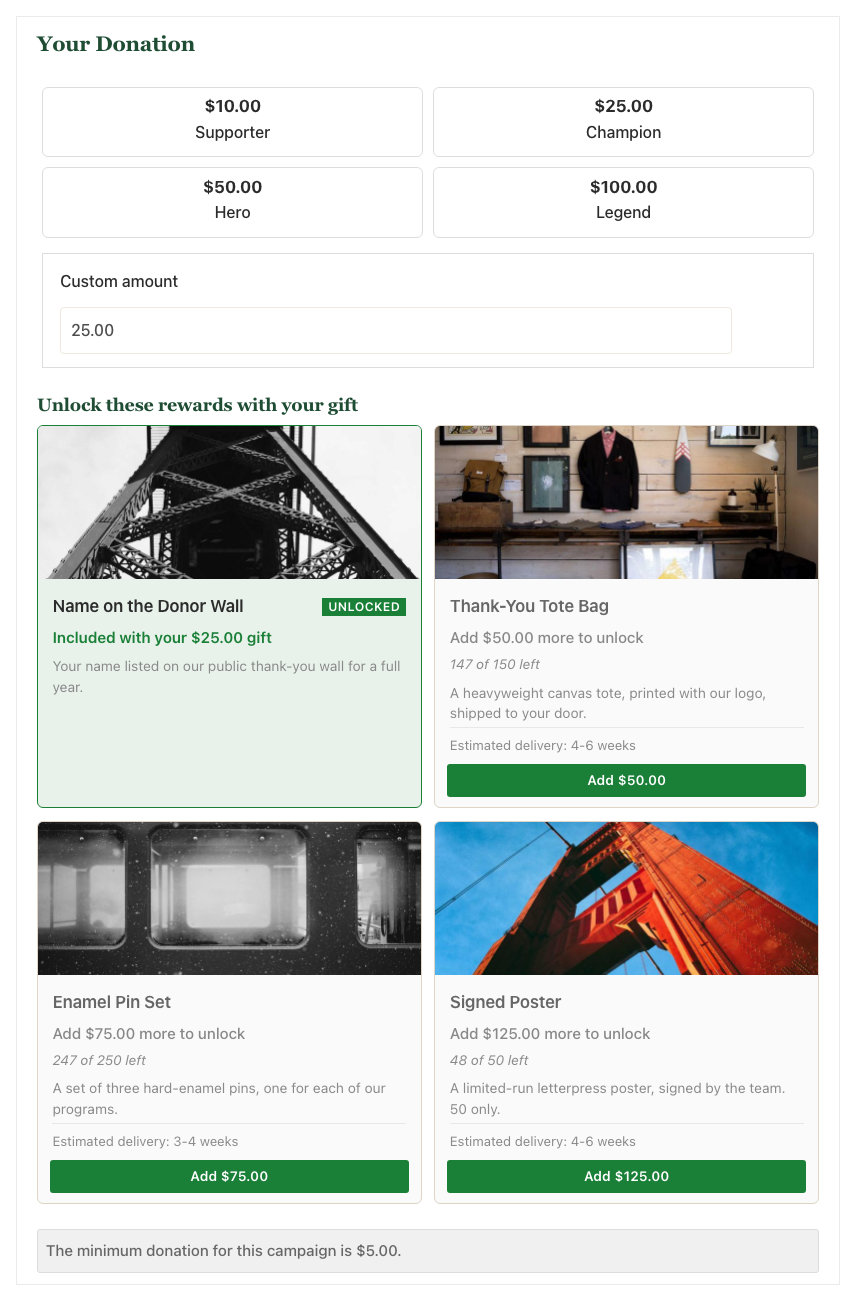
The most useful part is what happens just below a reward’s amount. A donor who enters $15 when a tote bag unlocks at $75 sees “Add $60.00 more to unlock”, plus a button that fills in the amount for them.
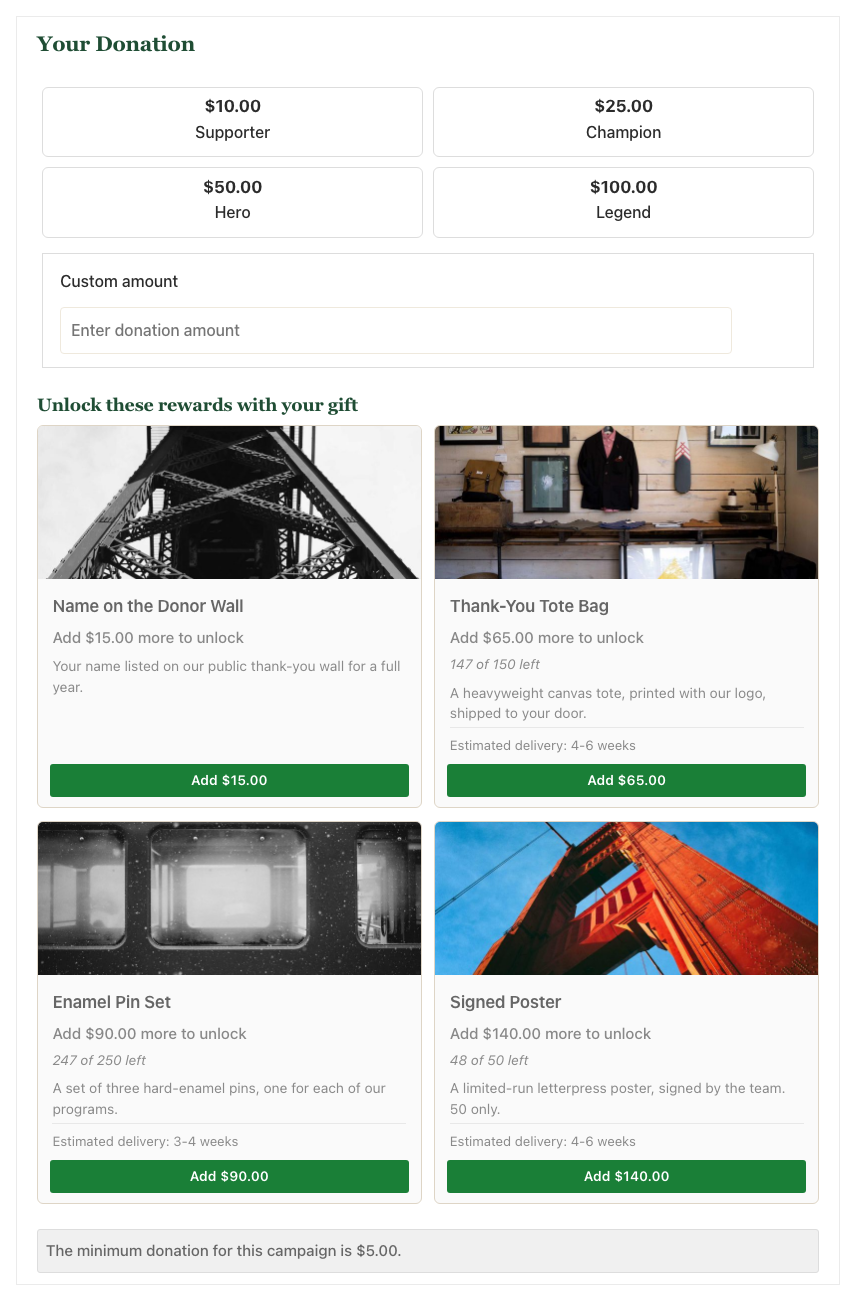
When the donor clicks that button, 3 things happen at once. The amount updates, the card turns green and reads Unlocked, and every other card works out its own gap from the new amount.
What’s In This Guide?
Watch the Video
This video shows automatic mode on a real donation form, from the first locked card to an unlocked reward.
When You’d Use Automatic Mode
Automatic mode works well in these situations.
- A general donation page where you can’t predict what someone will give, and you don’t want to steer them into fixed tiers.
- A year-end appeal where the goal is raising the average gift rather than offering specific perks.
- Any campaign with suggested amounts already set up. The reward cards sit underneath them and react to whichever amount is chosen.
- Peer-to-peer campaigns. Inherited rewards only show on a fundraiser’s donation form when the parent is in automatic mode, so this is the mode to use for peer-to-peer.
If you want the tiers themselves to be the ask, with each one setting its own price, use Levels Mode instead.
Where to Find It
Automatic is the default, so a campaign with rewards attached is already in this mode unless you changed it.
To check or change it, edit the campaign and open the Rewards panel in the campaign builder. The setting is “Reward Mode,” and it has 2 choices, Automatic and Levels.
Setting It Up
Here’s how to set up automatic mode on a campaign.
- To start, create your rewards in the Catalog, each with the dollar amount that should unlock it.
- Next, attach them to the campaign. The amount on each reward is the amount that unlocks it.
- Then leave Reward Mode on Automatic.
- If you like, adjust the display and stacking options below.
The cards appear in the display order you set when attaching them, not by price. So put them in order from lowest to highest unless you have a reason not to.
Choosing What a Donor Actually Receives
This is the setting that surprises people most often, so it helps to understand it before you launch.
Say a donor gives $100, and you have rewards at $25, $40, and $75. Do they get all 3, or only the best one?
| Stacking mode | What the donor gets | Where you’d use it |
|---|---|---|
| Highest (default) | Only the single most valuable reward they qualified for | Most campaigns. A $100 donor gets the $75 item, not 3 separate things to pack |
| Cumulative | Every reward at or below their amount | When the perks build on each other, like a sticker plus a tote plus a mention |
On the donation form, the cards a donor passed but won’t receive turn gray and read “Unlocked (not granted)”. That wording confuses people if nobody explains it.
It means the donor crossed that amount, but Highest stacking grants only the top reward.
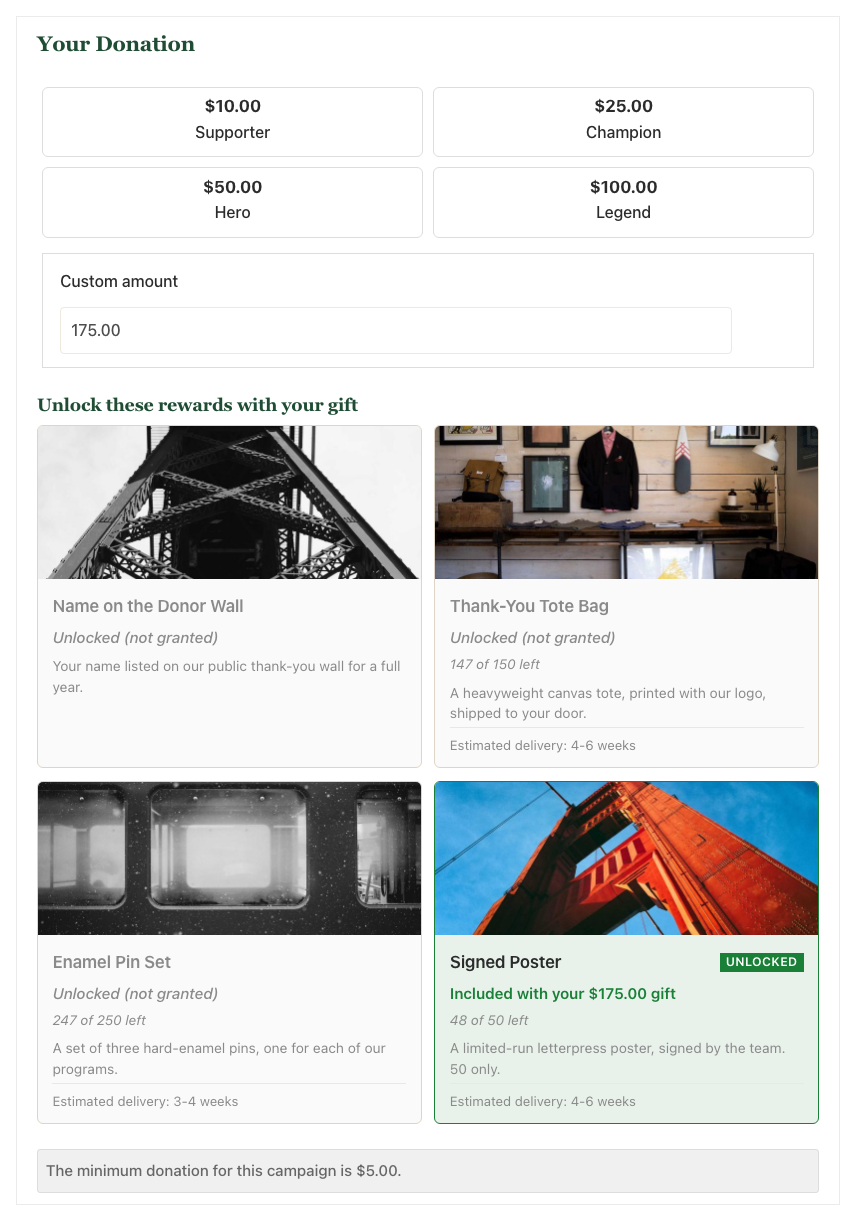
If you want donors to receive everything they cross, switch to Cumulative.
Letting Donors Say No Thanks
Some donors would rather the whole gift went to the cause than receive a tote bag. This matters most where a reward’s fair market value lowers the tax-deductible part of the gift.
When you turn on “Allow Decline,” a checkbox appears under the reward cards. You can write the label yourself, and you can use different wording depending on whether tax receipting is on.
- With tax receipting on, you could use something like “Decline rewards to maximize my tax-deductible donation.”
- With it off, you could use something like “Skip my reward and give 100% to the classrooms.”
When a donor ticks the box, no claims are created and the full gift stays deductible.
Display Options
| Option | Choices | What it changes |
|---|---|---|
| Display style | Cards, Rows | Cards shows a grid. Rows shows a single-column list, which is better for long descriptions |
| Image zoom | On, Off | Lets a donor click a reward image to see it larger |
| Show backers | On, Off | Shows how many donors have claimed each reward |
| Backers term | Free text | Sets what to call them. “Supporter” reads warmer than “backer” |
Note: Charitable has no pledges, so the donor-facing words are “donors” and “donate,” not “backers” and “pledge.” The backers term exists because some campaigns prefer their own word for the count.
What Donors See When Stock Runs Low
If a reward has an inventory cap, the card shows how many are left, like “147 of 150 left.” When the last one goes, the card switches to a sold-out state and stops unlocking.
Rewards also places a short hold on a limited item while a donation is still in payment, so 2 donors can’t both claim the last one. See Creating Rewards for inventory caps and the reservation hold.
Tips Worth Keeping in Mind
These tips help your reward cards encourage bigger gifts without confusing donors.
- Space your reward amounts so each step feels reachable. A jump from $25 to $250 gets ignored, while $25 to $50 gets taken.
- Keep descriptions to 1 sentence. The cards sit in a grid, and long text makes them uneven.
- Leave stacking on Highest unless the perks really do build on each other. It keeps fulfillment simple and donor expectations clear.
- If you see “Unlocked (not granted)” on your own test donation, it isn’t a bug. See the stacking section above.
FAQs on Automatic Mode
Why does a card say “Unlocked (not granted)”?
The donor crossed that reward’s amount, but Highest stacking grants only the top reward. Switch to Cumulative if you want donors to receive every reward they cross.
Why are no rewards showing on my campaign?
Rewards must be enabled on the campaign, not only attached. Check the Rewards panel in the campaign builder and make sure rewards are switched on.
Developer Reference
Filters
| Filter | Default | Purpose |
|---|---|---|
charitable_rewards_stacking_mode | Charitable_Rewards_Matcher::MODE_HIGHEST | Override stacking per campaign. Receives the campaign ID as its second argument |
charitable_rewards_tier_image_size | thumbnail | Registered image size for the card image |
charitable_rewards_unlock_color | #1a7f37 | Accent color for the unlocked state, printed as a CSS custom property on the wrap |
Campaign Settings Keys
These are stored under campaign_settings_v2 in the campaign’s settings.rewards array.
| Key | Values | Purpose |
|---|---|---|
enabled | enabled, empty | Whether rewards render on this campaign at all |
reward_mode | automatic, levels | Which mode the campaign uses |
stacking_mode | highest, cumulative | What the donor actually receives |
display_style | cards, rows | Grid or single-column list |
image_zoom | enabled, 0 | Click-to-enlarge on reward images |
show_backers | enabled, 0 | Show claim counts on cards |
backers_term | free text | Label used for claim counts |
allow_decline | enabled, 0 | Show the decline checkbox |
decline_label_tax | free text | Checkbox wording when tax receipting is on |
decline_label_notax | free text | Checkbox wording when tax receipting is off |
If enabled is not set, nothing renders even when rewards are attached. This is the most common reason a campaign shows no rewards after you attached some.
Markup Hooks
Reward cards are rendered on the charitable_donation_form_after_donation_amounts hook. Each card carries data-reward-id and data-base-amount, and the wrap carries data-stacking-mode.
Each card carries 1 of these state classes.
| Class | Meaning |
|---|---|
is-locked | Below the threshold. Carries the visible Add button |
is-unlocked | Granted. Shows the Unlocked badge |
is-superseded | Threshold crossed but not granted under Highest stacking |
charitable-reward-sold-out | Inventory exhausted |
The Add button is present in every state, but it carries the hidden attribute in the unlocked and superseded states. If you restyle it, respect [hidden] or it will paint as an empty block.
Customization Examples
Give donors every reward they cross, not only the top one.
add_filter( 'charitable_rewards_stacking_mode', function () {
    return Charitable_Rewards_Matcher::MODE_CUMULATIVE;
} );
Use cumulative stacking on 1 campaign only.
add_filter( 'charitable_rewards_stacking_mode', function ( $mode, $campaign_id ) {
    return 1234 === (int) $campaign_id ? 'cumulative' : $mode;
}, 10, 2 );
Match the unlocked state to your brand color.
add_filter( 'charitable_rewards_unlock_color', function () {
    return '#31714c';
} );
Wrapping Up
You now know how to set up automatic mode, choose what donors receive, let them decline a reward, and adjust how the cards look.
Next, try a test donation to see the cards unlock. If you get stuck on any step, our support team is happy to help.
You May Also Want to Read
These guides cover the other parts of Charitable Rewards that work with automatic mode.
- Levels Mode. Use giving-level cards that set the donation amount instead.
- Creating Rewards. Learn what each reward type does, plus inventory caps and the hold on limited items.
- Tax Receipting and Fair Market Value. See why a donor might decline a reward.
- Rewards on Peer-to-Peer Campaigns. Find out why peer-to-peer needs automatic mode.
Helpful Links
🤝 Get help when you need it
Connect with Customer Support →
📑 Find the guide you need
Browse the Documentation Hub →
⬇️ Download proven strategies, campaign ideas, and expert tools
🔗 Let your AI Assistant do the fundraising work for you.
Connect Charitable to your AI assistant →
💸 Get Free Fundraising Resources
Head to the Charitable Fundraising Hub →
🤔 Got questions about Charitable?
Charitable FAQs →
Need help understanding non-profit terms and jargon?
See our Non-Profit Glossary →




