
Charitable Documentation

Learn how to make the most of Charitable with clear, step-by-step instructions.

How to Use the Reports Overview in Charitable

Do you want to see all your fundraising figures for one campaign or one date range? The Reports Overview brings your donations, donors, campaigns and payment methods together in a single report.

This guide covers filtering the report, reading the 4 tiles, and what each section of the report shows you.

With everything in one place, you’ll be able to answer most questions about your fundraising without building a spreadsheet.

The redesigned Reports Overview is available in version 1.8.19 of the Charitable Pro plugin.

What’s In This Guide?

Where to Find the Reports Overview

To open the report, go to Charitable » Reports. You’ll land on the Overview tab.
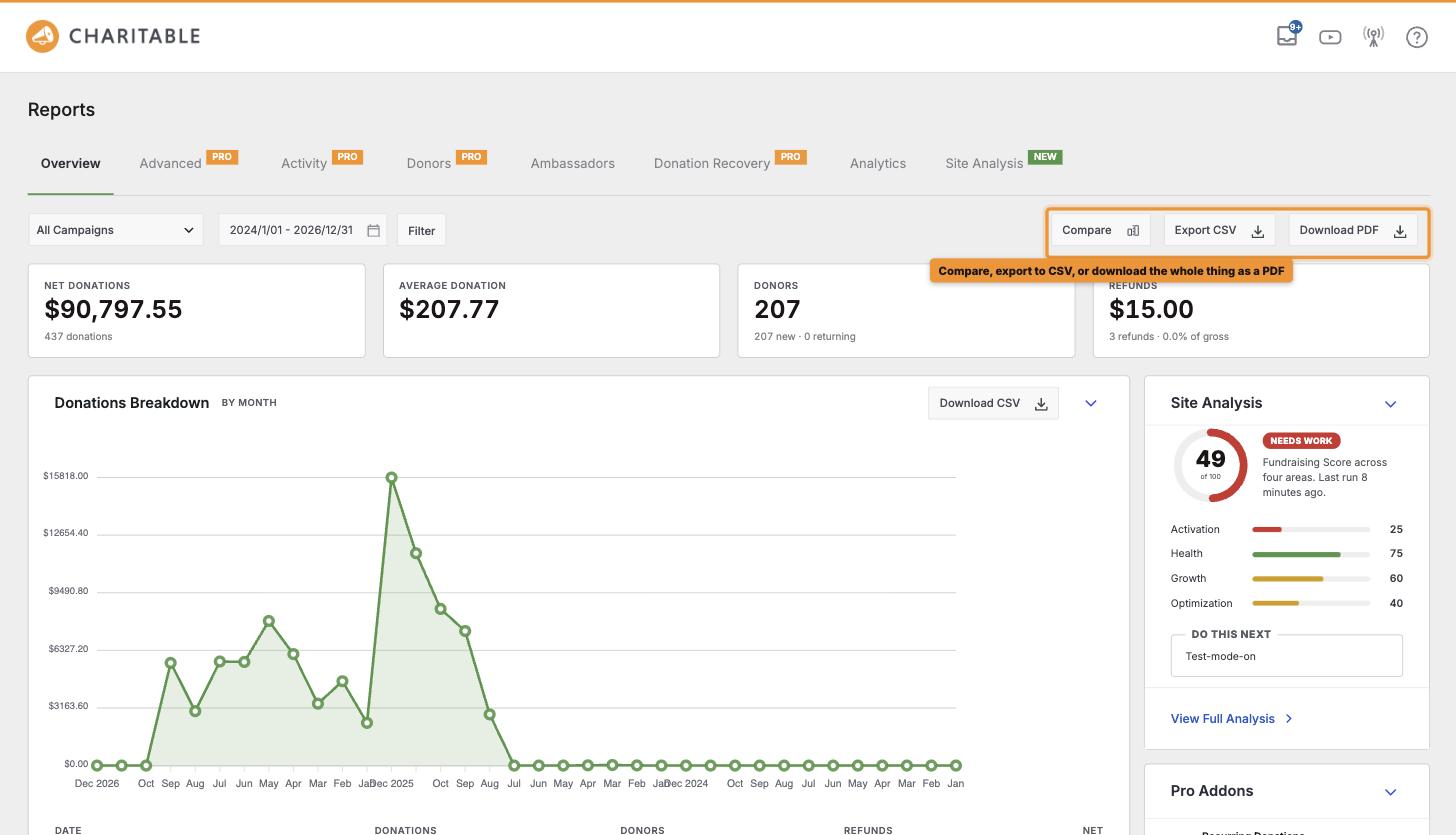
The Charitable Reports Overview with the campaign filter, date range, Compare, Export CSV and Download PDF buttons

The other tabs along the top, such as Activity, Donors and Site Analysis, each open a more detailed report on that one area.

The first time you open the Reports Overview after updating, you’ll be offered a short guided tour. You can take it or dismiss it, and you won’t see it again either way.

Filtering the Report

To choose what the report covers, follow these steps.

  1. Pick a campaign from the first dropdown, or leave it on “All Campaigns”.
  2. Pick a campaign category from the second dropdown, or leave it on “All Categories”.
  3. Set the start and end dates in the date field.
  4. When you’re ready, click “Filter”.

Every tile and section on the page updates to match. The “Compare”, “Export CSV” and “Download PDF” buttons on the right have their own guides, linked at the end of this one.

Reading the Tiles

Below the filters, you’ll see 4 tiles.

  • Net Donations is the amount raised after refunds, with the number of donations underneath.
  • Average Donation is the average size of a gift.
  • Donors is the number of people who gave, split into new and returning donors.
  • Refunds is the amount refunded, with the number of refunds and their share of the total.

Under each tile, you’ll also see the period it’s being compared with, such as the week before.

The Main Report

The report is laid out in 2 columns. The wide column on the left holds the main sections.

  • Donations Breakdown shows a chart and a table of your donations, grouped by day, week or month to match your date range.
  • Activity shows recent activity across your campaigns. Click “View All Activity” to open the full Activity report.
  • Top Donors shows who gave the most in the period.
  • Top Campaigns shows how each campaign is pacing against its goal and end date, so you can see which ones are falling behind.
  • Donation Recovery shows what abandoned donations are costing you and how much has been recovered.

Note: If Donation Recovery isn’t turned on yet, you’ll see a preview with an “Activate Donation Recovery” button instead of your own figures.

The Summary Rail

The narrow column on the right is the summary rail. Each card can be closed with the arrow in its top corner.

  • Nonprofit Site Analysis shows your fundraising score, your score in each area and a Do This Next suggestion. If you haven’t run it yet, you’ll see a “Run Your Free Analysis” button.
  • Pro Addons lists the Charitable addons on your site.
  • Payment Methods shows how much each payment gateway brought in, as an amount and a percentage.
  • Donation Sources shows where your donors came from, based on the page each donor first landed on.
  • Email This Report sends this overview to your team every week.

Note: Donation Sources only counts donations made after tracking started on your site, so older donations won’t show a source.

Tips Worth Keeping in Mind

A few habits that help you get more from your reports.

  • Filter by a single campaign before a campaign review meeting, so every figure on the page is about that campaign.
  • Check Top Campaigns halfway through a campaign, while there’s still time to catch up.
  • Look at Payment Methods before you remove a gateway, to see how many of your donors use it.

FAQs on the Reports Overview

Why does a section say there are no donations in this date range?

No donations match your current filters. Try a wider date range, or set the campaign back to “All Campaigns”.

Does the report include refunded donations?

Net Donations is the total after refunds. You’ll see the refunds themselves on the Refunds tile.

Can I share this report with my board?

Yes. You can download it as a PDF, export it as a CSV, or email it to your team every week.

Wrapping Up

You now know how to filter the Reports Overview, read its tiles, and find your way around the main report and the summary rail.

Next, you can compare 2 periods or share the report with your team. If you get stuck on any step, our support team is happy to help.

You May Also Want to Read

These guides cover the tools at the top of the Reports Overview.

Helpful Links

🤝 Get help when you need it

Connect with Customer Support →  

📑 Find the guide you need

Browse the Documentation Hub →  

⬇️ Download proven strategies, campaign ideas, and expert tools

Get the Fundraising Kit →  

🔗 Let your AI Assistant do the fundraising work for you.

Connect Charitable to your AI assistant →

💸 Get Free Fundraising Resources
Head to the Charitable Fundraising Hub →

🤔 Got questions about Charitable?
Charitable FAQs →

Need help understanding non-profit terms and jargon?
See our Non-Profit Glossary →

Friendly gray robot beside a chat window with green and blue speech bubbles indicating a chatbot interaction.

Charitable Now Works With the AI Assistant You Already Use

This is the most fun thing we’ve shipped all year, and you have to try it. You can now use ChatGPT, Claude, or any AI assistant you’re already using to build and launch fundraiser campaigns.

You can create donation records, manage donor profiles, fetch data, and get fundraising reports too. Simply connect your AI agent, and start asking for what you want.

No Charitable addon needed, no coding, and no elaborate setup. Anyone can do it!

Still have questions? We’re here to help!

Last Modified:

What's New In Charitable

View The Latest Updates
🔔 Subscribe to get our latest updates
📧 Subscribe to Emails

Email Subscription

Join our Newsletter

We won’t spam you. We only send an email when we think it will genuinely help you. Unsubscribe at any time!

ai New

🚀 Unleash AI Power in Charitable!

Your AI assistant can now build, edit, and manage your Charitable fundraising campaigns directly — just by asking. With Charitable Pro adding write support for the WordPress Abilities API, tools like ChatGPT, Claude, and Cursor can handle full administrative actions safely through MCP. Why this is important:

  • 🤖 Campaign creation in plain language: Prompt your assistant with a goal like “Set up a fundraiser for the shelter with a $5,000 goal”, and it builds a real draft campaign complete with suggested donation tiers.
  • 🎨 Instant donation form tweaks: Add custom fields, change button colors, or reorder elements without diving into form settings.
  • 📝 Offline gift logging: Tell your assistant about cash or check gifts, and it will match donor emails and record transactions into your history.
  • 🛡️ Safety and control by default: Write access stays strictly off until turned on in Charitable » Tools » AI MCP, keeping read-only reporting safe by default.
  • 📜 Full audit logging: Every change made by an AI assistant is tracked under Charitable » Tools » Logs, so you always know who (or what) updated your site.

Check out our announcement here.

Improvement Payments

💰 Accept Recurring Donations with Windcave and Charitable

A donor sets their gift up once on Windcave’s secure payment page, and Charitable bills every renewal after that on schedule. Why this is important:

🏦 Organizations banked in New Zealand or Australia: monthly giving on the gateway your bank already set you up with, with no second processor to onboard.
⛪ Churches taking regular tithes and offerings: congregants set their own schedule once, which is the simplest way to launch recurring church giving without a separate platform.
🌏 Groups with donors in several currencies: Windcave handles more than 20, so a supporter can give in the currency they actually hold.
📅 Operating funds rather than one-time campaigns: switch on Recurring Only mode and the one-off option disappears, so every gift to that campaign is a subscription.
🧾 Teams with no developer on staff: 3 sets of credentials pasted into a settings page, and no code anywhere.

Check out our announcement here.

automation update

⚡ Visual Automation Builder: Drag and Drop With No Code!

Charitable Automation Connect 2.3.0 introduces the Visual Automation Builder, a full-screen canvas that lays each automation out as a flow of connected cards: a trigger, optional conditions, and a list of actions that run in order.

🧩 Many actions, one trigger: Tag a donor, send an email, add a note, and fire a webhook from a single event, dragged into any order.

✉️ Act inside Charitable: New Send Email, Tag Donor, and Add Donor Note actions run with no external service required.

🔤 Merge tags: Personalize emails and notes with live fields like {first_name}, {total}, and {campaign_name}.

🔁 Apply to existing donors: Run Tag Donor and Add Donor Note against the donors you already have.

🖥️ Canvas or Simple: Switch views anytime, and automations built before 2.3.0 keep working unchanged.

Read more here.

Integration updated

📬 Introducing Brevo for Charitable: Turn Donors into Subscribers Automatically

The moment a supporter makes a gift is when they are most engaged. With the new Brevo integration for Charitable, you can automatically turn those one-time donors into long-term subscribers without touching a single spreadsheet.

Simply collect donor consent right on your donation form and start your welcome series immediately.

What’s New:

🔄 Automated Subscriber Sync: New donors who opt in are added straight to your Brevo contact list as soon as their payment clears—no manual exports or CSV imports required.

🎯 Granular Consent & Opt-In Control: Customize your checkbox label, choose whether it defaults to checked or unchecked, or turn on Brevo double opt-in to keep your list clean and compliant.

📋 Per-Campaign List Mapping: Route supporters to your global email list or map specific campaigns to targeted Brevo lists to tailor your follow-up messaging.

⚡ 5-Minute Setup: Connect instantly by pasting your Brevo API key into the Newsletter settings, map your contact fields, and start building your email list on autopilot.

Ready to grow your mailing list? Brevo is available now starting on the Charitable Plus plan—connect your account today!

recurring donations updated

💳 Introducing Card Updates: Fix Expired Cards Without Losing Subscriptions!

newExpired or updated credit cards are one of the biggest silent leaks in recurring fundraising. With Card Updates in the Recurring Donations extension, donors can now refresh their payment details directly—keeping their subscription, schedule, and giving history completely intact.

No canceled plans, no lost history, and zero administrative headache for your team.

What’s New:

⚡ 30-Second Self-Service: Donors get a dedicated “Update Card” button in their dashboard that opens Stripe’s secure, PCI-compliant Customer Portal to update card details instantly.

🔒 Scoped & Safe Access: Scoped exclusively to card updates by default, donors can’t accidentally cancel or alter their plans from inside the portal, keeping your webhooks and data in sync.

🤝 Admin-Assisted Support: Helping a donor on the phone? Open their secure Stripe portal in one click from your admin screen or generate a single-use update link to email them.

📋 Automatic Audit Trail: Every payment method update is recorded automatically with a timestamp in both system-wide logs and the individual donor’s profile.

Ready to protect your recurring revenue? Get the Plus or Pro plan and update Recurring Donations to 2.3.0+ and enable “Update Payment Method” under your Settings today!


