
Ever notice a donor start a gift, fill in their name and amount, and then just disappear? Donation Recovery catches that moment automatically, sends a reminder email, and brings many of those donors back to finish what they started.
This guide walks you through turning Donation Recovery on, choosing which campaigns it applies to, and reading the reports once it’s running. It also covers exactly how tracking, abandonment detection, and recovery emails work behind the scenes, plus troubleshooting steps and developer resources if you need to dig deeper.
What’s In This Guide?
- Key Features
- Requirements
- Enabling Donation Recovery
- Choosing Which Campaigns to Track
- Setting Up the Recovery Email
- Adjusting the Advanced Settings
- Testing the Recovery Flow
- How Donation Recovery Tracks Donor Sessions
- What Happens When a Donor Abandons a Form
- Recovery Email Security
- How Unsubscribing Works
- Reading Your Recovery Reports
- Customizing the Recovery Email Template
- Developer Resources
- Troubleshooting
- Not Yet on the Pro or Elite Plan?
- FAQs on Donation Recovery
- More Documentation
Key Features
Here’s what Donation Recovery does once it’s turned on.
- Silently tracks donor activity, including email, name, and donation amount, as donors fill out a form.
- Automatically detects abandoned sessions with a background process that checks every 5 minutes.
- Sends a branded recovery email with a one-click “Complete My Gift” button.
- Pre-fills the donation form with the donor’s previously entered details when they return.
- Includes a built-in unsubscribe link on every recovery email, with no suppression list to manage yourself.
- Gives you per-campaign scope control, so you choose exactly which campaigns participate.
- Adds a dedicated Reports tab with date-filtered stats, a sessions table, and CSV export.
- Surfaces recovered revenue directly in your main Reports Overview tab.
Requirements
Before you turn on Donation Recovery, make sure you have:
- Charitable’s Pro plugin, updated to version 1.8.13.5 or later, on the Pro or Elite plan.
- WordPress 6.2 or later.
- PHP 7.2 or later.
- WP-Cron enabled on your site. It’s on by default for almost every WordPress install, and recovery emails send through it, so if your host has turned it off, ask them how to set up a real server cron job as a replacement.
Enabling Donation Recovery
Turning Donation Recovery on takes a few minutes, including installing the addon.
Step 1: Install the Donation Recovery Addon
Go to Charitable » Settings » General and click the “Donation Recovery” sub-tab.
At the bottom of this page, you’ll see a button “Get Donation Recovery Addon.”
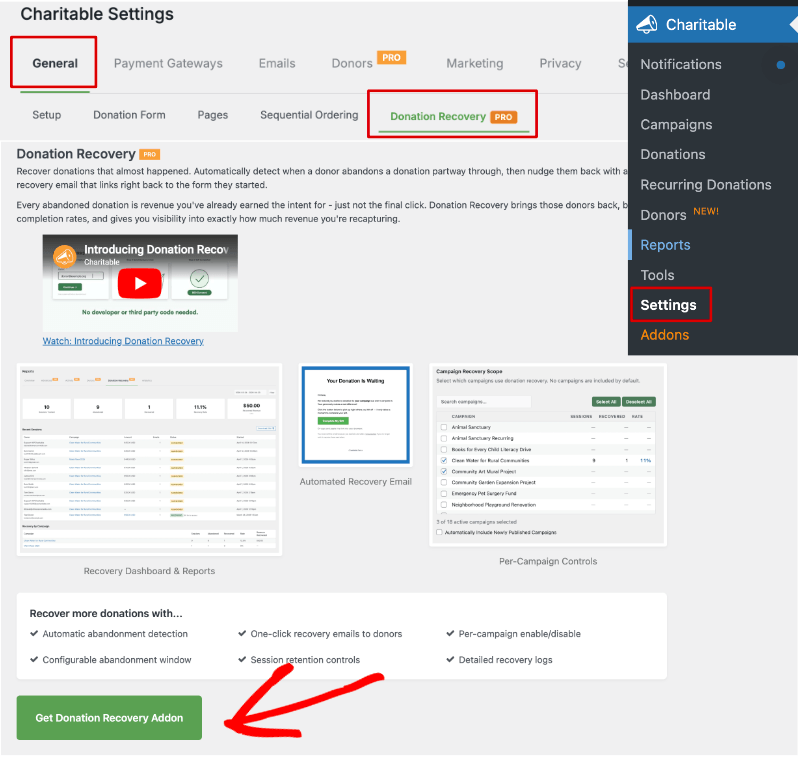
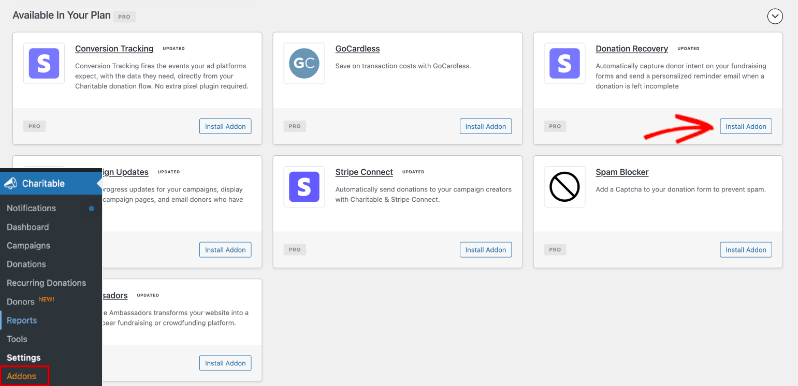
This takes you to the Addons page.
Scroll to find Donation Recovery or you can search for it. Then install and activate it.
Need more help? See How To Install Charitable Addons.
Step 2: Enable Donation Recovery
Back on Charitable » Settings » General » Donation Recovery, check “Enable Donation Recovery” and click “Save Changes.”
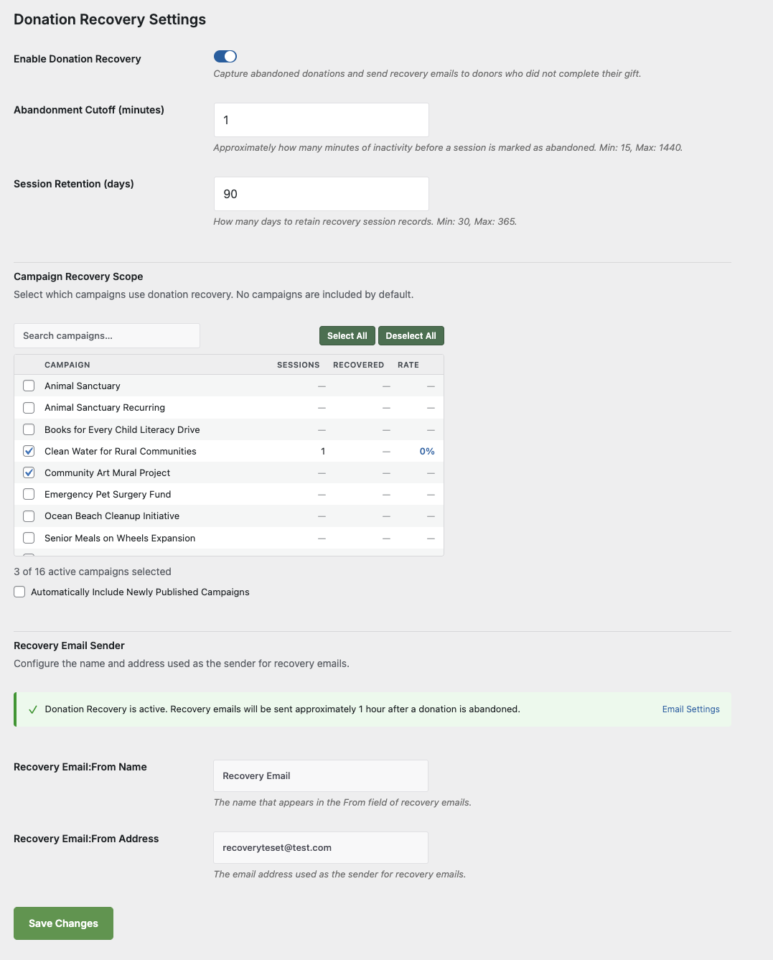
Enabling the feature here doesn’t start tracking anything yet. You still need to choose which campaigns participate, covered next.
Choosing Which Campaigns to Track
No campaigns are tracked by default, even after you enable Donation Recovery. You choose exactly which ones participate under “Campaign Recovery Scope,” on the same settings page.
The list shows every published campaign along with its all-time tracked sessions, recovered donations, and recovery rate, so you can see how a campaign is doing before you decide whether to add it. A search box and˘buttons help if you run a lot of campaigns.
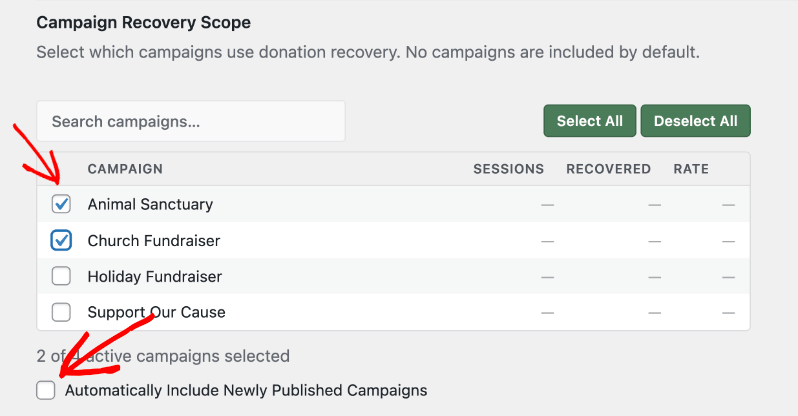
- Find the campaign or campaigns you want under “Campaign Recovery Scope.”
- Check the box next to each one.
- Optional: check “Include new campaigns automatically” if you want every future campaign covered without coming back to this page.
- Click “Save Settings.”
Important Note: Charitable Ambassadors peer-to-peer campaigns are not supported and won’t appear in this list.
Next, you’ll see a Recovery Email Sender section with a notice “Donation Recovery email is currently disabled. Enable it above to begin capturing abandoned donations and sending recovery emails.”
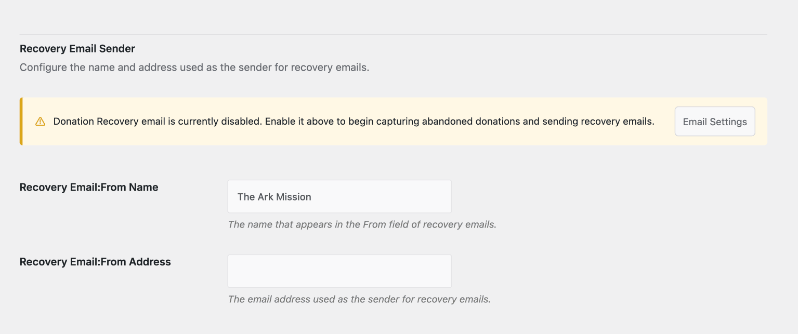
In the next section, we’ll explore how to set that up.
Setting Up the Recovery Email
Enabling Donation Recovery turns on tracking and abandonment detection, but the recovery email has its own switch. Charitable ships with a default recovery email template that’s ready to use immediately, or you can customize it to match your organization’s voice.
Turn On the Recovery Email
- Go to Charitable » Settings » Emails.
- Find the email named “Donor: Donation Recovery.”
- Click “Enable Email.”
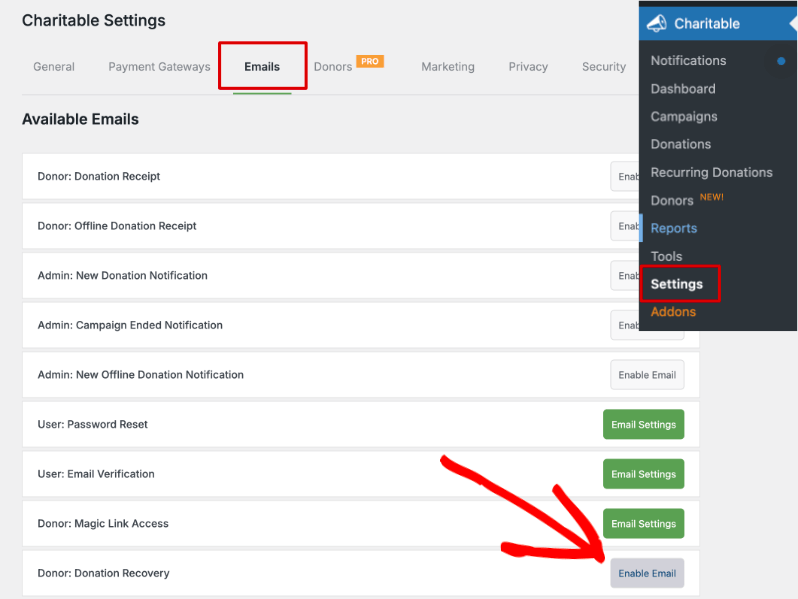
A green button to access the email’s settings appears once it’s enabled.
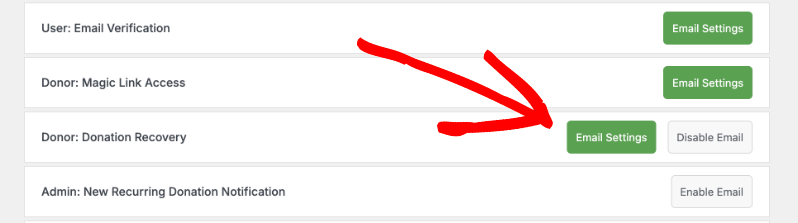
Customize the Email
Click into the email’s settings to edit the subject line, sender, and body. You can use shortcodes to automatically pull in the campaign name, your website title, and your website URL.
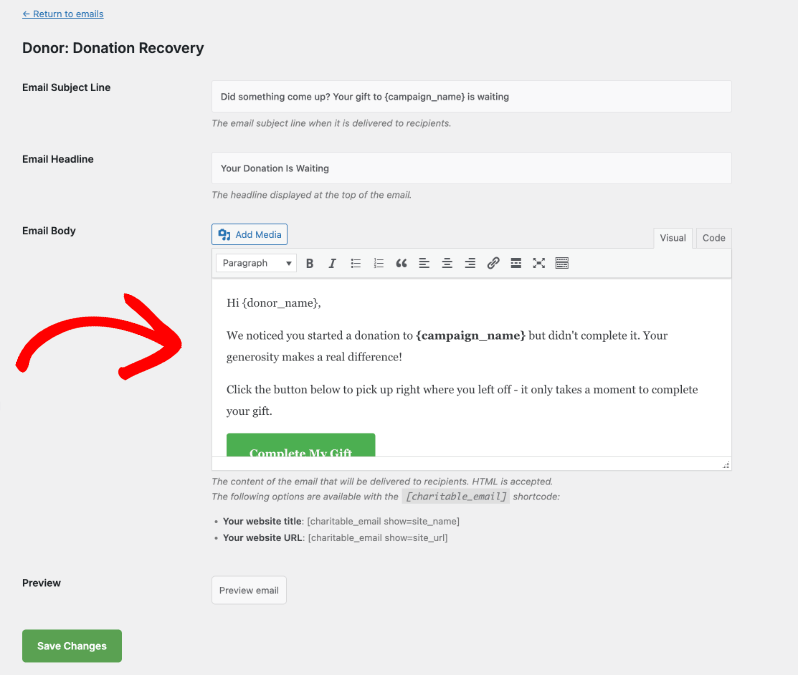
Click “Save Changes” at the bottom of the page.
Back on the Donation Recovery settings page, you’ll see the email is now active, along with fields to set the From Name and From Address.
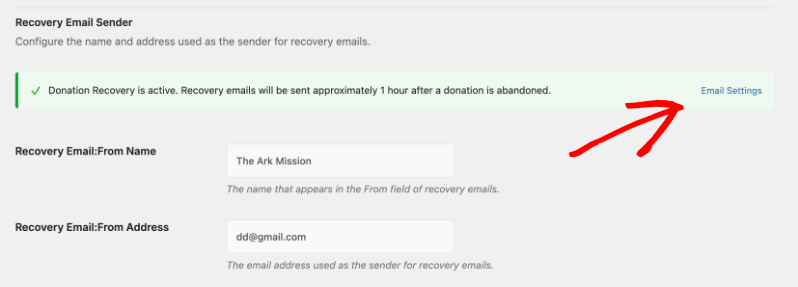
Make sure you save your changes on this page too.
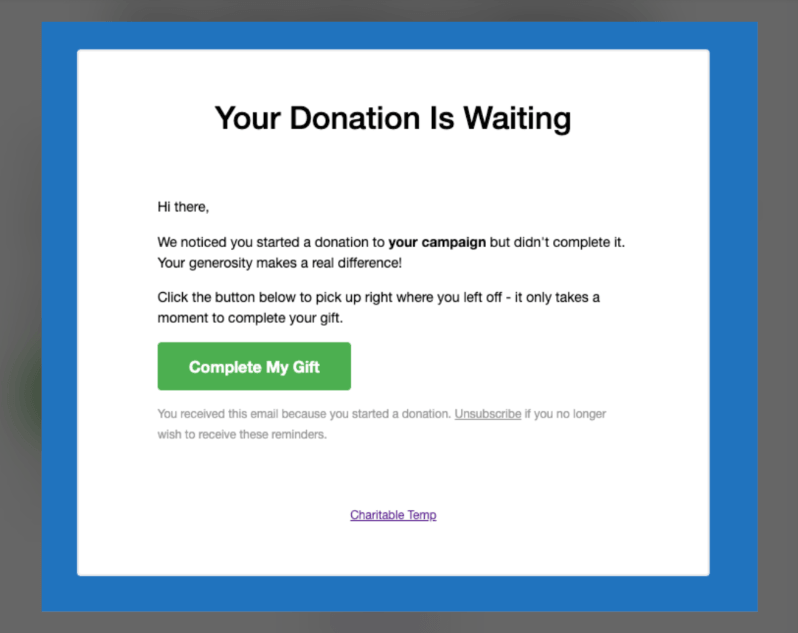
What Donors See
Here’s a sample of what lands in a donor’s inbox.
Adjusting the Advanced Settings
The default settings work well for most organizations, but a few options are worth knowing about, all on the same “Donation Recovery” sub-tab.
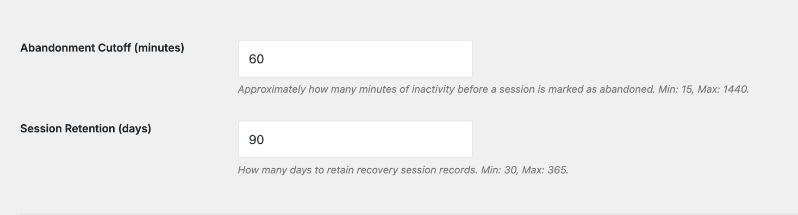
- Abandonment Cutoff – How many minutes of inactivity before a session counts as abandoned. Defaults to 60 minutes. You can set it anywhere from 15 minutes to 1,440 minutes (24 hours).
- Session Retention – How many days a session record is kept before it’s automatically cleaned up. Defaults to 90 days, and you can set it anywhere from 30 to 365 days.
Pro tip: Running a time-sensitive campaign, like a Giving Tuesday push? Lower the Abandonment Cutoff so recovery emails go out sooner, while the donor’s intent is still fresh.
Testing the Recovery Flow
Before trusting the system to run automatically for real donors, test it once.
- Use a secondary email address or a test account.
- Visit one of your recovery-enabled campaign pages and fill in the donation form: name, email, and an amount.
- Close the tab or navigate away without completing the payment.
- Wait for the recovery email to arrive. It can take up to an hour, depending on when the background process runs.
- Click “Complete My Gift” in the email and confirm the form opens pre-filled with exactly what you entered.
This one test confirms the full recovery flow is working before it handles real donors.
How Donation Recovery Tracks Donor Sessions
Here’s what happens behind the scenes, from the moment a donor starts typing to the moment they return.
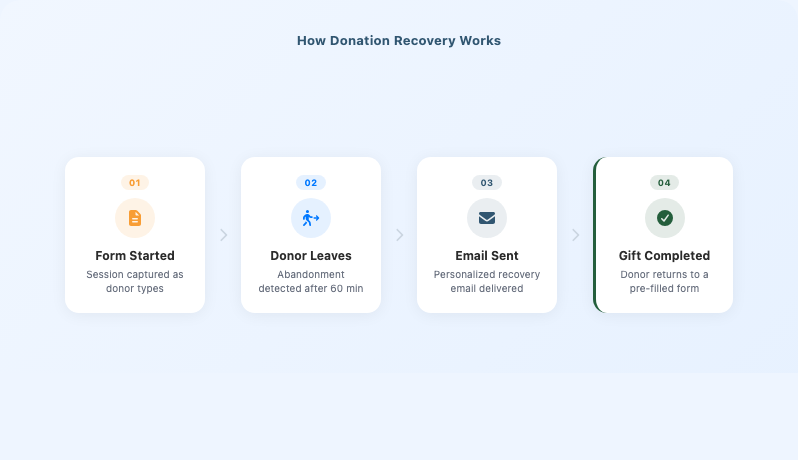
When a donor visits a donation form on a recovery-enabled campaign, a lightweight JavaScript tracker loads in the background and listens for changes to the email, first name, last name, and amount fields.
When the donor enters a valid email address, the tracker sends the captured data to a REST API endpoint. No data is stored until a valid email address is present.
The tracker captures:
- Email address
- First name and last name, if entered
- Donation amount
- Donation period, one-time or recurring, if applicable
- Source URL, the page the donor was on when they filled out the form
The tracker runs on both legacy donation forms and Visual Form Builder (VFB) forms.
Note: The tracker is a JavaScript file that loads on donation form pages. If another plugin or your theme produces a JavaScript error on the same page, it may prevent the tracker from initializing, which means no sessions get captured even when donors fill out the form. See the Troubleshooting section below if you notice this.
What Happens When a Donor Abandons a Form
Once a campaign is in scope, here’s the flow from start to finish.
- A donor opens the donation form and starts typing their email, name, and amount.
- If they leave before submitting and the form sits inactive past your Abandonment Cutoff, Charitable marks the session abandoned.
- About an hour later, Charitable sends a recovery email automatically. No action needed from you.
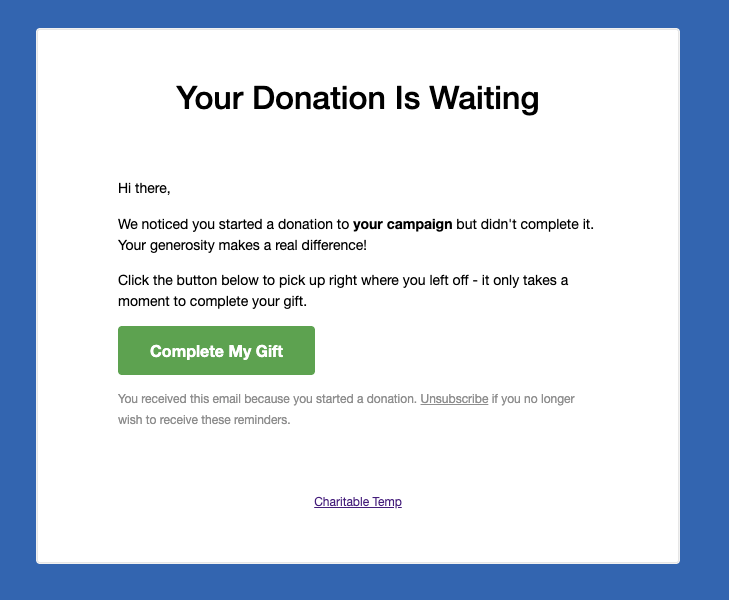
- The donor clicks the “Complete My Gift” button in the email.
- They land back on the exact page where they started, with their email, name, and donation amount already filled in. If they had selected a preset amount, that option is already selected too.
- They confirm their payment details and submit. That’s the whole return trip.
Pre-fill runs as soon as the page loads, and again briefly after, to support forms that render dynamically. It never overwrites a field the donor has already typed into.
About WP-Cron
Abandonment detection and recovery emails both run through a WordPress background process called WP-Cron. A scheduled job checks for sessions that have passed your Abandonment Cutoff approximately every 5 minutes.
WP-Cron only fires when someone visits your site, so it can behave unpredictably in a few situations:
- Low-traffic sites – If your site gets very few visitors, scheduled tasks can fire later than expected. A recovery email scheduled for 1 hour after abandonment might not actually send until the next visitor loads a page.
- DISABLE_WP_CRON set to true – Some hosts and performance plugins disable WP-Cron in wp-config.php to reduce page load overhead. Without a real server cron to replace it, abandonment detection and email sending stop entirely.
- Plugin conflicts – Some plugins clear scheduled events on activation or deactivation, or block new events from registering. If this happens, the abandonment detection job can disappear from the schedule without warning.
- Shared hosting resource limits – On heavily loaded shared hosting, PHP execution can be cut off before a cron job finishes processing a large batch of sessions.
Important Note: If recovery emails are delayed or not sending at all, WP-Cron is the first thing to check. See the Troubleshooting section below.
Recovery Email Security
Every recovery link uses a signed token so it can’t be tampered with or reused.
- Links are signed with an HMAC SHA-256 token.
- Each token is bound to the specific session, the email, and an expiry timestamp, so it can’t be reused across different sessions.
- Tokens expire after 7 days. After that, clicking the link sends the donor to your site’s homepage instead of their donation form.
A recovery email isn’t sent at all if any of the following are true:
- The donor’s email address is on the unsubscribe list.
- The campaign has ended before the email is scheduled to go out.
- A recovery email has already been sent for that session.
- The session has already been marked recovered, unsubscribed, or expired.
How Unsubscribing Works
Every recovery email includes a one-click unsubscribe link in the footer. When a donor clicks it, Charitable adds their email address to a suppression list automatically. They won’t receive another recovery email from your site, and you don’t have to manage the list yourself.
Reading Your Recovery Reports
Once Donation Recovery has been running for a bit, head to Charitable » Reports » Donation Recovery to see how it’s performing.
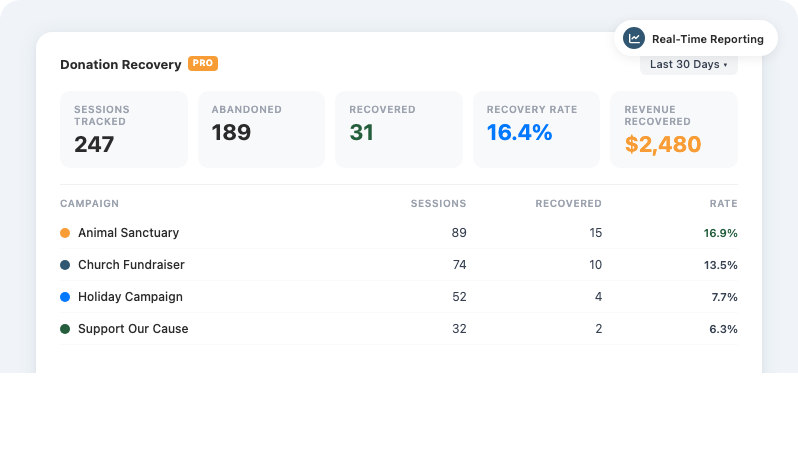
At the top of the page, 5 stats tiles give you a quick summary:
- Total Tracked – Sessions where an email address was captured.
- Abandoned – Sessions that passed the Abandonment Cutoff.
- Recovered – Donors who came back and completed their gift.
- Recovery Rate – Recovered donations as a percentage of abandoned sessions.
- Recovered Revenue – Total dollar value of recovered donations.
Use the date range filter above the tiles to narrow everything to the last 7 days, last 30 days, last 90 days, or a custom range you set yourself.
Below the tiles, the sessions table lists individual donors along with a status badge:
- Tracking – The session is still active. The donor may still be on the form.
- Abandoned – The session passed the cutoff without a completed donation.
- Recovered – The donor came back and completed their gift.
- Unsubscribed – The donor clicked the unsubscribe link.
- Expired – The session was cleaned up by your Session Retention setting.
Click “Download CSV” above the table to export every session for the selected date range, with no row limit. The export includes first name, last name, email, campaign, amount, currency, status, number of emails sent, donation ID, and both the created and modified dates.
Below the sessions table, a per-campaign breakdown shows the same numbers split out by campaign, so you can see which campaigns are recovering the most donations.
A short recovery summary also shows up on the main Reports Overview tab, right below your Total Donations tile, so recovered revenue is always visible alongside the rest of your numbers.
Customizing the Recovery Email Template
The default recovery email works out of the box, but you can override its HTML template in your theme for full control over layout, colors, and copy.
Copy the original template file:
wp-content/plugins/charitable-recovery/templates/emails/recovery-immediate.phpThen create a matching file in your theme at:
your-theme/charitable/emails/recovery-immediate.phpEdit the copy in your theme. Charitable uses your version instead of the default. The following variables are available inside the template:
| Variable | Description |
|---|---|
$session | The session object: email, first name, last name, amount, campaign ID, and other captured fields. |
$recovery_url | The signed recovery URL used for the “Complete My Gift” button. |
$unsub_url | The one-click unsubscribe URL. |
Developer Resources
If you’re comfortable with code, these hooks and endpoints give you more control over how Donation Recovery behaves.
Hooks and Filters
charitable_recovery_detect_abandoned– WP-Cron action hook. Fires approximately every 5 minutes to detect abandoned sessions. Hook into this to run additional logic after abandonment detection.charitable_recovery_send_email– WP-Cron action hook. Fires once per scheduled recovery email, and receives the email row ID as its first argument.
REST Endpoint
The JavaScript tracker submits captured data to:
POST /wp-json/charitable-recovery/v1/captureThis endpoint requires a valid X-WP-Nonce header, accepts application/json, and is rate-limited to 20 requests per minute per IP address.
Settings API
Recovery settings are stored under the charitable_settings option, in the general__recovery group. Access them with:
charitable_get_option( array( 'general__recovery', 'recovery_enabled' ), 1 );
charitable_get_option( array( 'general__recovery', 'abandonment_cutoff' ), 60 );
charitable_get_option( array( 'general__recovery', 'session_retention_days' ), 90 );
charitable_get_option( array( 'general__recovery', 'recovery_sender_name' ), get_bloginfo( 'name' ) );
charitable_get_option( array( 'general__recovery', 'recovery_sender_email' ), get_option( 'admin_email' ) );
charitable_get_option( array( 'general__recovery', 'recovery_campaign_ids' ), array() );
charitable_get_option( array( 'general__recovery', 'recovery_include_new_campaigns' ), 0 );
Troubleshooting
Recovery Emails Are Not Being Sent
The most common cause is a WP-Cron problem. Work through these checks in order.
- Confirm WP-Cron is not disabled. Open
wp-config.phpand check whetherDISABLE_WP_CRONis defined. If it’s set totrue, WP-Cron won’t fire at all unless you have a real server cron job set up to trigger it. Contact your host if you’re unsure how to configure one. - Check for a conflicting plugin. Some caching, performance, and security plugins interact with WP-Cron in ways that clear or block scheduled events. If emails stopped after you activated or deactivated another plugin, that plugin is a likely suspect. Try deactivating it temporarily and check whether recovery events reappear.
- Inspect the scheduled events directly. Install the free WP Crontrol plugin from WordPress.org, then go to Tools » Cron Events and look for
charitable_recovery_detect_abandoned. If it’s missing, save the Donation Recovery settings page once to re-register it. If it keeps disappearing, a conflicting plugin is likely removing it. - Confirm campaign scope and unsubscribe status. Verify the affected campaign is selected under Campaign Recovery Scope, and that the donor’s email address isn’t on the suppression list.
- Contact your host. If WP-Cron appears to be running but emails still don’t arrive, your host may be blocking outbound email from PHP’s
mail()function. Ask whether they require an SMTP plugin for reliable delivery.
If you’ve worked through all of the above and emails are still not sending, contact Charitable support with a description of what you found in WP Crontrol.
The Donation Form Is Not Pre-Filling on Return
The source URL recorded when the donor originally filled out the form is used for the redirect. If the form was on a page whose URL has since changed, the redirect target may no longer match. Check that the campaign is using the correct permalink, and that the tracker loaded on the original form page.
A Donor Keeps Receiving Emails After Unsubscribing
The suppression list is stored in the WordPress options table as charitable_recovery_unsubscribed_emails. Confirm the entry is present. The comparison is case-insensitive, but the email must be stored without leading or trailing spaces.
No Sessions Are Being Tracked
If the Reports tab shows no tracked sessions despite donors visiting your donation form pages, the JavaScript tracker likely isn’t running. The most common causes are:
- A JavaScript error from another plugin or your theme. An uncaught error in a script that loads before the tracker can block all subsequent JavaScript on the page. Open your browser’s developer console on a donation form page and look for red error messages. If you see one referencing another plugin or your theme, deactivate it to confirm.
- A JavaScript minification or concatenation plugin. Caching and optimization plugins like Autoptimize, W3 Total Cache, or WP Rocket combine and minify JavaScript files, which can occasionally introduce load-order problems. Try disabling JavaScript optimization temporarily and test again.
- A Content Security Policy (CSP) header blocking the REST API call. Some security plugins add strict CSP headers that prevent JavaScript from calling your own site’s REST API. Check the browser console for CSP-related errors.
To isolate the issue, temporarily switch to a default WordPress theme and deactivate all plugins except Charitable. If sessions start appearing, reactivate your other plugins one at a time to find the conflict.
If you can’t resolve the conflict on your own, contact Charitable support with the name of the conflicting plugin and any console error messages you found.
Stats Show Zero Recovered Revenue
Recovered revenue is summed from the amount captured before a donor abandoned their session. If a donor chose their donation amount after clicking the recovery link, rather than having it captured before they left, the session record’s amount may be empty or zero. This reflects the intent captured before abandonment, not necessarily the final donation amount.
Not Yet on the Pro or Elite Plan?
Donation Recovery is available on the Pro and Elite plans of Charitable’s paid plugin, starting with version 1.8.13.5. If you’re on Charitable Lite or a lower paid tier, upgrading unlocks Donation Recovery along with the rest of the Pro and Elite features. Upgrade to Pro or Elite »
That’s it! You now know how to turn on, configure, and monitor Donation Recovery, understand how it works under the hood, and troubleshoot it if something goes wrong.
FAQs on Donation Recovery
Will Donation Recovery slow down my donation forms?
No. The tracker that captures donor details runs quietly in the background. It never blocks a form from loading or submitting, and if it can’t reach the server for any reason, it fails silently so the donor’s experience isn’t affected.
Do I have to select every campaign?
No. No campaigns are tracked by default, and there’s no requirement to include all of them. Choose only the campaigns where recovery makes sense for you under “Campaign Recovery Scope.”
How long does a donor have to click the recovery link?
7 days. After that, the link expires, and clicking it sends the donor to your site’s homepage instead of their donation form.
What happens after a donor unsubscribes?
Their email address is added to a suppression list automatically, and no further recovery emails are sent to that address. You don’t need to manage the list manually.
Does Donation Recovery work with Charitable Ambassadors peer-to-peer campaigns?
Not currently. Peer-to-peer campaigns run through Charitable Ambassadors are excluded from the Campaign Recovery Scope list.
Do donors need to be logged in for recovery to work?
No. Recovery is entirely email-based. As long as a donor enters a valid email address before abandoning the form, a session is captured and a recovery email can be sent.
Can I customize the recovery email?
Yes. Use the built-in subject, sender, and body fields under Charitable » Settings » Emails for most changes, or override the full HTML template in your theme for complete control over layout and design. See Customizing the Recovery Email Template above.
What happens if WP-Cron stops working on my site?
New sessions still get captured, since that part doesn’t rely on cron, but abandonment detection and email sending stop until cron is restored. Any sessions that were pending are processed in the next successful cron run. Install WP Crontrol from WordPress.org to check whether your scheduled events are running.
Can a plugin conflict break Donation Recovery?
Yes, in two ways. A plugin that interferes with WP-Cron can stop abandonment detection and email sending. A plugin or theme that throws a JavaScript error on your donation form page can stop the tracker from initializing, which means no sessions get captured at all. See the Troubleshooting section above for how to isolate either issue.
What if my recovery emails aren’t sending?
This is almost always a WP-Cron issue, most common on low-traffic sites. Confirm you’re on the latest version of the Pro plugin, that the campaign is selected under Campaign Recovery Scope, and that the donor’s email isn’t on your suppression list. See Recovery Emails Are Not Being Sent above for the full troubleshooting checklist.
More Documentation
- How to Use the Donor Management System
- Setting Up Payment Gateways
- Charitable Reports Documentation
- Charitable Email Settings Documentation
- WP Crontrol, a free cron inspection plugin on WordPress.org
- Charitable Support



