
Requires: Charitable Pro 1.8.16+
Charitable Ambassadors 3.0.0+
Every ambassador fundraiser on your site has its own public page – the one their donors land on when they click the share link. The Fundraiser Page sub-tab is where you decide how that page is built: which layout variant it uses, whether the share popover is on, where the donor wall sits, whether comments are enabled, what happens when the ambassador forgets to upload a hero image.
The settings are arranged in a two-column view: controls on the left, a live SVG preview of the resulting page on the right. The preview updates as you toggle settings – so before you ever look at a real fundraiser, you can see the shape of the page you’re configuring.
When you’d use it
- Picking your visual style – switch from the default Classic layout to Story-Forward, Magazine, or any of the eight variants.
- Tightening the chrome – hide theme-injected post navigation, comments, and author bylines so the fundraiser page looks the way you designed it, not the way your theme wraps it.
- Branding – your primary accent color (set under Charitable > Settings > Advanced > Theme Primary Color) flows through to every fundraiser page’s call-to-action button, progress bar, and hover state.
- Tweaking placement – move the donor wall to the top, hide it entirely, or leave it at the bottom of the page.
Where to Find The Fundraiser Page Settings
In your WordPress admin, go to Charitable » Ambassadors » Templates » Fundraiser Page.
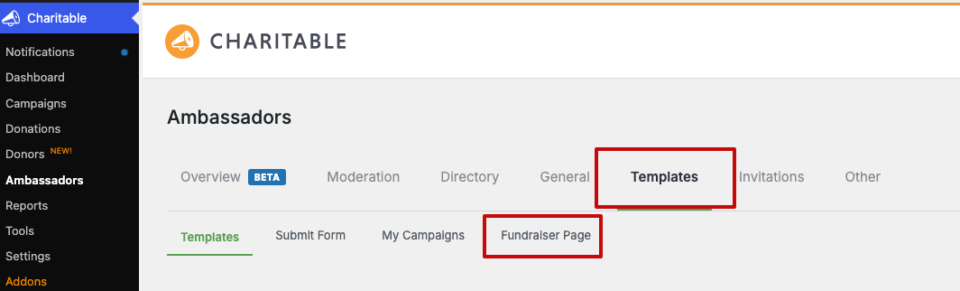
Customizing the Fundraiser Page
In the Fundraiser Page Settings, you can do the following:
- Show Parent Breadcrumb: This shows which parent campaign this page is part of. It will show up only if the page has a parent campaign.
- Show Share Popover: This shows the popup on the fundraiser page for donors to easily share it. You can choose which social platforms are displayed here under the Misc tab.
- Show Comments Section: Shows a comment section below the fundraiser story.
- Show QR Code on Fundraiser Page: Displays a QR code that links to this fundraiser.
- Donor Wall Position: Choose where the donor wall appears that displays recent donors.
- Hero Image Fallback: If an ambassador has not uploaded a feature image, you can choose to dife the hero section, or use the parent campaign’s feature image.
- Clean Them Chrome: This overrides your active theme’s style only on ambassador fundraiser pages. So these pages will look the way you designed it.
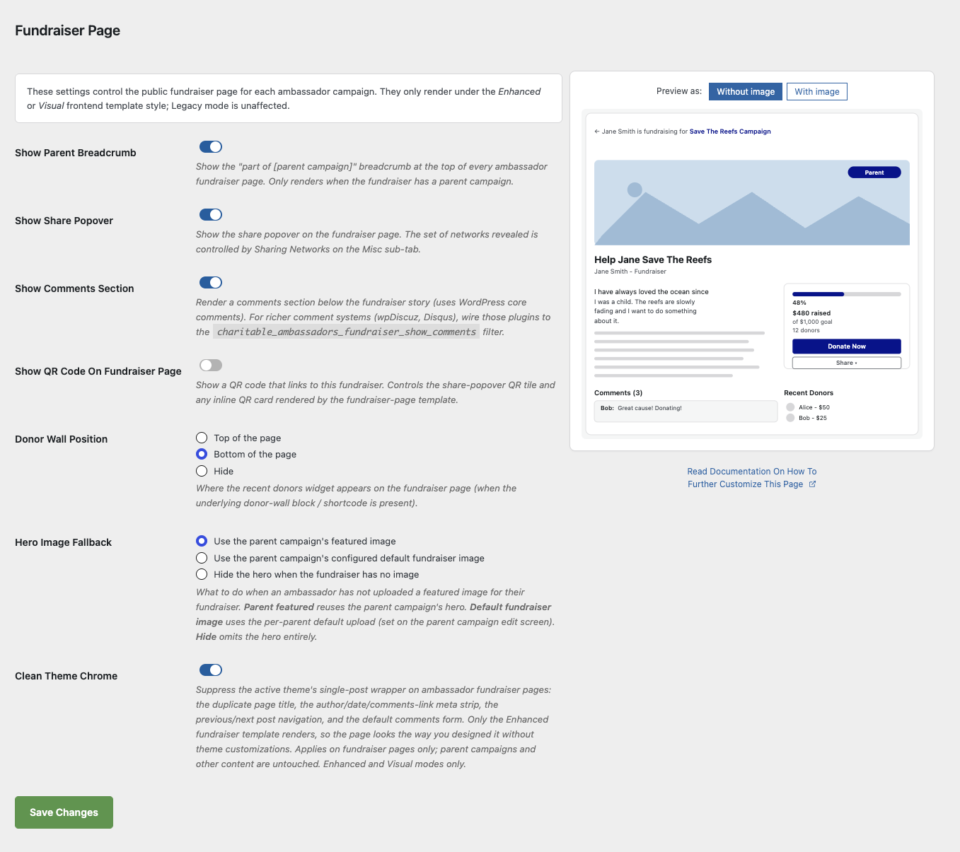
Make sure to save your changes before leaving this page.
Picking a layout variant
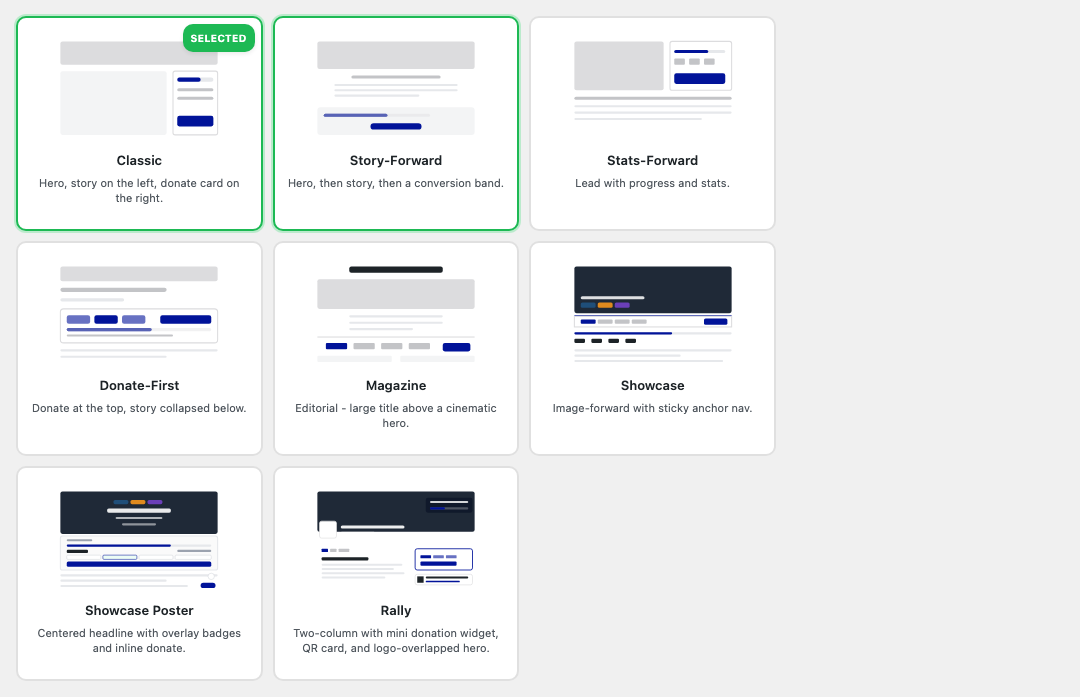
Eight layout variants ship with Ambassadors 3.0. Each one rearranges the same building blocks (hero, story, donate card, donor wall, share popover) into a different shape.
Under Charitable » Templates tab, you can choose from these 8 layouts. These dictate how the fundraiser page looks/styles on the frontend.
| Variant | What it looks like |
|---|---|
| Classic | Hero, story on the left, donate card on the right. The safe default. |
| Story-Forward | Hero, then story, then a conversion band. Best for emotional causes. |
| Stats-Forward | Lead with progress and stats. Best for race-day and event fundraisers. |
| Donate-First | Donate card at the top, story collapsed below. Best for low-friction one-time fundraisers. |
| Magazine | Editorial – large title above a cinematic hero. Best for branded organizations. |
| Showcase | Image-forward with sticky anchor nav. Best when you have great hero photography. |
| Showcase Poster | Centered headline with overlay badges and inline donate. Best for high-energy event fundraisers. |
| Rally | Two-column with mini donation widget, QR card, and logo-overlapped hero. Best for sponsored or branded events. (Requires Charitable Pro 1.8.13.1+ for the mini donation widget.) |
Each card has a small illustration that previews the variant’s shape. Click a card to select it; the preview pane on the right updates immediately to show what your fundraiser page would look like with that variant + your chosen accent color.
For a deep dive on each variant – when to pick it, what to expect on mobile, theme considerations – see Layout Variants.
The Custom slot
If a theme overrides the Enhanced fundraiser template via the standard override path (your-theme/charitable-pro/charitable-ambassadors/fundraiser-page-enhanced.php), a ninth card titled Custom appears in the chooser, labeled “Currently rendering”:
The Custom card is informational – your theme override wins, regardless of which built-in variant is selected. The selected built-in variant stays selected so it resumes if/when you remove the override. Remove the override file and the next page load reverts to the chosen variant.
The other settings
Below the layout chooser, the settings sub-tab has a stack of toggles and radios:
| Setting | Default | Effect |
|---|---|---|
| Show Parent Breadcrumb | On | Renders the “part of [parent campaign]” link at the top of fundraiser pages. Hides automatically when there’s no parent. |
| Show Share Popover | On | The share popover (the networks come from Sharing Networks). |
| Show Comments Section | Off | WP core comments. Wire wpDiscuz, Disqus, etc. via charitable_ambassadors_fundraiser_show_comments. |
| Show QR Code On Fundraiser Page | On (fresh installs) | Master switch for QR on the fundraiser page. |
| Show QR Tile In Share Popover | On | Adds a QR tile to the share popover, alongside Facebook / X / LinkedIn / Email. Requires the QR master above. |
| Donor Wall Position | Bottom | Top, Bottom, or Hide. |
| Hero Image Fallback | Parent featured | What to do when the ambassador didn’t upload an image: use parent’s featured, use parent’s configured default, or hide hero. |
| Clean Theme Chrome | On | Suppresses the active theme’s single-post wrapper: duplicate page title, author/date strip, prev/next nav, default comments form. Enhanced and Visual modes only. |
The live preview
The right column shows an SVG mockup of what a fundraiser will look like with your current settings:
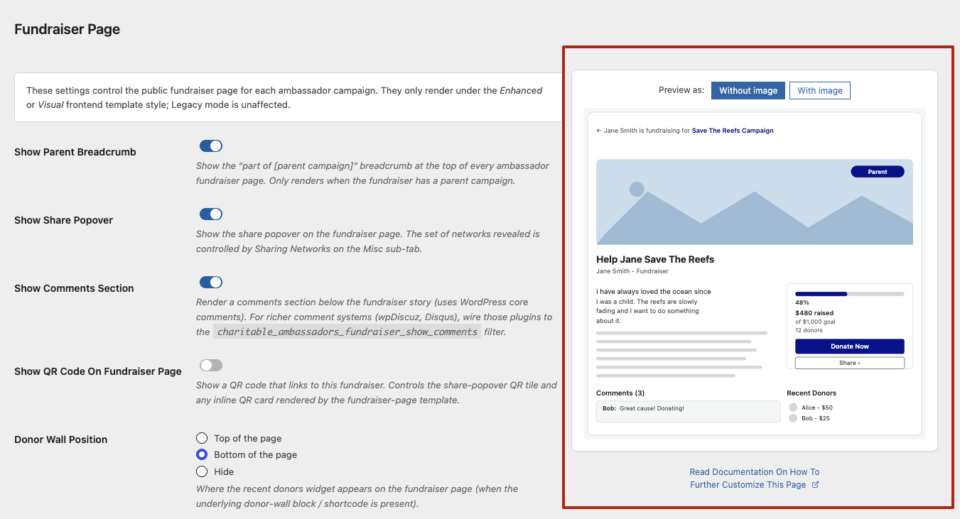
The preview is variant-aware: pick Story-Forward and the preview re-renders to show the story flow. The accent color is taken from Charitable » Settings » Advanced » Theme Primary Color so the preview matches what your site actually renders.
A status sentence above the preview narrates the active state (“Magazine layout, accent #1db954, hero visible, share popover on”). The sentence is screen-reader-accessible.
What happens on a real fundraiser page
Once you’ve configured the sub-tab, every fundraiser on your site renders with these choices. Two layers can override per-fundraiser:
- Visual mode template – when a peer-to-peer template campaign is configured, the template’s
campaign_settings_v2is cloned to the fundraiser at read-time. See Visual Template Mode for the full flow. - Theme overrides – your theme can replace the entire template via
your-theme/charitable-pro/charitable-ambassadors/fundraiser-page-enhanced.php. The Custom slot in the chooser indicates this is in effect.
If neither override is in play, the variant + toggles you picked here are what renders.
Tips
- Match the variant to the cause. Emotional causes (memorials, hardship funds) suit Story-Forward. Event-style (marathons, galas) suit Stats-Forward or Showcase Poster.
- Try Donate-First on mobile-heavy campaigns. When most of your traffic is from a shared text message, the donate card needs to be the first thing on screen.
- Use Clean Theme Chrome liberally. Themes vary wildly in how they wrap singular posts; the suppression cleans up 95% of layout collisions automatically.
- Don’t enable Comments unless you’ve got moderation handled. Fundraiser pages get linked-to publicly; spam comments find them.
Developer reference
The rest of this page is for developers customizing the Fundraiser Page.
Settings storage
charitable_settings > ambassadors > ambassadors_enhanced_layout_variant   # 'classic' (default) | 'story-forward' | 'stats-forward' | 'donate-first' | 'magazine' | 'showcase' | 'showcase-poster' | 'rally'
charitable_settings > ambassadors > fundraiser_show_breadcrumb            # bool
charitable_settings > ambassadors > fundraiser_show_share                 # bool
charitable_settings > ambassadors > fundraiser_show_comments              # bool
charitable_settings > ambassadors > qr_codes_show_on_fundraiser_page      # bool
charitable_settings > ambassadors > qr_codes_show_on_share_popover        # bool
charitable_settings > ambassadors > fundraiser_donor_wall_position        # 'top' | 'bottom' | 'off'
charitable_settings > ambassadors > fundraiser_hero_image_fallback        # 'parent_featured' | 'ambassadors_default' | 'hide'
charitable_settings > ambassadors > fundraiser_clean_chrome               # bool
Variant slug -> body class
Each variant adds a body class to the front-end fundraiser page:
charitable-ambassadors-layout-classic
charitable-ambassadors-layout-story-forward
charitable-ambassadors-layout-stats-forward
charitable-ambassadors-layout-donate-first
charitable-ambassadors-layout-magazine
charitable-ambassadors-layout-showcase
charitable-ambassadors-layout-showcase-poster
charitable-ambassadors-layout-rally
Use the class for targeted CSS without forking templates.
Template
templates/campaign/fundraiser-page-enhanced.php # default Enhanced + Visual template
Theme override path: your-theme/charitable-pro/charitable-ambassadors/fundraiser-page-enhanced.php. Once the override file exists, the Custom slot appears in the admin chooser.
Per-variant template files live in templates/campaign/fundraiser-page-layouts/<slug>.php. The dispatcher in the parent template picks the right one based on ambassadors_enhanced_layout_variant.
Filters
| Filter | Default | Purpose |
|---|---|---|
charitable_ambassadors_enhanced_layout_variant | setting value | Override the active layout variant at render time. |
charitable_ambassadors_fundraiser_show_breadcrumb | setting value | Force breadcrumb on/off. |
charitable_ambassadors_fundraiser_show_share | setting value | Force share popover on/off. |
charitable_ambassadors_fundraiser_show_comments | setting value | Force comments on/off. Wire wpDiscuz / Disqus here. |
charitable_ambassadors_fundraiser_donor_wall_position | setting value | Force donor-wall position. |
charitable_ambassadors_fundraiser_hero_image_fallback | setting value | Force hero-fallback behavior. |
charitable_ambassadors_fundraiser_clean_chrome | setting value | Force clean-chrome on/off. |
charitable_ambassadors_fundraiser_page_docs_url | this page | Override the docs URL the sub-tab links to. |
charitable_ambassadors_render_<atom>_args | per-atom args | Per-variant customer-side control of individual atoms (hero, donate card, share, donor wall). |
Actions
| Action | Args | Fires when |
|---|---|---|
charitable_ambassadors_fundraiser_page_before_hero | $campaign_id | Just before the hero atom renders. |
charitable_ambassadors_fundraiser_page_after_hero | $campaign_id | Just after the hero. |
charitable_ambassadors_fundraiser_page_before_story | $campaign_id | Just before the story column. |
charitable_ambassadors_fundraiser_page_after_story | $campaign_id | Just after the story column. |
(Each variant also fires its own variant-scoped actions; see the variant template file for the exact list.)
Rally Pro-version gate
The Rally variant requires Charitable Pro 1.8.13.1+ for the Mini Donation Widget. The chooser hides the Rally card on older Pro versions. The gate is implemented by charitable_ambassadors_rally_is_available().
Custom slot detection
A theme override is detected by charitable_ambassadors_fundraiser_template_is_theme_overridden(). When true:
- The Custom card appears in the chooser.
- The card is labeled “Currently rendering” instead of “Selected.”
- All built-in cards become
is-overriddenso it’s clear they aren’t active.
Remove the override file and the next page load reverts to the chosen built-in.
Capabilities
Settings access: manage_charitable_settings. Front-end rendering has no capability gate.
Customization examples
Force the donate-first variant for all logged-out users (e.g. for a mobile-only A/B test):
add_filter( 'charitable_ambassadors_enhanced_layout_variant', function ( $variant ) {
    if ( ! is_user_logged_in() && wp_is_mobile() ) {
        return 'donate-first';
    }
    return $variant;
} );
Use wpDiscuz instead of WP core comments:
add_filter( 'charitable_ambassadors_fundraiser_show_comments', '__return_true' );
add_action( 'charitable_ambassadors_fundraiser_page_after_story', function ( $campaign_id ) {
    if ( function_exists( 'wpdiscuz' ) ) {
        echo do_shortcode( '[wpdiscuz_comments]' );
    }
} );
Always use the parent’s featured image when an ambassador hasn’t uploaded one:
add_filter( 'charitable_ambassadors_fundraiser_hero_image_fallback', function () {
    return 'parent_featured';
} );
Inject a sponsor logo strip just below every hero:
add_action( 'charitable_ambassadors_fundraiser_page_after_hero', function ( $campaign_id ) {
    echo '<div class="sponsor-strip">' . do_shortcode( '[sponsors]' ) . '</div>';
} );
Hide the share popover only on rejected fundraisers’ preview pages:
add_filter( 'charitable_ambassadors_fundraiser_show_share', function ( $show ) {
    if ( is_singular( 'campaign' ) && 'charitable-rejected' === get_post_status() ) {
        return false;
    }
    return $show;
} );
Related
- Layout Variants – deep dive on each of the 8 variants.
- Theming – accent color,
--cap-accent, theme override chain. - Visual Template Mode – cloning a template campaign’s builder to every fundraiser.
- Sharing Networks – which networks the share popover shows.
- QR Codes – per-surface QR rendering.
- Hooks & filters in Ambassadors – full reference.
Helpful Links
🤝 Get help when you need it
Connect with Customer Support →
📑 Find the guide you need
Browse the Documentation Hub →
⬇️ Download proven strategies, campaign ideas, and expert tools
🔗 Let your AI Assistant do the fundraising work for you.
Connect Charitable to your AI assistant →
💸 Get Free Fundraising Resources
Head to the Charitable Fundraising Hub →
🤔 Got questions about Charitable?
Charitable FAQs →
Need help understanding non-profit terms and jargon?
See our Non-Profit Glossary →





