Building a custom donation page or a campaign showcase often requires complex coding or third-party tools that don’t fit your site’s design.
Charitable solves this with native integration for Divi, offering four purpose-built modules that let you drag and drop fundraising elements directly into your layouts.
With these widgets, you can add a simple donate button or build a full-featured campaign landing page.
In this guide, we will show you how to use the Charitable Divi modules to customize your fundraising website without any coding knowledge.
Note: The Divi modules are a premium feature available in Charitable Pro.
Don’t have Charitable yet? You’ll need to install it first. The Divi widgets feature is available in the Charitable Pro plugin.
Not yet a Charitable Pro user? Sign up today and get up to 50% off on your plan. We’re confident you’ll love raising funds with Charitable. If, for any reason, Charitable is not the right fit for you, we’ll refund your purchase with our 14-day money-back guarantee. Get Charitable Pro Now »
Table of Contents
Prerequisites
Before you can start using Charitable’s Divi modules, there are a few things you need to have in place to ensure everything works correctly.
- Divi theme or Divi Builder plugin installed and active
- Charitable (free) or Charitable Pro installed and active
- At least one campaign created in Charitable
Finding the Charitable Modules
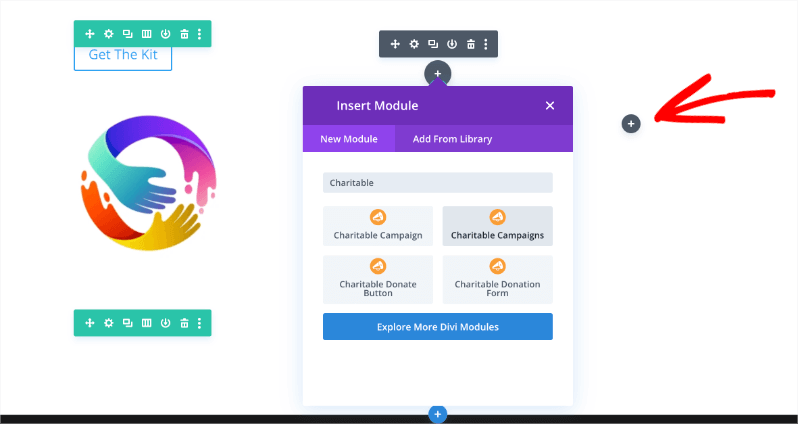
Charitable modules are grouped in their own specific category inside the Divi builder, making them very easy to access.
First, open any page or post where you want to add fundraising elements using the Divi Visual Builder.
- Click the gray plus icon to add a new module
- Look for the Charitable category in the module selector
- All four Charitable modules will be listed there
- Charitable Campaign: Displays a single campaign.
- Charitable Campaigns: Displays a grid or list of multiple campaigns.
- Charitable Donation Form: Embeds a donation form.
- Charitable Donate Button: Adds a call-to-action button.
Now, let’s look at how to use each of these modules effectively.
Charitable Campaign Module
The Campaign module is designed to display a single, specific campaign on your page. It automatically pulls in key details such as the campaign title, description, the progress bar, and current donation statistics.
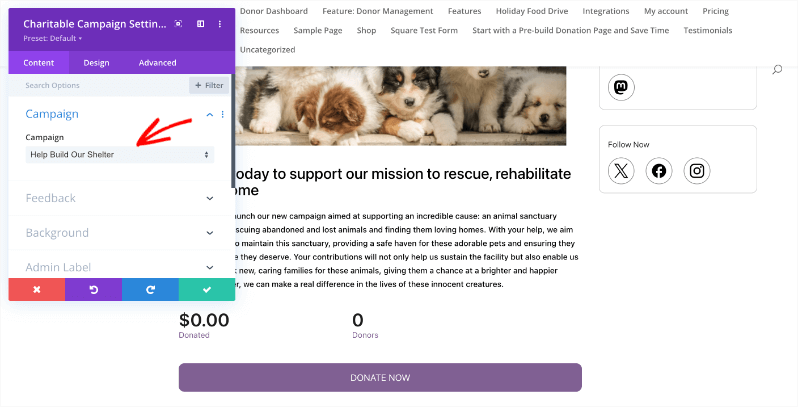
When to Use This Module
- Feature a specific campaign: If you have a major fundraiser running, you can place this module on your homepage to give it maximum visibility.
- Create a landing page: It is perfect for building a dedicated landing page for a specific cause, allowing you to style the campaign details to match your branding.
- Highlight an initiative: Use it to draw attention to your most important fundraising goal of the month.
Charitable Campaigns Module
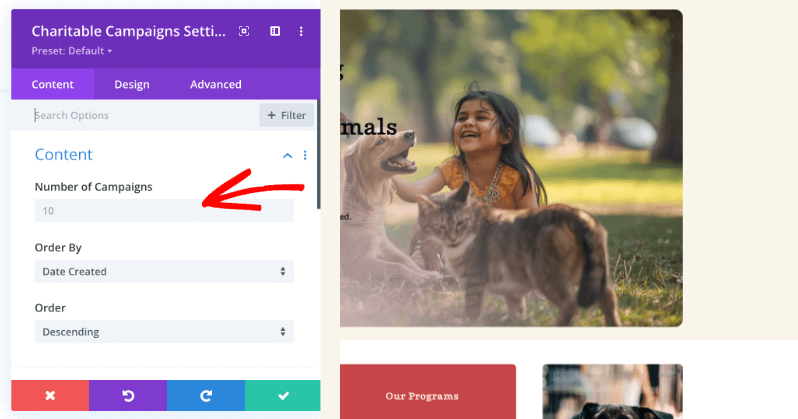
If you want to show more than one fundraiser at a time, the Campaigns module is the right choice.
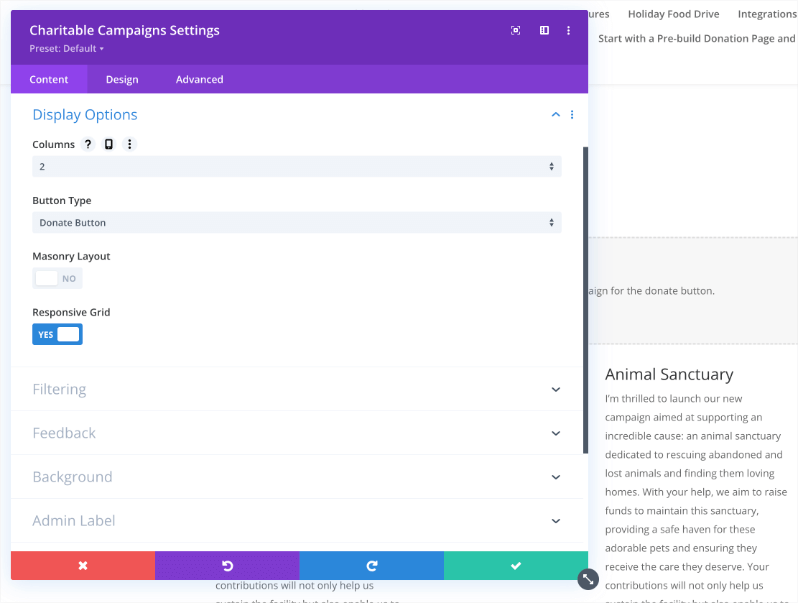
This module displays a grid or list of multiple campaigns, allowing visitors to browse through your active initiatives.
You can choose the option you want by simply clicking on it. A blue “YES” button will appear.
When to Use This Module
- “Current Campaigns” Section: Create a section on your homepage that showcases all your active fundraisers.
- Campaign Archives: Build a dedicated page where donors can view all past and present causes.
- Sidebar or Footer Display: You can use this to display featured campaigns in smaller areas like a footer or sidebar.
Charitable Donation Form Module
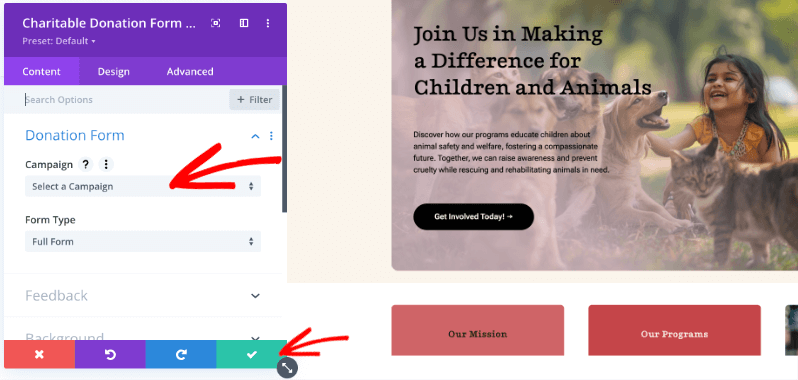
The Donation Form module allows you to embed a complete donation form for a specific campaign directly into any page layout.
Note: When using this module in the Visual Builder, you will see a placeholder image. The actual interactive donation form will appear on the live frontend of your website.
When to Use This Module
- Campaign Landing Pages: Add the donation form directly to a campaign page to reduce friction for donors.
- Standalone Donation Page: Create a specific page solely for accepting donations without distractions.
- Embed Functionality: You can easily add donation capabilities to any blog post or page layout.
Charitable Donate Button Module
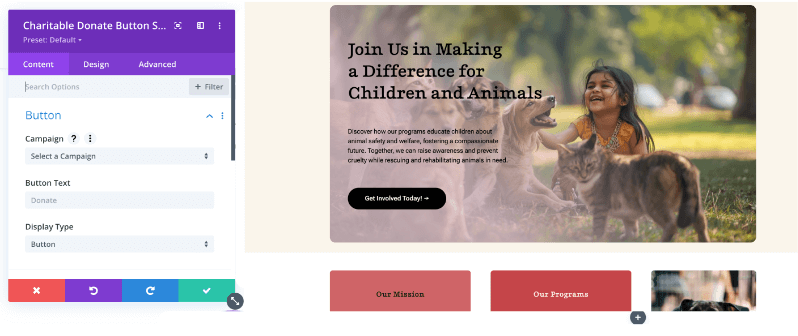
The Donate Button module creates a call-to-action (CTA) button or link that directs visitors to a specific campaign to make a donation.
When to Use This Module
- Call-to-Actions (CTAs): Place donation buttons throughout your site content to encourage giving.
- Headers and Hero Sections: precise “Donate Now” buttons in your site header or hero image sections for high visibility.
- Content Links: Add donation links within your blog posts or case studies.
Customize the Divi Widgets
When you add a module to your page, such as the Campaigns module, you will see a settings window appear with a taskbar on the left.
Divi breaks these settings down into three tabs: Content, Design, and Advanced. Here is how you can use them to customize your fundraising elements.
1. Content Tab
The options in this tab will vary slightly depending on which specific module you have selected. For the Campaigns module, you will typically find:
- Filtering: Allows you to control which campaigns are displayed in the grid.
- Feedback: Send feedback notes and suggestions to Charitable
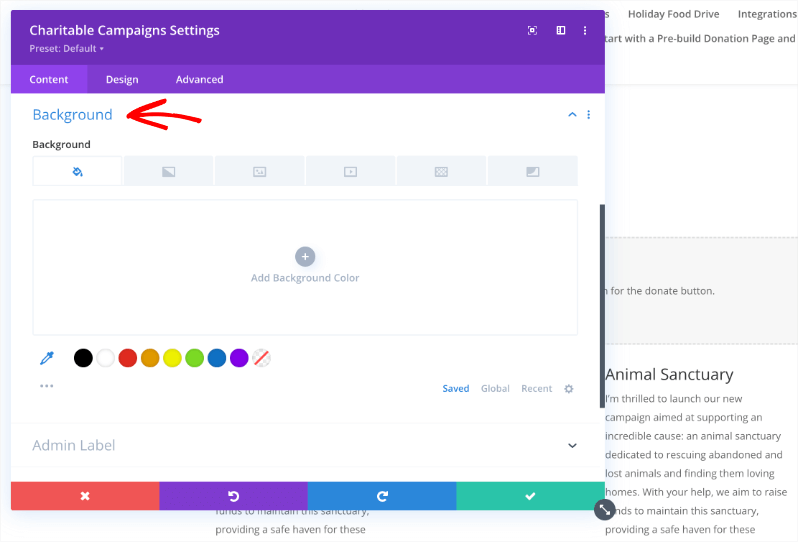
- Background: You can fully customize the background of the module. You can add a solid color, upload an image or video, and even apply patterns or masks for a modern look.
- Admin Label: This allows you to name the module so you can easily identify it in the backend builder view.
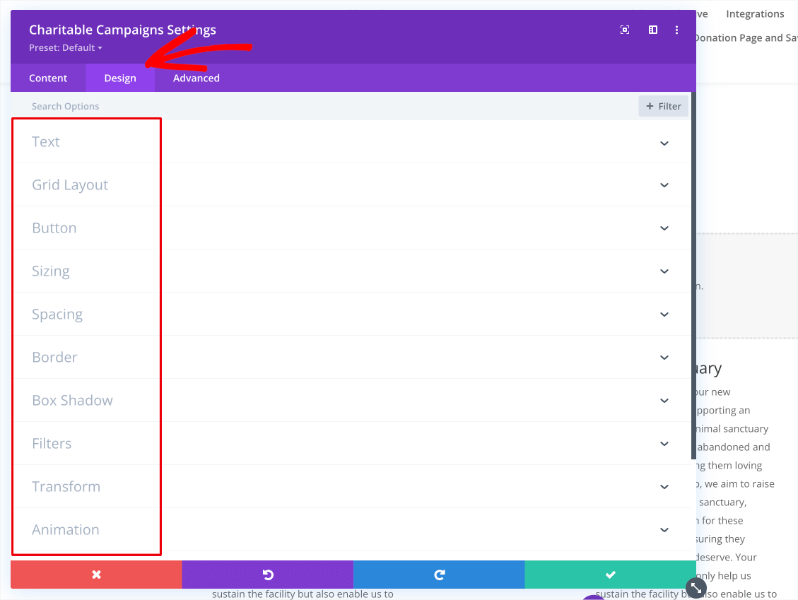
2. Design Tab
The Design tab is where you control the visual style of your fundraising section. You have full control over:
- Text: Customize fonts, sizes, and colors to match your theme.
- Layout: Adjust how the campaigns are arranged.
- Sizing & Spacing: Manage width, height, margins, and padding.
- Border & Shadow: Add borders, rounded corners, and box shadows for depth.
- Effects: You can even add filters, transformations, and animations to make your campaigns stand out.
3. Advanced Tab
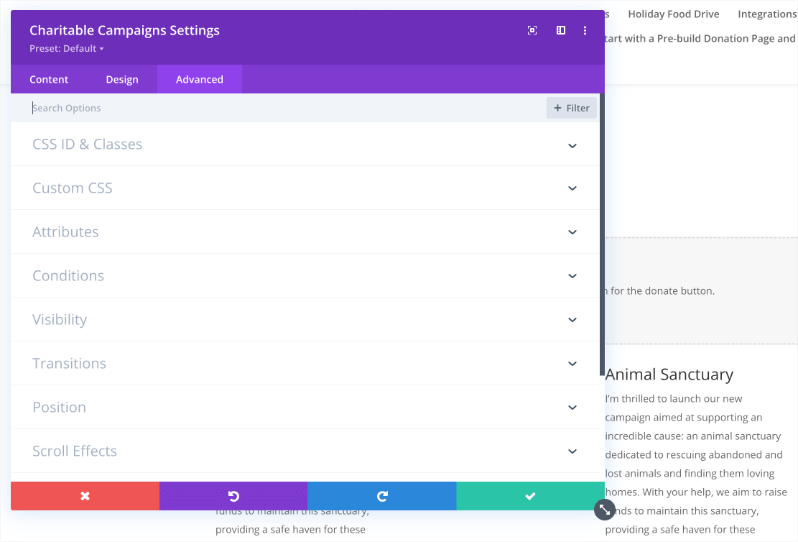
For developers or those who need precise control, the Advanced tab offers options to:
- Custom CSS: Add your own CSS to specific elements of the module.
- Attributes: Manage HTML attributes.
- Conditions: Set conditional logic for when the module should be displayed.
You can also control visibility, transitions, positions, and scroll effects.
Custom CSS
Each Charitable module includes a Custom CSS section in the Advanced tab, allowing you to target specific elements:
Common CSS targets include:
- Campaign titles
- Progress bars
- Donation buttons
- Form fields
- Campaign cards (in grid view)
Tips for Best Results
To get the most out of the Charitable Divi modules, here are a few quick tips to keep in mind while building your pages.
- Visual Builder Preview: The Campaign and Campaigns modules show live previews directly in the builder. However, the Donation Form module displays a placeholder image while editing. Don’t worry, the actual form will appear correctly on the frontend.
- Styling Consistency: For a professional look, use the global Text settings in the Design tab to match your fonts with your Divi theme.
- Mobile Optimization: Always check your design on mobile views. You may want to reduce the number of columns in the Campaigns grid for tablet and phone users to ensure the text remains readable.
- Performance: The campaign dropdown options are cached to improve performance. If you just created a campaign and don’t see it in the list, save your layout as a draft and refresh the builder.
Troubleshooting Common Issues
If you run into issues while setting up your modules, here are the most common solutions:
- Modules not appearing? Ensure that both the Charitable plugin and the Divi Builder (or theme) are active. If they are, try clearing your browser cache.
- Campaign dropdown is empty? You must have at least one campaign with a status of “Published” for it to appear in the list. Draft campaigns will not show up.
- Styling not applying? This is often a caching issue. Go to Divi » Theme Options » Builder » Advanced and clear Divi’s static CSS cache. Also, check for any CSS conflicts with your active theme.
That’s it! You have now learned how to use Charitable Divi modules to build beautiful fundraising pages.
Not sure how to create a fundraiser? Learn How to Set Up Your First Campaign »
Here are some of the more popular “how to” guides and help articles for new users:
- Create and Edit Donations in the WordPress Dashboard
- How to Use the Donor Management System
- Connect to Google Analytics
- Issues With Donation Emails Not Sending
- Resend Donation Emails from the Dashboard
- Widgets And Shortcodes
Want more fundraising tips and nonprofit advice?
We regularly share practical guides, proven strategies, and insider tips to help you raise more funds and build stronger donor relationships. Join thousands of nonprofits who get our best content delivered straight to them:
- Join our newsletter – Get weekly tips and exclusive guides in your inbox
- Subscribe to our YouTube channel – Watch step-by-step tutorials and success stories
- Follow us on LinkedIn – Connect with our community and get daily nonprofit insights
- Follow us on TikTok – Insightful & fun videos to help you grow your cause
- Follow us on Instagram – Fun reels with non-profit insights and tips
No fluff, just actionable advice from people who understand the challenges you face every day.
Are there video tutorials available for Charitable?
Yes! Subscribe to the Charitable YouTube channel for step-by-step tutorials and success stories.
Need support? Have a question? If you are a lite/free user of Charitable, you can reach out to our team on the WordPress.org support forums. If you have an active license, feel free to reach out to us directly for priority support.