
Do you want to make managing recurring donations easier for you and your donors?
The new Recurring Donations 2.0 extension in Charitable is just what you need! This powerful feature allows you to accept, manage, and report on subscription-based donations effortlessly.
With Charitable Pro version 2.0.0 and the Recurring Donations extension, you can enhance your fundraising efforts by incorporating recurring donations into any of your campaigns. This guide will walk you through the key features, setup, and best practices to help you get the most out of recurring donations.
Available in Charitable Pro 2.0.0+ (Recurring Donations extension).
Not yet a Charitable Pro user? Sign up today and get up to 50% off on your plan. We’re confident you’ll love raising funds with Charitable. If, for any reason, Charitable is not the right fit for you, we’ll refund your purchase with our 14-day money-back guarantee. Get Charitable Pro Now »
Key Features
- Accept recurring donations on any campaign, with flexible periods and amounts.
- Recurring Only mode ensures all donations are subscriptions.
- Donor self-service allows supporters to manage and cancel their own subscriptions.
- Automated notifications for failed payments.
- Advanced reporting tools, including MRR (Monthly Recurring Revenue) summary cards.
- Export recurring donations data to CSV.
- Compatible with major gateways like Stripe and PayPal.
Why Use Recurring Donations?
Recurring donors tend to contribute significantly more over time than one-time donors. By leveraging the Recurring Donations extension, you can provide supporters with an easy path for sustained giving, predict revenue streams for your organization, and utilize comprehensive reporting tools to track growth and retention.
See It In Action
Requirements
- Charitable Pro (any plan that includes the Recurring Donations extension)
- WordPress 5.9 or later
- PHP 7.4 or later
- A supported payment gateway (Stripe or PayPal) for automatic renewals
Getting Started
Activation
- Log in to your WordPress admin.
- Navigate to Charitable » Extensions.
- Find Recurring Donations and click Install and Activate.
- Once activated, new options for recurring donations will be available in the Campaign Builder.
How to Use The New Recurring Donation Features
Enabling Recurring Donations on a Campaign
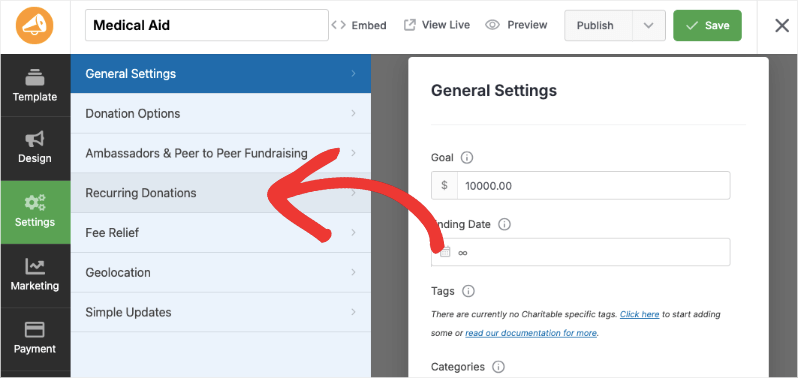
- Open the Campaign Builder for any campaign
- Go to the Settings panel
- Expand the Recurring Donations section
- Select a mode from the dropdown (see Mode Options below)
- Configure period, amount, and length settings as needed
- Save or publish the campaign
Mode Options
| Mode | Behavior |
|---|---|
| Disabled | No recurring option is presented to donors |
| Simple | Donors see a checkbox to make their gift recurring |
| Advanced | Donors choose between one-time and recurring with a period selector |
| Recurring Only | All donations must be recurring; one-time option is hidden |
Recurring Only mode (new in 2.0.0): Selecting this mode removes the one-time donation option entirely. A notice appears on the donation form: “All donations to this campaign are recurring.” Use this for monthly giving clubs, operational funds, or any campaign designed around sustained giving.
Period Configuration
When recurring is enabled, you can set:
- Period mode: Fixed (admin-defined) or Variable (donor-chosen)
- Donation period: Daily, Weekly, Monthly, Quarterly, Semi-Annually, Annually
- Donation length: Number of recurring payments (0 = unlimited)
Donor Dashboard
Donors can view and manage their recurring donations from the donor dashboard or the [my_recurring_donations] shortcode.
Cancel Subscription (new in 2.0.0)
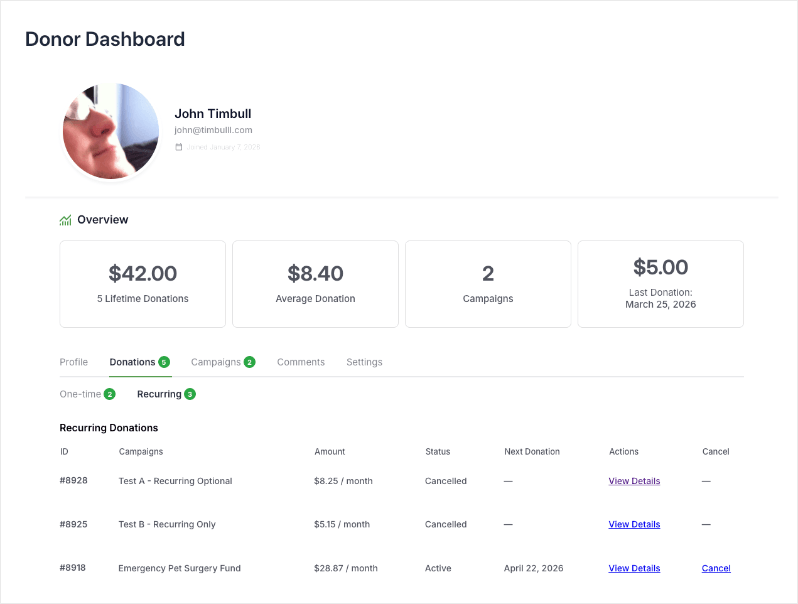
A Cancel link appears in the recurring donations table for any subscription with a cancellable status (active, pending, on-hold). Clicking it presents a confirmation prompt before cancellation is processed.
After cancellation: – The subscription status updates to Cancelled – A success notice confirms the action – The donor is redirected back to the donor dashboard
Subscriptions with a non-cancellable status (completed, expired, already cancelled) display a dash in the Cancel column.
Emails
Payment Failed Email (new in 2.0.0)
An automated email sent to donors when a recurring payment fails. It fires when a subscription status changes to charitable-failed.
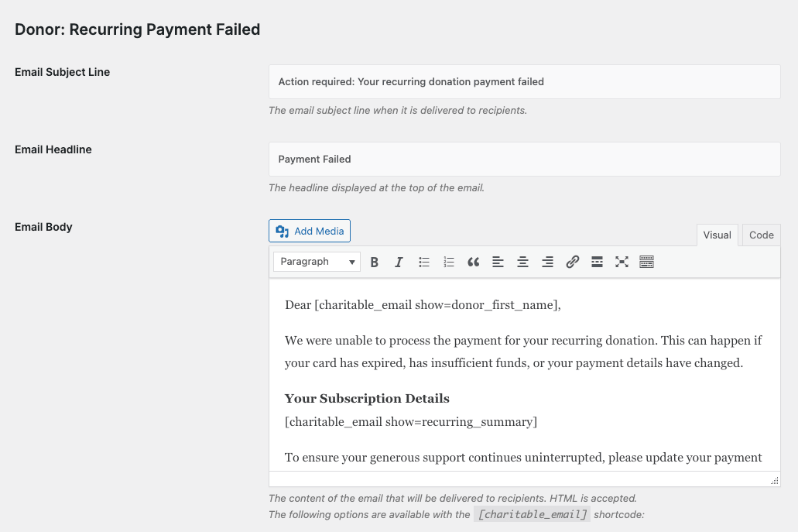
To configure:
- Go to Charitable » Settings » Emails
- Locate Payment Failed and click to edit
- Enable the email, customize the subject and body, and save
Available merge tags:
| Merge Tag | Description |
|---|---|
{donor_first_name} | Donor’s first name |
{donor_full_name} | Donor’s full name |
{campaign_name} | Campaign title |
[charitable_email show=recurring_summary] | Subscription summary block |
{site_name} | Your site name |
The email is sent to the donor only, not the admin. To receive admin copies, configure a separate notification email.
Recurring Donation Cancelled Email
Sent to the donor when a subscription is cancelled, whether by the donor or an admin. Configurable in the same Emails settings screen.
Reporting
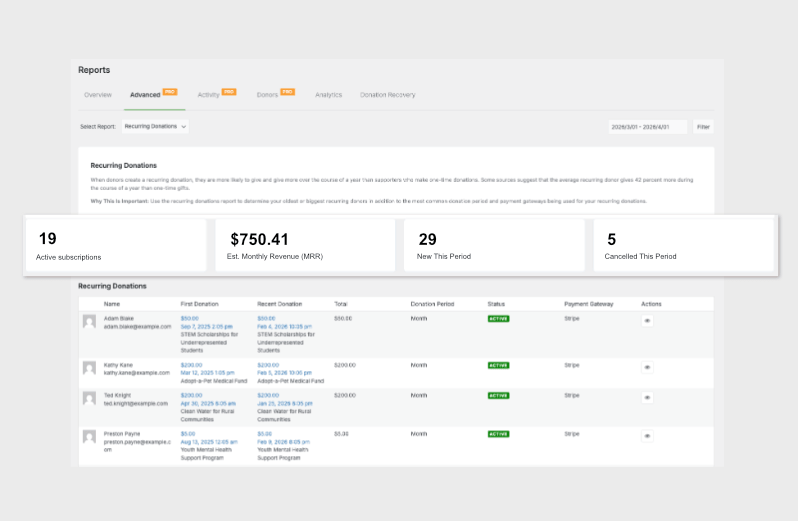
MRR Summary Cards (new in 2.0.0)
Located at Charitable » Reports » Advanced, select Recurring Donations from the report type dropdown.
Four summary cards appear at the top of the report:
| Card | Description |
|---|---|
| Active Subscriptions | Count of all currently active recurring donations |
| Est. Monthly Revenue (MRR) | All active subscriptions normalized to a monthly figure |
| New This Period | Subscriptions created within the selected date range |
| Cancelled This Period | Subscriptions cancelled within the selected date range |
How MRR is calculated:
Each active subscription’s amount is multiplied by a period factor to produce its monthly equivalent:
| Period | Monthly Factor |
|---|---|
| Daily | ×30 |
| Weekly | ×4.333 |
| Monthly | ×1 |
| Quarterly | ×0.333 |
| Semi-Annual | ×0.167 |
| Annual | ×0.083 |
Active Subscriptions and MRR are global figures that do not change when you adjust the date filter. New This Period and Cancelled This Period reflect the selected date range.
Exporting Recurring Donation Data
Use the Export button on the Recurring Donations admin list page (Charitable » Recurring Donations) to download a CSV of filtered results.
Shortcodes
[my_recurring_donations]
Displays the current donor’s recurring donations in a table. Intended for use on a logged-in donor dashboard page.
| Parameter | Type | Default | Description |
|---|---|---|---|
campaign_id | int | — | Limit to donations for a specific campaign |
status | string | all | Filter by donation status |
Customization
Status Badge Colors
Status badges are displayed as small colored pills in both the admin list table and the donor-facing tables.
| Status | Default Color |
|---|---|
| Active | Green (#008000) |
| Pending | Gray (#999) |
| Completed | Blue (#3fb8f5) |
| Failed | Orange (#f7a129) |
| Cancelled | Red (#ff0000) |
| On Hold | Light Blue (#8bb0e7) |
| Expired | Yellow (#ffe14a) |
Template Overrides
To override a recurring donations template, copy the file from the plugin’s templates/ folder into your theme under charitable/and modify as needed.
Troubleshooting
The Cancel button does not appear in the donor dashboard
The cancel button only shows for subscriptions with a cancellable status (active, pending, on-hold). If the subscription is already cancelled, completed, or expired, no button is shown.
Additionally, some payment gateways do not support programmatic cancellation. For gateways that do not support it, the cancel button may not appear even for active subscriptions.
The Payment Failed email is not sending
Confirm the email is enabled in Charitable » Settings » Emails. Also verify that the subscription status is being updated to charitable-failed when a payment fails, as the email fires on that status transition.
MRR seems lower than expected
MRR only includes active subscriptions. Paused, on-hold, or failed subscriptions are not included. The figure is also an estimate based on stated billing periods, not actual payment history.
Recurring Only mode shows the one-time option
Clear your browser cache and any page caching plugins. The one-time option is hidden via CSS and JavaScript in the campaign builder and donation form. A caching layer serving a stale page may show outdated markup.
Developer Resources
Hooks and Filters
charitable_recurring_donation_modes– Filter the available recurring donation mode optionscharitable_send_recurring_payment_failed– Control whether the Payment Failed email is sent for a specific donationcharitable_process_cancellation_{gateway}– Gateway-specific cancellation logic; returntrueto confirm successcharitable_recurring_cancel_redirect– Filter the redirect URL after a donor cancels a subscriptioncharitable_recurring_my_recurring_donations_table_after_receipt– Action for adding columns to the donor-facing recurring donations table
Useful Functions
charitable_recurring_get_recurring_donation( $donation_id )– Returns aCharitable_Recurring_Donationobjectcharitable_recurring_get_valid_donation_statuses()– Returns array of valid status keys and labels
MRR Calculation
// Access MRR data programmatically
$report = Charitable_Report_Advanced_Recurring::get_instance();
$mrr_data = $report->get_mrr_data( $start_date, $end_date );
// Returns: active_count, mrr, new_count, cancelled_count
Additional Resources
/pattern cta




