
Want to accept donations from supporters using their preferred local payment methods? Charitable Pro’s Braintree addon (version 1.3.0 and later) adds support for six European and Polish payment methods, including iDEAL, Bancontact, EPS, BLIK, Przelewy24, and MyBank. These methods appear automatically on your donation form when your site currency matches the method’s supported currencies.
This guide will walk you through enabling and configuring local payment methods in the Braintree addon.
Requirements: Local payment methods require Charitable Pro with the Braintree addon version 1.3.0 or later.
Read the full feature announcement »
Before you get started, make sure Charitable Pro and the Braintree addon are installed and activated on your site, with your Braintree API credentials already configured.
Not yet a Charitable Pro user? Sign up today and get up to 50% off on your plan. We’re confident you’ll love raising funds with Charitable. If, for any reason, Charitable is not the right fit for you, we’ll refund your purchase with our 14-day money-back guarantee. Get Charitable Pro Now »
Table of Contents
- Available Local Payment Methods
- Enabling Local Payment Methods
- How Does Currency Filtering Work?
- The Donor Experience
- Setting Up Webhooks
- Recurring Donation Limitations
- Testing Your Setup
- FAQ
Available Local Payment Methods
The Braintree addon supports six local payment methods. Each method is tied to specific currencies and countries:
- iDEAL – EUR only. Used in the Netherlands.
- Bancontact – EUR only. Used in Belgium.
- EPS – EUR only. Used in Austria.
- BLIK – PLN only. Used in Poland.
- Przelewy24 – PLN or EUR. Used in Poland.
- MyBank – EUR only. Used in Italy and Portugal.
Your donors will only see methods that match your site’s currency. For example, a site set to EUR will show iDEAL, Bancontact, EPS, Przelewy24, and MyBank, but not BLIK (which requires PLN).
Enabling Local Payment Methods
To configure local payment methods, go to Charitable » Settings » Payment Gateways »Þ Braintree in your WordPress admin. Scroll down to the Local Payment Methods section.
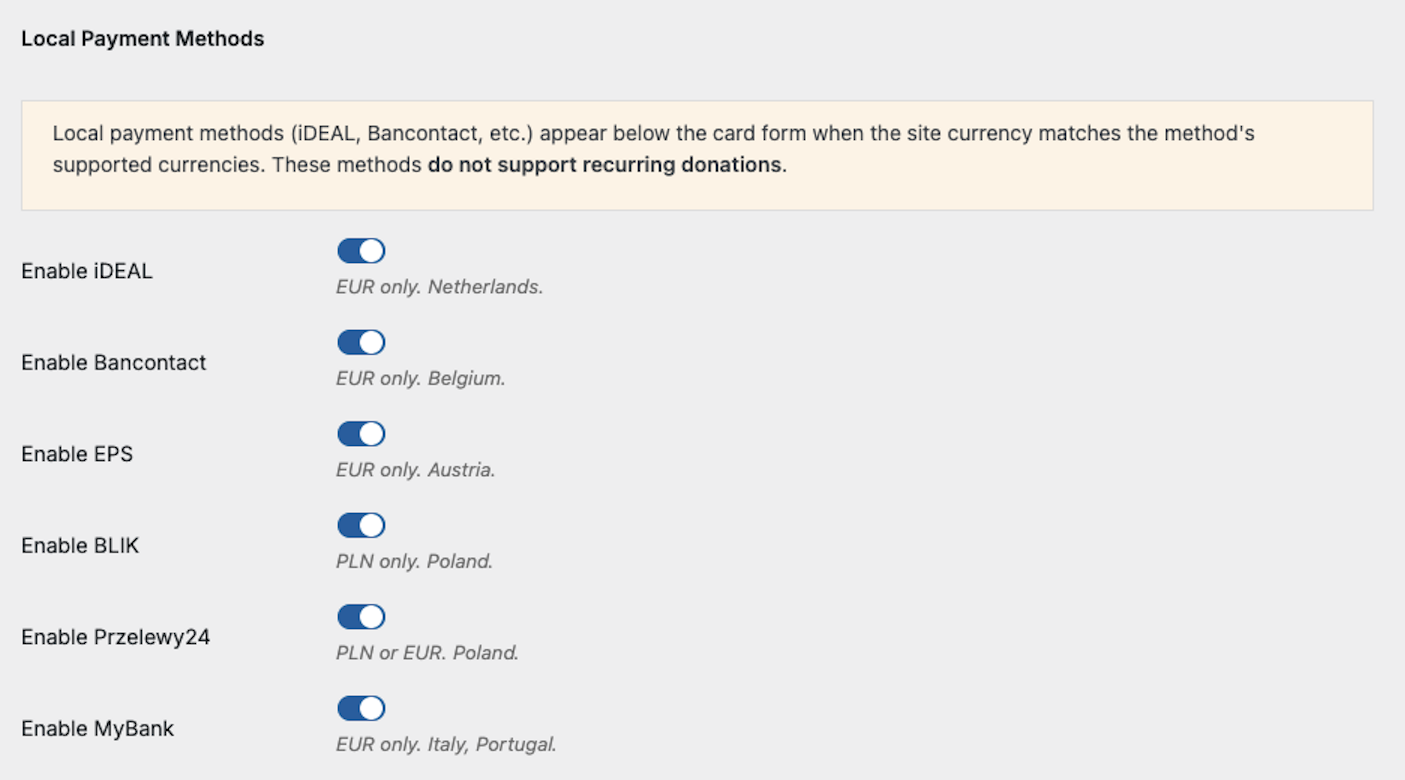
Each method has its own toggle. The help text below each toggle shows which currencies and countries the method supports. Turn on the methods you want to offer your donors.
When you have finished enabling your preferred methods, scroll to the bottom of the page and click Save Changes.
Note: You must also enable local payment methods at the account level in your Braintree dashboard. If your donors see errors when trying to use a local payment method, contact Braintree support and ask them to enable local payments on your merchant account.
How Does Currency Filtering Work?
Local payment methods only appear on your donation form when your site’s currency matches the method’s supported currencies. This filtering happens automatically. You do not need to configure anything beyond enabling the methods you want.
If your site currency is set to USD, no local payment buttons will appear on the donation form, even if you have enabled all six methods in the settings. Only EUR and PLN currencies activate local payment buttons.
To check or change your site currency, go to Charitable > Settings > General and look for the Currency setting.
The Donor Experience
When a donor visits a campaign page, they will see the standard Braintree card payment form first. Below the card form, an “or pay with” divider appears, followed by buttons for each active local payment method.
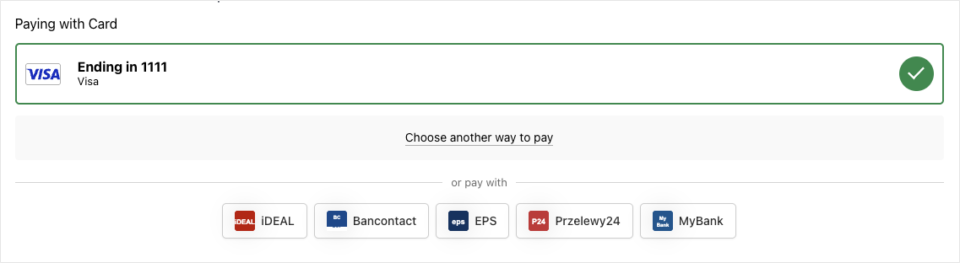
When a donor clicks a local payment button, a popup window opens where they complete the payment through their bank or payment provider. After authorization, the popup closes and the donation form submits automatically.
If the donor’s browser blocks the popup, Braintree redirects the donor to the payment provider in the same window. After completing the payment, they are redirected back to the donation form where the submission completes automatically.
Setting Up Webhooks
Local payment methods process donations asynchronously. The donor’s payment is not confirmed instantly. Instead, Braintree sends webhook notifications to your site when the payment status changes. Without webhooks, donation statuses will not update after the initial submission.
Scroll down to the Webhook Setup section on the Braintree settings page.
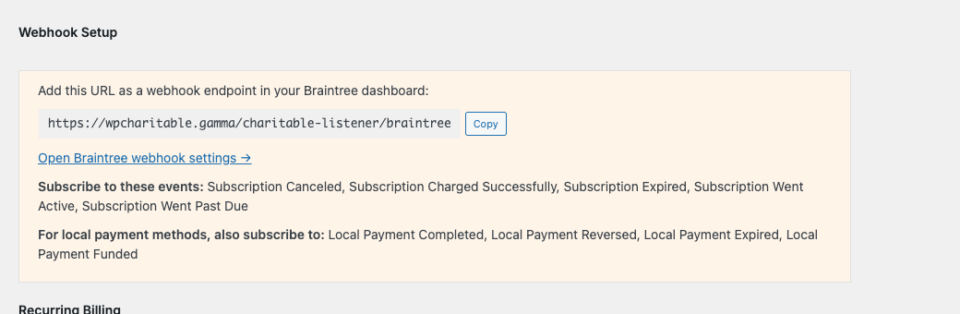
If you have already configured webhooks for recurring donations, you need to add the four local payment events to your existing webhook subscription in the Braintree dashboard:
- Local Payment Completed – fires when the donor’s bank confirms the payment. Updates the donation status to Paid.
- Local Payment Reversed – fires when a payment is reversed or refunded by the bank.
- Local Payment Expired – fires when a payment authorization expires before the donor completes it.
- Local Payment Funded – fires when the funds are settled into your merchant account.
To add these events, click the Open Braintree webhook settings link, find your existing webhook subscription, and add the four local payment event types. If you do not have a webhook configured yet, copy the endpoint URL shown in the settings and create a new webhook in your Braintree dashboard with all the listed events.
Note: Without the Local Payment Completed webhook, donations made through local payment methods will remain in a Pending status and never update to Paid.
Recurring Donation Limitations
Local payment methods do not support recurring donations. This is a limitation of Braintree’s local payment processing, not the Charitable plugin.
When a donor selects a recurring donation period (such as Monthly or Yearly) on a campaign form, all local payment buttons are automatically hidden. They reappear when the donor switches back to a one-time donation.
If your campaigns rely heavily on recurring giving, your donors will still need to use card payments, PayPal, or another supported method for those donations.
Testing Your Setup
After enabling your local payment methods and configuring webhooks, visit one of your campaign pages to confirm the buttons appear correctly. Make sure your site currency is set to EUR or PLN so the buttons are visible.
Try clicking a local payment button to verify the popup opens. In Braintree’s sandbox (test) environment, you can complete a test donation by selecting a test bank from the list. After the test donation, check Charitable » Donations to confirm the donation was recorded and that the status updates to Paid after the webhook fires.
That’s it! Your donors can now use their preferred local payment methods to contribute to your campaigns. For more about the Braintree addon’s other features, see the Braintree addon documentation.
FAQ
What to do if local payment buttons are not appearing on my donation form?
There are three common reasons. First, check that your site currency is set to EUR or PLN at Charitable » Settings » General. Local payment methods do not appear for USD or other unsupported currencies. Second, confirm that at least one method is enabled in the Braintree gateway settings. Third, verify that Braintree has enabled local payments at the account level on your merchant account.
Donations are stuck in Pending status. How do I fix it?
This usually means your Braintree webhooks are not configured correctly. Local payment donations start in Pending status and update to Paid only when the Local Payment Completed webhook fires. Go to the Setting Up Webhooks section and verify that all four local payment events are included in your webhook subscription.
Can I use local payment methods with a USD currency?
No. All six local payment methods require either EUR or PLN as the site currency. If your site is set to USD, the buttons will not appear on donation forms.
Do local payment methods work with the Campaign Builder forms?
Yes. Local payment buttons appear on both legacy and Campaign Builder donation forms, as long as the Braintree gateway is active and the site currency matches.
Can donors save a local payment method for future donations?
No. Local payment methods cannot be vaulted (saved) in Braintree. Donors will need to complete the bank authorization each time they donate using a local payment method.
Stay Connected for More Nonprofit Resources
For more tutorials and videos tailored to nonprofits, subscribe to our YouTube channel. We regularly publish expert tips, step-by-step guides on online donations, fundraising strategies, and practical resources to help your organization succeed.
🗞️ Get weekly tips and exclusive guides in your inbox
Join our newsletter →
🎥 Watch step-by-step tutorials and success stories
Subscribe to our YouTube channel →
👩🏽💻 Connect with our community and get daily nonprofit insights
Follow us on LinkedIn →
🥳 Fun reels and non-profit insights
Follow us on Instagram →
👀 Insightful & fun videos to help you grow your cause
Follow us on TikTok→
🌎 Subscribe and follow for general fundraiser tips
Get Fundraiser Tips on TikTok →
Powerful Fundraising Resources
⬇️ Download proven strategies, campaign ideas, and expert tools
Get the Fundraising Kit →
💸 Get Free Fundraising Resources
Head to the Charitable Fundraising Hub →
🤔 Got questions about Charitable?
Charitable FAQs →
🏎️ Take Charitable for a spin
Create your Charitable Demo →
Understand non-profit terms and jargon
Non-Profit Glossary →
% Looking for non-profit deals and discounts?
Best Non-Profit Deals and Discounts →


