
Want a Zap to fire only for donations to your end-of-year campaign, or only when a donor uses Stripe? Charitable Zaps can be scoped to a single campaign right on the trigger step, and any other condition – payment gateway, donation amount, donor country – can be layered on with a Filter by Zapier step.
This guide will walk you through the steps to filter Charitable Zaps so they run only for the donations and campaigns you care about.
Note: Charitable’s Zapier integration requires Charitable Pro 1.8.14+ and the Automation Connect addon 2.1.0+ (Pro plan or higher).
Before you get started, make sure you’ve already Connected Charitable to Zapier.
Filtering by Campaign
Every Charitable trigger has a built-in Filter by Campaign dropdown directly on the trigger step. The list pulls live from your site, so the campaigns you see in the dropdown match what’s published in WordPress right now.
In the Zap editor, open the trigger step and continue past authentication to the configure stage. The dropdown appears in the Configuretab.
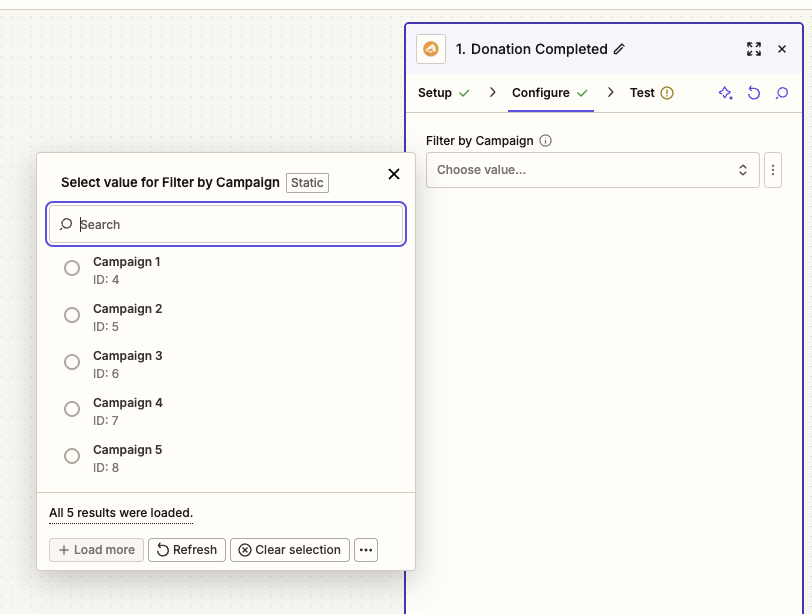
- Leave the field blank – the trigger fires for donations to any campaign on your site. Choose this if you want the Zap to handle every donation regardless of which campaign it was made to.
- Select a single campaign – the trigger fires only for donations to that one campaign. Choose this for campaign-specific workflows like a dedicated thank-you sequence for a year-end appeal.
Note: The campaign dropdown reflects what’s on your site at the moment the dropdown is opened. If you publish a new campaign later, edit the Zap and reopen the dropdown to see it appear.
Filtering by Other Fields with Filter by Zapier
The trigger only filters by campaign. To filter by anything else – payment gateway, donation amount, donor country, donor newsletter consent, donor comment, fundraiser ID, or any other field – add a Filter by Zapier step immediately after the Charitable trigger.
In the Zap editor, click the plus sign between the trigger and the action and pick Filter by Zapier. Choose the Only continue if event.
The filter rule has three parts:
- Field – pick any field from the trigger’s payload (donation_gateway, total, country, etc.).
- Condition – pick a comparison (Exists, Equals, Contains, Greater than, etc.).
- Value – type the value to compare against.
A few example filter rules:
- Only Stripe donations – Field:
donation_gateway· Condition:(Text) Exactly matches· Value:stripe - Only donations of $100 or more – Field:
total· Condition:(Number) Greater than or equal to· Value:100 - Only donors who opted into the newsletter – Field:
newsletter_opt_in· Condition:(Number) Exactly matches· Value:1 - Only US donors – Field:
country· Condition:(Text) Exactly matches· Value:US
When the filter rule passes, the rest of the Zap runs. When it fails, the Zap stops at the filter step and no action runs. You can see filter outcomes in the Zap History tab.
For the full list of fields available to filter on, see the Charitable Zapier Field Reference.
Combining Multiple Filters
A single Filter by Zapier step can hold several rules at once. Use the AND group to require every rule to pass, or the OR group to pass when any one rule matches.
For example, “fire the Zap only for Stripe donations of $100 or more to the Year-End Appeal” combines:
- Trigger filter: Filter by Campaign =
Year-End Appeal - Filter by Zapier rule 1 (AND):
donation_gatewayexactly matchesstripe - Filter by Zapier rule 2 (AND):
totalgreater than or equal to100
The campaign filter happens on your Charitable site before the event ever leaves, so it’s the most efficient layer. The Filter by Zapier step runs on Zapier’s servers right after, so it adds a small task per filtered Zap to your monthly task usage.
Testing Your Filter
The fastest way to confirm a filter works is to make a test donation that matches the rules and one that doesn’t.
Make a small test donation that matches your filter – for example, a $1 donation to the Year-End Appeal using Stripe. Within a few seconds, the Zap should run end-to-end and the action step completes.
Now make a second test donation that should be excluded – for example, the same $1 donation to a different campaign. Open the Zap History tab in Zapier. The second donation should appear with a status of Filtered or Did not pass filter, and no action step should have run.
If a donation that should have been filtered still ran the action step, double-check the comparison type. Numeric fields like total and newsletter_opt_in need a number-based comparison; text fields like donation_gateway and country need a text comparison.
That’s it! Your Charitable Zaps now fire only for the campaigns and conditions you care about. Next, see the Charitable Zapier Field Reference for the complete list of fields each trigger sends, and Zapier’s own Filter by Zapier guide for advanced filter logic.
FAQ
Does the campaign filter slow down the trigger?
No. The campaign filter runs on your Charitable site before the event is ever sent to Zapier, so filtered events never leave your server. That makes it more efficient than a Zapier-side filter, both for Zap latency and for your monthly task usage.
Can I filter by multiple campaigns at once on the trigger step?
The trigger’s built-in Filter by Campaign dropdown takes a single campaign. To target several campaigns at once, leave the trigger filter blank and add a Filter by Zapier step using the (Text) In condition with a comma-separated list of campaign IDs in the value field.
Where do I find a campaign’s ID for use in a Filter by Zapier step?
The campaign_id field is part of every trigger’s payload, so you can pick it from the field dropdown when building the filter rule. To look up a specific campaign’s ID outside Zapier, edit the campaign in WordPress and check the URL – the post= query string parameter is the campaign ID.
A Filter by Zapier step counts as a task. Does the trigger campaign filter also count?
No. Filtered-out events on the Charitable side never enter Zapier and so never count as tasks. Only events that actually reach a Filter by Zapier step do.
Will a filtered Zap still appear in my Zap History?
Yes – Filter by Zapier outcomes (both passing and filtered) show up in Zap History so you can audit what ran and what didn’t. Trigger-level campaign filtering does not appear in Zap History because the event never reached Zapier in the first place.



