Charitable Ambassadors: Teams – Group Fundraisers Together Behind One Captain
Requires: Charitable Pro 1.8.16+ Charitable Ambassadors 3.1.0+
A team in Charitable Ambassadors is a group of fundraisers working together toward a shared goal under a single captain. The captain runs the team page; members create their own personal fundraisers that roll up under the team’s totals. Donors can give to a member directly, to the team as a whole, or both.
Teams are the natural unit for marathons, walkathons, school-by-school fundraisers, faith-community pledges, and any other peer-to-peer model where supporters self-organise into groups. Charitable Ambassadors 3.1 gives admins a full management surface for teams (list, profile drill-in, captain transfers, member email) and gives donors a clean Team Members section on every team campaign page.
When you’d use teams
Running a marathon or walkathon where supporters form teams (by company, by school, by friend-group) and want a team page they can share.
Letting a school or church coordinate under one umbrella, with each classroom or small group running its own sub-fundraiser.
Setting up a corporate match drive where each department captains a team and competes for the highest total.
Anywhere you need a “leaderboard of groups, not individuals” – teams aggregate naturally where individual fundraisers don’t.
The mental model
Teams sit on top of the existing Ambassadors parent / fundraiser structure:
A parent campaign is the umbrella cause (e.g. “2026 Spring Marathon”).
A team campaign is one team under that parent (e.g. “Team Acme Corp”). The team has a captain.
A member fundraiser is one person’s individual page under the team (e.g. “Sarah’s Spring Marathon page”). Sarah is a member of Team Acme Corp.
Donations to Sarah’s page count toward Sarah, toward Team Acme Corp’s total, and toward the 2026 Spring Marathon overall. The math rolls up automatically through Charitable’s existing parent / child aggregation – teams don’t introduce a new accounting layer.
Admin – the Teams list
WordPress Admin > Charitable > Ambassadors > Directory > Teams
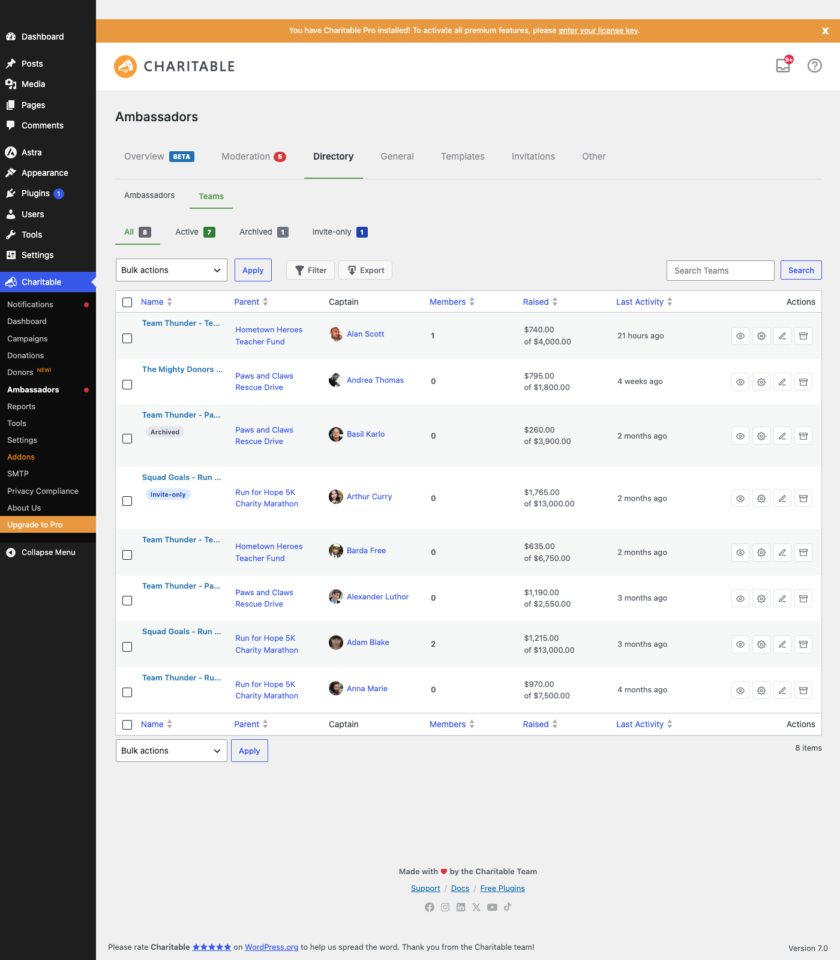
The Directory tab now has a sub-nav with two views: Ambassadors (the existing list of individual fundraisers) and Teams (this new view). The Teams view is structured exactly like the Ambassadors view so the muscle memory carries over.
The list shows one row per team with these columns:
Column
What it shows
Team
Team name, with a coloured “Team” chip. Click to drill into the team profile.
Captain
The captain’s display name with a small avatar. If the team has no captain assigned, you’ll see “No captain” in italics.
Parent campaign
The parent campaign this team rolls up to. Click to open the parent.
Members
The number of member fundraisers in this team.
Raised
Total raised across the team (captain + all members).
Last activity
Date of the most recent donation to anyone on the team.
Status
“Active” or “Archived”.
Filters
Above the list, four view shortcuts (All / Active / Archived / Invite only) and a search box. The Filter button opens a modal for more granular filtering:
Filter
Options
Archived
Any / Yes / No
Invite-only
Any / Yes / No
Parent campaign
Pick from your campaigns
Captain
Free-text search across captain name + email
Created from / to
Date range
Search and filters compose – applying a filter, then searching, narrows the result set further.
Bulk actions
Select rows with the checkbox column, then use the bulk dropdown:
Archive selected – flips the archived flag. Archived teams stop showing on listing pages but keep all their data; they remain searchable and can be unarchived later.
Unarchive selected – the reverse.
Move to Trash – sends the team campaign post to the WP trash. Member fundraisers are unaffected.
Export selected as CSV – streams a CSV of just the selected rows.
The full list can also be exported via the Export button in the toolbar. The CSV is formula-injection safe.
Admin – the Team profile
Click any team name in the list to drill into the team profile. The profile is a single page with a hero strip on top and four sub-tabs underneath: Overview, Members, Donations, Settings.
Hero strip
The hero strip surfaces the team’s identity at a glance: team name, captain (linked to the Ambassador profile if the captain matched a WP user), parent campaign (linked), created date, and member count. A “Captained by [name]” badge is also shown on the captain’s own Ambassador Directory profile, so you can navigate from a person to all the teams they captain.
Sub-tabs
Sub-tab
What’s there
Overview
KPIs (raised, donors, donations, average) scoped to this team only. A chart showing donation velocity over the team’s lifetime.
Members
The list of member fundraisers, with raised totals, last-donation date, last-contacted date, and per-row actions (remove member, resend invite).
Donations
Every donation that rolled up to this team, filterable by date range and status, with CSV export.
Settings
The same form you’d see in the team campaign meta-box on the post-edit screen, embedded here for convenience. Includes the invite-only toggle, internal admin notes field, and Replace Captain control.
Each sub-tab loads its content lazily – the data isn’t fetched until you click the tab. This keeps the initial profile render fast even on teams with hundreds of members or donations.
Replace Captain workflow
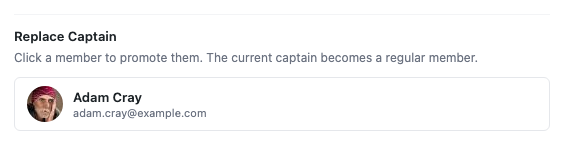
Captains change. Someone steps back, someone steps up. The Replace Captain control on the Settings sub-tab (and inside the post-edit Team Settings meta-box) opens a picker that surfaces eligible team members.
How it works:
The picker shows every active member of this team. You can search by name or email.
Pick a new captain and confirm.
The previous captain is demoted to a regular member (their fundraiser stays intact).
The new captain inherits the team page ownership.
The change is logged to the team’s audit trail.
The picker only offers members who are already on the team – it’s not a way to add a new person and immediately make them captain. To do that, invite them as a member first, then promote.
Send Email modal (team members)
The Members sub-tab and the per-row actions both expose a Send Email button. Clicking it opens a modal that lets the admin send a templated email to one or more team members, with smart tags substituted server-side. If your site’s wp_mail isn’t configured for outbound delivery, the modal falls back to a mailto: link that opens the admin’s own mail client with the body pre-filled.
The Members panel also shows a Last contacted date on each row so you can see at a glance who you’ve already emailed and who you haven’t.
Per-team “invite only” toggle
Some teams should be open-join (anyone can sign up as a member); some should be invite-only (the captain selects who can join). The Settings sub-tab has an Invite only toggle that flips this. When invite-only is on:
The frontend Team Members section hides the join CTA.
New signups via the parent campaign’s submit-fundraiser flow can’t pick this team.
The team can still be joined via direct invite links.
Internal admin notes
The Settings sub-tab has an Internal admin notes field – a rich-text area visible only to admins. Useful for context like “captain is a board member, prioritise responses” or “team raised $50k last year, treat as VIP.” Notes never appear on the frontend.
Frontend – the Team Members section
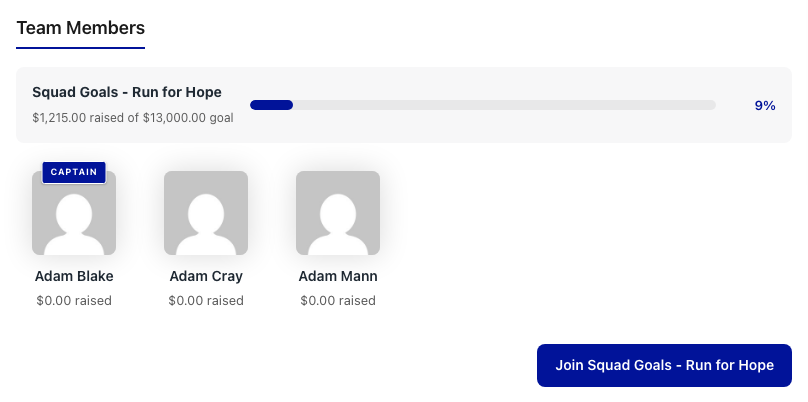
On the public side, every team campaign page now renders a Team Members section below the main campaign body. This is what donors and prospective members see when they visit a team page.
The section has three parts:
Part
What it shows
Team-wide progress bar
The team’s combined raised total against the team’s goal. This rolls up captain + all members.
Member cards
One card per member fundraiser – member photo, name, raised total, progress bar, and a link to their individual page.
Join CTA
A “Join this team” button that takes visitors to the parent campaign’s submit-fundraiser flow with this team pre-selected. Hidden when the team is invite-only.
Donors can give directly to a member by clicking their card, or to the team as a whole through the main donate button on the team page itself. Either path counts toward the team’s total.
Enhanced vs Visual mode
The Team Members section works in both Enhanced and Visual template modes – it’s not tied to a particular layout variant. The styling adapts:
Enhanced mode uses a standard card grid that matches the chosen layout variant (classic, story-forward, rally, etc.).
Visual mode inherits the configured template campaign’s styling. Card spacing, typography, and accent colors all flow from the same source as the rest of the fundraiser page.
Identity row on team campaign pages
Team campaign pages also get an identity row above the donate button that names the captain and the parent campaign as quick links. This gives visitors immediate context: “Captained by Sarah Lee, part of the 2026 Spring Marathon.”
Tips
Seed your first team before launching the program. Create one team, captain it yourself, invite 2-3 colleagues as members, and walk through the donor-facing flow once. Catching the “is the join CTA visible?” or “is the progress bar rolling up correctly?” question now saves a support ticket later.
Set invite-only thoughtfully. Open-join is the right default for most public marathons. Invite-only fits corporate, school, or friend-group contexts where you want the captain to curate the membership.
Use the Send Email modal sparingly. A blast to every team member every week feels like spam. Use it for genuine milestones (kickoff, midpoint, final push, thank-you-for-finishing).
Archive at the end of a season. Don’t trash teams once the marathon’s over – archive them. You keep the historical data, the captain and members keep their public pages, and you can unarchive next year if the same team wants to run again.
Check the Last contacted column before sending. If you’ve already emailed this team this week, the Last contacted column will tell you. Avoid the double-tap.
Migration from earlier versions
If you ran an Ambassadors site on 3.0 before upgrading to 3.1, your existing team campaigns continue to work exactly as before. The new Teams admin surfaces just expose what was already in the database with a proper UI. No data migration is required. The first time you visit Directory > Teams after upgrading, the list populates from your existing team campaign posts.
Developer reference
Capability gates
Action
Capability required
View Teams list and team profile
manage_charitable_settings
Archive / unarchive / trash a team
manage_charitable_settings
Replace a team’s captain
manage_charitable_settings
Send Email to a team member
manage_charitable_settings
Edit a team’s settings
manage_charitable_settings
The same capability gates every admin Teams action. There are no new capabilities introduced – if a user can manage Charitable settings, they can manage teams.
Filters
Filter
Default
Purpose
charitable_ambassadors_team_section_include_self
true
Whether the viewing fundraiser’s own card appears in the Team Members section. Filter to false to hide their own card when they land on their own fundraiser page.
charitable_ambassadors_team_section_show_join_cta
true
Whether the Join CTA button renders. Forced to false when the team is invite-only.
Sort order for member cards. Options: raised_desc, raised_asc, name_asc, name_desc, recent_first.
charitable_ambassadors_teams_list_per_page
20
Page size for the Teams admin list.
charitable_ambassadors_teams_export_columns
array
Columns included in the Teams CSV export.
Actions
Action
Fires when
Args
charitable_ambassadors_team_captain_replaced
Admin replaces a team’s captain via the picker.
$team_id, $old_captain_id, $new_captain_id
charitable_ambassadors_team_archived
Team is archived (single or bulk).
$team_id, $archived_by
charitable_ambassadors_team_unarchived
Team is unarchived.
$team_id, $unarchived_by
charitable_ambassadors_team_member_email_sent
Send Email modal sends an email to a team member.
$team_id, $member_id, $subject, $body
Classes and database
Symbol
Role
Charitable_Ambassadors_Team
The team domain object. Backed by the wp_charitable_teams custom table for team-specific metadata (captain ID, invite-only flag, archive flag) and by the team’s WordPress post for everything else.
Charitable_Teams_DB
Custom-table accessor for wp_charitable_teams. Created on plugin activation; safe to rebuild via the Site Health checks.
Charitable_Team_Members_DB
Custom-table accessor for wp_charitable_team_members. Tracks the team membership join + invitation states.
Charitable_Ambassadors_Directory_Teams_Data
Read model for the Teams list view. Owns the search + filter SQL.
Charitable_Ambassadors_Directory_Teams_List_Table
The WP_List_Table subclass that renders the admin list.
Charitable_Ambassadors_Directory_Teams_Profile
The team profile drill-in. Dispatches the four sub-tabs and handles lazy AJAX loading.
Charitable_Ambassadors_Team_Meta_Box
Renders the Team Settings meta-box on the post-edit screen, shared with the Settings sub-tab on the profile.
Charitable_Ambassadors_Team_Settings_Ajax
AJAX endpoint for the meta-box save + Replace Captain workflow.
Charitable_Ambassadors_Teams_Export_CSV
Streamed CSV export for the Teams list and team profile Members panel.
Send a one-off email to a team member via the modal.
wp_ajax_charitable_ambassadors_team_profile_panel
Lazy-load a sub-tab’s content (Overview / Members / Donations / Settings).
All endpoints check current_user_can( 'manage_charitable_settings' ) and verify a per-action nonce. Bulk and per-row mutations are also logged to the team’s audit trail.
Template overrides
To customise the frontend Team Members section from your theme:
Send a Slack notification when a captain is replaced:
add_action( 'charitable_ambassadors_team_captain_replaced', function ( $team_id, $old_captain_id, $new_captain_id ) {
    $team = get_post( $team_id );
    wp_remote_post( 'https://hooks.slack.com/services/...', array(
        'body' => wp_json_encode( array(
            'text' => sprintf(
                'Captain replaced on team "%s" - was user #%d, now user #%d.',
                $team->post_title,
                $old_captain_id,
                $new_captain_id
            ),
        ) ),
    ) );
}, 10, 3 );
Related
Directory – the parent admin surface that hosts the Teams sub-tab.
Fundraiser Page – covers the frontend rendering of all campaign types, including team campaigns.
Submit Campaign – how ambassadors create their fundraisers; for teams, this is where members pick which team to join.
Permissions – capability requirements for every admin action.
Asset list (for the docs editor)
Filename
What to capture
Suggested alt text
01-teams-list.png
Directory > Teams list view, 4-6 teams visible with their captains and raised totals.
The Directory > Teams sub-tab in admin, showing a list of teams with captain, members, raised, and archive status
02-directory-subnav.png
Close-up of the Directory sub-nav showing Ambassadors / Teams tabs, Teams active.
The Directory sub-nav with Ambassadors and Teams tabs, Teams active
03-team-profile-hero.png
A team profile’s hero strip with captain link, parent link, member badges.
The team profile hero with captain link, parent campaign link, created date, and member count badges
04-replace-captain.png
The Replace Captain modal open with the member picker.
The Replace Captain modal with a searchable list of current team members
05-team-members-section-frontend.png
Frontend team campaign page showing the Team Members section with cards.
A team campaign page on the frontend, showing the Team Members section with member cards and a join CTA
Notes
These captures need:
At least 4-6 seeded teams across at least 2 different parent campaigns.
Each team needs a captain (a WP user matched by the email) and 3-5 member fundraisers.
One team should be archived so the “archived” row state shows in the list.
One team should be invite-only so the frontend capture can show that variant separately if needed.
The data-spawner addon’s “P2P parents” seeder creates the structural skeleton; you’ll still need to manually mark a couple as teams via the campaign-type taxonomy.
💰 Accept Recurring Donations with Windcave and Charitable
A donor sets their gift up once on Windcave’s secure payment page, and Charitable bills every renewal after that on schedule. Why this is important:
🏦 Organizations banked in New Zealand or Australia: monthly giving on the gateway your bank already set you up with, with no second processor to onboard.
⛪ Churches taking regular tithes and offerings: congregants set their own schedule once, which is the simplest way to launch recurring church giving without a separate platform.
🌏 Groups with donors in several currencies: Windcave handles more than 20, so a supporter can give in the currency they actually hold.
📅 Operating funds rather than one-time campaigns: switch on Recurring Only mode and the one-off option disappears, so every gift to that campaign is a subscription.
🧾 Teams with no developer on staff: 3 sets of credentials pasted into a settings page, and no code anywhere.
⚡ Visual Automation Builder: Drag and Drop With No Code!
Charitable Automation Connect 2.3.0 introduces the Visual Automation Builder, a full-screen canvas that lays each automation out as a flow of connected cards: a trigger, optional conditions, and a list of actions that run in order.
🧩 Many actions, one trigger: Tag a donor, send an email, add a note, and fire a webhook from a single event, dragged into any order.
✉️ Act inside Charitable: New Send Email, Tag Donor, and Add Donor Note actions run with no external service required.
🔤 Merge tags: Personalize emails and notes with live fields like {first_name}, {total}, and {campaign_name}.
🔁 Apply to existing donors: Run Tag Donor and Add Donor Note against the donors you already have.
🖥️ Canvas or Simple: Switch views anytime, and automations built before 2.3.0 keep working unchanged.
Read more here.
✓
Thanks for your feedback!
Integration
updated
📬 Introducing Brevo for Charitable: Turn Donors into Subscribers Automatically
The moment a supporter makes a gift is when they are most engaged. With the new Brevo integration for Charitable, you can automatically turn those one-time donors into long-term subscribers without touching a single spreadsheet.
Simply collect donor consent right on your donation form and start your welcome series immediately.
What’s New:
🔄 Automated Subscriber Sync: New donors who opt in are added straight to your Brevo contact list as soon as their payment clears—no manual exports or CSV imports required.
🎯 Granular Consent & Opt-In Control: Customize your checkbox label, choose whether it defaults to checked or unchecked, or turn on Brevo double opt-in to keep your list clean and compliant.
📋 Per-Campaign List Mapping: Route supporters to your global email list or map specific campaigns to targeted Brevo lists to tailor your follow-up messaging.
⚡ 5-Minute Setup: Connect instantly by pasting your Brevo API key into the Newsletter settings, map your contact fields, and start building your email list on autopilot.
Ready to grow your mailing list? Brevo is available now starting on the Charitable Plus plan—connect your account today!
✓
Thanks for your feedback!
recurring donations
updated
💳 Introducing Card Updates: Fix Expired Cards Without Losing Subscriptions!
newExpired or updated credit cards are one of the biggest silent leaks in recurring fundraising. With Card Updates in the Recurring Donations extension, donors can now refresh their payment details directly—keeping their subscription, schedule, and giving history completely intact.
No canceled plans, no lost history, and zero administrative headache for your team.
What’s New:
⚡ 30-Second Self-Service: Donors get a dedicated “Update Card” button in their dashboard that opens Stripe’s secure, PCI-compliant Customer Portal to update card details instantly.
🔒 Scoped & Safe Access: Scoped exclusively to card updates by default, donors can’t accidentally cancel or alter their plans from inside the portal, keeping your webhooks and data in sync.
🤝 Admin-Assisted Support: Helping a donor on the phone? Open their secure Stripe portal in one click from your admin screen or generate a single-use update link to email them.
📋 Automatic Audit Trail: Every payment method update is recorded automatically with a timestamp in both system-wide logs and the individual donor’s profile.
Ready to protect your recurring revenue? Get the Plus or Pro plan and update Recurring Donations to 2.3.0+ and enable “Update Payment Method” under your Settings today!
✓
Thanks for your feedback!
Integration
page builder
Divi Fans Rejoice! Native Divi 5 Campaign Progress Bar Module!
With our new native Divi 5 module, you can anchor your microsites with real-time fundraising stats directly on the visual canvas. Here’s how it works, and why it’s worth turning on today.
Create campaign updates that are VISUAL AND LIVE. You can also:
📊 Campaign Progress Bar: Drop a live progress bar into any Divi 5 layout and show goal progress in real time.
🎨 Deep styling controls: Easily customize the bar and track color, height, and radius to match your brand perfectly.
👁️ Visual Builder ready: Configure and preview everything directly on the Divi canvas as a first-class module.
🔁 Identical rendering: The same exact engine powers this module, meaning consistent design without legacy shims.
✅ Faster launches: Never leave the Divi 5 interface to configure shortcodes or guess how your goal labels will look.
Cloudflare's bot products identify and mitigate automated traffic to protect your site from bad bots. Cloudflare places the __cf_bm cookie on End User devices that access Customer sites that are protected by Bot Management or Bot Fight Mode. The __cf_bm cookie is necessary for the proper functioning of these bot solutions.
session
__cflb
When enabling session affinity with Cloudflare Load Balancer, Cloudflare sets a __cflb cookie with a unique value on the first response to the requesting client. Cloudflare routes future requests to the same origin, optimizing network resource usage. In the event of a failover, Cloudflare sets a new __cflb cookie to direct future requests to the failover pool.
session
_cfuvid
The _cfuvid cookie is only set when a site uses this option in a Rate Limiting Rule, and is only used to allow the Cloudflare WAF to distinguish individual users who share the same IP address.
session
cf_clearance
Whether a CAPTCHA or Javascript challenge has been solved.
session
__cfseq
Sequence rules uses cookies to track the order of requests a user has made and the time between requests and makes them available via Cloudflare Rules. This allows you to write rules that match valid or invalid sequences. The specific cookies used to validate sequences are called sequence cookies.
session
cf_ob_info
The cf_ob_info cookie provides information on: The HTTP Status Code returned by the origin web server. The Ray ID of the original failed request. The data center serving the traffic
session
__cfwaitingroom
The __cfwaitingroom cookie is only used to track visitors that access a waiting room enabled host and path combination for a zone. Visitors using a browser that does not accept cookies cannot visit the host and path combination while the waiting room is active.
session
cf_chl_rc_i
These cookies are for internal use which allows Cloudflare to identify production issues on clients.
session
cf_chl_rc_ni
These cookies are for internal use which allows Cloudflare to identify production issues on clients.
session
cf_chl_rc_m
These cookies are for internal use which allows Cloudflare to identify production issues on clients.
session
__cfruid
Used by the content network, Cloudflare, to identify trusted web traffic.
session
cf_use_ob
The cf_use_ob cookie informs Cloudflare to fetch the requested resource from the Always Online cache on the designated port. Applicable values are: 0, 80, and 443. The cf_ob_info and cf_use_ob cookies are persistent cookies that expire after 30 seconds.
session
These cookies are needed for adding comments on this website.
Name
Description
Duration
comment_author
Used to track the user across multiple sessions.
Session
comment_author_email
Used to track the user across multiple sessions.
Session
comment_author_url
Used to track the user across multiple sessions.
Session
Easy Digital Downloads is a WordPress plugin for selling digital products effortlessly and managing transactions.
Name
Description
Duration
edd_session_
Stores information about the current user session.
Session
edd_items_in_cart
Stores information about the cart contents.
Session
These cookies are used for managing login functionality on this website.
Name
Description
Duration
wordpress_logged_in
Used to store logged-in users.
Persistent
wordpress_sec
Used to track the user across multiple sessions.
15 days
wordpress_test_cookie
Used to determine if cookies are enabled.
Session
WPForms is a user-friendly WordPress plugin for creating custom forms with drag-and-drop functionality.
Name
Description
Duration
wpfuuid
Used to track user interactions with forms.
11 years
Statistics cookies collect information anonymously. This information helps us understand how visitors use our website.
Clarity is a web analytics service that tracks and reports website traffic.