Requires: Charitable Pro plugin 1.8.20+
WordPress 6.9+
An AI assistant connected through WPVibe or another MCP client
Do you want your AI assistant to fix a donor’s details, mark a pending donation as paid or send a receipt again for you?
From version 1.8.20 of the Charitable Pro plugin, a connected assistant can update donor records and work with existing donations. This guide shows you how to turn it on, what to ask for each job, how the confirmation step works and where to check what your assistant changed.
Your donors trust you with their details and their money. Knowing exactly what an assistant can change, and what always waits for your yes, keeps you in charge of both.
If you haven’t connected an assistant yet, start with Getting Started With AI Assistants in Charitable. It covers connecting WPVibe or another client step by step, so this guide doesn’t repeat it.
What’s in This Guide?
- What an AI Assistant Can Change in Charitable
- What You Need to Manage Donors With AI
- How to Turn On AI Write Access in Charitable
- How to Update a Donor's Details With AI
- How to Change a Donation's Status With AI
- How to Resend a Donation Receipt With AI
- How to Add a Note to a Donation With AI
- How to Erase a Donor's Personal Data With AI
- How to Duplicate or Update a Campaign With AI
- How the AI Confirmation Step Works in Charitable
- Which Roles Can Manage Donors and Donations With AI
- How to See What Your AI Assistant Changed
- Troubleshooting AI Donor and Donation Management
- Tips Worth Keeping in Mind
- Wrapping Up
- You May Also Want to Read
What an AI Assistant Can Change in Charitable
Version 1.8.20 adds these jobs to what your assistant can do once write access is on.
- Update Donor changes a donor’s name, email, phone number or postal address.
- Erase Donor Personal Data removes a donor’s personal details, the same way Tools » Erase Personal Data does in WordPress.
- Set Donation Status moves a donation between Pending, Paid and Failed.
- Resend Donation Receipt sends a paid donation’s receipt email again.
- Add Donation Note writes a plain-text note into a donation’s log.
- Duplicate Campaign copies a campaign into a new draft.
- Update Campaign now also sets a campaign’s main image and replaces its categories and tags.
Everything your assistant could already do since 1.8.18 still works, such as building campaigns, editing donation forms and recording offline donations.
What You Need to Manage Donors With AI
Before you start, check that your site has the following.
- The Charitable Pro plugin, version 1.8.20 or later. The donor and donation jobs in this guide arrived in this version.
- WordPress 6.9 or later. Charitable’s AI features are built on the WordPress Abilities API, which arrived in 6.9.
- An assistant connected to your site. You can connect Claude, ChatGPT or Cursor through the free WPVibe plugin, or use any MCP client. MCP is the standard way AI assistants connect to other tools.
- Write access turned on. The next section shows you how.
How to Turn On AI Write Access in Charitable
Write access is off on every site until you turn it on. While it’s off, your assistant can read your Charitable data but can’t change anything. If you already turned it on for campaign work, the donor and donation jobs use the same switch, so you can skip this section.
- In your WordPress dashboard, head over to Charitable » Tools and open the AI MCP tab.
- If no assistant is connected yet, click “Install & Activate WPVibe” and follow WPVibe’s setup.
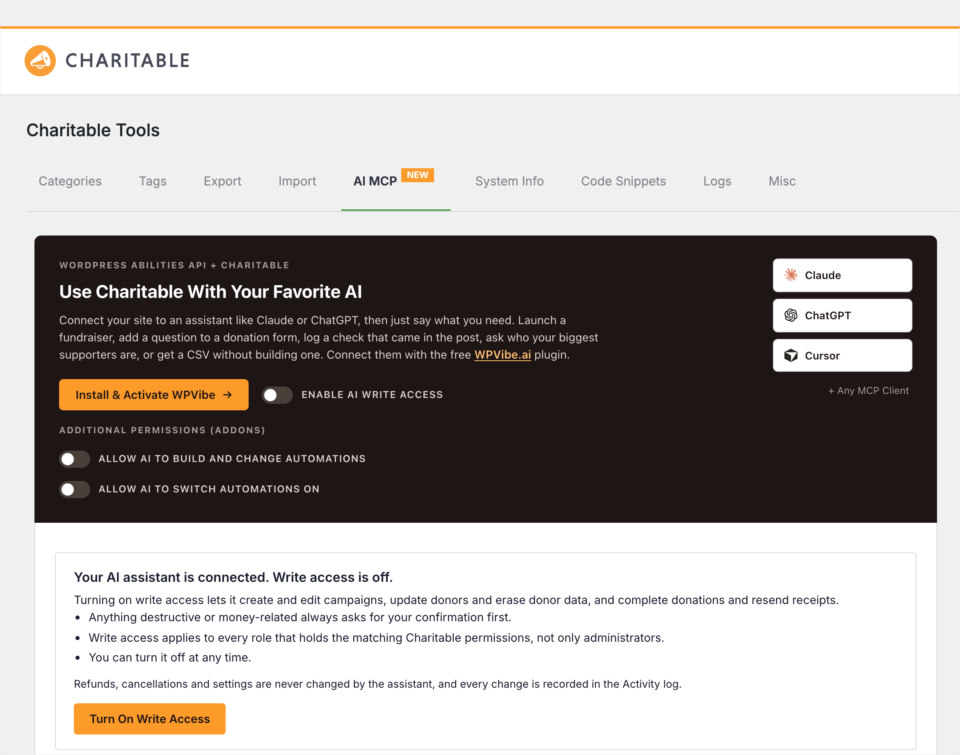
Once your assistant is connected, you’ll see a panel headed Your AI assistant is connected. Write access is off. It lists what write access allows and what it never touches.
- Read the panel, then click “Turn On Write Access”. There’s no settings page to save afterwards.
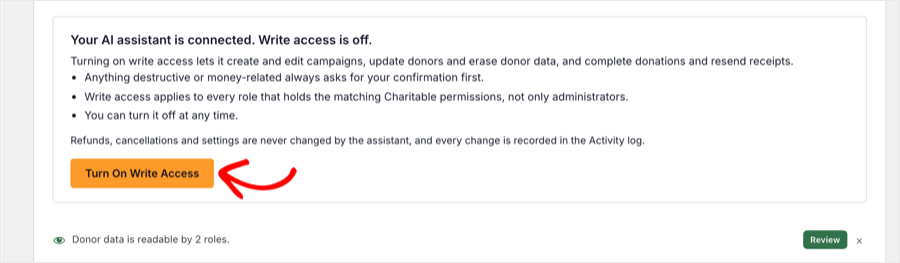
You can also use the “Enable AI Write Access” switch beside the WPVibe button. It’s the same setting, and it’s how you turn write access off again later.
Note: If you use Charitable’s Automations feature, you’ll see 2 more switches under Additional Permissions (Addons). One lets an assistant build and change automations, and the other lets it switch automations on. Each one is a separate choice.
Important: Write access applies to every role that holds the matching Charitable permissions, not only administrators. If more than one person on your team has access to Charitable, check their roles before you turn it on.
From 1.8.20, a notice can also appear on your Charitable screens offering the same one-click switch. It shows up once an assistant has tried to use Charitable on your site, not only because a plugin is installed.
How to Update a Donor’s Details With AI
Your assistant can change a donor’s first name, last name, email address, phone number and postal address. It only changes the fields you mention, and leaves the rest as they are.
Tell your assistant who the donor is and what changed. Here are a few requests you can try.
- “Maria Okonkwo moved to 42 Harbour Road, Lagos, 101233, Nigeria. Update her donor record.”
- “Change James Hale’s email to [email protected].”
- “Remove the phone number from Priya Shah’s donor record.”
The change happens straight away. Your assistant then lists each field it changed, with the old value and the new one.
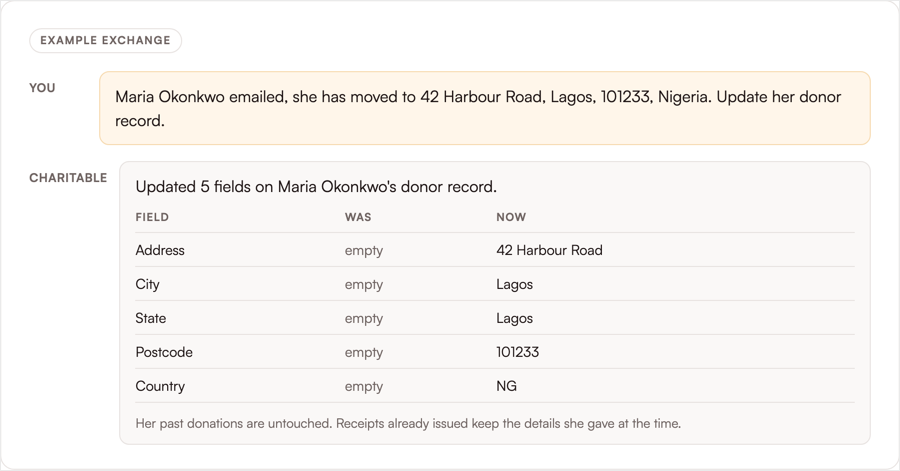
Past donations are not changed. Receipts and records for earlier donations keep the details the donor gave at the time.
Important Note: If the donor has a WordPress account on your site, changing their email also changes their login email, which is where password resets go. In that case, your assistant asks you to confirm first. If you only want to change the donor record, ask it to leave the login email as it is.
Note: An email can be changed but not removed, and it can’t be an email that already belongs to another donor or another WordPress account. For a donor with an account, a new phone number or address is also saved to their account profile.
How to Change a Donation’s Status With AI
Your assistant can move a donation to Paid, Pending or Failed. It works the same way as changing the status on the donation screen, so the same emails and actions run.
Here’s a request you can try.
- “Maria’s $40 donation from today is still pending. The bank shows it cleared, so mark it paid.”
A move into or out of Paid changes your totals, so your assistant always asks first. You’ll see the donation number, the amount, the donor and the payment method, plus everything that will happen next, such as the receipt email and the campaign total update.
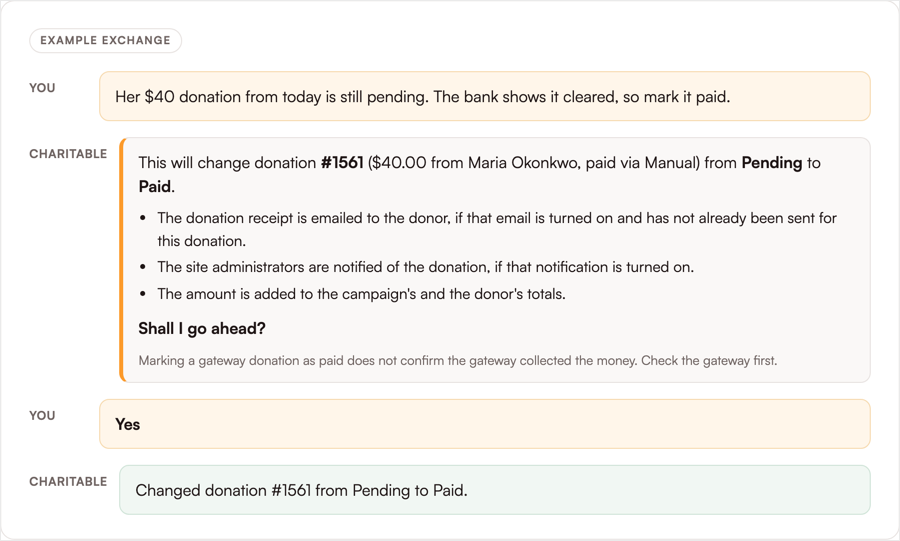
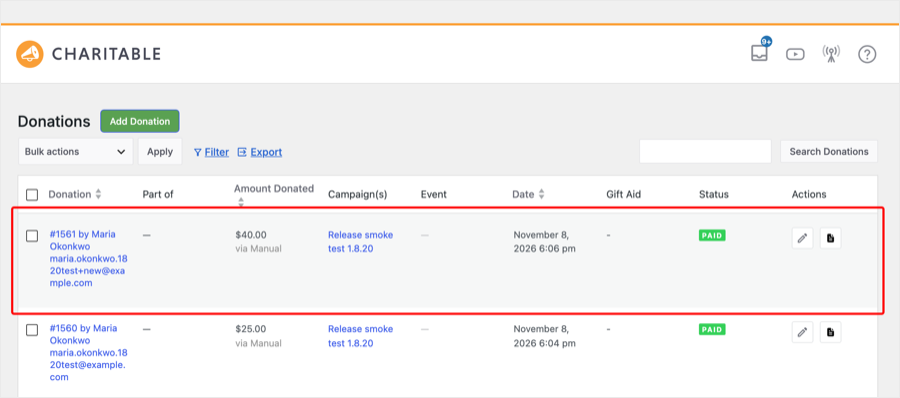
Reply yes and the status changes. You’ll then find the donation marked Paid under Charitable » Donations.
A move between 2 unpaid statuses, such as Pending to Failed, happens straight away with no confirmation.
Important: Marking a gateway donation as paid doesn’t confirm that the gateway collected the money. Check your Stripe, PayPal or other gateway account before you agree.
Note: Refunded and Cancelled aren’t available to an assistant. Refunds and cancellations stay in your dashboard and your payment gateway, and a donation that’s already refunded or cancelled can’t be moved.
How to Resend a Donation Receipt With AI
Your assistant can send a donation’s receipt again, the same way the Resend button does on the donation screen. By default, it goes to the email stored on the donation.
- “Resend the receipt for donation 1561.”
- “Send Maria’s last receipt again, to her current email address.”
Ask for the donor’s current email when you’ve just corrected it. Your assistant tells you if the address it used is different from the donor’s current one.
Note: This sends a real email to a real person. Only paid donations can be resent, and each donation can be resent at most once a minute.
How to Add a Note to a Donation With AI
Your assistant can add a note to a donation’s log, which is the history you see on the donation screen. Charitable marks each note as added by an AI assistant.
- “Add a note to donation 1561 that Maria called to say thank you.”
A note is plain text of up to 1,000 characters. Adding one changes nothing else about the donation and sends no email.
Important: A note can’t be edited or removed afterwards, so read it back before you agree to it.
How to Erase a Donor’s Personal Data With AI
When a donor asks you to delete their details, your assistant can do the same job as Tools » Erase Personal Data in WordPress.
- “Maria Okonkwo asked us to delete her personal data. Erase it.”
An erase removes the following.
- Every donor profile with that donor’s email.
- The profile fields of their WordPress account. The account itself is not deleted.
- Their saved details, donor log and any undo data from a donor merge.
- The personal details on their donations.
Donation amounts, dates and campaign totals are kept, so your reports still add up. Donations still inside the time your privacy settings keep data for keep the fields those settings name.
An erase can’t be undone, so your assistant always shows you a preview first. It names every donor profile and linked account the erase will reach, and how many donations will keep some fields. Nothing changes until you agree.
Note: An erase is refused for a donor with no email, a donor who was already erased, or a donor linked to an administrator account or any account you can’t edit.
How to Duplicate or Update a Campaign With AI
Your assistant can copy any campaign into a new draft, the same as the Duplicate link on the Campaigns screen. The copy keeps the story, goal, dates, design, donation form settings, categories and tags.
- “Copy the Winter Appeal campaign and call it Winter Appeal 2027.”
- “Set this photo as the main image for Winter Appeal 2027, and tag it Holiday.”
Donations are never copied, so the new campaign starts with nothing raised. It stays a draft until you or your assistant publish it.
When your assistant updates a campaign, it can now set the main image from a public image link. On a Campaign Builder campaign, the image fills the main photo field.
On a classic campaign, it becomes the featured image. Your assistant can also replace a campaign’s categories and tags by name.
Note: Setting an end date in the past on a published campaign closes it to donations at once, so your assistant asks you to confirm that first.
How the AI Confirmation Step Works in Charitable
Anything that can’t be undone, or that changes money, takes 2 steps. These are the jobs that always ask first.
- Erasing a donor’s personal data.
- Moving a donation into or out of Paid.
- Changing the email of a donor who has a WordPress account.
- Setting a past end date on a published campaign.
The first request changes nothing. Your assistant gets back a plain-language summary of what would happen, how many records it affects and what will be kept, and it reads that summary to you.
The change only goes through after you agree. Your approval works once and expires after 10 minutes. It only covers your user, that one job, that one record and the exact set of records in the summary.
If anything changed between the summary and your yes, the change is refused and your assistant gets a fresh summary to show you.
Which Roles Can Manage Donors and Donations With AI
Your assistant acts as the WordPress user it’s connected as. It can only make the changes that user could make in the dashboard.
- Updating a donor needs permission to manage Charitable settings and to view sensitive data. This matches the donor edit screen.
- Erasing a donor needs both of those, plus WordPress’s own Erase Personal Data permission.
- Resending a receipt needs permission to edit donations and to view sensitive data.
Campaign Managers hold donation permissions but not settings permissions, so they can’t change donor records through an assistant. Your payment gateway keys are never readable by an assistant, whatever you set.
You can see and change which roles hold these permissions in Charitable’s user roles and permissions.
How to See What Your AI Assistant Changed
Every change an assistant makes is recorded in Charitable’s logs. To find them, follow these steps.
- To get started, head over to Charitable » Tools » Logs.
- In the first drop-down above the table, choose Abilities.
- Then click “Filter”.
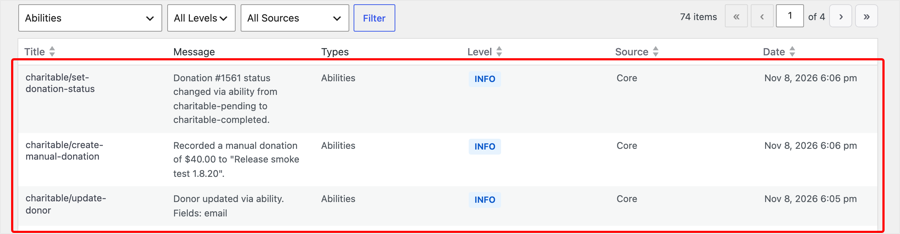
Each row shows which job the assistant ran, what happened and when. A donor update lists the names of the fields that changed, such as Fields: email, and never the values themselves. That way the log never becomes a second copy of your donors’ contact details.
Pro tip: Click “Export Filtered (CSV)” on the same screen if you need to share the record with someone else on your team.
Troubleshooting AI Donor and Donation Management
The Assistant Says Write Access Is Off
Your assistant refuses any change while write access is off, and tells you which switch to turn on. Follow the steps in How to Turn On AI Write Access in Charitable, then ask again.
The Assistant Says It Does Not Have Permission
This means the user your assistant is connected as doesn’t hold the permission that job needs. To check, find that user’s role under Users » All Users. Then compare it with the list in Which Roles Can Manage Donors and Donations With AI.
A Receipt Cannot Be Resent
A receipt can only be resent for a paid donation whose personal data hasn’t been erased. It also needs the donation receipt email to be switched on under Charitable » Settings » Emails. If you asked twice in quick succession, wait a minute and try again.
A Confirmation Was Refused
An approval expires 10 minutes after the summary, and it’s refused if the records changed in the meantime. Ask your assistant to run the request again, then agree to the new summary.
Start With the Abilities API Section in System Info
For any other problem, look at Charitable » Tools » System Info. Its Abilities API section shows whether write access is on, the last job an assistant ran and the last one that was refused. If you contact support, click “Copy System Information” and paste it into your ticket.
Tips Worth Keeping in Mind
A few habits will help you keep donor records accurate while you work with an assistant.
- Read every summary before you say yes. It tells you exactly which records will change and what will be kept.
- Check the gateway before marking a donation paid. A Paid status in Charitable doesn’t prove the money arrived.
- Correct the email, then resend. Ask for the receipt to go to the donor’s current email so it reaches the new address.
- Connect each person as themselves. When every team member uses their own WordPress user, the logs show who asked for what.
- Turn write access off when you don’t need it. Reading reports and exports works with it off.
Wrapping Up
That’s it! You can now ask your assistant to update donor details, change a donation’s status, resend receipts, add notes, erase a donor’s personal data and copy campaigns.
You also know which jobs wait for your yes and where to check everything an assistant changed. If you get stuck, our support team is happy to help.
You May Also Want to Read
These guides cover the rest of Charitable’s AI features and your donor records.
- Getting Started With AI Assistants in Charitable. Connect WPVibe or another client and turn on write access.
- AI Assistants in Charitable: The Full Reference. See everything an assistant can do on your site and how permissions map to roles.
- How to Control What Your AI Assistant Can See and Export in Charitable. Choose which roles can share donor data with an assistant.
- How to Use the Donor Management System. Find, edit and manage donor records yourself in the dashboard.
- AI Donor and Donation Management announcement post. See everything that’s new in 1.8.20.
Helpful Links
🤝 Get help when you need it
Connect with Customer Support →
📑 Find the guide you need
Browse the Documentation Hub →
⬇️ Download proven strategies, campaign ideas, and expert tools
🔗 Let your AI Assistant do the fundraising work for you.
Connect Charitable to your AI assistant →
💸 Get Free Fundraising Resources
Head to the Charitable Fundraising Hub →
🤔 Got questions about Charitable?
Charitable FAQs →
Need help understanding non-profit terms and jargon?
See our Non-Profit Glossary →

Ask ChatGPT or Claude to Do Your Fundraising Tasks
Charitable now works with ChatGPT, Claude and other AI assistants. You type what you need in plain words, and it gets done on your own site.
Here are a few things you can ask.
- “Create a spring appeal campaign with a $5,000 goal.”
- “Record a $50 check that came in from Sarah Jones.”
- “How much did we raise last month?”
- “Which campaign is doing best this year?”
It works on the free version of Charitable too, with no coding and no addon to buy. Paid plans add donor lookups and giving history. Anyone can do it!