Requires: Charitable Pro plugin 1.8.19.1+
Pro plan and higher
Automation Connect 2.4.0+
WordPress 6.9+
Do you want to build or change an automation by describing it, instead of putting it together card by card?
From Automation Connect 2.4.0, an AI assistant such as Claude or ChatGPT can list your automations, build new ones, edit and duplicate them, preview them, and switch them on and off. You connect the assistant with the free WPVibe plugin, then ask for what you want in plain language.
This guide covers what the assistant can do, the 3 switches that control it, how to turn it on, how to preview an automation, and how to fix the most common problems.
Your assistant can only do what a person with the right permission could already do in the dashboard. Every control is off until you turn it on, so nothing changes on your site until you decide it should.
What’s in This Guide?
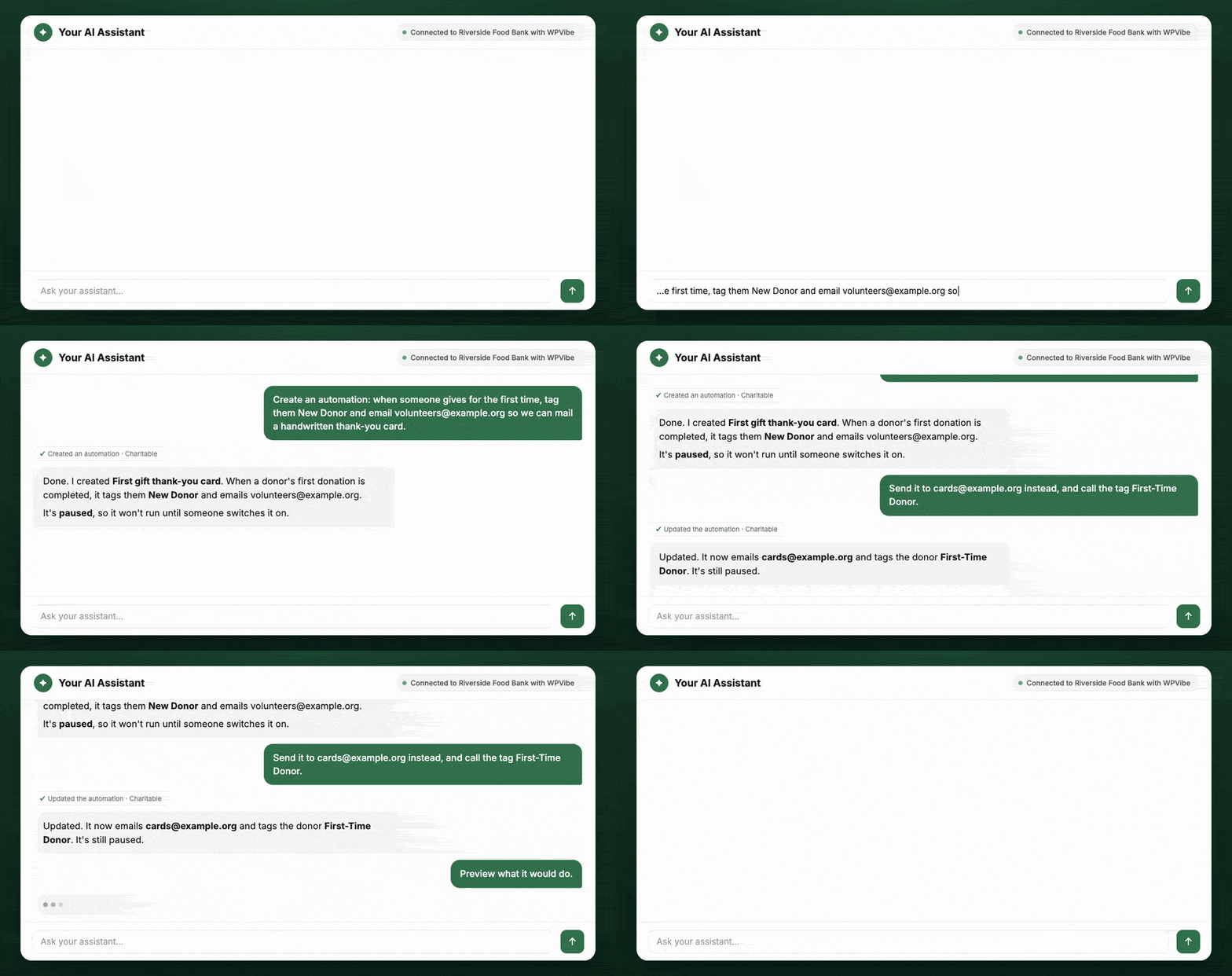
- Watch AI-Built Automations in Action
- When to Use AI-Built Automations
- What Your AI Assistant Can Do With Automations
- The 3 AI Switches for Automations
- Why AI-Built Automations Are Always Saved as Paused
- How to Turn On AI-Built Automations
- How to Preview an Automation Before You Switch It On
- What AI-Built Automations Don't Do
- How to See What the AI Changed
- Tips Worth Keeping in Mind
- Troubleshooting AI-Built Automations
- Developer Reference for AI-Built Automations
- Wrapping Up
- You May Also Want to Read
Watch AI-Built Automations in Action
When to Use AI-Built Automations
Asking your assistant is often quicker than opening the builder in these cases.
- You want to build an automation faster by describing it than by putting it together in the builder.
- You want a quick change to an existing automation, such as narrowing it to one campaign or reordering its actions, without opening the editor.
- You want to duplicate an automation as a starting point for a similar one.
- You want to check what an automation would do before you switch it on, with a preview that sends nothing.
- You need to turn an automation off quickly, by asking rather than looking for it.
What Your AI Assistant Can Do With Automations
The assistant’s abilities fall into 3 groups. Reads work with every switch off, writes need the switches, and the preview changes nothing.
Reading Your Automations
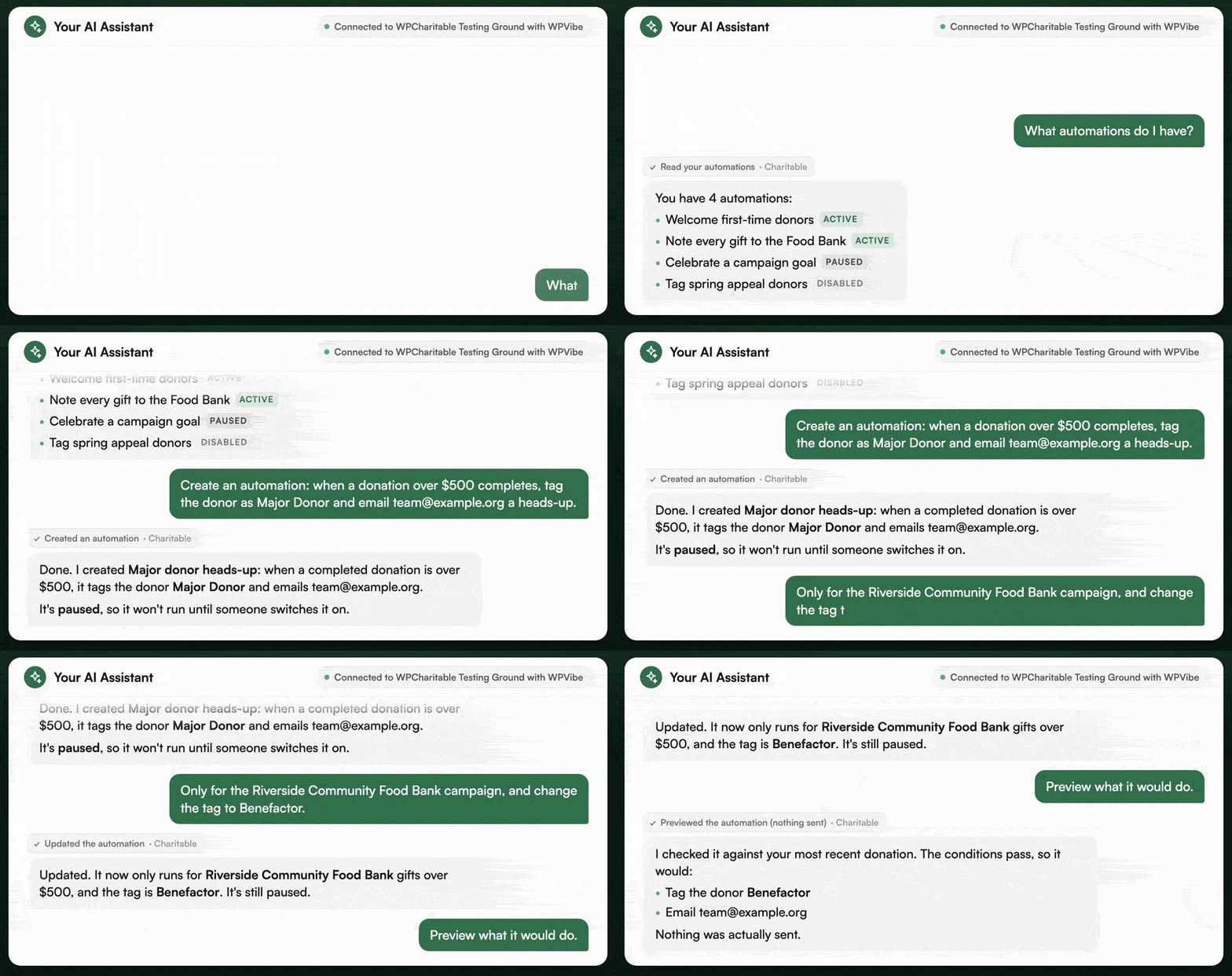
- It lists your automations, each with its trigger, whether it’s on or off, its action count, and whether its last run succeeded.
- It opens one automation in full, with its trigger, conditions and ordered actions. Webhook secrets are never returned.
- It shows an automation’s recent run history.
- It describes the triggers, actions and condition fields available on your site, so a new automation only uses options that exist there.
Building and Changing Automations
These need the switches below, and they always leave the automation paused.
- It creates a new automation from a trigger, optional conditions and one or more actions.
- It edits an existing automation’s name, trigger, conditions or actions.
- It duplicates an automation.
- It sets an automation’s status to paused, disabled or active. Setting it to active needs the “Allow AI to switch automations on” switch.
Previewing an Automation
The preview shows what an automation would do against a recent real donation. No webhook is posted, no email is sent, and no donor is tagged.
The 3 AI Switches for Automations
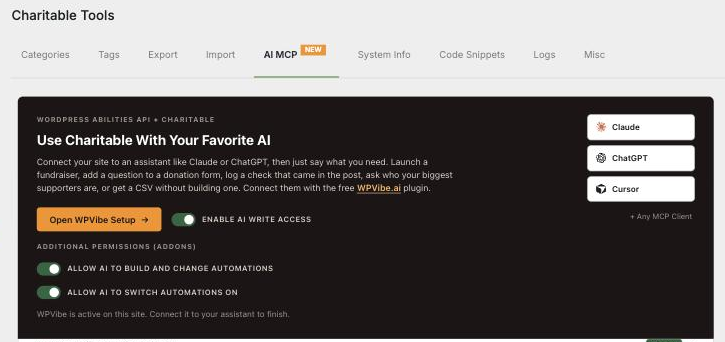
All 3 switches are at Charitable » Tools » AI MCP, and all 3 are off by default.
| Switch | What it allows | Default |
|---|---|---|
| Enable AI write access | This is Charitable’s master write switch. With it off, an assistant can read but change nothing anywhere in Charitable. | Off |
| Allow AI to build and change automations | It lets an assistant create, edit and duplicate automations. It also needs the master write switch above. | Off |
| Allow AI to switch automations on | It lets an assistant set an automation to active. It’s separate from the build switch, because making an automation run on real donations is a bigger step. | Off |
The first switch is at the top of Charitable » Tools » AI MCP. The other 2 sit just below it, under the heading Additional Permissions (Addons).
Why AI-Built Automations Are Always Saved as Paused
One rule holds however the switches are set. Anything an assistant creates or edits is saved as paused.
- An assistant can always pause or disable an automation.
- An assistant can only set an automation to active when “Allow AI to switch automations on” is on.
- With that switch off, the assistant can still build and refine freely, and a person switches the result on.
That’s what makes it safe to let an assistant draft. A paused automation doesn’t run on any donations.
How to Turn On AI-Built Automations
To get started, work through these steps in order.
- Make sure you’re on the Charitable Pro plugin 1.8.19.1 or later and Automation Connect 2.4.0, on WordPress 6.9 or later.
- Install and activate the free WPVibe plugin. The “Open WPVibe Setup” button on Charitable » Tools » AI MCP starts this for you.
- Connect your assistant through WPVibe. Claude, ChatGPT, Cursor and any other MCP client all connect the same way.
- On Charitable » Tools » AI MCP, turn on “Enable AI write access”.
- Under Additional Permissions, turn on “Allow AI to build and change automations”.
- Leave “Allow AI to switch automations on” off, unless you want the assistant to switch automations on itself rather than draft them for you to switch on.
How to Preview an Automation Before You Switch It On
Ask your assistant to preview an automation, or use the Preview action in the editor. You’ll see what it would do against a recent real donation, with nothing sent.
Run a preview before you switch any automation on, especially one with a webhook or an email. It shows the logic running without any live effect.
What AI-Built Automations Don’t Do
- It doesn’t run anything it builds. New and edited automations stay paused until a person, or the assistant with “Allow AI to switch automations on” turned on, activates them.
- It doesn’t touch automations at all unless both the master write switch and the build switch are on.
- It doesn’t expose secrets. A read never returns webhook signing secrets, and payment gateway keys are never readable.
- It doesn’t read donor contact details unless the user it acts for has Charitable’s sensitive-data permission.
How to See What the AI Changed
Charitable logs every AI action. Charitable » Tools » Logs records what was read and what was changed, and you can filter it to show only AI activity.
Tips Worth Keeping in Mind
A few habits make AI-built automations easier to trust.
- Keep “Allow AI to switch automations on” off at first. Let the assistant draft, then switch automations on yourself until you’re comfortable with what it builds.
- Preview every automation that sends an email or posts a webhook before it goes live.
- After the assistant creates an automation, open it in the builder once so you can read the trigger, conditions and actions yourself.
Troubleshooting AI-Built Automations
The AI Controls Aren’t on the AI MCP Tab
Check these 3 things in order.
- You’re on the Charitable Pro plugin 1.8.19.1 or later. Earlier versions don’t have the Additional Permissions controls.
- Automation Connect 2.4.0 or later is active. Automation Connect adds the 2 automation switches, and without it you’ll only see the core “Enable AI write access” switch.
- You’re signed in as a user who can manage Charitable settings. The controls need the manage settings capability.
The Assistant Says Automations Are Turned Off
The message names the place to fix it, Charitable » Tools » AI MCP. Turn on “Allow AI to build and change automations”, and “Enable AI write access” above it.
Reading works either way, so the assistant can still list and open your automations.
The Assistant Won’t Switch an Automation On
Switching an automation on is a separate permission. Turn on “Allow AI to switch automations on”, or set the automation to active yourself from the Automations screen.
An Automation the Assistant Built Isn’t Running
It’s paused, by design. Review it, then set it to active.
The Assistant Can’t See a Donor’s Email
Donor emails need the sensitive-data permission, by design. If it’s appropriate, grant it to the acting user with the AI Access to Donor Data control on Charitable » Tools » AI MCP.
Developer Reference for AI-Built Automations
Permissions and Filters for AI Automation Writes
The abilities are registered in the charitable ability category and permissioned by manage_charitable_settings. The build switch and the switch-on switch are dedicated gates, layered on top of Charitable’s general AI write gate, so the call is refused if either one is off.
Both gates also need an active license and fail closed without one.
// Allow or refuse AI automation writes, regardless of the UI switch.
add_filter( 'charitable_abilities_allow_automation_write', '__return_false' );

// Allow or refuse AI switching automations on, separately.
add_filter( 'charitable_abilities_allow_automation_arm', '__return_false' );
Automation Abilities by Name
- Reads.
describe-automation-schema,list-automations,get-automationandget-automation-activity. - Writes.
create-automation,update-automation,duplicate-automationandset-automation-status. - Preview.
test-automation.
Conditions and actions an assistant submits are validated against the chosen trigger before they’re stored. That’s the same validation a manual edit goes through.
Wrapping Up
You can now connect an AI assistant, choose how much it’s allowed to do with your automations, and preview anything it builds before it goes live.
If you get stuck on any step, our support team is happy to help.
You May Also Want to Read
These guides cover the rest of Charitable’s AI tools and Automation Connect.
- Getting Started With AI Assistants. Connect your first assistant to Charitable through WPVibe.
- AI Assistants in Charitable, the Full Reference. See every ability an assistant can use across Charitable.
- How to Control What Your AI Assistant Can See and Export. Set the donor data and export limits for AI.
- Automation Connect Visual Automation Builder. Build and edit automations by hand on the canvas.
- Automation Connect 2.0. Learn the triggers, conditions and actions the assistant builds with.
Helpful Links
🤝 Get help when you need it
Connect with Customer Support →
📑 Find the guide you need
Browse the Documentation Hub →
⬇️ Download proven strategies, campaign ideas, and expert tools
🔗 Let your AI Assistant do the fundraising work for you.
Connect Charitable to your AI assistant →
💸 Get Free Fundraising Resources
Head to the Charitable Fundraising Hub →
🤔 Got questions about Charitable?
Charitable FAQs →
Need help understanding non-profit terms and jargon?
See our Non-Profit Glossary →