
Requires: Charitable Pro plugin 1.8.16+
Pro plan and higher
Charitable Ambassadors 3.4.7+
Do your fundraisers need something to hand out at a race, pin on a noticeboard or leave on a staffroom table?
Charitable Ambassadors gives you 2 printables for that, and both print straight from the browser. You don’t need a design tool or a PDF plugin.
- A fundraiser flier is for one fundraiser. It shows their name, their story and their goal, plus a QR code that opens their own page.
- A recruitment poster is for a parent campaign. It shows your organization’s details and a QR code that opens the sign-up form, so someone who scans it can start their own fundraiser.
This guide covers switching fliers on, choosing a layout and logo, where fundraisers find their flier, printing a poster, and the developer hooks.
A flier asks for a donation to one person’s page, and a poster asks for a new fundraiser. So knowing the difference helps you print the right one for each place.
Read the full feature announcement »
What’s in This Guide?
- Watch the Fliers and Posters Video
- When to Use Fliers and Posters
- What a Fundraiser Flier Shows
- How to Turn On Printable Fliers
- What a Recruitment Poster Shows
- What Fliers and Posters Have in Common
- Tips Worth Keeping in Mind
- Troubleshooting Fliers and Posters
- Developer Reference for Fliers and Posters
- Wrapping Up
- You May Also Want to Read
Watch the Fliers and Posters Video
This short walkthrough shows how to switch fliers on and where your fundraisers find Print Flier. It also shows how to print a recruitment poster from the campaigns list.
When to Use Fliers and Posters
Fliers and posters help anywhere your supporters meet people in person.
- Race days and event tables. A pile of fliers gives a supporter who paid in cash a way to give online later.
- Schools and clubs. A poster on the noticeboard lets new fundraisers sign up without you inviting each one.
- Workplaces. A poster in the kitchen and fliers at reception ask for both donations and new fundraisers.
- Door-to-door and neighbourhood drops. The Hand out layout is made for giving to people.
- Places without a screen. A church hall, a village shop and a gym all work.
What a Fundraiser Flier Shows
A flier is a one-page document for a single fundraiser, and that fundraiser prints it themselves.
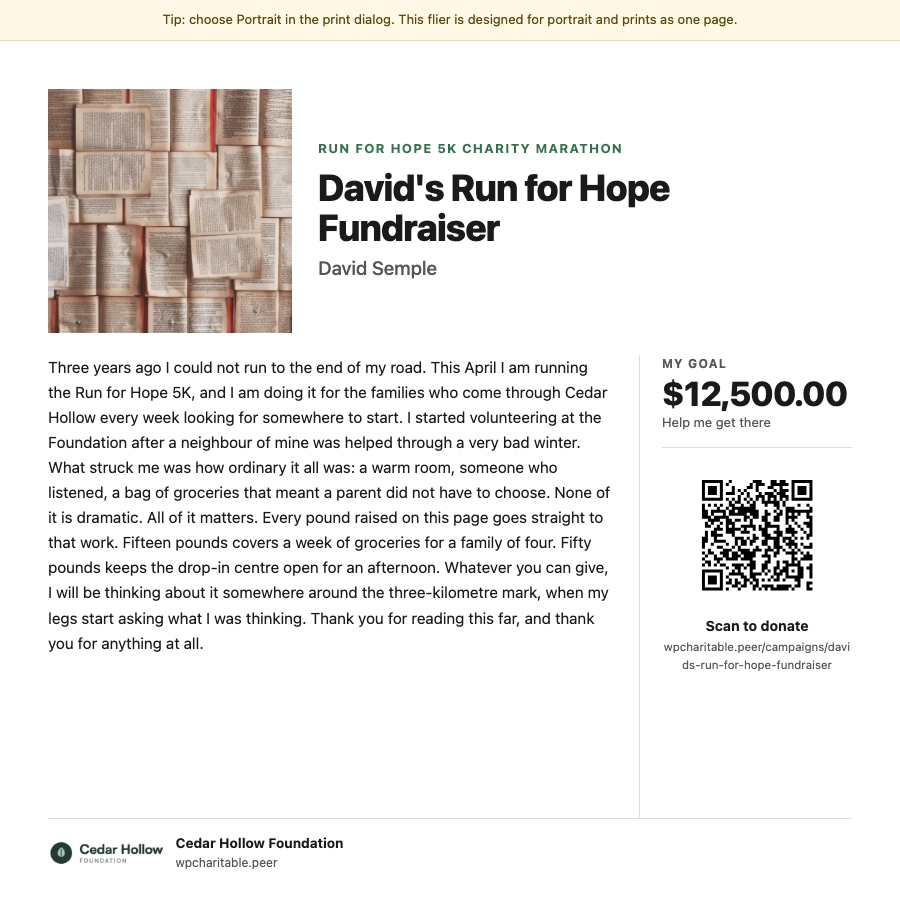
Everything on it comes from the fundraiser’s own page. You’ll see the campaign name above their headline, their photo and story, their goal, and a QR code that says “Scan to donate”. Your logo, or your site name if you haven’t set one, appears in the footer.
How to Turn On Printable Fliers
Fliers are off by default, so updating Ambassadors never shows a Print Flier link to your fundraisers before you’re ready. To get started, head over to Charitable » Ambassadors » Other » Fliers.
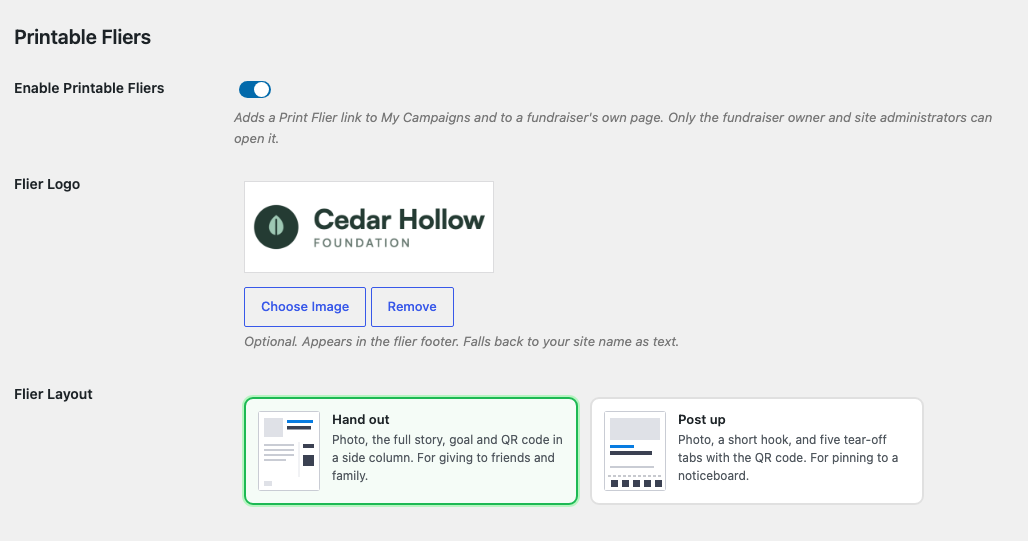
| Setting | What it does |
|---|---|
| Enable Printable Fliers | This switch adds a Print Flier link to My Campaigns and to each fundraiser’s own page. It stays off until you switch it on. |
| Flier Logo | This optional logo appears in the flier footer. If you leave it empty, the footer shows your site name as text. |
| Flier Layout | This lets you choose Hand out or Post up. The next section explains both. |
The logo and layout settings only appear once fliers are switched on. If you switch fliers off again, both choices are saved for next time.
How to Choose a Flier Layout
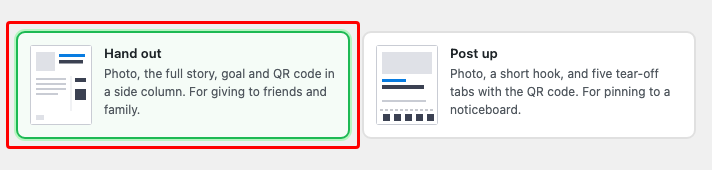
Hand out is the default. It’s made for giving to friends and family, with a photo, the full story, the goal and the QR code in a side column.
Post up is made for a noticeboard. It shows a photo, a short hook and 5 tear-off tabs with the QR code.
Both layouts print portrait on one page. A tip at the top of the flier reminds you to choose Portrait in the print dialog, because landscape splits the flier across 2 pages.
Where Fundraisers Find the Print Flier Link
Once fliers are on, every fundraiser gets a Print Flier link in 3 places. All 3 open the same flier.
- On My Campaigns, on each of their fundraisers.
- In the launch panel a new fundraiser sees right after their page is approved.
- On the creator toolbar on their own fundraiser page, while they’re signed in.
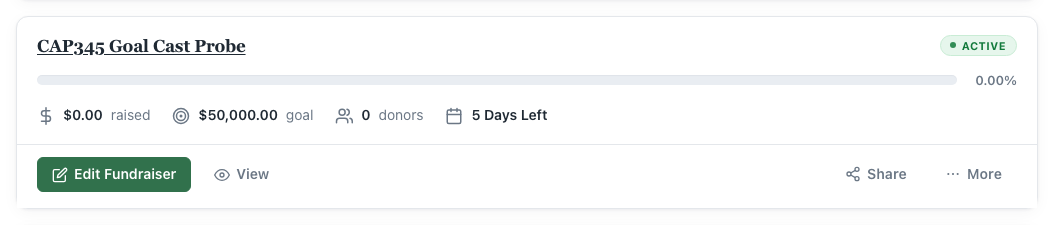
When they click it, the flier opens as its own page, and they can print it with their browser.
Who Can Print a Fundraiser Flier
Only the fundraiser’s owner and site administrators can open a flier. Nobody else can, whether they’re signed in or not.
Charitable checks who owns the fundraiser before it checks any permission. This matters because most fundraisers have the Subscriber role, and a roles plugin that removes edit_campaigns would otherwise stop them printing their own flier.
What Fundraisers See When a Flier Can’t Be Printed
Instead of printing a broken page, the flier shows a message that explains the problem.
| Situation | What the visitor sees |
|---|---|
| The fundraiser is still waiting for approval. | They see “You can print a flier once this fundraiser has been approved and published.” |
| Someone opens another person’s fundraiser. | They see “You cannot print this flier.” Only the owner and administrators can print it. |
| The campaign doesn’t use peer-to-peer fundraising. | They see “Fliers are for peer-to-peer fundraisers.” A standalone campaign has no flier. |
| Fliers are switched off. | Someone who could switch fliers back on sees “Printable fliers are turned off.” Everyone else sees a plain not-found page, so the page never mentions a feature the visitor can’t use. |
What a Recruitment Poster Shows
A poster is a one-page document for a parent campaign, which is the main campaign your fundraisers raise money under. Whoever runs that campaign prints it, and its job is to bring in new fundraisers.
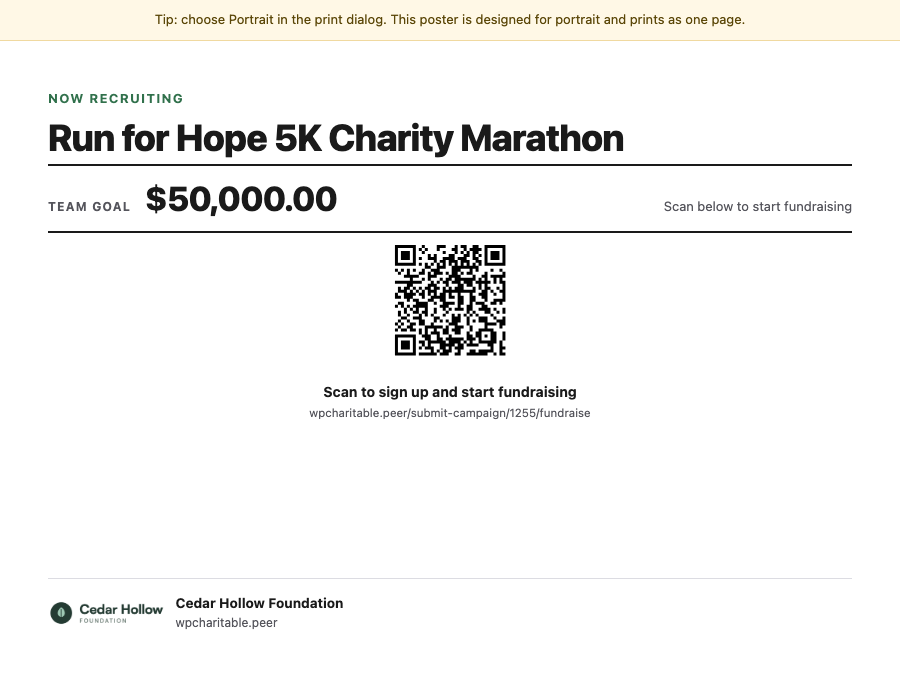
The QR code opens your fundraiser sign-up page, not a donation form. Someone who scans the poster lands on the form that creates their own fundraising page, even if they don’t have an account yet.
How to Print a Recruitment Poster
To print a poster, head over to Charitable » Campaigns and click the Print Poster icon at the end of the campaign’s row.
Note: The Print Poster icon is on the Charitable Campaigns list, not in the Ambassadors Directory. The 3.4.6 release notes pointed to the Directory, and this guide has the correct location.
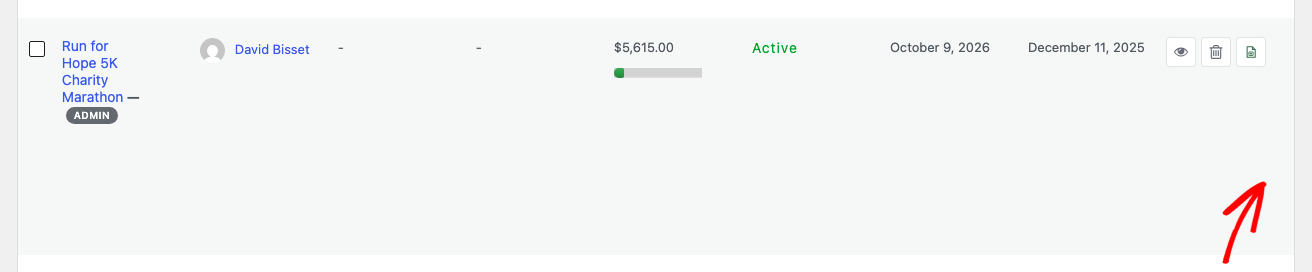
The icon only appears on rows where a poster can open. The campaign has to be a peer-to-peer parent campaign, and you have to be someone who can print its poster. A fundraiser’s own row doesn’t show the icon, because nobody signs up to a single fundraiser.
The poster opens in a new tab and brings up your browser’s print dialog.
Who Can Print a Recruitment Poster
Anyone who can manage the parent campaign can print its poster. That means the campaign’s author, or anyone with permission to edit it.
This is a different rule from fliers on purpose. A flier checks whether you own the fundraiser, and a poster checks whether you run the campaign.
How to Point a Poster at One Fundraiser Type
If your campaign accepts more than one type of fundraiser, you can print a poster that sends people straight to one type, so they skip the choice. Add type to the end of the poster’s web address.
/poster/123/?type=individual
/poster/123/?type=team
/poster/123/?type=team-member
Replace 123 with your campaign ID. Without type, people choose for themselves when they sign up.
Pro tip: Print different posters for different groups, such as a team poster for coaches and an individual poster for the lobby.
How Recruitment Posters Work With Fliers Switched Off
Enable Printable Fliers only controls fliers. A recruitment poster works whether that setting is on or off.
Posters do use the Flier Logo setting, so you only need to upload your logo once. Once a Flier Logo is set, it appears on your posters even with fliers switched off.
Flier Layout doesn’t change a poster. A poster has a single layout for now, so Hand out and Post up produce the same poster.
If you want posters but not fliers, switch on Enable Printable Fliers, choose your logo and save. Then switch fliers off again. Your logo stays saved and keeps appearing on your posters.
What Fliers and Posters Have in Common
Both printables work the same way behind the scenes.
- They are standalone pages. Neither one loads your theme’s stylesheet, so they print the same on every site.
- They are never indexed or cached. Both send
noindex, nofollowand no-cache headers. A flier never shows up in search results, and a fundraiser who edits their story gets the new version the next time they print. - Their QR codes are tagged. A flier’s QR code is tagged as coming from a flier and a poster’s as coming from a poster, so Ambassadors can tell you which printout brought people in.
- They are printed, not downloaded. The page opens and you print it. Your browser can save it as a PDF if you want a file.
Tips Worth Keeping in Mind
These habits help your printables reach the right people.
- Set your logo before you switch fliers on for everyone. Your fundraisers’ first fliers will then carry your branding.
- Use fliers for donations and posters for sign-ups. A flier’s QR code opens a fundraiser’s page, and a poster’s opens the sign-up form.
- Tell fundraisers to choose Portrait. Landscape is the one print setting that splits a flier across 2 pages.
- Pick Post up for noticeboards. Its tear-off tabs let people take the QR code away with them.
Troubleshooting Fliers and Posters
There Is No Print Flier Link Anywhere
Check Enable Printable Fliers under Charitable » Ambassadors » Other » Fliers, because it stays off until you switch it on. If it’s on, make sure you’re looking at a published peer-to-peer fundraiser rather than a standalone campaign.
A Fundraiser’s Flier Shows a Not-Found Page
Most often, the fundraiser isn’t published yet. Also check that they’re signed in as the owner, because a visitor who isn’t signed in sees a plain not-found page.
The Print Poster Icon Is Missing From a Campaign’s Row
First, check that you’re on Charitable » Campaigns, because the icon isn’t in the Ambassadors Directory.
The icon only appears on peer-to-peer parent campaigns. If the campaign isn’t accepting fundraisers, or it’s a fundraiser itself, there’s no poster to print. Check the campaign’s Peer to Peer Fundraising settings.
The Flier Prints Across 2 Pages
Choose Portrait in the print dialog. Both layouts are made for one portrait page, and landscape splits them.
The Footer Shows My Site Name Instead of My Logo
Your site name is what appears when no logo is set. Set a Flier Logo under Charitable » Ambassadors » Other » Fliers, and remember the field only appears once fliers are switched on.
Posters Still Work After I Turned Fliers Off
That’s expected. Enable Printable Fliers only controls fliers, as explained in How Recruitment Posters Work With Fliers Switched Off.
Developer Reference for Fliers and Posters
Flier and Poster Hooks and Filters
| Hook | Type | What it does |
|---|---|---|
charitable_ambassadors_flier_view_args | filter | Filters everything the flier template renders, including the headline, story, goal, logo, QR code, owner name and image. |
charitable_ambassadors_flier_layout | filter | Filters the resolved layout, hand-out or post-up. It receives the fundraiser ID, so you can vary the layout per campaign. |
charitable_ambassadors_flier_qr_url | filter | Filters the URL the flier’s QR code encodes. |
charitable_ambassadors_flier_story_words | filter | Filters how many words of the fundraiser’s story the flier includes. |
charitable_ambassadors_flier_slug | filter | Filters the route segment, which is flier by default. |
charitable_ambassadors_poster_view_args | filter | Filters everything the poster template renders. |
charitable_ambassadors_poster_url | filter | Filters the poster URL built by charitable_ambassadors_get_poster_url(). |
charitable_ambassadors_poster_qr_url | filter | Filters the sign-up URL the poster’s QR code encodes. |
Override the Flier and Poster Templates in Your Theme
Copy any of these files into your theme at the same path to override it.
your-theme/charitable/charitable-ambassadors/campaign/fundraiser-flier.php
your-theme/charitable/charitable-ambassadors/campaign/fundraiser-flier-hand-out.php
your-theme/charitable/charitable-ambassadors/campaign/fundraiser-flier-post-up.php
your-theme/charitable/charitable-ambassadors/campaign/fundraiser-flier-footer.php
your-theme/charitable/charitable-ambassadors/campaign/fundraiser-flier-notice.php
your-theme/charitable/charitable-ambassadors/campaign/recruitment-poster.php
Useful Functions for Fliers and Posters
charitable_ambassadors_flier_enabled()returns whether fliers are switched on.charitable_ambassadors_flier_layout( $fundraiser_id )returns the resolved layout.charitable_ambassadors_flier_logo_id()returns the chosen logo attachment, which posters share.charitable_ambassadors_get_poster_url( $parent_id, $type )returns a poster URL, or''when that campaign has no poster.Charitable_Ambassadors_Flier_Controller::can_print( $fundraiser_id, $user_id )checks whether a user can print a flier.Charitable_Ambassadors_Flier_Controller::get_block_reason( $fundraiser_id, $user_id )returns'', or one ofdisabled,not_found,forbidden,not_fundraiserorunpublished.Charitable_Ambassadors_Poster_Controller::can_view( $parent_id, $user_id )checks whether a user can print a poster.Charitable_Ambassadors_Poster_Controller::get_block_reason( $parent_id, $user_id )returns'',not_found,forbidden, or a parent-resolution error code.
Both access checks take an explicit $user_id, so you can ask about an anonymous visitor (0) or a specific user without a real request.
Code Example for a Different Flier Layout on One Campaign
add_filter( 'charitable_ambassadors_flier_layout', function ( $layout, $fundraiser_id ) {
    $parent = wp_get_post_parent_id( $fundraiser_id );

    return ( 123 === (int) $parent ) ? 'post-up' : $layout;
}, 10, 2 );
Code Example for a Longer Story on the Flier
add_filter( 'charitable_ambassadors_flier_story_words', function () {
    return 90;
} );
Code Example to Build a Poster Link in Your Own Template
$url = charitable_ambassadors_get_poster_url( $parent_id, 'team' );

if ( '' !== $url ) {
    printf( '<a href="%s" target="_blank" rel="noopener">%s</a>', esc_url( $url ), esc_html__( 'Print a poster', 'your-theme' ) );
}
charitable_ambassadors_get_poster_url() returns an empty string rather than a WP_Error, because every caller is a UI deciding whether to show a link. Use Charitable_Ambassadors_Poster_Controller::get_block_reason() when you need the reason.
Wrapping Up
That’s it! You’ve learned how to switch on fundraiser fliers, choose a layout and logo, and print a recruitment poster. Your fundraisers can now print their own fliers, and new supporters can sign up straight from a poster on the wall.
If you get stuck on any step, our support team is happy to help.
You May Also Want to Read
These guides cover the parts of Ambassadors that fliers and posters build on.
- Peer-to-Peer Concepts. Learn how parent campaigns and fundraisers differ, which decides who gets which printable.
- My Campaigns. See the screen where fundraisers find their Print Flier link.
- Fundraiser Page. Find out where the story, goal and photo on each flier come from.
- Directory. Manage your fundraisers, and note that the Print Poster icon is on Charitable » Campaigns instead.
- Hooks and Filters in Ambassadors. Browse the full developer reference.
Helpful Links
🤝 Get help when you need it
Connect with Customer Support →
📑 Find the guide you need
Browse the Documentation Hub →
⬇️ Download proven strategies, campaign ideas, and expert tools
🔗 Let your AI Assistant do the fundraising work for you.
Connect Charitable to your AI assistant →
💸 Get Free Fundraising Resources
Head to the Charitable Fundraising Hub →
🤔 Got questions about Charitable?
Charitable FAQs →
Need help understanding non-profit terms and jargon?
See our Non-Profit Glossary →




