
Is something on your Charitable status card showing red or orange? The status card checks your donation protection, AI access, email and payment gateways, and tells you which ones need attention.
This guide covers what each of the 4 checks means, what each label tells you, and how to fix anything that needs setting up.
Fixing these early means you find a problem here, rather than after a donor tells you their receipt never arrived or their payment failed.
The status card is available in version 1.8.19 of the Charitable Pro plugin.
What’s In This Guide?
Where to Find the Status Card
To find the status card, go to Charitable » Dashboard. It’s at the top of the right-hand column.
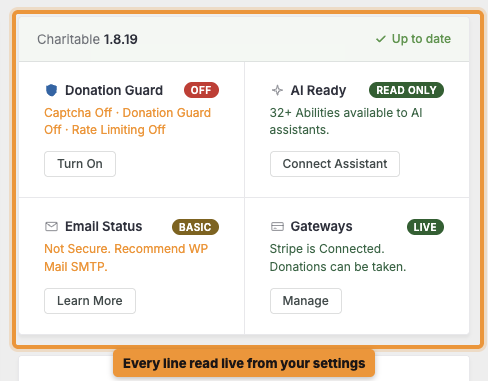
Each check is read live from your settings, so it always shows what’s running right now. Each one has a coloured label, a short line about its current state, and a button.
Checking Your Charitable Version
At the top of the card, you’ll see the Charitable version you’re running. If it says Up to date, there’s nothing to do.
If a newer version is available, update the Charitable Pro plugin under Plugins » Installed Plugins.
Donation Guard
This check shows whether your donation forms are protected from bots and card testing attacks. It lists 3 protections, CAPTCHA, DonationGuard and rate limiting, and whether each one is on or off.
If the label says Off, none of these protections are running. To set them up, click “Turn On”.
Pro tip: Card testing attacks can leave you with hundreds of small failed donations and fees from your payment processor. Turning on protection before your next campaign is the safest choice.
AI Ready
This check shows whether AI assistants can connect to Charitable to help you manage your fundraising.
If the label says Read Only, an AI assistant can read your Charitable data but can’t make changes. To connect an assistant, click “Connect Assistant”.
To learn more about connecting an AI assistant, see the Charitable AI page.
Email Status
This check shows whether your site’s emails, such as donation receipts, are being sent securely.
If the label says Basic and the line reads Not Secure, your site is using WordPress’s default email sending. Emails sent this way often land in spam or don’t arrive at all. To see how to fix it, click “Learn More”.
The card recommends setting up WP Mail SMTP, which sends your emails through a proper email service.
Important: Fix this before you turn on the weekly summary email, or your team may never receive it.
Gateways
This check shows which payment gateway is connected and whether your site can take donations.
If the label says Live, your gateway is connected and taking real payments. To change your gateways or their settings, click “Manage”.
Note: If you’re still testing, your gateway may be in test mode. Remember to switch it to live mode before you start your campaign.
Tips Worth Keeping in Mind
A few habits that keep your status card green.
- Check the card after any change to your gateways, email or security settings.
- Check it again before every big campaign or appeal.
- Make a test donation after fixing a gateway, so you see the checkout and receipt the way your donors will.
FAQs on the Status Card
How often does the status card update?
Every time you open the dashboard. Each check is read live from your settings.
I fixed something, but the card still shows a warning. Why?
Make sure you saved the setting, then reload the dashboard. If the warning stays, contact our support team.
Do I need every check to be green?
Gateways and Email Status matter most, because they affect every donation and receipt. AI Ready is optional, and you can leave it as it is if you don’t use an AI assistant.
Wrapping Up
You now know what each of the 4 checks on your status card means, and how to fix any that need setting up.
A quick look at this card before each campaign can save you from failed payments and missing receipts. If you get stuck on any step, our support team is happy to help.
You May Also Want to Read
These guides cover the settings behind each check.
- Introducing DonationGuard. How Charitable spots and blocks bots on your donation forms.
- Adding Payment Gateways. Connect a new gateway or change an existing one.
- How to Read Your Charitable Dashboard. Find your way around the rest of the dashboard.
Helpful Links
🤝 Get help when you need it
Connect with Customer Support →
📑 Find the guide you need
Browse the Documentation Hub →
⬇️ Download proven strategies, campaign ideas, and expert tools
🔗 Let your AI Assistant do the fundraising work for you.
Connect Charitable to your AI assistant →
💸 Get Free Fundraising Resources
Head to the Charitable Fundraising Hub →
🤔 Got questions about Charitable?
Charitable FAQs →
Need help understanding non-profit terms and jargon?
See our Non-Profit Glossary →

Charitable Now Works With the AI Assistant You Already Use
This is the most fun thing we’ve shipped all year, and you have to try it. You can now use ChatGPT, Claude, or any AI assistant you’re already using to build and launch fundraiser campaigns.
You can create donation records, manage donor profiles, fetch data, and get fundraising reports too. Simply connect your AI agent, and start asking for what you want.
No Charitable addon needed, no coding, and no elaborate setup. Anyone can do it!



