
Do you want to know whether this December went better than last December? The Compare tool on the Reports Overview puts any 2 periods side by side, with the change between them.
This guide covers running a comparison, reading the results table, and choosing periods that give you a fair answer.
Fundraising is seasonal, so comparing a month with the one just before it often tells you very little. Comparing the same season across years shows you whether you’re really growing.
Compare is available in version 1.8.19 of the Charitable Pro plugin.
What’s In This Guide?
Running a Comparison
To compare 2 periods, follow these steps.
- To get started, head over to Charitable » Reports.
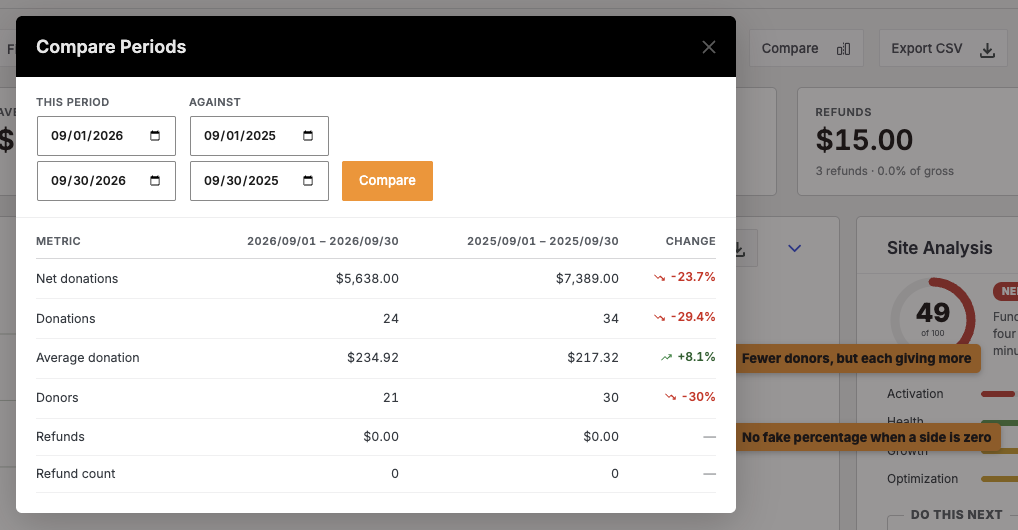
- At the top right, click “Compare”. A Compare Periods window will appear.
- Under This Period, enter the start and end dates you want to look at.
- Under Against, enter the start and end dates you want to compare it with.
- When both ranges are set, click the orange “Compare” button.
Reading the Results
You’ll get a table with a column for each period and a Change column. Each row is one of 6 figures.
- Net donations is the amount raised after refunds.
- Donations is the number of gifts.
- Average donation is the average size of a gift.
- Donors is the number of people who gave.
- Refunds is the amount refunded.
- Refund count is the number of refunds.
The Change column always reads from the point of view of This Period. A green arrow means This Period is higher, and a red arrow means it’s lower.
Reading the rows together tells you more than any single one. In the screenshot above, donors went down by 30% but the average donation went up by 8.1%, so fewer people gave, but each one gave more.
Note: These percentages use the same calculation as the trend arrows on your Reports Overview tiles, so the 2 will always agree.
If one side of a row is zero, you’ll see a dash instead of a percentage. A change from zero can’t be shown as a percentage, so Charitable leaves it out.
Tips Worth Keeping in Mind
A few habits that give you fairer comparisons.
- Compare the same month or season across 2 years, such as December 2026 against December 2025.
- Keep both periods the same length, so a longer month doesn’t look like growth.
- Compare a campaign’s run this year against the same dates last year, to see whether a change you made helped.
FAQs on Comparing Periods
Can I compare periods of different lengths?
Yes. You can set any dates for both periods. For the clearest result, compare periods of the same length.
Why does my comparison show a dash instead of a percentage?
One of the 2 periods has a zero for that figure. A change from zero can’t be shown as a percentage, so you’ll see a dash instead.
How is this different from the trend arrows on the tiles?
The trend arrows always compare a period with the one just before it. Compare lets you choose both periods yourself.
Wrapping Up
You now know how to compare any 2 periods and read the results, including what a dash in the Change column means.
Next time someone asks whether you’re doing better than last year, you’ll have the answer in a few clicks. If you get stuck on any step, our support team is happy to help.
You May Also Want to Read
These guides cover the rest of your reporting tools.
- How to Use the Reports Overview. Filter by campaign and date, and read every section of the full report.
- How to Export Your Donation Reports as a PDF or CSV. Take your figures into a board pack or a spreadsheet.
- How to Run a Seasonal Campaign. Plan the campaigns you’ll be comparing year to year.
Helpful Links
🤝 Get help when you need it
Connect with Customer Support →
📑 Find the guide you need
Browse the Documentation Hub →
⬇️ Download proven strategies, campaign ideas, and expert tools
🔗 Let your AI Assistant do the fundraising work for you.
Connect Charitable to your AI assistant →
💸 Get Free Fundraising Resources
Head to the Charitable Fundraising Hub →
🤔 Got questions about Charitable?
Charitable FAQs →
Need help understanding non-profit terms and jargon?
See our Non-Profit Glossary →

Charitable Now Works With the AI Assistant You Already Use
This is the most fun thing we’ve shipped all year, and you have to try it. You can now use ChatGPT, Claude, or any AI assistant you’re already using to build and launch fundraiser campaigns.
You can create donation records, manage donor profiles, fetch data, and get fundraising reports too. Simply connect your AI agent, and start asking for what you want.
No Charitable addon needed, no coding, and no elaborate setup. Anyone can do it!



