
Connect Charitable to Brevo (formerly Sendinblue) so donors who opt in on your donation forms are added to your Brevo contact list automatically, with their details mapped to Brevo contact attributes. Available in the Charitable Newsletter Connect extension, version 2.4.0 and later.
Beta: Brevo support is currently in Beta. It is safe to use in production, and we are actively gathering feedback. If something does not behave as expected, your Charitable activity log (see Monitoring below) captures the details.
Key Features You Should Know About
- Add donors to a chosen Brevo list automatically when they opt in on a donation form.
- Map Charitable donor fields to Brevo contact attributes (first name, last name, and your own custom attributes).
- Optional double opt-in, so a donor confirms by email before being subscribed.
- Set a default list for all campaigns, or choose a different list per campaign.
- Full GDPR support: donor data export and permanent erasure through the WordPress privacy tools.
- Every subscribe attempt and error is written to the Charitable activity log for easy troubleshooting.
Why Use Brevo?
Every donation is a chance to build a lasting relationship, but that only happens if you can keep in touch. Brevo is one of the most popular email marketing and CRM platforms, especially for nonprofits in Europe. With this integration, donors who opt in flow straight into your Brevo audience the moment they give, so you can send thank-you sequences, campaign updates, and appeals without exporting or importing a single CSV.
See It In Action
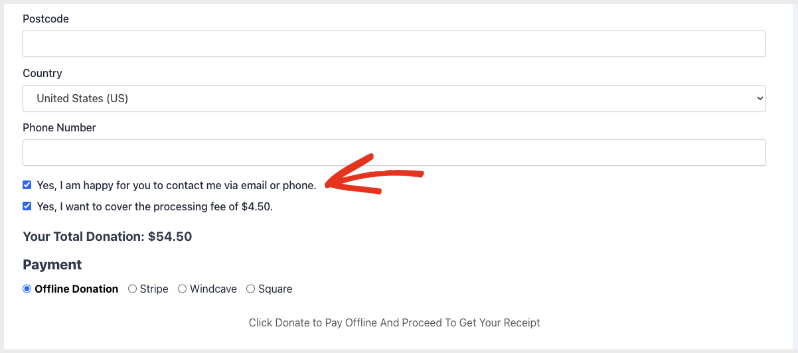
When you connect Charitable to Brevo, a simple opt-in checkbox sits right on your donation form. Donors can quickly opt in to hearing from you:
Requirements
- Charitable Pro with the Newsletter Connect extension, version 2.4.0 or later
- A Brevo account
- A Brevo API v3 key (not the SMTP key)
Getting Started
Find your Brevo API key
- Log in to your Brevo account.
- Go to SMTP & API, then open the API Keys tab.
- Copy your API v3 key. This is the key that starts with
xkeysib-. Do not use the SMTP key.
If your Brevo account has the Authorized IP addresses security feature enabled, add your website’s server IP to the allowlist in Brevo under Security > Authorized IPs. Otherwise Brevo will reject API calls from your site with a 401 error.
Connect Brevo in Charitable
In your WordPress admin, go to Charitable » Settings » Marketing » Newsletters.
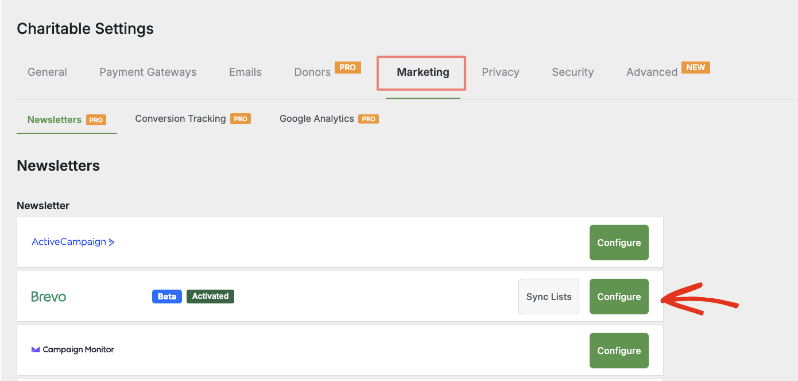
Find Brevo in the list of providers and click Configure.
Paste your API v3 key into the API key field and click Save Changes.
When the key is accepted, your Brevo contact attributes appear in the Subscriber Fields table.
Usage
Map your subscriber fields
The Subscriber Fields table lists the attributes available in your Brevo account. For each one, choose the Charitable donation field that should populate it. By default, Charitable maps:
- Email to the donor’s email address
- FIRSTNAME to the donor’s first name
- LASTNAME to the donor’s last name
Leave any attribute set to the dash ( – ) if you do not want to send a value for it.
Phone number attributes: Brevo requires SMS, WhatsApp, and landline attributes to be in international phone format, for example
+14155550123. Brevo rejects the entire contact if a phone number is not valid, so leave these unmapped unless your donation form collects phone numbers in that format.
Choose a list
On the main Newsletters settings screen, use Default List to pick the Brevo list that donors join by default. You can override this on a per-campaign basis in the campaign’s newsletter settings.
Choose how donors opt in
Use Default Opt-in Mode to control the newsletter opt-in on your donation forms:
- Opt-in checkbox, not checked by default: the donor must tick the box to join.
- Opt-in checkbox, checked by default: the box is pre-checked; the donor can uncheck it.
- Automatic opt-in: every donor is subscribed, with no checkbox shown.
You can also customize the checkbox label with Default Opt-in Label.
Enable double opt-in (optional)
Turn on Double opt-in to have Brevo send a confirmation email before a donor is added to your list. The donor is only subscribed after they click the confirmation link. When double opt-in is on, choose the Brevo double opt-in template and enter a confirmation redirect URL (where the donor lands after confirming).
To use this, first create a double opt-in template inside Brevo. If Charitable cannot find any templates in your account, the template field becomes a text box where you can enter the numeric template ID.
Configuration Options
Connection
| Setting | Type | Default | Description |
|---|---|---|---|
| API key | text | empty | Your Brevo API v3 key, from Brevo > SMTP & API > API Keys. |
Subscriber Fields
| Setting | Type | Default | Description |
|---|---|---|---|
| Field mapping | select (per attribute) | Email, FIRSTNAME, LASTNAME pre-mapped | Maps each Brevo contact attribute to a Charitable donation field. |
Double Opt-in
| Setting | Type | Default | Description |
|---|---|---|---|
| Double opt-in | checkbox | off | Sends a Brevo confirmation email before subscribing the donor. |
| Double opt-in template | select or text | empty | The Brevo template used for the confirmation email. Falls back to a numeric template ID field if no templates are found. |
| Confirmation redirect URL | text | empty | Where the donor is sent after confirming their subscription. |
Newsletter Behavior (Newsletters screen)
| Setting | Type | Default | Description |
|---|---|---|---|
| Default List | select | Choose a list | The Brevo list donors join by default across all campaigns. |
| Default Opt-in Mode | select | Opt-in checkbox, not checked | How the opt-in appears on donation forms. |
| Default Opt-in Label | text | Subscribe to our newsletter | The label shown next to the opt-in checkbox. |
GDPR and Privacy
Brevo support integrates with the WordPress personal data tools under Tools > Export Personal Data and Tools > Erase Personal Data:
- Export returns the donor’s Brevo contact attributes.
- Erase permanently deletes the donor’s contact from Brevo (a hard delete, not just an unsubscribe).
Monitoring and Troubleshooting
Every subscribe attempt is recorded in the Charitable activity log at Charitable > Tools > Logs. Filter by the Brevo source to see successes and errors, including the exact message Brevo returned.
The API key is not accepted (401 error)
Confirm you used the API v3 key (starts with xkeysib-), not the SMTP key. If your Brevo account restricts API access by IP, add your site’s server IP to the Authorized IPs allowlist in Brevo. The log entry will show Brevo’s exact message, including an “unrecognised IP address” note when the IP is the cause.
A donor was not subscribed
Check Charitable > Tools > Logs filtered by Brevo. A common cause is a phone number that is not in international format being sent to the SMS, WhatsApp, or landline attribute, which makes Brevo reject the whole contact. Unmap those attributes, or ensure your form collects phone numbers in +country format.
Double opt-in emails are not arriving
Confirm that double opt-in is enabled, that a valid Brevo template and confirmation redirect URL are set, and that the template exists and is active in your Brevo account. Remember that a donor who never clicks the confirmation link is never added to the list, which is the intended behavior.
Lists are out of date
Charitable caches your Brevo lists. Use the Sync Lists button next to Brevo on the Newsletters screen to refresh them.
Developer Resources
Filters
charitable_newsletter_connect_brevo_subscriber_data— Filter the data sent to Brevo when subscribing a donor. Receives the payload array, the user data, and the list ID.charitable_newsletter_connect_brevo_export_custom_field— Filter whether a given Brevo attribute is included in a GDPR personal data export.charitable_settings_fields_providers_provider_brevo— Filter the Brevo settings fields.charitable_newsletter_connect_providers— Register or modify the available newsletter providers.charitable_newsletter_connect_log_success— Return false to suppress the per-donation success log entries while still logging errors.
Constants
CHARITABLE_DEBUG_NEWSLETTER— Define as true to write verbose request and response detail to the Charitable log. The API key is never logged. Use this only for controlled debugging, since debug entries can include Brevo response data.
Additional Resources
Helpful Links
🤝 Get help when you need it
Connect with Customer Support →
📑 Find the guide you need
Browse the Documentation Hub →
⬇️ Download proven strategies, campaign ideas, and expert tools
🔗 Let your AI Assistant do the fundraising work for you.
Connect Charitable to your AI assistant →
💸 Get Free Fundraising Resources
Head to the Charitable Fundraising Hub →
🤔 Got questions about Charitable?
Charitable FAQs →
Need help understanding non-profit terms and jargon?
See our Non-Profit Glossary →




